
Imagine being seconds away from securing concert tickets only to face a frustrating roadblock. You’re not alone—thousands of fans encounter transaction delays daily while trying to book live events. This hiccup isn’t limited to a single device or browser, either. Whether you’re on a laptop, phone, or tablet, the problem can strike without warning.
So, what’s causing this interruption? The issue often stems from payment processing timeouts, which leave users stuck mid-purchase. Even reliable platforms occasionally struggle with high traffic during ticket drops. When seconds matter, these delays can mean missing out on must-see shows or games.
But don’t panic—solutions exist. Many find that minor tweaks to their setup or approach resolve the problem quickly. From clearing browser caches to adjusting payment methods, small changes often make a big difference. Let’s dive into actionable fixes so you can get back to securing your seats.
Key Takeaways
- Transaction delays impact users across all devices and browsers
- Timeouts typically occur during final payment steps
- Simple troubleshooting methods often resolve the issue
- Mobile and desktop users face similar challenges
- Quick action improves chances of securing tickets
Understanding Ticketmaster Error Code 0007
You’ve picked your seats, entered payment details, and clicked ‘confirm’—only to watch the screen freeze. This interruption usually signals a payment processing timeout, where systems can’t complete your request fast enough. Let’s unpack why this happens and how to spot its triggers.
Decoding the Payment Freeze
When transactions stall at the final step, platforms flag them as potential risks. Think of it like a digital stopwatch: if your purchase takes longer than expected, the system cancels the attempt. This safeguard prevents duplicate charges but frustrates users mid-checkout.
Why Timing Matters Most
High-demand events create perfect storms for these hiccups. Popular concerts or playoff games send thousands rushing to buy tickets at once. Overloaded servers struggle to keep up, creating bottlenecks during payment confirmations. Your own setup plays a role too—weak Wi-Fi or outdated browsers add extra delays.
Three main culprits often team up:
- Traffic surges: Major ticket releases overwhelm systems
- Connection glitches: Spotty internet disrupts data flow
- Browser conflicts: Old cache files or extensions interfere
Unlike other glitches (like error 0011), this specific issue targets payment completion after you’ve entered all details. Recognizing these patterns helps you respond effectively—whether switching browsers or timing your purchase strategically.
Diagnosing ticketmaster error code 0007 on Your Device
Your excitement turns to frustration as the checkout process stalls—again. Pinpointing the root cause starts with understanding whether the issue stems from your setup or external factors. Let’s break down how to assess your tools and eliminate common culprits.
Identifying Affected Browsers and Devices
Start by testing your purchase flow across multiple platforms. Try accessing the site using Chrome, Firefox, or Safari. If one web browser freezes while others work, you’ve found a compatibility problem.
Mobile users should check if their phone’s browser mirrors the desktop experience. Persistent issues across all devices suggest server overload rather than local glitches. Always compare performance on Wi-Fi versus cellular data too.
Recognizing Corrupted Cache or Cookies
Outdated or damaged cache files often sabotage smooth transactions. Watch for warning signs like login loops or broken page elements. These symptoms typically vanish after clearing stored data.
Extensions add another layer of complexity. Privacy tools and ad blockers sometimes block vital scripts. Temporarily disable add-ons to see if your cookies or payment forms behave differently. If pages load faster afterward, you’ve identified the troublemaker.
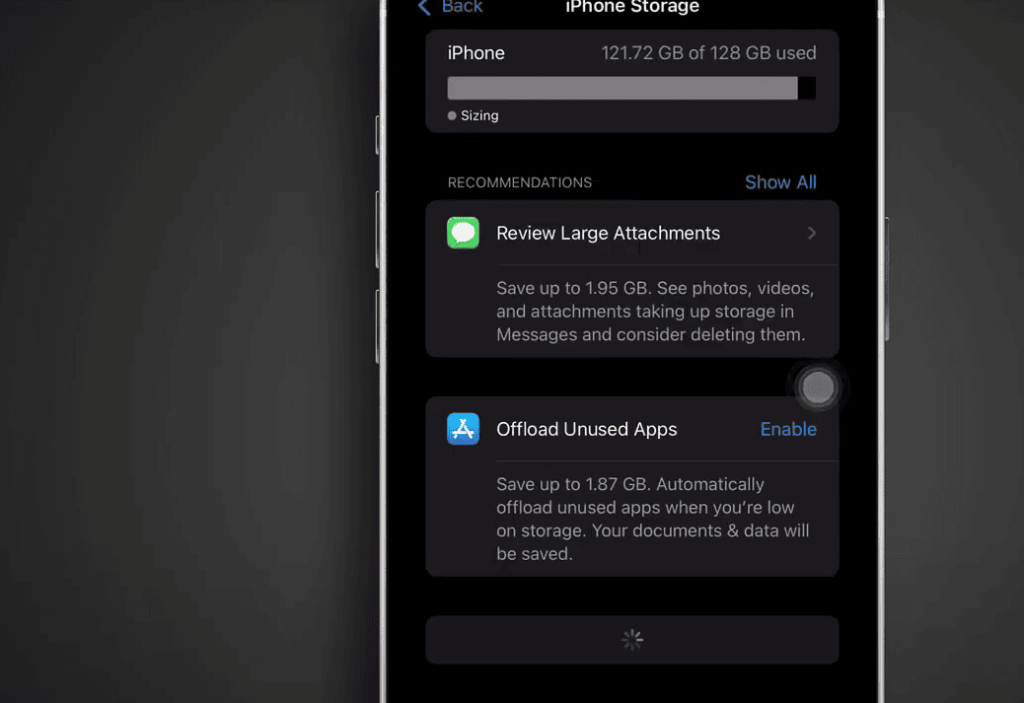
Still stuck? Older operating systems or low storage space can strain resource-heavy sites. Update your device software and close unused apps to free up memory. Simple maintenance often resolves hidden bottlenecks.
Step-by-Step Troubleshooting Methods
Stuck during checkout? Let’s fix that. These proven strategies tackle the most common roadblocks users face when finalizing purchases. Follow them in order for best results.
Clear Browser Cache and Cookies
Old data often causes hiccups. Clearing your cache removes temporary files that might conflict with payment processing. Here’s how to do it across popular web browsers:
| Browser | Steps | Location |
|---|---|---|
| Chrome | History > Clear Data > Cookies/Cache | Settings Menu |
| Firefox | Privacy > Clear Recent History | Tools Tab |
| Safari | Develop > Empty Caches | Menu Bar (Enable Dev Tools) |
| Edge | Safety > Delete Browsing History | Three-Dot Menu |
Use Incognito or Private Browsing Mode
Launch a private window to bypass extensions and stored cookies. This creates a fresh session—like using a brand-new browser. Most users see immediate improvements in page responsiveness.
Switch to an Alternative Web Browser or Mobile Browser
If Chrome falters, try Firefox or Safari. Mobile browsers often handle traffic spikes better than desktop versions. Keep multiple devices handy during high-demand sales.
Restart Your Device to Refresh the Connection
A full reboot clears RAM and resets network settings. Wait 30 seconds before powering back on—this ensures temporary files get wiped completely. Combine this with cache-clearing for maximum effect.
Additional Tips to Prevent Ticketmaster Errors
Setting up your tech properly before ticket drops dramatically improves your success rate. Let’s explore how to create a stable digital environment that avoids common pitfalls.
Optimize Your Internet Connection
Public networks at coffee shops or airports often throttle speeds during peak hours. These shared connections create data bottlenecks that disrupt payment confirmations. For critical purchases:
- Use your phone’s cellular network instead of public Wi-Fi
- Position your router centrally at home for better signal
- Connect devices via Ethernet cable when possible
Manage Browser Add-Ons and Security Tools
Privacy extensions and VPN software sometimes clash with payment gateways. Follow these steps before your next ticket rush:
- Disable ad blockers and security extensions temporarily
- Turn off Apple Private Relay or similar proxy services
- Close unnecessary tabs to free up browser resources
Multiple devices or browser windows can trigger anti-fraud systems. Stick to one web browser on a single device during checkout. If you’ve previously used VPNs, clear your cache to remove residual location data.
What to Do When Standard Fixes Fail
When your screen freezes after trying every browser trick, it’s time to dig deeper. Sometimes the problem isn’t on your end—it’s about systems overloaded by demand or hidden account glitches. Let’s explore advanced strategies to reclaim your ticket-buying momentum.
Checking Server Status and Payment Settings
Start by visiting the platform’s official status page or social media feeds. Major outages often get announced there first. If servers are green-lit, review your payment details thoroughly. Expired cards or mismatched billing addresses frequently stall transactions.
Still hitting walls? Create a fresh account using a different email. Some users find this bypasses account-specific flags. Always double-check your card’s available credit limit—pre-authorization holds sometimes exceed ticket prices temporarily.
Seeking Further Assistance or Using Alternative Platforms
When all else fails, contact support with screenshots showing exact error messages and timestamps. Mornings on weekdays often yield faster responses. For urgent needs, trusted resellers like StubHub or SeatGeek offer backup options without the same server pressures.
Document every attempt meticulously. Note which codes appeared, devices tested, and troubleshooting steps taken. This evidence helps escalate unresolved cases. Community forums sometimes reveal niche fixes from others who’ve conquered identical issues.
Conclusion
Snagging seats to must-see events shouldn’t feel like battling a glitchy system. While technical hiccups can test your patience, most errors have straightforward fixes. Clearing browser data, switching devices, or updating payment details often gets you back on track quickly.
Always double-check your internet connection and card information before high-demand sales. Private browsing modes create cleaner sessions for smoother transactions. If one method fails, try another browser or device—flexibility increases your odds.
Remember, popular events sell fast. Act quickly but stay calm if error codes appear. Many fans secure tickets by persisting through initial roadblocks. Keep backup payment options ready and avoid last-minute rushes.
When standard solutions don’t work, explore trusted resale platforms. Your dream concert or game shouldn’t slip away due to temporary glitches. With these strategies, you’ll turn frustrating delays into successful checkouts—and focus on counting down to showtime.