
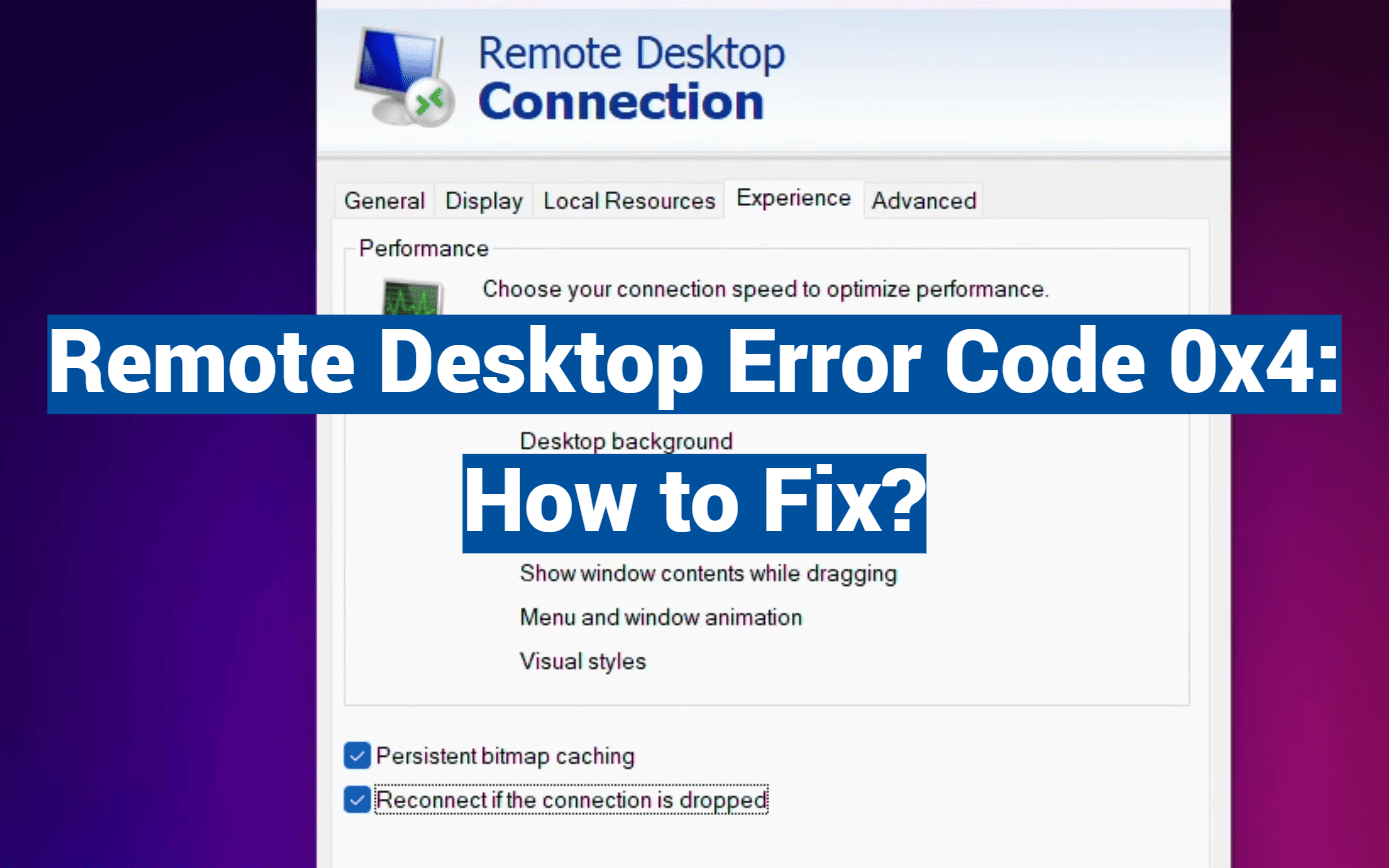
Did you know that connection problems are the single biggest reason for failed remote access attempts? When you see that dreaded message, it can stop your work completely.
If you are staring at a screen that says “Your session ended because of an error,” you have come to the right place. This specific connection failure is a common headache for many professionals. It prevents access to important systems and files.
This guide is your complete solution. We will walk you through the most frequent reasons this problem occurs. You will get clear, step-by-step instructions that work on Windows 10, Windows 11, and other versions.
Whether you use Microsoft Remote Desktop on a Mac, an iOS device, or between Windows computers, our fixes apply. We cover everything from simple checks to more advanced network settings.
The good news is that most people can solve this on their own. You likely will not need to call your IT department. We will also show you how to prevent this issue from happening again.
Key Takeaways
- This problem is a frequent connection failure that disrupts remote access.
- The guide provides fixes for Windows 10, 11, and other systems.
- Solutions work across different devices and platforms.
- Most instances can be resolved without expert help.
- The article includes prevention tips for stable future connections.
- Alternative access methods are discussed if troubleshooting fails.
Understanding Remote Desktop and the rdp error code 0x4
At its core, Remote Desktop Protocol creates a virtual bridge between two computers over a network. This Microsoft technology lets you see and interact with a distant desktop as if you were physically there. It’s a powerful tool for IT support and remote work.
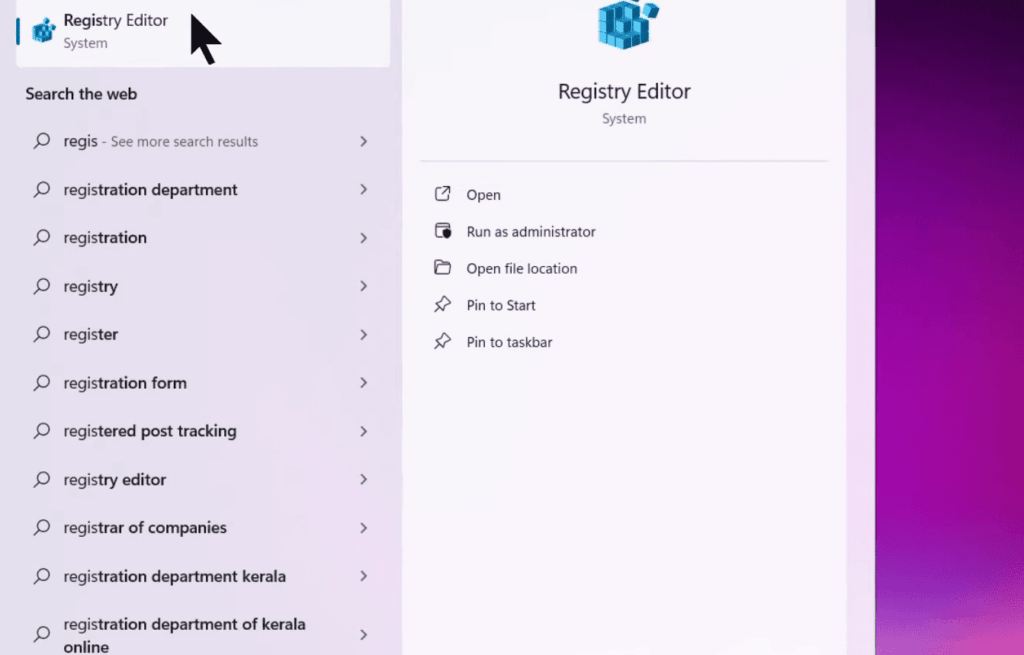
What is Remote Desktop Protocol (RDP)?
Think of RDP as a set of rules for a secure conversation. Your local machine, called the client, asks to connect to the remote machine, known as the server. The protocol manages this entire interaction, transmitting your clicks and displaying the screen.
It provides full access to the other system’s Windows environment. This happens over a network connection, making physical presence unnecessary.
Identifying rdp error code 0x4 in the connection process
This specific problem occurs right at the start. You open the remote desktop client, enter the computer details, and hit connect. Instead of a login screen, a message appears stating the session ended.
The code 0x4 means the initial handshake failed. The client and server could not establish a basic link. This is a connection-level issue, happening before you even type a password.
Overview of client and server interactions
A successful link requires both sides to be ready. The client must be configured correctly to send the request. The server must be set up to listen for and accept these incoming requests.
Understanding this client server relationship is key to fixing the problem. You will often need to check configurations on both the computer you are using and the one you are trying to reach.
Uncovering the Common Causes Behind the Error
Understanding what typically goes wrong helps you systematically address connection issues. The problem usually falls into one of four main categories. Identifying the specific cause is your first step toward a solution.
Network connectivity challenges and high latency issues
Your network connection is often the main culprit. Even if you can browse websites normally, remote desktop requires stable, continuous communication.
High latency or packet loss can disrupt the handshake process. These network problems prevent the client and server from establishing a reliable link.
Firewall restrictions and security software interferences
Firewall settings on either computer can block the necessary traffic. The default port for remote access might be closed.
Security software like antivirus programs may mistakenly flag the connection as suspicious. Corporate security tools often add extra layers of protection that can interfere.
System configuration and software update concerns
The remote desktop feature might not be enabled on the target computer. User permissions could be incorrectly set, denying access.
Outdated software or incompatible versions between devices can create compatibility problems. Missing Windows updates sometimes contain important fixes for these connection issues.
A Comprehensive Fix for rdp error code 0x4
Solving connection issues requires methodical steps that address both client and server configurations. This systematic approach helps identify the root cause quickly.
Follow these solutions in order for the best results. Each fix builds on the previous one.
Enabling Remote Desktop and Allowing It Through the Firewall
First, verify that remote access is enabled on the target computer. Press Windows + R, type “sysdm.cpl,” and navigate to the Remote tab.
Select “Allow remote connections to this computer.” Then configure your firewall settings to permit this access.
Search for “Allow Apps through Windows Firewall” and check the Remote Desktop option. This creates the basic pathway for connection.
Running Network Diagnostics With Ping and Traceroute Tools
Network stability is crucial for reliable remote access. Use the ping command to test your connection quality.
Open the Run dialog and type “ping 8.8.8.8 -t”. Consistent response times indicate good network health. Erratic numbers suggest underlying issues.
Verifying User Permissions and System Service Configurations
Check that your account has proper user permissions for remote access. Ensure the Remote Desktop Services are running on the server.
Open Services (services.msc) and verify the status. Restart the service if needed to refresh the connection.
Updating Software and Checking for Compatibility Issues
Keep your Windows system and remote desktop software updated. Compatibility between different versions prevents many problems.
Check for updates on both client and server sides. Modern software versions often include important fixes for connection stability.
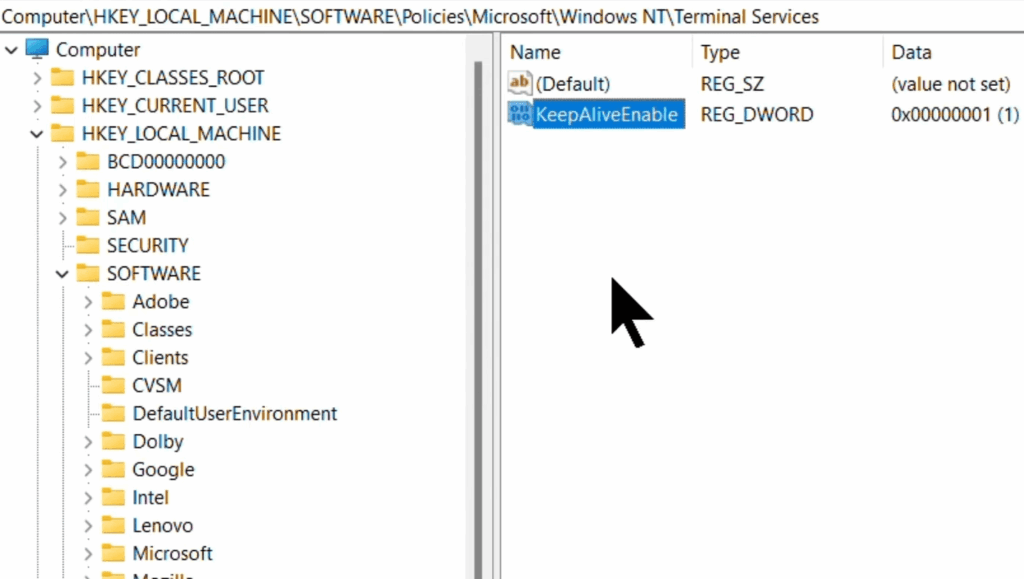
Best Practices to Prevent Future Remote Desktop Connection Issues
Building a reliable remote access environment requires proactive strategies that go beyond simple troubleshooting. Implementing these measures saves time and creates a more stable experience for all users.
Prevention-focused approaches address both technical infrastructure and user behavior patterns. This comprehensive strategy ensures consistent performance across all devices.
Implementing Continuous Network Monitoring and QoS Policies
Continuous network monitoring helps identify potential problems before they affect your connections. Tools like Wireshark, Nagios, and SolarWinds track performance metrics in real time.
Quality of Service policies prioritize important traffic during network congestion. This ensures remote desktop sessions maintain stable performance when bandwidth is limited.
Regular network optimization includes updating hardware firmware and reviewing infrastructure. Adequate bandwidth allocation prevents session interruptions for multiple users.
| Monitoring Tool | Primary Function | Best For | Setup Complexity |
|---|---|---|---|
| Wireshark | Packet analysis | Technical troubleshooting | Advanced |
| Nagios | Infrastructure monitoring | Enterprise environments | Medium |
| SolarWinds | Comprehensive performance | Mixed skill levels | Medium |
Maintaining Regular System and Security Updates
Automated update tools like Windows Server Update Services ensure timely patch deployment. Always test updates in staging environments first to avoid compatibility issues.
Configuration management tools create standardized settings across all systems. Regular audits verify that firewall security rules and user permissions remain appropriate.
User education is equally important. Teach proper session disconnection methods and prompt issue reporting to your support team.
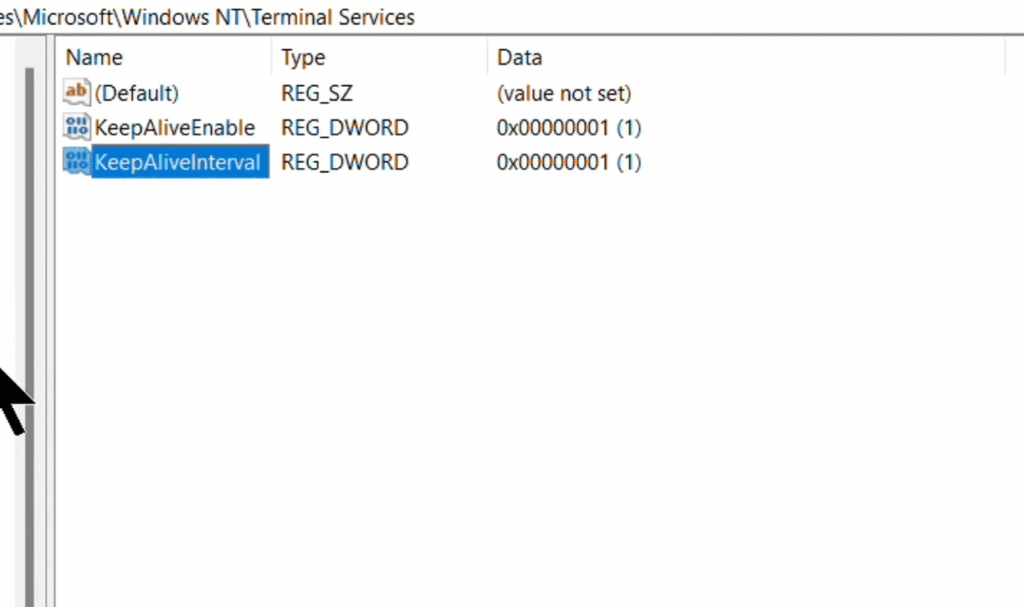
Conclusion
The journey from connection failure to stable remote desktop access follows a logical progression of checks and adjustments. By working through the systematic approach outlined here, you can resolve most interruption issues efficiently.
Remember that successful remote desktop sessions require proper configuration on both your local machine and the target computer. Regular maintenance and security awareness help prevent future disruptions to your connection.
If persistent issues continue after troubleshooting, consider alternative tools like AnyViewer or Chrome Remote Desktop. With the right knowledge, maintaining reliable access across your Windows environment becomes straightforward and dependable.
Bookmark this guide for quick reference whenever you encounter connection challenges. The systematic approach applies to various remote access scenarios beyond the specific issue discussed here.