
Imagine being able to create a larger-than-life cinematic experience right at home, with crystal-clear visuals that transport you into a world of immersive storytelling. Now, picture this: not just one projector, but multiple projectors working in perfect harmony to enhance your viewing pleasure. Sounds too good to be true? Well, prepare to be astonished as you unveil the ultimate guide to using multiple projectors with one laptop. Whether you’re a movie buff, a gaming enthusiast, or a professional in need of an impressive presentation setup, this guide will equip you with the knowledge and know-how to connect not just two, but an array of projectors to one laptop, unlocking a whole new level of visual marvel. So, grab your popcorn and get ready to enter the realm of breathtaking projector magic.
Reasons to connect two projectors to one laptop
There are various reasons why one would want to connect two projectors to one laptop. Take a look at some of the most common reasons:
- Creating an extended display: Connecting multiple projectors to one laptop allows for the creation of an extended display, essentially expanding your viewing area. This is particularly useful when working with large spreadsheets, presentations, or watching movies on a bigger screen. With an extended display, you can have more space to arrange and organize your content, enhancing productivity and visual clarity. It provides a seamless workflow by enabling you to view multiple applications or documents side by side, eliminating the need for constant window switching.
- Immersive gaming experience: Gamers often use multiple projectors to create an immersive gaming setup, allowing them to fully immerse themselves in the game’s virtual world. With multiple projectors projecting different angles and views onto a larger screen, gamers can have a more realistic and engaging gaming experience. They can enjoy the thrill of panoramic visuals, where the game world expands beyond their peripheral vision, providing a more immersive and captivating gameplay. This setup enhances the overall gaming experience, making it more thrilling and immersive.
- Efficient multitasking: Connecting two projectors to one laptop also enables efficient multitasking. With an extended display, you can work on one screen while keeping important information or references open on the other screen. This allows for seamless multitasking, as you can easily switch between different tasks without minimizing or resizing windows. It’s particularly beneficial for professionals who need to work with multiple applications simultaneously, such as content creators, designers, or traders. The extended display provides more screen real estate, improving productivity and workflow efficiency.
- Enhanced presentations: Multiple projectors can be used to create a larger and more dynamic presentation setup. This is especially useful for professionals who need to showcase their work in a visually impressive manner, such as in conferences or meetings. With multiple projectors, you can create immersive visuals that captivate the audience’s attention and convey information effectively. You have the flexibility to display different content simultaneously, such as charts, images, and videos, enhancing the impact and engagement of your presentation. This setup allows you to deliver a more memorable and impactful presentation, leaving a lasting impression on your audience.
Step-by-step Guide on how to Connect Two Projectors to One Laptop
Now that you know the benefits of connecting multiple projectors, let’s dive into the technical know-how. Here are the steps to connect two projectors to one laptop:
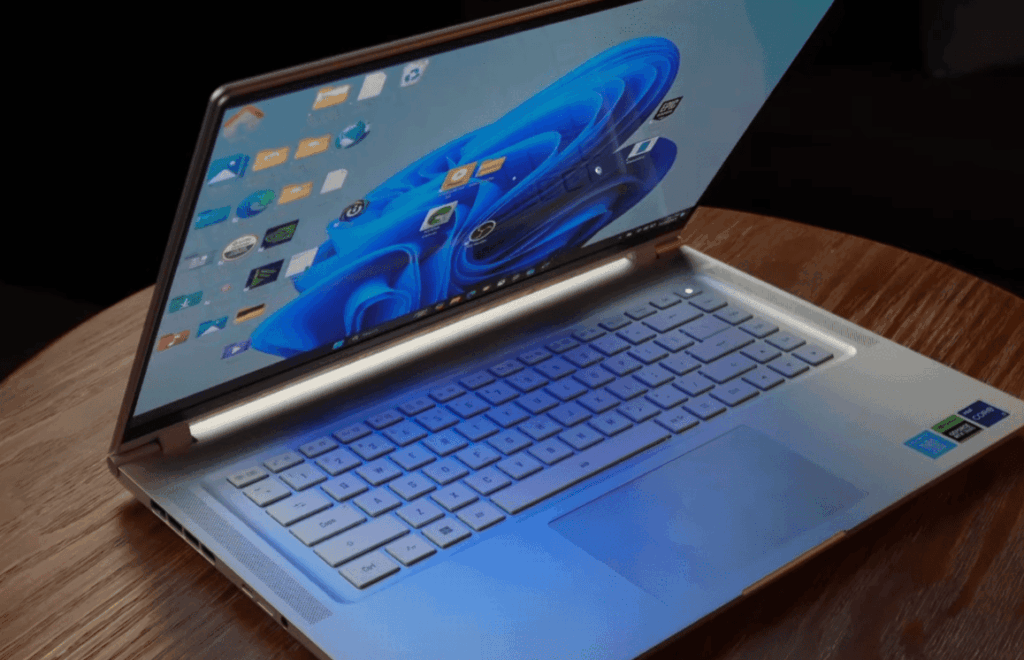
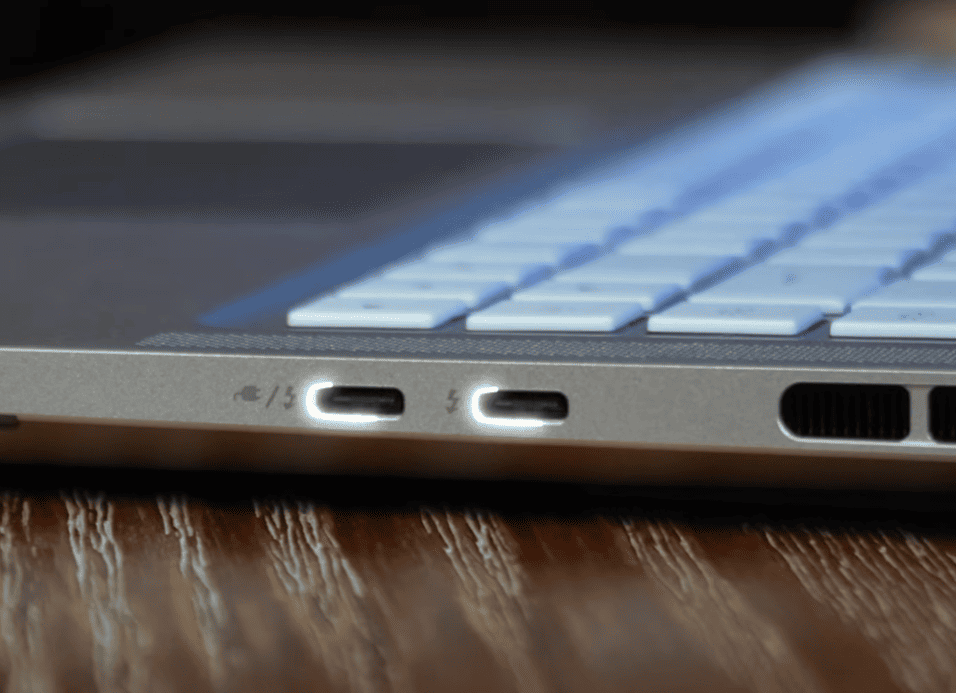
- Check your laptop’s connectivity options: Before attempting to connect two projectors, it’s important to ensure that your laptop has the necessary ports and connectivity options. Common ports to look for include VGA, HDMI, or DisplayPort. If your laptop doesn’t have these ports, you may need to invest in an adapter that allows you to connect the projectors.
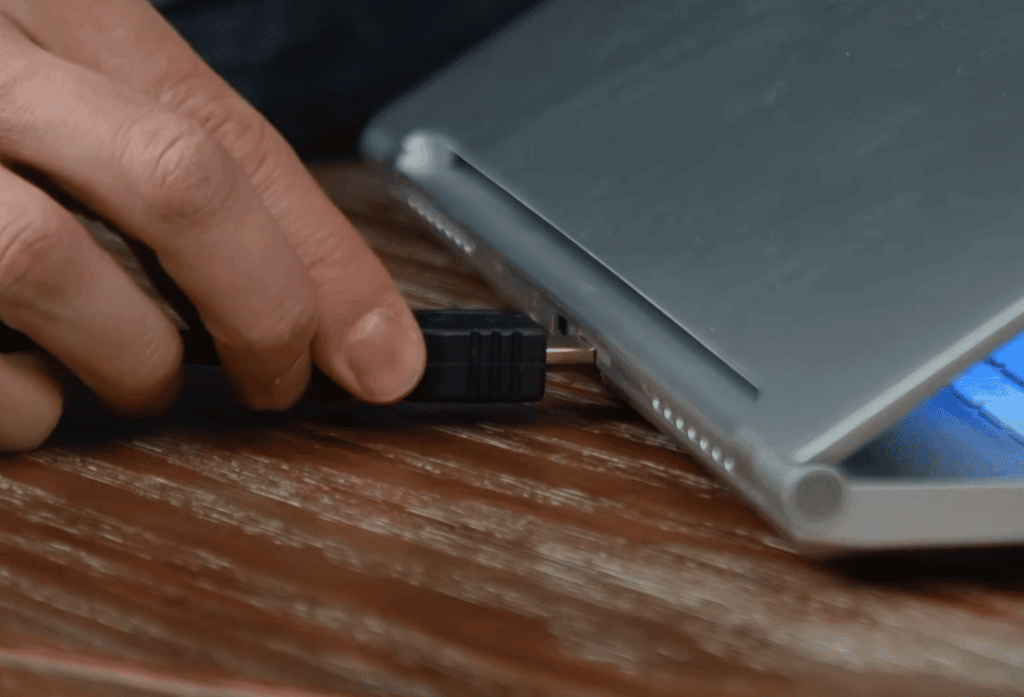
- Connect the first projector: Start by connecting the first projector to your laptop using the appropriate cable. Ensure that both your laptop and the projector are powered on and ready for connection.
- Adjust display settings: Once the first projector is connected, navigate to your laptop’s display settings. Look for the option to “Extend” the display, which will allow you to utilize both projectors as an extended display. This means that your laptop screen will be separate from the projector screens, giving you a wider display area.
- Connect the second projector: Repeat the same process for the second projector, connecting it to your laptop using a different cable than the first projector. Ensure that both projectors are displaying properly on their respective screens and that they are synchronized with your laptop.
- Adjust display settings (again): Now that both projectors are connected, go back to your display settings and verify that both projectors are recognized as separate displays. This will enable you to customize the arrangement of the displays to suit your needs. For example, you can choose to have one projector display on top of the other or side by side.
- Test it out: Once everything is set up, it’s essential to test the extended display functionality. Move your cursor from one screen to the other to ensure that they are working seamlessly. Additionally, try playing a video or presentation on both screens to verify that the content is being displayed correctly on both projectors.
By following these detailed steps, you can successfully connect and configure two projectors to your laptop, creating an extended display setup for enhanced viewing and presentation experiences.
Now you’re all set to enjoy a larger and more immersive viewing experience with multiple projectors connected to your laptop. Keep in mind that the process may vary slightly depending on your laptop and projector models, so be sure to refer to their manuals for specific instructions.
How to Solve Common Projector Display Problems?
Display Toggle Issues
One common issue that can arise when connecting multiple projectors to one laptop is display toggle issues. This means that the projector displays may not appear correctly or the content may not be displayed on both screens. To resolve this problem, you can try adjusting the display toggle settings on your laptop.
To do this, press the “Windows + P” keys on your keyboard. This will bring up a menu that allows you to choose how your laptop screen and projectors are displayed. You can toggle through the display options until you find the one that works best for your setup.
If you want to utilize both projectors as an extended display, select the “Extend” option from the menu. This will allow you to extend your laptop screen across both projectors, giving you a larger workspace.
By adjusting the display toggle settings and selecting the appropriate options, you can ensure that your multiple projectors are functioning correctly and displaying the content as desired.
Resolution Mismatch
Another common issue that many people encounter is a resolution mismatch between their laptop and projectors. When the resolutions of the two displays do not match, it can lead to distorted or blurry visuals on either one or both screens. To resolve this problem, you can go to your display settings and make sure that the resolution of each display is set to match the native resolution of the projectors.
In some cases, you might need to adjust the resolution on your laptop or make changes to the projector settings in order to achieve this optimal alignment. Taking the time to address this resolution mismatch can greatly enhance the visual experience and ensure that your presentations or multimedia content are displayed with crystal-clear clarity.
Cable Connection Problems
If your projectors are not being detected or are displaying a “No Signal” message, there could be an issue with your cable connections. Make sure that all cables are securely connected to both your laptop and projectors, and check for any loose connections.
If the issue persists, try using different cables or adapters to see if there is a problem with the equipment. It’s also recommended to have spare cables on hand in case of unexpected technical difficulties during presentations or events.
Projector Doesn’t Turn Off
Some users may encounter a common problem where their projectors do not turn off automatically after disconnecting from their laptop. This issue often arises from the laptop’s power settings, which are configured to “Do nothing” when the lid is closed. As a result, the projectors remain powered on even when they are no longer in use.
To resolve this inconvenience, you can easily navigate to your laptop’s power settings and make a simple adjustment. By changing the power option to either “Sleep” or “Hibernate” when closing the lid, you can ensure that your projectors will properly turn off when disconnected from the laptop. This small but significant modification will not only conserve energy but also prevent any unnecessary wear and tear on your projectors.
So, next time you encounter this issue, remember to tweak your power settings accordingly, and bid farewell to the persistent problem of projectors that refuse to power down after disconnecting from your laptop!
Projector Doesn’t Display Image
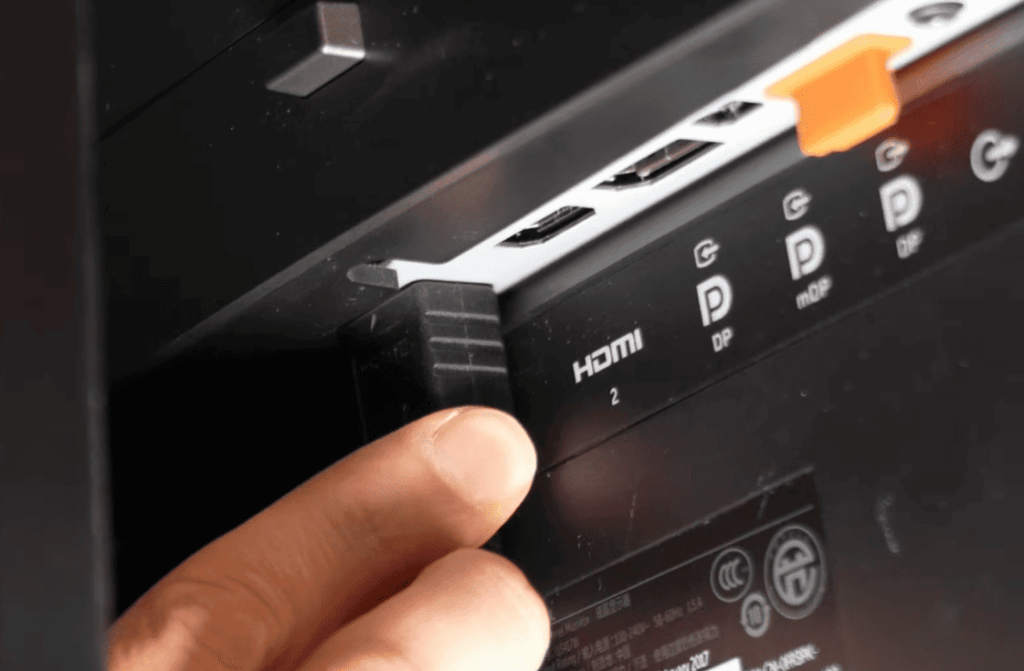
If your projector is not displaying any image or content, it could be due to a variety of reasons. First, check that the projector is turned on and connected properly to your laptop using the appropriate cables. Ensure that the HDMI or VGA cable is securely plugged into both the projector and your laptop’s video output port. Additionally, verify that the power cable is firmly connected to the projector and an electrical outlet.
Next, make sure that the correct input source is selected on the projector. Many projectors have multiple input options such as HDMI, VGA, or DisplayPort. Use the projector’s remote or on-screen menu to choose the correct input source that matches the cable you are using.
If these steps do not resolve the issue, you can try adjusting the display settings on your laptop. Open the display settings menu on your laptop and ensure that the resolution and display mode are compatible with the projector. You may need to change the resolution or extend the display to the projector.
Lastly, if the problem persists, consider restarting both your laptop and the projector. Sometimes, a simple restart can help resolve any temporary software or connection issues.
Poor Quality Image
If the image displayed by your projector is of poor quality, it could be due to a number of factors. Make sure that the projector lens is clean and not obstructed by any objects or debris. You can also adjust the focus and keystone settings on the projector for optimal clarity. If these steps do not improve the image quality, it could be an issue with the projector settings or the content being displayed. Try adjusting these factors to see if it improves the image quality.
By addressing common problems that may arise when connecting and using multiple projectors, you can ensure a smooth and successful experience with your extended display setup. If you encounter any other issues, refer to the manuals for your laptop and projectors or seek assistance from technical support for further troubleshooting. Overall, having multiple projectors connected to your laptop can greatly enhance your viewing and presentation experiences, making it a worthwhile investment for those who frequently use projectors.
Cord is too Short
A common limitation when using projectors is the length of the cord, which can limit how far apart you can place the projector and your laptop. To solve this issue, you can use extension cords or invest in longer cables to give you more flexibility in setting up your display. Another solution is to use a wireless connection option, such as Wi-Fi or Bluetooth, to connect your laptop to the projectors. This eliminates the need for physical cables and allows you to have more freedom in placement of the projectors. However, keep in mind that a wireless connection may not always be as reliable or stable as a wired connection, so it’s best to test it out beforehand.
Remote Control not working
Many projectors come with a remote control for convenient and easy use. However, if your remote control is not working properly, it may be due to a dead battery or poor connection between the projector and the remote. To check the batteries in the remote, open the battery compartment and ensure they are properly inserted, with the correct polarity.
If this does not resolve the issue, try resetting the connections by turning off the projector and removing the batteries from the remote for a few minutes before reinserting them. If the problem persists, it is advisable to seek technical assistance from the manufacturer or a qualified technician. It’s always a good idea to have spare batteries on hand for unexpected situations, especially if you frequently use your projector and remote control.
FAQ
Can I connect two projectors to one computer?
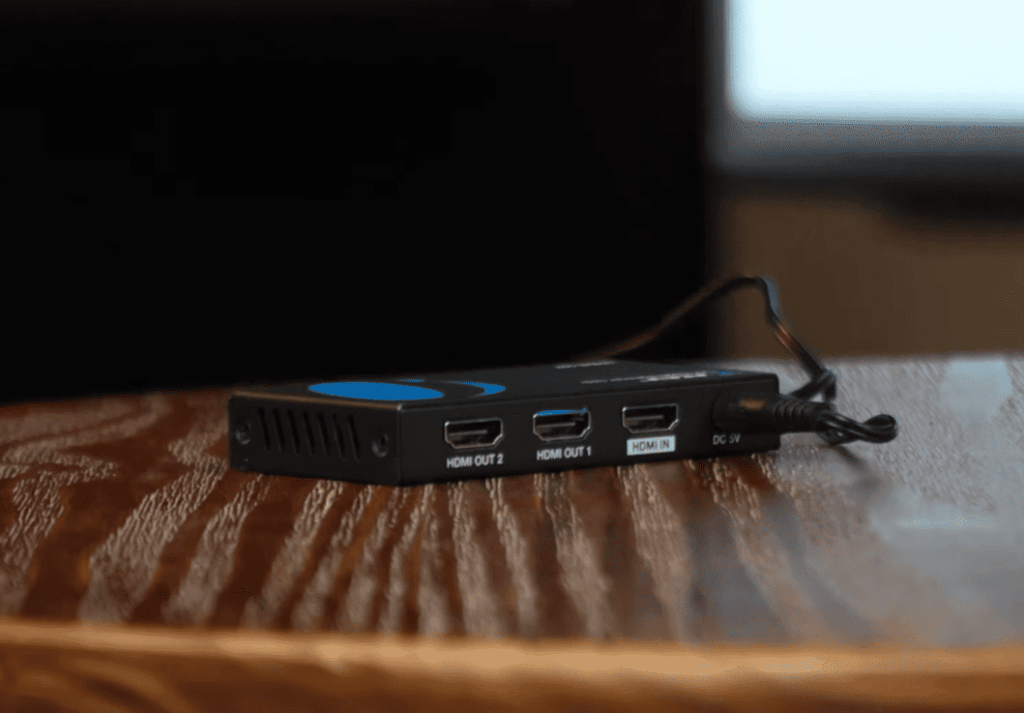
Yes, it is indeed possible to connect multiple projectors to one computer. This can be achieved by using a video splitter or by leveraging the extended display feature on your laptop. With a video splitter, you can duplicate the computer’s screen onto multiple projectors simultaneously, allowing for a consistent visual experience across all connected displays.
On the other hand, if your laptop supports extended display functionality, you can connect each projector to a separate display port or video output, enabling you to extend your desktop and have individual content on each projector. The specific method you choose may vary depending on your laptop’s operating system and hardware, so it’s important to consult the respective user guides or online resources for detailed instructions tailored to your specific setup.
Can I use a projector without a computer?
Yes, many projectors have built-in media players or ports that allow for direct playback of media files such as images, videos, and audio. This means that you can use a projector without a computer by loading your desired content onto a USB drive or SD card and inserting it into the designated port on the projector. Some projectors even have Wi-Fi capabilities, allowing you to stream content from your phone or other devices wirelessly. However, keep in mind that the features and compatibility may vary depending on the specific model of projector. It’s best to consult the user manual or contact technical support for more information on using your projector without a computer.
Can 2 projectors work together?
Yes, as mentioned previously, you can connect multiple projectors to one computer and have them work together simultaneously. This can be beneficial for larger presentations, events, or entertainment purposes where a single projector may not provide enough coverage or brightness. By connecting two projectors to one computer, you can achieve a wider display area and potentially enhance the overall quality of your content. However, it’s important to ensure that the projectors are compatible with each other and that your computer can support multiple displays before attempting to connect them. You may also need to adjust the settings on both projectors for optimal synchronization.
How do I project with two projectors?
To project with two projectors, you will need to first connect both projectors to your laptop using appropriate cables or a video splitter. Then, depending on your operating system, you can adjust the display settings to extend your desktop across both projectors. This will allow each projector to display different content simultaneously. You may also need to adjust the individual settings for each projector, such as resolution and brightness, to ensure a seamless and synchronized projection. It’s recommended to test out the setup beforehand to make any necessary adjustments and avoid potential technical difficulties during your presentation or event.
Conclusion Paragraph
So, to connect two projectors to one laptop, it is important to have the necessary cables or adapters and ensure that both projectors are compatible with each other and your laptop. Troubleshooting common issues such as short cords or remote control malfunctions can also greatly improve your overall experience with using multiple projectors. Remember to refer to user manuals or seek technical support if needed, and always test out your setup before important presentations or events. With the right equipment and know-how, you can easily connect multiple projectors for a more immersive and impactful display experience. So go ahead and explore the endless possibilities of using two projectors with one laptop!