
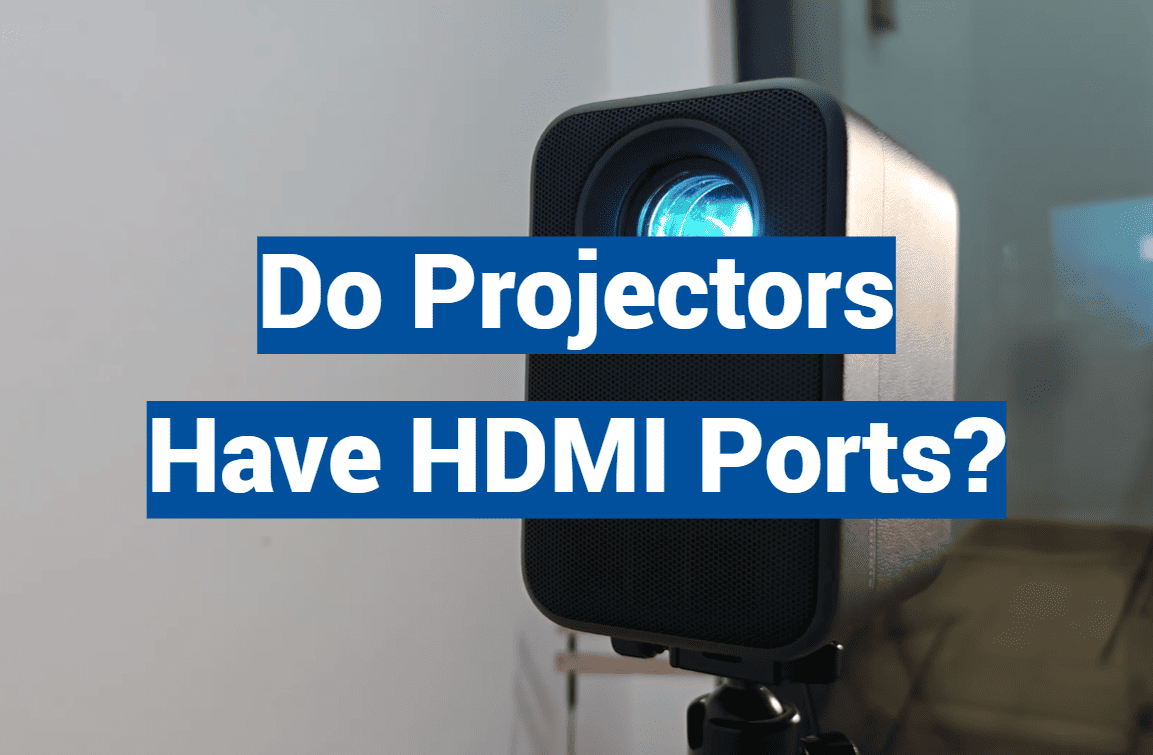
Projectors are essential in presentations and media entertainment for displaying content on a larger scale. They are widely used in boardrooms, classrooms, and home theaters. But not all projectors come with built-in connectivity for laptops, gaming consoles, or Blu-ray players. This article explores projector connectivity, focusing on HDMI and its significance in enhancing visual experiences. Understanding how HDMI works with projectors can make a difference between a seamless display and a frustrating technology session. So, shed some light on the role of HDMI in projectors.
Explanation of HDMI: A Clever Cable
To grasp the importance of an HDMI port in a projector, it’s essential to understand what HDMI is and the features it offers.
What Is HDMI?
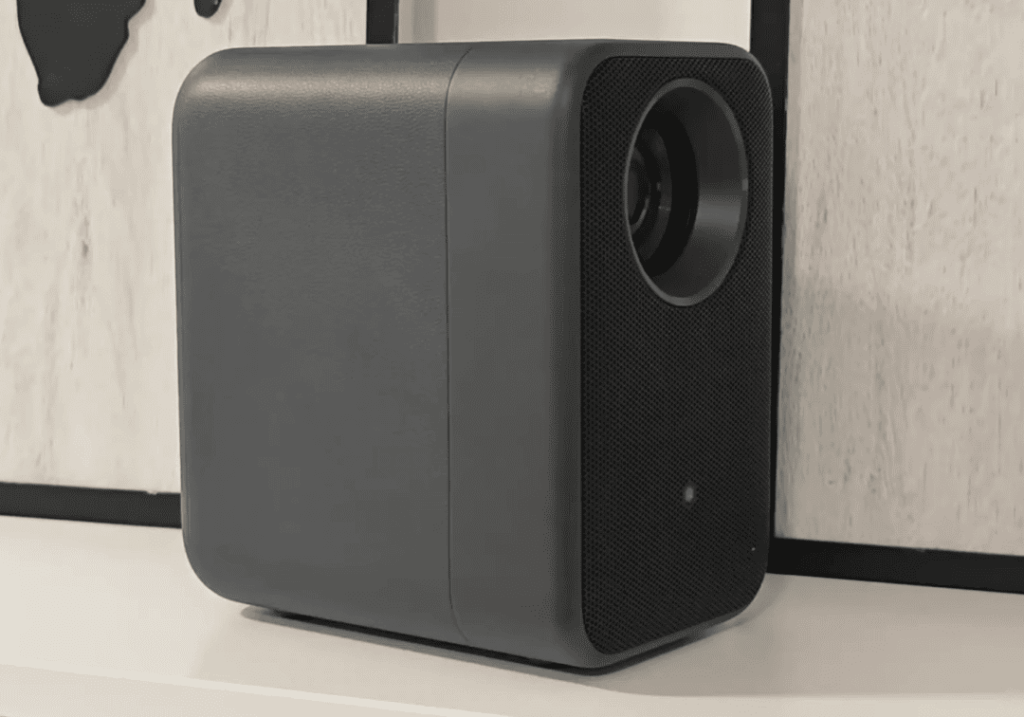
HDMI (High-Definition Multimedia Interface) is a widely-used proprietary audio/video interface that allows for the seamless transmission of uncompressed video data and both compressed or uncompressed digital audio data. It serves as a reliable and efficient connection between HDMI-compliant source devices and a wide range of compatible display devices, including monitors, video projectors, digital televisions, and digital audio devices. With its versatile capabilities and widespread adoption, HDMI has revolutionized the way we experience high-definition multimedia content, providing an immersive and high-quality audiovisual experience like never before.
Features of HDMI
One of the most notable and widely recognized features of HDMI is its exceptional ability to carry high-quality video and audio signals seamlessly through a single cable. This not only simplifies and declutters your setup, eliminating the need for multiple cables, but also saves you valuable time during installation and configuration. Furthermore, HDMI boasts extensive compatibility with various video standards, making it a versatile and reliable choice for connecting a wide range of devices. Whether you’re connecting computers, gaming consoles, cameras, or smartphones, HDMI ensures seamless and high-fidelity transmission to enhance your multimedia experience.
Types of Projectors with HDMI Ports: A Wide Range
Not all projectors are created equal when it comes to HDMI connectivity. So, explore which types of projectors are likely to offer an HDMI port:
Home Theater Projectors
For the ultimate cinematic experiences in the comfort of your own home, projectors with HDMI ports are an absolute must-have. With their ability to seamlessly connect to various home entertainment systems, these projectors provide a smooth and immersive transition from digital content to breathtaking large screen viewing.
Whether you’re enjoying your favorite movies, streaming the latest shows, or gaming with friends, these projectors deliver stunning visuals and an unparalleled audio-visual experience that will transport you to a whole new world of entertainment. Get ready to be captivated by every scene, with every detail brought to life in vivid clarity and vibrant colors. Elevate your home entertainment to new heights with a projector that truly enhances your cinematic journey.
Business and Education Projectors
Presenters and educators highly value reliability and ease of use in their equipment. When it comes to business and education projectors, having HDMI ports provides the flexibility to seamlessly switch between different devices, ensuring a smooth and uninterrupted presentation or teaching experience. With this versatile feature, presenters can effortlessly connect laptops, tablets, or other compatible devices, eliminating the need for complicated setups or additional adapters. This convenience allows presenters and educators to focus on delivering their content effectively without worrying about technical difficulties or interruptions.
Pico Projectors
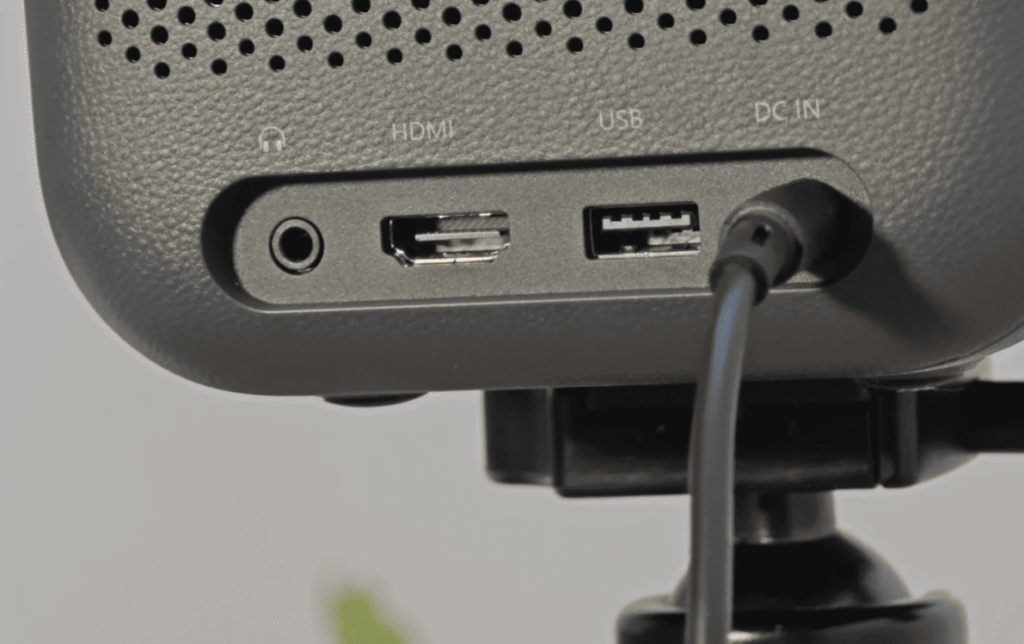
These ultra-portable projectors have found their niche in many on-the-go business scenarios. With their compact size and lightweight design, they offer convenience and flexibility for professionals who frequently travel or need to give presentations outside of traditional office settings. Additionally, Pico projectors are becoming increasingly versatile, as they are now equipped with HDMI ports to ensure seamless compatibility with the latest gadgets and presentation tools. This allows users to easily connect their devices and deliver high-quality visuals, enhancing the overall experience for both the presenter and the audience.
High-End and 4K Projectors
When it comes to the highest quality projectors, they not only offer exceptional image quality, but also provide a wide range of connectivity options. These projectors boast multiple HDMI ports, allowing you to effortlessly connect and switch between different sources, ensuring seamless integration with various devices. With such advanced connectivity features, you can experience stunning visuals and maintain the highest resolution standards for an immersive viewing experience like no other.
Benefits of Using HDMI with Projectors: Seamless Integration
The adoption of HDMI in projector technology presents numerous advantages, ensuring a seamless connection and enhanced visual experience.
High-Quality Audio and Video Transmission
HDMI, which stands for High-Definition Multimedia Interface, is a powerful technology that supports up to 8 channels of uncompressed audio. This feature ensures a truly immersive sound experience, allowing you to hear every subtle detail and nuance in your favorite movies, music, and games.
But that’s not all! On the video front, HDMI is capable of carrying stunning 4K resolutions and beyond. This means that when connected to a compatible projector, you can enjoy the highest level of visual clarity and detail, bringing your entertainment to life like never before. Whether you’re watching a blockbuster movie or playing the latest video game, HDMI delivers the clearest, most detailed image possible, making every viewing experience truly remarkable.
Compatibility with Various Devices
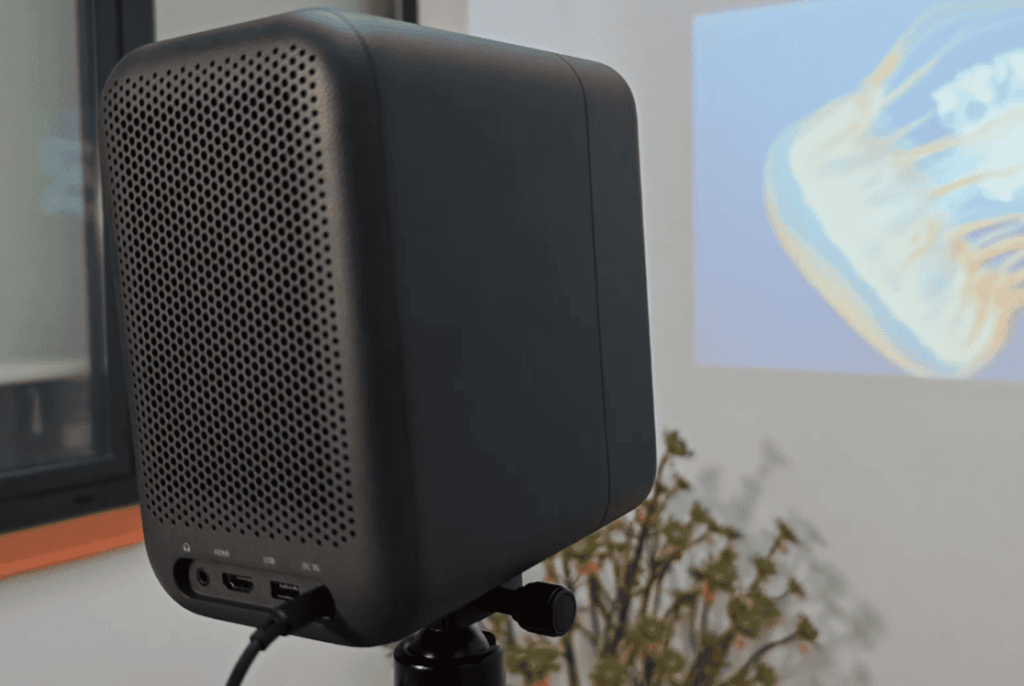
One of the biggest perks of HDMI is its widespread adoption. With the majority of modern devices using HDMI, projectors with HDMI ports become a universal hub for any digital source, seamlessly connecting a wide range of devices. From laptops and Blu-ray players to the latest gaming consoles and smartphones, HDMI allows for high-quality audio and video transmission, enabling an immersive and versatile multimedia experience. Whether you’re enjoying a movie night at home or giving a presentation at work, the convenience and compatibility of HDMI make it an indispensable technology for connecting and sharing content across various platforms.
How to Connect a Projector Using HDMI: A Step-by-Step Guide
Connecting your projector via HDMI can be a breeze with the right guidance. Here’s a simple step-by-step process to help you out:
- Before you begin, make sure both your projector and device are turned off. Also, ensure you have the correct HDMI cable – Standard, Micro, or Mini – that is compatible with both devices.
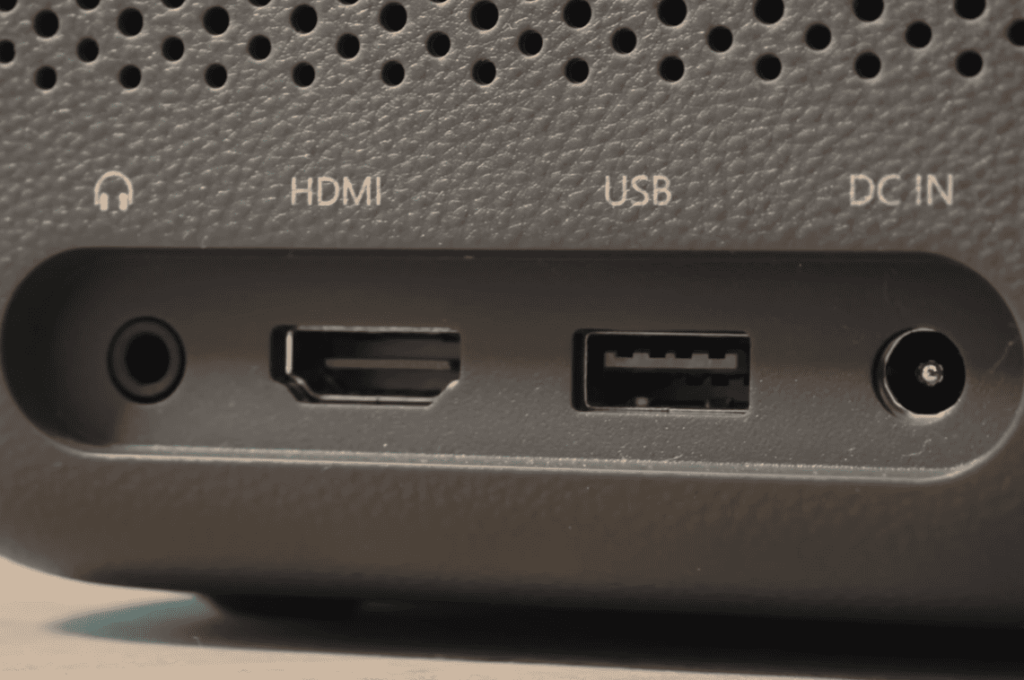
- Take a moment to identify the HDMI port on your projector. It is usually labeled as HDMI or HDMI-In, but it may vary depending on the model.
- Now, grab your HDMI cable and connect one end to the HDMI port on your device. Take the other end and plug it securely into the HDMI port on your projector. Make sure both ends are connected tightly to ensure a stable connection.
- With the physical connections done, it’s time to power on your projector. You can do this by using either the projector’s remote control or the control panel, depending on the model. Once powered on, make sure to select the HDMI input as the source.
- Lastly, power on your external device that you want to connect to the projector. The moment you do this, the projector should automatically detect the HDMI connection and display the content from your device.
By following these detailed steps, you’ll be able to connect your projector to your device seamlessly and enjoy your favorite content on the big screen.
Other Available Connections for Projectors
USB (Universal Serial Bus) Ports
USB ports have been a staple of computer technology for decades, and now they are becoming increasingly common in projectors as well. These versatile ports allow you to connect various USB-compatible devices such as laptops, smartphones, and tablets to your projector, giving you access to a vast array of content.
VGA (Video Graphics Array) Ports
Though HDMI is slowly becoming the preferred method of connection for projectors, VGA ports are still commonly found on many devices. These ports support analog video signals and allow you to connect your projector to legacy devices or older computers that do not have an HDMI port.
DVI (Digital Visual Interface) Ports
DVI ports are typically found on older projectors and computers. They support digital video signals and are capable of delivering high-quality visuals, but they do not carry audio signals like HDMI does. For this reason, DVI is commonly used for connecting to desktop computers or DVD players.
Composite Video and S-Video Ports
These ports support standard definition video signals and are typically found on older projectors. They are often used to connect VCRs, DVD players, and other devices that do not have HDMI or VGA ports.
As technology continues to evolve, projectors with various connectivity options will become more prevalent. However, with its exceptional audio and video transmission capabilities and widespread adoption, HDMI is undoubtedly the go-to choice for seamless integration and an unparalleled viewing experience.
Can You Connect Laptop To Projector With HDMI?
Prepare The Right Cables
To connect your laptop to a projector using HDMI, you need the right cables. If your laptop has an HDMI port, all you need is an HDMI cable. However, if your laptop does not have an HDMI port, you will need an adapter or converter cable that can convert another video output into HDMI.
Connect The Cables
Once you have the necessary cables, the next step is to connect them. Plug one end of the HDMI cable into your laptop’s HDMI port or adapter and the other end into the projector’s HDMI port.
Plug In Your Laptop And Projector
With the cables connected, it’s time to power on both your laptop and projector. Make sure that they are both set to the correct input source (HDMI) and that the HDMI cable is securely connected.
Adjust Display Settings
The default display settings of your laptop might not be optimized for the projector, so you may need to adjust them manually. Depending on your laptop’s operating system, you can do this by going to the display settings and selecting the appropriate resolution for the projector. You may also need to adjust the aspect ratio so that the projected image fits correctly.
Start Sharing Your Screen
Once everything is set up and adjusted, you can start sharing your screen with the projector. This can be done through your laptop’s display settings or by pressing the appropriate key combination (usually Fn + F4) to toggle between displays.
Connecting your laptop to a projector using HDMI is generally a straightforward process. However, in some cases, you may experience issues with the connection or display. If this happens, try troubleshooting the cables and connections or seek help from technical support. With proper setup and troubleshooting, you should be able to seamlessly connect your laptop to a projector using HDMI and enjoy an immersive viewing experience.
FAQ
Do You Need An HDMI Output?
Yes, in order to connect both devices – the laptop and projector – together using an HDMI cable, it is important that both devices have HDMI output ports. These output ports allow for seamless transmission of high-definition audio and video signals, ensuring a crisp and immersive viewing experience. By having HDMI output ports on both the laptop and projector, you can easily enjoy your favorite movies, presentations, and multimedia content with ease and convenience.
Can You Use An Adapter To Connect A Laptop To A Projector?
Yes, if your laptop does not have an HDMI port, you have options to connect it to a projector with an HDMI port. One option is to use an adapter, which allows you to convert your laptop’s video output to HDMI. Another option is to use a converter cable, which directly converts your laptop’s video output to HDMI. Both the adapter and converter cable provide a convenient solution for connecting your laptop to a projector and enjoying your content on a larger screen.
How Does A Projector Work?
A projector works by using a light source to project an image onto a screen or wall. The light source, typically a lamp or LED bulb, shines light onto a small chip called a Digital Micromirror Device (DMD) or Liquid Crystal Display (LCD). This chip contains thousands of tiny mirrors or pixels that can be manipulated to reflect the light and create an image.
The image then passes through a lens and is projected onto the desired surface, creating a larger version of the original image. Projectors also have various other components such as color filters and cooling systems to enhance image quality and prevent overheating. As technology advances, projectors are becoming more compact and efficient while still providing high-quality images for an immersive viewing experience.
Can I use an HDMI cable for the projector?
Yes, HDMI cables are commonly used for projectors as they provide high-quality audio and video transmission. However, it is important to make sure that both the projector and connected device (such as a laptop) have HDMI output ports for seamless connectivity. If one or both devices do not have HDMI ports, you can use adapters or converter cables to connect them together using an HDMI cable.
Can you use a projector without HDMI?
Yes, there are other options for connecting a projector without using an HDMI cable. These include VGA, DVI, Composite video, and S-Video ports. However, HDMI is widely used due to its superior audio and video transmission capabilities and widespread availability on modern devices such as laptops and projectors. It is recommended to use HDMI if possible for the best viewing experience.
Can I use HDMI to VGA on the projector?
Yes, you can use an HDMI to VGA adapter or converter cable to connect your laptop with an HDMI output port to a projector with only a VGA input port. This allows for compatibility between devices and seamless transmission of audio and video signals. However, it is important to note that the conversion process may result in some loss of image quality, so it is still recommended to use direct HDMI to HDMI connections for the best viewing experience.
Overall, using HDMI to VGA on a projector is a convenient solution if your laptop does not have a VGA output port or if you need to connect multiple devices with different video outputs to the same projector. So, adapters and converter cables provide flexibility and convenience when connecting devices with varying output ports to projectors. Whether using HDMI, VGA, or other types of connections, projectors offer a versatile and convenient way to display images and enjoy multimedia content on a larger screen.
How do I connect my HDMI monitor to my projector?
To connect an HDMI monitor to a projector, follow these steps:
- Make sure the projector is turned off and both devices are unplugged.
- Connect one end of the HDMI cable to the HDMI output port on your laptop or computer.
- Connect the other end of the HDMI cable to the HDMI input port on the projector.
- Turn on both devices and select the HDMI input on the projector.
- If necessary, adjust the display settings on your laptop to extend or duplicate the screen onto the projector.
- Your HDMI monitor should now be connected and displaying the content from your laptop through the projector.
If you encounter any issues, try adjusting display settings on both devices or troubleshooting cables and connections as mentioned above. Additionally, make sure both devices have HDMI output ports and the HDMI cable is securely connected. If issues persist, consult technical support for further assistance. Overall, connecting an HDMI monitor to a projector follows the same steps as connecting a laptop or other device with an HDMI output port. This allows for easy setup and compatibility between different devices using standard cables and connections.
Conclusion Paragraph
So, projectors can have HDMI ports for easy connectivity and efficient transmission of audio and video signals. However, if your laptop or projector does not have HDMI ports, there are options to connect them using adapters or converter cables. Additionally, projectors offer a versatile way to display content on a larger screen for various purposes such as presentations, home entertainment, and more. With continuous advancements in technology, projectors are becoming more compact and efficient while still providing high-quality images. Whether using HDMI, VGA, or other types of connections, projectors offer convenience and flexibility for connecting devices and enjoying multimedia content on a larger scale.