
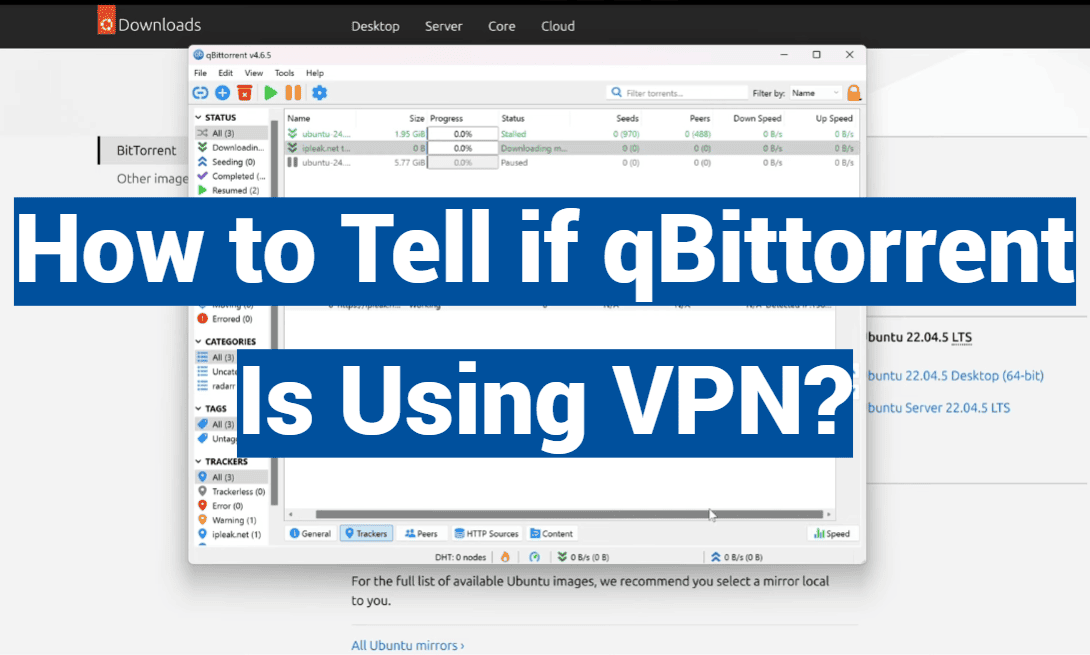
Downloading torrents can be both a necessity – when it comes to sharing open-source software or public domain materials – and a pleasure, for those that want to access free educational content and other legitimate downloads. But legality aside, torrenting also raises serious questions about privacy and security, leading many users to pair their torrent client, like qBittorrent, with a Virtual Private Network (VPN) for anonymous and secure downloading.
However, the mere presence of a VPN isn’t a guarantee of it being effective. This post will guide users through the steps to ensure that qBittorrent is indeed using your VPN and explain why this diligence is so important.
What is qBittorrent?
By now, you should have a good understanding of what torrenting is and how it works. But you may be wondering, what exactly is qBittorrent? Simply put, qBittorrent is a free open-source BitTorrent client that allows users to download and upload files via the BitTorrent protocol.
But don’t let the term “open-source” scare you off. In fact, this is one of the major advantages of using qBittorrent. Being open-source means that the source code is freely available for anyone to view, modify, and distribute as they please. This allows for a community of developers to constantly improve and update the software, ensuring a high-quality user experience.
qBittorrent has a simple and easy-to-use interface, making it a great choice for both beginners and advanced users alike. It is lightweight and does not use a lot of system resources, allowing for faster downloads and uploads without slowing down your computer.
One of the key features of qBittorrent is its built-in search engine which allows users to easily find and download torrents without having to leave the program. This saves time and makes the whole process more convenient.
Additionally, qBittorrent supports all major platforms including Windows, Mac OS X, Linux, FreeBSD, and many others. This means that no matter what operating system you use, you can still take advantage of the benefits of using qBittorrent.
Why Is Verifying qBittorrent’s VPN Connection Crucial?
Using a VPN for torrenting isn’t just about avoiding reprimand for downloading questionable files. At its core, VPNs are tools for anonymity and security. By masking your IP address, a VPN shields your identity from third parties, including your Internet Service Provider (ISP) and potential snoopers or law enforcement. Yet, despite the surge in VPN use among torrenting aficionados, many users remain exposed due to lack of verification.
The pressing need to verify qBittorrent’s VPN use comes down to one significant point: Without it, you’re vulnerable. An inactive VPN during torrenting translates to your IP address being fully exposed, which could lead to a range of consequences – from receiving warning letters from your ISP to potentially facing legal action, particularly if you torrent copyrighted materials.
To this end, by the end of this guide, you’ll not only have confirmed that your qBittorrent is running with your VPN but also gained more awareness about when your VPN might be failing you.
How to Tell if qBittorrent Is Really Using Your VPN
Check Your IP Address in qBittorrent
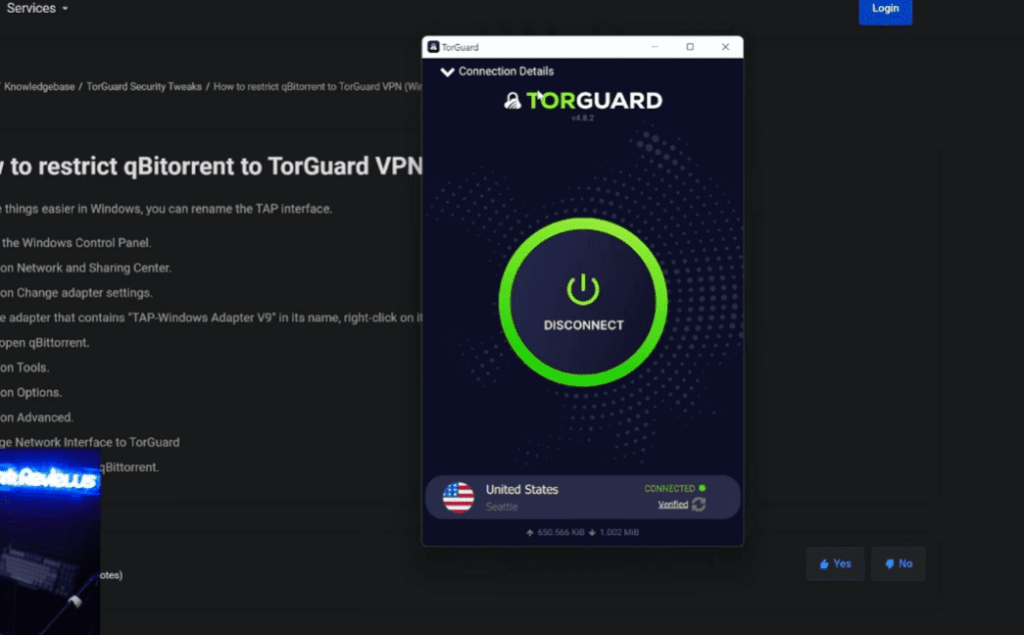
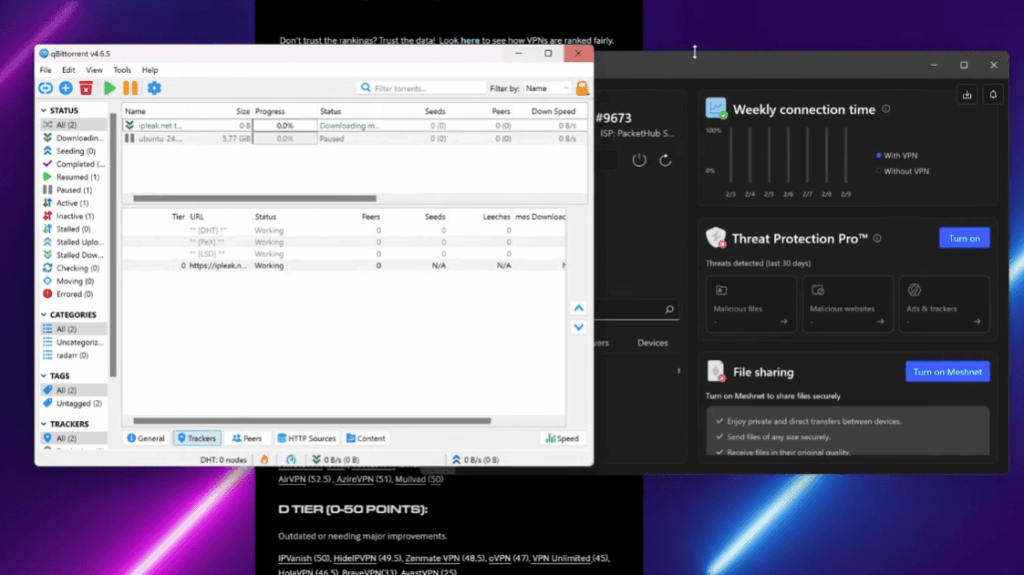
The first, most straightforward method is to check the IP address within qBittorrent. This can be done by accessing the ‘Trackers’ tab for a torrent. Hover over the Status entry for a simple visual cue on which IP address is being used.
Employ qBittorrent’s Connection Settings
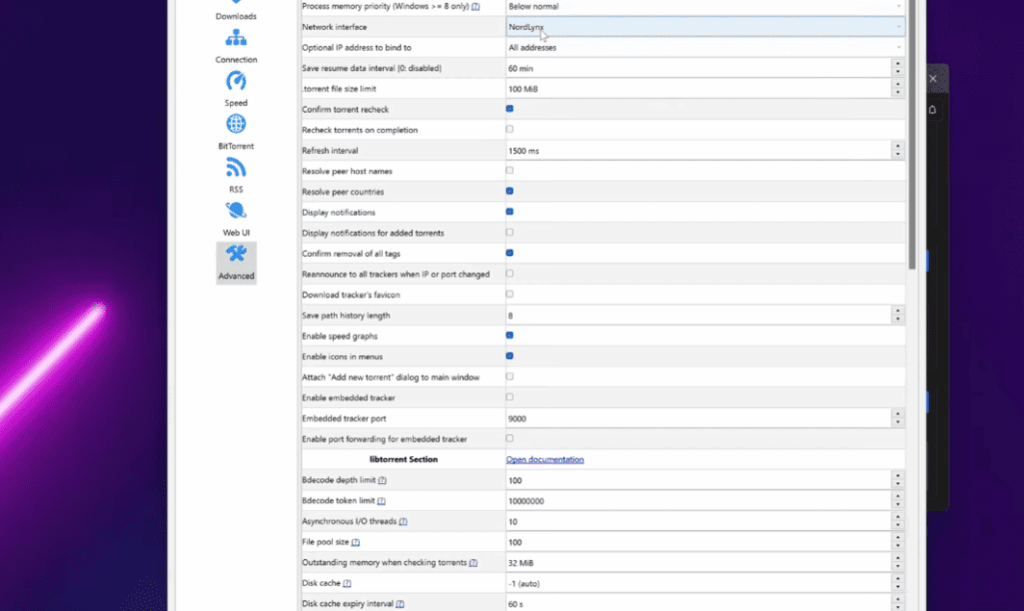
Within the qBittorrent application, several settings can help you confirm VPN usage. By going to Tools > Options > Connection, check that the proper network interface – the one corresponding to your VPN – is selected. Additionally, under the ‘Speed’ heading, the ‘Interface’ dropdown menu should also reflect the VPN’s network.
Validate the Cryptography Connection
It’s important that your VPN provider supports secure VPN protocols, such as OpenVPN, which offers superior encryption. To verify the status of the connection, look for any indicators within qBittorrent that suggest the use of encryption, such as a padlock symbol.
Utilize a Torrent IP Checker
Several websites offer online tools that allow you to check the IP address being used by your qBittorrent client. For added confirmation, cross-referencing with one of these tools can provide peace of mind that your VPN is operational.
Trace the Route of Your Torrenting Traffic
For the tech-savvy, a more advanced method to confirm your VPN use is to trace the route of your torrenting traffic by using the ‘tracert’ command in Windows or ‘traceroute’ in MacOS or Linux. This shows the path your data is taking from your computer to the torrent’s servers. If the final address corresponds to the VPN server’s location, your traffic is being routed through the VPN.
DNS Leak Test
Conducting a DNS leak test is another way to confirm that your qBittorrent is using your VPN effectively. Visit a DNS leak test website and follow the instructions to determine if your true IP address is ‘leaking’ without being routed through the VPN’s DNS servers.
How to Bind qBittorrent to VPN?
There are several methods to bind qBittorrent to a VPN:
Method 1: Using a VPN client software
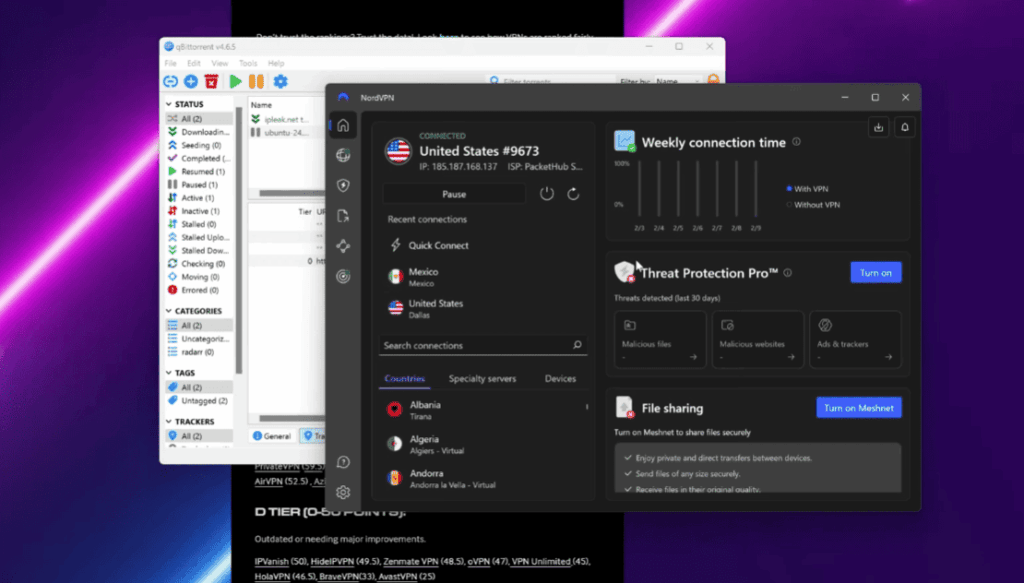
The easiest way to bind qBittorrent to a VPN is by using a VPN client software. There are many options available in the market such as NordVPN, ExpressVPN, Windscribe, etc. These VPN clients come with built-in features that allow you to bind specific applications to the VPN connection.
- Download and install a VPN client software of your choice.
- Open the software and log in using your credentials.
- Once connected, go to the settings or options menu of the software.
- Look for an option that says “Split Tunneling” or “App Binding”.
- Enable this option and add qBittorrent to the list of applications that you want to bind to the VPN.
- Save the changes and start using qBittorrent with your VPN connection.
Method 2: Using a virtual machine
Another way to bind qBittorrent to a VPN is by using a virtual machine (VM). This method is useful if you want to keep your original IP address for other activities on your computer, while using a different IP address for qBittorrent.
- Download and install a VM software such as VirtualBox or VMware on your computer.
- Create a new virtual machine and install the operating system of your choice.
- Once the VM is set up, install qBittorrent on it.
- Connect to your VPN on the host machine (your computer).
- Now, launch qBittorrent from within the virtual machine and it will automatically use the VPN connection.
Method 3: Using a proxy server
You can also bind qBittorrent to a VPN by using a proxy server. This method is less secure compared to the previous two methods, but it is still an option.
- Subscribe to a reliable proxy server service such as HideMyAss or ProxyRack.
- Go to qBittorrent preferences and then click on “Connection” tab.
- Scroll down and enable the option that says “Use proxy for peer connections”.
- Enter the proxy server details provided by your service provider.
- Save the changes and start using qBittorrent with your VPN connection.
Why a VPN Might Fail You and How to Fix It
While confirming your VPN’s operation is crucial, understanding why it might fail helps you stay one step ahead. Some common reasons why a VPN might not work with qBittorrent include misconfigured settings, outdated VPN software, firewall interference, or a drop in the VPN connection.
VPN Compatibility Issues
Not all VPNs are created equal when it comes to ensuring seamless operation with qBittorrent. It is crucial to select a VPN service that explicitly supports torrenting to avoid potential blocks on P2P traffic. Additionally, clients should verify that the VPN they choose offers the necessary protocols, with OpenVPN being a preferred choice among qBittorrent users for its reliability and security features. By being mindful of these factors, users can enhance their torrenting experience while maintaining privacy and security online.
Misconfigured Network Interfaces
Forgetting to switch the network interface within qBittorrent could result in not using the VPN, potentially exposing user data to risks. Users need to be vigilant about turning on the VPN before opening qBittorrent to ensure all internet traffic, including downloads and uploads, is securely routed through the VPN’s interface, safeguarding their privacy and anonymity online.
Handling of VPN Kill Switches
A Virtual Private Network’s (VPN) kill switch is a crucial safety feature designed to protect your anonymity by blocking internet access if the VPN connection drops. This prevents your real IP address from being exposed during online activities. It’s important to configure the kill switch properly to avoid any overreactions or abrupt disconnections that might disrupt your torrent downloads or other online tasks. Ensuring that the kill switch functions correctly and is adjusted to avoid unnecessary interruptions during your torrenting sessions is paramount to maintaining your online privacy and security.
Regularly Updating VPN Clients
Similar to any software system, Virtual Private Network (VPN) clients need regular updates to align with evolving security protocols and ensure compatibility with various devices and networks. Neglecting these updates may lead to a compromised or unreliable VPN connection, exposing sensitive data to potential risks. Therefore, it is crucial to stay vigilant for update notifications from your VPN service provider and act promptly to install them, safeguarding your online privacy and security effectively.
Be Wary of Free VPNs
While budget-friendly, free VPNs often come with drawbacks that can include poor security measures, bandwidth limitations, and a higher probability of DNS leaks. Investing in a reputable, paid VPN service substantially reduces these risks.
The Legal and Ethical Checklist for qBittorrent
Ensuring qBittorrent is properly utilizing a VPN is only one part of the puzzle. Here’s a quick legal and ethical checklist for torrenting, VPN or not:
Are You Torrenting Legal Content?
Make sure the content you are downloading is legal. Copyright infringement is a serious offense and legal recourse can be swift and severe.
Is Your VPN’s Jurisdiction Torrent-Friendly?
Some countries have stringent laws regarding online piracy. Ensure your VPN provider operates in a country with a favorable approach to torrenting.
Have You Set Up a Secure VPN?
Your VPN should have strong encryption and policies against keeping logs. Read the VPN’s privacy policy to understand how your data is handled.
Is Your VPN Subscription Current?
Expired subscriptions won’t do you any good. Ensure you’re up to date with your payments to maintain active VPN services.
By being diligent with your technical setup and staying legal and ethical in your torrenting practices, you can enjoy the benefits of file sharing without the fear of repercussions.
FAQ
How do I ensure qBittorrent is using VPN?
There are a few steps you can take to ensure that qBittorrent is using your VPN properly. First step is to make sure your VPN is running and connected. If you are using a paid VPN service, they usually have an application that shows the status of their connection. If you are using a free VPN or one that does not have an application, you can go to your Network settings on Windows or System Preferences on Mac to see if it is connected.
Next, open qBittorrent and go to the Options menu. Under Connection, you should see a tab for “Advanced”. Click on that and look for the option to bind qBittorrent to your VPN interface. This will ensure that all connections made through qBittorrent are routed through your VPN.
Additionally, you can also check your IP address while downloading or uploading torrents by using a website like whatismyip.com. If your IP address matches the location of your VPN, then you can be sure that qBittorrent is using it properly.
One important thing to note is that if you are using a proxy server for your VPN, make sure to configure the correct settings in qBittorrent under Options > Connection > Proxy Server. This will ensure that all connections are properly routed through the proxy server.
If you have followed these steps and are still unsure if qBittorrent is using your VPN, you can also check your torrent client’s connection log. This will show all incoming and outgoing connections and their corresponding IP addresses. If you see that all connections are coming from your VPN’s IP address, then you can be certain that qBittorrent is using your VPN.
What should I do if my download speed is slow?
There can be a few reasons why your download speed in qBittorrent may be slow. First, make sure that you have enough seeders for the torrent you are trying to download. If there are not enough seeders, it will greatly affect your download speed.
Another reason could be that your internet connection may be slow. You can try running a speed test to see if you are getting the speed you pay for from your internet service provider. If not, you can contact them to troubleshoot the issue.
Additionally, if you have enabled any bandwidth throttling settings in qBittorrent, it can greatly affect your download speed. Make sure that your upload and download limit is set to unlimited or higher than your actual internet speed.
You can also try changing the port qBittorrent is using for connections. Sometimes, certain ports may be blocked by your ISP which can affect your download speed. Go to Options > Connection and change the port number under “Listening Port”.
Lastly, if you are using a VPN, make sure it is properly configured and running during your download. A slow or unstable VPN connection can greatly impact your download speed.
Can I schedule downloads in qBittorrent?
Yes, you can schedule downloads in qBittorrent by using the built-in scheduler feature. Go to Tools > Scheduler to access this feature. You can set specific times for downloading and seeding torrents, as well as setting specific days of the week. This is useful for managing your bandwidth or downloading during off-peak hours.
It’s also worth noting that qBittorrent has a “Speed Scheduler” feature under Tools > Speed Scheduler, where you can set different upload and download speeds for specific time periods. This can be useful if you want to prioritize downloads during certain times.
Are there any alternatives to qBittorrent?
Yes, there are several other torrent clients available that you can use as an alternative to qBittorrent. Some popular options include uTorrent, Deluge, and BitTorrent. Each of these clients has their own unique features and user interfaces, so it’s worth trying out a few to see which one works best for you. However, qBittorrent is a great free and open-source option that offers many features and has a clean user interface.
How do I find and add torrents in qBittorrent?
To find and add torrents in qBittorrent, you first need to find a torrent file or magnet link. You can search for these on popular torrent websites such as The Pirate Bay or RARBG. Once you have found a file to download, simply click on the magnet link or download the .torrent file.
Next, open qBittorrent and go to File > Add Torrent Link (for magnet links) or File > Add Torrent File (for .torrent files). This will open a pop-up where you can select the file or link to add, and then click on “OK” to start the download. Alternatively, you can also drag and drop the .torrent file directly into qBittorrent.
You can also set a default download location for all your torrents by going to Options > Downloads and selecting a folder under “Default Save Path”. This way, all your torrents will automatically start downloading to that location when added.
Can I use qBittorrent on my mobile device?
Currently, there is no official qBittorrent app for mobile devices. However, there are third-party apps available such as Torrnado and Transdrone that allow you to remotely manage your qBittorrent client from your mobile device. These apps are available for both Android and iOS devices and offer similar features to the desktop version of qBittorrent. So, even if you’re on-the-go, you can still manage your torrents with ease using these mobile apps. Alternatively, you can also access your qBittorrent client remotely by setting up a VPN on your home network and accessing it through a web browser. This will allow you to manage your torrents from any device with internet access.
Conclusion Paragraph
Torrenting with qBittorrent via a VPN can offer a veil of anonymity and security, yet it’s up to the user to ensure that the protection is active and reliable. Verifying your VPN’s operation isn’t just a technicality – it’s an essential step in safeguarding your digital presence.
By following the outlined methods, checking for VPN connection issues, and keeping legal and ethical considerations in mind, you can enjoy the perks of torrenting with a layer of protection that your VPN is designed to provide.
Remember, the goal here isn’t to be a techno-vigilante but to take control of your online privacy with practical, accessible measures. After all, in the digital world, your safety and peace of mind are always mere clicks away.