
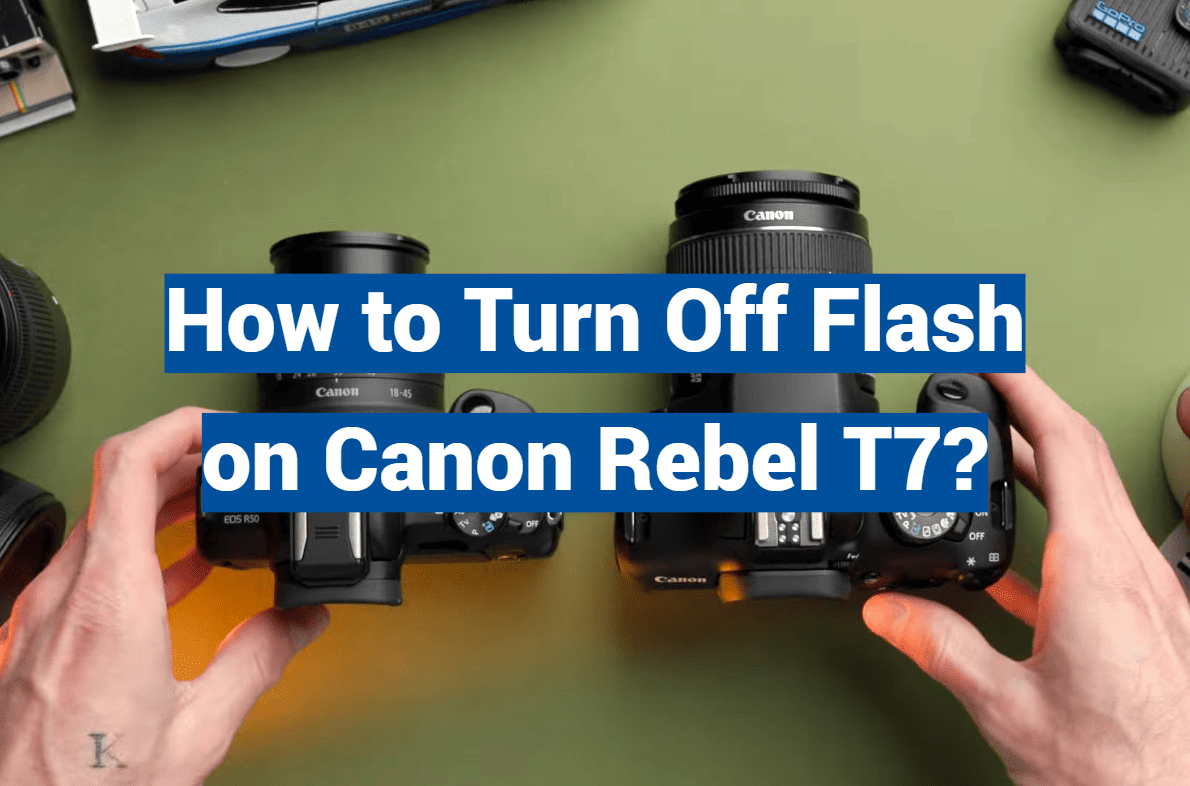
Are you tired of your photos being washed out by an intrusive flash? Have you ever wished for a way to capture the perfect, natural lighting without the unbearably bright burst of light? Well, look no further! This comprehensive guide will walk you through the step-by-step process of turning off the flash on your beloved Canon Rebel T7 camera. Whether you are a novice photographer or a seasoned expert, mastering this skill is crucial for capturing stunning images in any lighting situation. So, grab your camera, channel your inner artist, and dive into the ultimate guide to turning off the flash on your Canon Rebel T7.
What is Canon Rebel T7?
The Canon Rebel T7 is a digital SLR (single-lens reflex) camera that offers amazing performance in an affordable, easy-to-use package. The Rebel T7 has a 24.1 megapixel CMOS sensor and the DIGIC 4+ image processor for stunning photos and videos with minimal noise and maximum detail. It also features an 11-point autofocus system for fast and accurate focusing, as well as an ISO range of 100-6400 that can be expanded to 12800. The Rebel T7 also has built-in Wi-Fi and NFC connectivity, allowing you to easily share your photos with friends and family.
The Rebel T7 is a great choice for those looking to explore their creative side with photography, as it offers a range of features that make shooting and editing photos easier than ever. With its easy-to-use controls, intuitive user interface, and wide selection of lenses and accessories, the Rebel T7 is a great choice for novice photographers looking to get started. For those more experienced in photography, the Rebel T7 can offer an array of features that allow for more creative expression. With a range of scene modes and manual controls, the Rebel T7 allows you to create truly unique photos. Additionally, the Rebel T7 is compatible with Canon’s extensive line of lenses and accessories, allowing photographers to further customize their setup.
Overall, the Canon Rebel T7 offers an incredible package of features at an affordable price, making it a great choice for both novice and experienced photographers alike. Whether you’re just getting started or looking to take your photography skills to the next level, the Rebel T7 is a great camera that can help you reach your goals. With its range of features and easy-to-use controls, the Canon Rebel T7 is sure to be a hit with photographers of all levels.
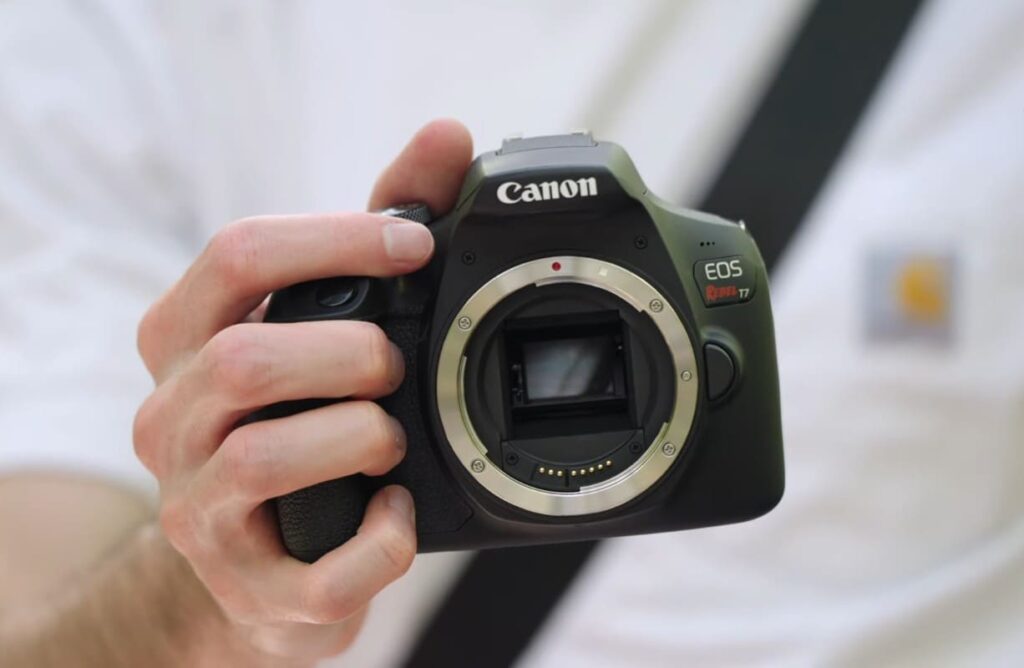
Accessories for Canon Rebel T7
In addition to the camera itself, there is an array of accessories available for the Canon Rebel T7 that can help you get the most out of your photography experience. The most basic accessory is a lens, which allows you to capture different types of subjects and scenes. Other popular accessories include flashes, filters, tripods, and carrying cases.
Another essential accessory for the Rebel T7 is a memory card, which allows you to store your photos and videos. The Rebel T7 supports both SD and CF cards, so make sure that the card you choose is compatible with the camera. Additionally, some accessories are designed specifically for the Rebel T7’s video features, such as a microphone or external monitor.
Overall, the Rebel T7 offers an array of accessories that can help you get the most out of your photography experience. Whether you’re just getting started or want to take your skills to the next level, there’s an accessory for you. From lenses and filters to microphones and monitors, the Rebel T7 has something for everyone. With the right accessories, you can unlock your creative potential and take your photography to the next level.
How to Turn off Flash on a Canon Camera?
Disabling the Flash in Canon Camera
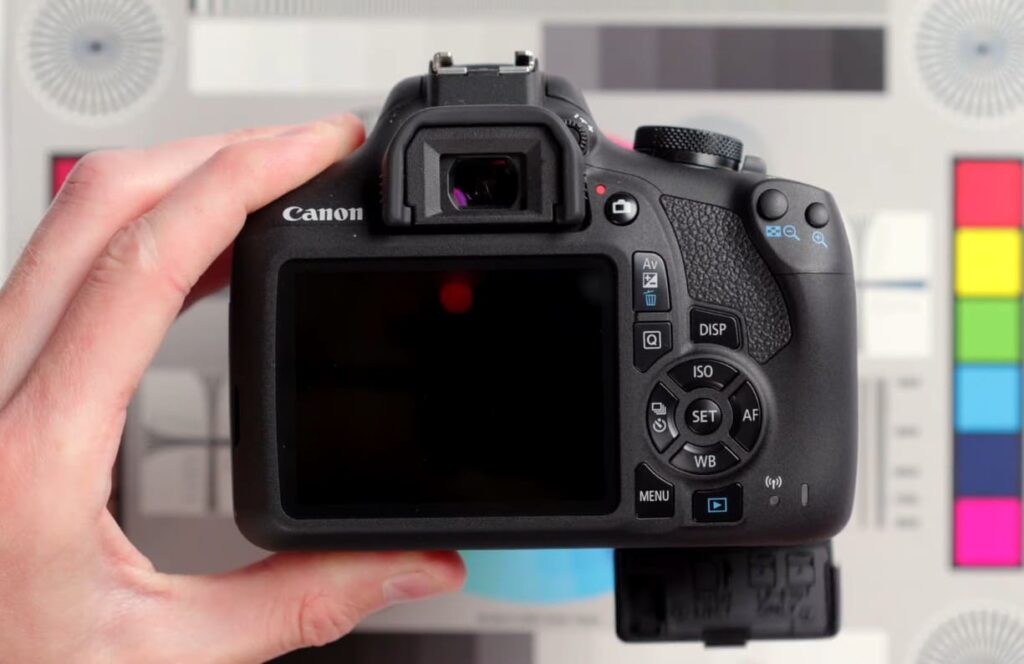
To turn off the flash on a Canon camera, you need to access the menu settings. To do so, press the MENU button and navigate to the Flash Settings menu. From there, select “Off” or “Disable Flash,” depending on your model. Once selected, be sure to save your settings before exiting out of that menu.
For more advanced models, you may be able to access the flash settings from the Quick Control Screen. To do so, press the Q button and navigate to the Flash Settings option. Once again, select “Off” or “Disable Flash” and save your settings before exiting out of that menu.
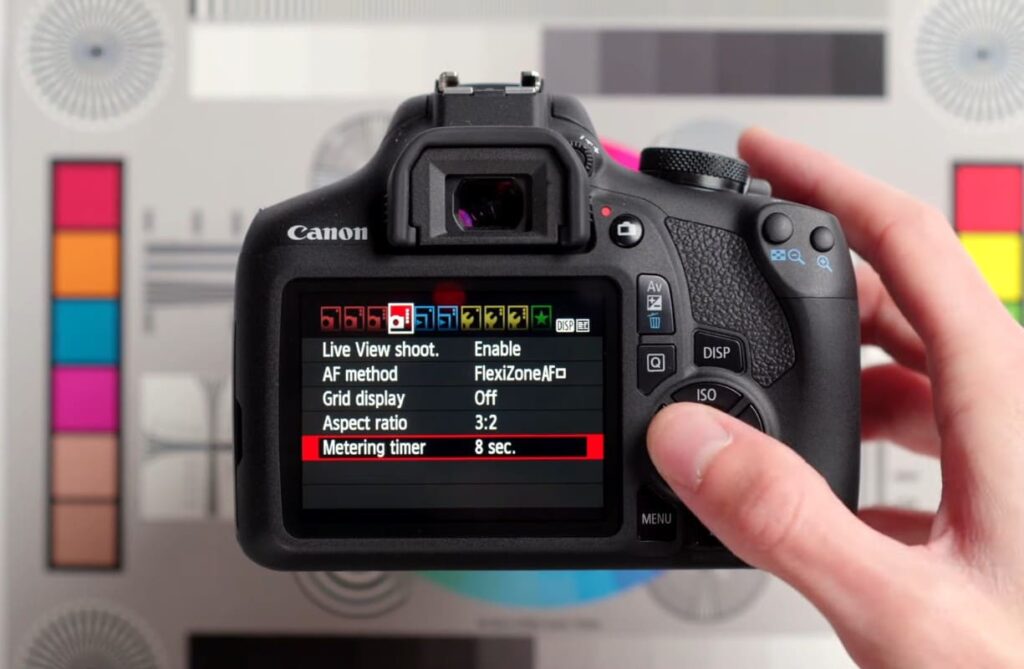
It’s also possible to turn off the flash using the built-in hotkeys. Depending on your camera model, you can press and hold either the AV or M button while tapping the Flash button to disable the flash.
On certain cameras, it may be necessary to use a combination of both methods to completely turn off the flash. Once disabled, you should no longer see any flashes when taking pictures with your Canon camera.
It’s important to remember that the flash settings can be reset back to their default settings if you change any of the camera’s other settings or switch it off. To prevent this from happening, make sure to double-check the flash status before taking pictures with your Canon camera.
Turning the Dial To Flash Off
Another way to turn off the flash on a Canon camera is by changing the dial settings. Look for a wheel-like dial on top of your camera and rotate it until you see an icon with a lightning bolt crossed out – this indicates that the flash has been turned off. Be sure to double-check your settings before taking any pictures, as some cameras may have the dial set to “auto” by default.
Using Manual Settings To Disable Flash
If you’re using a Canon camera with manual settings, you can easily disable the flash by turning down the shutter speed or aperture setting. This will limit the amount of light entering your camera and prevent it from flashing when taking pictures. Just be sure to check your settings before taking any pictures, as some cameras may require a faster shutter speed or wider aperture setting for proper lighting.
Program AE Mode
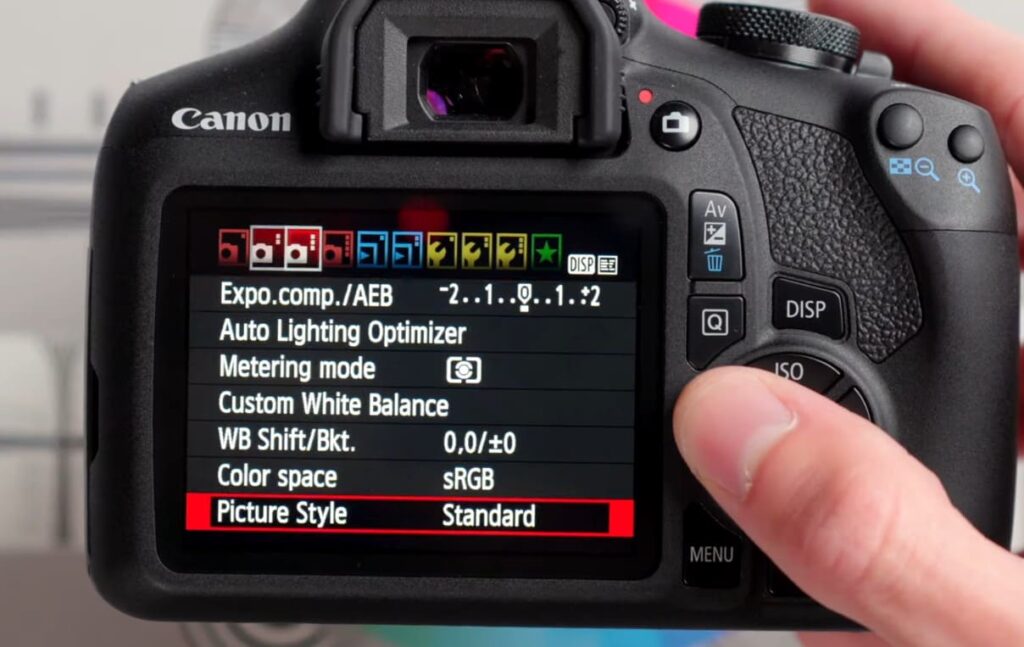
For more advanced users, you can also access the flash settings using Program AE mode. To do this, select Program AE from the camera’s main menu and then press the Flash Settings button. From there, you can choose to enable or disable the flash as desired. Be sure to save your settings before exiting that menu.
Tricks and Tips
When using a Canon camera to take pictures, it’s important to remember that the flash can be quite powerful. To prevent your photos from looking washed-out or overexposed, consider reducing the power of the flash by adjusting the settings in your camera’s menu.
Additionally, you should always pay attention to your background lighting when taking pictures with a flash – if the background is too dark or bright, it may affect the quality of your photos. Finally, make sure to use a tripod when taking pictures with a flash, as this will help reduce any blurring that could occur due to camera shake.
By following these simple tips and tricks, you can easily turn off the flash on your Canon camera and take stunning photos without any unnecessary light. Best of all, you can do it all from the comfort of your own home! So why wait? Get out there and start snapping away!
Safety Considerations
Before using a flash on your Canon camera, it’s crucial to remember that it can produce a significant amount of light and might be quite powerful when used near people or delicate objects. To ensure the safety of both your subjects and the surrounding environment, it is highly recommended to exercise caution and take necessary precautions.
To avoid any potential damage or injury, it is always advisable to carefully read and follow the manufacturer’s instructions regarding flash usage. Additionally, it is recommended to maintain a safe distance of at least two feet from your subject to prevent any unwanted effects caused by the flash’s intensity.
Furthermore, it’s worth noting that using a flash in public places where individuals may not anticipate its sudden burst of light can startle or temporarily disorient them. To be considerate of others, it’s generally best to avoid using a flash in such settings, opting for alternative lighting techniques or adjusting your camera settings accordingly.
By being mindful of these factors and taking necessary precautions, you can ensure a safe and enjoyable photography experience while utilizing the flash function on your Canon camera.
Assorted Flash Modes to Try
Photographers have a plethora of flash modes at their disposal, each serving a unique purpose. Among the most popular options are high-speed sync, slow sync, rear curtain, and front curtain. High-speed sync proves invaluable when shooting in bright sunlight, enabling the use of wider apertures for enhanced control over depth of field. On the other hand, slow sync allows for the capture of more ambient light, resulting in a well-balanced exposure that brings out the finest details in the scene. With these diverse flash modes at their fingertips, photographers can truly unlock their creative potential and capture stunning images in any lighting conditions.
Rear curtain sync is a technique commonly employed when photographing moving subjects. It ensures that the flash fires at the end of the exposure, allowing the subject to appear sharp and properly lit about their motion. By capturing the final moments of the exposure with the flash, this technique can produce stunning and dynamic images.
On the other hand, front curtain sync is particularly handy when capturing multiple exposures in rapid succession. With this setting, the flash fires instantly at the beginning of the exposure, freezing the initial moments of the shot. This allows photographers to capture a series of shots quickly, while still benefiting from the additional light provided by the flash for each frame. Whether it’s freezing action or capturing motion, front curtain sync offers flexibility and creative possibilities for photographers.
No matter what type of photography you are doing, experimenting with different flash modes can help you take your images to the next level. With a little practice, you will soon be able to adjust your settings quickly and confidently to get the most out of your equipment. Experimenting with different lighting techniques also helps to develop creative solutions for difficult shooting scenarios so don’t be afraid to try something new!
How to use a flash in a Canon Rebel T7 camera?
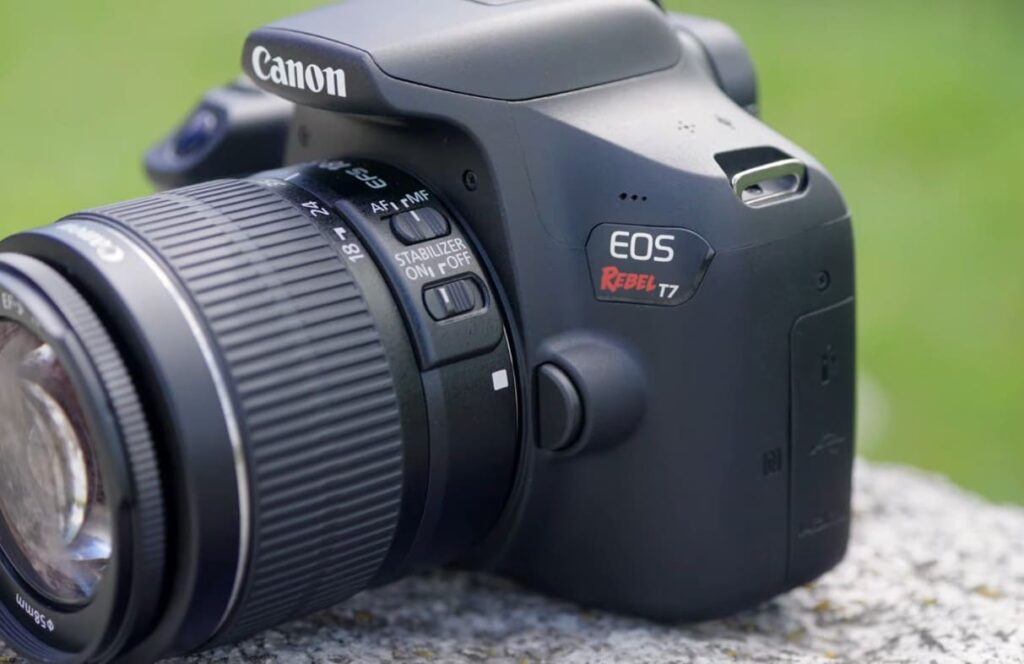
Using a flash in your Canon Rebel T7 camera is easy! First, you’ll need to make sure that the flash is compatible with your camera. Then, insert the flash into the hot shoe on top of your camera. You can then use the settings menu to choose the right flash mode for your photo. When shooting outside during daylight, setting it to fill-flash mode will help to reduce shadows and add a bit of extra light to your photos. When shooting indoors or in darker conditions, you can set it to full flash mode for maximum brightness. Finally, press the shutter button and enjoy your perfectly lit photo!
When using a flash with your Canon Rebel T7 camera, there are some important considerations that you should keep in mind. For example, some lenses can cause vignetting – dark spots near the edges of your photo – when used with a flash. To avoid this, you should use lenses that have larger maximum apertures such as f/2.8 or larger.
Additionally, make sure to not shoot at too close of a range; flashes work best from an arm’s length or more away from your subject. It’s also important to note that direct flash can often produce harsh, unflattering light on your subject – so try bouncing the flash off of a wall or ceiling for softer, more natural lighting. With these tips in mind, you’re now ready to take stunning photos with your Canon Rebel T7 camera and its flash!
FAQ
Where is the flash button on a Canon camera?
Most Canon cameras have a dedicated flash button located on the top of the camera, just above the LCD screen. This button is typically labeled with a lightning bolt icon. Pressing this button will open up the settings menu for your flash and allow you to make adjustments such as increasing or decreasing power output. You can also press this button when you’re ready to take a picture to fire the flash.
How do I take good photos with a Canon camera?
Taking great photos with your Canon camera starts with understanding your camera’s settings and features. Familiarize yourself with the different modes available on the dial, such as automatic or manual mode, and learn how to adjust shutter speed, ISO, white balance, and other settings. Additionally, experiment with different lenses to find the right one for your needs. Once you’ve become comfortable with your camera’s controls, practice taking photos in various lighting conditions and settings to hone your skills further. With patience and practice, you’ll be able to take great photos with your Canon camera.
What is a Canon lens hood?
A Canon lens hood is an accessory that attaches to the end of a camera lens and blocks stray light from entering the lens. Lens hoods are typically made out of plastic or metal and come in various shapes and sizes, depending on the type of lens it’s being used for. Using a lens hood can help reduce glare, contrast, and chromatic aberration, resulting in better image quality. Additionally, lens hoods also provide some protection for the lens from physical damage. Canon offers a wide range of lens hoods for their cameras and lenses.
How do I turn the flash off on my camera?
Turning off the flash on your Canon camera is a simple process that can greatly enhance your photography experience. Most Canon cameras are equipped with a dedicated button conveniently located on the top of the camera, just above the LCD screen. This button is typically labeled with a lightning bolt icon, making it easy to identify. By pressing this button, you will be able to access the settings menu specifically designed for controlling the flash. From there, you can effortlessly select the “Off” option from the list of available choices, effectively disabling the flash.
Furthermore, if you prefer to disable the flash before capturing a picture, you can simply press the same button when you’re ready to shoot. This quick and efficient method allows you to conveniently turn off the flash without navigating through multiple menus or settings. By taking advantage of this feature, you have the freedom to capture stunning and natural-looking photographs in various lighting conditions, while also conserving battery life. So, whether you’re in a dimly lit room or shooting in natural sunlight, mastering the art of turning off the flash will empower you to have greater control over your Canon camera and produce exceptional images.
What is a Canon camera grip?
A Canon camera grip is an accessory that attaches to the bottom of your camera and provides additional support and stability when taking photos or videos. Camera grips typically feature rubberized handles, allowing you to have a better grip on your camera and reduce the risk of dropping it. They also come with additional buttons that allow you to access different settings while shooting. Additionally, some camera grips feature vertical shutter triggers for taking photos in portrait orientation. Canon offers a range of camera grips for their cameras.
Why should I use a polarizing filter?
Using a polarizing filter on your Canon camera can greatly enhance the quality of your photos. Polarizing filters are designed to reduce glare and reflections, allowing colors to appear more vibrant and saturated. They also help darken skies in landscapes, making them appear richer and deeper in color. Additionally, they can be used to reduce haze when shooting in wide-open spaces, such as a beach or desert. Polarizing filters also come in handy when shooting through windows, glass surfaces, and other transparent objects. While they may require some practice to master, polarizing filters are well worth the effort and can lead to stunning photographs.
How do I clean my Canon lens?
Keeping your Canon lens clean is essential for taking great photos. Be sure to use a lens cleaning cloth and avoid using any harsh or abrasive materials on your lens, as these can easily scratch the glass surface. Additionally, you should never breathe directly onto the lens when attempting to remove smudges or debris. Instead, lightly dampen your cleaning cloth with distilled water or an approved lens cleaner before wiping the lens clean. This will help to ensure that no damage is done to your lens. After wiping away any smudges or dust, you should also use a dry cloth to remove any excess moisture from the surface of the lens. By taking these simple steps, you can easily keep your Canon lens sparkling clean for years to come.
What is the advantage of using a tripod with my Canon camera?
Using a tripod with your Canon camera can provide you with several advantages. Tripods help to keep your camera steady and secure while shooting, allowing you to capture sharper images without the risk of blurred photos due to handshake. Additionally, they give you more flexibility when it comes to framing and composition, as you’re able to reposition the camera with great accuracy. Tripods also help conserve battery life, as you won’t need to rely on the camera’s image stabilization feature while shooting. Finally, tripods allow you to take long exposures and capture amazing shots in low-light environments without having to worry about motion blur.
How do I turn off the red light on my camera flash?
The red light on your Canon camera flash is a small LED that illuminates when the flash is ready to be used. This light acts as a helpful indicator for determining when you have sufficient power to take pictures, but it can also be distracting in certain situations. Turning off this light is relatively easy and can be done by accessing the settings menu on your camera. Simply navigate to the menu specifically designed for controlling the flash, and then select the “Off” option from the list of available choices. Once you’ve confirmed your selection, the red light will be disabled and won’t interfere with your photos anymore.
Conclusion Paragraph
So, to turn off the flash on the Canon Rebel T7i, you need to set the flash settings to Manual or Commander mode. This will disable the flash and allow you to take photos without having the flash firing. The process of setting up this mode is simple; just make sure that you follow all the steps outlined in the manual correctly. Additionally, disabling the flash can also help conserve battery life since it won’t be used when taking photos.