
Have you ever experienced the frustration of trying to connect your Canon Rebel T6 to your phone, only to be met with error messages and blank screens? Don’t worry, you’re not alone. This blog post will explore the common connection issues that Canon Rebel T6 owners face and provide you with easy and effective solutions to get your camera and phone communicating seamlessly once again. So, if you’re tired of missing out on sharing your creative moments instantly, sit back, and relax, as this guide will help you to capture and share your photographic masterpieces with ease.
How to Connect Your Canon Rebel T6 With Your Phone?
Prepare the smartphone and camera
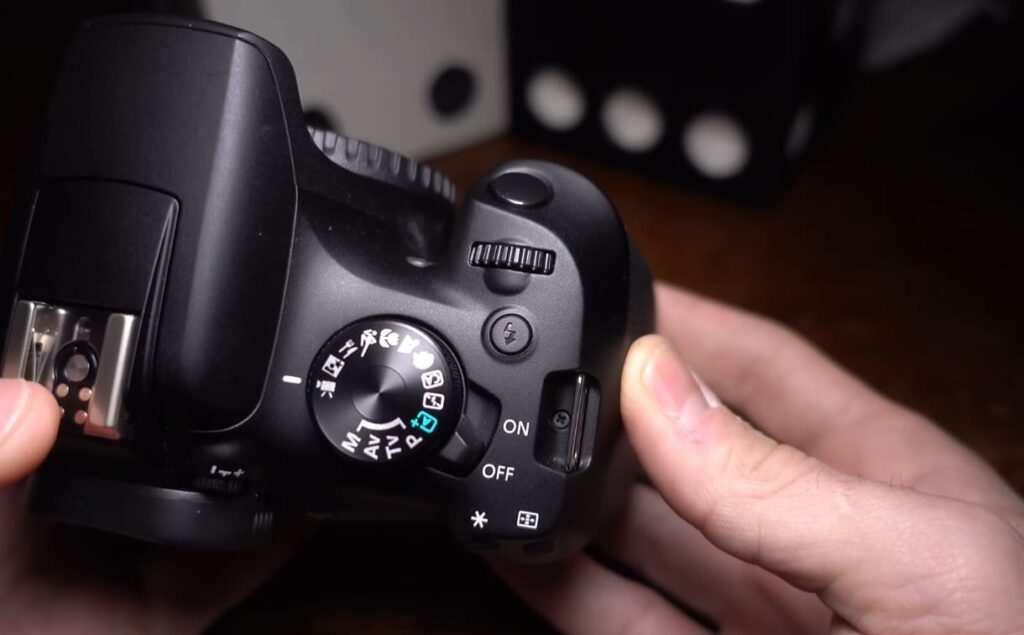
Before you start connecting your Canon Rebel T6 with your phone, make sure that both devices are fully charged. This is to ensure that the connection process goes smoothly without any interruption. Once charged, turn on your smartphone and go to the app store. Search for the “Canon Camera Connect” app and download it onto your device. This app will be used to establish the connection between your camera and phone. Next, turn on your Canon Rebel T6 camera by pressing the power button located on top of the camera. Once the camera is turned on, press the “Menu” button to access the menu screen.
Enable Wi-Fi function
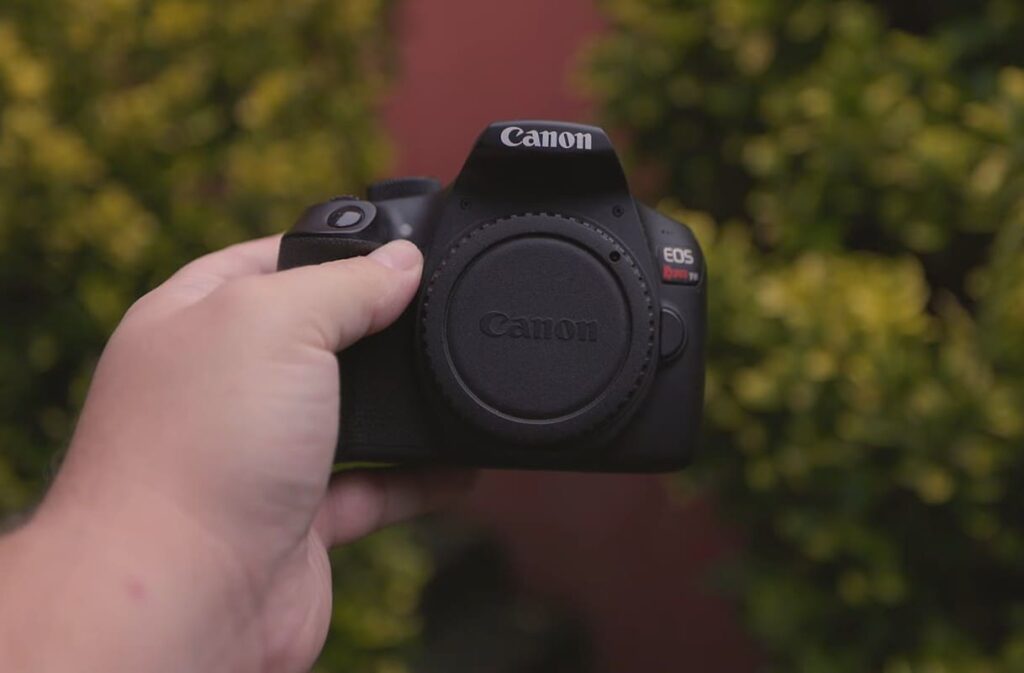
To connect your Canon Rebel T6 camera with your phone, you will need to enable the Wi-Fi function on your camera. To do this, start by pressing the menu button on your camera to access the menu screen. Once you’re in the menu, navigate to the “Wi-Fi” option and press the “Set” button. This will bring up the Wi-Fi settings, where you’ll find a list of available Wi-Fi options to connect to. Take your time to select your desired Wi-Fi network from the list, and then follow the on-screen instructions that will guide you through the connection process to ensure a seamless experience.
Create a Wi-Fi connection
To connect your camera to your smartphone, start by selecting “Connect to smartphone” from the list of available Wi-Fi options. This will initiate the process of registering a nickname for your camera. Choose a name that you will easily recognize, and then press “Next.” As the next step, the camera will generate a unique password which you will need to enter into your phone when prompted. This extra layer of security ensures that only authorized users can establish a connection with your camera.
Connect your phone to the camera’s Wi-Fi
Now, go to your phone’s Wi-Fi settings and select the Wi-Fi network with the nickname you just created specifically for your camera. This network will be identifiable by the unique name you assigned to it during the camera setup process. Once you have selected the network, you will be prompted to enter the password provided by your camera. After entering the password, simply tap on the “Connect” button. By doing so, your phone will establish a secure connection with your camera’s Wi-Fi network, enabling seamless communication between the two devices.
Launch the Canon Camera Connect app
Once you have successfully connected your phone to the camera’s Wi-Fi network, go ahead and launch the “Canon Camera Connect” app on your phone. This intuitive app will immediately detect your camera and present you with a notification to confirm the connection. Simply select the “OK” option to establish a seamless and reliable connection between your phone and camera, ensuring a smooth and effortless experience.
Control and transfer photos
Congratulations! You have successfully connected your Canon Rebel T6 to your phone. Now, you can use the app to control your camera remotely and transfer photos from your camera to your phone wirelessly. You can also use the app to view images on a larger screen and even edit them using various filters and tools.
What Are the Main Functions of Camera Connect?
Images on camera
Camera Connect is a powerful and user-friendly software developed by Canon, designed to seamlessly transfer images from cameras to smartphones and laptops. With its innovative features and intuitive interface, this software has quickly become an indispensable tool for photographers of all levels, from professionals to hobbyists.
One of the standout functions of Camera Connect is its wireless image transfer capability. Gone are the days of fumbling with cables or memory cards. Now, photographers can effortlessly transfer their photos directly from the camera to their preferred devices with just a few taps. This not only saves time but also allows for immediate sharing and viewing, enabling photographers to showcase their work in real time.
Furthermore, Camera Connect offers a range of additional features to enhance the overall photography experience. From remote shooting to geotagging, users can explore various creative possibilities and streamline their workflow.
Remote live-view shooting
Another crucial and highly practical function of Camera Connect is its remote live-view shooting feature. With this feature, users have the convenience of controlling their camera remotely using their smartphone or laptop. This opens up a world of possibilities, allowing photographers to fine-tune settings, effortlessly capture images, and even record videos from a distance. This capability proves especially valuable in scenarios where photographers are taking group photos or selfies and wish to be included in the frame without relying on self-timers or the assistance of others to press the shutter button. With Camera Connect, photographers can truly empower their creativity and capture memorable moments with ease and precision.
Geotagging
With Camera Connect, users can effortlessly geotag their images by leveraging the GPS capabilities of their smartphones. This innovative feature ensures that each captured moment is not only preserved visually but also accompanied by the precise location where it was taken. This functionality proves to be immensely valuable for avid travelers and landscape photographers, as it allows them to vividly recall and reminisce about the exact settings and environments in which their remarkable photos were captured. By enabling geotagging, Camera Connect not only simplifies the process of organizing and searching for specific photos but also adds an extra layer of depth and context to each cherished memory.
Auto transfer and backup
Camera Connect, the innovative app, not only provides seamless photo transferring capabilities but also includes an auto transfer and backup feature. With this feature enabled, images captured by the camera are automatically transferred to a designated device or cloud storage in real-time. This ensures that every important photo is promptly backed up, minimizing the risk of losing them due to memory card failures or accidental deletions. By offering this convenient and reliable solution, Camera Connect prioritizes the safety and preservation of your cherished memories.
Bluetooth remote controller
For Canon cameras with Bluetooth capabilities, Camera Connect offers an incredible feature by acting as a remote controller. This allows users to effortlessly trigger the shutter and take control of various camera settings, including aperture, shutter speed, and ISO, all from a distance. This not only benefits photographers who desire to capture group shots or self-portraits but also provides the convenience of adjusting camera settings without having to physically touch the camera. With this seamless integration, photographers can now focus on capturing stunning moments while enjoying the flexibility and freedom that Camera Connect brings to their photography experience.
Camera settings and image browsing
Apart from its main functions, Camera Connect offers a seamless and user-friendly experience for photographers. With this feature, users can effortlessly view and adjust camera settings directly from their smartphones or laptops, providing the utmost convenience and control. Moreover, it provides a hassle-free way to effortlessly browse through images stored on the camera’s memory card, enabling photographers to quickly and easily select and transfer their favorite photos or delete unwanted ones. With Camera Connect, capturing and managing your precious memories has never been easier!
The Reasons Why Your Canon Camera Cannot Connect to The Computer
Many Canon camera owners experience problems when trying to connect their camera to their computers for data transfer or editing software. While this can be frustrating, there are a few possible reasons why your Canon camera may not be connecting to the computer.
Outdated Software
One common reason for experiencing connection issues is outdated software. If you have recently updated your computer or operating system, your camera’s software may no longer be compatible with the new updates. In such a scenario, it is recommended to update the software on your camera to ensure compatibility with the latest updates on your computer. By doing so, you can resolve any potential connection issues and ensure smooth functionality between your camera and computer systems.
Faulty USB Cable or Connection
Another potential issue could be a faulty USB cable or connection. If the cable has been damaged or the ports are dirty, it can prevent proper communication between the camera and the computer. To rule out this possibility, try using a different USB cable or cleaning the ports before attempting to connect again.
Incorrect Connection Settings
Sometimes, the issue can be as simple as incorrect connection settings on either the camera or computer. On your camera, make sure that you have selected the correct mode for data transfer and that it is connected properly to the computer. Additionally, check the settings on your computer to ensure that it recognizes and allows access to your camera.
Incompatible Memory Card
If you are using a memory card in your Canon camera, it is possible that the card may not be compatible with your computer. Some older computers may not have the necessary drivers to read newer memory cards. In this case, you can either try using a different memory card or connect your camera directly to the computer using a USB cable.
Driver Issues
Finally, driver issues could be the culprit behind your Canon camera not connecting to your computer. If you have recently updated your operating system or installed new software, it may have affected the necessary drivers for your camera. In this case, you can try updating the drivers through your computer’s device manager or by downloading the latest drivers from Canon’s website.
Canon Rebel T6 Won’t Connect to the Phone: Basic troubleshooting
The Canon Rebel T6 is a popular digital camera among photography enthusiasts due to its high-quality images and user-friendly interface. One of its features is the ability to connect to a smartphone, allowing users to transfer photos wirelessly and control the camera remotely. However, there may be instances where your Canon Rebel T6 won’t connect to your phone, causing frustration and inconvenience. In this guide, we will discuss some basic troubleshooting steps to help you resolve this issue.
Step 1: Check compatibility
The first thing you should do is check if your phone is compatible with the Canon Rebel T6. The camera has a list of supported devices that can be found on the Canon website or in the user manual. If your phone is not on the list, it may not be able to connect to the camera. In this case, you can try using a different phone or consider purchasing a new one that is compatible with your camera.
Step 2: Update firmware
If your phone is listed as a supported device but still won’t connect to the Canon Rebel T6, there are a few troubleshooting steps you can take. Firstly, ensure that both your phone and camera have the latest firmware installed. Firmware updates frequently include bug fixes and performance enhancements that can address connectivity problems. To check for firmware updates, navigate to the settings menus on your phone and camera respectively. Additionally, you may also want to try restarting both devices and ensuring that they are within close proximity to establish a stable connection.
Step 3: Check connection settings
To ensure a seamless connection between your camera and phone, it’s important to check that both devices have their Wi-Fi or Bluetooth settings turned on. Additionally, make sure you are using the correct connection mode for your Canon Rebel T6. It offers two modes: Camera Access Point (Connect to Smartphone) and Infrastructure Mode (Connect to Network). Depending on your desired connection, select the appropriate mode to establish a reliable link between your camera and phone. Taking these steps will help you make the most out of your photography experience.
Step 4: Restart both devices
Sometimes, when facing connectivity issues, a simple restart can work wonders. To resolve any potential problems, start by turning off both your camera and phone. Give them a brief pause of a few seconds, allowing them to fully power down. After this short hiatus, turn them back on. Once they have restarted, try connecting them again. This straightforward troubleshooting step often proves effective in reestablishing a seamless connection between the two devices.
Step 5: Reset network settings
If the above steps do not work, you can try resetting the network settings on both devices. This can be done by going to the settings menu, selecting “Network & Internet,” and then choosing “Reset Wi-Fi, mobile & Bluetooth.” Keep in mind that resetting the network settings will erase all saved networks and Bluetooth pairings, so it’s important to take note of them before proceeding. Once the network settings have been reset, try connecting your phone to the camera again and see if that resolves the issue.
Step 6: Consult the user manual
If none of the above steps worked or if you encounter an error message while trying to connect your phone to the Canon Rebel T6, consult the user manual for further troubleshooting options. The manual may provide specific instructions on how to fix connectivity issues depending on the error message displayed.
FAQ
Why won’t my phone connect to the Canon camera?
There could be a few reasons why your phone is having trouble connecting to your Canon camera. Here are some common troubleshooting steps you can try. The first one is to make sure that both your phone and camera are connected to the same Wi-Fi network. If they are not, try connecting them to the same network and see if that solves the issue. Another possible reason for the connection problem could be due to low battery levels.
Make sure both your phone and camera have enough charge, as a weak battery can sometimes interfere with their ability to connect. Additionally, check that the Canon Camera Connect app on your phone is up-to-date and compatible with your camera model. If not, try updating the app or using a different one recommended by Canon. Lastly, if all else fails, you can try resetting both your phone and camera to their factory settings and then attempting to reconnect them.
How do I connect my Canon t6 to my phone?
To connect your Canon t6 to your phone, you will need to download the Canon Camera Connect app from the App Store or Google Play Store. Once downloaded, open the app and follow the on-screen instructions to connect your camera.
First, make sure that both your camera and phone are connected to the same Wi-Fi network. Then, turn on your camera and go to the Wi-Fi settings. Look for the option to connect to a smartphone or access point and select it. Your camera will then display a QR code that you can scan with your phone’s camera to establish the connection. Once connected, you will be able to control your camera from your phone and transfer photos wirelessly.
Can I use my Canon t6 as a webcam?
Yes, you can use your Canon t6 as a webcam by connecting it to your computer via USB and using third-party software. Some popular options include SparkoCam, OBS Studio, and EOS Webcam Utility from Canon. Simply download and install the software of your choice, connect your camera to your computer, and select it as the video source in the software settings. Keep in mind that you may need to adjust your camera’s settings for optimal video quality and performance. Additionally, not all t6 models may be compatible with certain software, so be sure to check before downloading.
How do I clean my Canon camera lens?
Cleaning your Canon camera lens is important for maintaining image quality and preventing dust or dirt from affecting your photos. The first step is to use a blower or air canister to remove any loose particles on the lens. Next, gently wipe the lens with a soft, lint-free cloth or lens-cleaning tissue. Avoid using rough or abrasive materials that could scratch the lens surface. If there are stubborn smudges or marks on your lens, you can use a small amount of lens-cleaning solution applied to a cloth or tissue to gently remove them.
Be sure to follow the manufacturer’s instructions for any specific cleaning products recommended for your lens. It’s also important to handle your lens with care and avoid touching the glass surface directly with your fingers, as fingerprints can leave unwanted marks. Regularly cleaning your Canon camera lens will help keep it in good condition and improve the quality of your photos. Overall, taking proper care and maintenance of your Canon camera can greatly enhance your photography experience and ensure long-lasting use. Keep these tips in mind for troubleshooting connectivity issues, connecting your camera to your phone, using it as a webcam, and keeping the lens clean for optimal performance.
How do I reset my Canon Rebel t6 WiFi?
To reset your Canon Rebel t6 WiFi, go to the camera’s Wi-Fi settings and select the option for “reset all settings.” This will reset all network-related settings, including your saved Wi-Fi networks and their passwords. You may need to reconnect your camera to your phone or other devices after resetting the WiFi. Additionally, you can also perform a factory reset on your camera by going to the menu and selecting “reset all settings” under the tools tab. This will reset all camera settings, not just WiFi, so use this option with caution. Be sure to back up any important photos or videos before resetting your camera to avoid losing them permanently.
How can I maintain a Wi-Fi connection when the camera is off?
To maintain a Wi-Fi connection when your camera is turned off, you can enable the Auto Power Off feature in the camera’s settings. This will allow the camera to automatically turn off after a set amount of time without any activity, but it will remain connected to your phone or other device via Wi-Fi. Keep in mind that this may drain your camera’s battery faster, so be sure to turn off this feature when not in use. Alternatively, you can also connect your camera to an external power source while using the Wi-Fi connection to avoid any battery drain. Consult your camera’s manual for specific instructions on how to enable Auto Power Off and other battery-saving features.
Conclusion
In conclusion, if the Canon Rebel T6 won’t connect to the phone, troubleshooting methods such as restarting the camera and phone, resetting network settings, and updating firmware can help resolve the issue. It is important to also ensure that both devices have a stable internet connection and are running on the latest software versions. Additionally, using third-party apps can also aid in connecting your Canon Rebel T6 to your phone for remote shooting or transferring images. With these troubleshooting methods and tips, you can easily connect your Canon Rebel T6 to your phone and enjoy the convenience of remote shooting and image transfer. After connecting successfully, be sure to explore all the features and capabilities that this camera-phone connection has to offer for an enhanced photography experience.