
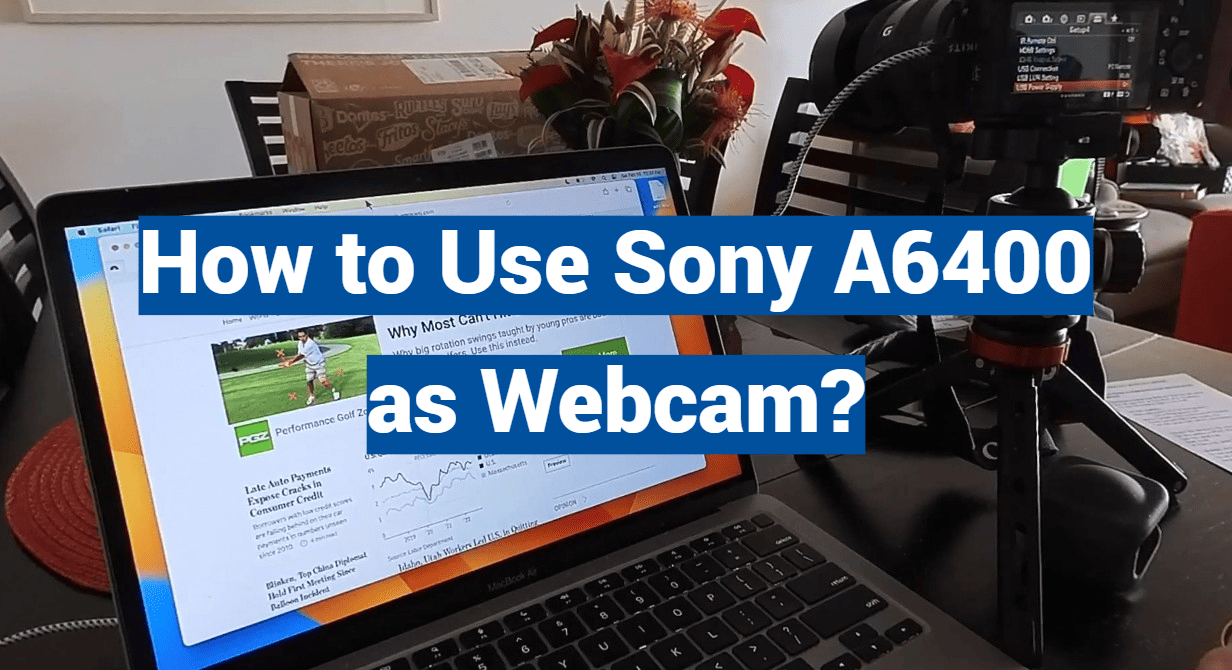
Are you tired of grainy video calls and blurry conference calls? It’s time to level up your webcam game and turn your Sony A6400 camera into a professional-grade device. With just a few simple steps, you can transform your camera into a crystal-clear, high-quality webcam that will make you stand out from the crowd. Say goodbye to pixelated images and hello to sharp, detailed video footage. This blog post will guide you through the process of using your Sony A6400 as a webcam, allowing you to take your virtual meetings, presentations, and live streams to the next level. Get ready to impress your colleagues and clients with your newfound webcam prowess.
What Software Do You Need to Use Your Sony a6400 as a USB Webcam?
As previously mentioned, you will need some software to get the most out of your Sony a6400 as a USB webcam. The two main pieces of software that you will need are:
- Imaging Edge Webcam (for capturing and streaming video)
- PlayMemories Home (for importing photos and videos from your camera to your computer)
Imaging Edge Webcam is a software suite from Sony that allows you to capture and stream video directly to your computer. It includes a variety of features such as real-time image adjustments, face detection, motion detection, and more. PlayMemories Home is also developed by Sony and it’s used for transferring photos and videos from your camera to your computer.
In addition to these two pieces of software, you will also need a USB cable for connecting your camera to your computer. Depending on which version of the Sony a6400 you have (the original or the Mark II), you may also need an adapter to connect the camera’s Micro-USB port to your computer’s USB port. Finally, if you plan on streaming video, you will also need an internet connection.
Using the Sony a6400 as a USB webcam is a great way to take advantage of all of its features and powerful imaging capabilities. With the right software and accessories, you can easily use your camera to capture high-quality videos or take dynamic photos with ease.
Of course, other software applications can be used with the Sony a6400. For example, there is Capture One Pro, which is a powerful image editing program and Lightroom Classic CC, which allows you to manage and edit your photos intuitively. Both of these programs offer great features and powerful tools that make them perfect for professionals and enthusiasts alike.
What Are Some Things to Note When Using Sony A6400 as a Webcam?
Audio Quality
When using the Sony A6400 as a webcam, it’s important to note that while it offers exceptional video quality, the audio performance may not be at the same level as stand-alone webcams. The built-in microphone of the camera, although functional, may not capture audio as clearly and crisply as dedicated microphones specifically designed for webcams. To ensure optimal sound quality, it is highly recommended to invest in an external microphone and connect it to the camera. This way, you can enhance the audio clarity and capture your voice with utmost precision, delivering a professional and immersive experience to your viewers.
Image Quality
The Sony A6400, a remarkable camera, is capable of producing high-quality images that can be utilized as a webcam. However, to achieve optimal results, it is important to adjust the camera settings accordingly. For instance, it is recommended to set the picture profile to “Neutral” and disable any image processing effects such as sharpening or noise reduction. By doing so, you can ensure that your image appears sharp and clear, devoid of any unwanted distractions. In addition to this, it is crucial to fine-tune the exposure settings to strike the perfect balance between brightness and darkness, resulting in a visually pleasing and well-exposed image. Taking these steps will ensure that your webcam footage stands out with remarkable clarity and detail.
Image Stabilization
The Sony A6400 is equipped with an advanced built-in image stabilization system known as SteadyShot. This remarkable feature effectively minimizes camera shake, ensuring sharp and crisp images. It proves particularly beneficial when using the camera as a webcam, as it enhances the overall quality of your visuals and significantly reduces blurriness resulting from unsteady hands or movements. With SteadyShot enabled, you can capture stunningly clear and steady shots, even in challenging shooting conditions.
Resolution
Another crucial aspect to take into account when utilizing the Sony A6400 as a webcam is the resolution. With support for up to 1080p resolution, this camera is more than capable for most applications. However, if you’re seeking even higher-quality images or intend to stream video content, you might want to consider upgrading your computer’s hardware to ensure compatibility with resolutions above 1080p. By doing so, you’ll be able to elevate the visual experience and capture the finest details with utmost clarity.
Autofocus
The A6400 has an excellent autofocus system that allows you to quickly and accurately focus on your subject. This is especially useful for webcams since it helps keep the image sharp and clear even when the subject is moving. When using the autofocus feature, it’s important to make sure that you’re in a well-lit area and that your camera is focused on the right subject. Otherwise, your images may appear blurry or out of focus.
Power
The last thing to note when using the Sony A6400 as a webcam is power. The camera requires a constant source of power to operate, so it’s important to make sure that you have a reliable power outlet nearby or an external battery pack on hand. Otherwise, your webcam may suddenly shut down at inconvenient times, resulting in downtime and potentially lost viewers.
How To Turn Your Sony Camera Into A Webcam?
Sony Imaging Edge Webcam software
The Sony Imaging Edge Webcam software is a powerful tool that allows you to turn your Sony camera into a high-quality webcam for use in video conferencing and streaming. This software supports numerous Sony cameras, including Alpha Cameras, Cyber-shot Cameras, NEX Cameras, Action Cam Camcorders, Handycam Camcorders, and more. With this powerful tool, you can control the settings of your camera remotely, adjust the focus and exposure manually, and stream live video from your Sony camera to a computer or other device.
Setting Up Your Webcam
To use the Imaging Edge Webcam software, you will need to download it from Sony’s website and install it on your computer. Once you have done so, you can then connect your Sony camera to the computer using a USB connection. You will also need to make sure that your camera has updated firmware installed and use an appropriate cable for the connection.
Once everything is set up, you can launch the Imaging Edge Webcam software and select your camera from the list of available webcams. You will then be able to adjust the settings of your camera and start streaming live video. You can also make use of the many features that the software has to offer, such as panning and zooming, adding text overlays, adjusting brightness and contrast, and more.
HDMI output to capture card
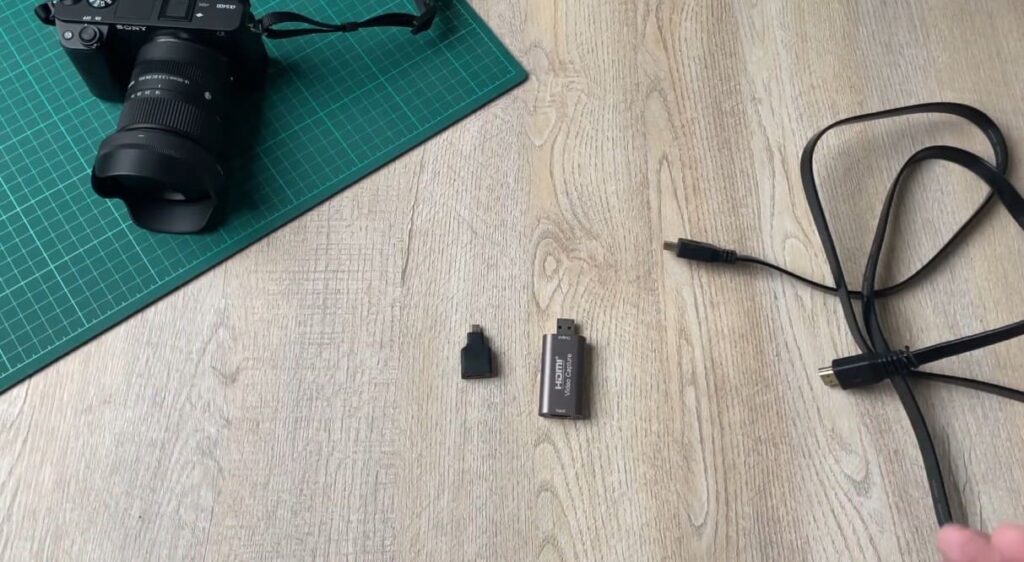
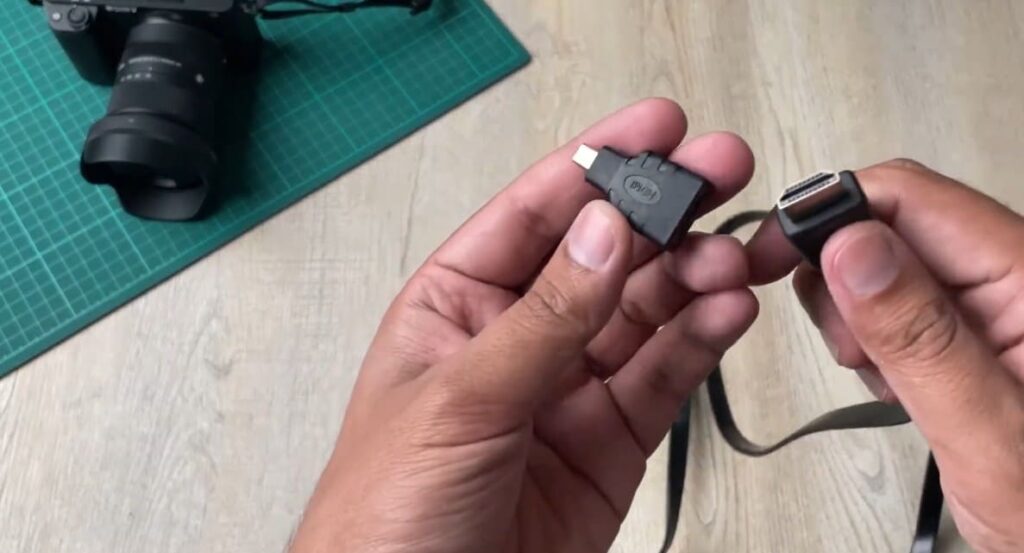
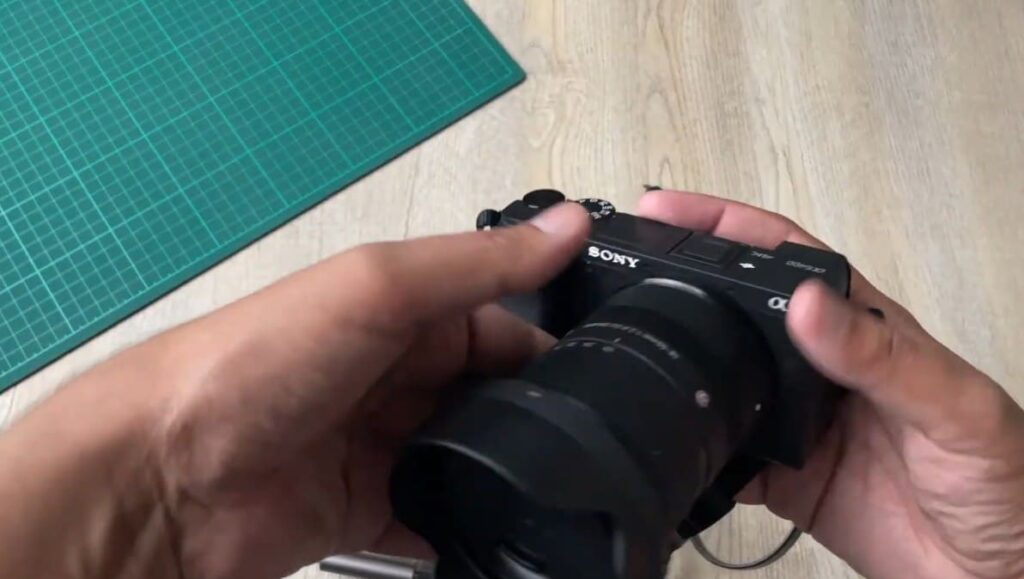
Another way to use your Sony camera as a webcam is by connecting it to an HDMI capture card. This method requires you to connect your camera directly to the capture card using an HDMI cable and then plug the capture card into your computer. You can then launch the software that comes with the capture card and start streaming live video from your Sony camera. This method gives you more control over the settings of your camera, as well as better video quality.
USB tethering with Remote Camera Control
Another option for using your Sony camera as a webcam is to use USB tethering with Remote Camera Control. This method requires you to connect the camera to your computer via a USB connection and then launch the Remote Camera Control software. This software allows you to control various settings on your camera remotely, such as shutter speed, aperture, ISO, white balance, focus modes, and more. This method also gives you the ability to snap photos and record videos directly from your camera to your computer.
Wi-Fi connection with Imaging Edge Mobile app
The final way to use your Sony camera as a webcam is to connect it to your computer using Wi-Fi and the Imaging Edge Mobile app. This method requires you to set up a Wi-Fi connection between your camera and computer, and then launch the Imaging Edge Mobile app. Once connected, you can then start streaming live video from your Sony camera directly to your computer. This method also gives you access to a wide range of features, such as live view, manual focus and exposure control, scene selection, interval shooting, and more.
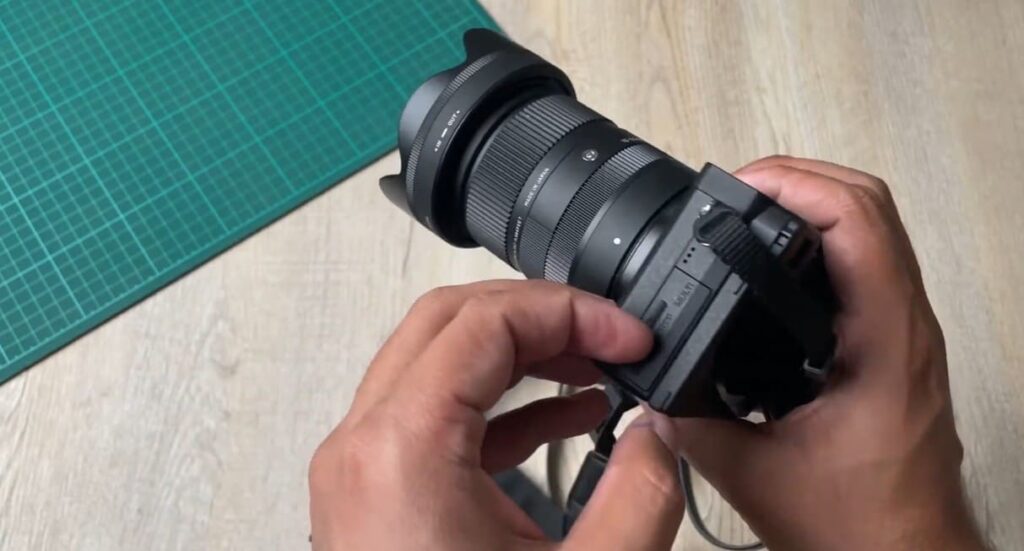
How to Set up Sony a6400 as a USB Webcam?
Step 1: Connect Your Sony Camera to the Computer
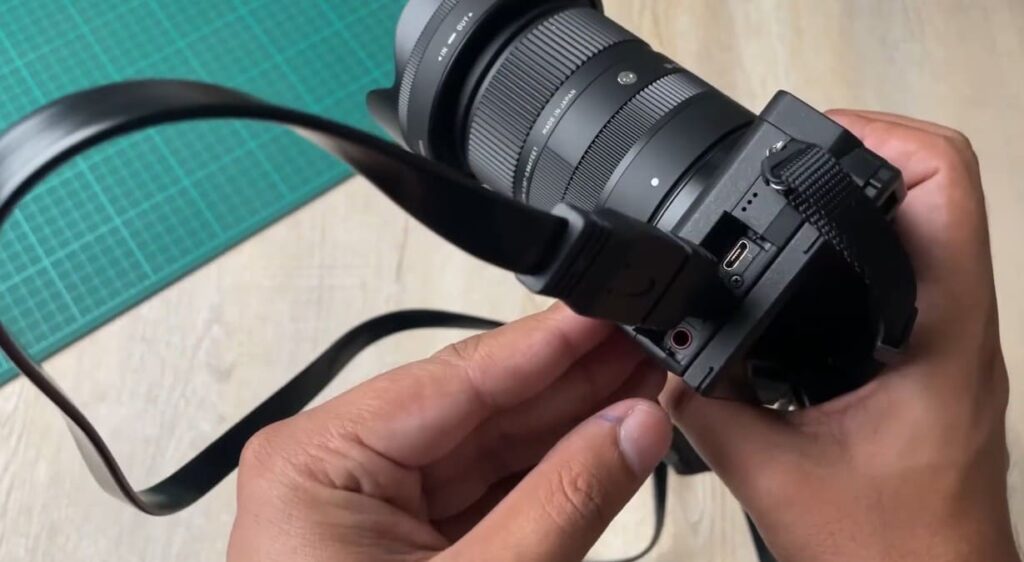
To connect the camera to your computer, first, locate the USB cord and ensure a secure connection between the camera and computer. Once connected, power on your camera to initiate the connection and start the device.
Step 2: Install Imaging Edge Webcam Software
To proceed, the next step is to install the Imaging Edge Webcam software on your PC. This powerful and intuitive software, provided by Sony, unlocks the potential of your camera by enabling it to be used as a high-quality webcam. By seamlessly integrating your camera into your video conferencing or streaming setup, you can elevate your visual presence and deliver impressive image quality.
To install the software, simply visit the official Imaging Edge Webcam page and effortlessly download it. Once downloaded, follow the user-friendly instructions to effortlessly complete the setup process. Enjoy the benefits of using your camera as a webcam and unlock a new level of professionalism in your online interactions.
Step 3: Set Up Your Camera
To configure your Sony camera with Imaging Edge Webcam Software, follow these steps:
- Open the Imaging Edge Webcam Software application on your computer.
- In the application, locate and click on the “Settings” option.
- A menu will appear, and from there, select the “Connect Camera” option.
- The application will display a list of available cameras. Look for and select your Sony a6400 from the list.
- Once you have selected your camera, click on the “OK” button.
- Congratulations! Your Sony camera is now successfully configured and ready to be used as a webcam.
By following these steps, you will be able to utilize the full potential of your Sony camera for high-quality video conferencing, live streaming, and more. Enjoy the enhanced functionality and versatility that comes with using your Sony camera as a webcam.
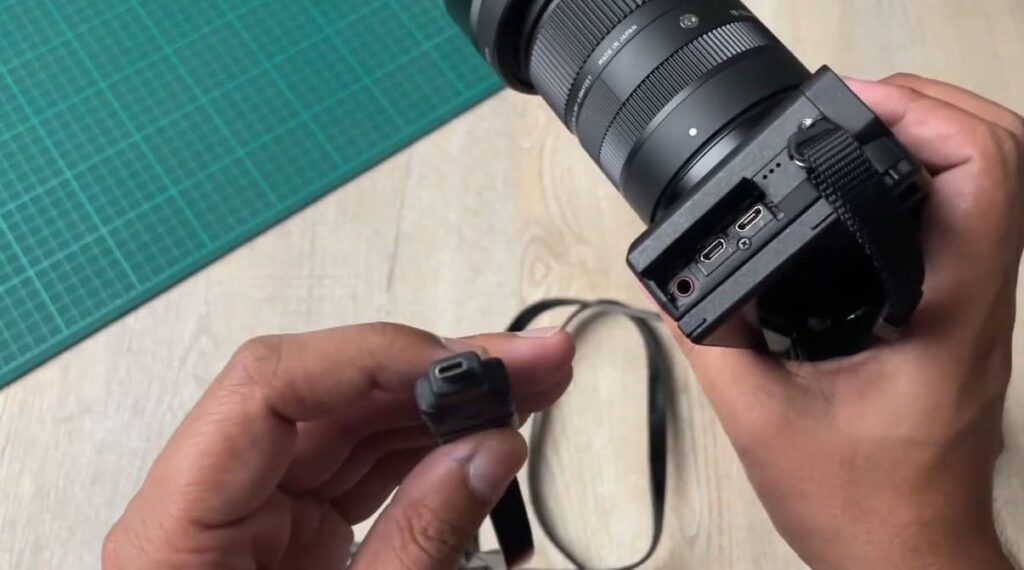
Step 4: Select Your Settings
Once you have successfully connected your camera to the computer, you will be able to access a wide range of settings that can be adjusted to perfectly suit your needs. These settings include various resolutions to choose from, such as the high-definition 1080p, the smooth 720p, and the standard 480p. Moreover, you have the flexibility to select the desired frame rate for your camera, allowing you to capture your footage at either 30 frames per second (fps) or 60fps. With such versatility at your fingertips, you can effortlessly tailor your camera settings to achieve optimal video quality and capture the perfect moments with precision.
Step 5: Start Streaming
Now that you have successfully configured your settings, it’s time to start streaming with your Sony a6400. To begin, simply open the application on your computer once again and locate the “Start” button. By clicking on it, you’ll initiate the streaming process.
Once the button is pressed, your Sony a6400 will seamlessly transform into a high-quality webcam ready to capture and transmit your content. With this setup, you can effortlessly initiate your streaming session and engage with your audience in a whole new way. Enjoy the limitless possibilities that await you as you embark on your streaming journey!
Step 6: Record Content
The last step is to record content with your Sony a6400 camera. To do this, open up the application again and select the “Record” option from the main menu. You can now start recording and save your footage to the computer.
With these simple steps, you are now able to set up and use your Sony a6400 as a USB webcam for streaming or recording content. For more features and settings, check out Imaging Edge Webcam’s official website where you can find tutorials, tips & tricks on using the software and get the most out of your Sony a6400.
FAQ
How do I turn my Sony a6400 into a webcam?
To turn your Sony a6400 into a webcam you’ll need to purchase an external capture device that connects to your camera and allows it to be used as a webcam. You can find many options online that will work with the a6400, and they range from simple adapters to more complex devices with additional features. Once you have the adapter or capture device connected, you’ll need to install the appropriate software and drivers for your device. After that, you should be able to use your Sony a6400 as a webcam with any popular video conferencing or streaming service.
What features can I expect from the Sony a6400?
The Sony a6400 is an excellent camera for both still photography and video recording. It has an impressive 24.2MP Exmor CMOS sensor and a BIONZ X processor, which enables it to capture sharp images with excellent color reproduction. The camera also features fast autofocus with 425 phase-detection points, 11fps burst shooting, 4K video recording at 30p, full HD 120p slow motion video and more. On top of all that, it has a 180-degree tiltable touchscreen LCD and built-in Wi-Fi/NFC connectivity.
What is the best lens for the Sony a6400?
The best lens for the Sony a6400 depends on your specific needs. For general-purpose photography, the Sony E 16–50mm F3.5–5.6 OSS lens is an excellent all-around choice. It offers a 35mm equivalent of 24–75mm and features Optical SteadyShot image stabilization for sharper photos in low light. If you’re looking for a lens with more reach, the Sony E 55–210mm F4.5–6.3 OSS telephoto zoom is an affordable option that can cover a 35mm equivalent of 82.5–315mm. Alternatively, if you’re more interested in prime lenses, the Sony E 50mm F1.8 OSS is an excellent choice for portrait and low-light photography thanks to its wide f/1.8 aperture.
What tips should I keep in mind when shooting with the Sony a6400?
When shooting with the Sony a6400, it’s important to remember that the camera does not have a full-frame sensor. This means that you should be aware of how your lenses will perform on an APS-C camera body. Wide-angle lenses may appear slightly less wide than expected and telephoto lenses may seem longer. Additionally, be sure to use the camera’s autofocus system to your advantage. The a6400 has 425 phase-detection points and they can help you capture sharp images quickly. Finally, be sure to take advantage of the a6400’s video features if you plan on doing any video shooting with the camera. It can record in 4K resolution at 30p, as well as full HD at 120p for slow motion.
How can you successfully stream with Sony a6400?
Streaming with the Sony a6400 is relatively easy. Once you have your capture device or adapter connected, all you need to do is install the appropriate drivers and software for your device. After that, you should be able to use your camera as a webcam with any popular streaming or video conferencing service. Additionally, some external capture devices come with built-in software that you can use to stream directly from the camera, eliminating the need for a computer.
What are some common mistakes made when shooting with the Sony a6400?
One of the most common mistakes made when shooting with the Sony a6400 is forgetting to take advantage of the camera’s autofocus system. The a6400 has 425 phase-detection points, which can help you capture sharp images quickly. Additionally, some users forget to use the camera’s video features when shooting video. The a6400 can record in 4K resolution at 30p and full HD at 120p for slow motion. Finally, some users may not be aware of how their lenses will perform on an APS-C camera body. Wide-angle lenses may appear slightly less wide and telephoto lenses may seem longer than expected.
How do I connect my Sony Alpha a6400 to my computer?
To connect your Sony Alpha a6400 to your computer you’ll need an external capture device that connects to the camera and allows it to be used as a webcam. You can find many options online that will work with the a6400, and they range from simple adapters to more complex devices with additional features. Once you have the adapter or capture device connected, you’ll need to install the appropriate software and drivers for your device. After that, you should be able to use your Sony Alpha a6400 as a webcam with any popular video conferencing or streaming service.
Final Thoughts
In conclusion, using the Sony A6400 as a Webcam can offer a great opportunity to achieve professional-quality video streaming. The camera’s 24MP APS-C Sensor provides excellent picture clarity while the 4K internal recording capability makes it very suitable for high-resolution streaming. Additionally, its compact size and lightweight design make it highly portable and easy to use in any environment. With all these features combined, the Sony A6400 has become the go-to choice for those looking for a reliable and high-quality solution to their streaming needs.