
Embarking on the journey of optimizing your home entertainment, the integration of Kodi with Google TV and Chromecast opens a realm of possibilities for a personalized and immersive media experience. This article will guide you through the seamless fusion of Kodi, a versatile media player, with Google TV’s intuitive interface and the casting capabilities of Chromecast.
From installation and setup to unleashing the full potential of your media library, discover the steps to elevate your streaming escapades and transform your Google TV with Chromecast into a powerful, all-encompassing media center. Dive into the convergence of cutting-edge technology and limitless entertainment possibilities.
What Is Kodi?
Kodi’s journey began in 2002 when a group of like-minded developers created the Xbox Media Player for the original Xbox console. As the project evolved, it transformed into the Xbox Media Center (XBMC) and eventually rebranded as Kodi in 2014 to reflect its cross-platform compatibility. Today, Kodi is available on a wide range of devices, including Windows, macOS, Linux, Android, iOS, and more, making it a go-to choice for media enthusiasts.
Core Features of Kodi
User Interface and Skins
One of Kodi’s standout features is its user-friendly interface, which provides an intuitive and visually appealing way to navigate through your media library. Users can customize the look and feel of Kodi through various skins, allowing for a personalized and immersive experience. Whether you prefer a sleek modern design or a nostalgic throwback, Kodi’s skins cater to a wide range of preferences.
Media Management
Kodi excels in organizing and managing diverse types of media. It supports an extensive list of file formats, making it a comprehensive solution for videos, music, podcasts, and more. Users can create libraries, add metadata, and organize content effortlessly, providing a streamlined approach to managing vast media collections.
Add-ons and Extensions
One of the hallmarks of Kodi’s versatility is its robust support for add-ons and extensions. These third-party plugins extend Kodi’s functionality, allowing users to access a wealth of content from streaming services, online repositories, and other sources. Whether you’re looking to stream movies, TV shows, or live TV, Kodi’s vast ecosystem of add-ons has you covered.
Kodi as a Media Streaming Platform
Local Media Playback
Kodi’s primary function is to act as a local media player, providing users with a centralized hub for their digital content. With support for a wide array of file formats, Kodi ensures a seamless playback experience, allowing users to enjoy their favorite movies, music, and photos without compatibility issues.
Streaming Services Integration
Kodi’s appeal extends beyond local media playback, as it seamlessly integrates with popular streaming services. Through add-ons, users can access content from platforms like Netflix, Hulu, YouTube, and more, consolidating their streaming experience within the Kodi interface. This integration transforms Kodi into a comprehensive media center, catering to both local and online content consumption.
Kodi and Live TV
PVR (Personal Video Recorder) Support
Kodi goes beyond traditional media playback by offering PVR support, turning it into a full-fledged television experience. Users can set up and configure PVR backends to watch and record live TV, transforming Kodi into a powerful DVR solution. This feature is particularly appealing to cord-cutters looking for an all-in-one media solution.
IPTV Integration
In addition to PVR support, Kodi allows users to integrate IPTV (Internet Protocol Television) services, expanding the range of available channels and content. This flexibility empowers users to customize their TV-watching experience, combining live TV with on-demand content seamlessly.
Kodi’s Community and Development
Open-Source Philosophy
Kodi’s success is intricately tied to its open-source nature, fostering a collaborative environment where developers worldwide contribute to its growth and improvement. This open philosophy ensures continuous updates, bug fixes, and the introduction of new features, keeping Kodi at the forefront of media center technology.
Supportive Community
Beyond the developers, Kodi boasts a vibrant and supportive community of users. Forums, social media groups, and online communities provide a platform for users to seek help, share experiences, and contribute to the ever-expanding knowledge base surrounding Kodi. This community-driven approach enhances the overall user experience and encourages collaboration among enthusiasts.
What Is Chromecast and Google TV?
Chromecast, introduced by Google in 2013, was a game-changer in the streaming device market. Initially a simple dongle designed to cast content from mobile devices to a TV, Chromecast has evolved into a versatile and powerful streaming device.
The magic of Chromecast lies in its simplicity. By plugging the small Chromecast dongle into the HDMI port of a TV, users can cast content from their smartphones, tablets, or computers directly to the TV screen. This allows for a seamless transition between personal devices and the big screen, making it a convenient solution for streaming videos, music, and even mirroring device screens.
Chromecast Features and Capabilities:
Cross-Platform Casting
Chromecast supports cross-platform casting, making it compatible with both Android and iOS devices. This inclusivity ensures that users can effortlessly share and enjoy content from various devices without being limited by the operating system.
Multi-Room Audio
Chromecast extends its functionality beyond video streaming with multi-room audio support. Users can synchronize audio playback across multiple Chromecast-enabled devices, creating a cohesive and immersive audio experience throughout their living space.
Google TV – Elevating the Streaming Experience
Introduction to Google TV
Google TV, introduced in 2020, represents a significant evolution from the original Chromecast concept. It combines the simplicity of Chromecast with a full-fledged user interface, transforming the streaming device into a standalone platform for content discovery and consumption.
Interface and Content Discovery
Google TV’s interface provides users with a unified platform for accessing various streaming services. The home screen offers personalized recommendations based on viewing habits, making content discovery a seamless and enjoyable experience. Users can explore a wide range of streaming apps, including popular services like Netflix, Hulu, and YouTube.
Chromecast with Google TV – A Perfect Marriage
The Integration
Chromecast with Google TV, released in 2020, combines the best of both worlds. This device retains the casting capabilities of Chromecast while incorporating the user-friendly interface of Google TV. Users can now cast content as they did with the original Chromecast, but they also have the added benefit of an on-screen interface for a more traditional TV-watching experience.
Voice Remote and Google Assistant Integration
Chromecast with Google TV comes with a voice remote that includes Google Assistant integration. Users can search for content, control playback, and even ask questions using voice commands. This hands-free experience adds an extra layer of convenience, enhancing the overall user experience.
The Future of Chromecast and Google TV
Google continues to invest in the development of Chromecast and Google TV, regularly rolling out updates to enhance performance, introduce new features, and expand compatibility with emerging streaming services. This commitment ensures that users can enjoy the latest advancements in home entertainment and stay at the forefront of the digital streaming landscape.
How to Install Kodi on Chromecast with Google TV: A Step-by-Step Guide
Open Search on Google TV
- Grab your remote: Power on your Chromecast with Google TV and grab the trusty remote control. Familiarize yourself with the navigation buttons, especially the search and back buttons;
- Navigate to Search: Look for the magnifying glass icon at the top of the Google TV interface. This is your gateway to finding apps, movies, and more. Press the search button on your remote;
- Prepare for Keyword Magic: A virtual keyboard will appear on the screen. Don’t worry, you don’t have to type the entire “Kodi” just yet. Google TV’s intelligent search automatically suggests potential matches as you type;
Type in “Kodi”:
- Start with “K”: Press the “K” button on your remote. You’ll see suggestions like “Kim Kardashian West,” but don’t be distracted. Keep your eyes on the bottom row, where “Kodi” should already be appearing;
- Complete the Spell: Continue typing by pressing the other letter buttons (“o,” “d,” “i”). As you add each letter, the “Kodi” suggestion will become more prominent;
- Highlight and Select: Once “Kodi” is the top suggestion, use the directional buttons on your remote to highlight it. Press the OK button to open the Kodi app information page;
Install Kodi Application:
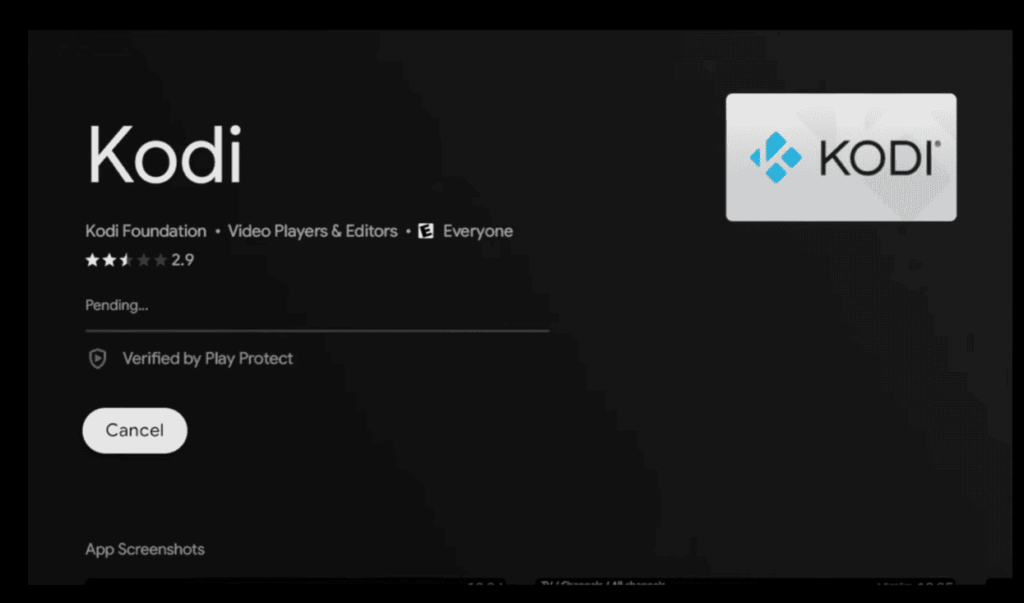
- Get Ready to Install: The Kodi app information page will display details like screenshots, descriptions, and reviews. You’ll also see a prominent green button labeled “Install”;
- Hit the Green Light: Go ahead and press the OK button on your remote while highlighting the “Install” button. This will initiate the installation process for Kodi on your Chromecast with Google TV;
- Patience is a Virtue: While the installation takes place, you’ll see a progress bar indicating the download and installation stages. Grab a snack or check your notifications – it won’t take long;
Open Kodi from Apps List:
- Apptastic Arrival: Once the installation is complete, the “Install” button will change to “Open”. You can also find the newly installed Kodi app in your “My Apps” section on the Google TV homepage;
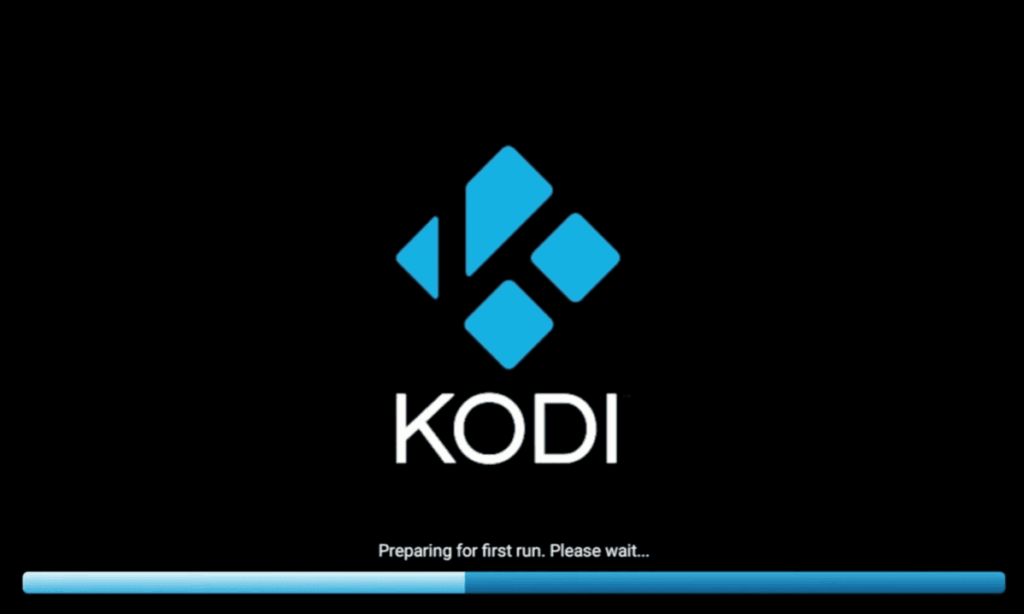
- Launch into Entertainment: Press the OK button to open Kodi. Get ready to be greeted by the familiar Kodi interface, ready to be customized and personalized to your preferences;
- First-Time Setup: On your first launch, Kodi will walk you through a basic setup process. This includes selecting your preferred language, configuring display settings, and choosing your media sources. Follow the on-screen instructions and get ready to personalize your Kodi experience;
Move Kodi to Primary Area (Optional):
- Prioritize Your Kodi Fix: If you use Kodi frequently, you might want to keep it easily accessible on your Google TV main screen. Press the menu button on your remote while highlighting the Kodi app in the “My Apps” section;
- Choose “Move to Top”: This option will allow you to move the Kodi app icon to the top row of your Google TV interface, making it readily available with a single click;
- Quick Access, Instant Entertainment: Now, whenever you crave a movie marathon, a TV show binge, or access to your personal media library, your beloved Kodi app will be just a click away on your Google TV home screen;
How to Install Kodi on a Chromecast – Stream Kodi with Google’s Dongle?
Methods for Streaming Kodi on Chromecast:
- Casting from a Computer;
- Mirroring from an Android Device;
- Installing Kodi on Chromecast with Google TV;
- Casting from a Computer:
Prerequisites:
- Chromecast device connected to your TV;
- Chrome browser installed on your computer;
- Kodi installed on your computer;
Steps:
- Open Chrome on your computer and navigate to the website you want to cast;
- Click the three dots in the top right corner and select “Cast”;
- Choose your Chromecast device from the list of available devices;
- The website will now be mirrored on your TV screen;
- Open Kodi on your computer and start playing your desired content. It will be cast to your TV through the Chrome browser;
- Mirroring from an Android Device:
Prerequisites:
- Chromecast device connected to your TV;
- Android device with Kodi installed;
- Both devices are connected to the same Wi-Fi network;
Steps:
- Open the Settings app on your Android device;
- Tap on “Connected devices” or “Cast”
- Select your Chromecast device from the list;
- Your Android screen will now be mirrored on your TV;
- Open Kodi on your Android device and start playing content. It will be mirrored to your TV screen;
- Installing Kodi on Chromecast with Google TV:
Prerequisites:
Chromecast with Google TV device
Steps:
- Navigate to the “Search” option on the Google TV home screen;
- Type “Kodi” and select the app from the results;
- Click “Install” to download and install Kodi directly on your Chromecast with Google TV;
- Once installed, launch Kodi from the “Apps” section and enjoy its features natively on your device;
Additional Considerations:
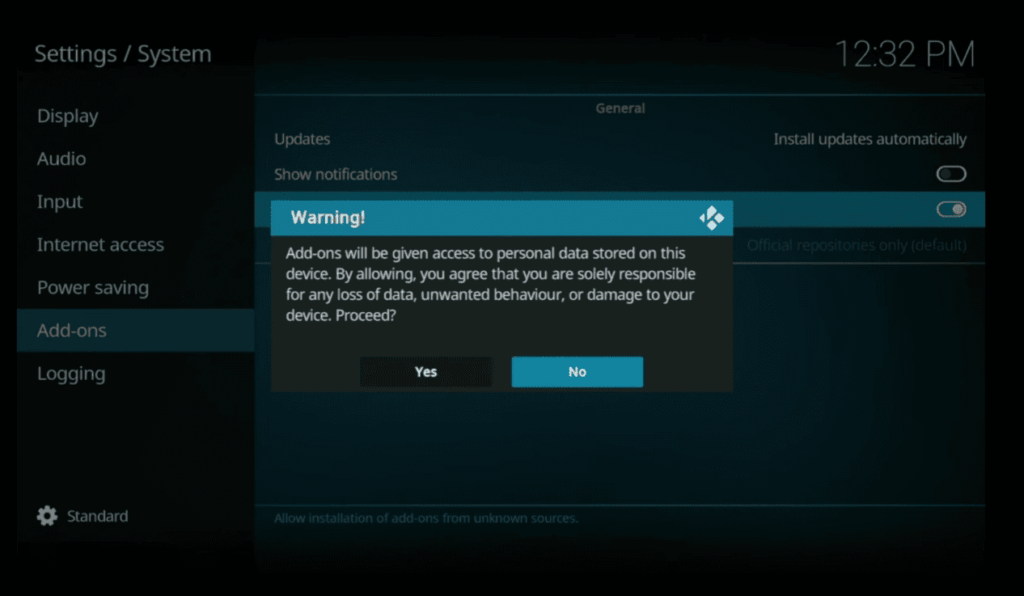
- Add-ons: Kodi’s true power lies in its extensive collection of add-ons, offering access to a vast library of content. Explore add-ons responsibly and ethically, ensuring they are legal and safe to use;
- Network Speed: A stable internet connection is crucial for smooth streaming. Ensure your Wi-Fi network is strong enough to handle the streaming demands;
- Legality: Always use Kodi and its add-ons for legal purposes. Accessing copyrighted content without permission is illegal;
How to Stream Kodi From a Chromecast Using a Computer?
- Check Prerequisites:
- Confirm Chromecast Setup: Ensure your Chromecast device is plugged into your TV and set up correctly;
- Connect to Wi-Fi: Make sure both your computer and Chromecast are connected to the same Wi-Fi network;
- Install Chrome Browser: If you don’t have it already download and install the Google Chrome browser on your computer;
- Install Kodi: Download and install the Kodi media center software on your computer from its official website (https://kodi.tv/);
- Initiate Casting:
- Open Chrome Browser: Launch the Chrome browser on your computer;
- Click Cast Icon: Click the three vertical dots in the top right corner of the browser window;
- Select “Cast…”: From the dropdown menu, choose the “Cast…” option;
- Choose Chromecast Device: A small window will appear. Click on the dropdown menu to select your Chromecast device from the list of available devices;
- Share Your Screen
Choose “Cast Tab” or “Cast Desktop”:
- Cast Tab: Select this option to cast only the current Chrome tab that displays Kodi’s interface;
- Cast Desktop: Choose this option to mirror your entire computer screen, including Kodi and any other open windows;
- Play Content on Kodi:
- Open Kodi: Launch the Kodi application on your computer;
- Browse and Select Content: Navigate through Kodi’s libraries to find the content you want to stream;
- Start Playback: Begin playing the video or audio file you’ve chosen;
- Enjoy on TV:
The content from Kodi will now be displayed on your TV screen through the Chromecast, allowing you to enjoy it on a larger display.
Additional Tips:
- Fullscreen Mode: For a more immersive experience, enable fullscreen mode in Kodi before casting;
- Network Optimization: To ensure smooth streaming, close any unnecessary applications or programs that might be using internet bandwidth;
- Troubleshooting: If you encounter issues, try restarting your Chromecast device, computer, and router;
- Alternative Casting Methods: While Chrome’s casting feature is convenient, you can also explore third-party casting tools like Videostream or Plex for potentially smoother or more feature-rich casting experiences;
How to Sideload Kodi APK on Google TV Using Downloader?
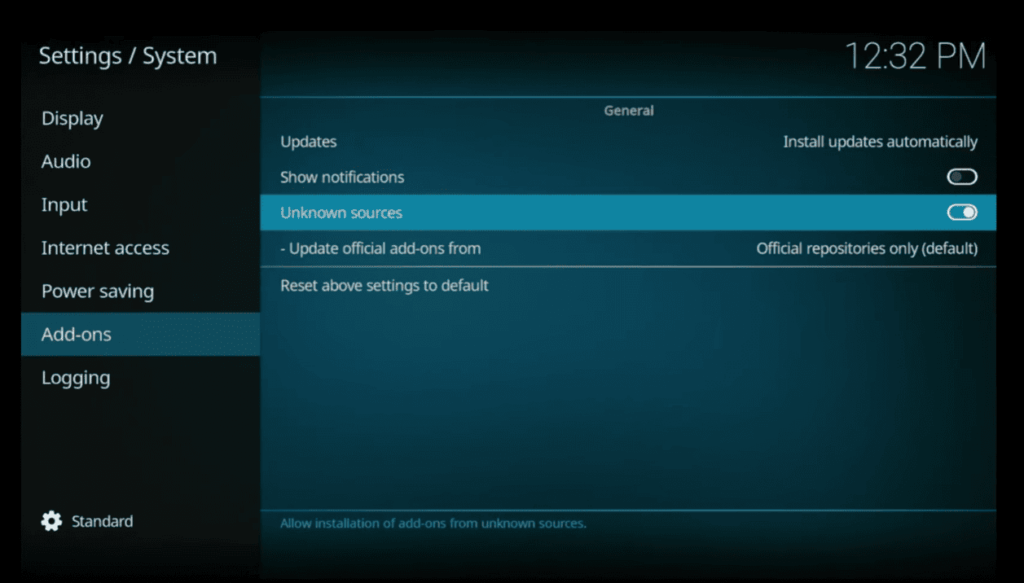
- Enable Unknown Sources:
- Navigate to Settings > Device Preferences > Security & Restrictions;
- Toggle on Unknown Sources to allow apps from sources other than the Play Store;
- Install Downloader App:
- Search for “Downloader” in the Play Store and install it;
- Open Downloader and Grant Permissions:
- Launch the Downloader app;
- If prompted, grant permissions for Downloader to access files and media on your device;
- Enter Kodi APK URL:
- In the Downloader app, click the URL bar and type the following link to download the Kodi APK: https://kodi.tv/download;
- Click Go;
- Download Kodi APK:
- Select the appropriate Kodi APK version for your device and architecture (usually ARMV8A);
- Click Download;
- Install Kodi:
- Once the APK downloads, click Install;
- Review the app permissions and click Install again to confirm;
- Open Kodi:
- Upon completion, click Open to launch Kodi;
- You can also access Kodi from the Apps section of your Google TV home screen;
Additional Tips:
- Update Kodi: Regularly check for updates within Kodi’s settings to ensure you have the latest features and security fixes;
- Legality: Use Kodi responsibly and only access content that you have the legal right to stream;
- Troubleshooting: If you encounter issues, try clearing the Downloader app’s cache and data, or reinstalling Kodi;
- Alternative Sideloading Methods: While Downloader is a popular option, you can also sideload Kodi using other file managers or cloud storage services;
How to Chromecast Kodi from PC to TV with Chrome Browser?
While there’s no dedicated Kodi app for Chromecast, you can still enjoy its content on your TV by casting your computer screen using the Chrome browser. Here’s how:
- Prerequisites:
- Chromecast device: Connected to your TV and set up;
- Chrome browser: Installed on your computer;
- Kodi: Installed on your computer;
- Same Wi-Fi network: Both devices connected to the same Wi-Fi network;
- Initiate Casting:
- Open Chrome: Launch the Chrome browser on your computer;
- Click Cast icon: Find the three vertical dots in the top right corner of the browser window and click on them;
- Select “Cast…”: Choose the “Cast…” option from the dropdown menu;
- Choose Chromecast device: A small window will appear. Click on the dropdown menu and select your Chromecast device from the list;
- Share Your Screen:
- Click “Sources”: In the small casting window, click on the “Sources” dropdown menu;
- Select “Cast desktop”: Choose the “Cast desktop” option to mirror your entire computer screen, including Kodi;
- Click “Share”: Click the blue “Share” button to initiate screen mirroring;
- Optimize Kodi Display:
- Fullscreen mode: Enable fullscreen mode in Kodi to maximize the viewing area on your TV;
- Adjust resolution: If needed, adjust Kodi’s video resolution to match your TV’s capabilities for optimal viewing quality;
- Play Content:
- Open Kodi: Launch the Kodi application on your computer;
- Select content: Browse through Kodi’s libraries and select the content you want to watch or listen to;
- Start playback: Begin playing the media file;
- Enjoy on TV: The content will now be mirrored on your TV screen through the Chromecast;
Additional Tips:
- Network optimization: Close unnecessary applications or programs on your computer to free up bandwidth for smoother streaming;
- Audio control: Adjust audio levels using your computer’s volume controls or the Chromecast volume slider in the casting window;
- Troubleshooting: If you encounter issues, try restarting your Chromecast device, computer, and router;
- Alternative casting tools: Explore third-party casting tools like Videostream or Plex for potentially smoother or more feature-rich casting experiences;
How to Cast Kodi to Chromecast from Any Device?
While Kodi doesn’t have native Chromecast support, here are the methods to cast its content from various devices:
- Chromecast with Google TV:
- Direct Installation: Install Kodi directly from the Google Play Store on your Chromecast with Google TV;
- Desktop or Laptop:
- Chrome Browser: Cast your entire desktop or a specific Chrome tab using the built-in casting feature;
- Third-Party Tools: Explore options like Videostream or Plex for potentially smoother casting experiences;
- Android Devices:
- Screen Mirroring: Use the built-in screen mirroring feature in Android to cast your entire device screen, including Kodi;
- Third-Party Apps: Consider apps like LocalCast or AllCast for more streamlined casting from Kodi;
- iOS Devices:
- Third-Party Apps: While iOS doesn’t have native screen mirroring to Chromecast, apps like Replica or AllCast can bridge the gap;
General Steps for Casting:
- Connect Devices: Ensure both your Chromecast and device are connected to the same Wi-Fi network;
- Open Casting Feature: Access the casting feature on your device (e.g., Chrome browser’s cast icon, Android’s cast settings);
- Select Chromecast Device: Choose your Chromecast device from the list of available devices;
- Initiate Casting: Select the appropriate casting option (e.g., “Cast desktop,” “Cast tab,” or “Mirror screen”);
- Open Kodi: Launch Kodi on your device and start playing content;
- Enjoy on TV: The content will be mirrored on your TV screen through the Chromecast;
Additional Tips:
- Network Optimization: Close unnecessary apps and programs to free up bandwidth;
- Audio Adjustment: Control audio levels using your device’s volume controls or the Chromecast volume slider;
- Troubleshooting: Restart devices or try alternative casting methods if you encounter issues;
- Legality: Use Kodi responsibly and only access content you have the legal right to stream;
How to Cast Kodi to Chromecast from a Mobile Phone:
You can still cast Kodi magic onto your big screen using your trusty mobile phone as the remote and casting wizard.
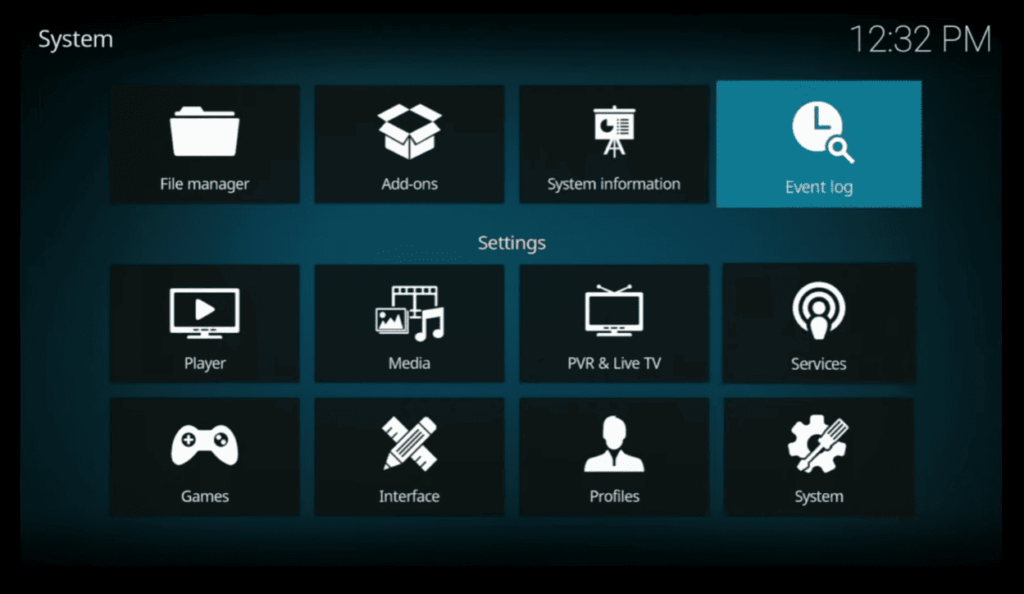
Method 1: From Your Phone’s Cast Settings (Android)
This method utilizes the built-in screen mirroring feature of your Android phone, essentially casting your entire phone screen (including Kodi) to your Chromecast.
- Connect and Prepare:
- Ensure both your phone and Chromecast are connected to the same Wi-Fi network;
- Open Kodi on your phone;
- Initiate the Cast:
- Swipe down from the top of your phone screen to access the Quick Settings panel;
- Look for the “Cast” icon (might be named “Screen Mirroring” or similar depending on your device). Tap it;
- Your phone will scan for available devices. Select your Chromecast from the list;
- Cast Away!
- Your phone screen will now be mirrored on your TV. Open Kodi on your phone and start playing your desired content. It will be streamed to your TV through the Chromecast, transforming your living room into a theater of your own choosing;
Method 2: From Google Files (Android)
This method leverages the file browsing capabilities of the Google Files app to directly cast individual video files from your phone to Chromecast.
- Find Your Videos:
- Open the Google Files app on your phone;
- Locate the video files you want to cast to your TV. These can be stored in any folder on your phone;
- Cast with Ease:
- Tap on the video file you want to cast;
- Look for the “Cast” icon in the top right corner of the screen (may be located within the playback options depending on your device). Tap it;
- Select your Chromecast device from the list;
- Sit Back and Relax:
- The chosen video will be streamed directly to your TV through Chromecast. Enjoy your movie night or binge-watch session without mirroring your entire phone screen;
Method 3: From Google Home App (Android & iOS)
This method uses the Google Home app (available for both Android and iOS) to connect and control your Chromecast devices. It offers more fine-grained control over audio settings and casting-specific tabs or apps.
- Connect and Control:
- Open the Google Home app on your phone;
- Ensure your phone and Chromecast are connected to the same Wi-Fi network;
- If not already added, follow the in-app instructions to set up and add your Chromecast device to the Google Home app;
- Choose Your Casting Magic:
- In the Google Home app, locate your Chromecast device on the home screen;
- Tap on the device tile to open its control panel;
- You’ll see various options like “Cast media” and “Control apps”;
- Casting Options Galore:
- Cast media: This option allows you to cast various media sources like local videos, photos, or music from your phone’s library to your Chromecast;
- Control apps: If you have the Kodi app installed on your phone, you might see it listed here. Select Kodi and start playing content. This method casts only the Kodi app window, not your entire phone screen;
Additional Tips and Tricks:
- Network Speed: A stable Wi-Fi connection is crucial for smooth streaming. Ensure your network can handle the bandwidth demands of Kodi content;
- Audio Control: You can adjust the audio volume or choose audio output devices (connected speakers or soundbars) directly from the Google Home app while casting;
- Troubleshooting: If you encounter connection issues, try restarting your phone, Chromecast, and router;
- Legality: Remember to use Kodi and its add-ons responsibly and access only content you have the legal right to stream;
FAQ
Can you jailbreak a Chromecast with Kodi?
No, Chromecast does not support jailbreaking. It is a secure streaming device designed to operate within the parameters set by Google.
How do you fix Kodi on Chromecast?
If you encounter issues with Kodi on Chromecast, try reinstalling Kodi, clearing the cache, and ensuring your Chromecast and Kodi are updated to the latest versions.
How do you remove Kodi from Chromecast?
To remove Kodi from Chromecast, uninstall the Kodi app from your device, and the casting connection will be terminated.
Is Kodi on Chromecast legal?
Yes, Kodi itself is legal, but some third-party add-ons may provide access to copyrighted content, raising legal concerns. Use Kodi responsibly and adhere to copyright laws.
How do you stream Kodi to Chromecast?
Enable casting within the Kodi app, select your Chromecast device, and play the content. Ensure both devices are on the same Wi-Fi network.
How do you install Kodi 20 on Google TV?
Visit the official Kodi website, download the APK file for Kodi 20, and use the File Commander app on Google TV to install it.
Can you install third-party apps on Google TV?
Yes, Google TV allows the installation of third-party apps. Adjust your settings to allow apps from unknown sources.
Can you install Android apps on Google TV?
Yes, Google TV is based on the Android TV platform, supporting the installation of Android apps.
What is the difference between Chromecast and Chromecast Google TV?
Chromecast is primarily a casting device, while Chromecast with Google TV includes a user interface, a remote, and supports standalone app installations for a more comprehensive streaming experience.
How to set up Kodi?
Install Kodi on your device, add media sources, and configure settings for a personalized experience. Tutorials are available on the Kodi website.
How do you update Kodi on Google TV?
Visit the Google Play Store on Google TV, locate Kodi, and click “Update” if a new version is available.
Why can’t you stream to Chromecast?
Ensure both Chromecast and the casting device are connected to the same Wi-Fi network and are updated to the latest firmware and app versions.
What are the disadvantages of Chromecast?
Chromecast requires a secondary device for control, lacks a traditional remote, and may not have a built-in user interface.
How do you update your Chromecast software?
Chromecast updates automatically. To check for updates, open the Google Home app, select your device, and navigate to “Settings”.
Can you add more apps to Google TV?
Yes, Google TV allows the installation of various apps from the Google Play Store.
Do you need to uninstall Kodi before updating?
No, updating Kodi does not require uninstallation. Updates are typically applied over the existing installation.
Is Kodi TV free?
Yes, Kodi is free and open-source software.
Is Kodi TV still available?
Yes, as of the latest update, Kodi TV is still available for download.
Is Chromecast with Google TV the same as Android TV?
Chromecast with Google TV is based on the Android TV platform, but they are not identical. Chromecast with Google TV includes additional features and a more user-friendly interface.
Is Chromecast still supported?
Chromecast is still supported and receives firmware updates.
How much does it cost to install Kodi on Chromecast with Google TV?
Installing Kodi on Chromecast with Google TV is free. Kodi is an open-source software.
Can you still use other apps on your Chromecast with Google TV after installing Kodi?
Yes, installing Kodi on Chromecast with Google TV does not affect the functionality of other apps.
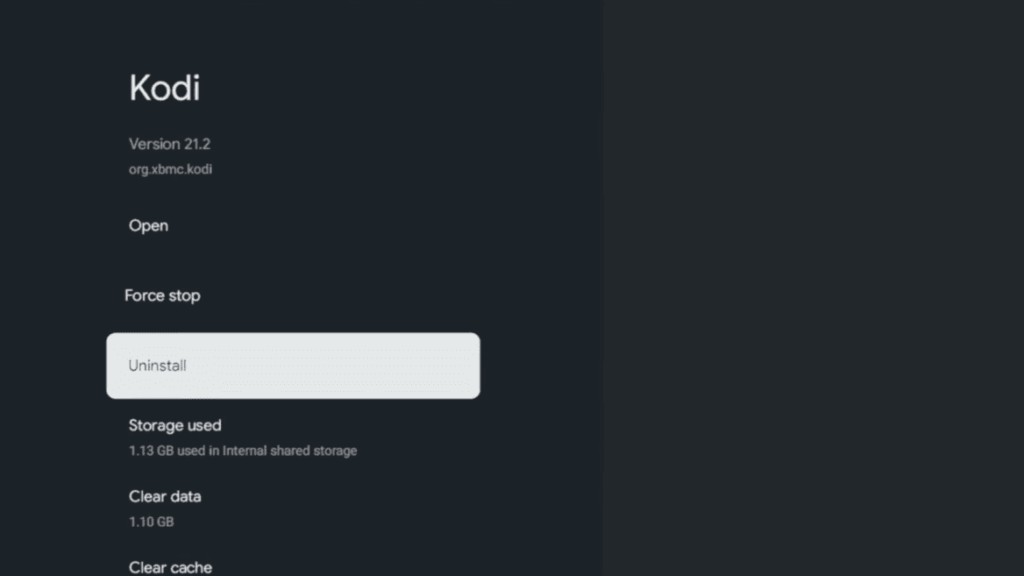
Can you uninstall Kodi from your Chromecast with Google TV?
Yes, uninstall Kodi by navigating to the app settings on Google TV and selecting “Uninstall.”
Can you use Kodi on your Chromecast with Google TV without an Internet connection?
Kodi may work with locally stored content offline, but streaming add-ons and certain features may require an internet connection.
How much space does Kodi take up on your Chromecast with Google TV?
Kodi’s installation size varies, but it generally takes up a modest amount of storage space on your device.