
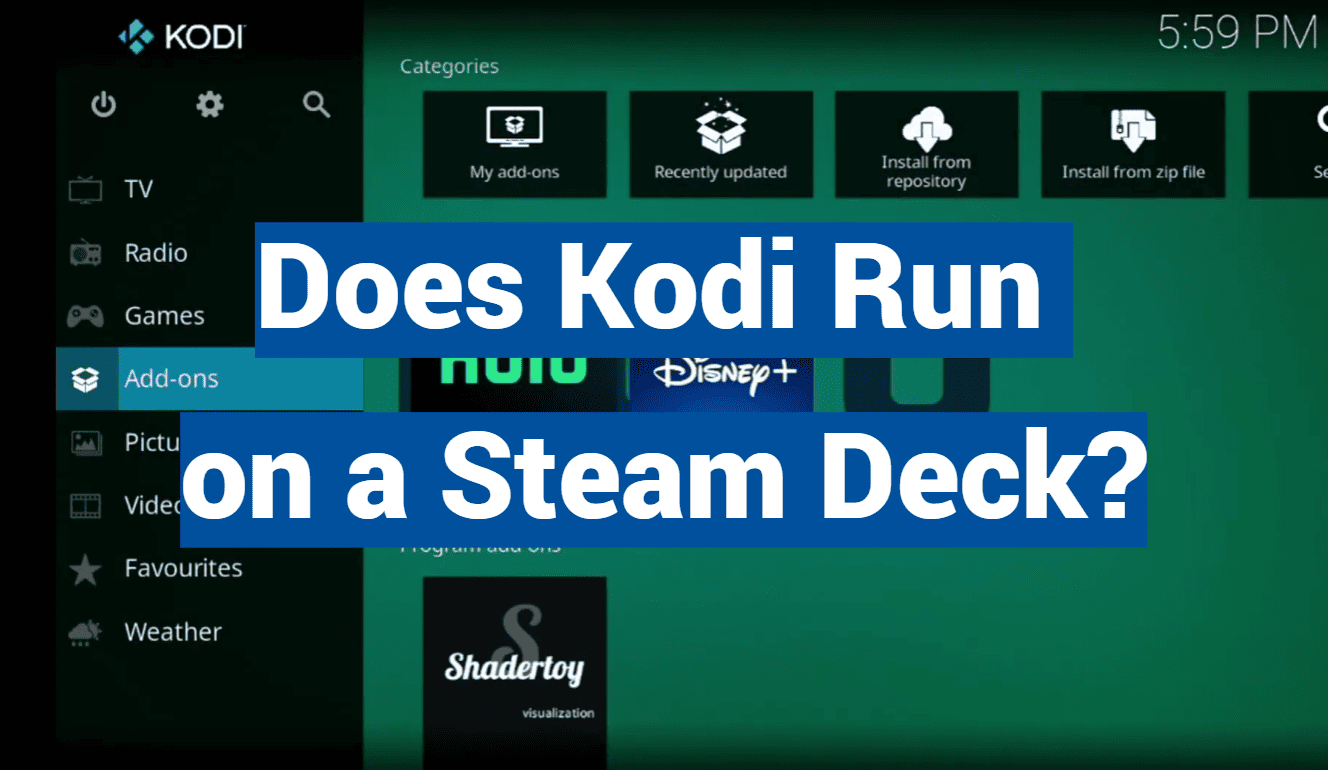
Imagine a world where your Steam Deck isn’t just a haven for AAA titles and indie gems, but a versatile entertainment hub bursting with movies, TV shows, live TV, and music. No, it’s not a futuristic dream – it’s the reality that Kodi unlocks on your Steam Deck. But can this handheld powerhouse truly handle the Kodi magic? The answer is a resounding yes, with a few exciting caveats. Dive into this guide to discover the world of Kodi on Steam Deck, navigate its technical nuances, and unleash the full potential of your handheld entertainment companion.
Get ready for movie nights on the go, binge-watching sessions from your cozy couch, and a universe of content at your fingertips – all powered by the familiar comfort of your Steam Deck controls. Are you ready to unlock the hidden potential of your Steam Deck? Let’s dive in!
Why To Use Kodi On Steam Deck?
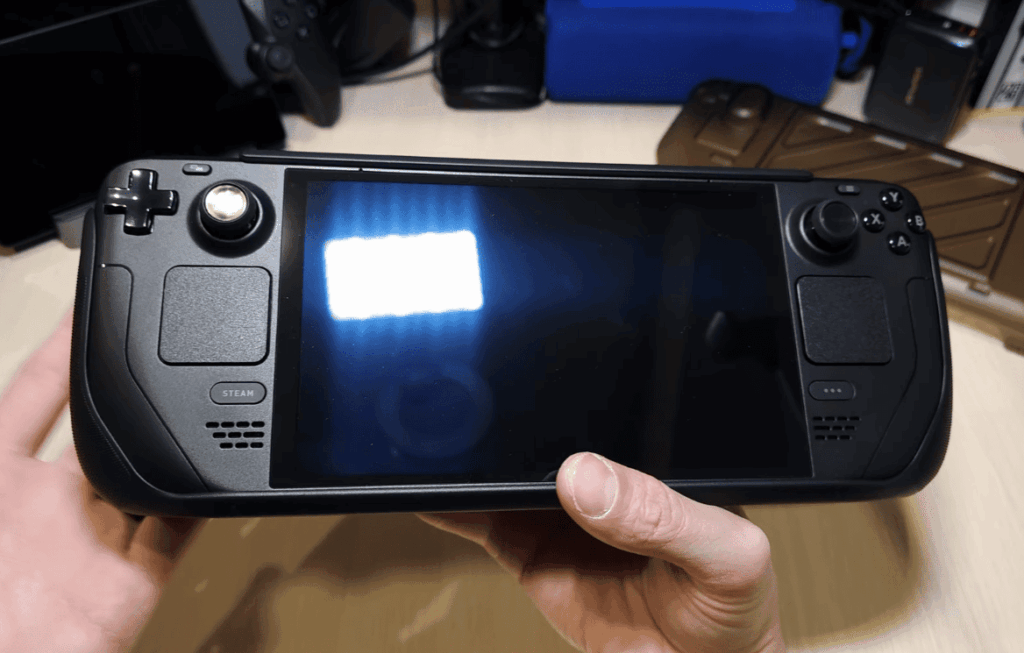
The Steam Deck is a fantastic handheld gaming PC, but did you know it can be so much more? By installing Kodi, the ultimate open-source media center, you unlock a world of entertainment possibilities beyond just gaming.
- Media Powerhouse
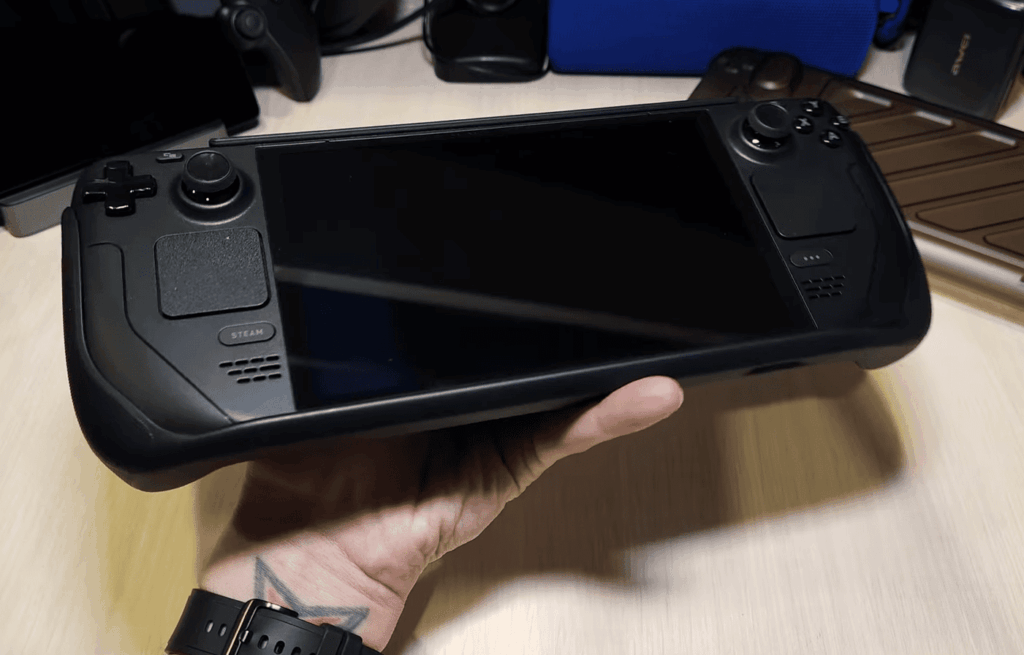
Kodi transforms your Steam Deck into a versatile media powerhouse. Play your local video and music library, stream content from online sources (with add-ons, be mindful of legalities), access live TV with IPTV, and even turn your Deck into a PVR to record shows. It’s like having a mini HTPC in your hands, perfect for travel, relaxing at home, or anywhere you have Wi-Fi.
- Big Screen Experience
The Steam Deck’s gorgeous display is great for on-the-go entertainment, but Kodi shines when docked. Connect your Deck to a TV or projector, and you have a full-fledged media center with a beautiful interface optimized for large screens. Imagine movie nights, binge-watching your favorite shows, or enjoying live sports – all powered by the familiar controls of your Steam Deck.
- Customization Galore
Kodi is incredibly customizable. Change the entire look and feel with custom skins, personalize menus, and install add-ons to expand its functionality. Want a Spotify integration? There’s an add-on for that. Craving classic arcade games? Kodi can handle that too. The possibilities are endless, making your Kodi experience truly your own.
- Open-Source Goodness
Unlike proprietary media players, Kodi is open-source, meaning it’s free to use and constantly evolving thanks to a passionate developer community. This translates to regular updates, bug fixes, and new features, ensuring your Kodi experience stays fresh and exciting.
- Controller-Friendly Interface
Navigating Kodi with the Steam Deck’s controls is a breeze. The interface is designed for gamepad use, making it intuitive and comfortable. Forget the struggle of mouse pointers on small screens – Kodi lets you control everything seamlessly with the familiar buttons and joysticks.
- Lightweight and Efficient
Kodi is surprisingly lightweight and runs smoothly even on less powerful devices. This makes it ideal for the Steam Deck, ensuring smooth playback and responsive performance even with demanding media files. You won’t have to worry about lag or stuttering ruining your movie night.
- Community and Support
The Kodi community is vast and supportive. There are countless online resources, forums, and tutorials to help you get started, troubleshoot any issues, and discover new ways to use Kodi. No matter your experience level, you’ll find friendly and knowledgeable people willing to assist you.
- Travel Entertainment Companion
The Steam Deck’s portability makes it a fantastic travel companion, and Kodi enhances that experience tenfold. Load your media library onto the microSD card, and you have hours of entertainment at your fingertips without relying on internet connectivity. Binge-watch shows on long flights, catch up on movies during layovers, or enjoy local content while exploring new destinations.
- Future-Proof Flexibility
Kodi is constantly evolving, with new features and add-ons added regularly. This means your Kodi experience on Steam Deck will never get stale. As new technologies and streaming services emerge, Kodi will likely adapt and integrate them, keeping your entertainment options ever-expanding.
Overview of Kodi:
Kodi: Definition, Purpose
Kodi, formerly known as XBMC (Xbox Media Center), traces its roots back to 2002. Initially developed for the Xbox gaming console, the project gained momentum and transformed into a cross-platform media player and entertainment hub. The transition to an open-source model in 2008 marked a pivotal moment, fostering a vibrant community that contributed to Kodi’s ongoing development.
At its core, Kodi serves as a centralized platform for organizing, streaming, and accessing diverse types of media content. Whether it’s movies, TV shows, music, photos, or even live TV, Kodi aims to provide a unified and user-friendly interface to manage an extensive media library. Unlike proprietary streaming services, Kodi empowers users by allowing them to curate their content from various sources into a single, cohesive experience.
Key Features
Customizable Interface
Kodi’s interface is not only visually appealing but also highly customizable. Users can choose from a variety of skins and themes to personalize their experience. The flexibility extends to menu layouts and even background images, ensuring that Kodi adapts to individual preferences.
Extensive File Compatibility
One of Kodi’s standout features is its broad file compatibility. It supports an array of file formats for audio, video, and images, eliminating the need for extensive file conversion. This versatility makes it a go-to solution for users with diverse media sources and formats.
Add-Ons and Extensions
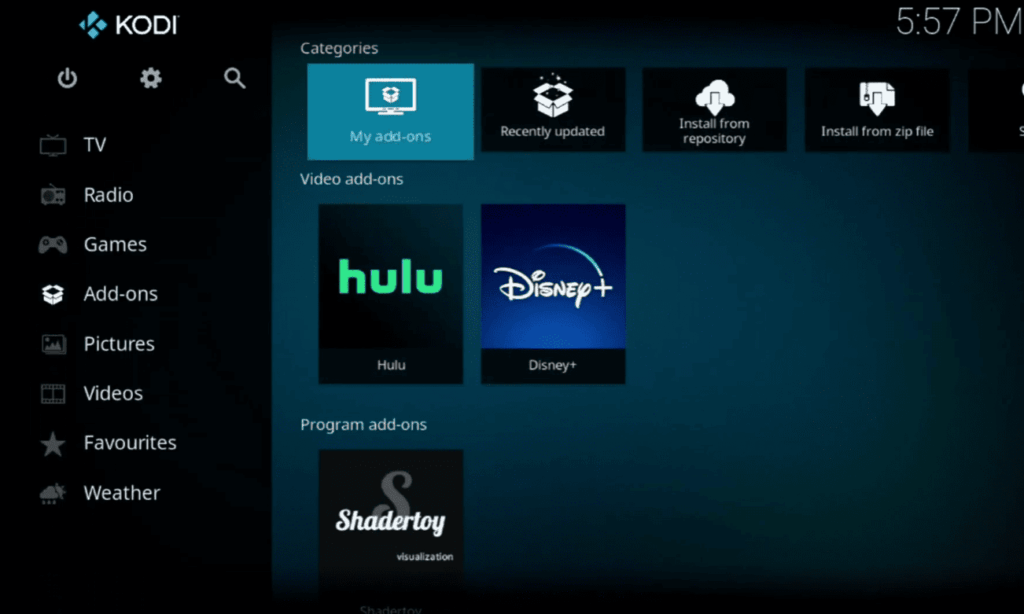
Kodi’s functionality can be expanded exponentially through add-ons and extensions. These third-party plugins cover a wide spectrum of services, including streaming platforms, weather updates, and gaming. The robust community of developers continually contributes to this ecosystem, enhancing Kodi’s capabilities with new features and services.
Media Management
Organizing and managing media files is a breeze with Kodi. The platform automatically fetches metadata, including cover art and information about movies and TV shows, providing a polished and visually appealing library. Users can create playlists, mark favorites, and even apply parental controls for a family-friendly media environment.
Cross-Platform Support
Kodi’s commitment to cross-platform compatibility ensures accessibility across various devices and operating systems. Whether it’s Windows, macOS, Linux, Android, iOS, or even Raspberry Pi, Kodi seamlessly adapts to the user’s preferred hardware and software environment.
Remote Control Options
To enhance the user experience, Kodi offers multiple remote control options. From smartphone apps to dedicated hardware remotes, users can interact with Kodi from a distance, making it an ideal choice for home theater setups.
PVR (Personal Video Recorder) Functionality
Kodi’s integration with PVR functionality extends its capabilities to live TV. Users can set up and manage TV recordings, transforming Kodi into a comprehensive media center that caters to both offline and online content consumption.
Kodi’s Compatibility With Third-Party Devices
Smart TVs:
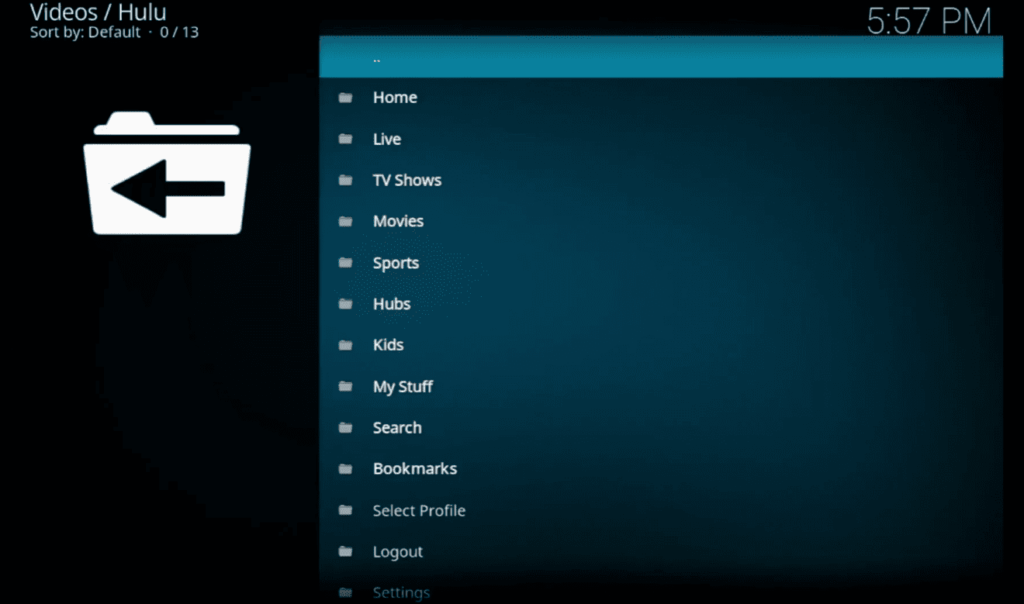
Kodi’s versatility extends to smart TVs, making it a valuable addition for users seeking a unified media experience on their television sets. By installing Kodi on a smart TV, users can consolidate their media content and streaming services into a single interface, reducing the need to switch between various apps.
Streaming Devices:
Kodi is compatible with popular streaming devices like Amazon Fire Stick, Roku, and Google Chromecast. This compatibility expands the reach of Kodi, allowing users to transform their standard TVs into feature-rich media centers by leveraging the capabilities of these streaming devices.
Gaming Consoles:
While its roots lie in the Xbox, Kodi has transcended its gaming console origins. It remains compatible with various gaming consoles, including Xbox, PlayStation, and Nintendo Switch. This adaptability ensures that gaming enthusiasts can seamlessly integrate Kodi into their entertainment setup.
Set-Top Boxes:
Dedicated media players and set-top boxes, such as NVIDIA Shield and Apple TV, find synergy with Kodi. Users can install Kodi as a standalone application on these devices, transforming them into all-encompassing media hubs that cater to a wide range of content sources.
Computers and Laptops:
Kodi’s compatibility with desktop operating systems like Windows, macOS, and Linux solidifies its standing as a versatile media solution. Users can repurpose old computers or laptops into media servers, leveraging Kodi’s extensive features without the need for specialized hardware.
Mobile Devices:
The ubiquity of smartphones and tablets is not lost on Kodi. The platform’s availability on Android and iOS devices enables users to carry their media libraries on the go. Whether it’s a long commute or a journey, Kodi ensures that users have access to their favorite content anytime, anywhere.
Raspberry Pi:
Kodi’s lightweight nature makes it a perfect fit for the Raspberry Pi, a popular single-board computer. This low-cost solution opens up new possibilities for users who want an energy-efficient and compact media center for their homes.
As technology advances and user preferences evolve, Kodi remains at the forefront of the media center landscape. The commitment to open-source principles and the active engagement of a dedicated community ensure that Kodi will continue to adapt, incorporating new features and staying relevant in the dynamic world of digital entertainment.
Steam Deck: An In-Depth Overview:
Key Specifications and Hardware Details:
- Processor and Graphics: Powering the Steam Deck is a custom AMD APU featuring a Zen 2 CPU with 4 cores and 8 threads, clocked at 2.4-3.5 GHz, and an RDNA 2 GPU with 8 compute units at 1.6 GHz. This configuration delivers impressive performance for AAA titles and indie gems alike, ensuring smooth gameplay and stunning visuals on the vibrant 7-inch, 1280x800p OLED display with a variable refresh rate of up to 90Hz;
- RAM and Storage: 16GB of LPDDR5 RAM ensures seamless multitasking and responsive performance, while the storage options – 64GB eMMC, 256GB or 512GB PCIe NVMe SSD, and a microSD card slot – cater to diverse needs. The SSD delivers fast loading times, while the expandable storage allows you to carry a vast library of games and media;
- Controls and Input: The Steam Deck boasts a controller layout familiar to console gamers, with dual analog sticks, trackpads, face buttons, triggers, and shoulder buttons. Additionally, it features gyroscopes and accelerometers for motion controls, a capacitive touchscreen, and haptic feedback for immersive gameplay. Connectivity options include Wi-Fi 6, Bluetooth 5.0, and USB-C ports for data transfer and charging;
Operating System and Software Capabilities:
SteamOS, a custom Linux-based operating system built specifically for Steam Deck, powers the device. This opens up a world of possibilities beyond just Steam games. Users can access the Linux desktop environment, install non-Steam games through launchers like Lutris and Proton, and even experiment with emulators, media center software like Kodi, and productivity tools.
- The Linux-Based OS: Implications for Third-Party Apps Like Kodi:
While SteamOS offers greater software flexibility, it requires some technical know-how for installing and running non-Steam applications like Kodi. However, the benefits are significant. Kodi transforms the Steam Deck into a versatile entertainment hub, allowing you to stream movies and TV shows, access local media libraries, watch live TV (with IPTV add-ons), and even record shows. Some add-ons might exist in legal gray areas, so proceed with caution and research their legitimacy before installing.
Advantages:
- Access a vast library of content beyond Steam games;
- Customize your entertainment experience with skins and add-ons;
- Watch movies and TV shows offline through your local media library;
- Utilize IPTV for live TV streaming;
- Record shows with PVR functionality;
Disadvantages:
- Requires some technical knowledge for installation and configuration;
- Not all add-ons may be legal or reliable;
- SteamOS updates might break Kodi compatibility temporarily;
Overall, the possibilities offered by Kodi on Steam Deck are exciting, but users need to be aware of the potential hurdles and legal considerations.
- Beyond Gaming: Expanding the Horizon with Steam Deck:
Steam Deck’s capabilities extend beyond the realm of gaming. The Linux-based OS unlocks a door to exploring various applications. Consider these possibilities:
- Productivity: Install Office-like software for document editing and presentations, or coding programs for developers;
- Creativity: Utilize art and image editing tools, music production software, or even video editing applications;
- Web Browsing: Access the internet through various web browsers, allowing you to stay connected, check emails, and browse the web with the comfort of the familiar controls;
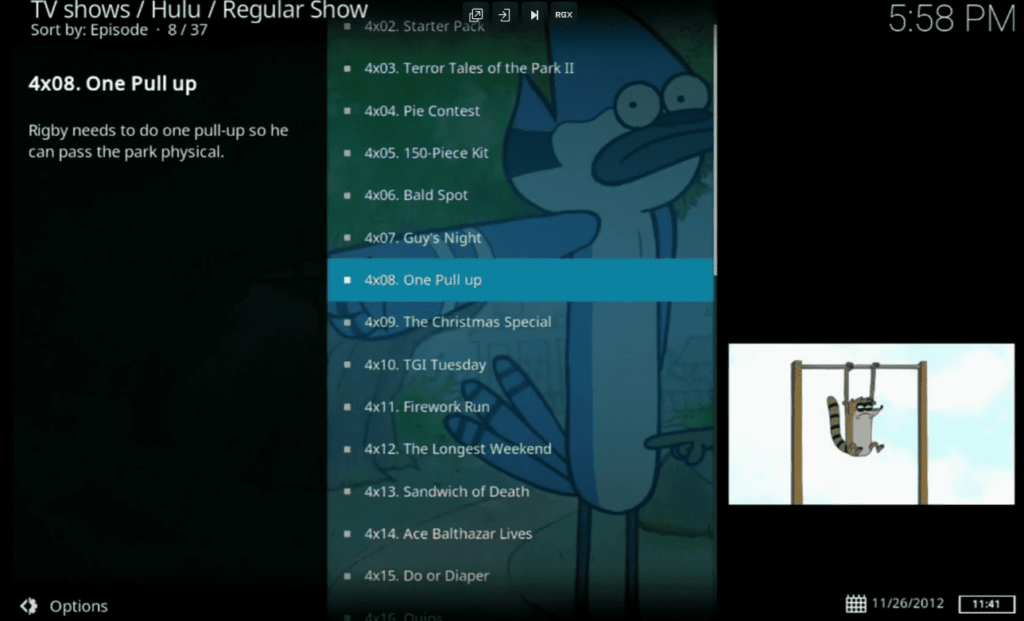
- Streaming: Enjoy streaming services like Netflix, Hulu, and Disney+ through web browsers or dedicated applications;
The Steam Deck has the potential to be a versatile tool for work, entertainment, and creativity, not just a gaming device.
Is It Possible To Launch Kodi On a Steam Deck:
Steam Deck, with its custom Linux-based OS, can indeed run Kodi, opening up a world of entertainment possibilities beyond just gaming. However, navigating this path requires understanding the technical requirements, comparing software and hardware specs, and acknowledging the role of drivers, dependencies, and updates.
Technical Requirements:
- Hardware: Steam Deck’s specs meet Kodi’s requirements comfortably. Its AMD APU, RAM, and storage are sufficient for smooth Kodi playback, even for high-definition content. The touchscreen and controller layout make navigating Kodi intuitive;
- Software: Kodi requires a Flatpak package optimized for Steam Deck. These packages are readily available online and handle dependency management seamlessly;
- Linux Knowledge: While installing Kodi on Steam Deck isn’t overly complex, basic Linux knowledge is helpful. Understanding how to navigate the Discover app store, launch the terminal, and manage folders comes in handy;
Comparing The Software And Hardware Specs:
- Operating System: SteamOS is based on Arch Linux, while Kodi runs natively on various systems, including Linux. This compatibility ensures smooth integration;
- Processor and Graphics: Steam Deck’s AMD APU is powerful enough to handle Kodi’s decoding and playback needs, even for 4K content with Kodi v20 and its hardware AV1 decoding capabilities;
- RAM and Storage: 16GB RAM is sufficient for Kodi, and the storage options allow for a healthy media library;
The Role Of Drivers, Dependencies, And Updates:
- Drivers: Steam Deck uses custom drivers for its hardware, which are constantly updated. These updates can sometimes break compatibility with existing Kodi versions. Be mindful of driver updates and their potential impact on Kodi;
- Dependencies: Flatpak packages manage dependencies automatically, minimizing user involvement. However, understanding essential dependencies like glibc and ffmpeg can help troubleshoot any issues;
- Updates: Both SteamOS and Kodi receive regular updates. It’s important to keep both systems updated to maintain compatibility and ensure access to the latest features and bug fixes;
Compatibility Challenges Between Kodi and Steam Deck
While launching Kodi on your Steam Deck opens a door to endless entertainment possibilities, it’s not always a smooth ride. Compatibility challenges can lurk around the corner, ready to disrupt your movie night or binge-watching session.
Driver Dissonance:
Steam Deck relies on custom drivers for its unique hardware, and updates to these drivers can sometimes throw a wrench in Kodi’s compatibility. An update that improves performance for games might suddenly render your favorite add-on unusable. Staying informed about driver updates and their potential impact on Kodi is crucial.
Dependency Dominoes:
Kodi relies on a chain of software dependencies to function correctly. While Flatpak packages handle most of this automatically, there might be times when specific libraries or versions are needed. Missing or outdated dependencies can lead to cryptic error messages and a frustrated Kodi user. Understanding essential dependencies like glibc and ffmpeg can help diagnose and solve such issues.
Codec Conundrums:
Kodi supports a wide range of video and audio codecs, but Steam Deck might not have them all built-in. This can lead to playback stutter or choppiness for certain media formats. Consulting Kodi’s official documentation on supported codecs and researching potential solutions for missing ones can help overcome these hurdles.
Hardware Hiccups:
While Steam Deck’s hardware is powerful enough for most Kodi tasks, demanding media formats or specific add-ons might push its limits. Occasional stutters or slowdowns are not uncommon, especially with high-resolution content or resource-intensive Kodi configurations. Experimenting with different settings and add-ons can help fine-tune performance for your specific needs.
Community Camaraderie:
The Kodi community is a vibrant pool of knowledge and support. Forums, Reddit threads, and dedicated websites offer troubleshooting tips, workarounds for compatibility issues, and recommendations for optimized Kodi setups on Steam Deck. Don’t hesitate to reach out and tap into this wealth of experience if you encounter any challenges.
Staying Ahead of the Curve:
Both SteamOS and Kodi receive regular updates, and ensuring compatibility requires keeping both systems up-to-date. While waiting for official Kodi updates that address Steam Deck-specific issues, consider using Kodi beta versions at your own risk, as they might offer improved compatibility but could also introduce new bugs.
Step-by-Step Guide for Installation Of Kodi On Steam Deck
Before you begin:
- Ensure your Steam Deck is connected to the internet;
- Download a Flatpak package of Kodi optimized for Steam Deck from a trusted source, such as GitHub;
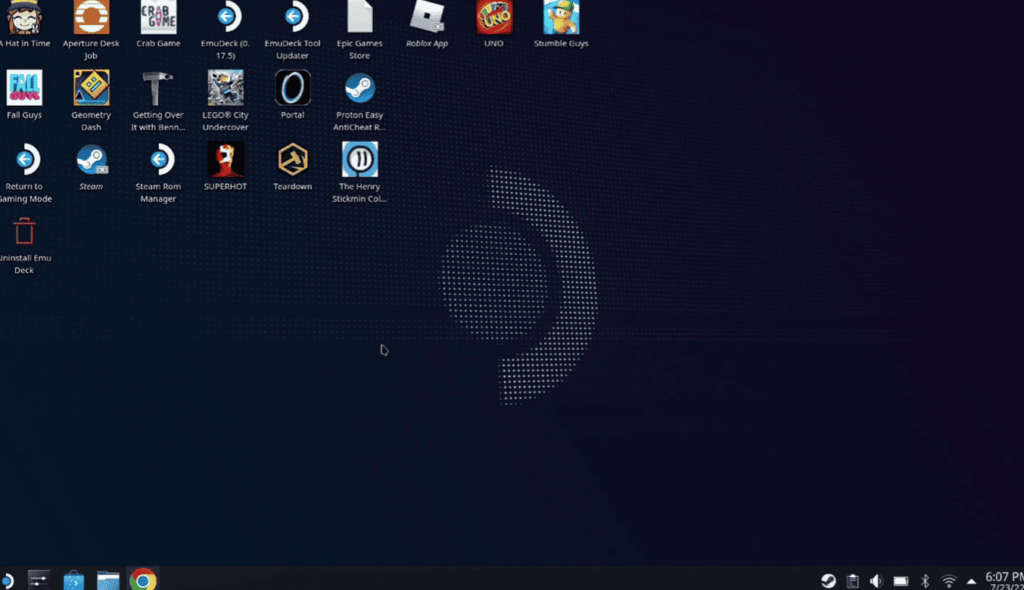
- Access Desktop Mode:
- Press the Steam Button to open the Quick Menu;
- Select Power, then Switch to Desktop;
- Enable Flatpak Support:
- Open the Discover app;
- Search for and install flatpak;
- Launch the flatpak app;
Enter the following command in the terminal window:
flatpak remote add flathub
https://flathub.org/repo/flathub.flatpakrepo
- Install Kodi:
Enter the following command in the terminal window, replacing <version> with the downloaded Kodi Flatpak version number: flatpak install flathub org.xbmc.Kodi/<version>
- Add Kodi as a Non-Steam Game:
-
- Open the Steam app;
- Click on Library, then Add Non-Steam Game…;
- Browse to and select the Kodi executable with the path:
- /usr/share/flatpak/app/org.xbmc.Kodi/current/x86_64/bin/kodi
- Click Add Game;
- (Optional) Customize Kodi Launch Options:
- Right-click on Kodi in your Steam library;
- Select Properties, then Launch Options;
Add the following command to set VAAPI hardware decoding for improved performance (may not be necessary on all setups):
–branch=stable –arch=x86_64 –env=LIBVA_DRIVER_NAME=radeonsi –command=kodi tv.kodi.Kodi
- Launch!
- Launch Kodi from your Steam library;
- Explore the vast world of entertainment;
Additional Tips:
- Consider connecting an external keyboard and mouse for easier Kodi navigation and management;
- Explore the Official Kodi Wiki for detailed information on settings, customization, and add-ons;
- Join the Kodi subreddit for troubleshooting help and community discussions;
Troubleshooting Common Issues And Challenges
While installing and running Kodi on your Steam Deck opens up a plethora of entertainment options, you might encounter some bumps along the way. Don’t fret, intrepid Kodi navigator!
- Compatibility Clashes:
- Symptoms: Kodi crashes, specific add-ons malfunction, unexpected error messages appear;
- Cause: Driver updates on Steam Deck can sometimes disrupt compatibility with existing Kodi versions;
- Solution: Stay informed about Steam Deck driver updates and their potential impact on Kodi. Consider waiting for official Kodi updates that address compatibility issues or try using Kodi beta versions at your own risk;
- Decoder Dilemmas:
- Symptoms: Stuttering playback, choppiness, incompatibility with certain media formats;
- Cause: Missing codecs needed for specific video or audio formats;
- Solution: Consult Kodi’s official documentation on supported codecs and research potential solutions for missing ones. Consider using add-ons like MediaInfo to identify unsupported codecs in your media library;
- Dependency Dominoes:
- Symptoms: Kodi fails to launch, cryptic error messages, functionality issues;
- Cause: Missing or outdated dependencies needed by Kodi;
- Solution: Flatpak packages handle most dependencies automatically, but understanding essential ones like glibc and ffmpeg can help diagnose and solve issues. Consult online resources for troubleshooting specific dependency errors;
- Performance Hiccups:
- Symptoms: Occasional stutters, slowdowns, sluggish Kodi experience;
- Cause: Demanding media formats or resource-intensive Kodi configurations exceeding Steam Deck’s capabilities;
- Solution: Experiment with different settings and add-ons to optimize performance. Consider lowering video resolution or adjusting Kodi’s hardware acceleration settings. Monitor CPU and GPU usage with tools like htop to identify performance bottlenecks;
- Community Camaraderie:
Remember, you’re not alone! The vast Kodi community is a treasure trove of knowledge and support. Don’t hesitate to reach out to forums, Reddit threads, and dedicated websites for troubleshooting tips, workarounds for specific issues, and recommendations for optimized Kodi setups on Steam Deck.
Bonus Tip: Regularly update both SteamOS and Kodi to ensure compatibility and access the latest features and bug fixes.
Tips For Optimizing Kodi’s Performance On the Steam Deck
- Hardware Acceleration Tweaks:
- VAAPI for Video Decoding: Steam Deck boasts powerful AMD graphics. Unleash their potential by enabling VAAPI hardware decoding in Kodi settings. Head to Settings > System > Display > Hardware Acceleration and select Level 2 (Hardware decoding of supported codecs);
- Reduce CPU Load: Kodi can be CPU-hungry. To free up resources, consider lowering video resolution or frame rate in Settings > Player > Videos. Experiment to find the sweet spot between quality and performance;
- Addon Efficiency:
- Less is More: A plethora of add-ons can bog down Kodi. Stick to those you truly need and disable unused ones in Settings > Add-ons > My add-ons > Disabled. Regularly prune your add-on garden for a smoother experience;
- Lightweight Alternatives: Seek lightweight add-ons whenever possible. Popular options like Seren or Fen are less resource-intensive than their heavier counterparts;
- Library Optimization:
- Pre-scrape Media: Pre-scraping your media library with tools like Kodi’s built-in scraper or external software like Emby minimizes on-the-fly scraping during playback, reducing CPU load;
- Clean House: Remove broken links, duplicate files, and unnecessary clutter from your library. A clean library means less work for Kodi, leading to smoother playback;
- Advanced Tweaks:
- Cache Control: Kodi caches video data for faster playback. Adjust cache size in Settings > System > Advanced based on your needs and storage availability. A larger cache can improve performance, but be mindful of space constraints;
- Thermal Throttling: Steam Deck might throttle performance when hot. Consider undervolting the CPU/GPU slightly using tools like DeckTool to maintain optimal performance during longer Kodi sessions;
- Community and Updates:
- Knowledge is Power: The Kodi community is a vibrant pool of expertise. Check out forums, Reddit threads, and dedicated websites for optimization tips specific to Steam Deck;
- Stay Current: Regular updates for both SteamOS and Kodi are crucial for performance and compatibility. Keep them up-to-date to ensure smooth sailing;
Remember! Optimization is an ongoing process. Experiment, tweak, and adjust settings to find the perfect balance for your Kodi experience on Steam Deck. With these tips and the support of the Kodi community, your handheld entertainment hub will be running like a dream!
Bonus Tip: Consider connecting an external keyboard and mouse for easier Kodi navigation and management, especially while tweaking settings.
FAQ
Can you get Kodi on Steam Deck?
Yes, you can install Kodi on the Steam Deck. The Steam Deck runs on a custom AMD APU, providing the flexibility to install and use various applications, including Kodi, to enhance your media experience.
What runs on Steam Deck?
The Steam Deck is designed to run a wide range of PC games through the Steam platform. Additionally, it can support various applications, including media players like Kodi, allowing users to customize their experience beyond gaming.
Can you watch videos on Steam Deck?
Yes, you can watch videos on the Steam Deck. With its versatility, the Steam Deck supports video playback through applications like Kodi, making it a multifunctional device for entertainment.
Can Steam Deck stream to TV?
Yes, the Steam Deck supports TV output, allowing you to connect it to a television and play games or stream content on a larger screen. This feature enhances the device’s versatility for both gaming and media consumption.
Is the Steam Deck better than PS5?
The Steam Deck and PS5 cater to different markets. The Steam Deck is a handheld PC gaming device with additional functionalities, while the PS5 is a dedicated gaming console. The comparison depends on individual preferences and use cases.
Can you use a Steam Deck as a PC?
Yes, you can use the Steam Deck as a PC. Its operating system is a custom version of SteamOS, and users can access the desktop mode, allowing for a PC-like experience.
Is Steam Deck a success?
The success of the Steam Deck is subjective and depends on user expectations and preferences. Initial reviews have been positive, highlighting its performance and versatility, but long-term success will be determined by user adoption and continued support.
How do you add Kodi to Steam?
Adding Kodi to Steam involves installing it as you would on a regular PC. Download the Kodi installer from the official website and run the installation process on your Steam Deck.
Is Steam Deck emulation illegal?
Emulation itself is not illegal, but the use of copyrighted game ROMs without proper authorization is against the law. Users should adhere to copyright regulations and only use legally obtained software.
Can you run a VPN on Steam Deck?
Yes, you can run a VPN on the Steam Deck to enhance privacy and security. The device’s PC-like capabilities allow users to install and configure VPN applications for internet browsing and gaming.
Can Steam ban you for VPN?
Using a VPN on Steam is generally allowed, but engaging in activities that violate Steam’s terms of service, such as region manipulation, may lead to consequences, including potential account suspension or banning.
Does Steam Deck allow mods?
Yes, the Steam Deck supports mods. Like a traditional PC, users can install and use mods for supported games, providing an enhanced and personalized gaming experience.
How to install Kodi APK?
While the Steam Deck runs on a custom version of SteamOS and not Android, users can install Kodi by downloading the Linux version from the official Kodi website and following the installation instructions.
Why did the Steam Deck fail?
It’s important to note that the status of the Steam Deck’s success or failure may have changed. To get the latest information, check recent reviews and updates on the device.
Can a Steam Deck run FiveM?
FiveM is designed for Grand Theft Auto V multiplayer and is not natively supported on the Steam Deck. However, users may explore workarounds or community solutions for running specific applications.
How long does Steam Deck battery last?
The battery life of the Steam Deck depends on usage. Valve claims a battery life of 2 to 8 hours, with factors like game intensity and screen brightness influencing the duration.
Does Steam Deck have Bluetooth?
Yes, the Steam Deck has Bluetooth support. This feature allows users to connect wireless peripherals such as headphones, controllers, and other compatible devices.
Can you download apps on Steam Deck?
While the Steam Deck is primarily designed for gaming, it is essentially a handheld PC. Users can download and install various applications, expanding its functionality beyond gaming.
Is Steam Deck 1080p?
The Steam Deck features a 7-inch touchscreen display with a resolution of 1280×800 pixels. While it’s not 1080p, it provides a crisp and vibrant gaming and media experience.
Who owns Steam Deck?
The Steam Deck is developed and manufactured by Valve Corporation, a prominent player in the gaming industry known for the Steam digital distribution platform.
Is the Steam Deck as powerful as the PS4?
The Steam Deck’s custom AMD APU provides performance comparable to the PS4. While specific benchmarks may vary, the Steam Deck offers a competitive gaming experience in a portable form factor.