
The realm of media streaming platforms hums with two prominent contenders: Kodi and Stremio. Both promise a boundless universe of films, TV shows, and live content, but their paths diverge as distinctly as a blockbuster action epic from a quirky indie flick.
Kodi, the seasoned veteran, boasts an expansive arsenal of customization options and local media playback prowess, while Stremio, the sleek newcomer, charms with user-friendly simplicity and curated online streaming sources.
Navigating this choice can feel like picking your next cinematic adventure: do you delve into the labyrinthine depth of Kodi or embark on Stremio’s streamlined journey? This guide unravels the mysteries of each platform, demystifying their strengths, weaknesses, and hidden gems, ultimately guiding you toward the one that unlocks your perfect streaming sanctuary. So, grab your popcorn, settle in, and prepare to discover which platform reigns supreme in the ongoing saga of Kodi vs. Stremio.
What Is Kodi:
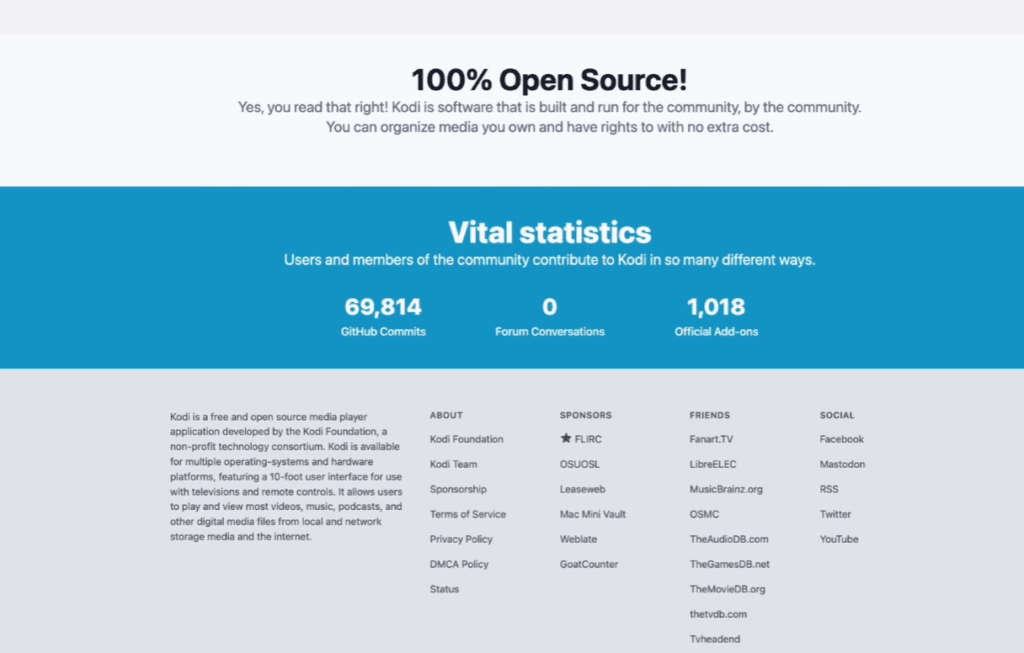
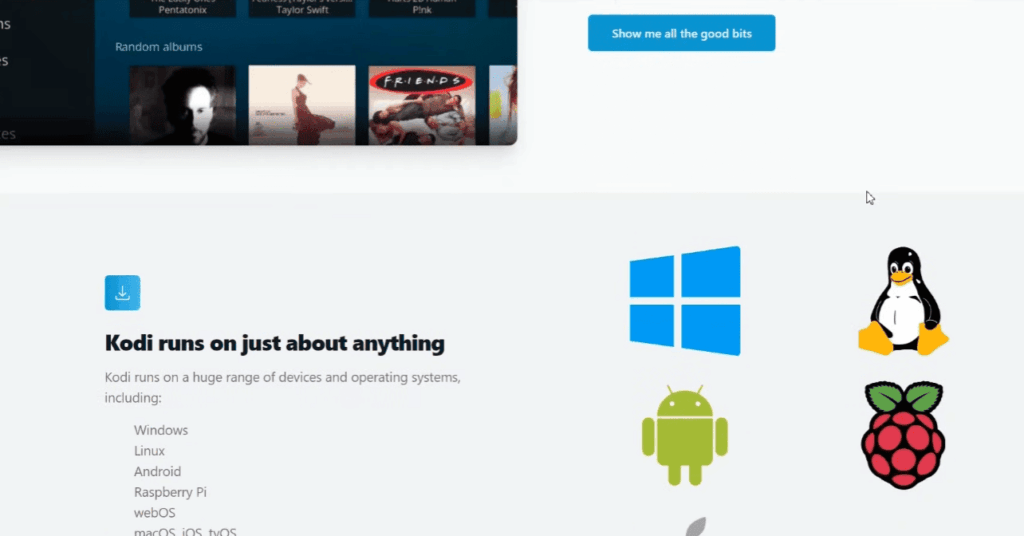
Kodi, formerly known as XBMC (Xbox Media Center), is a versatile, open-source media player and entertainment hub. Initially developed for the Xbox console, Kodi has since evolved into a cross-platform application compatible with various operating systems, including Windows, macOS, Linux, Android, and iOS. Renowned for its flexibility and customization options, Kodi has garnered a massive user base, transforming the way people access and organize their digital media.

Overview of Features:
- User Interface:
Kodi boasts a user-friendly interface that is visually appealing and easily navigable. The platform’s design is intuitive, making it accessible to users with varying levels of technical expertise.
- Media Management:
One of Kodi’s standout features is its robust media management capabilities. Users can organize their music, movies, TV shows, photos, and even create custom playlists. The platform automatically fetches metadata and artwork, providing a visually appealing library.
- Customization with Add-ons:
Kodi’s strength lies in its extensibility. Users can enhance their experience by installing a wide array of add-ons. These add-ons, developed by a community of contributors, enable access to streaming services, online content, and additional features beyond the default offerings.
- Multi-Platform Support:
Kodi’s open-source nature has led to its availability on a multitude of platforms. Whether you are using a computer, smartphone, tablet, or a dedicated media center device, Kodi adapts seamlessly, offering a consistent experience across different devices.
- Live TV and PVR Support:
Kodi supports live TV through integration with various PVR (Personal Video Recorder) backends. This feature allows users to watch and record live TV, adding a traditional TV experience to the platform.
- Skin Customization:
Kodi’s appearance can be tailored to individual preferences through the use of skins. Users can choose from a vast selection of skins, altering the look and feel of the interface to suit their style.
- Remote Control Options:
Kodi supports multiple methods of remote control, making it convenient for users to interact with the platform. Whether using a physical remote, a smartphone app, or a dedicated remote control device, Kodi adapts to various control preferences.
Pros:
- Open Source and Free: Kodi’s open-source nature allows for continuous improvement and customization. As a free and open platform, users can benefit from a wealth of features without incurring any subscription costs;
- Extensive Customization: The ability to install add-ons, customize skins, and tailor the user interface to personal preferences makes Kodi a highly versatile platform. Users can create an entertainment hub that suits their specific needs;
- Community Support: Kodi boasts a vibrant and active community. The forums and support channels provide a wealth of information, troubleshooting tips, and user-generated content, fostering a sense of camaraderie among users;
- Cross-Platform Compatibility: Kodi’s availability on a wide range of operating systems ensures a consistent experience for users across different devices. This flexibility contributes to its popularity among users with diverse preferences;
- Media Organization: Kodi’s media management features, including the automatic fetching of metadata and artwork, simplify the process of organizing vast digital libraries. This ensures a visually appealing and organized media collection;
Cons:
- Learning Curve: For newcomers, Kodi’s extensive features and customization options may pose a steep learning curve. Navigating through settings, installing add-ons, and understanding advanced features might require time and patience;
- Third-Party Add-ons and Legality Concerns: While third-party add-ons enhance Kodi’s functionality, they often operate in a legal grey area. Some add-ons facilitate access to copyrighted content without proper authorization, raising concerns about legal consequences for users;
- Resource Intensive: Depending on the extent of customization and the number of installed add-ons, Kodi can be resource-intensive. Older hardware may struggle to run Kodi smoothly, affecting the overall user experience;
- No Native Streaming Service Integration: Unlike some commercial media centers, Kodi does not have native integration with popular streaming services. While add-ons can provide access, the lack of official support may lead to inconsistencies and occasional disruptions;
- Limited Official Support: As an open-source project driven by community contributions, Kodi lacks the comprehensive support infrastructure found in commercial alternatives. Users may need to rely on community forums and online resources for assistance;
What Is Stremio:
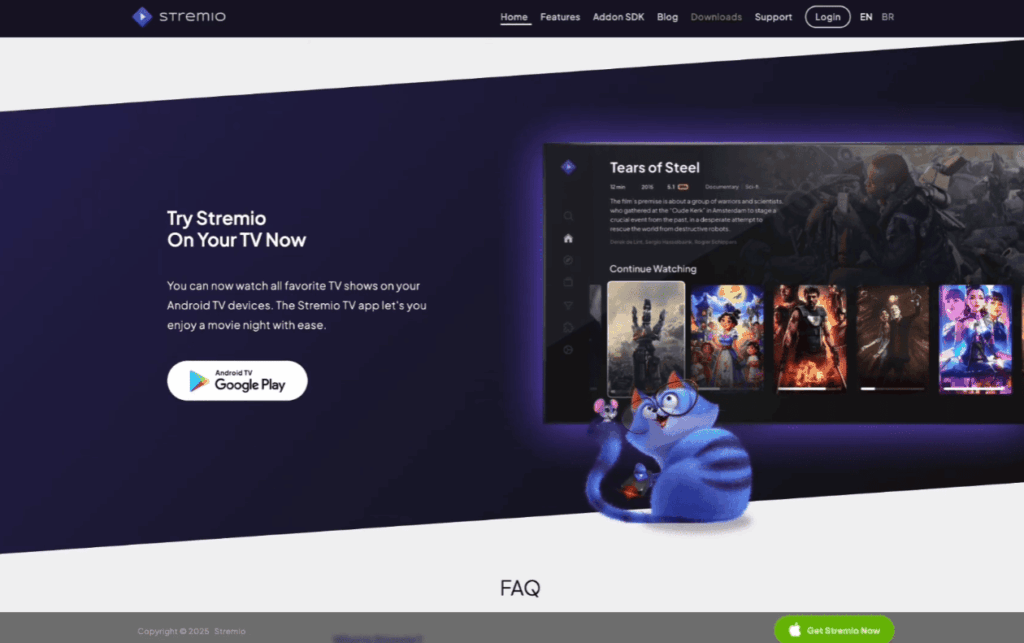
Stremio is a feature-rich media center and streaming platform designed to provide users with a unified and convenient entertainment experience. Developed as a cross-platform application, Stremio offers a sleek interface and a range of features aimed at simplifying the process of discovering, organizing, and enjoying digital content.
Overview of Features:
- Unified Content Hub:
Stremio serves as a centralized hub for content aggregation, bringing together movies, TV shows, and online channels. Its interface provides a streamlined experience, offering easy access to a diverse array of digital content.
- Library Organization:
Stremio excels in organizing media libraries, automatically fetching metadata and artwork for movies and TV shows. This results in a visually appealing and well-organized collection for users.
- Add-ons for Enhanced Content:
Similar to Kodi, Stremio supports add-ons that extend its functionality. These add-ons provide access to additional streaming services, online channels, and content sources, allowing users to tailor their Stremio experience to their preferences.
- Discoverability and Recommendations:
Stremio employs a recommendation engine that suggests content based on user preferences and viewing history. This feature enhances content discoverability, helping users find new and relevant movies or TV shows.
- Cross-Platform Compatibility:
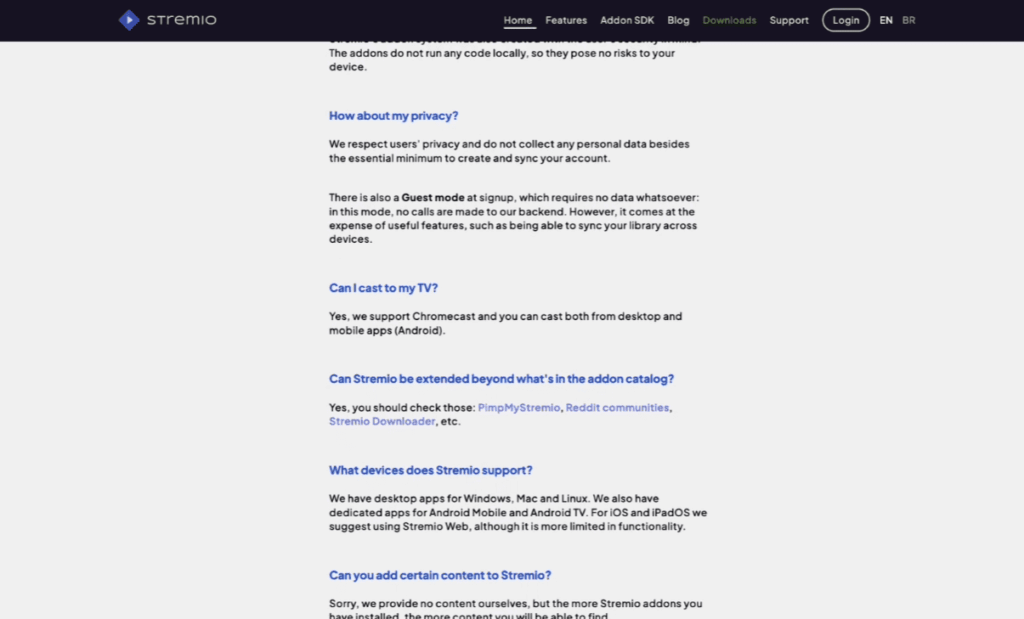
Stremio is designed to work seamlessly across various platforms, including Windows, macOS, Linux, Android, and iOS. This ensures a consistent user experience, regardless of the device being used.
- Calendar and Notifications:
Stremio offers a calendar feature that allows users to track upcoming episodes of their favorite TV shows. Notifications keep users informed about new releases, ensuring they stay up-to-date with the latest content.
Pros:
- User-Friendly Interface: Stremio prides itself on providing a user-friendly interface, making it accessible to users with varying levels of technical expertise. The platform’s design emphasizes simplicity and ease of navigation;
- Content Aggregation: The centralization of content from different sources makes Stremio a convenient choice for users who want a unified platform for accessing movies, TV shows, and online channels. This reduces the need to switch between multiple apps;
- Automated Library Management: Stremio’s automatic fetching of metadata and artwork enhances the organization of media libraries. Users can enjoy a visually appealing collection without the need for manual input;
- Community Add-ons: The availability of community-developed add-ons extends Stremio’s capabilities. Users can install add-ons to access a wider range of content, including niche streaming services and specialized channels;
- Cross-Device Consistency: Stremio’s compatibility with various operating systems ensures a consistent user experience across devices. This flexibility is valuable for users who switch between different platforms;
Cons:
- Limited Official Content Integration: While Stremio supports various add-ons, it lacks native integration with some popular streaming services. This can be a drawback for users looking for seamless access to official content from major providers;
- Dependency on Add-ons: Stremio’s reliance on add-ons for expanded functionality can lead to inconsistencies in performance. The quality and reliability of add-ons can vary, impacting the overall user experience;
- Legal Grey Areas: Similar to Kodi, Stremio faces concerns related to third-party add-ons and potential legal issues. Some add-ons may offer access to copyrighted material without proper authorization, raising questions about the platform’s legal standing;
- Learning Curve for Add-ons: While the core features of Stremio are user-friendly, exploring and managing add-ons may pose a learning curve for some users. Navigating through the add-ons ecosystem may require additional time and understanding;
- Limited Offline Viewing: Stremio primarily operates as a streaming platform, and while it allows users to download content for offline viewing, this feature is somewhat limited compared to dedicated offline viewing solutions;
Are Kodi And Stremio Legal?
Kodi: An Open-Source Media Center
Kodi, an open-source media center, has become a household name in the streaming community. Originally developed for the Xbox console, Kodi has evolved into a versatile platform compatible with various devices and operating systems. Its popularity can be attributed to its customizable interface and the ability to install third-party add-ons, which provide access to an extensive range of content.
The Legality of Kodi:
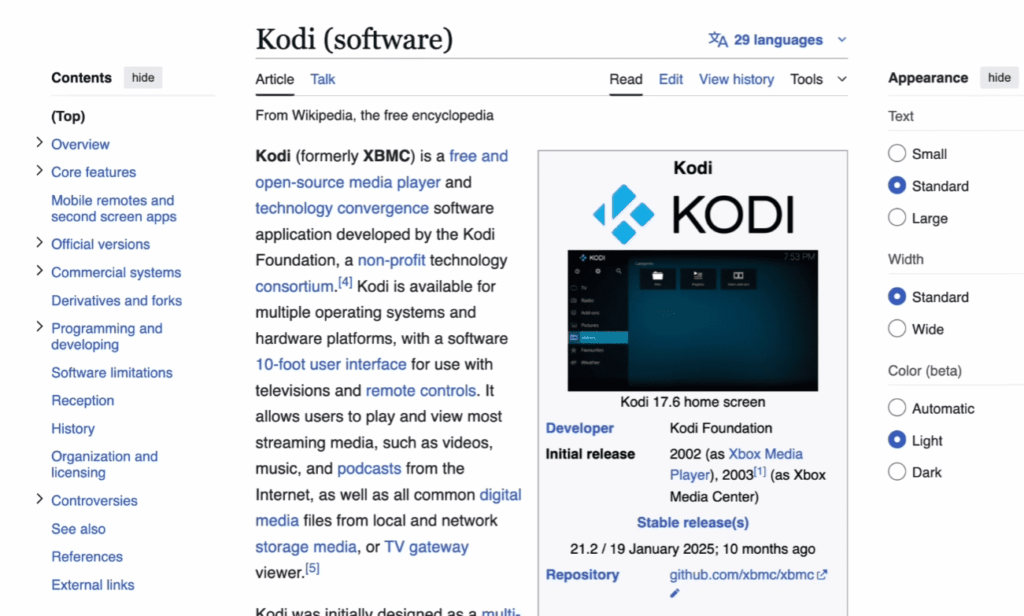
At its core, Kodi is a legal and legitimate media player. It is designed to organize and play media files stored on your device or network. However, the legality of Kodi becomes a grey area when users start exploring third-party add-ons that facilitate access to copyrighted content.
While Kodi itself is not responsible for the creation or distribution of these add-ons, its open-source nature allows developers to create and share them independently. This has led to the proliferation of add-ons that enable users to stream copyrighted movies, TV shows, and live channels without proper authorization.
The Crucial Role of Add-ons:
The legality of Kodi hinges on the use of third-party add-ons. While some add-ons provide access to legal and authorized content, many others operate in a legal grey area or outright facilitate copyright infringement. This has led to legal battles and crackdowns against developers and distributors of certain add-ons.
It is essential for users to exercise caution and be aware of the legality of the add-ons they choose to install. Engaging in the unauthorized streaming of copyrighted material can lead to legal consequences, including fines and other penalties.
Stremio: A Unified Streaming Hub
Stremio is another streaming platform that has gained popularity for its user-friendly interface and the ability to aggregate content from various sources. Similar to Kodi, Stremio supports third-party add-ons, known as “addons” in Stremio’s terminology, allowing users to expand their content options.
The Legality of Stremio:
Stremio, like Kodi, is a legal platform in its basic form. It is a media center designed to organize and stream content, and its developers have not endorsed or supported the use of the platform for copyright infringement. However, Stremio faces similar challenges as Kodi when it comes to third-party addons.
As with Kodi, Stremio users need to be cautious about the addons they choose to install. While some addons provide access to legitimate and authorized content, others may offer copyrighted material without proper licensing.
Copyright Infringement and the Grey Areas:
The legality of both Kodi and Stremio becomes murky when users exploit third-party addons to access copyrighted content without proper authorization. Copyright infringement is a serious offense that can lead to legal consequences for both users and developers.
The grey areas surrounding these platforms often stem from the decentralized nature of third-party addons. Developers may create and distribute addons independently, making it challenging for the platforms themselves to regulate or control the content available through these addons.
Legal Actions and Crackdowns:
Over the years, legal actions and crackdowns have targeted developers and distributors of addons that enable copyright infringement. Various countries have taken steps to combat piracy, and organizations representing copyright holders actively pursue legal action against those involved in the unauthorized distribution of copyrighted content.
Users should be aware that even if the platforms themselves are not directly responsible for copyright infringement, the use of their services to access illegal content can lead to legal repercussions.
Consumer Responsibility:
In the rapidly evolving landscape of online streaming, it is crucial for consumers to be aware of the legal implications of their actions. Using Kodi, Stremio, or any similar platform for the purpose of accessing copyrighted material without proper authorization is a violation of intellectual property rights and can result in legal consequences.
To ensure a legal and enjoyable streaming experience, users should:
- Understand the Terms of Use: Familiarize yourself with the terms of use of the streaming platforms you choose. Most platforms explicitly state that users should not engage in copyright infringement;
- Use Official Add-ons: Stick to official and authorized addons provided by the platform developers. Official addons often grant access to legal and licensed content;
- Avoid Unauthorized Streaming: Refrain from using addons that offer unauthorized access to copyrighted material. Engaging in such activities may lead to legal action;
- Stay Informed: Keep yourself updated on legal developments and changes in regulations related to online streaming. Being informed helps you make responsible choices;
How to Install Stremio?
- Destination: Stremio.com
First things first, navigate to Stremio’s official website. The homepage greets you with a crisp interface and prominent buttons for downloading on various platforms. Fear not, the website automatically detects your operating system, highlighting the correct installation button. For instance, if you’re using Windows, the Windows icon will be pre-selected.
- Choose Your Weapon: Windows, Mac, or Linux?
Click on the appropriate platform icon, and prepare to download the installer – a shiny purple button beckons you with “DOWNLOAD NOW STREMIO 4 BETA”. Don’t be intimidated by the “beta” tag. Stremio’s beta versions are usually stable and offer the latest features. Relax, click that button, and let the download commence!
- Windows Installation: Unlocking the Stremio Portal
For Windows users, the downloaded file will be named “Stremio-windows.exe.” Locate it in your downloads folder, double-click the icon, and brace yourself for an exciting setup wizard. The wizard will guide you through simple steps like selecting the installation language and agreeing to the terms of use. Just keep clicking “Next” with a smile, knowing you’re one step closer to streaming nirvana.
- Mac Mastery: Installing Stremio on macOS
Mac users, your journey is similar. The downloaded file, aptly named “Stremio-macos.dmg,” sits patiently in your downloads folder. Double-click it, and a disk image will mount on your desktop. Drag the Stremio app icon from the mounted disk image to your Applications folder, and voila! Stremio is ready to grace your Mac with its presence.
- Linux Liberation: Stremio Takes Over Your Distro
For the Linux enthusiasts, Stremio offers dedicated AppImage and DEB/RPM packages. Head to the Stremio download page (www.stremio.com/downloads) and choose the package specific to your distribution.
Download the relevant file, open a terminal window, navigate to the downloaded file’s location, and enter the following command (adjusting the filename as needed):
sudo chmod +x Stremio-<your_linux_package>.tar.gz
sudo ./Stremio-<your_linux_package>.tar.gz
Follow the on-screen instructions, and soon, Stremio will be seamlessly integrated into your Linux environment.
- Welcome to the Hub: Creating Your Stremio Account (Optional)
Once Stremio is installed, launch the app. A sleek interface greets you, and you’re presented with the option to create an account.
While creating an account is optional, it unlocks several cool features:
- Sync your preferences and watchlists across devices;
- Access and manage add-ons for expanded content libraries;
- Receive personalized recommendations based on your viewing habits;
If you choose to sign up, follow the simple steps, and get ready to personalize your Stremio experience.
- Unleash the Content Beast: Exploring Add-ons and Channels
Stremio’s true magic lies in its add-ons and channels. These delightful plugins unlock a treasure trove of content from various sources, both official and community-driven. To access them, click on the “Add-ons” tab in the Stremio interface. There, you’ll find a curated selection of popular add-ons like YouTube, Vimeo, and Twitch.
Don’t be afraid to explore! Browse through the categories, discover hidden gems, and customize your Stremio experience to your heart’s content.
- Build Your Watchlist: Curating Your Cinematic Journey
Found a movie or show that tickles your fancy? Click the heart icon, and instantly add it to your watchlist. This personalized curation tool allows you to build a queue of must-watch content, ensuring you never run out of entertainment options.
- Beyond the Basics: Tweaking and Personalizing Stremio
Stremio is yours to personalize. Dive into the “Settings” menu and discover a world of customization options. Change the interface theme, configure keyboard shortcuts, manage your add-ons, and fine-tune Stremio to your liking.
Using Stremio: Tips For Beginners
Watching Movies:
- Mastering the Search: Stremio’s search bar is your gateway to cinematic bliss. Use keywords, browse by genre or release date, and explore curated collections like “Trending Now” or “Critics’ Picks” to discover hidden gems;
- Adding to Your Watchlist: Click the heart icon next to any movie or TV show to add it to your watchlist. This personalized queue ensures you never run out of something to watch;
- Subtitles on Demand: No need to hunt for separate subtitle files. Stremio automatically searches and displays relevant subtitles in various languages, allowing you to enjoy international content with ease;
- Beyond Movies: Stremio isn’t just for movies. Catch up on your favorite TV shows, explore educational documentaries, and even tune into live TV channels with dedicated add-ons (more on that later!);
Installing New Addons:
- Unlocking the True Potential: Stremio’s built-in content is just the tip of the iceberg. Add-ons open doors to a universe of extra libraries and streaming sources. From official partners like YouTube and Vimeo to community-driven add-ons for niche content, the possibilities are endless;
- Adding Safely: Remember, with great power comes great responsibility. Only install add-ons from trusted sources like the official Stremio Add-ons Catalog. Be cautious of third-party repositories, as they might contain malware or pirated content;
- Managing Your Add-ons: The “Add-ons” tab is your control center. Here you can install, enable, disable, and update your add-ons. Experiment with different add-ons, find your favorites, and keep them up-to-date for optimal performance;
Watching Stremio Remotely:
- Mobile Magic: Turn your smartphone or tablet into a remote control by installing the Stremio Companion app. Browse content, control playback, and even add movies to your watchlist, all from the comfort of your couch;
- Cast it Away: Chromecast, Roku, and other casting devices let you seamlessly stream Stremio content from your computer to your TV. Simply connect your devices, choose your favorite show, and sit back and enjoy the big-screen experience;
- Remote Access: For ultimate control, enable Stremio’s remote access feature. This allows you to access your Stremio library and control playback from any web browser, even when you’re away from home;
Syncing Your Watch History With Trakt:
- Track Your Progress: Don’t lose track of what you’ve watched across different devices. Connect your Stremio account to Trakt, a free service that stores your watch history and provides personalized recommendations;
- Discover New Content: Trakt also analyzes your viewing habits and suggests similar movies and shows you might enjoy, expanding your cinematic horizons;
- Community Share: Share your watchlist and ratings with friends on Trakt, discover what others are watching, and discuss your favorite shows and movies in the community forums;
Using The Stremio Calendar:
- Never Miss a Premiere: Stremio’s calendar keeps you updated on upcoming movie releases, TV show premieres, and even special events like live streams or premieres;
- Plan Your Week: Add reminders for upcoming shows you’re excited about, ensuring you don’t miss a beat;
- Personalized Events: The calendar can be customized to show events from specific add-ons you use, creating a personalized schedule tailored to your viewing preferences;
Kodi vs Stremio – Side-By-Side Comparison:
Ease of Use
Kodi has a bit of a learning curve, especially for new users. The interface is not as intuitive as Stremio’s, and there are a lot of settings and options to configure. However, there are many resources available online to help you get started, and once you get the hang of it, Kodi is a powerful and versatile media center.

Stremio is much easier to use than Kodi. The interface is clean and simple, and it’s easy to find what you’re looking for. Stremio also has a great recommendation engine that suggests content you might like based on your viewing history.
Buffering of Media
Kodi and Stremio both offer a variety of streaming sources, but the buffering performance can vary depending on the source and your internet connection. Kodi generally has better buffering performance than Stremio, but this can vary depending on the add-ons you’re using.
Stability of Add-ons
Kodi has a vast library of add-ons, but not all of them are stable. Some add-ons may crash or stop working altogether. Stremio has a smaller selection of add-ons, but they are generally more stable than Kodi’s add-ons.
Security
Both Kodi and Stremio can be used safely if you take the necessary precautions. However, Kodi is more vulnerable to security risks because it allows you to install third-party add-ons from untrusted sources. Stremio only allows you to install add-ons from its official repository, which makes it more secure.
Network Streaming
Kodi and Stremio both support network streaming, which means you can stream content from other devices on your network, such as a NAS drive or Plex server.
Device Compatibility
Kodi is available on a wider range of devices than Stremio. Stremio is currently only available on Windows, macOS, Linux, Android, and iOS.
VPN Usage
Both Kodi and Stremio can be used with a VPN to protect your privacy and security. However, Kodi is more likely to be blocked by streaming services because it is often used to access pirated content.
Cost
Both Kodi and Stremio are free to use.
Which Is Better – Kodi vs. Stremio?
Choosing between Kodi and Stremio ultimately depends on your priorities and needs as a media streamer. Both offer unique advantages and drawbacks, so here’s a breakdown to help you decide.
For Power Users:
Kodi:
- Vast addon library: Kodi boasts a colossal ecosystem of add-ons, catering to virtually any content niche imaginable;
- Extreme customization: Kodi lets you personalize every aspect of your experience, from themes and skins to advanced library management;
- Local media powerhouse: Kodi excels at playing local media files, supporting a wide range of formats and codecs;
Stremio:
- Limited customization: While you can tweak settings, Stremio isn’t as open-ended as Kodi in terms of tinkering;
- Smaller addon selection: While curated for stability, Stremio’s addon library pales in comparison to Kodi’s sheer volume;
For Ease of Use:
Kodi:
- Steeper learning curve: Kodi’s interface can be overwhelming for beginners, requiring some effort to navigate and configure;
- Potential add-on instability: With such a vast selection, some Kodi add-ons might be buggy or unreliable;
Stremio:
- Intuitive interface: Stremio’s sleek and user-friendly design makes it easy to jump in and start streaming instantly;
- Generally stable addons: The curated nature of Stremio’s addons ensures greater reliability and compatibility;
For Security and Safety:
Kodi:
- Higher security risks: Kodi’s openness allows for potentially unsafe third-party addons, requiring caution and vigilance;
- VPN use recommended: Due to potential copyright infringement risks with some addons, a VPN is highly recommended for Kodi;
Stremio:
- Controlled addon environment: Stremio’s official repository minimizes security risks, although vigilance is still advised;
- VPN generally not required: While not mandatory, a VPN adds an extra layer of protection for privacy and accessing geo-restricted content;
Other Factors To Consider:
- Device compatibility: Kodi supports a wider range of devices, while Stremio currently focuses on major platforms;
- Cost: Both platforms are completely free to use;
Ultimately, the choice boils down to your preferences:
- Kodi: Choose Kodi if you prioritize extensive customization, local media playback, and a vast content library, even if it means a steeper learning curve and higher security risks;
- Stremio: Opt for Stremio if you prefer a user-friendly experience, stable addons, and a focus on online streaming content, appreciating the trade-off of limited customization and a smaller addon library;
FAQ:
Is Stremio safe to use?
Stremio itself is safe to use, as its official app and add-ons are vetted for security. However, be cautious with third-party repositories, as they might compromise security. Using a VPN adds an extra layer of protection.
Is Stremio safe without a VPN?
While not mandatory, a VPN strengthens your privacy and helps access geo-restricted content. It’s particularly recommended for using third-party Stremio repositories.
Is Stremio still working?
Yes, Stremio is actively developed and working well.
How trustworthy is Stremio?
Stremio’s official app and add-ons are trustworthy. However, third-party content sources might be unreliable. Stick to official sources and exercise caution when using unofficial add-ons.
Is Stremio a legal app?
Stremio itself is legal, but accessing copyrighted content through unofficial sources might be illegal. Always ensure you have the rights to watch the content you stream.
Will Stremio work on an Amazon Firestick?
No, Stremio doesn’t officially support Firestick. However, alternative methods like sideloading might work, but proceed with caution and research risks involved.
Is Stremio the same as Kodi?
Both are media centers, but they differ. Kodi prioritizes local media and offers vast customization, while Stremio focuses on online streaming and user-friendliness.
What is better than Stremio?
“Better” is subjective. Compare features, ease of use, and personal preferences. Kodi offers more customization and local media capabilities, while Plex excels at media organization and cloud streaming.
Is there a better alternative to Kodi?
Depends on your needs. Stremio is simpler and offers curated add-ons, but lacks Kodi’s depth and local media focus. Consider Plex for cloud-based media management or Jellyfin for an open-source Kodi alternative.
Can you use Stremio on Kodi?
No, Stremio as an app cannot run within Kodi. However, some Kodi add-ons can access Stremio content to expand your library.
Is Kodi still relevant in 2023?
Yes, Kodi remains popular for its customization, local media playback, and vast add-on selection. However, its learning curve can be steeper compared to user-friendly alternatives like Stremio.
Do you need a VPN to watch Kodi?
It’s recommended, especially when accessing potentially copyrighted content through unofficial add-ons. A VPN enhances privacy and helps bypass geo-restrictions.
Is Stremio an APK?
Stremio has dedicated Android app versions (not APKs), downloadable from their official website or the Google Play Store.
What is the best way to get Stremio on TV?
Stremio doesn’t have official apps for most smart TVs. Consider using casting devices like Chromecast or Roku, connecting a PC with Stremio to your TV, or exploring alternative TV-compatible media centers like Plex.
How do you get rid of Stremio?
Simply uninstall the app like you would any other software on your device. Follow standard uninstallation procedures for your platform.
Does Stremio support HDR?
Yes, Stremio can play HDR content if the source streams it and your device supports it.
How do you configure Stremio add-ons?
Once installed, access the “Add-ons” tab in Stremio. Click on an add-on to access its settings and configure various options like content sources, preferences, and playback settings.