
Unleash the power of streaming with the Homelander Kodi addon! Whether you’re a die-hard “The Boys” fan seeking deeper dives into its dark universe or a seasoned Kodi user craving a diverse content buffet, Homelander promises a thrilling journey. This comprehensive guide will navigate you through its seamless installation, from enabling essential settings to unlocking a treasure trove of movies, TV shows, and live TV.
Brace yourself for high-octane entertainment, tailored recommendations, and an intuitive interface – but tread cautiously, as venturing into unauthorized content holds legal risks. So, buckle up, Kodi explorers, and let’s delve into the secrets of installing Homelander, your key to unlocking a realm of endless streaming possibilities!
Is Homelander Kodi Addon Safe & Legal?
Kodi, an open-source media player, allows users to organize and view their media content in one centralized location. While the core Kodi software is legal and widely used, it supports third-party add-ons that may offer access to copyrighted material. These add-ons can vary in nature, from legitimate and legal extensions to potentially unsafe or pirated content.
The Homelander Kodi Addon:
Homelander is one such addon that has gained attention within the Kodi community. Promising an extensive library of movies, TV shows, and live TV channels, it has attracted users looking for a comprehensive streaming experience. However, its controversial nature stems from the sources it taps into for content, which may include copyrighted material without proper licensing.
Legal Implications:
The legality of Kodi addons like Homelander is a complex and often debated topic. While the Kodi platform itself is legal, add-ons that facilitate access to copyrighted content without proper authorization may infringe upon intellectual property laws. Users must be aware that streaming copyrighted material without permission is illegal in many jurisdictions.
Homelander’s developers may argue that they are not hosting the content but merely providing links to external sources. However, this argument doesn’t absolve them of legal responsibility, as facilitating access to copyrighted material without proper licensing still constitutes copyright infringement.
Safety Concerns:
Apart from legal considerations, the safety of using addons like Homelander is another critical aspect. Third-party addons, especially those from unofficial sources, can pose security risks to users’ devices. These risks include malware, viruses, and other malicious software that may compromise the security and privacy of the user.
Since Homelander accesses external sources for its content, users expose themselves to potential security threats from these third-party servers. Additionally, the lack of oversight and regulation in the world of third-party Kodi addons makes it challenging to guarantee the safety of the content or the addon itself.
Alternatives and Legal Streaming Options:
To ensure a safe and legal streaming experience, users are encouraged to explore legitimate alternatives. Many streaming services offer a vast array of movies and TV shows with proper licensing agreements, providing a reliable and secure way to access content. Popular platforms such as Netflix, Hulu, Amazon Prime Video, and Disney+ offer a wide selection of entertainment options.
For users who want to customize their Kodi experience without compromising legality and safety, there are legal addons available. These addons, often developed by the Kodi community or recognized organizations, adhere to copyright laws and provide a secure environment for users.
Homelander Addon Overview:
The Homelander Kodi addon has generated a considerable buzz within the Kodi community, offering users a diverse range of content including movies, TV shows, and live TV channels. However, like many third-party addons, it comes with its own set of features, pros, and cons that users should carefully consider before diving into the streaming experience.
Features:
- Extensive Library: Homelander boasts an extensive library of movies and TV shows, providing users with a wide variety of content to choose from;
- Live TV Channels: One notable feature of Homelander is its inclusion of live TV channels, allowing users to stream their favorite programs in real-time;
- User-Friendly Interface: The addon aims to provide a user-friendly interface, making it easy for users to navigate and explore the available content;
- Regular Updates: Developers of Homelander claim to provide regular updates, ensuring that users have access to the latest movies and TV shows;
Pros:
- Diverse Content: The addon’s vast library ensures that users have access to a diverse range of content, catering to different tastes and preferences;
- Live TV Streaming: The inclusion of live TV channels enhances the streaming experience, offering users the option to watch their favorite shows as they air;
- Free Access: Like many Kodi addons, Homelander is available for free, providing an alternative to paid streaming services for budget-conscious users;
- User-Friendly Interface: The intuitive design of the interface makes it easy for both novice and experienced users to navigate through the addon and find their desired content;
Cons:
- Legal Concerns: One of the significant drawbacks of the Homelander addon is the legal ambiguity surrounding its content sources. Users may unknowingly access copyrighted material without proper licensing, potentially leading to legal consequences;
- Security Risks: As a third-party addon, Homelander relies on external sources for its content. This poses security risks to users, including the potential exposure to malware, viruses, and other malicious software;
- Lack of Regulation: The world of third-party Kodi addons operates with minimal oversight and regulation. This lack of regulation makes it challenging to ensure the safety and legitimacy of the content provided by Homelander;
- Inconsistent Performance: Some users have reported inconsistent performance issues, such as buffering or unreliable streaming quality. These technical issues can hinder the overall streaming experience;
How to Install Homelander on Kodi:
Enable Unknown Sources on Kodi
Before installing Homelander or any other third-party addon, you need to enable Unknown Sources in Kodi. This allows the installation of addons from external sources:
- Open Kodi: Launch the Kodi application on your device;
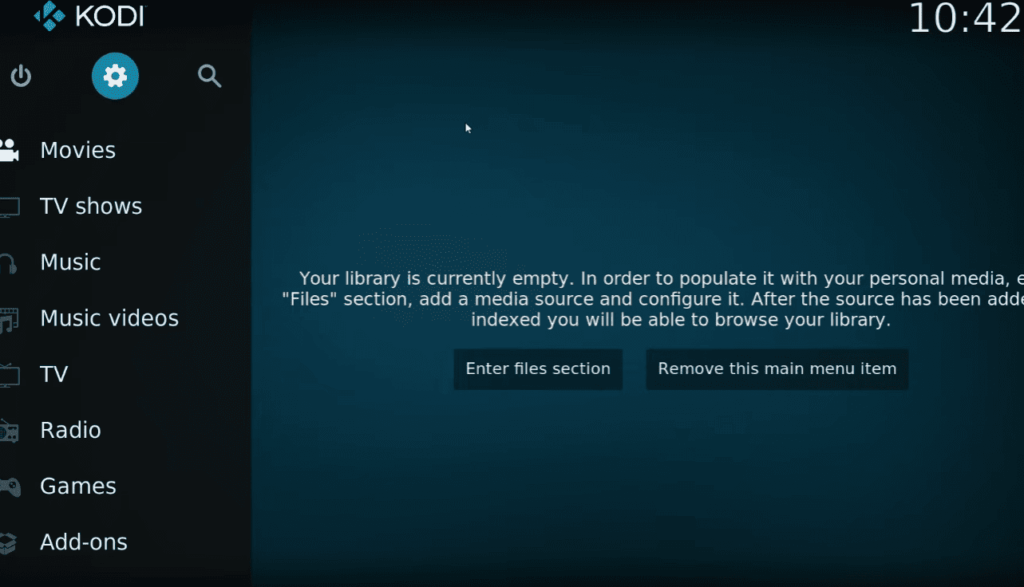
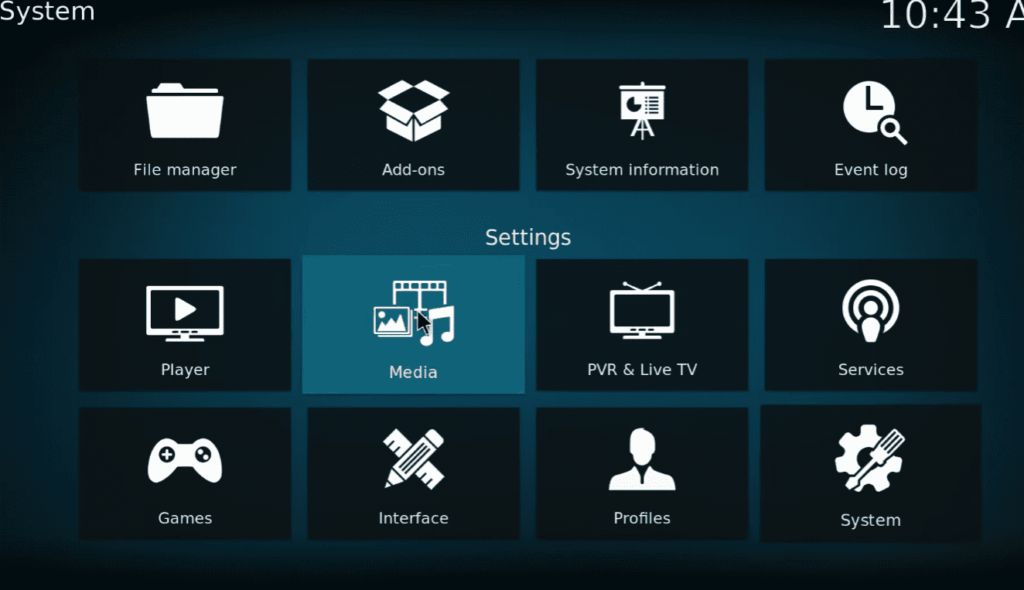
- Navigate to Settings: Click on the gear icon located in the top-left corner to access the Settings menu;
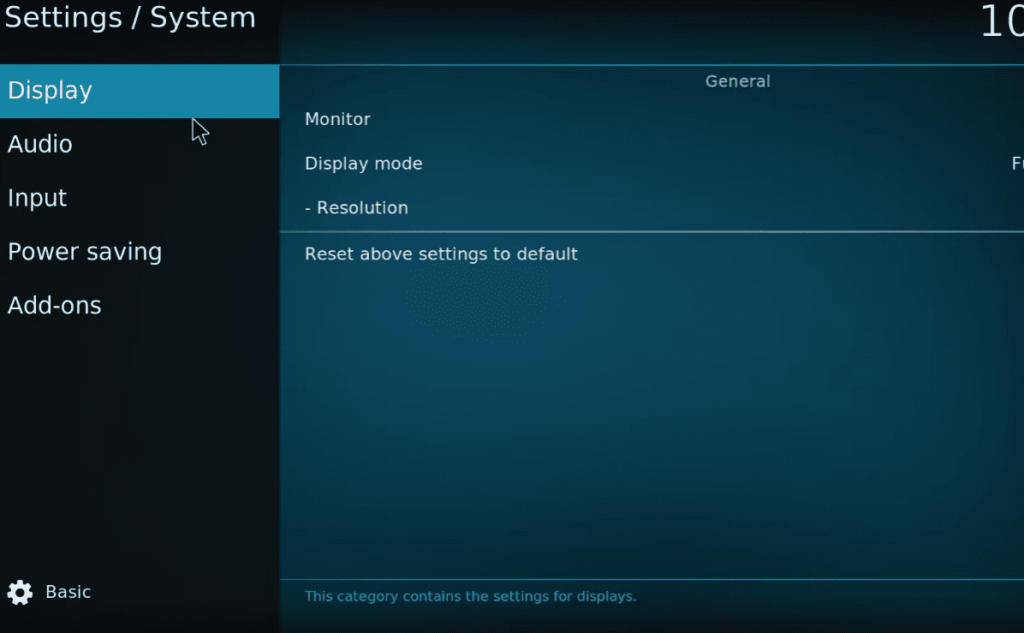
- Select System: Within the Settings menu, select “System” to reveal additional options;
- Choose Add-ons: Click on the “Add-ons” tab on the left sidebar;
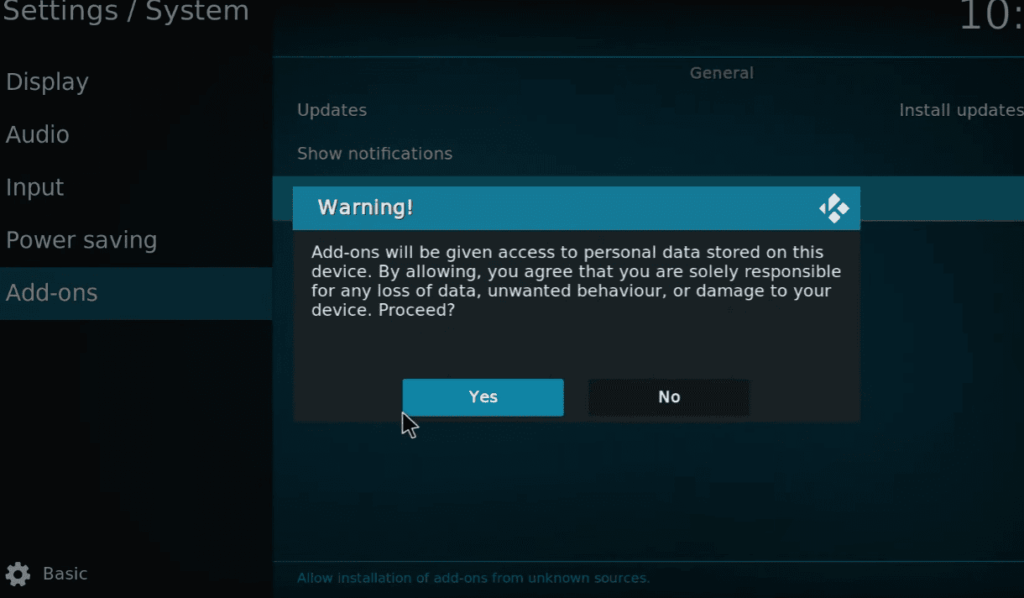
- Enable Unknown Sources: Toggle the switch next to “Unknown Sources” to enable it. A warning message will appear; click “Yes” to proceed;
Enabling Unknown Sources is a necessary step, but it’s crucial to be aware of the potential security risks associated with installing addons from external sources.
Install The Crew Repository
Homelander is available through The Crew Repository, so the next step is to install this repository on Kodi:
- Go Back to the Settings Menu: Navigate back to the Settings menu by clicking the back arrow in the top-left corner;
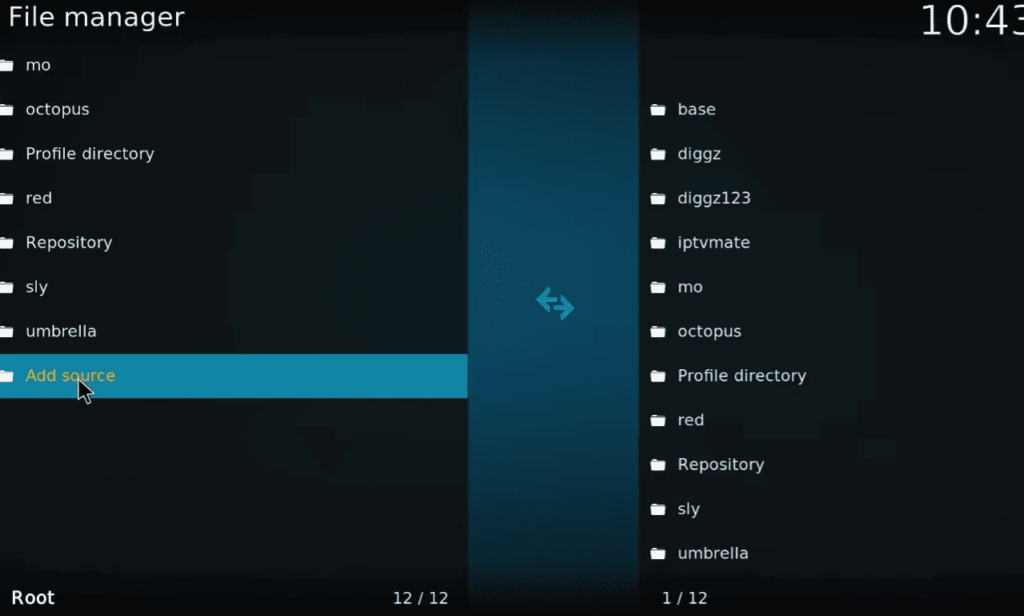
- Select File Manager: Within the Settings menu, choose “File Manager”;
- Add Source: Double-click on “Add Source” to open the window for adding a media source;
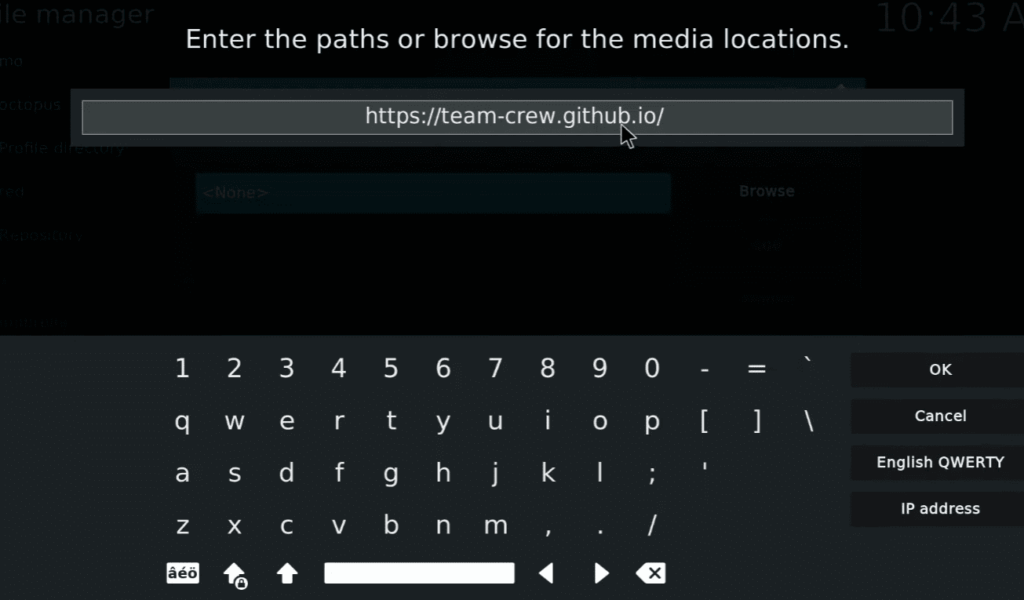
- Enter Repository URL: Click on “None” and enter the following URL for The Crew Repository: https://team-crew.github.io;
- Name the Source: Below the URL field, enter a name for the source (e.g., “The Crew”) and click “OK”;
- Confirm Source Addition: Go back to the Kodi home screen and click on “Add-ons” in the left sidebar. Click on the box icon (Package Installer) in the top-left corner;
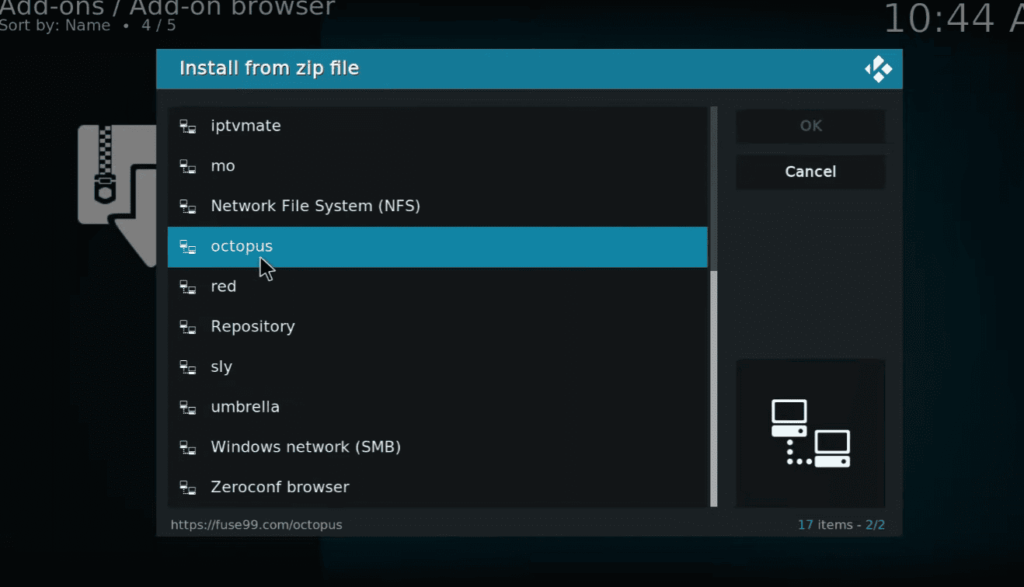
- Install from Zip File: Select “Install from zip file” and choose the source you added (e.g., “The Crew”);
- Select Repository Zip File: Click on the repository zip file (usually named “repository.thecrew-x.x.x.zip”) to install The Crew Repository;
Wait for the installation notification to appear, indicating that The Crew Repository has been successfully installed.
Install Homelander Add-on
Now that The Crew Repository is installed, you can proceed to install the Homelander addon:
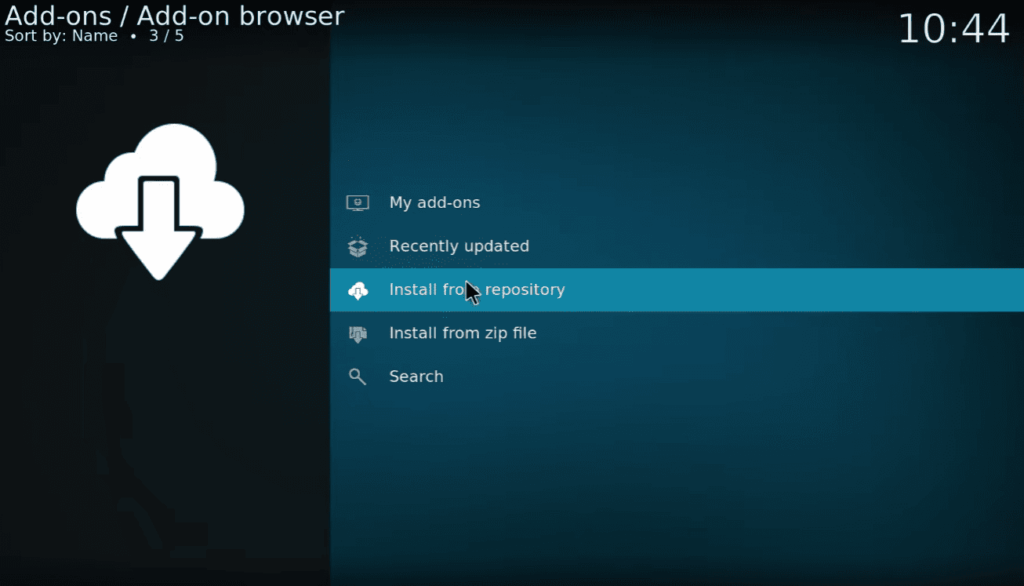
- From the Add-ons menu, select “Install from repository”;
- Choose The Crew Repository: Select “The Crew Repository” from the list of available repositories;
- Navigate to Video Add-ons: Click on “Video add-ons” within The Crew Repository;
- Locate Homelander: Scroll down to find and click on “Homelander” within the list of available addons;
- Install Homelander: Click on the “Install” button to begin the installation process;
Wait for the notification indicating that Homelander has been successfully installed. Once installed, you can access it from the Kodi home screen under the “Add-ons” tab.
How To Install Homelander Kodi Addon on Firestick?
Prerequisites:
Before diving into the installation process, ensure that your Firestick allows installations from unknown sources.
Here’s how you can enable this option:
- Navigate to Firestick Settings: From the Firestick home screen, go to “Settings” in the top menu;
- Select My Fire TV: Within the Settings menu, click on “My Fire TV”;
- Choose Developer Options: Select “Developer Options” from the menu;
- Enable Apps from Unknown Sources: Turn on the toggle switch next to “Apps from Unknown Sources” and click “Turn On” when prompted;
Now that you’ve enabled installations from unknown sources, you’re ready to install the Homelander Kodi addon on your Firestick.
Installing Homelander on Firestick:
Follow these steps to install the Homelander addon on your Firestick.
Install Downloader App:
- From the Firestick home screen, go to the search icon and type “Downloader”;
- Select the Downloader app from the search results and install it;
Open Downloader and Enable JavaScript:
- Launch the Downloader app;
- In the app’s settings, make sure “Enable JavaScript” is turned on;
Enter Homelander Repository URL:
- In the Downloader app, enter the URL for The Crew Repository, which is https://team-crew.github.io and click “Go”;
Download The Crew Repository:
- Once the webpage loads, navigate to “repository.thecrew-x.x.x.zip” and click on it to download The Crew Repository;
Install The Crew Repository:
- After the download is complete, the Downloader app will prompt you to install the repository. Click “Install”;
Access Kodi and The Crew Repository:
- Return to the Firestick home screen and launch Kodi;
- From the Kodi home screen, go to “Add-ons” and then select “Install from repository”;
- Choose “The Crew Repository” from the list;
Install Homelander Addon:
- Inside The Crew Repository, select “Video add-ons”;
- Locate “Homelander” from the list and click on it;
- Press the “Install” button to install the Homelander addon;
Wait for Installation Confirmation:
Once the installation is complete, you’ll receive a notification confirming the successful installation of the Homelander addon.
Access Homelander from Kodi Home Screen:
- Go back to the Kodi home screen, navigate to “Add-ons,” and select “Video add-ons”;
- Click on “Homelander” to launch the addon;
You’ve successfully installed the Homelander Kodi addon on your Firestick. Now you can explore its extensive content library and enjoy a variety of movies, TV shows, and live TV channels.
Important Note:
It’s crucial to be aware of the legal and security implications associated with third-party addons. Streaming copyrighted content without proper licensing may have legal consequences. Additionally, using addons from unknown sources may expose your device to potential security risks. Always exercise caution, stay informed about the legality of the content, and consider exploring legitimate streaming alternatives for a safer and more reliable entertainment experience.
How to Use Homelander Kodi Addon With Real-Debrid:
Using Real Debrid with Homelander
What is Real-Debrid?
Real-Debrid is a premium service that enhances your streaming experience by providing high-quality links and faster streaming speeds. By integrating Real-Debrid with the Homelander Kodi addon, you can access premium sources for movies and TV shows.
Here’s a step-by-step guide on how to use Homelander with Real-Debrid:
Get a Real-Debrid Account:
- Visit the Real-Debrid website (https://real-debrid.com/) and sign up for an account;
- Choose a subscription plan that suits your needs and complete the registration process;
Authorize Real-Debrid in Homelander:
- Open the Homelander addon on Kodi;
- Navigate to the addon’s settings or tools section;
Enable Real-Debrid Integration:
- Look for an option related to account or provider settings;
- Find and enable the Real-Debrid option;
You will likely see a prompt to authorize your Real-Debrid account. Follow the on-screen instructions to generate a code and enter it on the Real-Debrid website.
Authorize Kodi on Real-Debrid:
- Go to the Real-Debrid website and log in to your account;
- In your Real-Debrid account settings, find the section related to authorized devices or applications;
- Add Kodi to the list of authorized applications by entering the code provided by Homelander;
Integration Confirmation:
Once you’ve successfully authorized Real-Debrid in Homelander and Kodi, you should see a confirmation message or icon indicating that Real-Debrid links are now available.
Enjoy Premium Links:
When you select a movie or TV show in Homelander, the addon will now fetch premium links from Real-Debrid, offering higher quality and faster streaming.
Using Trakt With Homelander:
What is Trakt?
Trakt is a platform that allows you to track your watched content and synchronize your viewing history across multiple devices. By integrating Trakt with the Homelander Kodi addon, you can keep a personalized record of your favorite shows and movies.
Here’s a guide on how to use Trakt with Homelander:
Create a Trakt Account:
Visit the Trakt website (https://trakt.tv/) and sign up for a free account.
Authorize Trakt in Homelander:
- Open the Homelander addon on Kodi;
- Navigate to the addon’s settings or tools section;
Enable Trakt Integration:
- Look for an option related to account or provider settings;
- Find and enable the Trakt option;
Generate Trakt Authorization Code:
A prompt will likely appear asking you to authorize Trakt. Follow the on-screen instructions to generate a Trakt authorization code.
Authorize Kodi on Trakt:
- Go to the Trakt website and log in to your account;
- In your Trakt account settings, find the section related to authorized devices or applications;
- Add Kodi to the list of authorized applications by entering the code provided by Homelander;
Integration Confirmation:
Once you’ve successfully authorized Trakt in Homelander and Kodi, you should see a confirmation message or icon indicating that Trakt integration is active.
Track Your Watched Content:
As you watch content in Homelander, Trakt will automatically update your watch history, making it easy to resume where you left off and receive recommendations based on your preferences.
Should I Use a VPN with Homelander Kodi Addon?
Using a Virtual Private Network (VPN) with the Homelander Kodi addon, or any Kodi addon for that matter, is a decision that depends on your priorities, concerns, and local laws.
Here are some considerations to help you decide whether using a VPN is the right choice for you:
Privacy and Security:
- Anonymous Streaming: A VPN can mask your IP address, providing a layer of anonymity while streaming content. This helps protect your privacy by making it more challenging for third parties to trace your online activities back to you;
- Encryption: VPNs encrypt your internet traffic, making it more secure. This encryption is particularly useful if you frequently use public Wi-Fi networks, as it safeguards your data from potential security threats;
Bypassing Geo-Restrictions:
- Access Restricted Content: VPNs allow you to bypass geographical restrictions, giving you access to content that might be restricted in your region. This can be particularly useful for users who want to access a broader range of content available in different countries;
Legal Considerations:
- Copyright Laws: While a VPN can provide anonymity, it does not exempt you from adhering to copyright laws. Streaming copyrighted material without proper authorization is illegal in many jurisdictions, and using a VPN does not change that fact;
Potential Downsides:
- Reduced Streaming Speeds: Using a VPN can sometimes result in slower streaming speeds due to the additional routing of your internet traffic through the VPN server. This may impact the quality of your streaming experience;
- VPN Service Quality: The effectiveness of a VPN depends on the quality of the service you choose. Some free or unreliable VPNs may log your data or compromise your privacy;
Recommendations:
- Legal and Ethical Streaming: Always prioritize legal and ethical streaming practices. Be aware of the legality of the content you are accessing and respect copyright laws;
- Evaluate Privacy Concerns: If you have privacy concerns or want to ensure a higher level of online security, using a reputable VPN might be a good choice;
- Check Local Laws: Familiarize yourself with the copyright and streaming laws in your country. Some regions have strict regulations, and using a VPN does not exempt you from legal consequences;
- Quality VPN Service: If you decide to use a VPN, choose a reputable and reliable service that prioritizes user privacy and offers fast and secure connections;
FAQ:
Is Homelander Kodi free?
Yes, the Homelander Kodi addon itself is free to install and use. However, it’s important to note that accessing copyrighted content through unauthorized sources (often facilitated by some Kodi addons) can be illegal and potentially result in legal repercussions. Therefore, it’s crucial to ensure you’re only accessing content you have the legal right to view.
Is Homelander safe?
The safety of Homelander depends on several factors:
- Source: Installing from the official Kodi repository generally minimizes risk, while third-party repositories present greater potential for malware or compromised links;
- Content accessed: Using unverified sources for copyrighted content might expose you to legal issues and security risks;
- Device security: Keeping your device and software up-to-date with strong antivirus protection helps mitigate online threats;
Overall, it’s essential to proceed with caution and ensure you only access legal content through Homelander.
What is the difference between an add-on and a build:
- Addons: Individual plugins that extend Kodi’s functionality, like streaming specific content categories or playing music;
- Builds: Pre-configured Kodi installations with a bundled selection of addons, skins, and settings. They save time but may limit customization and come with unknown addon sources;
How do you install addons on Kodi:
- Navigate to “Add-ons” in the Kodi main menu;
- Select “Install from repository” > “Kodi Add-on repository” (recommended);
- Choose the desired category (e.g., Video Add-ons);
- Browse for Homelander and click “Install”;
How do you install an official Kodi repository?
- Go to “Settings” > “System” > “Add-ons” > “Unknown sources” (Enable for third-party sources).
- Return to “Settings” > “File manager” > “Add source”;
- Enter the repository URL for Homelander (if applicable) and name it;
- Go back to “Install from repository” and select your newly added source;
- Install the desired repository and then install Homelander from within it;
How do you add an APK to Kodi:
- Enable “Unknown sources”;
- Download the Homelander APK from a trusted source;
- Go to “Install from zip file” in the “Add-ons” menu;
- Navigate to the downloaded APK and select it;
Important note: Adding APKs from unofficial sources carries significant security risks. Only proceed if you completely trust the source and the file.
How to set up Kodi?
The setup process varies depending on your device. General steps include:
- Download and install Kodi for your device;
- Open Kodi and follow the on-screen instructions for initial setup;
- Navigate to “Settings” to personalize your Kodi experience;
How do you install Kodi from Google Play?
Kodi is not available on Google Play due to its open nature and potential access to unauthorized content. You need to download it directly from the official Kodi website for your device.
How to install Kodi on PC:
- Download the Kodi installer for Windows, Mac, or Linux from the official website;
- Run the installer and follow the on-screen instructions;
How to install APK manually?
Follow the steps in question 6, ensuring you have downloaded the appropriate Homelander APK for your Kodi version and device architecture.
How do you install fully loaded Kodi on Android?
“Fully loaded” builds often contain Kodi pre-configured with various addons, some potentially unauthorized. Installing such builds is not recommended due to security risks and legal ambiguity. Consider installing individual addons from trusted sources instead.
How do you install Kodi addons from GitHub?
Kodi officially discourages installing addons from GitHub. While some legitimate addons might be hosted there, the risk of encountering unreliable or malicious code is high. Stick to official Kodi repositories or trusted third-party repositories for safer installs.
How do you manually update Kodi addons:
- Go to “Add-ons” > “My add-ons”;
- Select the desired addon and choose “Update” if available;
- Alternatively, uninstall and reinstall the addon from its source if updates are not offered within Kodi;
Why can’t you add addons to Kodi?
There are several reasons why you might be unable to add addons to Kodi. Here are some of the most common culprits:
- Unknown sources are disabled: By default, Kodi restricts installing addons from external sources to enhance security. You need to enable “Unknown sources” in “Settings” > “System” > “Add-ons” before attempting to install non-official addons;
- Incorrect repository address: Double-check the URL or path you’re using to add the repository containing the desired addon. Ensure it’s accurate and matches the repository instructions;
- Incompatible repository/addon version: Sometimes, addons require specific versions of their corresponding repositories to function properly. Check if the repository and addon versions are compatible, and update if necessary;
- Corrupted download/installation: A corrupted download of the addon ZIP file or installation process can lead to failure. Try redownloading the addon and repeating the installation steps;
- Firewall or network restrictions: Firewalls or internet security settings might block connections needed for addon installation. Temporarily disable them or ensure Kodi has appropriate access to complete the process;
- Outdated Kodi version: Older Kodi versions might lack compatibility with certain addons or repositories. Upgrading to the latest stable version can resolve such issues;
- Unavailable repository: The repository hosting the addon might be temporarily unavailable or permanently shut down. Try a different source or consider alternative addons;
- Invalid repository certificate: Some repositories require certificates for secure verification. If the certificate is invalid, Kodi might block installation. Check the repository developer’s website for certificate updates or alternative installation methods;
- Conflicting addons: Certain addons might interfere with each other, leading to installation problems. Try disabling other recently installed addons or uninstalling suspected culprits to diagnose the issue;
- Malware or security threats: In rare cases, malicious code within the addon or repository itself can trigger installation failure or even harm your device. Stick to trusted sources and exercise caution when installing unfamiliar addons;
Can you use Kodi without addons?
Absolutely! Kodi can play your local media files (videos, music, photos) without any addons. Its built-in library management and playback features offer a robust media center experience.
Is Kodi still a thing this year?
Yes, Kodi remains a popular media center software with a dedicated user base. While streaming services have gained prominence, Kodi’s customization options, local media playback capabilities, and community-driven addon ecosystem set it apart.
Is there a better option than Kodi?
Depends on your needs and preferences. If you prefer a curated streaming experience with official content, platforms like Netflix or Disney+ might be preferable. However, if you prioritize local media playback, customization, and access to diverse content sources (legal and otherwise), Kodi can be a more versatile option.
Why can’t you install from a zip file on Kodi?
Kodi has disabled direct ZIP file installation by default in recent versions for security reasons. You need to enable “Unknown sources” in “Settings” > “System” > “Add-ons” to install addons from ZIP files. Remember, only proceed with ZIP files from trusted sources to avoid malware risks.
What is Real Debrid used for?
Real Debrid is a premium service that enhances streaming through Kodi by providing faster links, cloud storage for your content, and integration with various add-ons. However, its legality depends on how you use it – accessing copyrighted content through unauthorized sources remains illegal.
How do you fix my Kodi library?
Troubleshooting a broken Kodi library requires identifying the specific issue. Common culprits include:
- Incorrectly scanned media sources: Double-check your video/music source paths in “Settings” > “Media” > “Libraries”;
- Corrupted media files: Remove and re-add the affected files;
- Outdated library: Manually update the library in “Settings” > “Media” > “Libraries” > “<Library name>” > “Update Now”;