
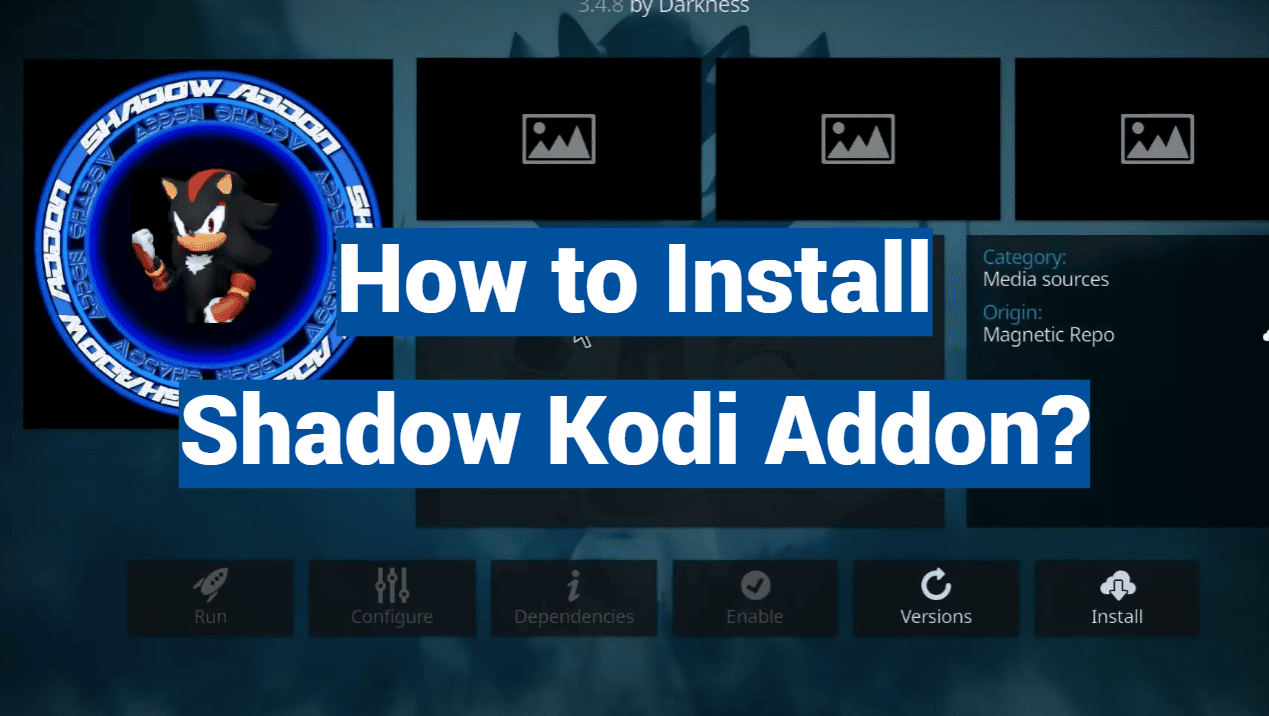
Embark on a journey into the realm of enhanced entertainment with the Shadow Kodi Addon. In this comprehensive guide, we will unravel the step-by-step process of installing the Shadow Addon on your Kodi platform. Offering a diverse and extensive content library, intuitive interface, and advanced features, Shadow elevates your streaming experience.
Whether you’re a seasoned Kodi user or a newcomer to the world of customizable media players, this installation guide will empower you to unlock a wealth of movies, TV shows, and more, ensuring you harness the full potential of the Shadow Kodi Addon on your device.
Reasons To Use Shadow Kodi Addon
User-Friendly Interface:
Navigating through a vast sea of content can be a daunting task if the interface is clunky and unintuitive. Fortunately, the Shadow Kodi addon excels in providing a user-friendly interface that enhances the overall streaming experience. The addon’s interface is designed with simplicity and efficiency in mind, allowing users to effortlessly browse through categories, search for specific titles, and access their favorite content with ease.
The intuitive layout ensures that both newcomers and seasoned Kodi users can quickly adapt to the Shadow addon’s interface. The streamlined design not only enhances usability but also contributes to a more enjoyable and hassle-free streaming experience.
Reliable Streaming Sources:
One of the distinguishing features of the Shadow Kodi addon is its commitment to providing reliable streaming sources. The addon carefully curates sources to ensure that users can enjoy high-quality streaming without buffering issues or sudden interruptions. By selecting reputable and stable sources, Shadow minimizes the frustration often associated with unreliable streaming, allowing users to immerse themselves in their chosen content without disruptions.
Additionally, the addon offers multiple streaming options for each title, giving users flexibility in choosing the source that best suits their preferences. This commitment to reliability sets Shadow apart and contributes to its growing popularity among Kodi users.
Advanced Search and Filtering Options:
Finding the perfect movie or TV show can sometimes feel like searching for a needle in a haystack. Shadow addresses this challenge by incorporating advanced search and filtering options. Users can efficiently narrow down their choices based on genres, release years, or even specific actors, making the content discovery process more personalized and efficient.
The addon’s robust search functionality ensures that users spend less time scrolling through endless lists and more time enjoying the content they love. Whether you have a particular genre in mind or are in the mood for a specific actor’s filmography, Shadow’s search and filtering features make it easier than ever to find exactly what you’re looking for.
Regular Updates and Maintenance:
A reliable addon is not just about the features it offers initially but also about its commitment to continuous improvement and maintenance. The Shadow Kodi addon stands out by providing regular updates to its content library and addressing any potential issues promptly. This dedication to keeping the addon current and functional contributes to a positive user experience and helps build trust among the Kodi community.
Furthermore, the developers behind Shadow actively monitor and maintain the addon to ensure compatibility with the latest Kodi versions and address any emerging challenges. This proactive approach reflects a commitment to user satisfaction and sets Shadow apart as a dependable choice for those seeking a stable and up-to-date streaming solution.
Shadow Kodi Addon Overview:
Cloud gaming has taken the world by storm, and Shadow PC’s entry into the scene made waves with its powerful virtual machines accessible remotely. The Shadow Kodi addon promises to seamlessly integrate this experience into your favorite media center, Kodi.
Features:
- Stream your Shadow PC directly in Kodi: Access your entire Steam library, installed games, and applications right from the familiar Kodi interface. No more switching between platforms;
- Keyboard and mouse support: Forget clunky controller controls. Navigate smoothly with your preferred input method within Kodi and your games;
- Multiple resolution options: Choose from 720p, 1080p, or even 4K resolution for stunning visuals, depending on your internet connection and Shadow PC tier;
- Customizable settings: Tweak audio and video settings to optimize your Shadow experience within Kodi;
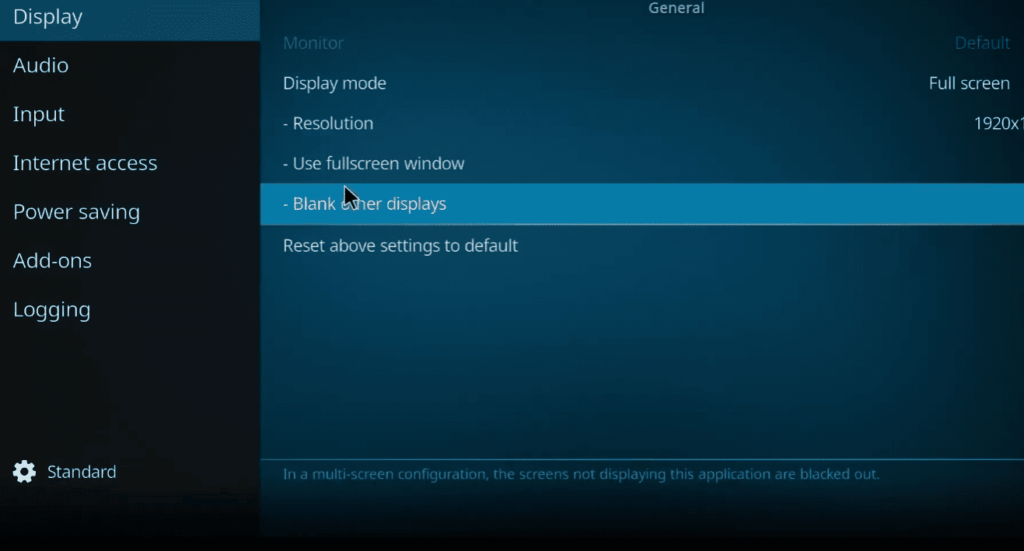
- Multi-monitor support: Extend your Shadow PC onto multiple monitors connected to your Kodi device, creating a powerful gaming and entertainment setup;
Pros:
- Convenience: Enjoy the combined power of Kodi and Shadow PC without switching between apps. Launch games, browse media, and manage your Shadow PC directly within Kodi;
- Flexibility: The addon caters to both casual and hardcore gamers. Access any PC game or application through Kodi, from indie titles to AAA blockbusters;
- Customization: Adjust settings to personalize your experience. Choose preferred resolutions, optimize audio and video, and create a Kodi library for your Shadow-enabled games;
- Potential cost savings: If you already subscribe to Shadow PC and regularly use Kodi, this addon could eliminate the need for a dedicated gaming PC, saving you money in the long run;
Cons:
- Technical requirements: Running Shadow PC smoothly within Kodi requires a strong internet connection with low latency. Buffering and lag can significantly impact your experience, especially at higher resolutions;
- Limited compatibility: The addon is currently only available for Kodi on Android and Windows, excluding other popular platforms like Linux and macOS;
- Potential legal gray area: While Shadow PC itself operates legally, accessing copyrighted content through Kodi addons can be illegal depending on your location and the specific sources used. Proceed with caution and research your local laws before using any unofficial Kodi addons;
- Unofficial development: The Shadow Kodi addon is not officially developed by Shadow PC or the Kodi team. This raises concerns about stability, security updates, and potential compatibility issues with future Kodi or Shadow PC updates;
Is Shadow Addon Safe & Legal?
This is a complex question with no definitive answer. The safety of the addon itself primarily depends on your source. Downloading it from trusted repositories like GitLab with good community feedback minimizes security risks.
However, the legality of using it hinges on your specific actions within Kodi.
Accessing official media sources like Netflix or Spotify through Kodi addons is generally safe and legal.
Streaming copyrighted content from unofficial sources without proper authorization is illegal in most countries.
Therefore, using the Shadow addon for legally acquired games and applications on your Shadow PC should be safe. However, accessing pirated content through Kodi raises legal concerns and can put you at risk for copyright infringement penalties.
Before using the Shadow Kodi addon, we strongly recommend:
- Research your local laws and regulations regarding Kodi and accessing copyrighted content;
- Only download the addon from trusted sources like GitLab;
- Use it solely for accessing legally acquired games and applications on your Shadow PC;
Ultimately, the decision of whether to use the Shadow Kodi addon rests with you. Weigh the pros and cons carefully, prioritize safety and legality, and enjoy the potential convenience of cloud gaming within your Kodi experience responsibly.
How to Install the Shadow Kodi Addon:
Enable Addons from Unknown Sources:
Before you embark on the installation journey, it’s crucial to enable addons from unknown sources on your Kodi device. This step ensures that you can install third-party addons, such as Shadow, without any restrictions.
Here’s how you can do it:
- Open Kodi on your device;
- Navigate to the “Settings” option, typically represented by a gear icon;
- Select “System”;
- Click on “Add-ons” in the left sidebar;
- Toggle the switch next to “Unknown sources” to enable it. A warning message may appear; click “Yes” to proceed;
Enabling unknown sources is a one-time setup that grants Kodi permission to install addons from external sources, a necessary step for customizing your Kodi experience with addons like Shadow.
Add The Magnetic Repo File Source:
The next step involves adding the Magnetic Repository as a source within Kodi. The repository is essential for accessing and installing the Shadow Kodi addon. Follow these steps:
- Return to the Kodi home screen;
- Navigate to “Settings” again;
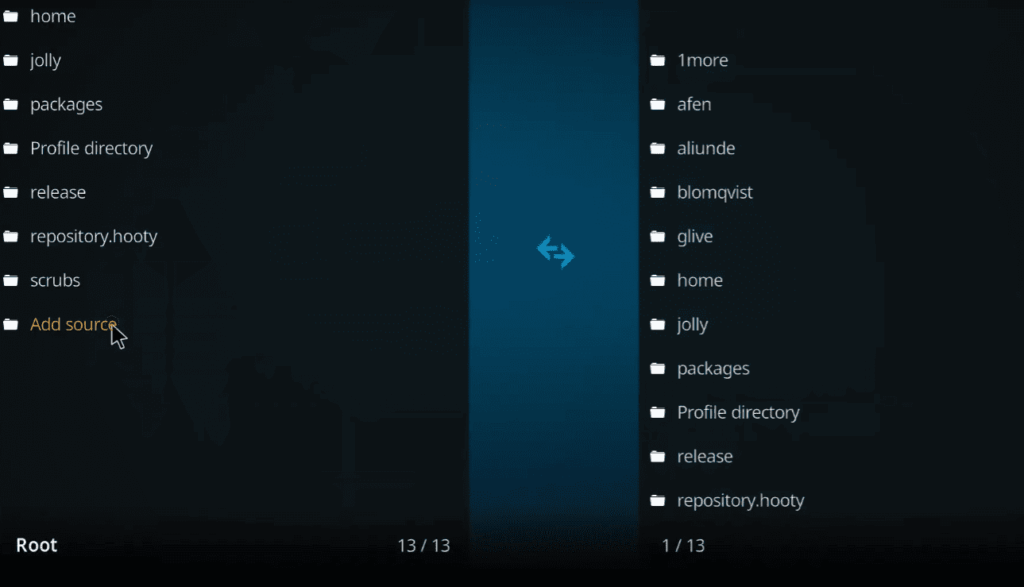
- Select “File Manager”;
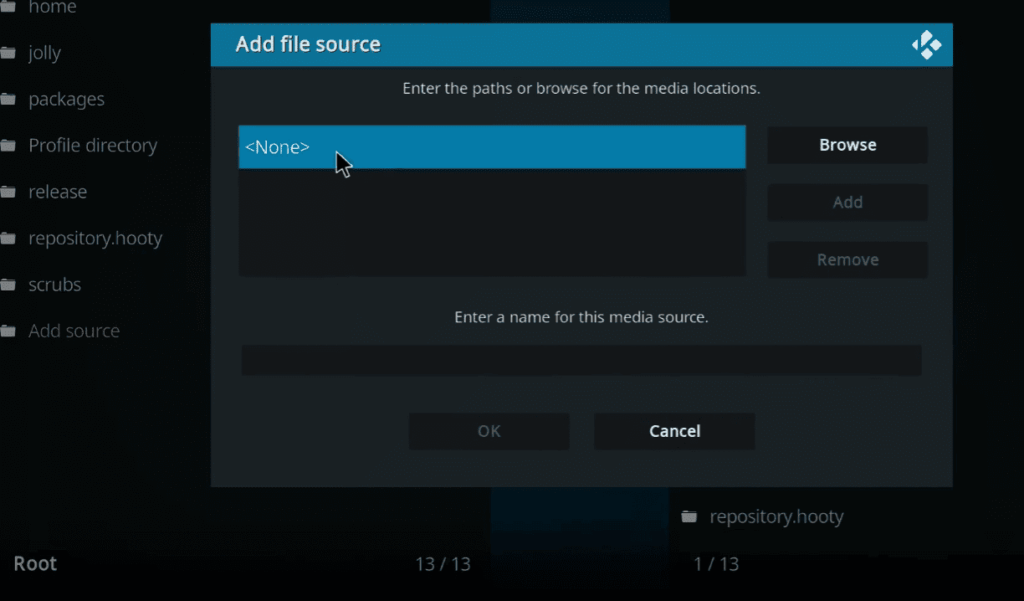
- Click on “Add source”;
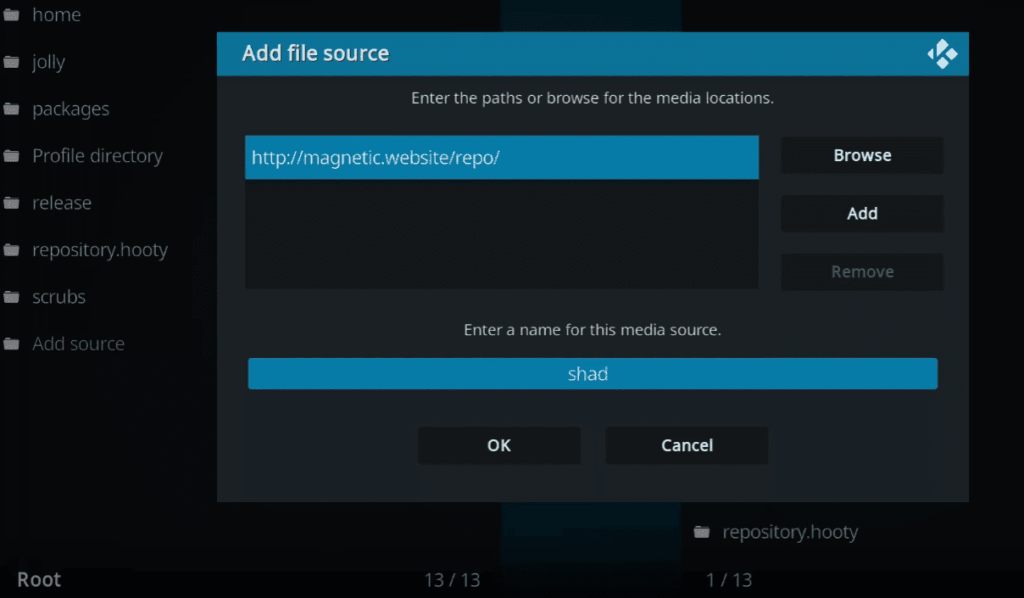
- A window will pop up; click on the field labeled “None” to enter a repository URL. Type in the following URL: http://example.com/repo/ (Replace “example.com” with the actual repository URL if different);
- Beneath the URL field, enter a name for the media source, such as “Magnetic Repo”;
- Click “OK” to confirm and save the source;
The Magnetic Repository source is now added to your Kodi system, laying the groundwork for the subsequent installation steps.
Install The Magnetic Repository from Zip File
With the repository source added, it’s time to install the Magnetic Repository using the zip file. This repository serves as a gateway to various addons, including the coveted Shadow Kodi addon:
- Return to the Kodi home screen;
- Navigate to “Add-ons”;
- Click on the open-box icon (usually found at the top of the sidebar), indicating “Package installer”;
- Select “Install from zip file”;
- Choose the source you added earlier (in this example, “Magnetic Repo”);
- Click on the zip file within the source, typically named something like “repository.magnetic-x.x.zip.” The version number may vary;
- Wait for the installation confirmation notification, indicating that the Magnetic Repository is successfully installed;
The Magnetic Repository is now integrated into your Kodi setup, paving the way for the final step – installing the Shadow Kodi addon.
Install the Shadow Addon from the Repository
With the Magnetic Repository in place, installing the Shadow Kodi addon becomes a straightforward process. Follow these steps:
- Stay within the “Add-ons” section on the Kodi home screen;
- Click on “Install from repository”;
- Choose the “Magnetic Repo” or the name you assigned to the repository;
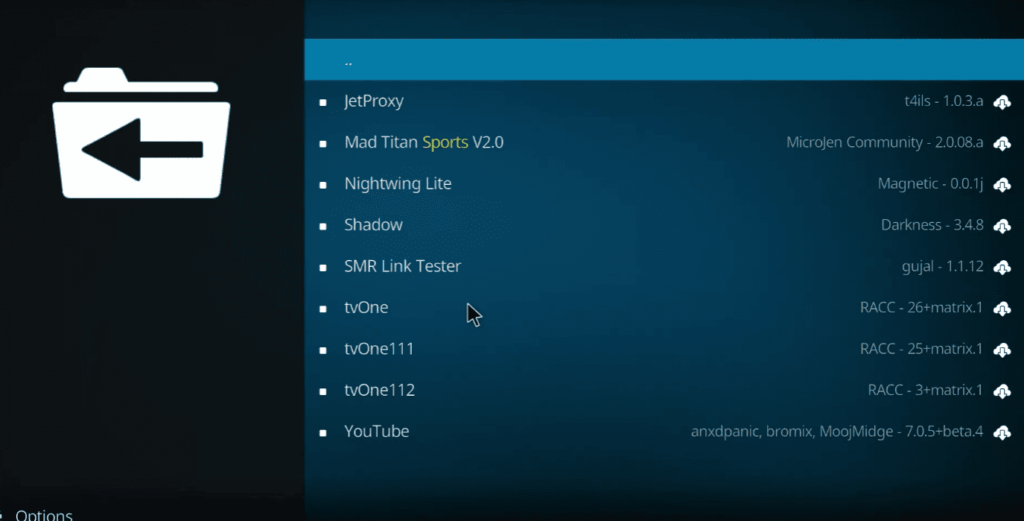
- Navigate to “Video add-ons”;
- Look for “Shadow” in the list of available addons;
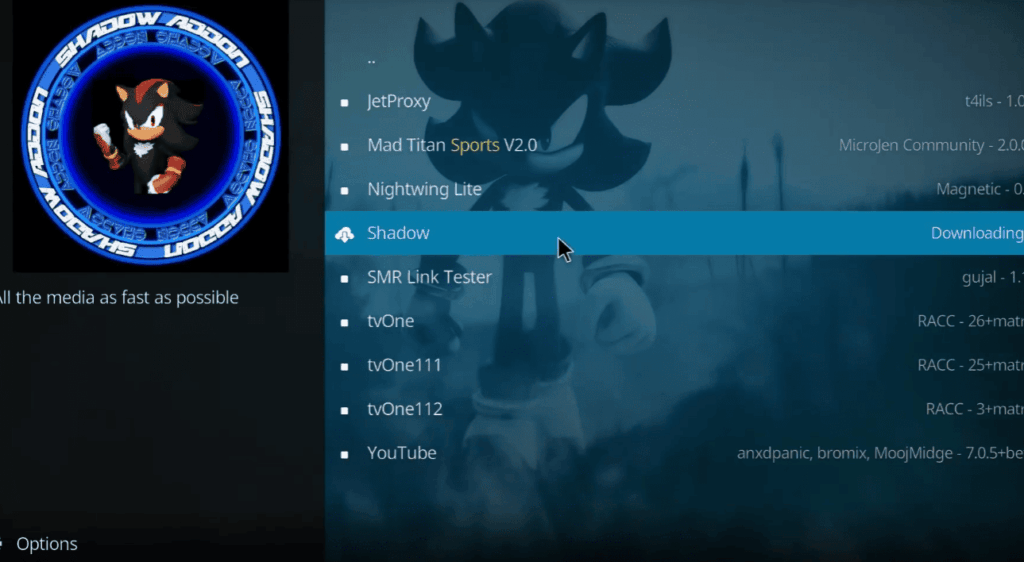
- Click on “Shadow”;
- A screen with information about the Shadow addon will appear. Select “Install” to initiate the installation process;
- Wait for the confirmation message indicating that the Shadow addon is successfully installed;
You have now successfully installed the Shadow Kodi addon on your device. You can access it from the “Add-ons” section on the Kodi home screen, and a world of entertainment options awaits you.
How to Install Shadow Kodi Addon on FireStick?
Installing the Shadow Kodi Addon on FireStick can unlock a world of entertainment, bringing a diverse range of movies, TV shows, and more to your fingertips.
Follow this step-by-step guide to seamlessly install the Shadow Kodi Addon on your FireStick device:
Step 1: Prepare Your FireStick
- Power on your FireStick: Make sure your FireStick is connected to your TV and powered on;
- Navigate to Settings: Using your FireStick remote, go to the main menu and select “Settings”;
- Enable ADB Debugging: Under the “My Fire TV” or “Device” option, select “Developer options.” Turn on “ADB Debugging” to allow external applications to be installed;
- Enable Apps from Unknown Sources: Also in the “Developer options,” enable “Apps from Unknown Sources.” This allows you to install apps that are not available in the Amazon Appstore;
Step 2: Install the Downloader App
- Go to the FireStick Home screen: Press the Home button on your remote;
- Search for Downloader: Use the search function (magnifying glass icon) to find the “Downloader” app;
- Download and Install Downloader: Click on the Downloader app icon, then select “Download” and “Install”. Wait for the installation to complete;
Step 3: Download the Kodi APK
- Open the Downloader app: Launch the Downloader app from the FireStick Home screen;
- Enter the Kodi website URL: In the Downloader app, enter the following URL to download the Kodi APK: https://kodi.tv/download;
- Download Kodi: Scroll down and select the Android icon. Choose the “ARMV7A (32-Bit)” version. The download will begin automatically;
- Install Kodi: After the download is complete, click “Install” to install Kodi on your FireStick;
Step 4: Install the Shadow Kodi Addon
Now that Kodi is installed on your FireStick, you can proceed to install the Shadow Kodi Addon:
- Open Kodi: From the FireStick Home screen, go to “Your Apps & Channels,” find Kodi, and launch it;
- Enable Unknown Sources in Kodi: In Kodi, go to “Settings” (gear icon) > “System” > “Add-ons.” Turn on “Unknown sources” to allow the installation of third-party addons;
Add the Magnetic Repo File Source:
- Navigate to “Settings” > “File Manager”;
- Click “Add source” and enter the URL: http://example.com/repo/ (Replace “example.com” with the actual repository URL if different);
- Name it “Magnetic Repo” and click “OK”;
Install the Magnetic Repository from Zip File:
- Return to the Kodi home screen;
- Go to “Add-ons” > “Install from zip file” > “Magnetic Repo” > Select the zip file (e.g., repository.magnetic-x.x.zip);
- Wait for the installation confirmation;
Install the Shadow Addon from the Repository:
- Still in the “Add-ons” section, choose “Install from repository”;
- Select “Magnetic Repo” > “Video add-ons” > Find and click on “Shadow”;
- Press “Install” and wait for the addon to be installed;
- Access the Shadow Kodi Addon: Once installed, you can find the Shadow addon in the “Add-ons” section on the Kodi home screen;
You have successfully installed the Shadow Kodi Addon on your FireStick, opening the doors to a diverse range of entertainment options. Explore the addon’s features and enjoy seamless streaming on your FireStick device.
How to Use the Shadow Addon on Kodi:
Real Debrid Sign-In:
Real Debrid is a premium service that enhances your streaming experience by providing high-quality links with faster streaming speeds.
To integrate Real Debrid with the Shadow Kodi addon, follow these steps:
1) Open the Shadow Addon:
- Launch Kodi and navigate to the “Add-ons” section;
- Find and open the Shadow addon;
2) Access Settings:
Within the Shadow addon, find and click on “Settings.” This is usually represented by a gear or cog icon.
3) Locate Real Debrid Settings:
Look for the “Real Debrid” section within the addon settings.
4) Sign in to Real Debrid:
- If you already have a Real Debrid account, enter your Real Debrid username and password;
- If you don’t have an account, you’ll need to sign up on the Real Debrid website first;
5) Authorize the Shadow Addon:
After entering your Real Debrid credentials, follow any on-screen prompts to authorize the Shadow addon.
6) Verify Real Debrid Integration:
- Once authorized, you should see a notification or indicator confirming that Real Debrid is successfully integrated with the Shadow add-on;
- By signing in to Real Debrid within the Shadow addon, you’ll unlock premium links for an enhanced streaming experience;
How to Enable One-Click Play:
One-click play simplifies the streaming process, allowing you to start watching content with just a single click.
Follow these steps to enable one-click play in the Shadow Kodi addon:
1) Access Shadow Settings:
Within the Shadow addon, go to the settings menu.
2) Navigate to Playback Options:
Look for the “Playback” or “Streaming” section within the settings.
3) Enable One-Click Play:
- Find the option for “One-Click Play” or a similar feature;
- Toggle the switch to enable one-click play;
4) Save Changes:
- After enabling one-click play, ensure to save or apply the changes within the settings;
- With one-click play activated, you can streamline your viewing experience, eliminating unnecessary steps and enjoying content effortlessly;
Using Trakt with Shadow:
Trakt is a platform that allows you to track and sync your watched content across multiple devices. Integrating Trakt with the Shadow Kodi addon provides a personalized experience and helps you keep track of your favorite shows and movies. Here’s how to set it up:
1) Create a Trakt Account:
Visit the Trakt website (https://trakt.tv/) and sign up for a free account.
2) Open Shadow Addon Settings:
Within the Shadow addon, navigate to the settings menu.
3) Locate Trakt Integration:
Look for the “Trakt” or “Accounts” section within the settings.
4) Authorize Trakt:
- Select “Authorize” or a similar option to link your Shadow addon with your Trakt account;
- Follow the on-screen instructions to enter the provided code on the Trakt website;
5) Verify Trakt Integration:
- After authorization, you should see a confirmation that Trakt is successfully integrated with the Shadow add-on;
6) Adjust Trakt Settings (Optional):
- Explore additional Trakt settings within the Shadow addon settings to customize how your Trakt account interacts with the addon;
- With Trakt integrated into the Shadow addon, your viewing history, watchlist, and progress will sync seamlessly, offering a tailored and cohesive streaming experience;
FAQ:
How to integrate Real Debrid, Premiumize, or All Debrid with Shadow:
- Open Shadow addon on Kodi;
- Navigate to Settings;
- Locate the section for the respective debrid service (Real Debrid, Premiumize, or All Debrid);
- Enter your credentials and follow on-screen prompts to authorize;
How to enable one-click playback on Shadow:
- Access Shadow addon settings;
- Navigate to the Playback or Streaming section;
- Enable the One-Click Play option;
- Save changes;
How to fix Shadow not working or buffering issues:
- Check your internet connection;
- Ensure the Shadow addon is updated to the latest version;
- Clear cache within the addon settings;
- Consider using Real Debrid for better streaming sources;
What are the best alternatives to Shadow addon?
Some popular alternatives include Exodus Redux, The Crew, Seren, and Venom.
How to update Shadow to the latest version:
- Visit the official repository source;
- Download and install the latest version of the addon;
How to enable subtitles on Shadow?
- While playing content, click on the settings icon;
- Choose the subtitle option and select the preferred language;
How do you install addons on Kodi?
Go to Settings > Add-ons > Install from the repository or zip file.
How do you install an official Kodi repository:
- Visit the official Kodi website, download the repository zip file;
- Install the repository using the Add-ons section in Kodi;
How do you add an APK to Kodi?
Use the “Install from zip file” option in Kodi to add an APK.
How to set up Kodi:
- Download and install Kodi;
- Configure settings, add add-ons, and customize the interface;
How do you install Kodi from Google Play:
- Open the Google Play Store on your device;
- Search for Kodi and click “Install”;
How to install APK manually:
- Enable Unknown Sources in device settings;
- Download the APK and install it manually;
How do you install fully loaded Kodi on Android?
Be cautious with “fully loaded” builds; instead, customize Kodi with add-ons based on your preferences.
Is Kodi APK free?
Yes, Kodi APK is free to download and use.
How do you install Kodi addons from GitHub:
- Download the repository zip file from GitHub;
- Install the repository in Kodi and access add-ons;
How do you manually update Kodi addons:
- Visit the official repository source or developer’s page;
- Download the latest version and update the addon in Kodi;
What are repositories in Kodi?
Repositories are collections of add-ons. They serve as a centralized source for addon installations and updates.
Why can’t you add addons to Kodi?
Ensure you have enabled Unknown Sources in Kodi settings.
What is the difference between a Kodi build and an addon?
An addon is a specific feature or extension, while a build is a pre-configured Kodi setup with multiple addons.
Can you use Kodi without add-ons?
Yes, but add-ons enhance the functionality and content available.
Is there a better option than Kodi?
Alternatives include Plex, Emby, and Jellyfin, depending on your needs.
Why is Kodi so slow?
Check your device’s performance, and consider optimizing settings. Avoid resource-heavy builds.
What is key “Error 18” on Kodi?
This error typically indicates insufficient storage on your device.
Why can’t you install from a zip file on Kodi?
Ensure Unknown Sources is enabled. Some repositories may have changed their installation method.
How do you fix my Kodi library?
Go to Settings > Media Settings > Library > Clean Library.
How do you Install Fusion addons on Kodi?
Fusion has been deprecated. Consider using alternative repositories or add-ons.
How do you install the Fusion repository on Kodi?
Fusion is no longer recommended. Use official repositories or trusted alternatives.
Can you run Kodi on a PC?
Yes, Kodi is compatible with various operating systems, including Windows, Linux, and macOS.
How do you install Kodi on Chrome OS?
Visit the Chrome Web Store, search for Kodi, and install the app.