
In the ever-evolving landscape of media consumption, two prominent contenders vie for the title of the ultimate entertainment hub: Kodi and Emby. Both platforms offer diverse features and capabilities, transforming the way users organize, stream, and enjoy multimedia content. As individuals seek a seamless and personalized media experience, the choice between Kodi and Emby becomes pivotal.
In this comprehensive comparison, we delve into the strengths, weaknesses, and unique attributes of Kodi and Emby, helping users navigate the decision-making process to determine which platform aligns best with their preferences and requirements. Welcome to the ultimate showdown: Kodi vs. Emby.
Why Should You Use Kodi Or Emby?
Kodi: The Customization Chameleon
Imagine a blank canvas, ready to be painted with your vision. That’s Kodi in a nutshell. This open-source software is renowned for its unparalleled customization. With a vast library of add-ons (both official and community-made), you can tailor Kodi to your exact needs. Want a retro arcade interface? Check. Live TV streaming? You got it. Accessing niche online content? Kodi’s got your back. This flexibility grants you ultimate control over your media experience, making it a haven for tinkerers and media enthusiasts.
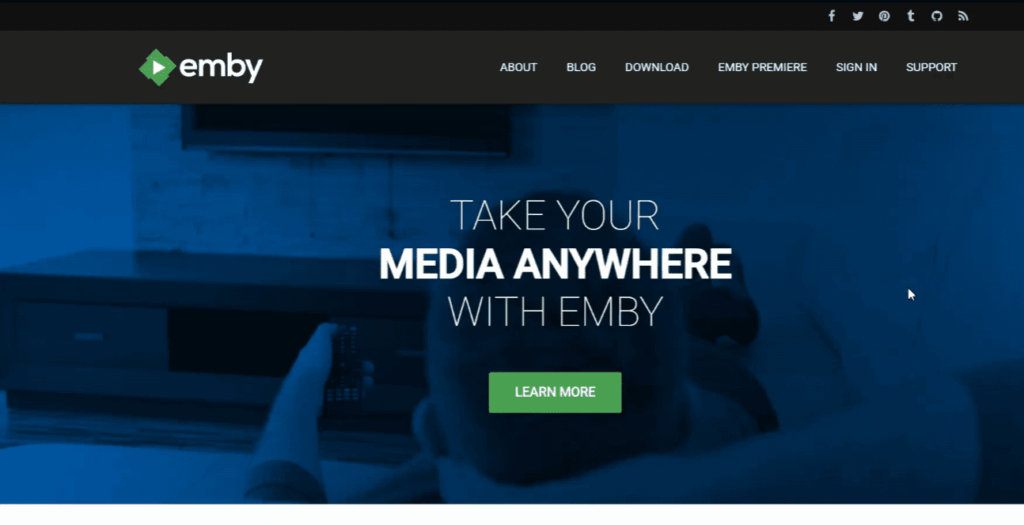
Emby: The Polished Powerhouse
Think of Emby as a luxurious, all-inclusive resort for your media. It boasts a sleek, user-friendly interface that guides you through your library with effortless elegance. Emby shines in organization and playback. It automatically scrapes metadata, generates beautiful artwork, and transcodes media on the fly for seamless playback on any device.
This feature-rich experience comes at a cost, though. Unlike Kodi’s free base model, Emby offers limited functionality in its free tier and requires a premium subscription to unlock its full potential.
Kodi Overview:
Kodi, formerly known as XBMC (Xbox Media Center), is an open-source media player and entertainment hub that has gained immense popularity for its versatility and customization options. Originally developed for the Xbox console, Kodi has evolved into a cross-platform software application that supports a wide range of operating systems, including Windows, macOS, Linux, Android, and iOS.
History and Development:
The roots of Kodi can be traced back to 2002 when a group of like-minded developers created the Xbox Media Player for the original Xbox console. As the project gained momentum, it underwent a name change to Xbox Media Center (XBMC) to better reflect its expanding capabilities beyond a simple media player. Over the years, XBMC transformed into a full-fledged media center, and with the release of version 14 in 2014, the software rebranded as Kodi.
Kodi’s development is primarily community-driven, with contributors from around the world continuously enhancing its features and performance. The open-source nature of Kodi has fostered a vibrant community that actively participates in its improvement, resulting in regular updates and a dynamic ecosystem of add-ons and extensions.
Features:
- User Interface and Skins:
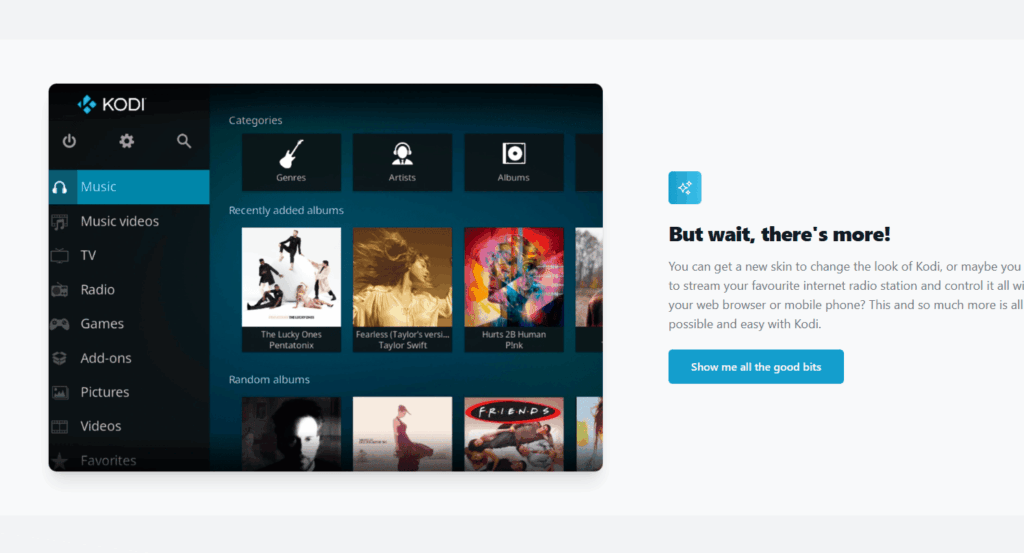
Kodi boasts a user-friendly interface that provides easy navigation and accessibility. Users can customize the look and feel of Kodi through a variety of skins, allowing for a personalized experience. Whether you prefer a sleek, modern design or a nostalgic retro appearance, Kodi’s skinning options cater to diverse preferences.
- Media Playback:
Kodi supports an extensive array of audio and video formats, making it a versatile media player. With robust playback capabilities, it can handle local files as well as stream content from the internet. The software also supports high-definition content and 4K playback, delivering an immersive multimedia experience.
- Add-ons and Extensions:
One of Kodi’s standout features is its support for add-ons and extensions, which significantly extend its functionality. Users can enhance their media center with a vast library of add-ons, ranging from video streaming services and music apps to weather updates and gaming emulators. The flexibility to tailor Kodi to individual preferences is a major draw for many users.
- Live TV and PVR:
Kodi integrates seamlessly with live TV and personal video recorder (PVR) functionality. Users can set up and customize their TV viewing experience, including the ability to schedule recordings, pause live TV, and integrate electronic program guides (EPGs). This integration positions Kodi as an all-in-one entertainment solution.
- Cross-Platform Support:
Kodi’s cross-platform compatibility ensures that users can enjoy its features on various devices and operating systems. Whether you’re using a Windows PC, a macOS laptop, an Android TV box, or even a Raspberry Pi, Kodi provides a consistent experience across platforms.
Pros:
- Versatility: Kodi’s versatility is a key strength. It functions as a comprehensive media player, supporting various file formats, and its add-on ecosystem allows users to customize their experience based on their preferences, whether they’re interested in streaming, gaming, or other applications;
- Customization: The ability to customize Kodi through skins and add-ons is a major advantage. Users can tailor the interface to match their aesthetic preferences and expand its functionality to suit their specific needs. This flexibility sets Kodi apart from many other media centers;
- Community Support: With a large and active community of developers and users, Kodi benefits from continuous improvement and troubleshooting. The community-driven nature of the project fosters innovation and ensures that Kodi remains up-to-date with the latest technologies and user expectations;
- Cost-Free Entertainment: Kodi is open source and free to use, providing an affordable entertainment solution for users around the world. The absence of subscription fees or licensing costs makes it an attractive option for those seeking a budget-friendly media center;
Cons:
- Legal and Piracy Concerns: While Kodi itself is legal, some third-party add-ons facilitate access to copyrighted content without proper authorization. This has led to concerns about piracy, and users should exercise caution and adhere to copyright laws when using add-ons. The reputation of Kodi has occasionally been tarnished by its association with unauthorized streaming;
- Learning Curve: For new users, the sheer number of customization options and add-ons can be overwhelming. Navigating through the settings and understanding how to make the most of Kodi’s features may require a learning curve. However, the community and online resources can help users overcome this initial challenge;
- Resource Intensive: On certain devices, especially older ones, Kodi may be resource-intensive, leading to potential performance issues. Users with less powerful hardware may experience slowdowns or lag, impacting the overall user experience;
- Lack of Official Support for Third-Party Add-ons: Kodi itself does not endorse or provide official support for many third-party add-ons. While these add-ons contribute to the platform’s versatility, they can be less stable and reliable than official features. Users should exercise caution and be aware of potential risks when using unofficial add-ons;
Emby Overview:
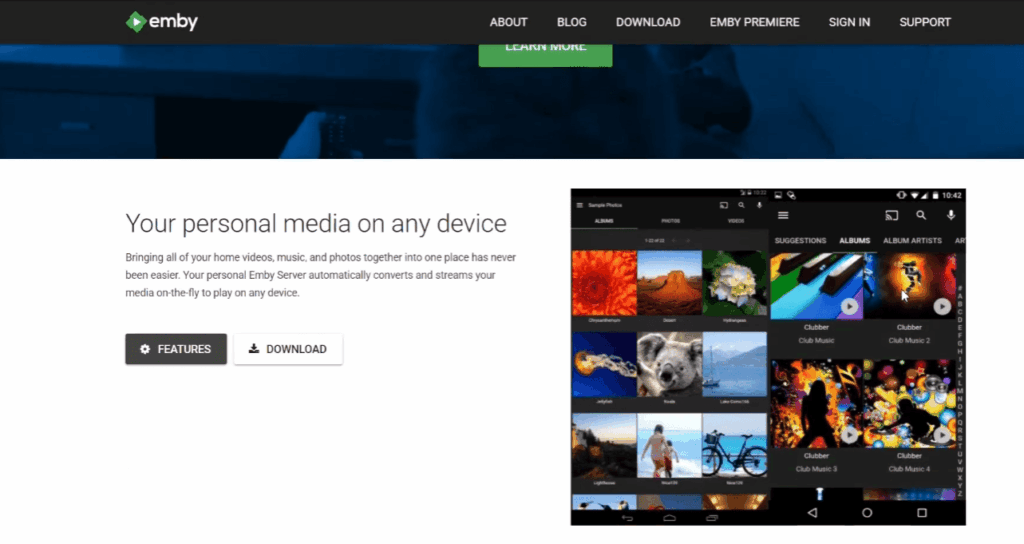
Emby, a media server platform, has gained popularity for its ability to organize, stream, and access media content across various devices. Formerly known as Media Browser, Emby provides users with a comprehensive solution for managing their multimedia libraries.
History and Development:
The origins of Emby can be traced back to 2013 when the initial version of Media Browser was released. The project aimed to offer a centralized media management solution, allowing users to access their media content seamlessly. Over time, the software evolved, and in 2015, it rebranded as Emby. Emby is developed by a dedicated team, and its open-source nature allows for community contributions, fostering ongoing improvements and innovations.
Features:
- Media Streaming and Server:
Emby serves as a powerful media server, enabling users to stream their media content to various devices, including smart TVs, streaming boxes, mobile devices, and computers. The server-client architecture ensures a smooth streaming experience, allowing users to access their media libraries from anywhere with an internet connection.
- Cross-Platform Support:
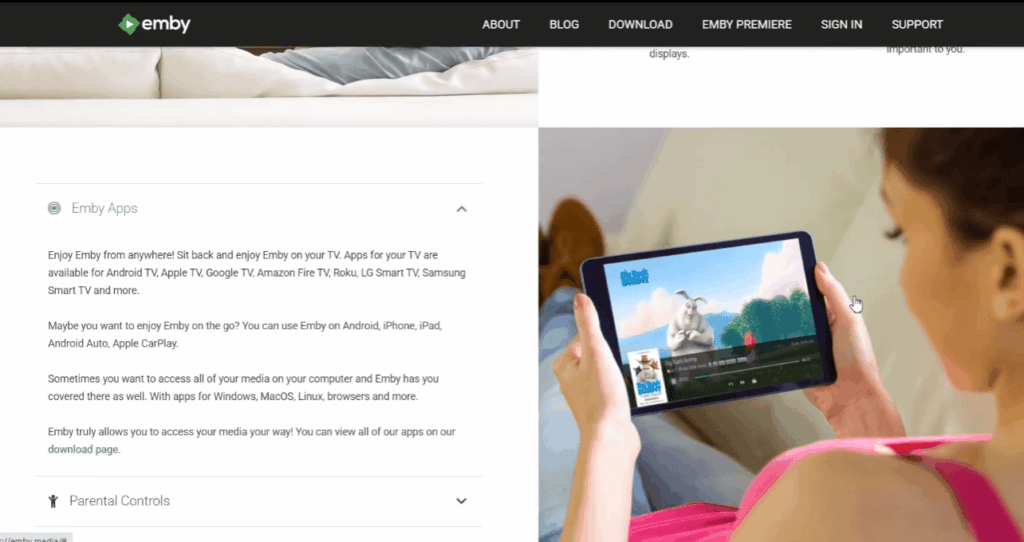
Emby is compatible with a wide range of operating systems, including Windows, Linux, macOS, Android, and iOS. This cross-platform support ensures users can enjoy a consistent experience across different devices and ecosystems.
- Live TV and DVR:
One of Emby’s standout features is its integration with live TV and digital video recorder (DVR) functionality. Users can connect Emby to their TV tuners, allowing for live TV streaming, channel guides, and the ability to record live broadcasts for later viewing.
- Media Organization and Metadata:
Emby excels in organizing media libraries, automatically fetching metadata such as cover art, episode descriptions, and cast information. This feature enhances the visual appeal of the media library and provides users with a rich and informative browsing experience.
- Mobile Sync:
Emby offers a mobile sync feature, allowing users to download media for offline viewing on their mobile devices. This is particularly useful for users who want to enjoy their favorite content without relying on a consistent internet connection.
Pros:
- User-Friendly Interface: Emby boasts an intuitive and user-friendly interface that simplifies media management and streaming. The well-designed layout and easy navigation contribute to a positive user experience;
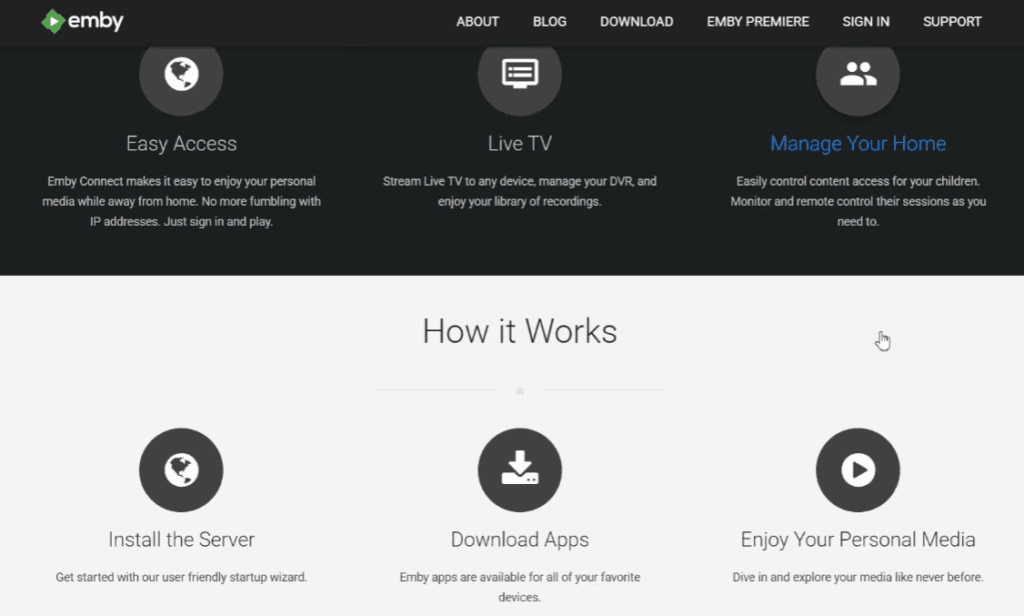
- Multi-User Support: Emby supports multiple user profiles with customizable access permissions. This is particularly beneficial for families or households with diverse media preferences, ensuring a personalized experience for each user;
- Client App Ecosystem: Emby offers a variety of client applications for different platforms, including smart TVs, gaming consoles, and mobile devices. The availability of dedicated apps enhances the accessibility and convenience of using Emby across various devices;
- Emby Premiere Features: While Emby is free to use, the Emby Premiere subscription offers additional features such as cloud sync, offline media access, and early access to new features. The premium subscription provides an enhanced experience for users who require advanced functionalities;
Cons:
- Resource Intensive: Emby’s media server functionality can be resource-intensive, especially when streaming to multiple devices simultaneously. Users with less powerful hardware may experience performance issues, and adequate server resources are essential for optimal performance;
- Limited Official App Support: While Emby offers a variety of client apps, official support for some platforms may be limited compared to other media server solutions. This can result in a less polished experience on certain devices;
- Cost of Emby Premiere: While Emby is free, some advanced features are locked behind the Emby Premiere subscription, which comes with a recurring cost. While the subscription offers valuable enhancements, some users may find the additional expense less appealing;
- Learning Curve: Setting up and configuring Emby, especially for users new to media server solutions, may involve a learning curve. The plethora of settings and options can be overwhelming initially, but Emby’s community and documentation provide support for users seeking assistance;
Comparing Emby Vs Kodi Services:
In the digital age, where entertainment libraries overflow with movies, TV shows, and music, media center software like Emby and Kodi reigns supreme. But for beginners, choosing between these giants can feel daunting. While both excel at managing and streaming personal media, their strengths and weaknesses lie in distinct areas.
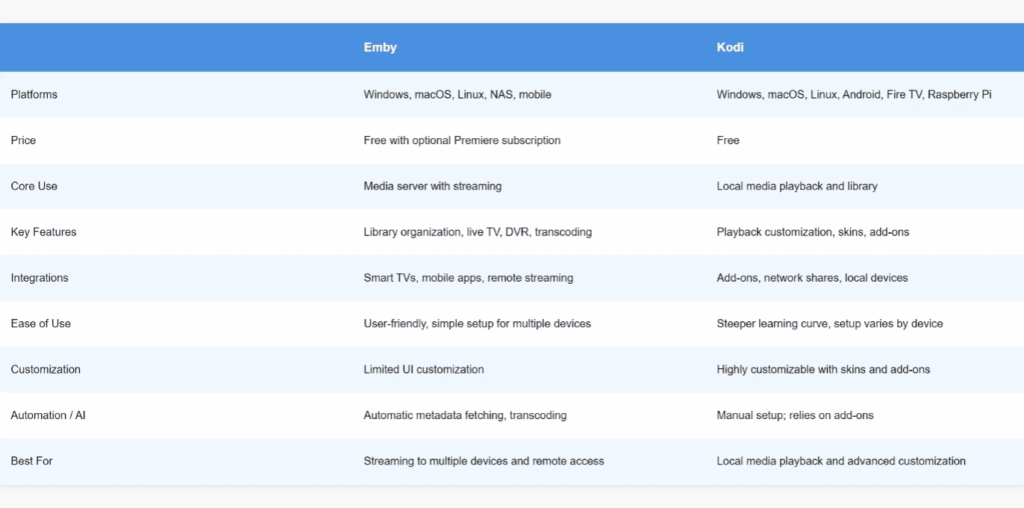
So, before you embark on your multimedia journey, let’s compare Emby vs. Kodi across key aspects:
Ease of Use for Beginners:
- Emby: Streamlined and intuitive interface, web-based setup wizard, pre-configured media libraries, drag-and-drop organization. Emby shines for its user-friendliness, especially for those new to media servers;
- Kodi: Steeper learning curve, customization-heavy interface, manual library setup. Kodi demands more technical proficiency but rewards tinkerers with deep personalization options;
User Interface:
- Emby: Modern, visually appealing with clear navigation, multiple themes, and mobile-friendly access. Emby prioritizes a polished, easy-to-grasp platform for effortless browsing;
- Kodi: Highly customizable, skin-dependent visuals, requires add-ons for some features like live TV. Kodi offers unmatched flexibility in its interface, but aesthetics rely heavily on chosen skins;
Features and Functionality:
- Emby: Built-in parental controls, live TV and DVR functionality (Premium), mobile syncing for offline access, automatic metadata fetching, trailer playback. Emby packs a punch with diverse features, catering to family entertainment needs and mobile viewing;
- Kodi: Add-on ecosystem unlocks vast capabilities like music visualization, PVR support, game emulators, karaoke night setups. Kodi’s focus is extensibility, allowing users to tailor the experience to their unique needs;
Add-ons and Extensions:
- Emby: Limited official add-on store, primarily focused on metadata enhancements and integrations with cloud services. Emby prioritizes stability and security, keeping its ecosystem curated;
- Kodi: Vast, third-party add-on repository offering functionalities from live TV streaming (potentially illegal) to weather reports and games. Kodi’s open-source nature grants access to a plethora of add-ons, but vetting security and legality is crucial;
Community Support:
- Emby: Active official forums and documentation, helpful developer team. Emby boasts a dedicated community for troubleshooting and feature suggestions;
- Kodi: Large online community forums and wikis, but support for unofficial add-ons can be inconsistent. Kodi’s extensive user base offers vast support, but navigating unofficial content necessitates caution;
Compatibility With Devices and OS:
- Emby: Extensive support for smart TVs, streaming devices, mobile platforms, web browsers, and gaming consoles. Emby runs on most popular operating systems, ensuring broad device compatibility;
- Kodi: Similar device compatibility range, but requires additional software for Windows 11 and may face limitations on some platforms. Kodi’s platform compatibility is impressive, but slight bumps might occur on newer OS versions;
Streaming Capabilities:
- Emby: Transcoding for smooth playback on different devices, offline media syncing, live TV streaming (Premium). Emby prioritizes seamless streaming across devices and offers convenient offline viewing options;
- Kodi: Relies on native device codecs for playback, add-ons for live TV streaming (potentially illegal), limited mobile syncing options. Kodi excels in local playback but requires device-specific codec support and lacks robust mobile syncing;
Security and Privacy:
- Emby: Closed-source, encrypted communication, optional cloud sync with user-controlled privacy settings. Emby takes security seriously with encryption and privacy options, although its closed-source nature raises concerns for some users;
- Kodi: Open-source, user-responsible for security, potential risks if using third-party add-ons. Kodi prioritizes openness but requires users to be vigilant about add-on security and avoid illegal content;
Customization and Flexibility:
- Emby: Limited interface customization, emphasis on pre-built features and user-friendliness. Emby focuses on ease of use and offers less room for deep customization;
- Kodi: Highly customizable interface with skins, add-ons, and advanced settings. Kodi empowers users to tailor the experience to their specific preferences and workflows;
Cost:
- Emby: Free basic version with core features, Premium tiers for live TV, DVR, and mobile syncing. Emby offers a freemium model, catering to both casual and power users;
- Kodi: Completely free and open-source with no hidden costs. Kodi is entirely free, attracting users who value cost-effectiveness and openness;
Kodi vs Emby – Which Is Better?
Choosing between Kodi and Emby is like picking between chocolate and strawberry ice cream – they both satisfy your sweet tooth, but appeal to different preferences. To crown a clear winner, we need to understand your priorities.
Kodi:
Strengths:
- Free and open-source: No subscription fees or restrictions;
- Unparalleled customization: Add-ons galore! Tailor your experience to your wildest dreams;
- Offline playback: No internet connection needed to enjoy your local library;
- Plays almost anything: Support for a vast range of media formats and codecs;
- Active community: Abundant resources and troubleshooting support;
Weaknesses:
- Steeper learning curve: Can be overwhelming for beginners due to add-on complexity;
- Stability issues: Some add-ons may cause crashes or malfunctions;
- Less polished interface: Lacks the sleekness and organization of Emby;
- Limited server functionality: Not as robust as Emby for remote streaming and live TV;
Emby:
Strengths:
- Polished and intuitive interface: Easier to navigate and discover content;
- Superior server functionality: Seamless remote streaming, live TV integration, and library management;
- Automatic metadata and artwork: Your library looks stunning without lifting a finger;
- Cross-platform compatibility: Official apps for most devices, ensuring smooth playback;
- Parental controls: Keep your little ones safe from inappropriate content;
Weaknesses:
- Subscription required for full features: The free tier is limited;
- Less freedom to customize: Limited add-on ecosystem compared to Kodi;
- Reliant on internet connection: Server and some features require online access;
- Potentially higher CPU/resource demands: Running the server can be resource-intensive;
Let’s compare the key aspect to define the best service – Kodi or Emby:
Round 1: Features and Functionality
- Media Sources: Both Kodi and Emby handle local files, but Emby excels in server-based libraries and remote streaming;
- Content Organization: Emby’s automatic metadata fetching and library management give it the edge;
- Customization: Kodi reigns supreme with its add-on ecosystem, allowing you to personalize your experience to an incredible degree;
- Device Compatibility: Both support a wide range of devices, though Emby’s official apps might offer better native integration on some platforms;
Round 2: User Friendliness and Accessibility
- Learning Curve: Emby’s polished interface is easier to navigate, especially for beginners. Kodi’s add-on-heavy nature can be overwhelming for newcomers;
- Technical Requirements: Emby requires a server setup, which might scare off non-technical users. Kodi runs directly on devices, making it more accessible;
- Cost: Kodi is completely free, while Emby has a limited free tier and premium options;
Round 3: Community and Support
- Active Community: Both boast active communities offering support and custom add-ons. However, Kodi’s sheer popularity gives it a slight edge in community resources;
- Official Support: Emby offers dedicated support channels for premium users, while Kodi relies primarily on community forums;
Choosing between Kodi and Emby is less about picking a winner and more about understanding your needs and preferences:
- Kodi: Ideal for customization lovers, tinkerers, and those on a budget. Enjoy unrivaled add-on flexibility and a free-to-use platform. However, be prepared for a steeper learning curve and potentially less streamlined organization;
- Emby: Perfect for users seeking a user-friendly, well-organized experience with strong server-based functionality. Embrace the polish and convenience, but be ready to invest in a premium subscription for the full experience;
Ultimately, the best media center is the one that fits you like a glove. Whether you’re a customization champion or an organization aficionado, both Kodi and Emby offer compelling solutions. Take them for a spin, explore their strengths, and choose the platform that paints your perfect media haven.
FAQ:
Can Kodi connect to an Emby server?
Yes, Kodi can connect to an Emby server using the Emby for Kodi add-on. This integration allows users to access their Emby media libraries within the Kodi interface.
What is the difference between Apple TV Emby and Kodi?
Apple TV Emby refers to the Emby client application designed specifically for Apple TV devices, providing a seamless interface for accessing Emby media servers. Kodi, on the other hand, is a versatile media player and center that can be installed on various platforms, including Apple TV.
The main difference lies in their primary purposes, with Emby focusing on media server-client relationships and Kodi serving as a comprehensive media player.
How do you install Emby Next Gen on Kodi?
To install Emby Next Gen on Kodi, you can follow these general steps:
- Open Kodi and navigate to the Add-ons section;
- Select “Download” or “Get more…” to access the Add-on repository;
- Search for “Emby” and locate the Emby Next Gen add-on;
- Install the add-on, and once installed, configure it with your Emby server details;
How do you skip the intro on Emby for Kodi?
To skip the intro on Emby for Kodi, you can press the “Next” button on your remote or controller during the intro sequence. This action will allow you to bypass the introduction and proceed to the main content.
What is the best alternative to Kodi?
One popular alternative to Kodi is Plex. Both Kodi and Plex offer media center capabilities, but they differ in terms of user interface, features, and customization options. The choice between Kodi and Plex depends on individual preferences and requirements.
Is Emby Premium worth it?
The value of Emby Premium depends on individual needs. Emby Premium offers additional features such as cloud sync, offline media access, and early access to new features. Users who require these advanced functionalities may find Emby Premium worth the subscription cost.
How much does Emby cost?
Emby is free to use, but Emby Premiere, which unlocks premium features, comes with a subscription cost. The pricing details for Emby Premiere can be found on the official Emby website.
Which is better – Plex or Emby?
The choice between Plex and Emby depends on personal preferences and requirements. Both platforms offer similar functionalities, but users may prefer one over the other based on factors such as interface design, device compatibility, and pricing.
Can you use Kodi as a media server?
While Kodi primarily functions as a media player and center, it does not have native media server capabilities. However, it can connect to external media servers like Emby, allowing users to access and stream content from a centralized server.
How many people can use Emby?
The number of users who can access an Emby server depends on the server configuration and network capabilities. Emby does support multiple user profiles with customizable access permissions, making it suitable for family or multi-user environments.
Can Emby be used offline?
Emby allows users to download media for offline viewing on supported devices. This feature, known as mobile sync, enables users to access their media content without an active internet connection.
How much does Emby unlock cost?
The cost of unlocking Emby’s premium features through Emby Premiere can be found on the official Emby website. Pricing details may vary based on subscription plans and regional considerations.
Is Emby TV free?
Emby itself is free to use, but some advanced features may require Emby Premiere, a subscription-based service. The core functionality, including media streaming and server capabilities, is available without a subscription.
Does anyone still use Kodi?
Yes, many users still actively use Kodi as a media player and center. Kodi’s open-source nature, extensive add-on support, and customizable features contribute to its enduring popularity.
Is SMB or NFS better for Kodi?
Both SMB (Server Message Block) and NFS (Network File System) can be used with Kodi, and the choice depends on personal preference and network setup. In general, SMB is more widely supported across platforms, while NFS may offer better performance in certain scenarios.
Does Kodi play IPTV?
Yes, Kodi supports IPTV (Internet Protocol Television) through various add-ons. Users can access IPTV channels and content within the Kodi interface.
Does Emby do transcoding?
Yes, Emby has transcoding capabilities, allowing it to convert media files into compatible formats for smooth streaming on various devices.
What is the best Emby device?
The best Emby device depends on individual preferences and use cases. Emby supports a wide range of devices, including smart TVs, streaming boxes, and dedicated Emby client apps. Popular choices include Nvidia Shield, Roku, and Amazon Fire TV.
Does Emby work with VPN?
Emby generally works with VPNs (Virtual Private Networks), but users should ensure that their VPN setup allows for proper network communication between the Emby server and client devices.
Is Emby server legal?
Yes, using Emby as a media server is legal. However, users should be mindful of the content they access and share to ensure compliance with copyright laws.
Does Emby collect data?
Emby collects minimal data for the purpose of improving its services and does not sell personal information. Users can review the Emby privacy policy for detailed information on data handling practices.
Is Emby closed source?
Emby is not entirely open source. While the server software is open source, some components are closed source, and Emby Premiere features are proprietary.
Does Emby play Dolby Vision?
Emby does not support Dolby Vision. Users should check the latest Emby release notes for any updates on Dolby Vision support.
Which Linux is best for Kodi?
Kodi is compatible with various Linux distributions, and the best choice depends on user preferences and hardware compatibility. Popular options include Ubuntu, Fedora, and LibreELEC.
Does Emby have subtitles?
Yes, Emby supports subtitles, and users can configure subtitle settings within the Emby server or client applications.
How do you secure your Emby?
Securing Emby involves practices such as updating to the latest software version, configuring secure passwords, and implementing firewalls. Emby’s documentation provides guidance on securing the server.
Where does Emby save subtitles?
Emby saves downloaded subtitles in the media library directory, typically in a “Subtitles” folder. Users can customize subtitle settings within Emby to specify the location for saving subtitles.