
The occurrence of a black screen when launching Kodi on Firestick is not uncommon, often stemming from a variety of underlying issues. In this comprehensive guide, we delve into the intricate web of causes behind this frustrating dilemma and unveil a spectrum of effective solutions to restore your Kodi experience to its full glory. Whether you’re a seasoned Kodi enthusiast or a newcomer seeking an immersive media playback, understanding and overcoming the black screen error is paramount.
From troubleshooting steps to in-depth explanations of potential culprits, this article equips you with the knowledge needed to navigate the complexities of Kodi on Firestick, ensuring your journey through digital entertainment remains uninterrupted and enjoyable.
Say goodbye to the perplexing black screen, as we unravel the mysteries and empower you with the tools to reclaim the full potential of Kodi on your Firestick.
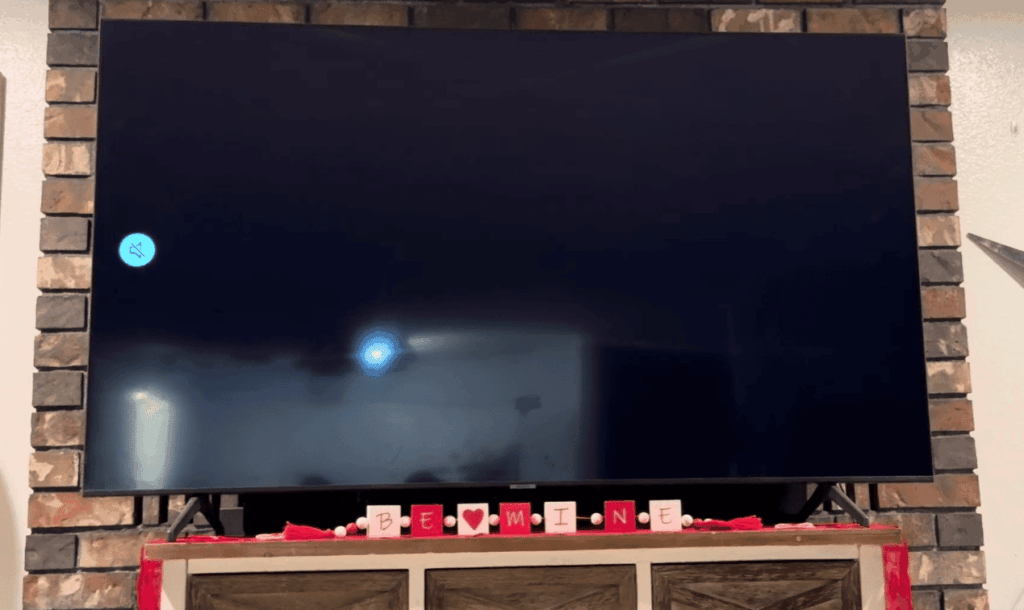
Black Screen When Kodi Is Launched: Signs
Kodi is a popular open-source media player that allows users to stream and play a wide variety of content, including movies, TV shows, music, and more. However, like any software, Kodi may encounter issues, and one common problem users face is the dreaded black screen upon launching the application.
Signs of the Black Screen Issue:
- Immediate Black Screen: Kodi launches, displays the splash screen for a split second, then goes completely black. No menus, no sounds, just darkness;
- Delayed Black Screen: Kodi opens normally, shows menus and options for a while, then abruptly cuts to black. This could happen after trying to access specific content, add-ons, or settings;
- Partial Black Screen: Some elements like menus or the Kodi logo might be visible, but the main playback area remains black. This could indicate issues with video rendering or specific add-ons.
- Complete Absence of Display: One of the primary signs of the black screen issue is the total absence of any display upon launching Kodi. Users may hear the application’s sounds, but the screen remains black, leaving them unable to navigate or interact with the interface;
- Flickering Screen: In some instances, users might experience a flickering screen instead of a consistent black display. This intermittent flickering can be equally frustrating and may hinder the overall user experience;
- Unresponsive Interface: Even if the black screen is not persistent, users might find the Kodi interface unresponsive. Clicking on menu options or trying to navigate through the application may result in delays or no response at all;
- Error Messages: Occasionally, users may encounter error messages along with the black screen. These messages can provide valuable insights into the root cause of the problem, aiding in the troubleshooting process;
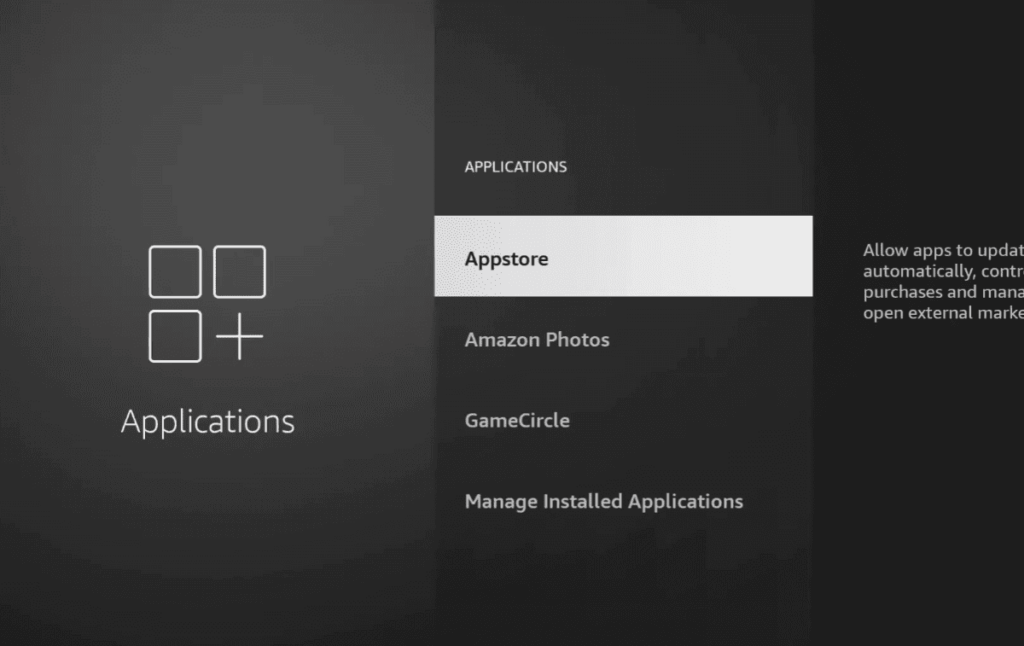
Causes and Specific Solutions of Kodi Black Screen:
1) Unsupported Video Output
Signs:
- Black screen immediately upon launching Kodi;
- Audio may play in the background;
Causes:
Unsupported video output settings can cause conflicts between Kodi and your display device.
Solutions:
Adjust Video Output Settings:
- Navigate to Kodi settings;
- Select “System” -> “Display”;
- Experiment with different resolutions and refresh rates;
Update Graphics Drivers:
- Ensure your graphics drivers are up-to-date;
- Visit the official website of your graphics card manufacturer for the latest drivers;
2) Incompatible Add-ons or Plugins
Signs:
- Black screen after installing or updating add-ons;
- Unresponsive Kodi interface;
Causes:
Incompatibility issues arise when using outdated or conflicting add-ons.
Solutions:
Remove Incompatible Add-ons:
- Identify and uninstall recently added or updated add-ons;
- Stick to reputable sources for add-ons to ensure compatibility;
Reset Kodi to Default Settings:
- In Kodi settings, select “System” -> “Add-ons”;
- Choose “Manage Dependencies” and reset to default;
3) Corrupted or Outdated Software
Signs:
- Black screen upon launching Kodi;
- Frequent crashes;
Causes:
Corrupted or outdated Kodi software can lead to instability and black screen issues.
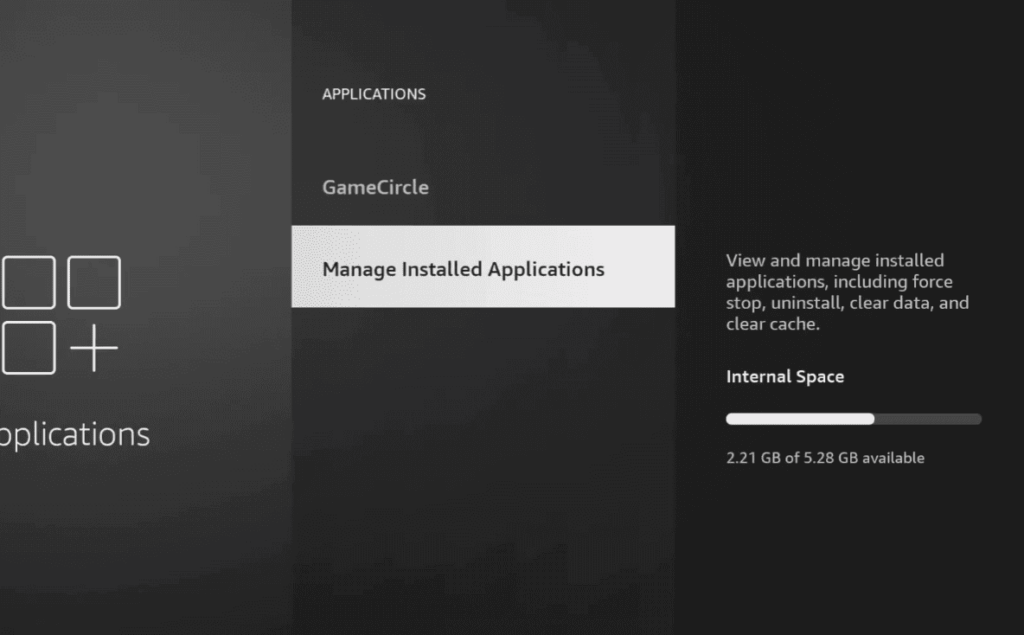
Solutions:
Reinstall Kodi:
- Uninstall Kodi;
- Download the latest version from the official website;
- Perform a clean installation;
Regular Software Updates:
- Keep Kodi and all installed add-ons up-to-date;
- Enable automatic updates in Kodi settings;
4) Improper Resolution or Refresh Rate Settings
Signs:
- Black screen with audio playing;
- Kodi interface is unresponsive;
Causes:
Mismatched resolution or refresh rate settings can result in a black screen.
Solutions:
Adjust Display Settings:
- In Kodi settings, navigate to “System” -> “Display”;
- Set the resolution and refresh rate according to your display specifications;
Check Display Device Settings:
Adjust settings on your TV or monitor to match Kodi’s display settings.
5) Hardware Acceleration Issues
Signs:
- Black screen during video playback;
- Audio continues to play;
Causes:
Issues with hardware acceleration settings can lead to playback problems.
Solutions:
Disable Hardware Acceleration:
- In Kodi settings, go to “Player” -> “Videos”;
- Toggle off “Allow hardware acceleration (DXVA, VDPAU, VAAPI, MMAL)”;
Update GPU Drivers:
- Ensure your graphics card drivers are updated;
- Test hardware acceleration after updating;
6) No Stream Available
Signs:
- Black screen when attempting to stream content;
- No error messages displayed;
Causes:
This issue often results from problems with streaming sources or add-ons.
Solutions:
Check Internet Connection:
- Ensure a stable and high-speed internet connection;
- Test other streaming services to verify connectivity;
Use Reliable Add-ons:
- Choose reputable add-ons with reliable sources;
- Consider using popular add-ons like Exodus or Covenant;
7) Crash And Reboot Loop
Signs:
- Kodi crashes and restarts repeatedly;
- Persistent black screen during reboots;
Causes:
Software conflicts or corrupted files can trigger a crash and reboot loop.
Solutions:
Identify Problematic Add-ons:
- Disable add-ons one by one to identify the culprit;
- Remove or update the problematic add-on;
Reinstall Kodi:
Perform a clean installation of Kodi.
8) No App Found To Handle This File
Signs:
- Black screen when attempting to play media files;
- Error message: “No app found to handle this file”;
Causes:
Lack of proper codecs or file format compatibility can lead to this error.
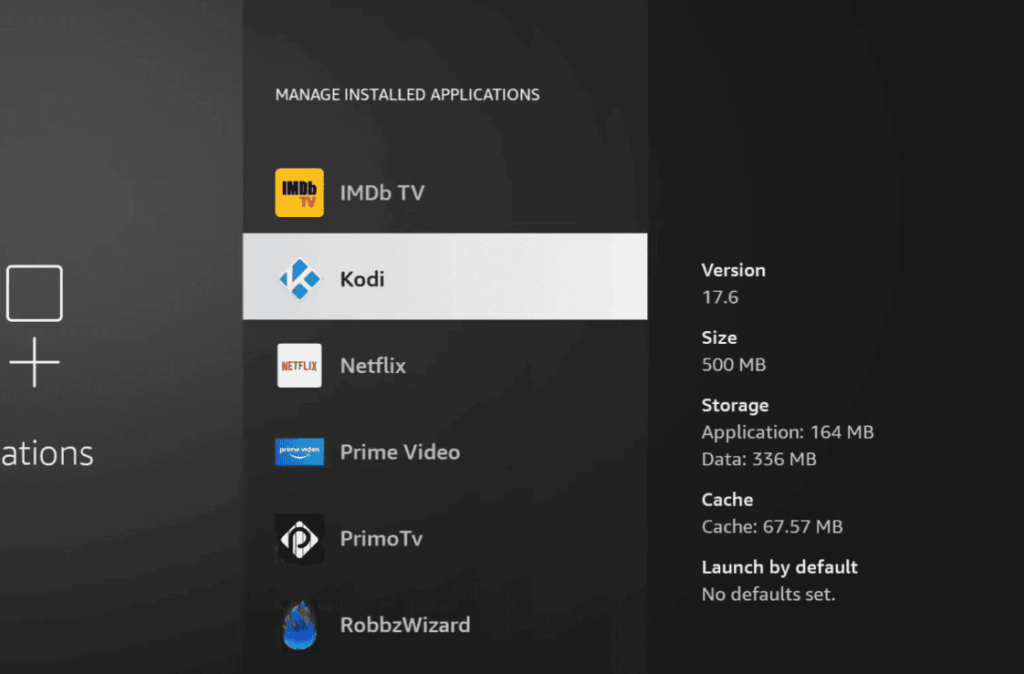
Solutions:
Install Codecs:
Install the necessary audio and video codecs for your media files.
Convert File Formats:
Use a media converter to convert incompatible files to a supported format.
9) Crash During Playback
Signs:
- Kodi crashes when playing specific media files;
- Black screen with no error messages;
Causes:
Corrupted media files or incompatible codecs can cause crashes during playback.
Solutions:
Verify Media File Integrity:
- Check for corrupted or incomplete media files;
- Re-download or convert problematic files;
Update Codecs:
- Ensure your codecs are up-to-date;
- Consider using a different media player if issues persist;
10) Performance-Related Issues
Signs:
- Laggy or slow performance;
- Black screen during resource-intensive tasks;
Causes:
Insufficient hardware resources can lead to performance-related issues.
Solutions:
Upgrade Hardware:
Consider upgrading your device’s RAM, CPU, or storage.
Optimize Kodi Settings:
- Adjust advanced settings in Kodi to optimize performance;
- Limit background processes;
11) Build-Related Issues
Signs:
- Black screen after installing a custom build;
- Performance issues and unresponsiveness;
Causes:
Custom builds may contain incompatible or outdated components.
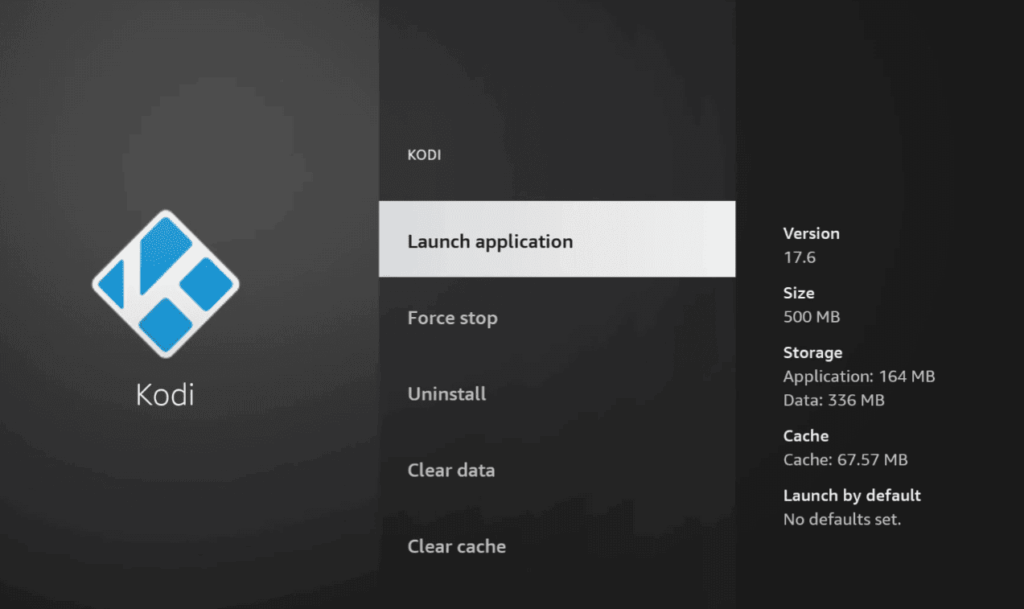
Solutions:
Switch to Default Skin:
- Revert to the default Kodi skin;
- Uninstall the custom build and use a lightweight alternative;
Install a Lightweight Build:
Choose a minimalistic build that suits your device’s capabilities.
12) Hanging On Shut Down
Signs:
Kodi hangs and does not shut down properly.
Persistent black screen during the shutdown process.
Causes:
Conflicts with background processes or problematic add-ons can cause shutdown issues.
Solutions:
Disable Problematic Add-ons:
Identify and disable add-ons causing shutdown problems.
Check Background Processes:
Ensure no background processes are conflicting with Kodi’s shutdown.
13) Overheating
Signs:
- Black screen during operation;
- Device feels excessively hot to the touch;
Causes:
Overheating can lead to hardware malfunctions and black screen problems.
Solutions:
Improve Ventilation:
- Ensure proper ventilation for your device;
- Use cooling pads or fans to dissipate heat;
Clean Dust Buildup:
Regularly clean dust from your device’s vents and cooling components.
14) Addon Shows Error On Open
Signs:
- Black screen accompanied by an error message;
- Error message relates to a specific add-on;
Causes:
Outdated or malfunctioning add-ons can cause errors during launch.
Solutions:
Update Add-ons:
- Ensure all add-ons are updated to their latest versions;
- Remove outdated or unsupported add-ons;
Check for Add-on Dependencies:
Ensure all required dependencies for the add-on are installed.
15) Failed To Install A Dependency
Signs:
- Black screen during add-on installation;
- Error message: “Failed to install a dependency”;
Causes:
Missing or incompatible dependencies can hinder add-on installations.
Solutions:
Install Missing Dependencies:
Manually install any missing dependencies.
Follow error messages for guidance on which dependencies are needed.
Use Reputable Repositories:
Install add-ons from well-known repositories to ensure proper dependencies.
16) Videos Buffer Frequently
Signs:
- Constant buffering during video playback;
- Black screen during extended buffering periods;
Causes:
Insufficient internet speed or network issues can lead to frequent buffering.
Solutions:
Check Internet Speed:
- Use a speed testing tool to check your internet connection;
- Upgrade to a higher-speed plan if necessary;
Use Wired Connection:
Connect your device directly to the router using an Ethernet cable for a more stable connection.
17) Unable To Connect To Source
Signs:
- Black screen when attempting to access streaming sources;
- Error message: “Unable to connect to source”;
Causes:
Network issues or problems with the streaming source can result in connection failures.
Solutions:
Check Internet Connection:
- Ensure your device has a stable internet connection;
- Test other streaming sources to identify the source-specific issue;
Use VPN or Proxy:
If streaming sources are region-restricted, use a VPN or proxy to access them.
18) New Addon Causes Kodi To Crash
Signs:
- Kodi crashes immediately after installing a new add-on;
- Black screen during crashes;
Causes:
Incompatible or poorly coded add-ons can cause crashes.
Solutions:
Check Add-on Compatibility:
- Ensure the add-on is compatible with your Kodi version;
- Read user reviews before installing new add-ons;
Disable or Remove Problematic Add-ons:
Identify and disable newly installed add-ons causing crashes.
19) Device Date And Time Mismatch
Signs:
- Black screen with an error message related to date and time;
- Error message: “Date and time mismatch”;
Causes:
Incorrect system date and time settings can cause authentication issues.
Solutions:
Adjust Date and Time:
- Ensure your device’s date and time settings are accurate;
- Set the correct time zone;
Enable Automatic Date and Time:
Allow your device to automatically set the date and time.
20) Addon Search Function Not Working
Signs:
- Black screen or unresponsiveness when using the add-on search function;
- Error messages related to search functionality;
Causes:
Issues with the search function within Kodi can result from various factors.
Solutions:
Update Kodi:
- Ensure Kodi is updated to the latest version;
- Updates may include bug fixes related to search functionality;
Use Alternative Search Add-ons:
If the built-in search function is problematic, consider using alternative search add-ons.
21) Add-ons Stopped Working After An Update
Signs:
- Black screen or errors after updating Kodi or add-ons;
- Loss of functionality in previously working add-ons;
Causes:
Updates can introduce bugs or conflicts, leading to add-on malfunctions.
Solutions:
Rollback Updates:
- If possible, revert to a previous version of Kodi or add-ons that were working;
- Monitor community forums for information on known issues with recent updates;
Contact Add-on Developers:
Reach out to the developers of the affected add-ons for assistance or updates.
How to Fix Kodi Black Screen Error: General Recommendations
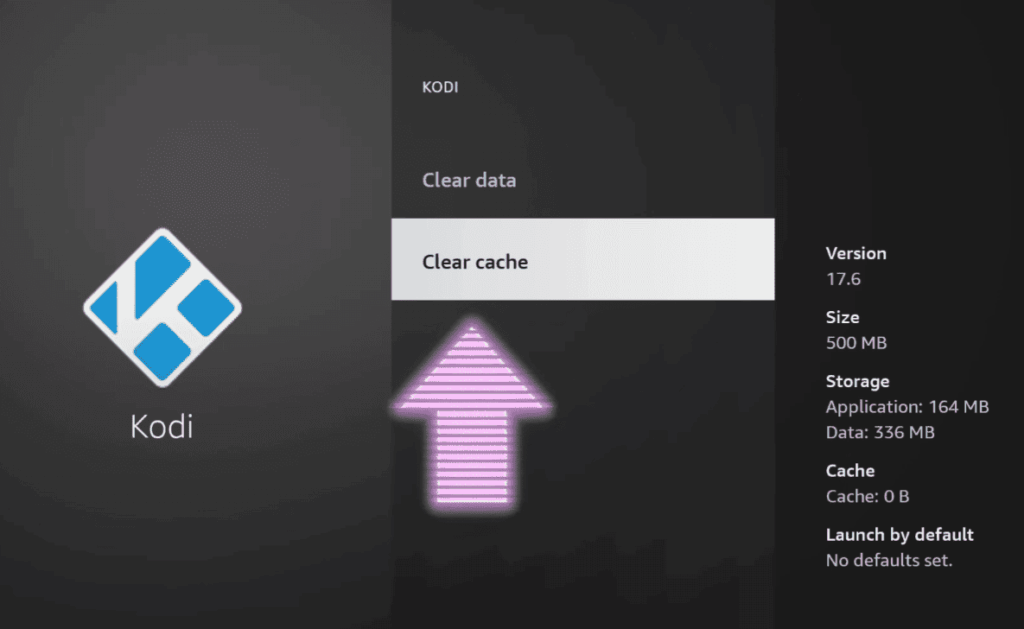
Clear Kodi App Cache
One common culprit behind the black screen issue is a cluttered or corrupted cache. Clearing the Kodi app cache can often rectify this problem:
- Navigate to Kodi settings;
- Select “System” and then “File Manager”;
- Click on “Profile Directory” and find the “Database” folder;
- Locate the “Addons27.db” file and delete it;
- Restart Kodi to see if the black screen error persists;
Disable Hardware Acceleration
Hardware acceleration, while generally beneficial for performance, can sometimes clash with certain configurations, leading to the black screen problem. Disable hardware acceleration to check if it resolves the issue:
- In Kodi settings, go to “Player” -> “Videos”;
- Toggle off “Allow hardware acceleration (DXVA, VDPAU, VAAPI, MMAL)”;
- Restart Kodi and observe if the black screen error persists during playback;
Lower Refresh Rate
Mismatched refresh rates can lead to display issues, including the black screen error. Adjusting the refresh rate in Kodi can help:
- Navigate to Kodi settings;
- Select “System” -> “Display”
- Experiment with different refresh rates until you find a stable setting;
- Restart Kodi after making changes to assess if the black screen is resolved;
Delete Corrupted Addons File
Corrupted addon files can contribute to the black screen error. Follow these steps to delete corrupted addon files:
- Access the Kodi userdata folder;
- Locate the “Database” folder;
- Find the “Addons27.db” file and delete it;
- Restart Kodi to see if the black screen issue is resolved;
Restart Kodi and Your Device
Sometimes, a simple restart can work wonders. Close Kodi, restart your device, and relaunch Kodi to check if the black screen error persists.
Check for Kodi Updates
Outdated versions of Kodi may contain bugs that contribute to the black screen issue. Ensure that you are running the latest version of Kodi:
- Visit the official Kodi website to check for updates;
- Download and install the latest version;
- Restart Kodi after updating to see if the black screen error is resolved;
Check System Requirements
Kodi has specific system requirements, and not meeting them can lead to performance issues, including the black screen error. Verify that your device meets Kodi’s recommended specifications.
Reset Kodi Settings
Restoring Kodi to its default settings can eliminate configuration-related problems. Follow these steps to reset Kodi settings:
- In Kodi settings, select “System” -> “Add-ons”
- Choose “Manage Dependencies” and reset to default;
- Restart Kodi to see if the black screen issue persists;
Disable Addons
Conflicts between addons can contribute to the black screen error. Temporarily disable addons to identify the culprit:
- Navigate to Kodi settings;
- Select “Add-ons” and disable one addon at a time;
- Restart Kodi after disabling each addon to pinpoint the problematic one;
Check Video Output Settings
Incorrect video output settings can lead to display problems. Ensure that your video output settings are compatible with your display device:
- In Kodi settings, go to “System” -> “Display”;
- Adjust resolution and refresh rate settings accordingly;
- Restart Kodi to check if the black screen is resolved;
Update Graphics Drivers
Outdated or incompatible graphics drivers can contribute to display issues. Update your graphics drivers to the latest version:
- Visit the official website of your graphics card manufacturer;
- Download and install the latest drivers;
- Restart your device and Kodi to see if the black screen error persists;
Check for Hardware Issues
Hardware problems, such as insufficient resources or malfunctioning components, can contribute to the black screen error. Ensure that your device is in good working condition.
Reinstall Kodi
If other solutions fail, a clean reinstall of Kodi may be necessary:
- Uninstall Kodi from your device;
- Download the latest version from the official website;
- Perform a fresh installation;
- Restart your device and launch Kodi to see if the black screen is resolved;
Update or Reinstall Kodi to Newest Version
Ensure that you are using the latest version of Kodi to benefit from bug fixes and improvements. If the black screen error persists, consider reinstalling Kodi following the steps mentioned earlier.
Tips for Improving Your Kodi Experience
Now that you’ve addressed the black screen error, consider implementing these tips to enhance your overall Kodi experience:
Use Only Official Addons
Official addons are more likely to be stable and compatible with the latest Kodi versions. Avoid using third-party addons from unverified sources to minimize the risk of encountering issues.
Use a VPN
A Virtual Private Network (VPN) can enhance your privacy and security while streaming content. Additionally, it can help you bypass geographic restrictions on certain content.
Update Regularly
Regularly updating Kodi and addons is crucial for a smooth and secure streaming experience. Enable automatic updates in Kodi settings to ensure you are always running the latest versions.
Other Common Issues With Kodi Addon:
1) Playback Problems:
Signs:
- Freezing or Stuttering: Video playback freezes or stutters intermittently;
- Audio Sync Issues: Audio is out of sync with the video;
- Codec Compatibility: Certain media files fail to play;
Causes:
- Outdated Addons or Kodi Version: Incompatibility issues arise when addons or Kodi itself are not updated;
- Network Speed and Stability: Insufficient internet speed or unstable connections can hinder smooth playback;
- Device Performance: Older or underpowered devices may struggle with demanding media files;
Solutions:
Update Addons and Kodi:
- Regularly check for updates to ensure compatibility;
- Enable automatic updates in Kodi settings;
Check Internet Speed:
- Use a speed testing tool to verify your internet connection;
- Consider upgrading your plan for higher speeds;
Optimize Device Performance:
- Close background apps to free up resources;
- Consider using a device with better processing capabilities;
Adjust Video Settings:
Modify Kodi’s video playback settings, such as cache size and buffering.
2) Buffering Issues:
Signs:
- Frequent Pauses: Video playback pauses frequently to buffer;
- Slow Loading Times: Content takes longer to load;
Causes:
- Slow Internet Connection: Low bandwidth or network congestion can lead to buffering;
- Device Limitations: Insufficient processing power on the device can cause buffering;
Solutions:
Upgrade Internet Connection:
- Consider a higher-speed internet plan;
- Use a wired connection for more stability;
Adjust Kodi Buffer Settings:
- Increase the cache size in Kodi settings;
- Optimize advanced settings for smoother streaming;
Use Reliable Addons:
Choose addons with reliable servers and sources.
3) Addon Installation Errors:
Signs:
- Failed Installation: Addons fail to install;
- Dependency Errors: Messages indicate missing dependencies;
Causes:
- Incompatible Kodi Version: Some addons may not support the installed Kodi version;
- Missing Dependencies: Required components for addons are not installed;
Solutions:
Check Kodi Version:
- Ensure the addon is compatible with your Kodi version;
- Consider updating Kodi if necessary;
Install Missing Dependencies:
Review error messages to identify and install required dependencies.
4) Authentication and Authorization Issues:
Signs:
- Access Denied Messages: Users encounter issues accessing certain content;
- Subscription Errors: Paid services may not authenticate correctly;
Causes:
- Incorrect Login Credentials: Ensure correct usernames and passwords are used;
- Expired Subscriptions: Paid services may require renewal;
Solutions:
Verify Login Credentials:
- Double-check usernames and passwords;
- Reset passwords if necessary;
Check Subscription Status:
- Confirm that paid subscriptions are active;
- Contact the service provider for assistance;
5) Addon Discontinuation:
Signs:
- Addons Stop Working: Previously functional addons cease to operate;
- No Updates: Lack of updates for an extended period;
Causes:
- Abandoned Development: Addon developers may discontinue support;
- Incompatibility: Updates to Kodi or dependencies may render addons obsolete;
Solutions:
Explore Alternatives:
- Look for alternative addons with similar functionality;
- Check Kodi forums for recommendations;
Contact Developers:
Reach out to addon developers for information on updates or discontinuation.
6) Broken Repository Links:
Signs:
- Failed Repository Installation: Attempts to install repositories result in errors;
- Unavailable Addons: Repositories are no longer accessible;
Causes:
- Repository Shutdown: Repositories may shut down or change URLs;
- Outdated Repositories: Some repositories may not be maintained;
Solutions:
Update Repository URLs:
- Manually update repository URLs in Kodi settings;
- Search for alternative repositories hosting the desired addons;
Remove Broken Repositories:
- Uninstall or disable repositories with broken links;
- Opt for actively maintained repositories;
7) Addon Compatibility with Kodi Skins:
Signs:
- Interface Distortions: Skins may not display addons correctly;
- Navigation Issues: Addons may not integrate seamlessly with certain skins;
Causes:
- Skins Not Updated: Skins may not be compatible with the latest Kodi version;
- Customization Conflicts: Certain skins may clash with addon layouts;
Solutions:
Update Skins:
- Ensure that the selected skin is compatible with the installed Kodi version;
- Consider using default Kodi skins for better compatibility;
Choose Compatible Skins:
Opt for skins designed with addon compatibility in mind.
8) Subtitle Sync Issues:
Signs:
- Misaligned Subtitles: Subtitles are out of sync with video playback;
- Subtitle Delays: Subtitles appear delayed during playback;
Causes:
- Incorrect Subtitle Settings: Kodi settings or addon configurations may cause sync issues;
- Subtitle File Compatibility: Some subtitle files may not sync correctly with certain videos;
Solutions:
Adjust Kodi Subtitle Settings:
- Modify subtitle settings in Kodi to achieve synchronization;
- Experiment with delay adjustments for a personalized fit;
Use External Subtitle Files:
Download external subtitle files compatible with the video.
FAQ:
Why is Kodi not opening on your Firestick?
The black screen issue can prevent Kodi from launching. Refer to our troubleshooting guide for steps to resolve this problem.
How do you fix the black screen on your Firestick?
Follow our detailed guide outlining various solutions to address the Kodi black screen error on your Firestick.
Why is your jailbroken Firestick not playing movies?
Incompatibility issues, outdated addons, or corrupted files may contribute to this problem. Check our troubleshooting guide for steps to resolve the issue.
Can you get in trouble for watching a jailbroken Firestick?
The legality of using a jailbroken Firestick depends on the content you stream. Engaging in illegal activities, such as streaming copyrighted content without permission, may lead to legal consequences.
Can you get in trouble for jailbreaking your Firestick?
Jailbreaking a Firestick is legal, but using it to access copyrighted content without proper authorization may violate copyright laws.
Why is your TV screen black but you have sound?
This issue can result from HDMI cable problems, display settings, or hardware issues. Refer to our troubleshooting guide for steps to address the black screen with sound problems.
Is there a problem with Kodi?
Kodi may encounter issues like the black screen error due to various factors such as incompatible addons, corrupted files, or outdated software. Our troubleshooting guide provides solutions to common Kodi problems.
Is there something better than Kodi?
Several media players are available, each with its strengths. Plex, Emby, and Jellyfin are popular alternatives. However, Kodi remains a favorite for its customization options and community support.
How to clear the Kodi cache?
Clearing the Kodi cache can help resolve various issues, including the black screen error. Follow the steps in our guide to clear the Kodi cache.
How do you backup and restore Kodi?
Creating backups is crucial to safeguard your settings and addons. Our guide outlines the steps to backup and restore Kodi for a seamless experience.
How do you launch an app on Kodi?
Launching an app on Kodi involves installing addons. Refer to our guide on installing addons to enhance your Kodi experience.
How do you unlock Kodi’s advanced settings?
Accessing advanced settings in Kodi allows for customization. Follow our guide to unlock and navigate Kodi’s advanced settings.
Why does HDMI not work on TV?
HDMI issues can arise from cable problems, port issues, or incorrect settings. Check our troubleshooting guide for steps to address HDMI-related problems.
How do you bypass the black screen when streaming?
Bypassing the black screen when streaming involves troubleshooting your device, Kodi settings, and addons. Refer to our comprehensive guide for solutions.
Is it safe to jailbreak Firestick without VPN?
While it is technically legal to jailbreak a Firestick, using a VPN is advisable for privacy and security. Streaming copyrighted content without a VPN may expose you to legal risks. Always use a VPN for a safer streaming experience.