
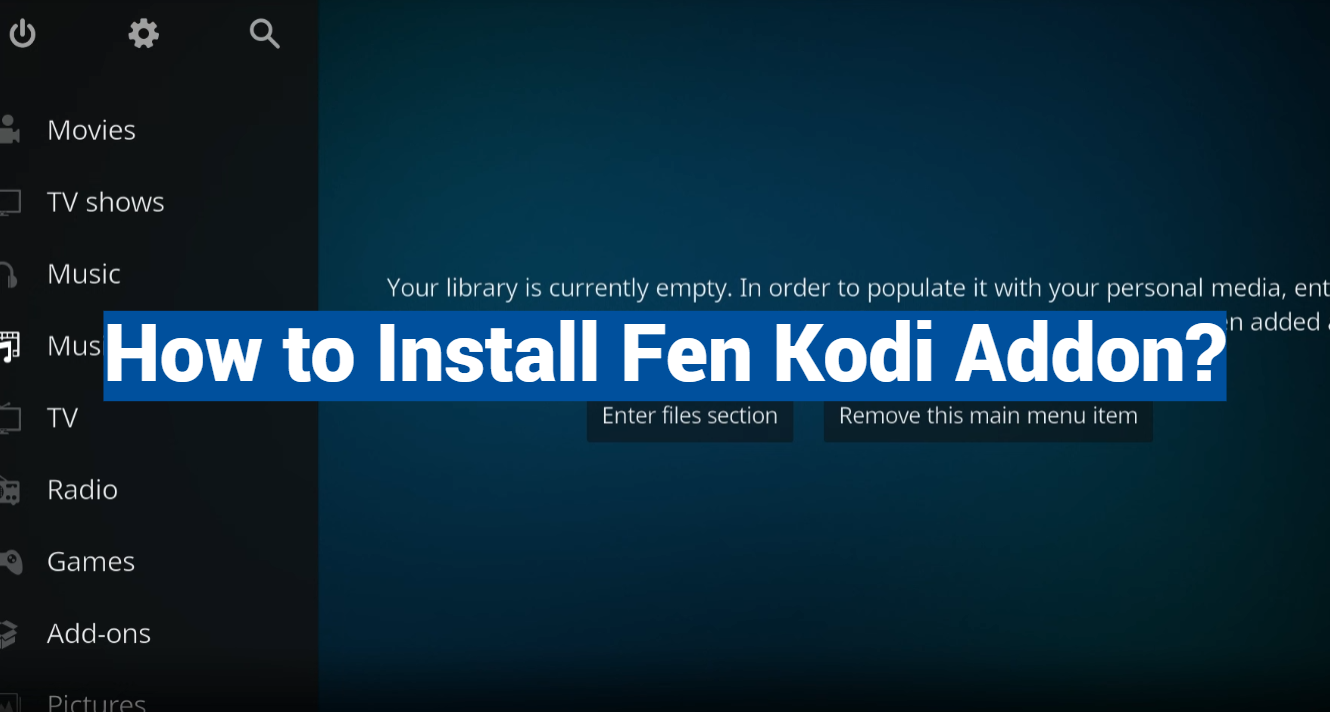
This comprehensive guide will walk you through the step-by-step process of installing Fen, a powerful Kodi addon renowned for its extensive content library and user-friendly interface. From enabling unknown sources to integrating premium services like Real-Debrid, this tutorial covers every essential detail to ensure a seamless installation.
Whether you’re a Kodi enthusiast or a novice explorer, this guide promises to unlock the full potential of Fen, offering a feature-rich streaming experience that caters to your every entertainment craving.
Fen (FEN) Kodi Addon Overview:
Fen (FEN) has emerged as a powerful and versatile tool for streaming enthusiasts. This addon has gained significant popularity due to its extensive features, providing users with access to a vast library of movies, TV shows, and more. It’s known for its wide variety of sources, excellent user interface, and customizable settings. However, it’s important to note that using Kodi addons for accessing copyrighted content can be illegal, so proceed with caution and at your own risk.
Features:
- Content Diversity:
One of Fen’s standout features is its impressive range of content. From the latest movies to classic TV shows, Fen covers a wide spectrum of entertainment genres. Its robust scraping capabilities ensure that users can find virtually any content they desire, making it a one-stop solution for all their streaming needs.
- User-Friendly Interface:
Fen boasts an intuitive and user-friendly interface, making it accessible to both Kodi veterans and newcomers. The addon is designed with simplicity in mind, ensuring that users can navigate through its features effortlessly. The clean layout and organized menus enhance the overall user experience.
- Search and Filtering Options:
Fen goes the extra mile to facilitate content discovery. Users can search for specific titles or browse through various categories effortlessly. The addon also provides advanced filtering options, allowing users to narrow down their search based on genres, release years, and more. This feature is particularly handy for users looking to explore content within specific parameters.
- Trakt Integration:
Fen supports Trakt integration, enabling users to synchronize their watchlists, history, and favorites seamlessly. This integration enhances the overall user experience, making it easier for individuals to manage their content preferences across multiple devices.
- Real-Debrid Compatibility:
For users seeking high-quality streaming with minimal buffering, Fen supports Real-Debrid integration. Real-Debrid is a premium service that unlocks access to premium links, providing a smoother and more reliable streaming experience. Fen’s compatibility with Real-Debrid adds a significant value proposition for users who prioritize streaming quality.
- Subtitle Support:
Fen recognizes the importance of subtitles for a global audience. The addon offers robust subtitle support, allowing users to choose from a variety of languages. This feature caters to a diverse user base and ensures a more inclusive streaming experience.
Pros:
- Extensive Content Library: Fen’s primary strength lies in its vast content library. Users can find the latest releases as well as timeless classics, making it a go-to addon for a diverse range of entertainment preferences;
- User-Friendly Interface: The user-friendly interface of Fen deserves another mention in the pros section. It caters to both novice and experienced Kodi users, providing a seamless and enjoyable browsing experience;
- Trakt Integration: The integration with Trakt enhances Fen’s functionality by allowing users to sync their watchlists and preferences across devices. This feature adds a layer of convenience for users who want a personalized streaming experience;
- Real-Debrid Compatibility: Real-Debrid compatibility sets Fen apart from many other Kodi addons. Users willing to invest in a premium service can enjoy smoother streaming with higher-quality links, ensuring a more satisfying viewing experience;
- Regular Updates: Fen’s development team is actively engaged in maintaining and updating the addon. Regular updates help address any potential issues, ensure compatibility with the latest Kodi versions, and enhance overall performance;
Cons:
- Dependency on Scrapers: Fen relies on third-party scrapers to fetch content. While this is a common practice among Kodi addons, it does make Fen susceptible to potential disruptions if these scrapers face downtime or become unsupported;
- Real-Debrid Cost: While Real-Debrid enhances the streaming experience, it comes at an additional cost. Some users may find the subscription fees for premium services like Real-Debrid to be a drawback, especially if they are on a tight budget;
- Potential Legal Concerns: As with many third-party Kodi addons, Fen operates in a gray area in terms of content legality. Users should be aware of the potential legal implications of accessing copyrighted content through such addons and use them responsibly;
- Occasional Buffering Issues: Depending on the user’s internet connection and the availability of high-quality links, Fen may experience occasional buffering issues. While Real-Debrid integration can mitigate this to some extent, users with slower internet speeds may still encounter disruptions;
How To Install Fen Kodi Addon:
Turn On Unknown Sources On Kodi
Before installing any third-party addons, you need to enable Unknown Sources on Kodi. Here’s how:
- Launch Kodi on your device;
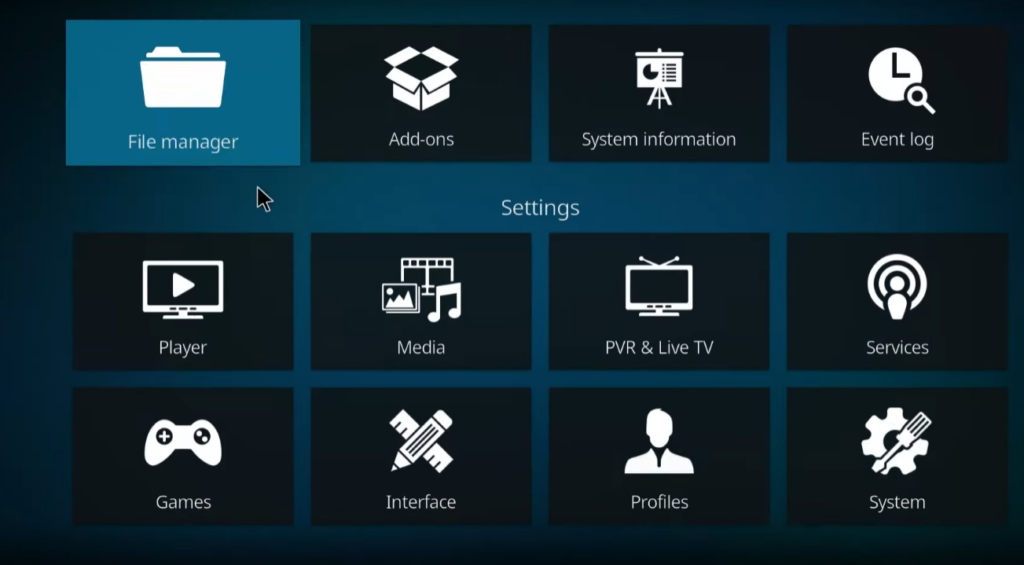
- Navigate to the “Settings” icon (gear-shaped) on the home screen;
- Select “System” or “System Settings,” depending on your Kodi version;
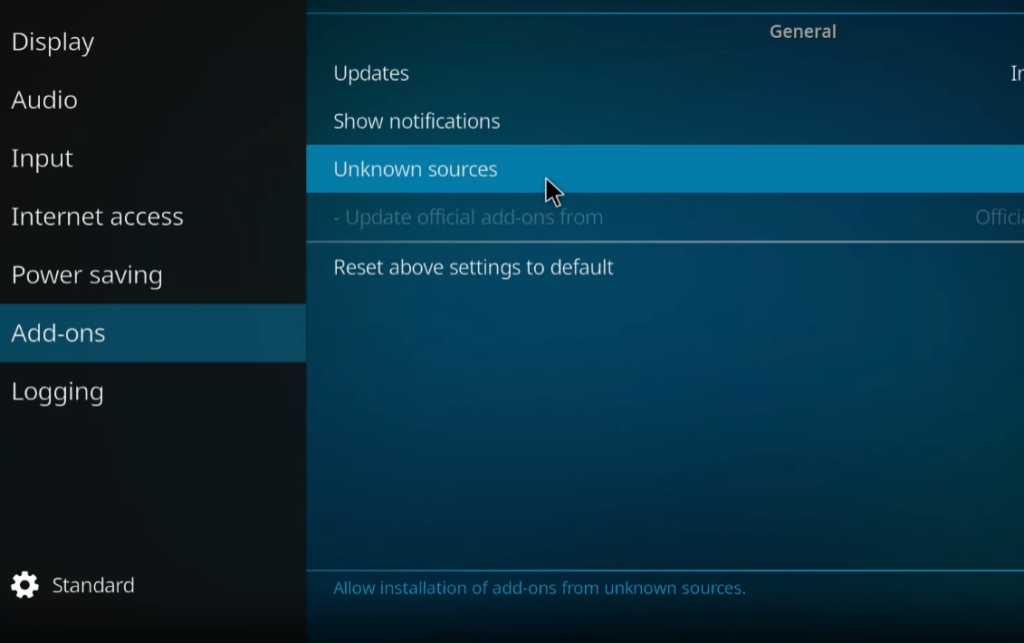
- Click on “Add-ons” in the left sidebar;
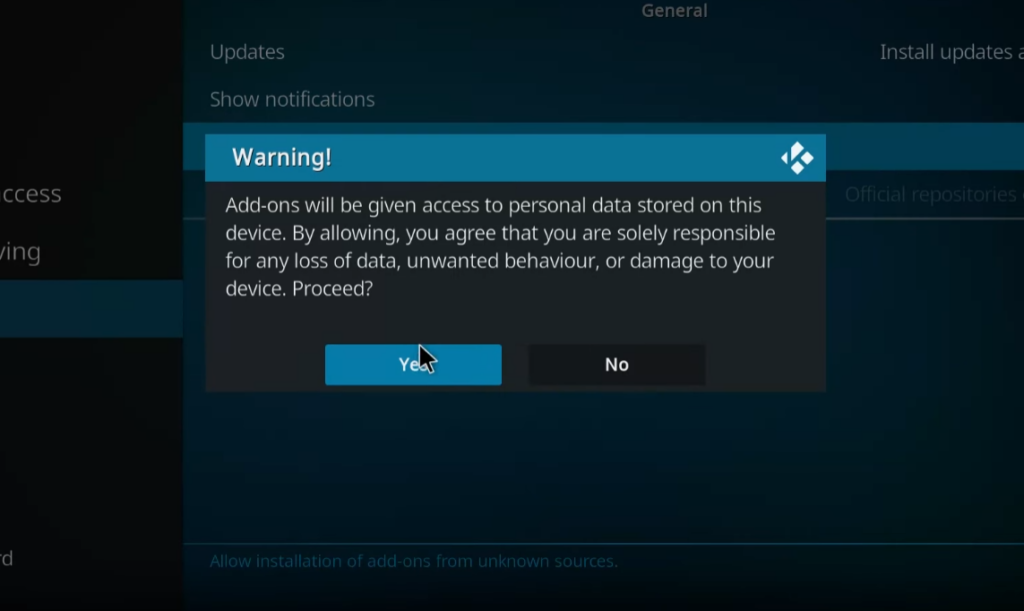
- Toggle the “Unknown Sources” option to turn it on;
- A warning message will appear; click “Yes” to proceed;
Add TikiPeter’s Repository File Source
Now that Unknown Sources are enabled, you can add the repository source for TikiPeter, the developer behind the Fen addon:
- Return to the Kodi home screen;
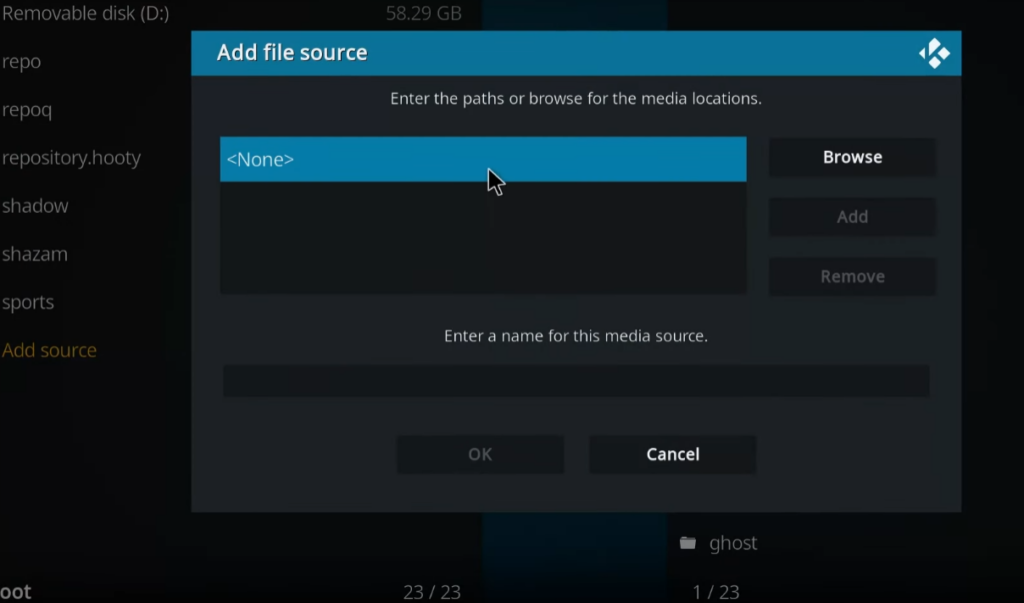
- Click on “Settings” and then “File Manager”;
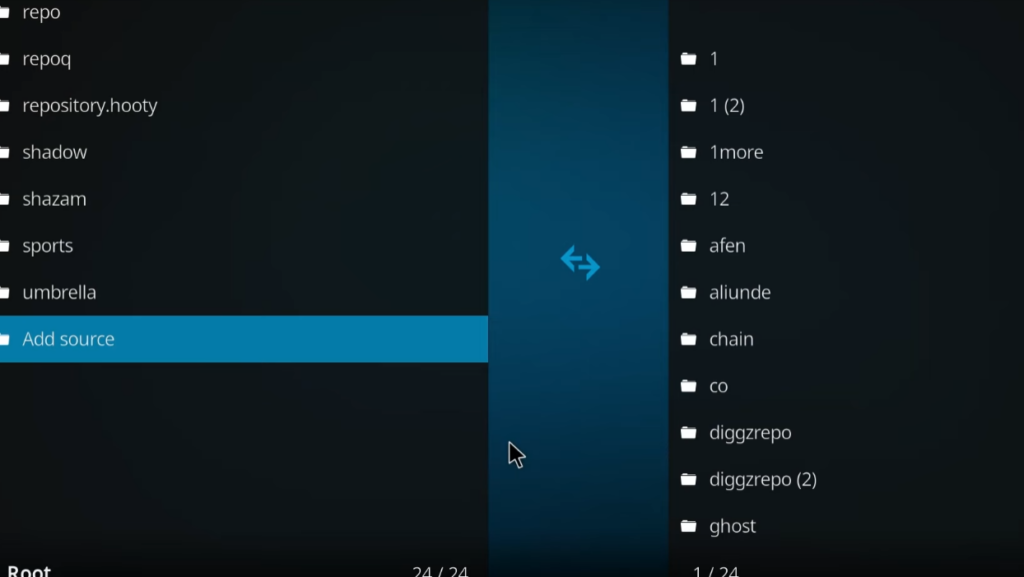
- Double-click on “Add Source”;
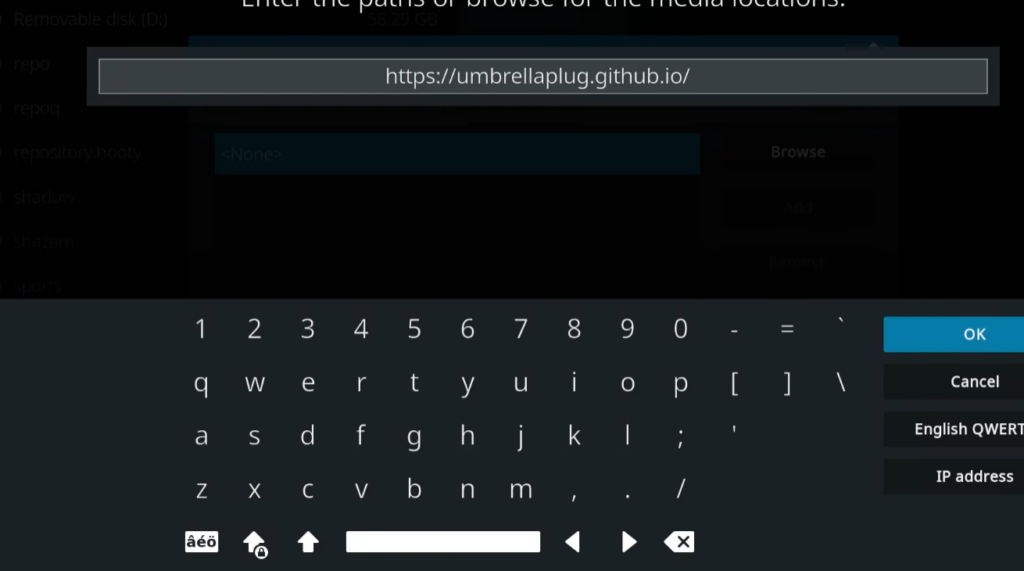
- A window will appear; click on “None” and enter the following URL for TikiPeter’s Repository: https://tikipeter.github.io;
- Name the source (e.g., “TikiPeter”) and click “OK”;
Install TikiPeter’s Repository from Zip File
Now, you’ll install TikiPeter’s Repository from the source you just added:
- Go back to the Kodi home screen;
- Select “Add-ons” in the left sidebar;
- Click on the open box icon (Add-ons browser) at the top;
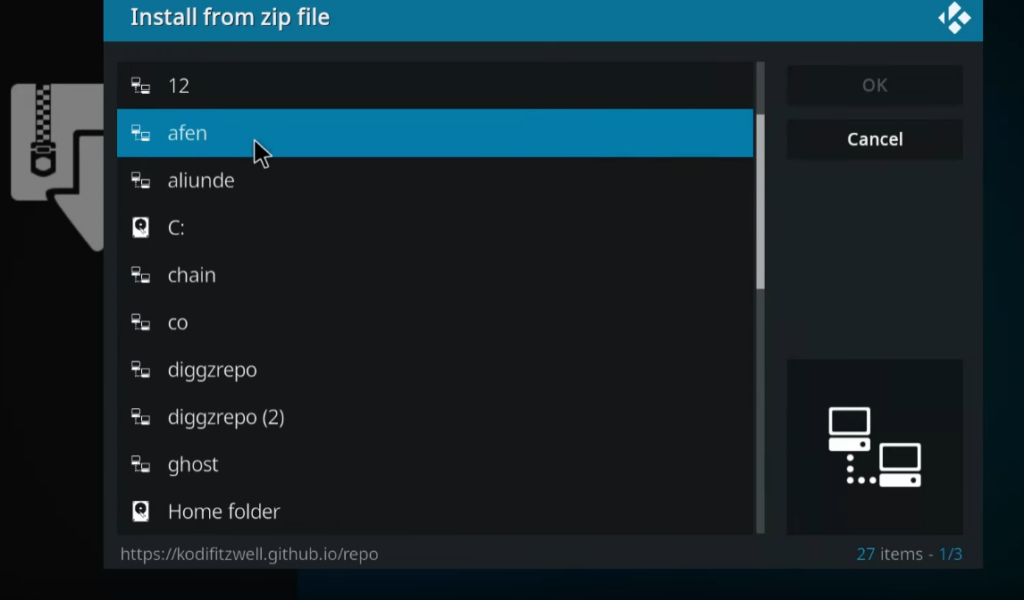
- Choose “Install from zip file” and select “TikiPeter” (or the name you assigned);
- Click on the repository zip file (usually named something like repository.tikipeter-x.x.zip) to install the repository;
Install the Fen Addon from the Repository
With TikiPeter’s Repository installed, you can now install the Fen addon:
- In the same Add-ons browser menu, select “Install from repository”;
- Choose “TikiPeter’s Repository”;
- Navigate to “Video add-ons” and find “Fen”;
- Click on “Fen” and then press the “Install” button;
- Wait for the installation to complete; you’ll see a notification once it’s done;
Setup Real-Debrid with Fen
To enhance your streaming experience with premium links, you can set up Real-Debrid with Fen:
- Visit the Real-Debrid website (https://real-debrid.com/) and create an account if you don’t have one;
- Log in to your Real-Debrid account;
- In the Fen addon, go to its settings;
- Find the Real-Debrid section and authorize Fen to use your Real-Debrid account;
- Follow the on-screen instructions to complete the authorization process;
Install Coco Scrapers with Fen
Coco Scrapers are essential for fetching reliable streaming sources. Here’s how to install them:
- Go to the Fen addon settings;
- Navigate to the “Providers” or “Scrapers” section;
- Look for an option related to scrapers or providers and select it;
- Choose “Install from repository” or a similar option;
- Find and select “Coco Scrapers” to install;
Enable Coco Scrapers with Fen
After installing Coco Scrapers, make sure they are enabled to maximize the addon’s scraping capabilities:
- Go back to the Fen addon settings;
- Find the section related to providers or scrapers;
- Look for “Enable Coco Scrapers” or a similar option;
- Toggle the switch to enable Coco Scrapers;
You’ve successfully installed Fen, set up Real-Debrid, and enabled Coco Scrapers. Now you’re ready to explore the extensive content library offered by Fen and enjoy a seamless streaming experience on Kodi.
Additional Settings:
- Using Trakt with Fen Addon
Trakt integration enhances your streaming experience by synchronizing your watchlists, history, and favorites across multiple devices. Here’s how to set up Trakt with the Fen addon:
- Open the Fen addon on Kodi;
- Navigate to the addon’s settings, usually accessible through the gear or cog icon;
- Look for the “Trakt” section;
- Select “Authorization” or a similar option;
- A code will be displayed; visit the Trakt website (https://trakt.tv/activate) on your computer or mobile device;
- Enter the provided code to link your Trakt account with Fen;
- Once authorized, configure Trakt settings as desired, such as syncing options and playback progress;
Trakt integration ensures a seamless transition between devices, allowing you to pick up where you left off on any platform.
- Auto-play Content
Auto-play is a convenient feature that automatically starts playing the next episode in a series, providing a binge-worthy experience. To enable auto-play on Fen:
- Navigate to the Fen addon settings;
- Look for the “Playback” or “Auto-play” section;
- Toggle the switch to enable auto-play;
With this feature activated, you can enjoy a continuous streaming experience without manually selecting each episode.
- Auto Scrape Next Episode
Auto-scraping the next episode simplifies the process of finding sources for the upcoming episode in a TV series. To enable this feature in Fen:
- Go to the Fen addon settings;
- Look for the “Providers” or “Scrapers” section;
- Find an option related to auto-scraping or auto-fetching the next episode;
- Toggle the switch to enable auto-scraping;
Auto-scraping ensures that sources are pre-loaded for the next episode, reducing wait times between episodes.
Helpful Tips
Regularly Update Fen:
Keep Fen up to date by checking for addon updates regularly. Developers often release updates to address issues, improve performance, and maintain compatibility with Kodi versions.
Clear Cache and Providers:
In the Fen settings, you’ll find options to clear cache and providers. Performing these actions occasionally can help resolve playback issues and ensure you have access to the latest content sources.
Explore Fen’s Settings Thoroughly:
Fen offers a variety of settings and customization options. Take the time to explore and configure settings according to your preferences. This can include adjusting playback options, subtitle settings, and more.
Quality Settings:
If you’re using Real-Debrid, explore Fen’s quality settings. You can often choose the preferred video resolution to optimize streaming based on your internet speed and preferences.
Use a VPN for Privacy:
Consider using a Virtual Private Network (VPN) when streaming content through Kodi addons. A VPN adds an extra layer of privacy and security, protecting your online activities from prying eyes.
How to Use Fen Kodi Addon?
Using Fen Kodi Addon:
- Open Kodi and navigate to the Add-ons menu. This is usually located on the left-hand side of the main screen.;
- Select “Video Add-ons” from the list;
- Find “Fen” in the list of installed add-ons. If you haven’t installed it yet, you’ll need to do so through a third-party repository;
- Click on “Fen” to open the addon’s main menu;
- Select “Movies” or “TV Shows” depending on what you want to watch;
- Browse the list of available content or use the search function to find something specific;
- Once you’ve found something you want to watch, click on it to see the available sources;
- Choose a source and click on it to start playback;
Here are some additional tips for using Fen:
- Use Real-Debrid or another premium debrid service for better streaming quality and reliability. These services provide faster links and access to more content;
- Enable Coco Scrapers in the Fen settings for additional sources;
- Customize the Fen settings to your liking. There are many settings available, such as preferred video quality, subtitles, and playback options;
- Use Trakt integration to track your watched content and sync your watchlists;
Troubleshooting
- No Sources or Links Available:
Possible Causes:
- Scrapers not updated: Outdated scrapers may result in a lack of available sources;
- Network issues: Slow or unstable internet connections can affect the fetching of sources;
Troubleshooting Steps:
- Update Scrapers: Go to the Fen addon settings. Navigate to the “Providers” or “Scrapers” section. Select “Update Scrapers” to ensure you have the latest sources;
- Check Internet Connection: Verify that your internet connection is stable. Test the speed of your connection using a speed test tool;
- Buffering or Playback Issues:
Possible Causes:
- Insufficient internet speed: Slow internet speeds may lead to buffering;
- Device performance: Older or underpowered devices may struggle with high-quality streams;
- Server load: Popular content may experience high server loads;
Troubleshooting Steps:
- Check Internet Speed: Ensure that your internet speed meets the recommended requirements for streaming. Consider using a wired connection for improved stability;
- Lower Playback Quality: Adjust the playback quality in the Fen addon settings to a lower resolution. Lowering the quality can reduce buffering on slower connections;
- Use Real-Debrid: If not already enabled, consider setting up Real-Debrid for access to premium links, reducing buffering;
- Trakt Integration Issues:
Possible Causes:
Incorrect Trakt authorization: A mismatch in authorization codes can cause integration problems.
Troubleshooting Steps:
- Reauthorize Trakt: Go to the Fen addon settings;
- Navigate to the Trakt integration section;
- Reauthorize Trakt by entering the correct code on the Trakt website;
- Add-on Installation Problems:
Possible Causes:
Repository not installed: Fen may not be installed correctly if its repository is missing.
Troubleshooting Steps:
- Reinstall TikiPeter’s Repository: Check that TikiPeter’s Repository is installed correctly;
- Reinstall the repository by following the installation steps outlined in the installation guide;
- Subtitle Sync Issues:
Possible Causes:
Subtitle source issues: Subtitles may not sync properly if the source is unreliable.
Troubleshooting Steps:
- Change Subtitle Source: In the Fen addon settings, explore subtitle options;
- Try changing the subtitle source to a different provider;
General Tips for Troubleshooting:
- Clear Cache: In the Fen settings, clear the cache to resolve potential playback issues;
- Check for Updates: Ensure that both Kodi and the Fen addon are updated to their latest versions;
- Review Error Messages: If there are error messages, take note of them. Error messages often provide clues about the issue at hand;
- Community Forums: Visit Kodi community forums to see if other users have experienced and resolved similar issues;
- Contact Developers: If issues persist, consider reaching out to the developers through official channels for assistance;
By following these troubleshooting steps, users can address common issues encountered with the Fen Kodi addon and enjoy a smoother and more reliable streaming experience.
Alternatives to Fen Kodi Addon
Exodus Redux:
Exodus Redux is a well-known Kodi addon that provides a wide range of movies and TV shows. It features an easy-to-navigate interface and supports Trakt integration for personalized recommendations.
The Crew:
The Crew is a versatile addon that offers a vast selection of content, including movies, TV shows, live TV, and sports. It features an intuitive interface and supports Real-Debrid for high-quality streaming.
Seren:
Seren is a premium addon that focuses on providing high-quality streaming through Real-Debrid. It offers a sleek interface, advanced Trakt integration, and automatic episode tracking for an enhanced user experience.
Gaia:
Gaia is a feature-rich addon that supports premium services like Real-Debrid and Premiumize. It excels in providing high-quality streaming options and offers advanced customization for users who want more control over their streaming preferences.
Venom:
Venom is a popular addon known for its extensive library of movies and TV shows. It supports Trakt integration, offers a user-friendly interface, and allows users to customize their streaming experience.
Covenant:
Covenant is a classic Kodi addon that has stood the test of time. It provides a vast collection of movies and TV shows and supports Trakt integration for a personalized viewing experience.
Yoda:
Yoda is another reliable addon that offers a variety of content categories, including movies, TV shows, and documentaries. It has a simple interface and supports Real-Debrid for improved streaming quality.
Magic Dragon:
Magic Dragon is a popular addon that provides a diverse range of content, including movies, TV shows, and documentaries. It has a user-friendly interface and supports Trakt integration.
Neptune Rising:
Neptune Rising is known for its vast content library and user-friendly interface. It offers a variety of streaming options for movies and TV shows.
Tempest:
Tempest is a versatile addon that provides a broad range of content, including movies, TV shows, and live TV. It features a clean and organized interface for easy navigation.
FAQ:
How do you install the FEN Kodi addon?
Follow the step-by-step installation guide provided earlier in this document to install the FEN Kodi addon.
Is this Kodi addon legal?
FEN, like many third-party Kodi addons, operates in a gray area. Streaming copyrighted content without proper authorization may violate copyright laws. Ensure you are aware of and comply with local regulations when using such addons.
What is the difference between a Kodi addon and build?
A Kodi addon is a single component that adds specific functionalities, while a build is a pre-configured package that includes multiple addons, a customized skin, and additional settings for a comprehensive Kodi experience.
Should you use a VPN with the FEN Kodi Addon?
Using a Virtual Private Network (VPN) is recommended for privacy and security when streaming content on Kodi. It helps mask your IP address and encrypts your internet connection.
Is FEN working on Kodi?
FEN’s functionality may vary based on factors such as server status, scrapers, and Kodi updates. Check for the latest information on community forums or official sources.
What happened to the FEN Kodi addon?
Keep an eye on official sources or community forums for updates. Developers may release patches or updates to address issues or disruptions.
How do you search in FEN?
Open FEN and navigate to the search option. Enter the desired title, and FEN will display relevant results.
What is a Real Debrid account?
Real Debrid is a premium service that enhances streaming by providing high-quality links with minimal buffering. It integrates with Kodi addons like FEN for an improved viewing experience.
How do you install addons on Kodi?
Install addons on Kodi by adding the respective repository, accessing the Add-ons section, and selecting “Install from repository” or “Install from zip file”.
How do you add an APK to Kodi?
APKs are typically not added directly to Kodi. Install Kodi addons using repositories, and APKs are usually installed on Android devices separately.
How do you enable external scrapers on Kodi?
In the addon settings, look for options related to scrapers or providers. Enable external scrapers by toggling the corresponding switch.
How do you install Kodi addons from GitHub?
Access the GitHub repository, download the addon ZIP file, and install it in Kodi by selecting “Install from zip file” in the Add-ons menu.
Where are Kodi addons installed?
Addons are stored in the Kodi userdata folder. The exact location varies based on the operating system.
How do you unlock Kodi advanced settings?
Access advanced settings by navigating to “System” or “System Settings,” selecting “Expert” or “Advanced” mode, and exploring the additional settings.
How to install APK manually?
Install APKs manually on Android by enabling “Unknown Sources” in device settings, downloading the APK, and selecting “Install.”
What is Real Debrid used for?
Real Debrid is used to enhance streaming by providing premium links with higher quality and faster streaming speeds.
How do you update Kodi addons?
Updates are typically available through the repository. In the Add-ons menu, select “Check for updates” or enable automatic updates.
Why can’t you add addons to Kodi?
Ensure that the repository is installed correctly, your internet connection is stable, and that you have sufficient storage space on your device.
What is the best APK installer for Android?
Various APK installers are available; popular options include Aptoide, APKMirror, and Amazon Appstore.
How do you use Kodi skins?
Install and customize skins in Kodi by navigating to “Settings,” selecting “Interface,” and choosing a new skin from the available options.
How do you add a movie database to Kodi?
Integrate a movie database with Kodi by selecting the appropriate scraper in the addon settings or library settings and ensuring the database is properly configured.