
Embarking on a seamless Kodi entertainment experience requires not only the right addons but also efficient maintenance tools. In this guide, we delve into the intricacies of maintaining your Kodi setup with the EZ Maintenance+ Addon. As a crucial companion, EZ Maintenance+ aims to streamline the often intricate process of keeping your Kodi system optimized, updated, and trouble-free.
From troubleshooting tips and compatibility considerations to security measures and legal aspects, this comprehensive tutorial equips you with the knowledge to harness the full potential of EZ Maintenance+. Elevate your Kodi viewing pleasure by mastering the art of maintenance with this insightful exploration into the EZ Maintenance+ Addon.
Is EZ Maintenance+ Addon Safe to Use?
EZ Maintenance+ Addon appears to be safe for use. It’s a maintenance tool for Kodi, with various features to help keep your Kodi clean and functioning properly. The addon is described as easy to use, without any bloatware, pop-ups, or ads.
It’s available on different repositories such as the Super Repo. The addon also reportedly works well with every addon tested.
However, as with any software, the safety can depend on the source of the download. As such, it’s important to download it from a reliable source. And while it’s generally considered safe, users should always ensure they have robust antivirus software in place as an additional security measure.
Potential Risks Associated with EZ Maintenance+
- Security vulnerabilities: Third-party addons can be developed by anyone, creating a higher risk of malicious code being embedded. This could compromise your device security, expose personal data, or even inject malware;
- Copyright infringement: Some Kodi addons, including EZ Maintenance+, can facilitate access to pirated content. Streaming copyrighted material without proper authorization is illegal and carries potential legal consequences;
- Privacy breach: Certain maintenance functions might involve accessing sensitive files or interacting with external servers, raising concerns about data privacy and potential tracking;
- Instability and compatibility issues: Third-party addons may not always be compatible with the latest Kodi version or other installed addons, leading to crashes and unexpected behavior;
User Experiences: What Do Kodi Users Say?
Reviews for EZ Maintenance+ are mixed. Some users applaud its ease of use and performance improvements, while others highlight encountered issues like crashes, addon incompatibilities, and concerns about data privacy.
Positive Reviews:
- “EZ Maintenance+ is a lifesaver! It keeps my Kodi running smoothly and helps me troubleshoot problems quickly”;
- “The cache cleaning feature is fantastic. It freed up so much space and made Kodi noticeably faster”;
- “I love the source management tools. It makes adding and removing addons so much easier”;
Negative Reviews:
- “I experienced crashes after installing EZ Maintenance+. I had to uninstall it to get Kodi working again”;
- “Some of the features felt unnecessary and cluttered up my Kodi interface”;
- “I’m concerned about the security risks of using a third-party addon”;
Overall, user experiences vary, highlighting the importance of individual risk assessment before installing any third-party addon.
What Is EZ Maintenance+ Addon:
EZ Maintenance+ is a third-party addon for Kodi that aims to enhance your media center’s stability and performance. Here’s a breakdown of its key functions:
- Cache cleaning: Removes temporary data accumulated by addons, potentially freeing up storage space and boosting performance;
- Source management: Enables easy deletion and installation of various sources, making addon management more convenient;
- File manipulation: Allows for actions like moving or deleting files related to Kodi, offering better control over installed addons;
- Log viewer: Provides access to Kodi’s internal logs, helping identify and diagnose potential issues;
- Build management: Facilitates installation and management of pre-configured Kodi builds (collections of addons and settings);
While these features seem enticing, concerns arise surrounding the nature of third-party addons.
Features:
EZ Maintenance+ isn’t just another addon; it’s a toolbox for your Kodi arsenal. Here’s a breakdown of its key features:
- Cache cleaning: Bid farewell to sluggish Kodi! This feature quickly clears temporary data from addons, freeing up storage and boosting performance;
- Source management: Tired of cluttered source lists? EZ Maintenance+ lets you add, remove, and edit sources with ease, keeping your addon installation process neat and organized;
- File manipulation: Need to move or delete addon-related files? This feature grants you direct access, giving you finer control over your Kodi environment;
- Log viewer: Kodi generates logs detailing its internal workings. EZ Maintenance+ serves as your window into these logs, helping you diagnose issues and track addon activity;
- Build management: Craving a pre-configured Kodi experience? This feature allows you to install and manage builds (collections of addons and settings), saving you time and effort;
- Fresh start: Feeling overwhelmed by outdated addons and settings? This feature lets you restore Kodi to its factory defaults, offering a clean slate for a fresh start;
- My Wizard: Craft your own personalized Kodi experience! This feature allows you to create custom builds and share them with others, becoming a Kodi wizard yourself;
- Backup/Restore: Accidents happen! With this feature, you can back up your Kodi settings and addons, ensuring you can easily restore them in case of unexpected issues;
- Maintenance: Keep Kodi humming! This feature provides a suite of maintenance tools like database optimization, addon dependency checks, and Kodi settings tweaks, ensuring your media center runs smoothly;
- Log Viewer/Uploader: Need help deciphering those cryptic Kodi logs? This feature lets you upload them to dedicated communities for expert analysis, potentially resolving even the trickiest issues;
- Speedtest: Curious about your internet connection’s performance? This feature runs quick speed tests, helping you troubleshoot streaming lags and optimize your network settings;
Interface:
EZ Maintenance+ boasts a clean and intuitive interface. Its menu system is straightforward, organized by category, and easily navigable even for newcomers. The tooltips and detailed descriptions accompanying each feature further enhance user-friendliness. Whether you’re a tech-savvy guru or a casual Kodi user, navigating EZ Maintenance+ will be a breeze.
Fresh Start:
Feeling bogged down by accumulated settings and addons? The Fresh Start feature is your knight in shining armor. With a single click, you can reset Kodi to its default state, wiping away outdated addons, corrupted settings, and performance-sapping baggage. This gives you a clean slate to rebuild your Kodi experience from scratch, potentially resolving long-standing issues and revitalizing your media center.
My Wizard:
Unleash your inner Kodi wizard! My Wizard empowers you to curate your custom builds, meticulously selecting the perfect combination of addons and settings for your unique needs. Whether you’re a movie buff craving a cinematic Kodi setup or a TV fanatic desiring a streamlined streaming experience, My Wizard unlocks the potential to personalize your Kodi journey.
Backup/Restore:
Accidents happen, and Kodi isn’t immune. The Backup/Restore feature ensures peace of mind by letting you create snapshots of your current Kodi configuration. Whether you’re experimenting with new settings or simply want a safeguard against unexpected issues, this feature allows you to quickly revert to a known-good state, saving you time and frustration.
Maintenance:
Treat your Kodi to a spa day! The Maintenance feature offers a comprehensive suite of tools to keep your media center running smoothly. Optimize databases, check for addon dependencies, tweak settings, and even identify potentially conflicting addons. Regular maintenance ensures your Kodi remains healthy and performs at its peak, delivering a consistently enjoyable experience.
Log Viewer/Uploader:
Kodi logs offer valuable insights into its internal workings. The Log Viewer within EZ Maintenance+ provides a user-friendly interface to inspect these logs, helping you identify potential issues and track addon activity. But what if you’re stumped? The Log Uploader feature comes to the rescue, allowing you to upload your logs to dedicated Kodi communities where experienced users can offer troubleshooting guidance.
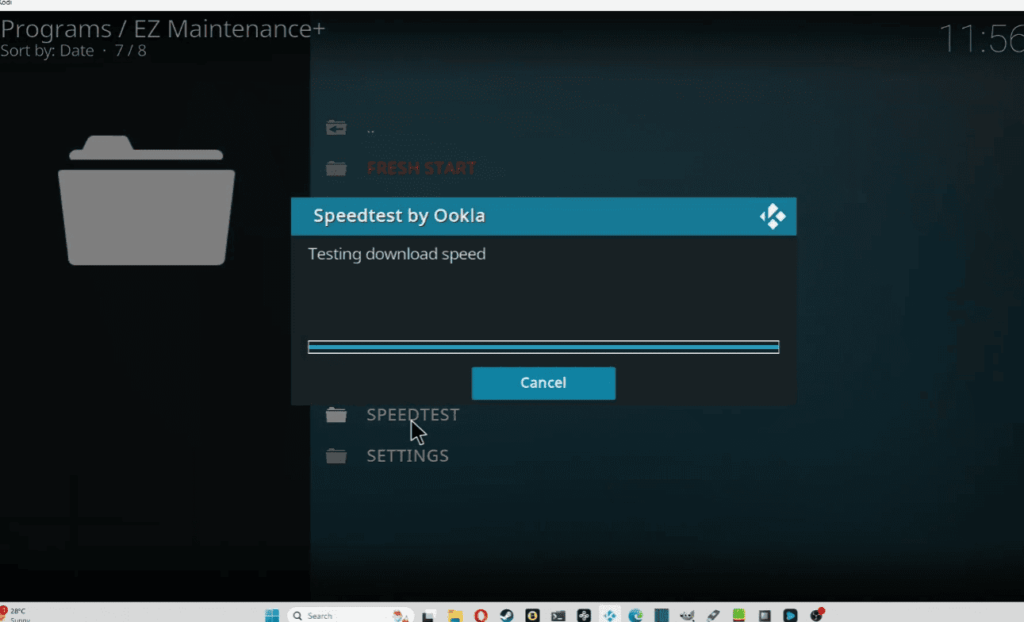
Speedtest:
Is buffering holding you back? The Speedtest feature lets you quickly assess your internet connection’s performance, potentially pinpointing the culprit behind those frustrating lag spikes. With accurate download and upload speed measurements you can diagnose bandwidth limitations, network bottlenecks, or even service provider issues. Armed with this knowledge, you can optimize your network settings or consider upgrading your internet plan to ensure a smooth and uninterrupted Kodi experience.
Beyond the Features:
EZ Maintenance+ isn’t just a collection of tools; it’s a community-driven project. The developers actively engage with users through forums and social media, offering support, addressing issues, and constantly seeking feedback to improve the addon. This dedication to community involvement ensures EZ Maintenance+ stays up-to-date, relevant, and responsive to the needs of its user base.
Pros of EZ Maintenance+ Addon
- Performance Optimization: EZ Maintenance+ addon helps to improve the performance of your device by clearing cache regularly;
- Easy to Use: The interface is user-friendly and straightforward, making it easy for users to navigate through the settings and carry out maintenance tasks;
- Customization: It allows users to customize settings according to their preferences. Users can choose when and how often they want the cache cleared;
- Versatility: It works on various platforms including Android, iOS, Windows, and Linux;
- Free of Charge: This addon is free to use, which is a significant advantage for users on a budget;
Cons of EZ Maintenance+ Addon
- Compatibility Issues: Some users have reported compatibility issues with certain devices or operating systems;
- Limited Functionality: While it does a good job in cleaning and maintenance tasks, it doesn’t offer advanced features that some other maintenance tools provide;
- Potential Errors: Some users have reported encountering errors during the installation or usage of this addon;
- Lack of Customer Support: Since it’s a free tool, there’s limited customer support available. If users encounter problems, they may need to rely on online forums or communities for help;
- Updates: There might be a delay in updates or fixes for any bugs or issues discovered in the addon;
Is EZ Maintenance+ Right for You?
Whether you’re a seasoned Kodi veteran or a curious newcomer, EZ Maintenance+ offers something for everyone. Its comprehensive toolset empowers you to optimize performance, troubleshoot issues, personalize your experience, and even contribute to the Kodi community. However, it’s important to remember that third-party addons come with inherent risks.
Here are some questions to consider before installing EZ Maintenance+:
- Technical Comfort: Are you comfortable navigating Kodi’s settings and file system? EZ Maintenance+ provides advanced tools that might be overwhelming for casual users;
- Security & Privacy: Third-party addons can potentially access sensitive data or interact with external servers. Do you prioritize data security and privacy;
- Legality: Ensure you use Kodi and its addons for legal purposes only. Accessing pirated content through Kodi is illegal and carries potential consequences;
If you’re comfortable with the technical aspects and prioritize functionality over absolute security, EZ Maintenance+ can be a valuable asset in your Kodi arsenal. However, if you’re a privacy-conscious user or primarily rely on Kodi for official streaming services, Kodi’s built-in tools and official addons might be a safer and more suitable option.
Ultimately, the decision to use EZ Maintenance+ rests with you. Weigh the benefits against the potential risks and make an informed choice based on your individual needs and priorities.
How to Install EZ Maintenance Kodi Addon:
Kodi, the ultimate home theater PC software, thrives on customization and optimization. But maintaining a smooth, fast, and error-free Kodi experience takes some elbow grease. That’s where EZ Maintenance+ comes in, a powerful yet user-friendly addon designed to keep your Kodi setup running in tip-top shape.
Installing peno64 Repository:
Before diving into EZ Maintenance+, let’s get the foundation right. We’ll be installing it from the peno64 repository, a trusted source for Kodi addons. Follow these steps:
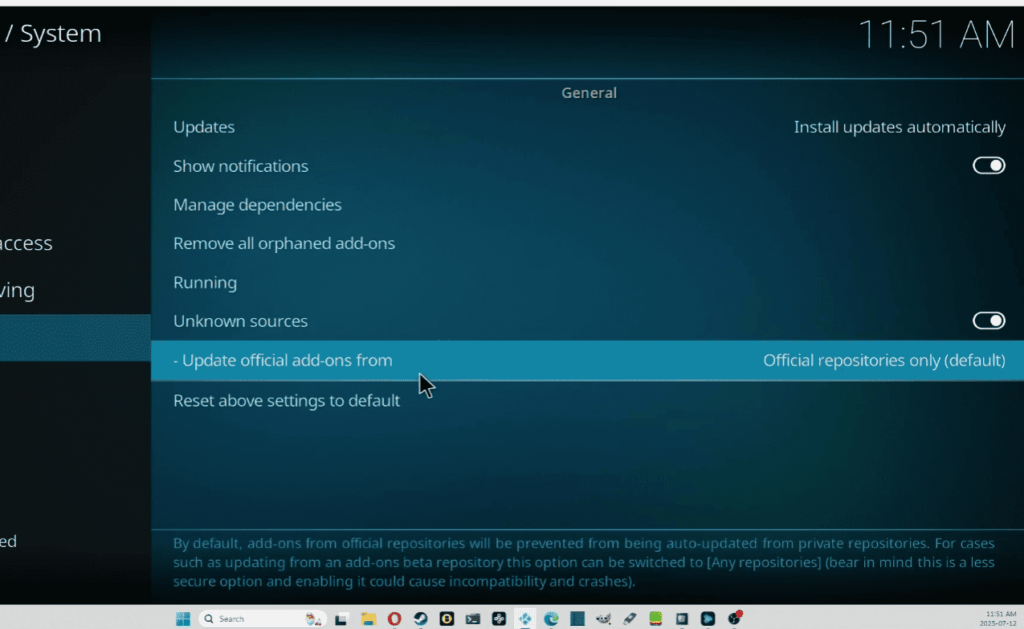
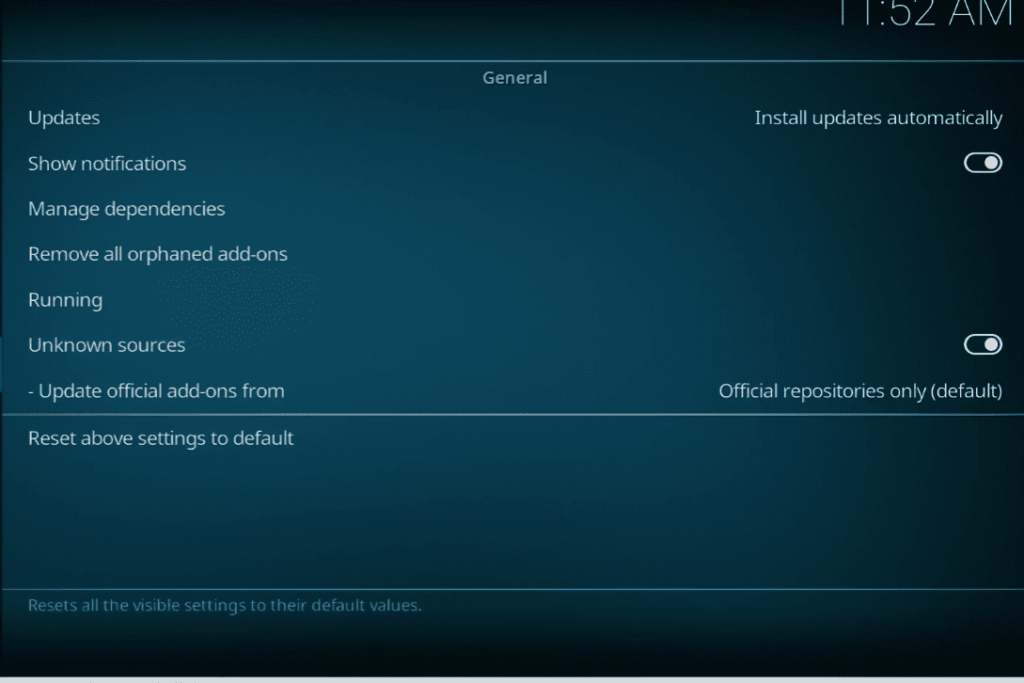
- Enable Unknown Sources: Launch Kodi and head to Settings > System > Add-ons (on Kodi 19 Matrix, navigate to Settings > System > Developer options). Toggle Unknown sources to On;
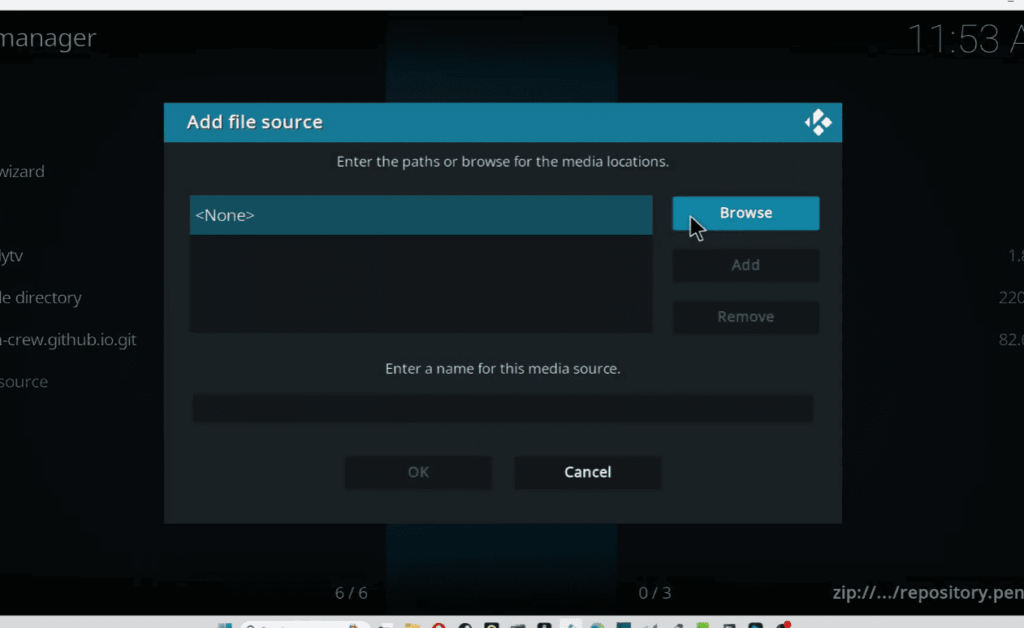
- File Manager Access: Go back to Settings > System > File manager. Click Add source and select <None>. Enter the repository URL: https://peno64.github.io/repo/ and name it “peno64”. Hit OK;
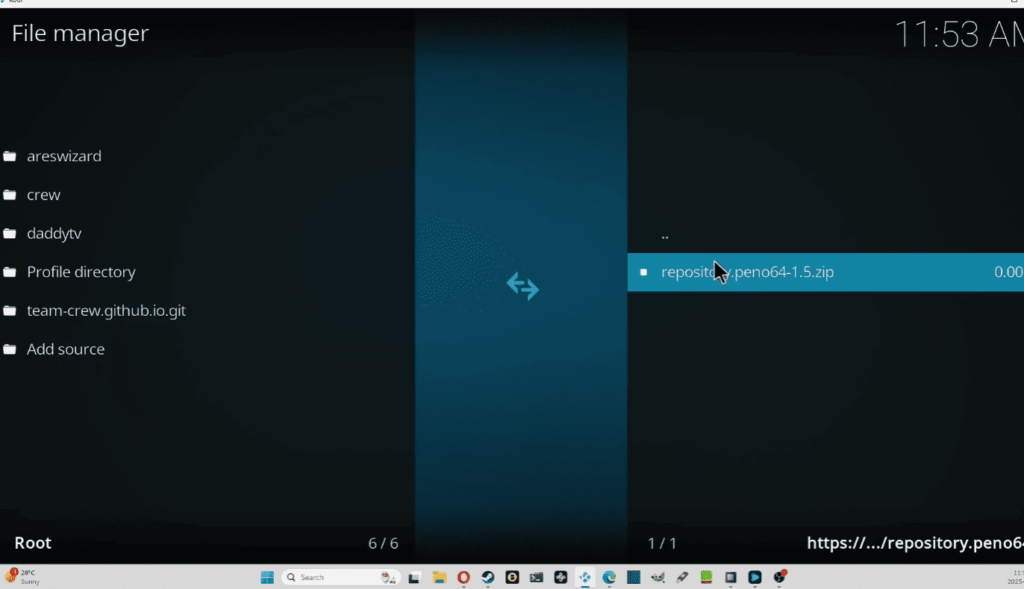
- Install peno64 Repository: Return to Settings > Add-ons > Install from zip file. Choose the peno64 repository you just added and select repository.peno64.zip. Wait for the notification confirming installation;
Installing EZ Maintenance Kodi Addon:
With the peno64 repository in place, let’s install EZ Maintenance+:
- Browse Add-ons: Navigate to Settings > Add-ons > Install from repository. Select peno64 Repository and then open Program add-ons;
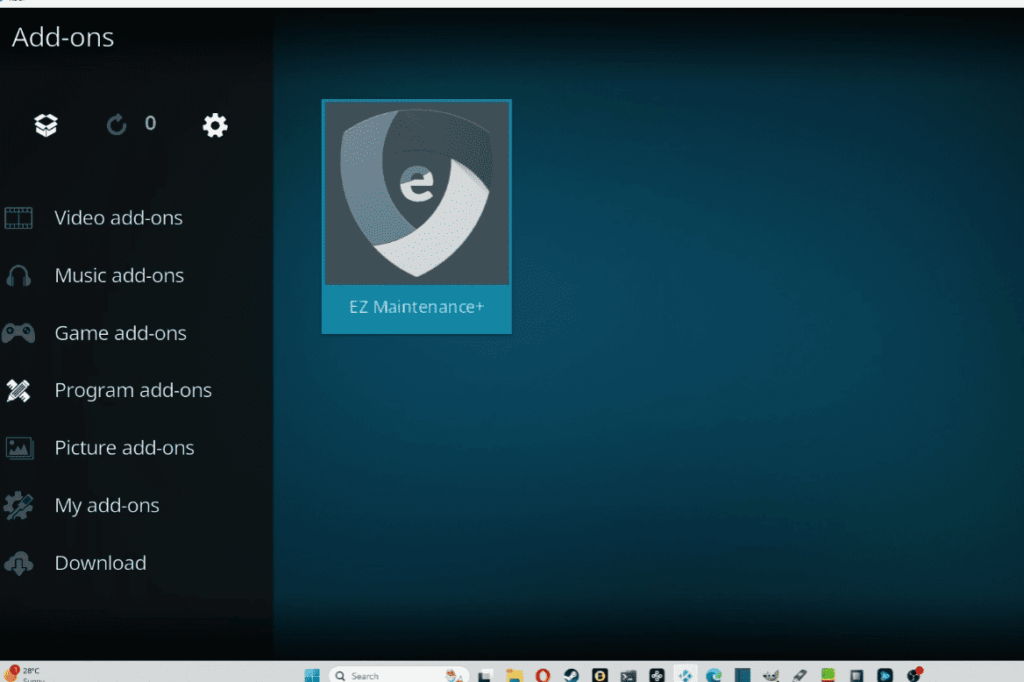
- Find EZ Maintenance+: Scroll down and find EZ Maintenance+. Click on it to open the installation window;
- Install and Configure: Hit Install and wait for the confirmation. Once installed, click Open to launch EZ Maintenance+;
Using EZ Maintenance+: Steps:
EZ Maintenance+ is a straightforward addon with a clean interface. Here’s what you can do:
- System Maintenance:
- Clear Cache: Flush temporary data to free up resources and potentially improve performance;
- Clear Thumbnails: Delete thumbnail images to reclaim storage space;
- Clear Packages: Remove outdated addon installation files;
- Force Close Kodi: Restart Kodi to refresh its memory and potentially resolve minor issues;
- System Information:
- View System Summary: Get an overview of your Kodi environment, including hardware details, operating system, and Kodi version;
- Addon Information: See installed addons, their version numbers, and update availability;
- Log Viewer: Explore Kodi’s logs to diagnose potential issues or track maintenance tasks;
- Advanced Tweaks:
- Edit Buffer Size: Fine-tune Kodi’s buffering behavior for smoother streaming (adjust with caution);
- Change Temp Directory: Move temporary files to a different storage location;
- Enable Debug Logging: Generate detailed logs for further troubleshooting;
Troubleshooting:
While EZ Maintenance+ is generally stable, occasional issues might arise. Here are some common ones and their solutions:
- Installation Failure: Ensure Unknown Sources are enabled and double-check the repository URL and filenames;
- Addon Not Working: Restart Kodi or try reinstalling EZ Maintenance+. If the issue persists, check the Kodi log for clues;
- Buffering Issues: Buffering can depend on various factors like internet speed and source quality. Adjust the buffer size in EZ Maintenance+ cautiously and explore alternative sources if necessary;
Beyond EZ Maintenance+:
EZ Maintenance+ is a fantastic tool for general Kodi maintenance. However, for deeper optimization or troubleshooting, consider:
- OpenWizard: Provides broader options for managing addons, repositories, and Kodi settings;
- Indigo: An all-in-one toolset for various tasks, including system cleaning, backup/restore, and automation;
- Kodi Log Viewer: This built-in tool offers detailed insights into Kodi’s operation and potential problems;
Alternatives for EZ Maintenance+ Addon
While EZ Maintenance+ is a fantastic Kodi addon for system maintenance, other options cater to different needs and preferences. Here are some top alternatives:
OpenWizard:
- Features: Comprehensive addon management, repository installation, system cleaning, Kodi settings tweaking, and backup/restore functionality;
- Pros: Powerful and versatile, offering deep Kodi customization;
- Cons: Interface can be overwhelming for beginners, some advanced features require caution;
Indigo:
- Features: All-in-one toolset for system cleaning, backup/restore, automation, library maintenance, and more;
- Pros: User-friendly interface, diverse features cater to various tasks;
- Cons: Free version has limited functionality, premium version required for full potential;
Simple Maintenance:
- Features: Streamlined interface for basic maintenance tasks like cache clearing, log viewing, and Kodi restart;
- Pros: Easy to use, ideal for beginners or users seeking quick maintenance;
- Cons: Limited feature set compared to OpenWizard or Indigo;
xbmc-tools:
- Features: Powerful command-line tool for advanced users, offering automated maintenance scripts and deep system control;
- Pros: Granular control, scriptable automation for repetitive tasks;
- Cons: Requires command-line knowledge, not suitable for beginners;
Choosing the Right Alternative:
The best alternative depends on your needs and technical expertise. Consider these factors:
- Complexity: Do you prefer a simple interface for basic tasks or advanced features for deep customization;
- Features: Which maintenance tasks are most important to you? Look for addons offering the functionalities you need;
- User Friendliness: Choose an addon with a clear and intuitive interface, especially if you’re a beginner;
- Technical Knowledge: Some addons require command-line familiarity or advanced Kodi understanding. Choose one that matches your comfort level;
Remember, Kodi addons evolve constantly, so research the latest versions and user reviews before installation. Additionally, always practice caution when installing unofficial addons to avoid security risks.
FAQ:
How can Kodi’s log file help me troubleshoot issues?
Kodi’s log file provides detailed information about the application’s activities and errors, aiding in the identification and resolution of issues.
How to access your Kodi log file?
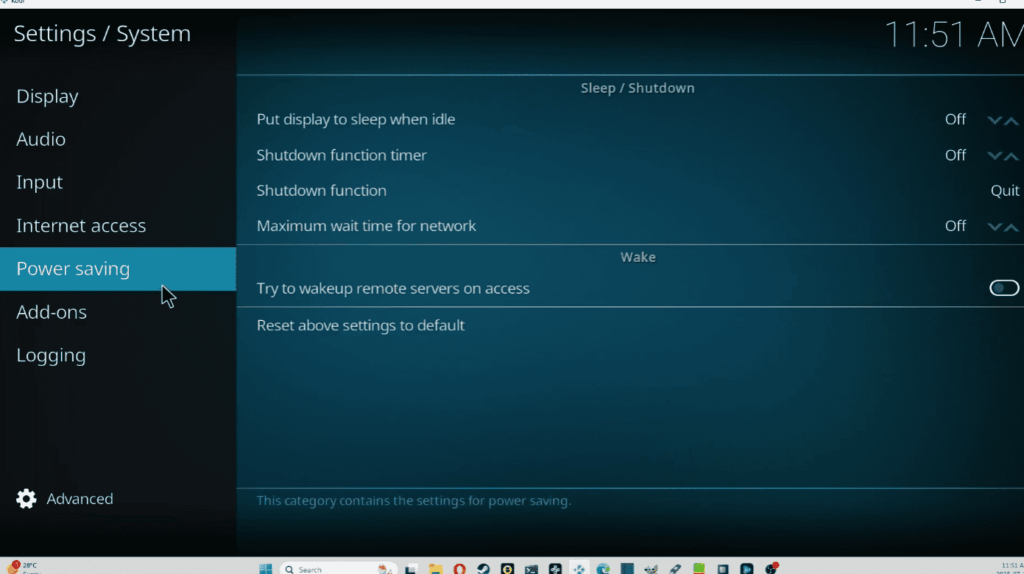
You can access the Kodi log file through the application’s settings menu. Navigate to System > Logging and enable ‘Enable Debug Logging.’ The log file is usually found in the Kodi userdata directory.
Is the EZ Maintenance addon working on Kodi 20 Nexus?
To ensure compatibility, check the official documentation or community forums for updates on EZ Maintenance+ addon’s compatibility with Kodi 20 Nexus.
Is the EZ Maintenance addon safe?
The safety of the EZ Maintenance addon depends on various factors. Refer to user reviews, community discussions, and official sources to assess its safety.
Is the EZ Maintenance addon free?
Information regarding the pricing of the EZ Maintenance addon can be found on its official website or relevant sources.
Is EZ Maintenance safe to use?
Safety considerations for EZ Maintenance can be evaluated by checking user feedback, official documentation, and security measures implemented by the developers.
Can you lose data using EZ Maintenance+?
It’s crucial to follow the addon’s instructions and use it responsibly to avoid any potential data loss.
Does EZ Maintenance+ work with all Kodi versions?
Verify the compatibility of EZ Maintenance+ with your Kodi version by checking official sources for updates and compatibility information.
Where can you find more information about EZ Maintenance?
For additional details, visit the official website of EZ Maintenance or refer to community forums and user discussions.
Is EZ Maintenance+ Kodi addon legal?
Ensure that you comply with legal standards by reviewing the terms of use and licensing information provided by the developers.
Should you use a VPN with this Kodi addon?
Consider using a VPN for added privacy and security. Check the addon’s documentation for recommendations.
Can this Kodi Addon be installed on Firestick?
Consult the addon’s documentation or official sources for instructions on installing EZ Maintenance+ on Firestick.
What’s the difference between a Kodi addon and a Kodi repository?
An addon is a specific functionality or feature, while a repository is a collection of addons. Repositories simplify the installation and management of multiple addons.
What’s the difference between a Kodi addon and a Kodi build?
An addon provides specific features, while a build is a complete package including Kodi’s core and selected addons, often tailored for a specific theme or purpose.
How do you refresh Kodi addons?
Refresh Kodi addons by accessing the Add-ons section, selecting ‘My add-ons,’ and using the context menu to refresh or update.
How do you get Kodi addons to work?
Ensure addons are correctly installed, up-to-date, and compatible with your Kodi version. Troubleshoot issues using log files and community support.
Why are your Kodi addons not working?
Check for updates, ensure compatibility, and troubleshoot issues using the log file. Consult community forums for assistance.
How do you know if Kodi needs an update?
Kodi typically prompts for updates, or you can check for updates manually in the system settings.
What is the best device to use Kodi on?
The best device depends on personal preferences. Popular choices include PCs, Android devices, and dedicated media streaming boxes.
Can you use Kodi without addons?
Yes, Kodi can be used without addons, but addons enhance its functionality by providing additional features and content.
Which Kodi build is best for live TV?
Explore user reviews and community recommendations to find the best Kodi build for live TV based on your preferences.
How to update Kodi firmware?
Updating Kodi firmware may involve installing the latest version from the official website or following device-specific instructions.
What is the minimum RAM for Kodi?
The minimum RAM requirement for Kodi may vary, but a device with at least 2GB RAM is generally recommended for smooth performance.
Where are Kodi advanced settings stored?
Kodi advanced settings are stored in the advancedsettings.xml file, typically located in the Kodi userdata directory.
Is real Debrid legal?
Real Debrid is a legal service, but the content accessed using it may be subject to copyright laws. Ensure compliance with relevant regulations.
How much does Kodi cost?
Kodi is open-source and free to use. However, additional costs may be associated with specific addons or services.
What is the best Kodi build for watching movies?
The best Kodi build for movies depends on personal preferences. Explore user reviews and recommendations to find one that suits your needs.