
Seren, a renowned third-party Kodi addon, stands out for its advanced features and seamless content delivery. In this comprehensive guide, we will navigate through the step-by-step process of installing Seren, ensuring you unlock a world of high-quality movies and TV shows.
From enabling unknown sources to integrating premium services like Real Debrid, this article will demystify the installation process, empowering you to harness the full potential of Seren for a personalized and immersive streaming adventure.
Is Seren Kodi Addon Safe and Legal?
Understanding Kodi Addons:
Before we specifically address Seren, it’s crucial to understand the nature of Kodi addons. Kodi itself is a legal and open-source media player, but the add-ons extend its functionality by allowing users to access content from various online sources. These addons can be categorized into two types: official and third-party.
Official addons are developed and endorsed by the Kodi team, ensuring a certain level of security and adherence to legal standards. On the other hand, third-party addons, like Seren, are created by independent developers and may not undergo the same level of scrutiny.
Seren Overview:
Seren is a third-party Kodi addon that focuses on providing a user-friendly and efficient streaming experience. It primarily relies on Real-Debrid and Premiumize services to access high-quality links for movies and TV shows. Its interface is sleek, and it boasts advanced features like automatic episode tracking and support for multiple languages.
Safety Concerns:
The safety of using Seren or any third-party addon on Kodi is a matter of debate. While Seren itself is not inherently malicious, the fact that it is not an official Kodi addon raises certain concerns. Third-party addons are not subject to the same level of scrutiny as official ones, making them potentially susceptible to security vulnerabilities.
Additionally, the sources from which Seren fetches content might not always be reliable or secure. Users should exercise caution and be aware of the risks associated with accessing content from unknown or unverified sources, as it may expose them to malware, phishing, or other security threats.
Legal Considerations:
When it comes to the legality of Kodi addons, it’s essential to distinguish between the software itself and the content accessed through third-party addons. Kodi is legal, and using official addons to access content from legitimate sources is entirely within the boundaries of the law.
However, the legality becomes murky when it comes to third-party addons like Seren, which may provide access to copyrighted material without proper authorization. Streaming or downloading copyrighted content without permission is illegal in many countries and can lead to legal consequences for users.
Real-Debrid and Premiumize Integration:
Seren relies heavily on premium services like Real-Debrid and Premiumize to fetch high-quality streaming links. While these services enhance the streaming experience by providing faster and more reliable sources, they also come with a subscription cost. Users should be aware that subscribing to these services may be a legal gray area, as they often involve the debridement of copyrighted content.
Developers’ Intentions and Trustworthiness:
Understanding the developers’ intentions behind an addon is crucial in assessing its safety. The Seren addon, created by developer Nixgates, has garnered a relatively positive reputation within the Kodi community. Nixgates is known for actively maintaining and updating the addon, addressing issues promptly and ensuring a smooth user experience.
However, the dynamic nature of third-party addons means that their development teams can change or disband. Users should be cautious and stay informed about the reputation and activities of the developers behind any addon they choose to install.
Community Feedback:
The Kodi community plays a vital role in evaluating the safety and legality of addons like Seren. User feedback, reviews, and discussions on forums provide valuable insights into the experiences and concerns of other users. Positive reviews and a strong community presence can be indicative of a trustworthy addon, while widespread reports of issues or security concerns should raise red flags.
What Is Seren Addon:
Kodi, the open-source media player renowned for its versatility, offers a myriad of addons to enhance the streaming experience. Among these addons, Seren stands out as a third-party gem that promises a seamless and user-friendly approach to streaming movies and TV shows.
Seren is an addon for Kodi that has gained popularity for its advanced features and sophisticated design. Unlike official Kodi addons developed by the Kodi team, Seren is a third-party creation, independently developed to extend the capabilities of Kodi by providing users with additional streaming options.
Features:
- Real-Debrid and Premiumize Integration:
One of the standout features of Seren is its integration with premium services such as Real-Debrid and Premiumize. These services, which come with a subscription cost, enhance the streaming experience by providing high-quality links. Real-Debrid and Premiumize offer faster and more reliable sources, resulting in smoother playback and improved video quality.
- Sleek and User-Friendly Interface:
Seren boasts a sleek and intuitive interface that enhances the overall user experience. Navigating through the addon is seamless, allowing users to quickly find and stream their favorite content. The simplicity of the interface makes Seren accessible to both novice and experienced Kodi users.
- Automatic Episode Tracking:
For TV show enthusiasts, Seren offers a unique feature – automatic episode tracking. This means that the addon keeps track of the episodes you’ve watched, making it convenient to pick up where you left off without the hassle of manual tracking. This feature adds a layer of user convenience, especially for those who follow multiple TV series simultaneously.
- Multi-Language Support:
In a globalized world, Seren caters to a diverse audience by providing support for multiple languages. This feature ensures that users from various linguistic backgrounds can enjoy a personalized streaming experience, further enhancing the addon’s appeal on an international scale.
Pros:
- High-Quality Streaming Links: Seren’s integration with premium services like Real-Debrid and Premiumize ensures access to high-quality streaming links. This results in improved video quality, reduced buffering times, and an overall enhanced streaming experience. Users seeking top-notch content will appreciate the reliability of Seren’s streaming sources;
- Developer Support and Maintenance: Nixgates, the developer behind Seren, has demonstrated a commitment to the addon’s upkeep. Regular updates and prompt addressing of issues contribute to the overall stability and reliability of the addon. A developer’s active involvement is crucial for users seeking a consistently smooth streaming experience;
- User-Friendly Interface: Seren’s user-friendly interface is a significant advantage, especially for those new to Kodi or streaming addons. The simplicity of navigation ensures that users can quickly find and enjoy their preferred content without a steep learning curve. The addon’s intuitive design is an asset appreciated by users of all experience levels;
- Automatic Episode Tracking: The automatic episode tracking feature sets Seren apart from many other Kodi addons. Users who follow multiple TV series will find this feature particularly valuable, eliminating the need for manual episode tracking. This convenience enhances the overall user experience and simplifies the process of keeping up with favorite TV shows;
Cons:
- Third-Party Nature and Security Concerns: As a third-party addon, Seren does not undergo the same level of scrutiny as official Kodi addons. This raises security concerns, as third-party addons may be susceptible to vulnerabilities that could compromise user data or expose them to potential threats. Users must exercise caution and be aware of the risks associated with installing and using third-party addons;
- Legal Gray Area: While the Seren addon itself may not be illegal, it opens the door to potential legal issues related to the content it accesses. Third-party addons like Seren may provide access to copyrighted material without proper authorization, putting users at risk of legal consequences. Users should be aware of the legal implications and consider the potential risks before using Seren to stream content;
- Dependency on Premium Services: Seren’s integration with premium services like Real-Debrid and Premiumize enhances the streaming experience but comes at an additional cost. Users must subscribe to these services to fully utilize Seren’s capabilities, adding an extra expense to their streaming setup. While the benefits may outweigh the cost for some users, others may find this dependency on premium services a drawback;
- Variable Content Sources: The sources from which Seren fetches content can be variable and may not always be reliable or secure. Users should exercise caution when accessing content from unknown or unverified sources, as it may expose them to potential security threats or low-quality streams. This variability in content sources can impact the overall streaming experience;
Seren Settings:
General:
- Language and Region:
Seren’s General settings allow users to customize their language preferences, ensuring that the addon caters to a diverse, global audience. Users can select their preferred language for interface navigation and content information, enhancing the overall accessibility of the addon.
- Auto Play:
The Auto Play feature in the General settings lets users decide whether they want the next episode in a series to play automatically. This convenience feature eliminates the need for manual episode selection, providing a seamless binge-watching experience for TV show enthusiasts.
- Library Integration:
Seren seamlessly integrates with Kodi’s library functionality. Users can choose to add their watched content to the library, enabling a centralized hub for tracking their favorite movies and TV shows. This integration is particularly valuable for users who want a consolidated view of their entire streaming history within Kodi.
Themes:
- Light and Dark Themes:
Seren recognizes the importance of aesthetic preferences by offering both light and dark themes. Users can choose between these themes based on their visual comfort and the ambiance of their viewing environment. This customization adds a personal touch to the streaming experience.
- Accent Color:
To further personalize the interface, Seren allows users to choose an accent color. This color is applied to various elements within the addon, enhancing the overall visual appeal and providing users with an opportunity to align the interface with their style preferences.
Metadata & Artwork:
- Artwork Quality:
Seren’s Metadata & Artwork settings enable users to control the quality of the artwork associated with movies and TV shows. Choosing between standard and high-quality artwork allows users to strike a balance between visual appeal and bandwidth consumption, depending on their streaming preferences.
- Metadata Language:
For international users, Seren’s Metadata Language setting ensures that content information is displayed in the preferred language. This feature adds an extra layer of customization, catering to users who want a fully localized experience when exploring movies and TV shows.
Accounts:
- Real-Debrid and Premiumize:
Seren’s integration with premium services, such as Real-Debrid and Premiumize, is a cornerstone of its streaming capabilities. In the Accounts settings, users can link their accounts to Seren, unlocking access to high-quality streaming links and enhancing the overall streaming experience. This integration is a testament to Seren’s commitment to providing top-notch content to its users.
- Trakt Integration:
Trakt integration in the Accounts settings allows users to synchronize their streaming activity across devices. This feature ensures that watched statuses, favorites, and watchlists are consistent, providing a seamless transition between different viewing platforms and enhancing the overall user experience.
Providers:
- Provider Timeout:
Seren’s Providers settings offer users control over the timeout duration when searching for streaming sources. Adjusting the provider timeout allows users to optimize the balance between source availability and streaming efficiency, ensuring that Seren finds the best sources within a reasonable timeframe.
- Provider Prioritization:
Users can customize Seren’s provider prioritization, determining the order in which the addon queries sources. This level of control empowers users to prioritize premium services or specific sources, influencing the quality and reliability of the streaming links provided by Seren.
Scraping:
- Episode Naming:
Seren’s Scraping settings provide users with the flexibility to customize the naming conventions for episodes. This feature is particularly valuable for users who prefer a specific naming format or want to maintain consistency across their media libraries.
- Auto Episode Naming:
The Auto Episode Naming feature automates the episode naming process based on predefined rules. This not only streamlines the organization of TV show episodes but also reduces the manual effort required to ensure a consistent and well-structured media library.
Sort & Filter:
- Sort Options:
Seren offers a range of sorting options in the Sort & Filter settings, allowing users to organize their content based on various criteria such as title, date added, or rating. This flexibility ensures that users can tailor the presentation of their media library to suit their preferences and viewing habits.
- Default View:
Users can set their default view in the Sort & Filter settings, determining whether they want their media library to be displayed as a list or in a grid format. This customization enhances the user experience by providing a layout that aligns with individual preferences.
Playback:
- Default Action:
Seren’s Playback settings enable users to customize the default action when selecting a movie or TV show. Whether users prefer to directly play the content, see additional information, or add it to their library, this setting allows them to tailor the addon’s behavior to their specific workflow.
- Auto Next Episode:
Building on the Auto Play feature, Seren’s Playback settings include an option to enable or disable the auto-play of the next episode in a series. Users seeking a more hands-on approach to episode selection can easily toggle this setting to match their preferences.
Shortcuts:
- Custom Shortcuts:
Seren empowers users with the ability to create custom shortcuts for quick access to specific features or sections within the addon. Whether it’s a favorite genre, a specific playlist, or a preferred content source, custom shortcuts provide a shortcut to the content users access most frequently.
- Skin Shortcuts Integration:
For users who delve into more advanced customization, Seren seamlessly integrates with Kodi’s Skin Shortcuts functionality. This feature allows users to create shortcuts within their Kodi home screen, providing a direct pathway to Seren’s features and enhancing the overall accessibility of the addon.
How to Install Seren Kodi Addon:
Enable Unknown Sources:
Before installing any third-party addon, including Seren, it’s essential to enable Unknown Sources within Kodi.
This setting allows the installation of addons from sources other than the official Kodi repository:
- Open Kodi on your device;
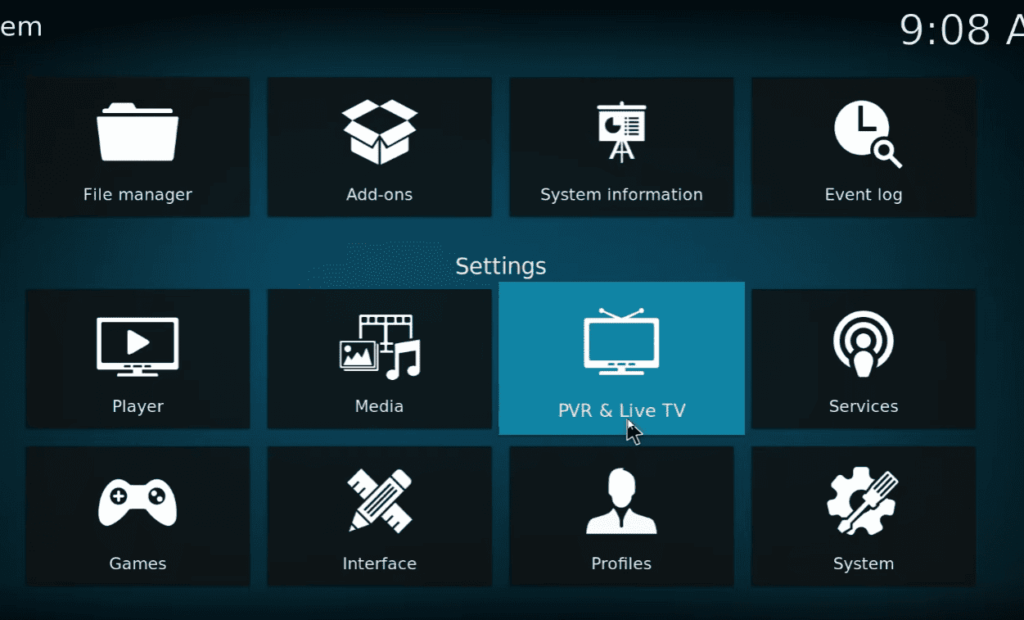
- Navigate to the Settings gear icon on the home screen and click on it;
- Select “System” to access system settings;
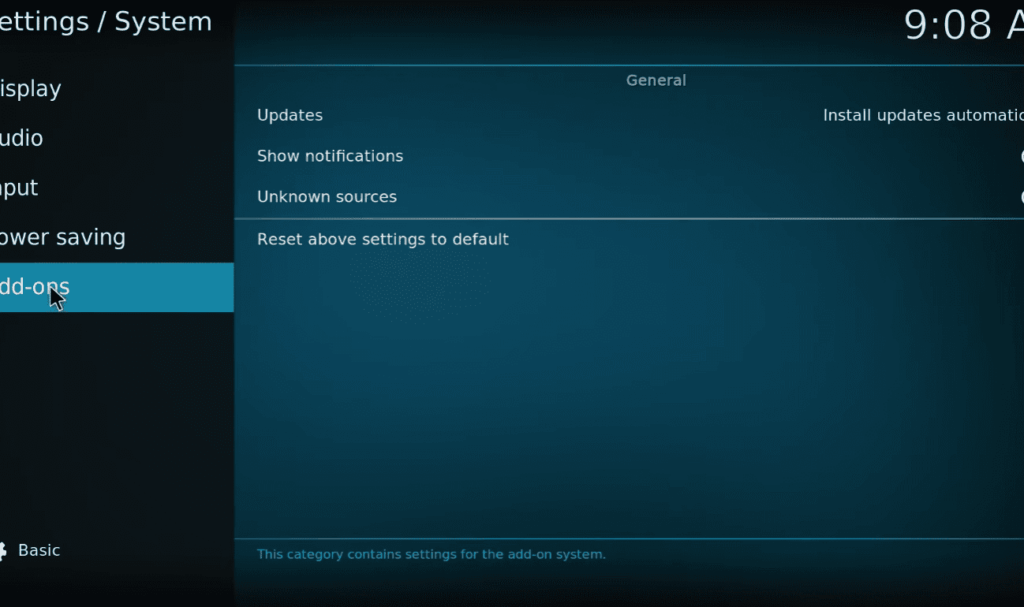
- Choose “Add-ons” on the left sidebar;
- Toggle the “Unknown Sources” option to the ON position. A warning message will appear; confirm your choice by clicking “Yes”;
- Enabling Unknown Sources is a necessary step to proceed with the installation of Seren;
Install Nixgates Repo:
The Seren addon is hosted in the Nixgates repository, which serves as the gateway for installing Seren on your Kodi setup:
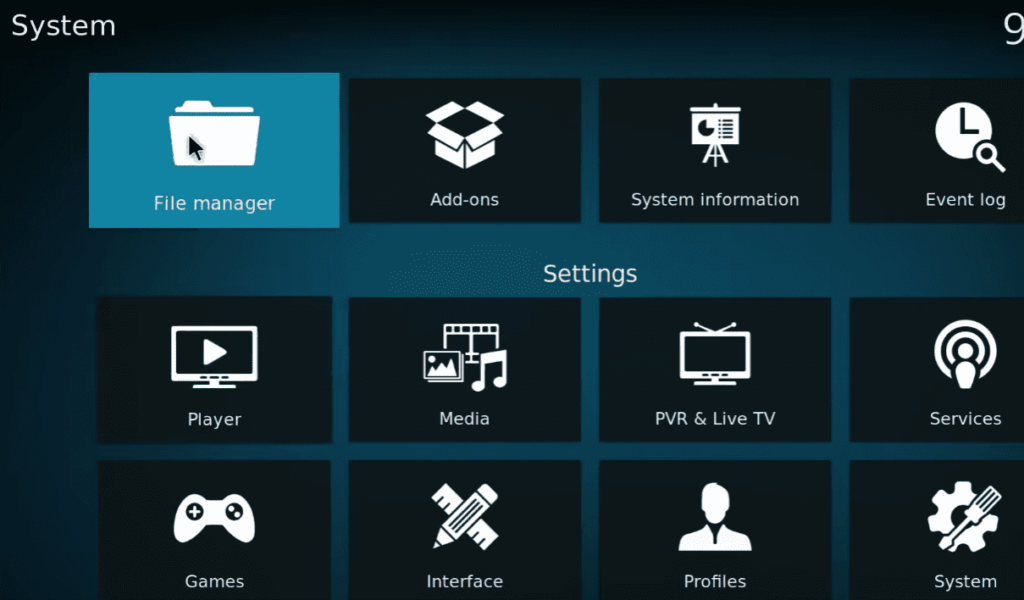
- Go back to the System menu by clicking the back arrow on the top-left corner of the screen;
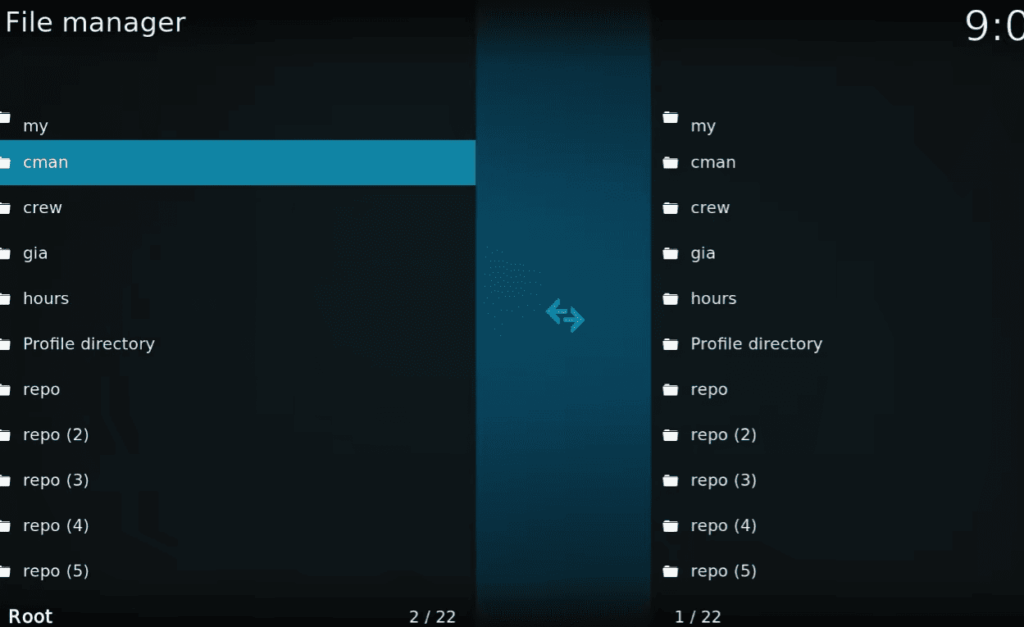
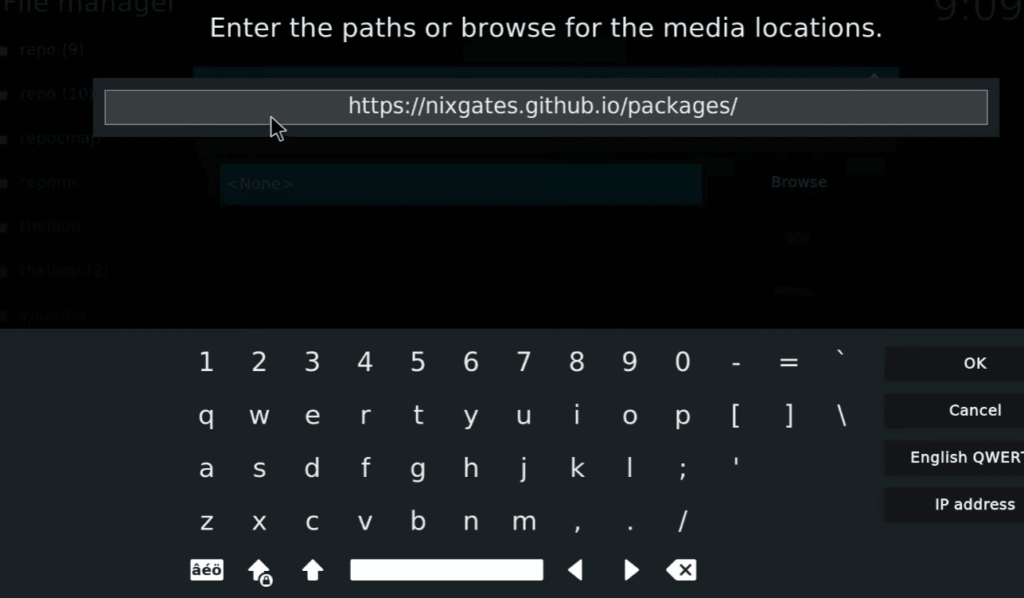
- Select “File Manager” from the System menu;
- Double-click on “Add source” to add a new source;
- Click on “None” and enter the following URL: https://nixgates.github.io/packages;
- Name the source (for example, “Nixgates”) and click “OK”;
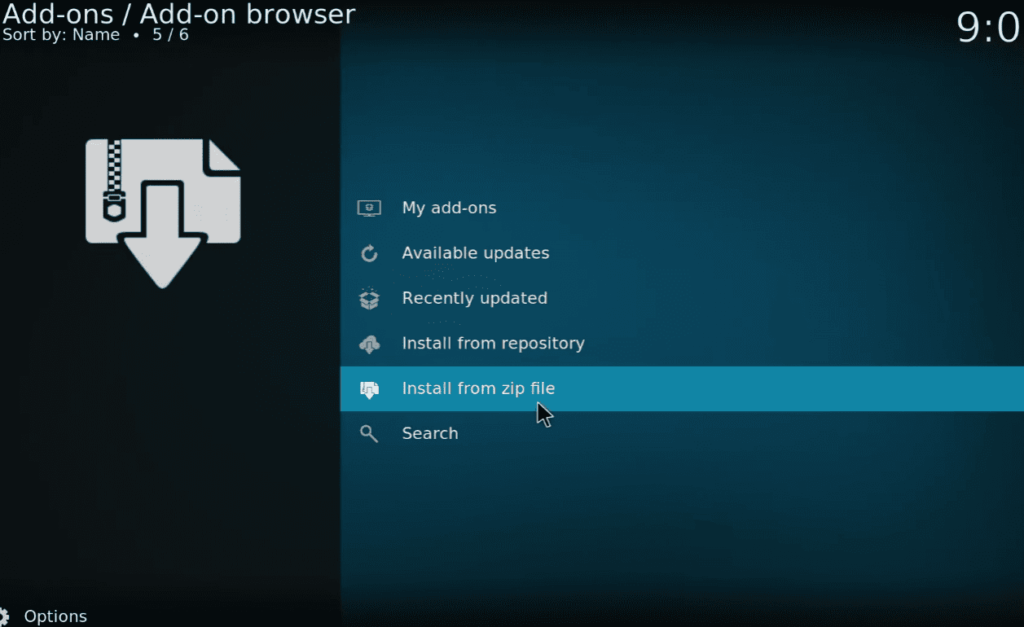
- Return to the main menu and select “Add-ons”;
- Click on the box icon (Package Installer) at the top-left corner;
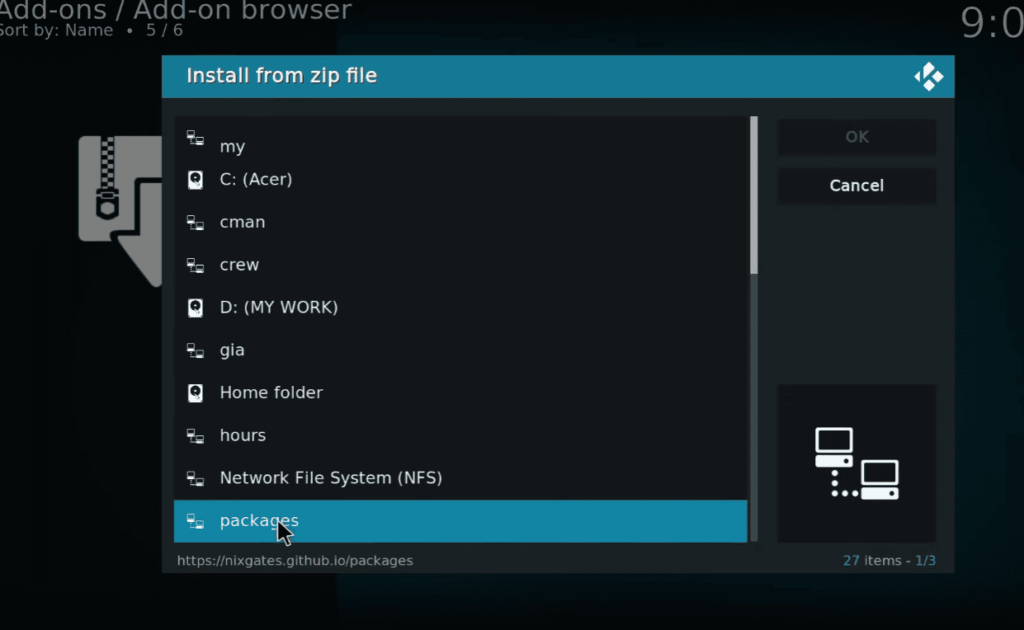
- Choose “Install from zip file” and select “Nixgates” or the name you assigned earlier;
- Select the repository file, usually named something like repository.nixgates.x.x.x.zip;
- Wait for the “Nixgates Repository Add-on installed” notification to appear, indicating that the repository is successfully installed;
Install Seren Kodi Addon:
Now that the Nixgates repository is installed, let’s proceed to install the Seren addon:
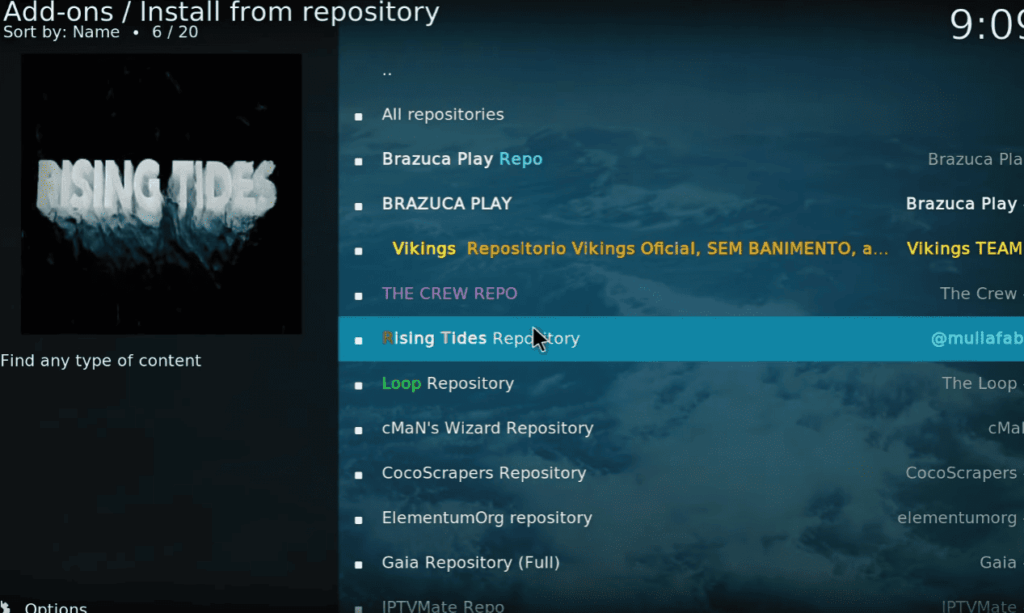
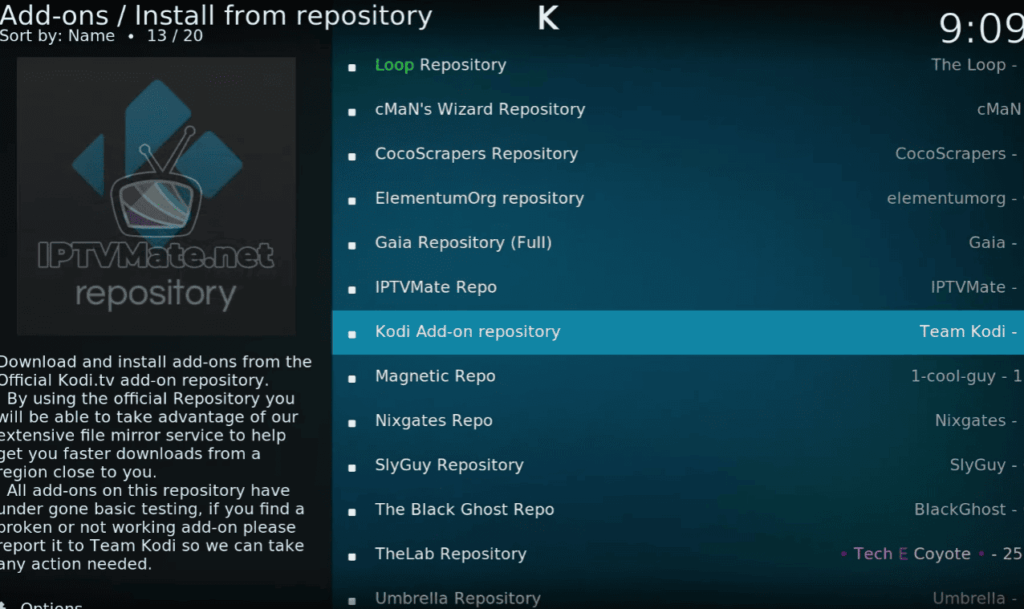
- In the same Package Installer menu, select “Install from repository”;
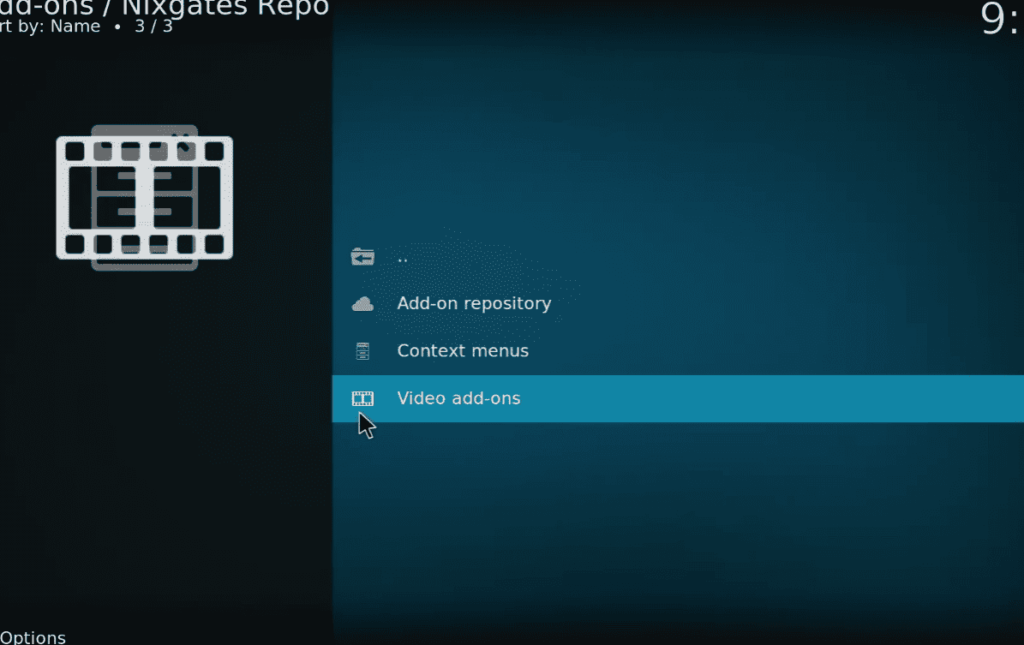
- Choose “Nixgates Repo” or the name you assigned earlier;
- Click on “Video add-ons”;
- Scroll down and find “Seren.” Click on it to open the addon information page;
- Hit the “Install” button to begin the installation process;
- Wait for the “Seren Add-on installed” notification, indicating that Seren is successfully installed on your Kodi system;
Additional Settings:
Authorize Trakt with Seren:
Trakt integration enhances your streaming experience by synchronizing your watched history and preferences across devices. Here’s how to authorize Trakt with Seren:
- Open the Seren addon from the Add-ons menu;
- Navigate to “Tools” and select “Trakt: Authorize”;
- A code will be displayed. Open a web browser on your computer or mobile device and visit https://trakt.tv/activate;
- Enter the provided code to link your Trakt account with Seren;
- Return to Seren, and you should see a “Trakt: Authorized” message”;
Select Sources Manually:
To fine-tune your streaming sources in Seren, you can manually select providers and customize the scraping process:
- In the Seren addon, go to “Tools” and select “Providers”;
- Here, you can enable or disable specific providers based on your preferences;
- Adjust the “Provider Timeout” settings to control how long Seren searches for sources before moving on to the next provider;
- In the “Scraping” settings, you can customize episode naming conventions and enable or disable auto-episode naming;
Customizing these settings allows you to have greater control over the sources Seren uses and tailor your streaming experience to your preferences.
How to Set Up Seren Kodi Addon with Real Debrid?
Prerequisites:
Before diving into the setup process, ensure you have the following:
- A Kodi installation on your device;
- An active Real Debrid account. If you don’t have one, you can sign up at Real Debrid’s official website;
Setup:
Step 1: Enable Unknown Sources in Kodi:
- Open Kodi on your device;
- Navigate to the gear icon (Settings) on the top-left corner of the home screen;
- Select “System” to access system settings;
- Click on “Add-ons” in the left sidebar;
- Toggle the “Unknown Sources” option to the ON position. Confirm the action by clicking “Yes” when prompted;
- Enabling Unknown Sources allows Kodi to install addons from external sources;
Step 2: Install Seren Kodi Addon
Before linking Seren with Real Debrid, you need to install the Seren addon.
Step 3: Authorize Real Debrid with Seren:
- Open the Seren addon from the Add-ons menu;
- Navigate to “Tools” and select “Open Settings Menu”;
- Click on “Accounts” in the left sidebar;
- Under the “Debrid Service” section, select “Enable Debrid Service”;
- A list of supported debrid services will appear. Choose “Real-Debrid”;
- You’ll see an option to “Authorize Real-Debrid.” Click on it;
- A code will be displayed on the screen. Using a web browser on your computer or mobile device, go to Real Debrid Device Authorization and enter the provided code;
- Once authorized, you’ll receive a success message in the Seren addon;
Step 4: Adjust Seren Settings for Real Debrid
- In Seren, go back to the main menu and select “Tools”;
- Click on “Providers”;
- Under “General,” ensure that “Enable Debrid Providers” is turned ON. This allows Seren to utilize Real Debrid sources;
- While still in the “Providers” settings, you can customize the priority of providers. Adjust the settings based on your preferences, prioritizing Real Debrid sources for an enhanced streaming experience;
Step 5: Test Real Debrid Integration:
- Navigate to the Seren main menu and select “Discover”;
- Choose any movie or TV show to test Real Debrid integration;
- Seren will automatically fetch Real Debrid sources. Look for RD (Real Debrid) in the source list;
- Select a Real Debrid source, and Seren will prompt you to confirm the selection. Click “Play” to start streaming;
You’ve successfully set up Seren Kodi addon with Real Debrid, unlocking a plethora of high-quality streaming links for your favorite content.
Tips for Optimal Real Debrid and Seren Experience:
- Keep Real Debrid Subscription Active: Ensure your Real Debrid subscription is active to enjoy uninterrupted access to premium streaming links;
- Regularly Update Seren: Check for updates to the Seren addon regularly. Developers may release new features or address any issues to enhance your streaming experience;
- Adjust Provider Settings: Experiment with provider settings in Seren to find the optimal balance between speed and source availability;
- Explore Other Seren Features: Seren offers advanced features such as automatic episode tracking and library integration. Explore these options to personalize your streaming experience;
How to Use Seren Addon on Kodi?
Seren, a feature-rich Kodi addon, offers a seamless streaming experience with advanced functionalities.
Accessing the Seren Addon:
Launch Kodi:
Open Kodi on your device.
Navigate to Add-ons:
From the home screen, go to the main menu on the left and select “Add-ons.”
Open Seren:
Locate and click on the Seren addon icon to launch it.
Exploring the Seren Main Menu:
Once you’ve opened Seren, you’ll find a user-friendly main menu with various options to enhance your streaming experience.
Movies:
Click on “Movies” to explore a vast library of films. Seren offers a user-friendly interface with options to filter movies by genre, year, or other criteria.
Shows:
Navigate to “Shows” to access a comprehensive list of TV series. Similar to the Movies section, you can filter shows based on different criteria.
Discover:
The “Discover” section provides curated lists, recommendations, and trending content. Explore this section to discover new movies and TV shows.
Search:
Use the “Search” feature to find specific movies, TV shows, or actors quickly. Simply enter the keywords, and Seren will fetch relevant results.
Tools:
The “Tools” section houses various settings and utilities. Here, you can access settings, library integration, Trakt authorization, and more.
Settings:
Within the “Tools” section, the “Settings” menu allows you to customize various aspects of Seren, including general settings, themes, and providers.
Streaming Content with Seren:
Now that you’re familiar with the main menu, let’s dive into how to stream content using Seren.
Selecting a Movie or Show:
- Navigate to the desired section (Movies or Shows) in the main menu;
- Browse or search for the content you want to watch;
Choosing a Source:
- After selecting a movie or TV show, Seren will fetch available sources;
- The addon automatically prioritizes high-quality sources. Look for indicators like RD (Real Debrid) for premium links;
- Click on a source to see more details and select it for playback;
Playback Options:
Seren offers multiple playback options. Choose between “Play Movie” for instant playback or “Add to Library” to organize the content within Kodi. If you’ve enabled Trakt integration, Seren will synchronize your watched history across devices.
Episode Tracking:
For TV series, Seren provides automatic episode tracking. The addon keeps track of watched episodes, making it easy to resume where you left off.
Additional Features and Tips:
Library Integration:
Seren seamlessly integrates with Kodi’s library functionality. Enable this feature in the settings to add your watched content to the library for easy access.
Customizing Seren Settings:
Explore the “Settings” menu within the “Tools” section to customize various aspects of Seren. Adjust themes, enable or disable providers, and fine-tune scraping settings.
Trakt Authorization:
If you have a Trakt account, authorize it in the “Tools” section to synchronize your streaming activity across devices.
Real Debrid Integration:
If you have a Real Debrid account, set it up in the “Accounts” section of Seren’s settings. This enhances the streaming experience by accessing premium sources.
Custom Shortcuts:
Use the “Custom Shortcuts” feature to create quick access points for your favorite genres, playlists, or content sources.
Troubleshooting
- No Streaming Sources Found:
Solution:
- Check Internet Connection: Ensure that your internet connection is stable and has sufficient speed;
- Real Debrid Status: If using Real Debrid, confirm that your subscription is active and there are no service outages;
- Update Seren: Make sure you have the latest version of Seren installed. Outdated versions may experience issues with source retrieval;
- Provider Timeout Settings: Adjust the provider timeout settings in Seren. Sometimes, increasing the timeout can improve source availability;
- Playback Issues:
Solution:
- Real Debrid Authentication: Verify that your Real Debrid account is correctly authorized within Seren’s settings;
- Check Source Quality: Some sources may have varying video quality. Select a different source or adjust Seren’s settings to prioritize higher quality sources;
- Update Seren: Ensure that you are using the latest version of the Seren addon. Developers may release updates to address playback issues;
- Clear Cache: Clearing Seren’s cache might resolve playback issues. Go to “Tools” in Seren’s settings and select “Clear Cache”;
- Seren Not Working or Crashing:
Solution:
- Check Kodi Version: Ensure that you are using a compatible version of Kodi. Seren may have specific requirements tied to Kodi versions;
- Update Dependencies: Seren relies on various dependencies. Check if there are any pending updates for these dependencies and install them;
- Reinstall Seren: Uninstall Seren, then reinstall it using the latest version from the official repository;
- Check for Addon Conflicts: Other addons may conflict with Seren. Disable other addons one by one to identify if a conflicting addon is causing the issue;
- Trakt Integration Issues:
Solution:
- Reauthorize Trakt: If Trakt integration is not working correctly, reauthorize your Trakt account in Seren’s settings;
- Check Trakt Status: Verify the status of the Trakt service. If Trakt is experiencing downtime, it can affect integration with Seren;
- Update Seren: Ensure that you have the latest version of Seren installed, as updates may include fixes for Trakt-related issues;
- Subtitle Syncing Problems:
Solution:
- Adjust Kodi Settings: In Kodi’s system settings, check and adjust subtitle settings. Kodi allows you to sync subtitles manually;
- Choose a Different Source: If subtitle syncing issues persist, try selecting a different source. Some sources may have better subtitle syncing;
- Check Subtitle File Quality: Ensure that the subtitle file associated with the content is of good quality. Poorly synced subtitle files can lead to syncing issues;
- General Performance Issues:
Solution:
- Device Specifications: Ensure that your device meets the minimum requirements for running Kodi and Seren. Older or underpowered devices may struggle with performance;
- Reduce Cached Torrents: If using cached torrents, reducing the number of cached torrents in Seren’s settings may improve overall performance;
- Clear Kodi Cache: Kodi itself may accumulate cache over time. Clear Kodi’s cache through its system settings;
By addressing these common issues and following the provided solutions, you can troubleshoot problems with the Seren Kodi addon. Remember to stay informed about updates, both for Seren and its dependencies, to ensure you have access to the latest features and bug fixes.
Additionally, always use Kodi addons responsibly and in compliance with applicable laws and regulations.
Alternatives to Seren Kodi Addon
While Seren is a popular and feature-rich Kodi addon, users may explore alternatives to diversify their streaming experience.
Here are some notable alternatives to the Seren Kodi addon:
- Exodus Redux: Exodus Redux is a popular addon known for its extensive content library. It provides a user-friendly interface and supports Trakt integration for personalized recommendations;
- Gaia: Gaia is a powerful addon that emphasizes high-quality streaming links. It supports multiple premium services, including Real Debrid, Premiumize, and others, enhancing the streaming experience;
- The Crew: The Crew is a versatile addon that offers a wide range of movies, TV shows, and live TV channels. It features an intuitive interface and supports Trakt integration for seamless content tracking;
- Venom: Venom is known for its reliability in providing high-quality streaming sources. It supports integration with Real Debrid and Trakt, offering an enhanced streaming experience;
- Tempest: Tempest is a lightweight addon with a straightforward interface. It provides a variety of movies and TV shows, and its simplicity makes it accessible to users with different levels of Kodi experience;
- Covenant: Covenant is a classic addon that has stood the test of time. It offers a vast collection of movies and TV shows, making it a go-to choice for many Kodi users;
- Numbers: Numbers is a Kodi addon that provides a diverse range of content, including movies, TV shows, documentaries, and more. It supports Trakt integration for a personalized streaming experience;
- Yoda: Yoda is a fork of the popular Exodus addon and offers a similar user experience. It provides a vast library of movies and TV shows with options for sorting and filtering;
- Movie Theater Butter: Movie Theater Butter is a lightweight addon with a focus on movies. It features a user-friendly interface and supports Trakt integration for seamless content tracking;
- Magic Dragon: Magic Dragon is an all-in-one addon that provides movies, TV shows, documentaries, and more. It has a well-organized interface and offers a wide variety of content;
Users should exercise caution and stay informed about the legal and ethical use of such addons. Additionally, always ensure that you are using the latest versions of addons and follow best practices for a secure and enjoyable streaming experience.
FAQ:
How to install Seren provider packages?
To install Seren provider packages, navigate to Seren’s settings, go to “Providers,” and select “Install From Web.” Choose the provider packages you want, and Seren will install them.
How do you install addons on Kodi?
To install addons on Kodi, go to the main menu, select “Add-ons,” click on the package icon, and choose “Install from repository” or “Install from zip file” depending on the source.
Is Seren free?
Yes, Seren is a free addon for Kodi. However, it is recommended to use premium services like Real Debrid for an enhanced streaming experience.
How do you enable providers on Seren?
In Seren’s settings, go to “Providers,” then toggle on “Enable Providers.” Adjust provider timeout settings and customize the list to enhance your streaming sources.
Is Real Debrid legal?
Yes, Real Debrid is legal. It is a premium service that provides users with high-quality streaming links. However, the legality of streaming copyrighted content depends on local laws.
Why can’t you add addons to Kodi?
If you are unable to add addons to Kodi, ensure that the “Unknown Sources” option is enabled in Kodi’s settings. This allows the installation of third-party addons.
Where are Kodi addons installed?
Kodi addons are installed in the “addons” folder within the Kodi application directory. The location varies based on the operating system.
How do you create a Real Debrid account?
To create a Real Debrid account, visit the official Real Debrid website, click on “Sign Up,” and follow the registration process. A valid email address is required.
How do you update my Kodi addons?
To update Kodi addons, go to the main menu, select “Add-ons,” click on the package icon, and choose “Check for updates.” Alternatively, enable auto-updates in addon settings.
How do you install fully loaded Kodi on Android?
Installing fully loaded Kodi builds on Android is not recommended due to potential legal and security issues. It’s advisable to install addons individually.
Why is Kodi so slow?
Kodi may be slow due to factors like outdated hardware, excessive addons, or a large library. Clearing cache, optimizing settings, and using lightweight addons can help improve speed.
What happens if you don’t use VPN?
If you don’t use a VPN while streaming with Kodi, your online activities may be exposed to potential monitoring. A VPN adds a layer of privacy and security, especially when accessing copyrighted content.