
Embarking on a cinematic journey with Kodi only to be met with the disheartening “No Stream Available” error can be a frustrating ordeal for enthusiasts seeking uninterrupted entertainment. This perplexing issue, while not uncommon, can be attributed to a myriad of factors ranging from outdated add-ons to network connectivity glitches.
In this comprehensive guide, we delve into the intricacies of the notorious Kodi “No Stream Available” error, offering users a roadmap to troubleshoot and resolve the issue effectively. From updating graphics drivers to exploring alternative streaming sources, each step is meticulously crafted to empower users with the knowledge and tools needed to transform their Kodi experience.
Whether you’re a seasoned Kodi user or a novice explorer of the digital realm, this guide serves as a beacon, illuminating the path toward a seamless streaming journey on one of the most versatile media players in the digital landscape. Let’s unravel the complexities, navigate the pitfalls, and reclaim the joy of uninterrupted content consumption on Kodi.
Signs Of Kodi “No Stream Available” Error
The “No Stream Available” error on Kodi is an indication that the media player is unable to locate or fetch any viable streaming sources for the selected content. This issue can manifest across various add-ons and occurs when the player fails to establish a connection with a functioning server or when the available sources are insufficient or inactive.
The dreaded “No Stream Available” error message on Kodi can be frustrating, but identifying the signs early can help you troubleshoot and get back to your viewing experience. Here are some signs to watch out for:
Before starting a stream:
- Slowness or lag: This can indicate issues with your network connection or overloaded resources on the streaming provider’s side;
- Limited or no sources: Some add-ons may display available sources that are dead or unreliable, leading to the errors when you try to play them;
- Outdated add-ons: Using outdated add-ons can cause compatibility issues and prevent access to working streams;
While trying to play a stream:
- Buffering or spinning wheel: This is a classic symptom of slow connection or insufficient resources;
- Frozen screen: If the picture freezes without any progress, it might indicate a dead source or an issue with the add-on’s playback capabilities;
- Sudden stop and error message: The error message itself is the most obvious sign, but the way it appears can offer clues. Look for details like “unable to resolve URL” or “source not found”;
Additional signs:
- General sluggishness of Kodi: This can point to resource constraints or issues with add-ons consuming too much memory;
- Network connectivity problems: Frequent disconnects, slow internet speeds, or issues with your router can all contribute to streaming failure;
- Changes in ISP policies: Some ISPs might throttle or block certain streaming traffic, leading to connection problems for Kodi users;
Understanding the “No Stream Available” Error:
Empty Content Folders:
One of the glaring signs of the “No Stream Available” error on Kodi is the presence of empty content folders. When you navigate to a specific category or add-on, only to find that the content folders are devoid of any streaming options, it’s a clear indication that something is amiss.
Error Messages:
Kodi often provides error messages that give users insights into the issues they are facing. Look out for messages like “No Stream Available” or “Check the log for more information”. These messages can guide you in troubleshooting the problem effectively.
Repeated Buffering:
Another sign of the error is persistent buffering or loading screens. If you find that your selected content is taking an unusually long time to load or constantly buffers without actually playing, you’re likely dealing with the “No Stream Available” error.
Unavailable Sources:
The absence of sources for your desired content is a key symptom. When you click on a movie or TV show and discover that there are no streaming sources listed, the “No Stream Available” error is probably at play.
Causes And Specific Solutions of “No Stream Available” Kodi Error:
The Link is Already Dead:
The lifespan of streaming links can be short-lived. The first culprit behind the “No Stream Available” error is a dead link. If the source link for your desired content is no longer active or has been taken down, Kodi won’t be able to fetch the stream, leading to this error.
Solution: Unfortunately, there is no direct fix for this issue. Users should explore alternative sources or try different addons to find an active link.
Addon Currently Not Working or Can’t Find Stream:
Kodi relies heavily on addons to fetch and stream content. If an addon is currently not working or is unable to locate a stream for the requested content, the “No Stream Available” error is likely to occur.
Solution: Keep your addons updated. If an addon is consistently failing to fetch streams, consider exploring alternative addons that may provide better results.
Excessive Cache:
While caching is a crucial aspect of streaming for smoother playback, excessive cache can sometimes lead to the “No Stream Available” error. The cache may become cluttered, causing conflicts in retrieving and playing the content.
Solution: Clear the cache within Kodi to ensure it’s not hindering the streaming process. This can be done through the settings menu, typically found in the system or addon settings.
Auto Playback Feature:
Kodi’s auto-playback feature can sometimes be the culprit behind streaming errors. If enabled, it may automatically select a source that is not functioning correctly, leading to the “No Stream Available” error.
Solution: Disable the auto-playback feature in Kodi settings. This allows users to manually select a source, ensuring they have better control over the streaming process.
Unavailable Free Links:
Some addons primarily rely on free streaming links, which can be unreliable and subject to frequent takedowns. If these free links are unavailable or have been removed, the “No Stream Available” error will manifest.
Solution: Explore addons that offer a mix of free and premium (debrid) links. Premium links often provide a more stable and reliable streaming experience.
ResolveURL Missing/Malfunctioning:
ResolveURL is a dependency commonly used by Kodi addons to resolve streaming links. If ResolveURL is missing or malfunctioning, addons won’t be able to retrieve and play the content, resulting in the “No Stream Available” error.
Solution: Ensure that ResolveURL is installed and up-to-date. If issues persist, consider reinstalling the addon that uses ResolveURL or look for alternative addons that utilize different dependencies.
ISP Blocking the Link:
Some Internet Service Providers (ISPs) actively block certain streaming links or sources due to copyright concerns. If your ISP is blocking the link, Kodi won’t be able to access the stream, triggering the “No Stream Available” error.
Solution: Use a Virtual Private Network (VPN) to bypass ISP restrictions and access the content without interference.
VPN not supported by Debrid Service:
Users often integrate debris services with Kodi for enhanced streaming quality. However, certain VPNs may not be supported by these debris services, causing a conflict that results in the “No Stream Available” error.
Solution: Choose a VPN that is compatible with your debrid service. Some debris services have specific recommendations for VPNs that work seamlessly with their platform.
How to Fix “No Stream Available” Error: General Recommendations
1) Update or Reinstall Graphics Driver:
Graphics drivers play a pivotal role in rendering video content on your system. Outdated or malfunctioning drivers can contribute to the “No Stream Available” error. To address this, consider updating your graphics driver to the latest version. If problems persist, reinstalling the driver may also be necessary.
Solution: Visit the official website of your graphics card manufacturer (e.g., NVIDIA, AMD, Intel) to download and install the latest driver updates.
2) Clear Cache of Kodi Media Player:
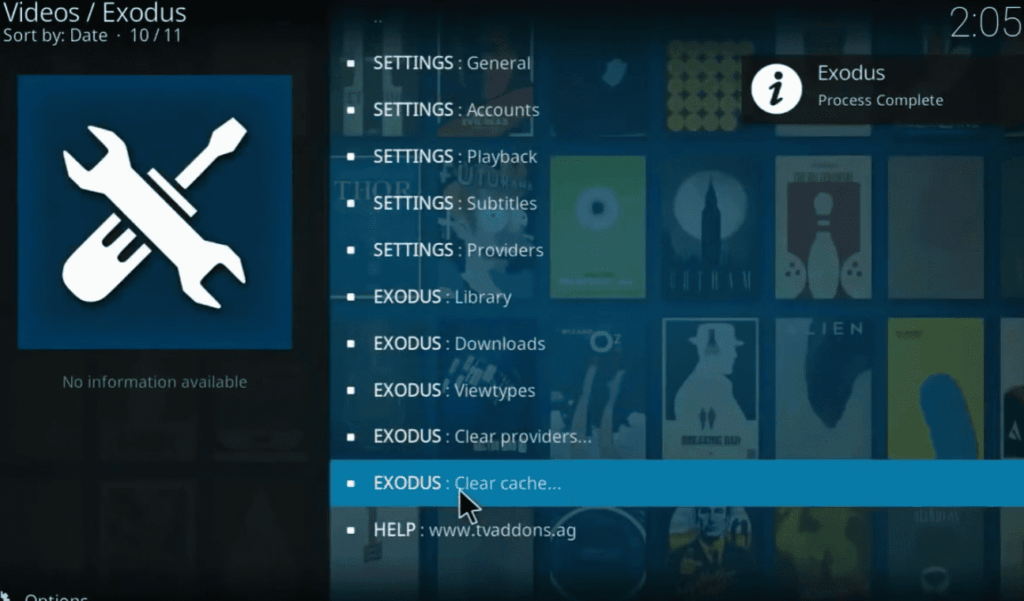
Kodi stores temporary data in its cache, which can sometimes lead to conflicts and streaming issues. Clearing the cache is a fundamental step in resolving the “No Stream Available” error.
Solution: Navigate to Kodi settings, find the cache option, and clear it. This may vary depending on your Kodi version, but it’s typically located in the system or addon settings.
3) Disable Hardware Acceleration Feature:
While hardware acceleration is designed to improve performance, it can sometimes cause playback issues on certain systems. Disabling this feature might alleviate the “No Stream Available” error.
Solution: In Kodi settings, navigate to Player settings and find the hardware acceleration option. Disable it and observe if the issue persists.
4) Update Kodi Add-ons:
Add-ons act as the lifeline of Kodi, providing access to a plethora of content. Outdated or incompatible add-ons can be a significant factor in the “No Stream Available” error.
Solution: Regularly check for updates for your installed addons. If an addon is not functioning correctly, try updating or reinstalling it from the official Kodi repository.
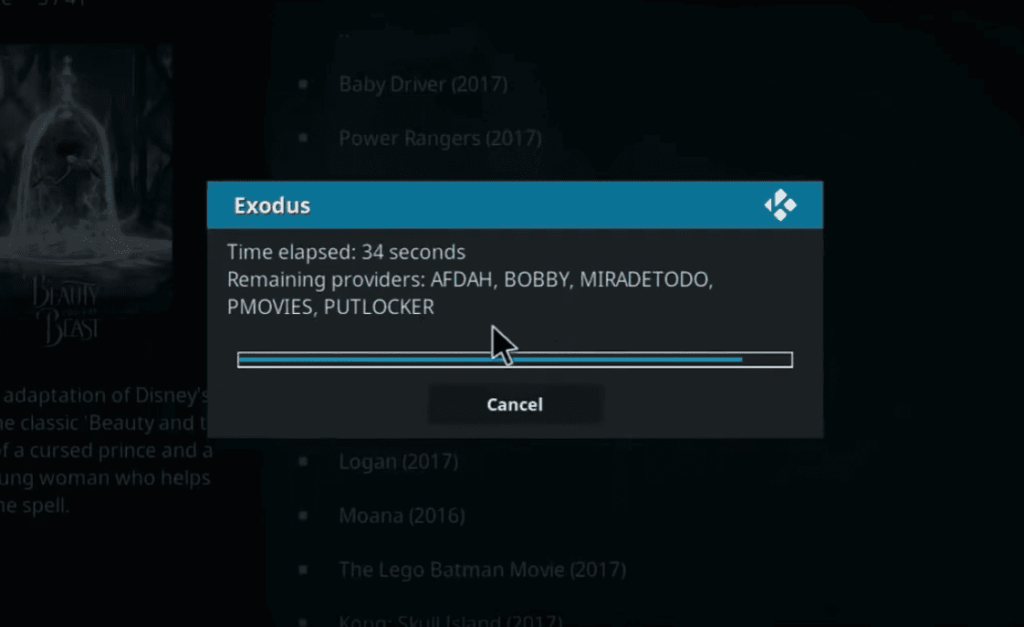
5) Update Kodi to the Latest Version:
Kodi developers regularly release updates with bug fixes and performance improvements. Running an outdated version may contribute to streaming issues.
Solution: Visit the official Kodi website or your device’s app store to ensure you are using the latest version of Kodi.
6) Delete Kodi Database Files:
Over time, Kodi’s database may accumulate errors or inconsistencies that can impact streaming. Deleting the database files can be a drastic yet effective measure to refresh Kodi.
Solution: Navigate to the Kodi userdata folder on your device and delete the Database folder. Kodi will create a new database upon restarting.
7) Restore to Kodi Default Settings:
If various tweaks and customizations have been applied to Kodi, reverting to default settings can sometimes resolve persistent issues.
Solution: In Kodi settings, look for the option to reset or restore to default settings. This will undo any changes made, and you can reconfigure Kodi as needed.
8) Reinstall Kodi:
If all else fails, a clean slate might be the answer. Uninstalling and reinstalling Kodi can eliminate any underlying issues that might be causing the “No Stream Available” error.
Solution: Uninstall Kodi from your device and then reinstall the latest version from the official Kodi website.
9) Check the Network Connection and Video Source:
A stable and reliable network connection is paramount for smooth streaming. Additionally, ensuring that the video source is active and accessible is crucial in addressing the “No Stream Available” error.
Solution: Verify your internet connection and check if the selected video source is operational. Try accessing the source through a web browser to confirm its availability.
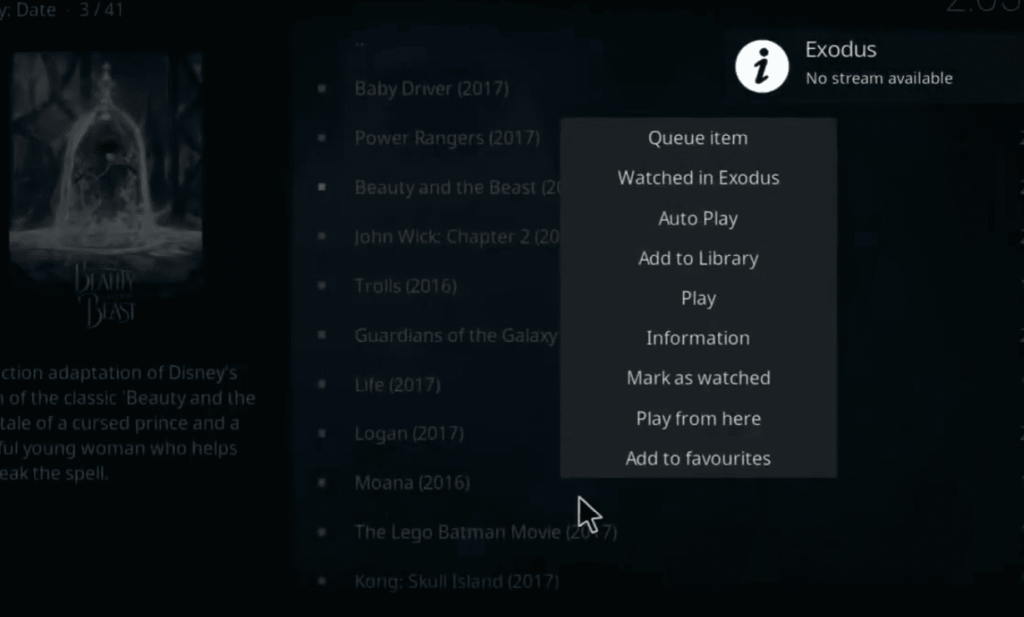
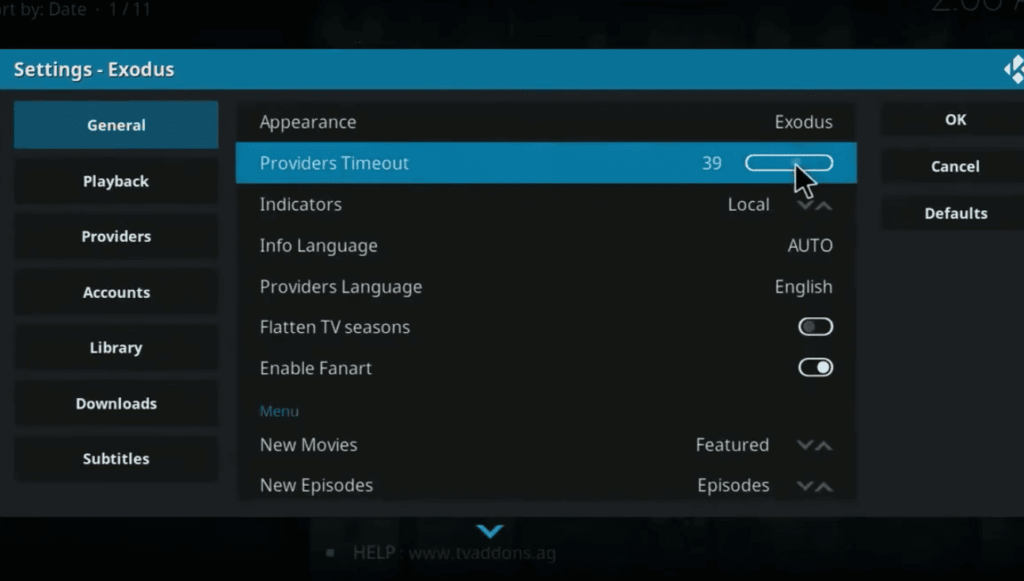
10) Adjust the Provider Timeout Option:
Kodi allows users to set a timeout duration for streaming providers. If this duration is too short, it might result in the “No Stream Available” error, especially for slower sources.
Solution: Adjust the provider timeout option in Kodi settings to a longer duration, allowing more time for sources to be fetched.
11) Use a Reliable VPN on Kodi:
Some ISPs may impose restrictions on certain streaming sources, leading to the “No Stream Available” error. Utilizing a Virtual Private Network (VPN) can help bypass these restrictions and enhance your privacy.
Solution: Choose a reputable VPN service, install the VPN app on your device, and connect to a server before using Kodi.
12) Use Real Debrid:
Real Debrid is a premium service that enhances the streaming experience by providing high-quality, reliable links. Integrating Real Debrid with Kodi can significantly reduce the occurrence of streaming errors.
Solution: Subscribe to Real Debrid, configure it within your Kodi settings, and enjoy the benefits of premium links.
13) Enable Sources/Providers:
Kodi has settings that allow users to enable or disable various sources or providers. If a particular source is disabled, it won’t be available for streaming.
Solution: Navigate to Kodi settings, find the source or provider options, and ensure that the desired sources are enabled.
14) Make Sure the Video Source is Available:
It may seem obvious, but sometimes the source you are trying to access might genuinely be unavailable. Confirm the existence and accessibility of the video source to rule out external factors.
Solution: Verify that the website or platform providing the content is online and operational. Consider trying an alternative source if the issue persists.
Other Common Issues with Kodi Addons:
Buffering and Playback Issues:
Users often face buffering and playback problems, such as constant buffering or freezing during playback. This can be attributed to a slow internet connection, overloaded servers, or insufficient hardware resources.
Solution: Check your internet speed, clear cache within Kodi, and consider upgrading your hardware, especially if you are using an older device.
Add-on Dependencies Errors:
Some addons rely on external components called dependencies. If these dependencies are missing or outdated, it can result in errors when trying to use the addon.
Solution: Ensure that all necessary dependencies are installed and up-to-date. You may need to reinstall the addon if the issue persists.
Failed to Install Addon from Repository:
Users may encounter difficulties when attempting to install addons from repositories, with error messages like “Failed to install a dependency.”
Solution: Check your internet connection, verify the repository’s URL, and ensure that the repository and addon are compatible with your Kodi version.
Subtitle Sync Issues:
Subtitles may not sync correctly with the video, leading to a distracting viewing experience. This can happen due to inaccurate subtitle files or issues with the addon fetching the subtitles.
Solution: Choose a reliable subtitle source, and if the problem persists, try adjusting subtitle settings within the addon or Kodi itself.
Add-on Not Working After Kodi Update:
After updating Kodi to a new version, certain addons may stop working due to compatibility issues.
Solution: Check for addon updates compatible with the latest Kodi version. If no updates are available, consider downgrading Kodi or finding alternative addons.
Authentication Errors:
Some addons require authentication, and users may encounter issues logging in or authenticating their accounts.
Solution: Double-check your login credentials, ensure the addon is authorized to access your account, and consider reauthorizing the addon if necessary.
Missing or Incomplete Streams:
Addons may sometimes fail to fetch complete lists of available streams or may not display any streams at all.
Solution: Update the addon to the latest version, clear cache, and check for any announcements or fixes from the addon’s developer or community.
Add-on UI Freezing or Crashing:
The addon’s user interface may freeze or crash, preventing users from navigating or accessing content.
Solution: Clear cache, update the addon, and ensure that your Kodi version is compatible with the addon. If the problem persists, consider reinstalling the addon.
Kodi Not Recognizing External Storage:
Users who store media on external devices may encounter issues with Kodi not recognizing or accessing content from external storage.
Solution: Check the device’s compatibility, ensure it is properly connected, and check for any file system issues on the external storage.
Library Update Problems:
Kodi’s library may not update properly, leading to missing or outdated information about your media files.
Solution: Manually update the library, ensure correct file naming and organization, and check for any issues with media scrapers.
Audio/Video Out of Sync:
A common problem is the audio and video being out of sync, creating a frustrating viewing experience.
Solution: Adjust audio synchronization settings within Kodi or your media player, and consider checking if the video file itself is properly encoded.
Excessive Resource Consumption:
Kodi may consume excessive system resources, leading to slowdowns or crashes, especially on low-powered devices.
Solution: Optimize Kodi settings, close unnecessary background apps, and consider upgrading your hardware for a smoother experience.
How to Prevent “No Stream Available” Error And Other Issues?
Choose Reliable Add-ons:
The backbone of your streaming experience on Kodi lies in the add-ons you choose. Opt for well-established and reliable add-ons that consistently update their content libraries and maintain a robust infrastructure. Popular add-ons like Exodus Redux, The Crew, and Seren are known for providing stable streaming sources.
Regularly Update Add-ons:
Outdated add-ons can be a breeding ground for streaming errors. Make it a habit to check for updates regularly and ensure that your installed add-ons are running the latest versions. Developers frequently release updates to address bugs, improve performance, and enhance content availability.
Utilize Premium Services:
Consider investing in premium services like Real Debrid. These services provide access to premium links, offering a more stable and reliable streaming experience. Real Debrid, in particular, is known for its vast content library and high-quality links, reducing the chances of encountering the “No Stream Available” error.
Maintain a Clean Kodi Setup:
Over time, Kodi can accumulate unnecessary data, leading to potential conflicts and errors. Regularly clean your Kodi setup by removing unused add-ons, clearing cache and temporary files, and keeping your library organized. A clutter-free Kodi installation is less prone to streaming issues.
Enable Automatic Add-on Updates:
Simplify the process of keeping your add-ons up-to-date by enabling automatic updates. Most add-ons allow users to configure automatic updates in their settings. This ensures that you always have access to the latest features and content without manual intervention.
Choose a Reliable VPN:
A Virtual Private Network (VPN) not only enhances your privacy and security but can also prevent ISP-related restrictions that may trigger the “No Stream Available” error. Select a reputable VPN service, configure it within Kodi settings, and connect to a server before initiating any streaming activities.
Optimize Network Connection:
A stable and high-speed internet connection is paramount for smooth streaming. To prevent streaming errors, ensure that your network connection is reliable and has sufficient bandwidth. Consider using a wired connection for a more stable signal, especially if you’re experiencing issues over Wi-Fi.
Configure Provider Timeout Settings:
Adjusting the provider timeout settings in Kodi can prevent premature abandonment of streaming sources. Set a reasonable timeout duration, allowing Kodi sufficient time to fetch and process available streaming links before triggering the “No Stream Available” error.
Regularly Update Kodi:
Developers consistently release updates for the Kodi media player, addressing bugs and improving performance. Stay on top of these updates by regularly checking for the latest version of Kodi. Updating to the latest version ensures that you benefit from the latest features and optimizations.
Use Debrid Services:
Premium debrid services like Real Debrid or Premiumize offer enhanced streaming quality by providing premium links. Integrating these services with Kodi can significantly reduce the chances of encountering streaming errors and buffering issues.
Double-check Source Availability:
Before initiating a streaming session, verify the availability and functionality of the selected sources. This proactive step helps prevent the frustration of encountering the “No Stream Available” error due to inactive or unreliable sources.
Monitor Kodi Forums and Communities:
Stay informed about potential issues, updates, and solutions by actively participating in Kodi forums and communities. Fellow users often share their experiences and recommendations, providing valuable insights into preventing and resolving streaming errors.
FAQ:
Why can’t you load streams on Kodi?
The inability to load streams on Kodi can be attributed to various factors, including outdated add-ons, network issues, or the unavailability of sources for the selected content.
How do you get streams on Kodi?
To get streams on Kodi, you need to install and use add-ons that provide access to a variety of content. Ensure your add-ons are updated, and choose reliable sources for a smoother streaming experience.
Can you get Kodi streams on a Firestick?
Yes, Kodi can be installed on a Firestick, allowing users to access streams and content on their Fire TV devices.
What should you do when you encounter a “No Stream Available” message on Kodi?
When faced with the “No Stream Available” message, consider checking your internet connection, updating add-ons, clearing cache, and verifying the availability of the selected source.
Can a VPN fix the “No Stream Available” issue on Kodi?
Yes, using a Virtual Private Network (VPN) can help bypass ISP restrictions and potentially resolve streaming issues, including the “No Stream Available” error.
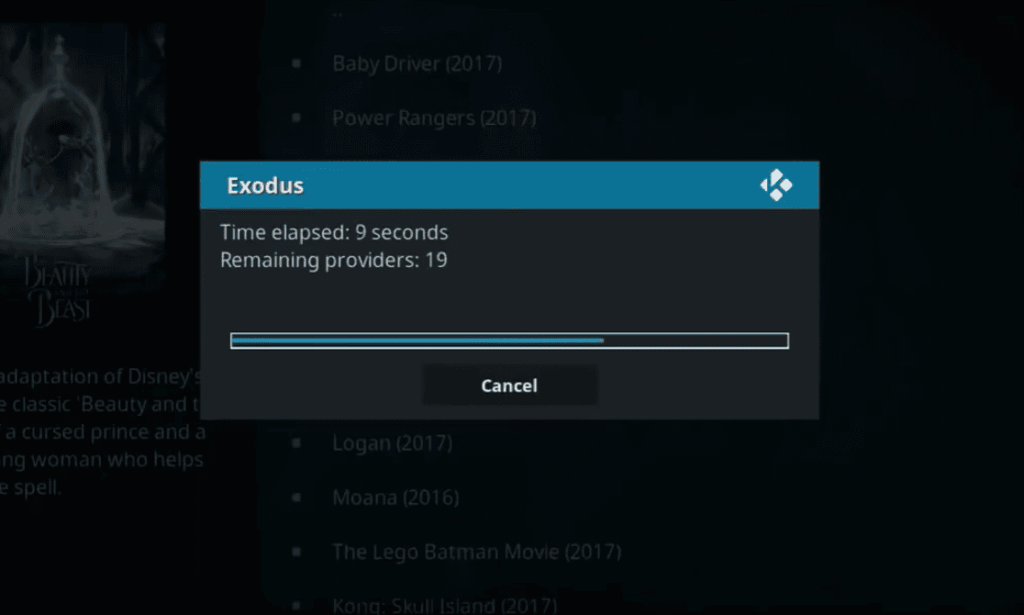
Why are there no streams on Exodus?
The lack of streams on Exodus could be due to sources being inactive or removed. Consider updating Exodus or exploring alternative add-ons with reliable content sources.
Why is Kodi not working?
Kodi may not be working due to various reasons, such as outdated software, conflicting add-ons, or network issues. Troubleshoot by updating Kodi, checking add-ons, and ensuring a stable internet connection.
Why are TV shows not working on Kodi?
TV shows addon may not work due to outdated software, incompatible add-ons, or server issues. Update the addon, check compatibility, and explore alternative addons.
How to clear the Kodi cache?
Clearing the Kodi cache involves navigating to the settings menu, finding the cache option, and selecting the clear cache function. This step helps prevent potential conflicts and streaming errors.
Does Kodi still work on Android?
Yes, Kodi is compatible with Android devices. You can download the Kodi app from the Google Play Store and enjoy streaming on your Android device.
What does Real Debrid cost?
Real Debrid offers various subscription plans, typically ranging from a few dollars per month. Check the Real Debrid website for the latest pricing details.
What is Real Debrid used for?
Real Debrid is a premium service that enhances the streaming experience by providing high-quality, reliable links. It acts as a bridge between Kodi and premium sources, reducing buffering and improving content availability.
Is it legal to stream movies on Kodi?
The legality of streaming movies on Kodi depends on the content being streamed. While Kodi itself is legal, accessing copyrighted material without proper authorization may be against the law in some regions.
Who owns Kodi?
Kodi is an open-source project, and it is managed and developed by the XBMC Foundation, a non-profit organization.
Is Kodi completely free?
Yes, Kodi itself is free to download and use. However, some add-ons or services within Kodi may require a subscription or one-time payment.
Is it safe to use a VPN on Kodi?
Yes, using a reputable VPN on Kodi is generally safe and can enhance privacy and security. Ensure you choose a VPN service with a strong reputation for protecting user data.
What version of Kodi is on Google Play?
The version of Kodi on Google Play may vary, as updates are regularly released. Check the Google Play Store for the latest available version.
How do you clean my Kodi library?
Cleaning your Kodi library involves going to the settings menu, selecting media settings, and choosing the option to clean the library. This process removes any outdated or unnecessary information from your library.