
In a world where remote work and secure digital access are the new norms, the technologies at your disposal have become crucial differentiators between seamless operations and potential chaos. At the forefront of these digital tools are services like LogMeIn and VPNs, which have garnered attention for their abilities to connect teams and protect data. But what are the nuances that set them apart? How do they serve distinct roles in the everyday digital experience? This guide will explore the key differences between LogMeIn and VPNs, along with their respective strengths and use cases.
Understanding LogMeIn
LogMeIn is a remote access software that allows users to access their computers and applications from anywhere, just as if they were in front of their machines. The focus lies on convenience and productivity, empowering individuals and teams to maintain continuity in their tasks irrespective of their physical location.
When it comes to features, LogMeIn excels in providing a secure way to work on projects and access data remotely. Not limited to desktops, LogMeIn extends its services to mobile devices, thereby ensuring accessibility across different platforms. The service is commonly favored for its user-friendly interface, making it a popular choice among those looking to streamline their remote work experience.
Demystifying VPNs
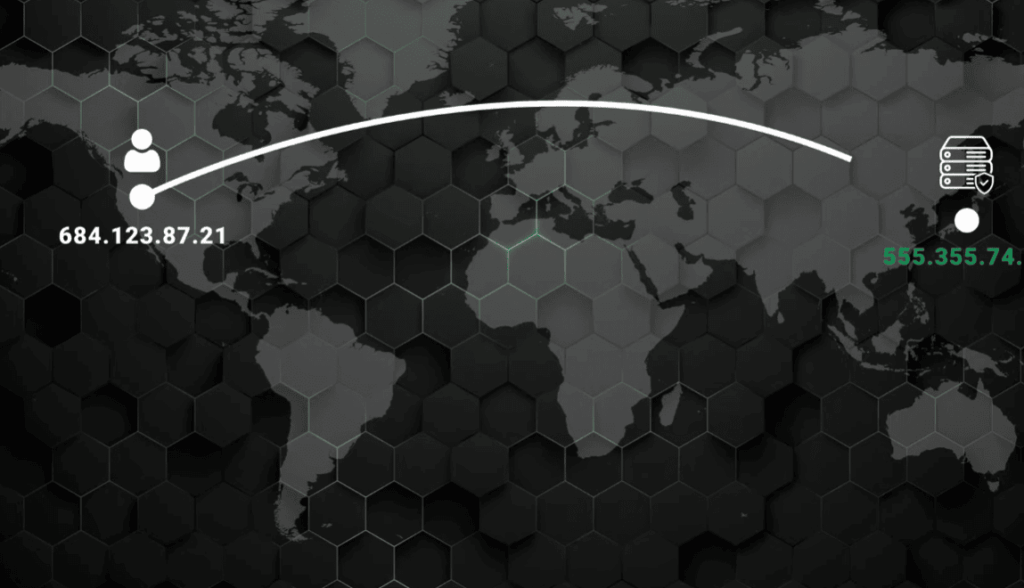
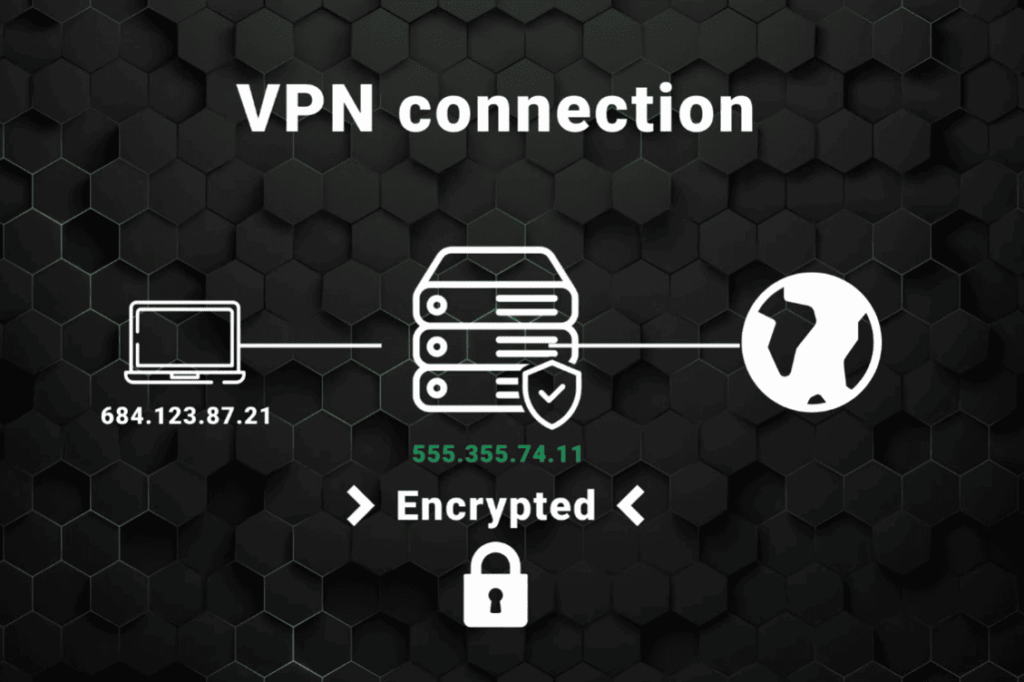
A Virtual Private Network (VPN) is a service that extends a private network across a public network, allowing users to send and receive data across shared or public networks as if their computing devices were directly connected to the private network. The key benefits of VPNs are data encryption and IP address masking, which contribute to heightened security and anonymity online.
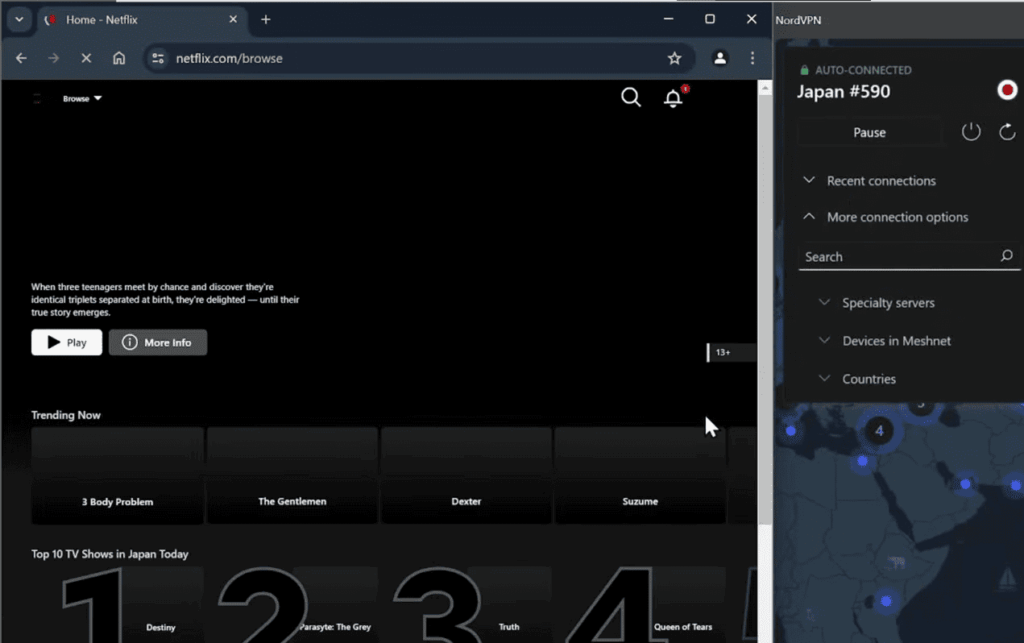
VPNs are often leveraged when security is paramount, such as when working with sensitive corporate information or accessing the internet from untrusted, public networks. Beyond security, VPNs also play a role in bypassing geographic restrictions, enhancing digital privacy, and combating surveillance and censorship.
LogMeIn vs. VPN: Unpacking the Differences
At first glance, LogMeIn and VPNs may seem to offer similar functionalities, especially when it comes to remote access. However, a deeper analysis reveals distinct use cases where the two technologies shine differently and often complement each other.
Use Case Scenarios
- Remote Work: LogMeIn is ideal for those needing direct access to their work computers, especially if specialized software must be run. On the other hand, VPNs are crucial for secure connections to a company’s internal network, encrypting all data traffic and ensuring privacy.
- Team Collaboration: LogMeIn’s screen sharing features make real-time collaboration simple. Meanwhile, VPNs foster secure communication and file sharing among team members through encrypted connections.
- Personal Online Security: VPNs are the go-to tool for individuals seeking to protect their online activities from prying eyes. LogMeIn, while secure, is primarily designed for remote access and not as a blanket security tool for all online activities.
Technical Underpinnings
- Data Flow Management: In LogMeIn, user activity and data flow through a remote host computer, which may be a server or a user-owned machine. Meanwhile, VPNs channel traffic through a gateway server and encrypt it, which can be beneficial for maintaining IP anonymity.
- Encryption Protocols: VPNs typically use more robust encryption, given their specific focus on security. LogMeIn’s encryption, while still robust, may not be as impenetrable as what a VPN offers, due to the latter’s tunneling protocols and multiple layers of security.
How to Install LogMeIn on Your Computer?
Step 1: Access the LogMeIn Website
To begin the installation process, you need to access the LogMeIn website. This can be done by opening your preferred web browser, such as Google Chrome or Mozilla Firefox, and entering the URL “www.logmein.com” into the address bar at the top of the browser window. Once you have reached the LogMeIn website, you will find the necessary resources to guide you through the installation steps smoothly.
Step 2: Create a LogMeIn Account
If you already have an existing LogMeIn account, you can skip this step. However, if you do not have an account yet, you will need to create one by clicking on the “Sign Up” button prominently displayed on the website’s homepage. Follow the straightforward steps provided, such as entering your email, creating a password, and filling out the necessary information. Make sure to choose the appropriate plan that aligns with your specific needs and requirements.
Step 3: Download LogMeIn Software
Once you have successfully created an account or logged in with your existing account, you can proceed to download the LogMeIn software. Navigate to the website’s homepage, where you will find the options to either click on the “Try it Free” button if you are new or “Sign In” if you are a returning user with an existing account. Choose the appropriate option based on your status to initiate the download process.
Step 4: Install LogMeIn Software
Once the download is complete, locate the downloaded file in your designated download folder. Double-click on the file to initiate the installation process. Follow the step-by-step instructions provided in the installation wizard, ensuring to select the options that best align with your specific requirements and preferences.
Step 5: Log into Your LogMeIn Account
After successfully completing the installation process, locate the LogMeIn software icon on your computer’s desktop or in the applications folder. Double-click on the icon to launch the software. Upon opening, a LogMeIn login screen will appear, prompting you to enter your registered account credentials. Fill in your username and password in the designated fields and then click on the “Log In” button to access the platform.
Step 6: Add the Computer You Want to Access
To establish remote access to a computer, start by logging into your LogMeIn account. Locate and click on the “Add Computer” button within your account interface. Follow the on-screen prompts to initiate the installation of the required software onto the specific computer you intend to access remotely.
Step 7: Start Remote Access
Once you have successfully added all the computers you wish to access to your remote access setup, the next step is to initiate the remote connection process. Simply choose the specific computer you intend to connect to from your list and proceed by clicking the designated “Connect” button. Once connected, you will gain full control over the remote computer, allowing you to operate it as if you were physically present in front of the screen.
Tips for Using LogMeIn
- To ensure a smooth remote access experience, it is important to have a stable and strong internet connection. This will help you stay connected without interruptions.
- For optimal performance and security, make it a habit to keep your LogMeIn software updated. Regular updates can enhance your software’s capabilities and protect your data.
- Use the “File Manager” feature within LogMeIn to easily transfer files between your local and remote computers. This can streamline your workflow and make file sharing more convenient.
- Communication is key during remote access sessions. Utilize the chat tool in LogMeIn to effectively interact with the person using the remote computer, ensuring seamless collaboration.
- Prioritize security by logging out of your LogMeIn account once you have finished your session. This simple step can add an extra layer of protection to your data.
- If you require advanced features like remote printing or cloud storage, consider upgrading to a paid plan. This can unlock additional functionalities to better suit your needs.
- Stay connected on-the-go by taking advantage of the LogMeIn mobile app for remote access. This allows you to manage your devices from anywhere, enhancing flexibility.
- Customize your remote access experience by exploring features such as multi-monitor display and remote sound control. Tailoring your settings can optimize your workflow and user experience.
- Simplify collaboration by using the “Invite a Friend” feature in LogMeIn. This feature enables you to grant others access to your computer for troubleshooting or collaborative purposes with ease.
The Advantages of Remote Desktop Access
Remote Desktop vs VPN
While both remote desktop access and virtual private networks (VPN) allow users to access a remote computer or network, there are distinct differences between the two. Remote desktop access is often used for personal or work-related tasks, while VPNs are commonly used by businesses to secure their networks.
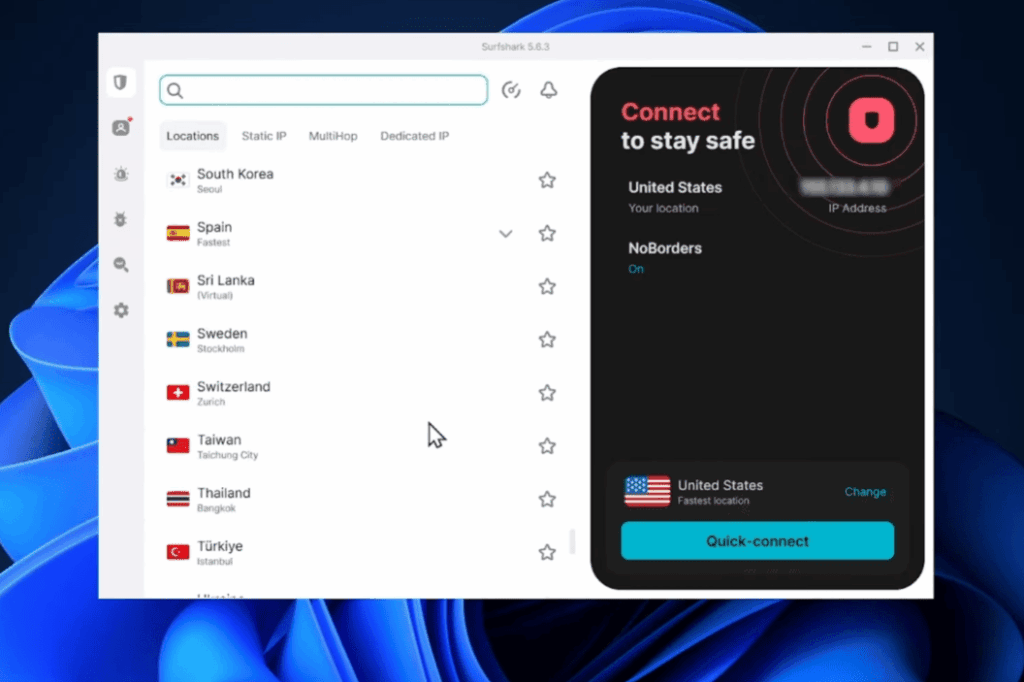
Remote desktop access allows users to remotely control a computer from another device such as a laptop, tablet, or smartphone. This means that you can access your work computer from home or vice versa. With remote desktop access, you are essentially using the remote computer as if you were physically sitting in front of it.
On the other hand, VPNs provide a secure connection between two networks over the internet. This allows users to securely access files and resources on a company’s network from a remote location. VPNs are commonly used by businesses to allow their employees to work remotely while still having access to important company resources.
Security
One of the biggest advantages of remote desktop access is the level of security it provides. With remote desktop access, only one user has control over the remote computer at a time. This means that there is less chance of confidential information being accessed by unauthorized users.
Additionally, many remote desktop access tools offer advanced encryption and authentication methods to further secure the connection between devices. This can be especially important for businesses that deal with sensitive information.
On the other hand, while VPNs also provide a level of security by encrypting data and securing connections, they are more vulnerable to cyber attacks. This is because once a user is connected to a VPN, they have full access to all resources on the network, making it easier for hackers to gain access to sensitive information.
Flexibility and Productivity
Remote desktop access offers a high level of flexibility for users. With this technology, you can access your computer or network from anywhere in the world, as long as you have an internet connection. This is especially useful for individuals who frequently travel or work remotely.
Additionally, remote desktop access allows for increased productivity. Instead of having to transfer files back and forth between devices, you can simply access them directly from the remote computer. This saves time and allows for a more seamless workflow.
Usability
Another advantage of remote desktop access is its ease of use. Many tools and software for remote desktop access have user-friendly interfaces, making it easy for even non-technical individuals to set up and use.
On the other hand, VPNs can be more complex to set up and require some level of technical knowledge. This could be a barrier for less tech-savvy users, causing frustration and hindering productivity.
Cost-Effectiveness
Remote desktop access is often more cost-effective than using a VPN. Many remote desktop access tools offer free or low-cost options for personal use, and even business plans are typically more affordable than setting up and maintaining a VPN.
Additionally, with remote desktop access, you don’t need to invest in expensive hardware or software. As long as you have a stable internet connection, you can use remote desktop access from any device.
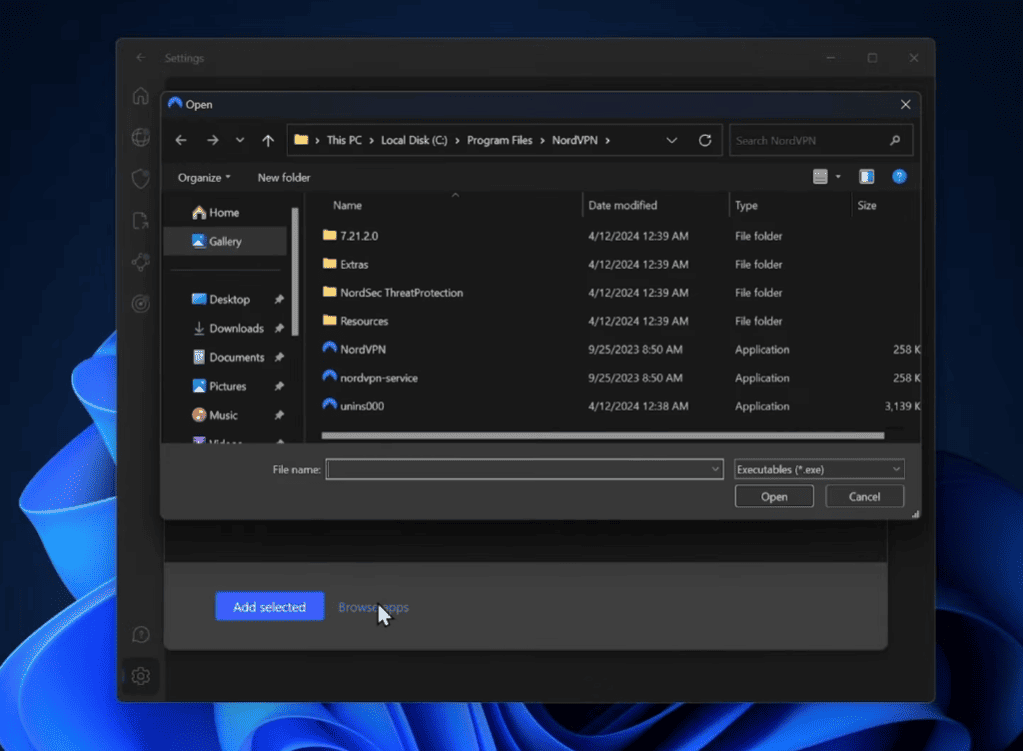
Overall, both remote desktop access and VPNs have their own unique advantages and uses. Depending on your specific needs and preferences, one may be more suitable for you than the other. However, if you are looking for a secure, flexible, and cost-effective way to access a remote computer or network, remote desktop access may be the ideal choice for you.
FAQ
What is the use of LogMeIn?
There are many different uses for LogMeIn, depending on the specific needs of each user. However, some common use cases include remote file access and sharing, computer and device management, remote desktop control, and collaboration with team members or clients.
How does LogMeIn work?
LogMeIn operates through a secure remote connection, enabling users to conveniently access files, devices, and desktops from any location. This process involves utilizing encryption and secure protocols to safeguard user data and maintain a safe and reliable connection. By ensuring these security measures, LogMeIn offers users peace of mind and seamless remote access capabilities.
Is LogMeIn free?
LogMeIn provides a range of options to suit your needs, with both free and paid plans available. The free plan allows for basic remote access to computers and devices, offering convenience and accessibility. On the other hand, the paid plans offer a plethora of advanced features including seamless file sharing, secure cloud storage, and convenient remote printing capabilities. Whether you’re looking for essential remote access or advanced functionality, LogMeIn has you covered.
What devices can I use LogMeIn on?
LogMeIn, a versatile tool, is designed to seamlessly work across various devices such as desktop computers, laptops, tablets, and smartphones. Compatible with Mac and Windows operating systems, as well as iOS and Android mobile devices, it offers users the flexibility to access their information and applications effortlessly on the go.
Can I collaborate with others using LogMeIn?
Yes, LogMeIn enables collaboration with others through its file sharing and remote control features. Whether you’re working on a project with team members or providing technical support to clients, LogMeIn makes it easy to collaborate and share files securely. With the added ability to grant temporary access, users can ensure maximum privacy and security while collaborating with others.
Are there any alternatives to LogMeIn?
While LogMeIn offers a robust set of features and capabilities, there are other remote access tools available in the market. Some popular alternatives include TeamViewer, AnyDesk, and Splashtop. It’s always recommended to research and compare different options before deciding on the best tool for your needs.
Is It safe to use LogMeIn?
Yes, LogMeIn takes security very seriously and implements various measures to ensure the safety of user data and connections. This includes using encryption, authentication protocols, and regular security updates. Additionally, users can also enable two-factor authentication for an extra layer of security. With these precautions in place, LogMeIn is a trusted and reliable tool for remote access.
How can I get started with LogMeIn?
To get started with LogMeIn, simply visit their website and sign up for an account. From there, you can choose the plan that best fits your needs and start utilizing its features to enhance your remote access capabilities. With user-friendly interfaces and comprehensive guides, LogMeIn makes it easy for users to set up and use their services quickly and efficiently.
Conclusion Paragraph
While the lines between LogMeIn and VPNs may blur at times, their core functionalities remain distinct. LogMeIn is the bridge to your work environment, bringing your office to you, while VPNs are the guardians of your digital fortress. This nuanced understanding will empower you to deploy the right tools for your unique digital landscape, ensuring your security, efficiency, and peace of mind. So, the next time you need secure remote access or online privacy, assess your needs and choose wisely. Whether it’s LogMeIn or a VPN, both are powerful tools in their respective domains.