
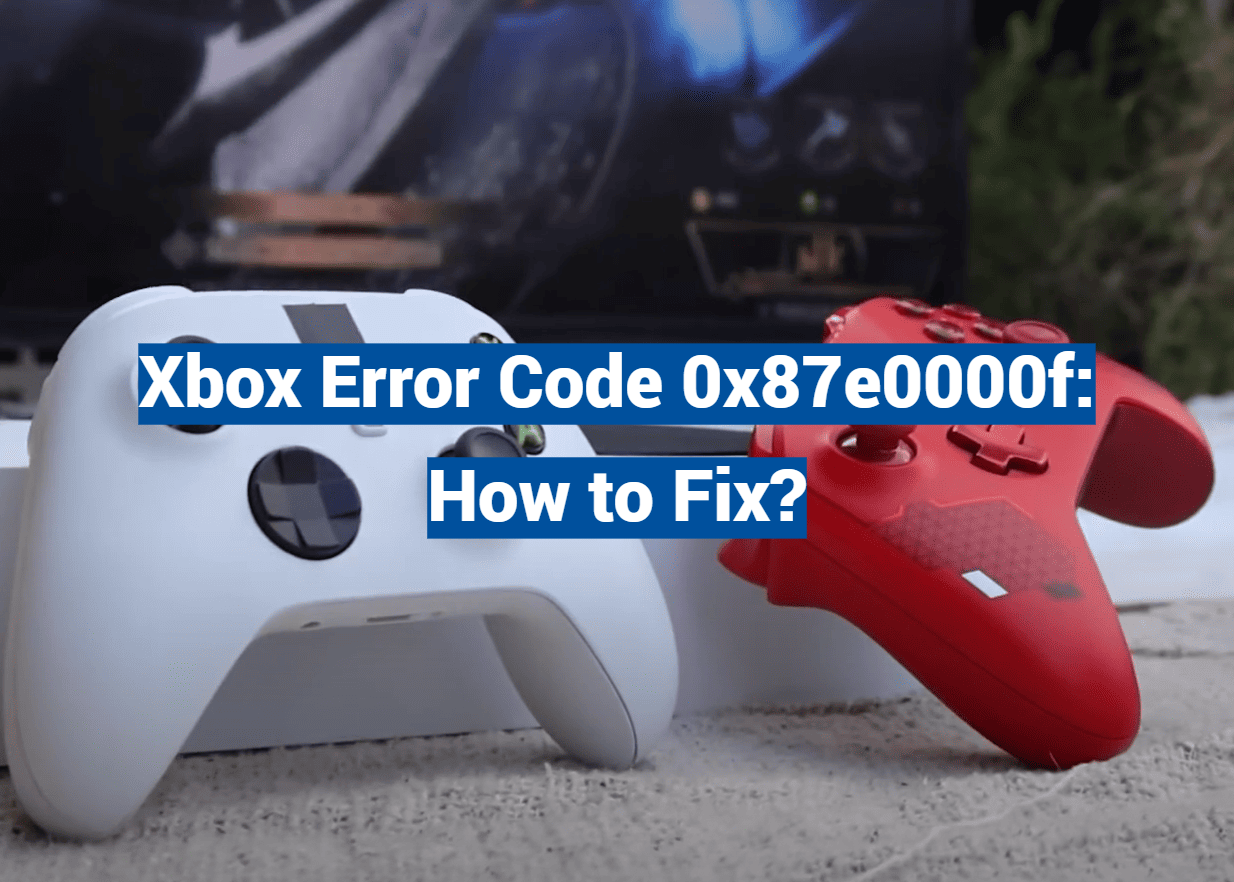
If you’re an Xbox gamer, encountering error codes can be frustrating — especially when you’re eager to jump into your favorite game or app. One common error users run into is Xbox Error Code 0x87e0000f. This error often appears when attempting to launch a game or application and can disrupt your gaming experience. Fortunately, with the right troubleshooting steps, you can resolve this error quickly and get back to playing without stress.
In this guide, we’ll explore what Xbox Error Code 0x87e0000f means, the typical causes, and provide detailed step-by-step solutions to fix it. Whether you’re a casual player or a hardcore gamer, understanding how to handle this error will save you time and headaches.
What is Xbox Error Code 0x87e0000f?
Xbox Error Code 0x87e0000f typically occurs when the Xbox system encounters issues verifying your game or app license, preventing the content from launching properly. It’s a license-related error that indicates the Xbox console is unable to confirm that you have the rights to use the game or app.

This error might manifest with messages such as:
-
“You can’t play this game or app because it might have been moved or deleted.”
-
“The game or app license could not be verified.”
-
“Error code 0x87e0000f.”
While the error can be perplexing, it usually stems from issues with your account, the Xbox Live service, or your console’s system settings.
Common Causes of Xbox Error Code 0x87e0000f
Before jumping into the fixes, it helps to understand the main reasons behind this error. Common causes include:
-
Account Sign-In Problems: If your Xbox profile isn’t signed in properly, or if there’s an account sync issue, the license won’t verify.
-
License Verification Failures: This can happen if your Xbox console can’t connect to Xbox Live servers to validate your game license.
-
Network Connectivity Issues: Poor or intermittent internet connections can prevent your console from communicating with Xbox Live.
-
Corrupted Cache or System Data: Corrupted temporary files or cached data on your Xbox can interfere with license verification.
-
Expired or Invalid Game Licenses: If the game or app was purchased under a different account or the license expired, you might face this error.
-
Xbox Live Service Outages: Sometimes the problem is on Microsoft’s end, with Xbox Live experiencing downtime or maintenance.
How to Fix Xbox Error Code 0x87e0000f
Here are several proven methods to resolve the Xbox error code 0x87e0000f. Try these solutions one by one until you find the one that works for you.
Check Xbox Live Service Status
Before troubleshooting your console, verify if Xbox Live services are up and running. Sometimes, errors arise due to server outages or maintenance.
-
Visit the official Xbox Live Status page: https://support.xbox.com/en-US/xbox-live-status
-
Check for any alerts or issues related to licenses, game launches, or profile sign-ins.
-
If there is an outage, wait until Xbox resolves the issue and try again later.
Restart Your Xbox Console
Often, a simple restart can clear temporary glitches causing the error.
-
Press and hold the Xbox button on the console for about 10 seconds until it turns off.
-
Unplug the power cable for at least 30 seconds.
-
Plug it back in and power on the console.
-
Try launching the game or app again.
This restart refreshes the system and network connections.
Sign Out and Sign Back Into Your Xbox Profile
License errors frequently relate to account sign-in problems. Signing out and back in can reestablish your account license verification.
-
Press the Xbox button to open the guide.
-
Navigate to Profile & system > Sign out.
-
After signing out, sign back in with your Microsoft account.
-
Relaunch the game or app.
Clear Xbox Cache
Clearing the cache removes corrupted temporary files that might cause license verification issues.
-
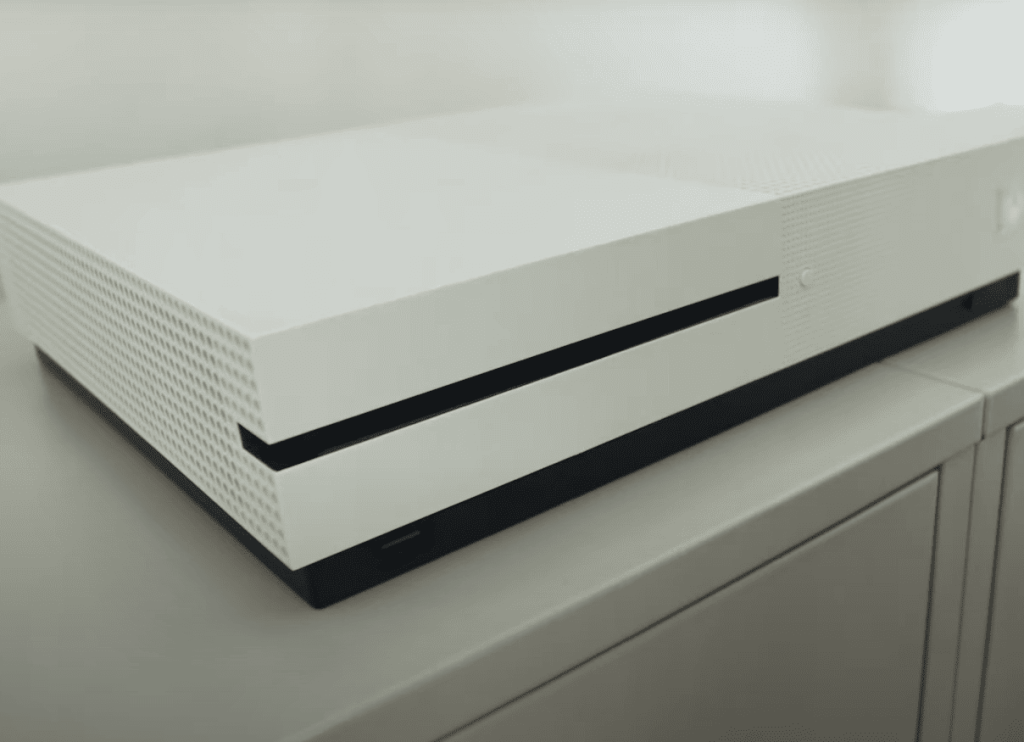
Power off your Xbox console completely.
-
Unplug the power cable from the back of the console.
-
Wait for at least 2 minutes.
-
Plug the power cable back in and power on the console.
-
Try launching the game again.
This simple step can fix many common Xbox errors.
Check Your Network Connection
A stable internet connection is vital for license verification with Xbox Live.
-
Go to Settings > General > Network settings.
-
Select Test network connection.
-
If your connection is unstable or not connected, troubleshoot your internet network.
-
Restart your router/modem if necessary.
-
For a more reliable connection, consider using a wired Ethernet connection instead of Wi-Fi.
Remove and Reinstall the Game or App
If the game’s installation is corrupted, reinstalling might fix the license problem.
-
Navigate to My games & apps.
-
Highlight the problematic game or app.
-
Press the Menu button and select Uninstall.
-
Once uninstalled, go to Ready to install or the Microsoft Store.
-
Re-download and install the game.
-
Launch the game to check if the error persists.
Set Your Xbox as Your Home Console
For digital games, setting your Xbox as your home console ensures that licenses for games and apps can be accessed offline and by other profiles on the console.
-
Press the Xbox button.
-
Go to Profile & system > Settings > General > Personalization.
-
Select My home Xbox.
-
Choose Make this my home Xbox.
-
Confirm the selection.
-
Restart the console and try launching the game again.
Remove and Re-add Your Xbox Profile
Sometimes the profile data itself might be corrupted. Removing and re-adding your profile can help.
-
Press the Xbox button and go to Profile & system > Settings.
-
Navigate to Account > Remove accounts.
-
Select your account and remove it.
-
Restart your console.
-
Go to Sign in and add your account again.
-
Attempt to launch the game.
Update Your Xbox System Software
Running outdated software can cause various errors including license issues.
-
Press the Xbox button to open the guide.
-
Go to Profile & system > Settings > System > Updates.
-
If an update is available, install it.
-
After updating, restart your console and try again.
Perform a Factory Reset (Keep Games and Apps)
If none of the above work, performing a factory reset may fix deeper system issues. Choose to keep your games and apps to avoid redownloading everything.
-
Press the Xbox button.
-
Go to Profile & system > Settings > System > Console info.
-
Select Reset console.
-
Choose Reset and keep my games & apps.
-
Follow the prompts to reset the console.
This step will reset system settings without deleting your installed games and apps, which is safer than a full reset.
Preventing Xbox Error Code 0x87e0000f in the Future
Once you’ve fixed the error, taking proactive measures can reduce the chance of it recurring:
-
Keep your Xbox software updated to avoid compatibility and security issues.
-
Maintain a stable internet connection, preferably wired when gaming.
-
Sign out of accounts properly before shutting down or restarting your console.
-
Regularly clear your cache if you notice sluggish performance or errors.
-
Avoid installing games or apps from untrusted sources to prevent license or corruption issues.
-
Set your primary console correctly especially if you use multiple devices.
FAQ
Why am I seeing Xbox Error Code 0x87e0000f when trying to launch a game?
This error usually means your Xbox can’t verify the license for the game or app. It often happens due to account sign-in issues, network connectivity problems, or Xbox Live service interruptions. Ensuring you’re signed in properly and your console is connected to a stable internet connection usually resolves this.
Can I play my digital games offline if I get this error?
You might not be able to if your Xbox isn’t set as your home console. Setting your console as your home Xbox allows you to play digital games offline and share licenses with other profiles on the same console. Without this setting, the system needs to verify your license online every time, which can trigger error 0x87e0000f if it can’t connect.
Does this error mean my game purchase is invalid or revoked?
Not necessarily. This error typically relates to license verification problems rather than purchase issues. However, if you bought the game under a different account or if the license has expired (for example, with some subscription-based games), you could see this error. Double-check your account and subscription status.
Will uninstalling and reinstalling the game delete my saved progress?
No. Saved game data is usually stored in the cloud or locally on your Xbox separately from the game files. Uninstalling a game removes only the installation files, so your progress remains safe. However, it’s always wise to make sure your Xbox is connected to Xbox Live so your saves sync properly before uninstalling.
Could this error be caused by Xbox Live service outages?
Yes. If Xbox Live services are down or experiencing issues, your console might fail to verify game licenses, leading to error 0x87e0000f. You can check Xbox Live service status on the official Xbox website before troubleshooting your console.
How do I know if my Xbox is set as my home console?
Go to Settings > General > Personalization > My home Xbox. If the option to “Make this my home Xbox” is available, your console isn’t currently set as your home Xbox. Selecting it will assign your console as the home one, enabling offline play for digital games and sharing licenses with other users on the same console.
Is a factory reset the only way to fix persistent error 0x87e0000f?
Not necessarily. A factory reset is a last resort and should be used only if other troubleshooting steps fail. Many times, signing out and back in, clearing cache, reinstalling games, or updating your console software will resolve the issue without needing a reset.
Can Xbox Game Pass subscription issues cause this error?
Yes. If your Xbox Game Pass subscription has expired, or if there are issues verifying your subscription status, you might encounter license verification errors like 0x87e0000f when trying to play games from the Game Pass library.
What should I do if none of the fixes work?
If you’ve tried all the common solutions and still get the error, consider contacting Xbox Support directly. They can check your account and provide advanced troubleshooting. Sometimes, account-specific or backend issues require assistance from Microsoft.