
Seventeen years ago, a partnership between Netflix and a then-unknown company revolutionized home entertainment. This collaboration birthed the first Roku streaming players, forever changing how we watch television.
Today, Roku offers numerous generations of streaming devices and smart TVs. Like computers and smartphones, these gadgets store temporary data to help applications load faster. Over time, this accumulated information can become cluttered or corrupted.
If you own one of these popular streaming devices, you’ve found the perfect resource. This comprehensive guide will walk you through proven methods to address performance concerns. While Roku operates differently from other smart TVs, effective solutions exist that work just as well.
Clearing accumulated data is essential maintenance that can resolve common problems. You might experience app freezing, buffering, error messages, or sluggish responsiveness. These techniques are safe and won’t delete your installed applications or login details.
The methods covered can significantly extend your device’s lifespan. We’ll also explore preventive maintenance tips and when to consider advanced solutions. Your viewing experience should remain optimal for years to come.
Key Takeaways
- Roku devices accumulate temporary data that can impact performance over time
- Proper maintenance can resolve common streaming problems like buffering and freezing
- Multiple safe methods exist to refresh your device without losing personal data
- Regular maintenance extends the lifespan of your streaming equipment
- This guide covers both basic techniques and advanced troubleshooting options
- Preventive tips help maintain optimal device functionality
- No technical expertise required for most maintenance procedures
Understanding the Importance of Clearing Your Roku Cache
Every time you stream content, your device creates digital shortcuts to make future sessions faster and smoother. This temporary storage system works quietly in the background to enhance your viewing experience.
What is a Cache and How It Works
A cache acts like your device’s short-term memory. It stores frequently accessed information from your streaming applications. This includes thumbnails, watch history, and login details.
The system automatically retrieves this stored data when you open apps. This reduces loading times and improves buffering performance. Your device uses bandwidth more efficiently as a result.
Common Issues Caused by a Full Cache
When temporary storage becomes overloaded, problems begin to appear. You might notice sluggish menu navigation or apps freezing unexpectedly. Audio-video synchronization issues can also occur during playback.
Outdated files in the storage can cause glitches and error messages. These conflicts may prevent certain services from working correctly. Regular maintenance helps avoid these frustrating situations.
| Cache Function | Normal Benefits | Problems When Full |
|---|---|---|
| Stores app thumbnails | Faster channel loading | Sluggish menu navigation |
| Remembers watch history | Quick content access | Apps freezing or crashing |
| Saves login information | Convenient access | Error messages appearing |
| Stores temporary files | Efficient bandwidth use | Audio-video sync issues |
How to Clear Roku Cache: Step-by-Step Guide
Ready to give your streaming experience a quick performance boost with these easy methods? This section provides two proven techniques that anyone can follow.
Secret Remote Code Sequence
Think of this method as a hidden combination for your device. It works like a classic video game cheat code.
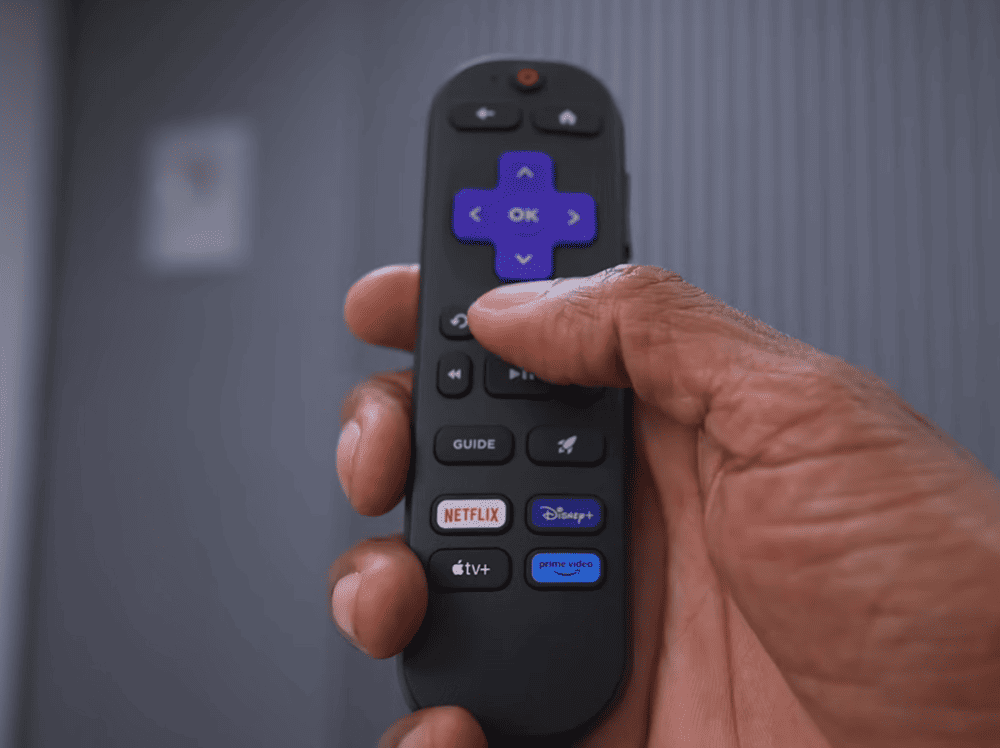
Grab your remote and follow these steps carefully. Press the Home button five times to begin. Then press the Up arrow once. Next, press the Rewind button twice. Finally, press the Fast Forward button twice.
Your screen will freeze momentarily before restarting automatically. This entire process takes about two minutes. Your apps and login information remain completely safe.
Menu Navigation Approach
Some users prefer navigating through the system menu. This alternative method achieves the same refreshing result.
Start by pressing the Home button on your remote. Navigate to Settings, then select System. Look for Power or go directly to System Restart. Choose Restart and wait for the process to complete.
The crucial final step involves unplugging your device from power. Wait sixty seconds before plugging it back in. This ensures all temporary files are completely cleared.
| Method | Steps Required | Time Needed | Best For |
|---|---|---|---|
| Remote Code | Button sequence | 1-2 minutes | Quick refresh |
| Menu Restart | Navigation + unplug | 3-4 minutes | Thorough cleaning |
Both approaches are completely safe and preserve your personal information. Test your previously problematic app afterward. You should notice immediate improvement in performance.
Additional Tips for Maintaining Your Roku System
Streaming excellence doesn’t end with cache management; regular upkeep of your entertainment system prevents future performance issues. Implementing a few simple habits ensures consistently smooth viewing experiences.
These maintenance practices work alongside the refresh techniques you’ve learned. They help maintain optimal device functionality over time.
Managing App and Channel Updates
Periodically review your installed applications. Remove channels you no longer watch to free up valuable system resources.
Consider deleting pre-installed manufacturer apps if you focus primarily on entertainment. Lifestyle and fitness applications consume memory unnecessarily.
Keep all software current for peak performance. While updates typically occur automatically, manually check by navigating to Settings > System > Software update > Check Now.
Routine Device Reboots for Optimal Streaming
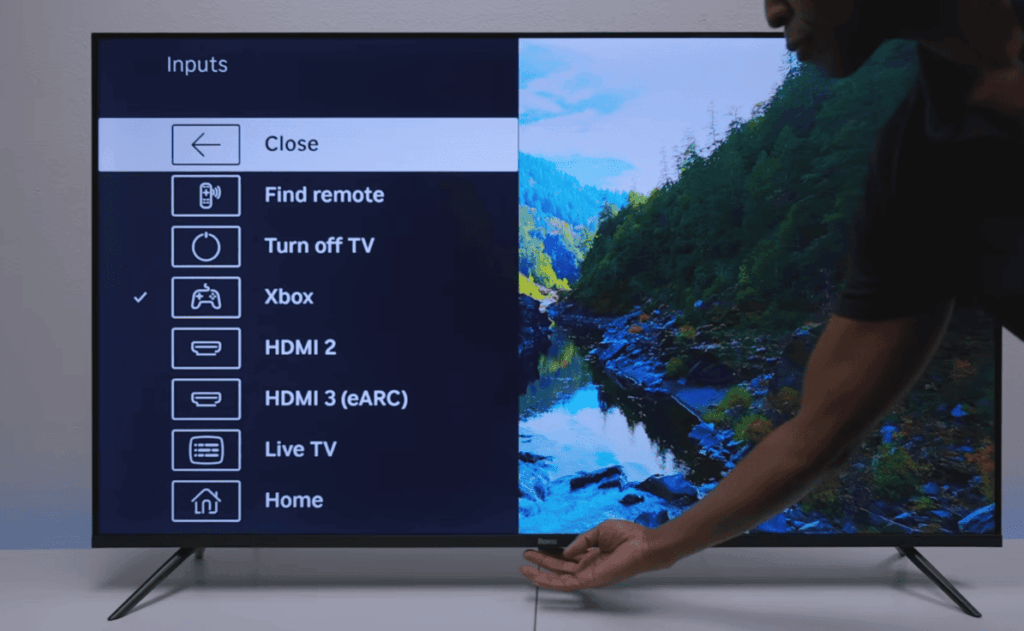
Regular restarts refresh your system effectively. Simply turning off your device usually puts it in sleep mode rather than fully shutting down.
For a complete refresh, unplug your device from power periodically. This closes background applications and clears accumulated data.
Establish a monthly maintenance schedule if you stream heavily. These quick routines significantly extend your device’s lifespan.
Consistent maintenance takes just minutes but guarantees frustration-free viewing. Your streaming performance remains sharp through regular attention.
Advanced Methods for Resolving Streaming Issues
For stubborn streaming difficulties that resist standard fixes, advanced troubleshooting methods offer hope. These powerful approaches tackle deeper system problems when basic maintenance falls short.
Factory Reset: When to Use It
Consider this option your final solution before replacing equipment. A factory reset returns your device to its original state, wiping all accumulated data.
Navigate through Settings to System, then select Advanced System Settings. Choose the Factory Reset option to begin the process. Many Roku TVs also feature a physical reset button requiring a paperclip.
This nuclear approach eliminates all performance problems but requires reinstalling apps and re-entering account details. Your device will function like new after completion.
Optimizing Network and Router Settings
Many streaming issues originate from network connections rather than the device itself. Error messages about internet connectivity signal network-related problems.
Unplug your streaming device, router, and modem simultaneously. Wait one minute before reconnecting the modem and router. Allow five minutes for internet restoration before plugging your device back in.
You can also reset network settings through Advanced System Settings. Select Network Connection Reset to establish a fresh connection. This fix often resolves persistent streaming performance issues.
Conclusion
With the knowledge you’ve gained from this comprehensive resource, keeping your entertainment system running smoothly becomes second nature. Regular maintenance prevents most common streaming frustrations before they disrupt your viewing experience.
Temporary data accumulation is completely normal for streaming devices. The techniques in this guide offer safe, quick solutions that preserve your apps and login information. Both primary methods take just minutes to complete.
Establishing a simple monthly routine ensures optimal device functionality, especially for daily users. When standard approaches don’t fully resolve issues, advanced options provide complete troubleshooting capabilities.
These maintenance practices significantly extend your equipment’s useful life. You now have everything needed to maintain excellent streaming performance independently. Your entertainment investment will continue delivering quality experiences for years to come.