
Did you know that nearly half of all smartphone users in the United States own an Android device, while the other half predominantly use iPhones? This creates a massive communication divide where friends and family often struggle to connect through video calls.
Welcome to our comprehensive guide that tackles one of the most common cross-platform challenges. For years, Apple’s exclusive FaceTime feature left Android users out of important video conversations. The good news is that recent updates have changed this landscape completely.
While Android owners still cannot download the FaceTime app or initiate calls themselves, they can now join conversations when invited by iPhone users. This breakthrough makes cross-platform communication more accessible than ever before.
This friendly guide will walk you through the entire process step by step. You’ll learn exactly what’s possible and how to execute successful video calls between different devices. The method is straightforward and achievable with the right information.
Key Takeaways
- Recent Apple updates now allow Android participation in FaceTime calls
- Android users can join calls but cannot initiate them independently
- The process requires an invitation from an iPhone user to work
- Cross-platform video calling is simpler than many people realize
- Proper setup ensures smooth communication between different devices
- This method works with current smartphone models and operating systems
Introduction to Cross-Platform Video Calling
Operating system differences have long stood as invisible walls separating people who simply want to connect visually. These technical barriers create frustrating situations where friends and family struggle to share moments through video calls.
The digital communication world has evolved dramatically. People now use various devices and platforms in their daily lives. This diversity makes cross-platform compatibility essential for maintaining relationships.

Android smartphones run on a completely different operating system than Apple products. Apple uses iOS, macOS, and iPadOS for its ecosystem. This fundamental difference created traditional limitations for communication between these platforms.
While FaceTime calls have been popular among Apple users, Android users were historically excluded. This exclusion led people to seek alternative solutions for their communication needs.
Understanding these platform differences is the first step toward finding effective ways to bridge the gap. Recent technological advances have opened exciting new possibilities. People can now connect more easily regardless of their device choice.
The ability to join a call from different platforms represents significant progress. This development makes visual communication more inclusive than ever before. The right approach can overcome previous technical limitations.
Understanding FaceTime: Features and Limitations
The evolution of video calling technology has brought FaceTime to web browsers, yet significant differences remain between native app and browser access. This proprietary service comes pre-installed on Apple devices, offering seamless integration within their ecosystem.
Users enjoy a consistent experience across different Apple products. The interface maintains familiar controls regardless of the device used.
Exclusive Features on Apple Devices
Apple users benefit from advanced capabilities unavailable to browser participants. Screen sharing stands out as a particularly useful feature for collaborative sessions.
SharePlay enables synchronized media consumption during calls. Voice Isolation and Portrait mode enhance call quality by managing audio and visual backgrounds.
Live Captions provide real-time subtitles for improved accessibility. These tools create a richer communication experience.
Limitations for Android and Windows Users
Browser-based access provides basic functionality but lacks premium features. Participants can control their camera and microphone settings effectively.
The interface mirrors the Apple facetime app visually but operates with reduced capabilities. Understanding these restrictions helps manage expectations.
| Feature | Apple Devices | Web Browser |
|---|---|---|
| Screen Sharing | Available | Not Available |
| SharePlay | Supported | Unsupported |
| Voice Isolation | Enabled | Disabled |
| Portrait Mode | Functional | Non-functional |
| Live Captions | Active | Inactive |
Basic controls remain accessible across all platforms. Users can toggle their camera, adjust microphone settings, and switch views comfortably.
The screen interface maintains consistency despite functional variations. This balance between accessibility and feature richness defines the current facetime experience.
how to facetime android to iphone
The once-impenetrable barrier between Apple and Android video calling has been successfully dismantled through innovative web-based solutions. This breakthrough allows seamless connection between previously incompatible platforms.
Overview of the Process
While Android devices lack pre-installed FaceTime capabilities, participation is possible through browser access. The fundamental requirement involves an iPhone user initiating the video session.
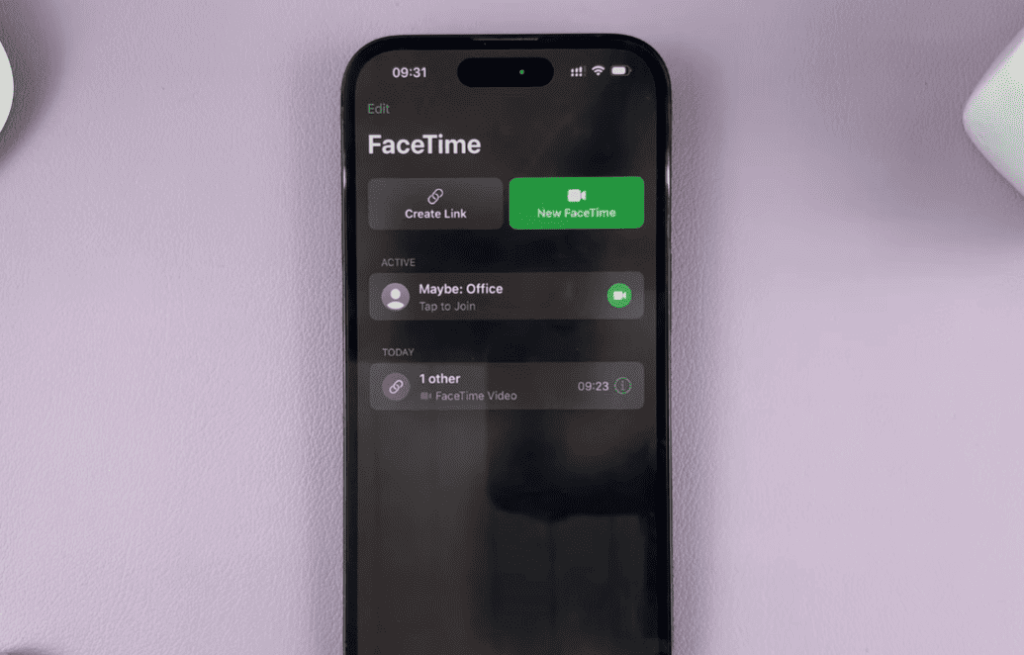
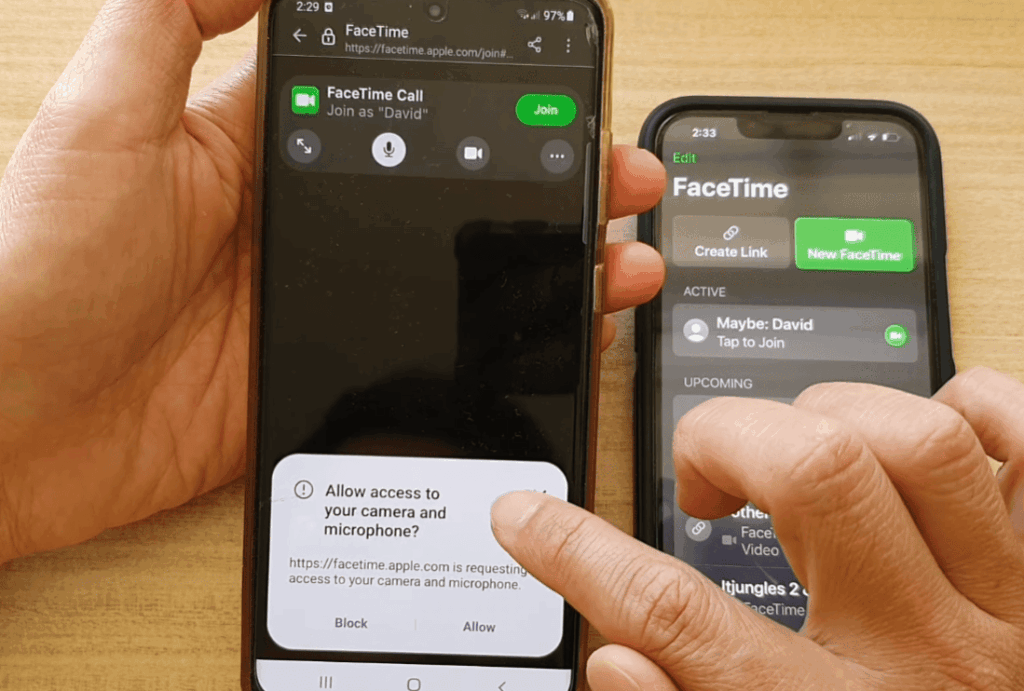
An Apple device owner creates a special invitation link within their FaceTime application. They share this digital invitation with their Android-contact. The recipient simply opens the link in their mobile browser to join the conversation.
This system establishes Android participants as guests rather than hosts. Coordination with an iPhone user remains essential for every session.
Key Considerations for Both Platforms
Several important factors ensure successful cross-platform video calls. Android users must utilize compatible browsers like Google Chrome or Microsoft Edge.
A stable internet connection is crucial for clear audio and video quality. Both parties should verify camera and microphone permissions before starting the call.
While this method requires extra steps compared to Apple-to-Apple communication, it effectively bridges the technological divide. The process successfully connects users across different ecosystems.
“The web-based approach makes cross-platform video calling accessible to everyone, regardless of their device choice.”
This invitation-based system represents significant progress in digital communication. It enables meaningful connections between Android and iPhone users through a straightforward process.
Setting Up Your iOS Device for FaceTime Calls
Getting your Apple device ready for shared video conversations takes less than a minute. The process begins with your iPhone’s native FaceTime application.
Launching the FaceTime App
Locate the FaceTime icon on your home screen or in your app library. Tap to open the application and access its main interface.
Look toward the top of your screen for the “Create Link” button. This option features a distinctive link emoji symbol for easy identification.
Creating and Customizing a Call Link
Tap the “Create Link” button to generate your invitation. A menu will appear from the bottom of your display with various options.
Consider personalizing your video session by adding a unique title. Tap “Add Name” under the FaceTime Link section to create a descriptive name for your gathering.
This customization helps participants identify the correct session. It also adds a layer of security when managing multiple invitations.
Ensure your device runs iOS 15 or later to access this feature. The entire setup process is designed for quick completion before sharing.
Inviting Android Users to a FaceTime Call
Sharing your video call invitation is the final step before connecting with friends on different devices. After creating and naming your session, the iPhone presents a menu with several sharing options. This flexibility lets you pick the most natural way to communicate with your contact.
Methods for Sharing Your FaceTime Link
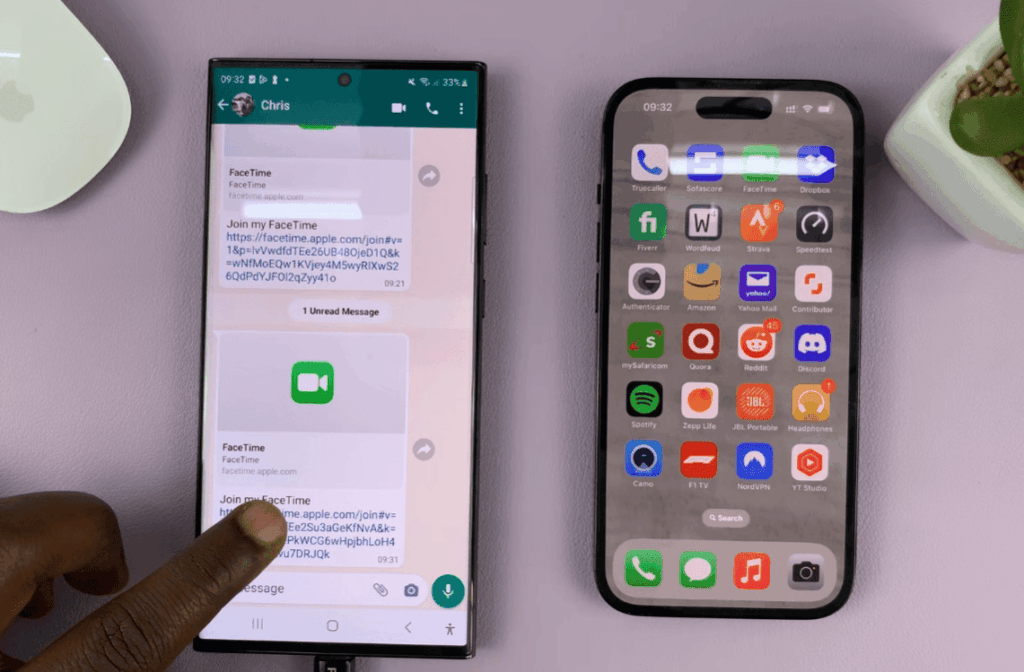
You can send the invitation directly through your device’s default apps. Choices include Messages, Email, Calendar, and various social media platforms.
The “Copy Link” option provides the greatest versatility. It allows you to paste the facetime link into any app, like WhatsApp or a collaboration tool.
“Choosing the right sharing method ensures your guest receives the invitation smoothly and knows what to expect.”
It’s helpful to add a brief note with the link. Explain that the recipient should open it in a compatible browser like Chrome. Mention that camera and microphone permissions will be requested.
| Sharing Method | Best For | Key Advantage |
|---|---|---|
| Messages / Text | Quick, informal invites | Immediate delivery |
| Formal or scheduled calls | Includes details and attachments | |
| Copy Link | Any messaging platform | Total flexibility |
Consider the android user‘s preferred app when deciding. Sending the invitation ahead of time gives them a chance to test their settings. The link looks like a standard web address, starting with https://facetime.apple.com/join/….
These ways to share make the process simple for everyone involved. The goal is a seamless experience for the android user joining the conversation.
Joining a FaceTime Call on an Android Device Via Browser
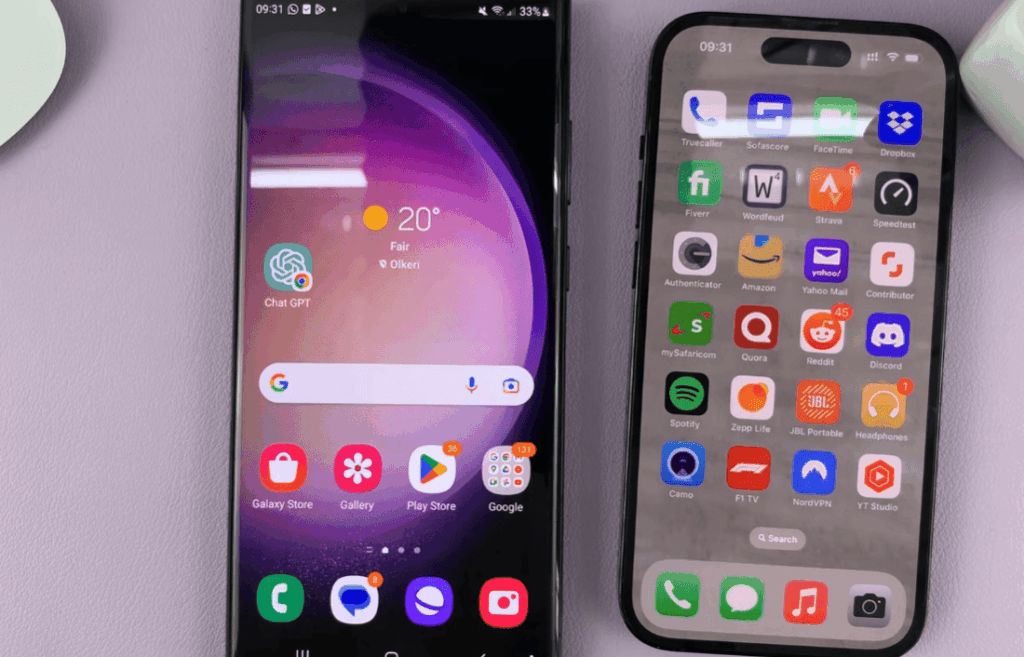
The moment an Android user receives a FaceTime invitation marks the beginning of a seamless connection process. This method allows participation in video conversations through web browser access rather than a dedicated application.
Participants simply need to tap the received invitation link. The system automatically opens in their default web browser, ready for the video session.
Using Google Chrome or Microsoft Edge
Compatibility is crucial for successful connections. Android users must have either Google Chrome or Microsoft Edge installed on their devices.
These are the only browsers that support the web-based FaceTime functionality. Using outdated versions may cause technical issues during the call.
| Browser Type | Compatibility Status | Recommendation |
|---|---|---|
| Google Chrome | Fully Supported | Update to latest version |
| Microsoft Edge | Fully Supported | Update to latest version |
| Safari | Not Supported | Avoid using |
| Firefox | Not Supported | Avoid using |
The process to join a FaceTime call is remarkably straightforward. After clicking the invitation link, the browser handles most technical requirements automatically.
Users should test their setup before important scheduled conversations. A practice session ensures everything works smoothly when it matters most.
This browser-based approach makes cross-platform video communication accessible to everyone. The technology bridges previous compatibility gaps effectively.
Essential Browser Requirements for Android Users
The success of any video conversation depends heavily on proper browser setup and permission management. Android participants must ensure their device meets specific criteria before joining the session.
Enabling Camera and Microphone Access
When you tap the invitation link, your device prompts for a recognizable name. Use your real name so others know who’s joining the conversation.
After entering your name, tap Continue to reach the permission screen. The browser will request access to your camera and microphone. Always tap Allow when prompted.
Denying these permissions makes meaningful participation impossible. People won’t see or hear you during the video call.
If you accidentally deny permissions, manually grant access through your browser’s settings. Look for Site Settings or Permissions in the menu.
You maintain control over your camera and microphone settings. Turn either off before joining if you prefer audio-only mode.
| Permission Setting | Video Experience | Audio Experience |
|---|---|---|
| Allow Both | Full participation | Clear communication |
| Allow Microphone Only | Audio-only mode | Voice participation |
| Allow Camera Only | Video visible | No audio output |
| Deny Both | No video | Silent participation |
These security features protect your privacy during each session. Granting access applies only to that specific video call.
The process to join facetime sessions is straightforward with proper preparation. Your device and browser work together seamlessly when permissions are correctly set.
Step-by-Step Guide to Accepting Android Participants
Bringing everyone together for a video chat is a simple, two-part process. The person who started the call must enter first to welcome guests.
On your iPhone, open the FaceTime app. Look for the “Upcoming” section to find your active call link. Select it to see a preview of your camera.
Check your camera and microphone settings. When ready, tap the green Join button to enter the conversation as the host.
Meanwhile, when other users try to join, they enter a virtual waiting room. This feature gives the host control over who enters the call.
Android users join by tapping the link and granting permissions. They then see a “Waiting to be let in” message. The system immediately notifies the host.
A notification appears on the host’s screen showing who is waiting. To grant access, simply tap the checkmark next to the person’s name. They will instantly enter the facetime call with full audio and video.
This approval step is quick, usually taking just a few seconds. It ensures your video chat remains secure and private.
| Participant Status | Host Action Required | User Experience |
|---|---|---|
| Waiting to Join | Receive Notification | Sees “Waiting” message |
| Approval Pending | Tap Checkmark | Brief hold |
| Admitted to Call | None | Full participation active |
Once approved, users join facetime conversations seamlessly. Everyone can start talking and seeing each other right away. This process makes cross-platform video chats smooth and secure for all involved.
Tips for a Smooth Cross-Platform Experience
Optimizing your setup ensures everyone enjoys clear communication regardless of their chosen platform. Simple preparations make a significant difference in call quality and reliability.
A stable connection forms the foundation of any successful video session. The platform prioritizes Wi-Fi networks for superior audio and visual performance.
Ensuring a Stable Wi-Fi or Cellular Connection
Connect to reliable Wi-Fi whenever possible. This provides consistent bandwidth and reduces interruptions during your conversation.
Cellular data works when Wi-Fi isn’t available. However, data rates may apply and video calls consume significant amounts of mobile data.
Test your connection before important scheduled calls. A brief practice session helps identify and resolve potential issues in advance.
Managing Device Battery Life During Calls
Video calls drain battery power quickly due to intensive processing requirements. Keep a charger nearby for longer conversations.
Charge your device before joining extended sessions. This prevents unexpected disconnections mid-conversation.
Close unnecessary background applications before starting. This optimizes performance and conserves battery life for your video call.

Understanding the Limitations for Non-Apple Users
Browser-based access provides essential video calling functions but comes with notable feature limitations for non-Apple users. While you can participate in conversations with clear audio and video, several premium features remain exclusive to the native iOS experience.
Feature Restrictions in Browser-Based FaceTime
Android participants miss out on several advanced capabilities that iPhone users enjoy. The web version focuses on core communication rather than full feature parity.
Key restrictions include:
- Screen sharing unavailable for browser participants
- SharePlay functionality disabled for synchronized media
- Voice Isolation and Portrait mode not accessible
- Live Captions exclusive to Apple devices
Unavailable Functions such as Screen Sharing
The inability to share your screen represents a significant limitation for collaborative sessions. iPhone users can display content to everyone, but Android participants cannot reciprocate.
There’s no official FaceTime app for Android devices, and Apple hasn’t indicated plans to create one. This means browser access remains the only option.
Android users cannot initiate new calls, add people to conversations, or schedule their own links. They join as participants rather than hosts.
Despite these restrictions, the core video call functionality works perfectly for most social and casual conversations. The experience remains valuable for connecting across platforms.
Comparing FaceTime with Alternative Video Call Apps
While FaceTime offers a bridge between platforms, it’s far from the only option for connecting different devices through video calls. Many popular apps provide full functionality for all users, regardless of their phone’s operating system.
These alternatives often give everyone equal control. You can initiate conversations and access advanced features without limitations.
Leading Cross-Platform Options
WhatsApp stands out as a messaging giant that supports seamless video calls. Its strong privacy features and free access make it a top choice.
Google Meet integrates smoothly with other Google services. This app works wonderfully for both casual chats and professional meetings.
Zoom remains a household name for reliable group call sessions. Skype continues to offer robust free video calling across all devices.
Facebook Messenger provides instant access for existing users. Snapchat adds fun filters to conversations with friends.

Pros and Cons of Each Alternative
Third-party apps typically offer more balanced features than browser-based FaceTime. Android users gain full initiation rights and equal standing in call sessions.
Services like Google Meet often include screen sharing for everyone. Many alternatives support larger groups without time restrictions.
The main trade-off involves creating new accounts. You might need to download additional apps instead of using built-in services.
These ways to connect ensure nobody feels like a second-class participant. Exploring google meet and similar platforms opens up better collaboration ways.
Securing Your FaceTime Calls: Best Practices
Protecting your privacy during video conversations requires thoughtful security measures that everyone should implement. Video sessions can accidentally reveal personal spaces and private discussions without proper precautions.
Always verify who will participate before sharing any invitation. This basic step ensures you only connect with trusted individuals.
Verifying Participants
The waiting room feature provides an important security checkpoint. Hosts must approve each person before they can join the conversation.
Use specific, recognizable names when creating your session links. This helps identify legitimate scheduled calls quickly.
Avoid posting invitation links publicly on social media or forums. Unknown individuals could attempt to access private discussions.
Maintaining Privacy and Data Security
Be mindful of your background during video sessions. Other participants can see your environment and personal belongings.
Always end calls properly and deactivate links after one-time conversations. This prevents unauthorized access to old invitations.
While Apple devices use end-to-end encryption, browser connections may have different security characteristics. Participant verification becomes even more critical.
| Security Practice | Implementation | Benefit |
|---|---|---|
| Participant Verification | Use waiting room feature | Controls who joins the call |
| Link Management | Create specific call names | Easy identification of legitimate sessions |
| Background Awareness | Check visible environment | Protects personal space privacy |
| Post-Call Security | Deactivate used links | Prevents future unauthorized access |
Troubleshooting Common Issues on iOS and Android
Even the smoothest video calls can sometimes hit technical snags that require quick troubleshooting. Both iPhone hosts and Android guests might encounter occasional challenges when connecting across platforms.
Most problems have straightforward solutions that get you back to your conversation quickly. Understanding these fixes ensures your cross-platform experience remains positive.
Resolving Connection Problems
Unstable internet remains the most frequent culprit behind poor call quality. Choppy audio, frozen video, or dropped connections often signal network issues.
Start by checking your Wi-Fi signal strength or cellular data connection. Move closer to your router or ask household members to pause bandwidth-heavy activities.
Restarting your browser or the FaceTime app resolves many temporary glitches. This simple step clears cached data that might interfere with performance.
Keep your charger handy since video calls drain battery quickly. Closing background apps frees up device resources for better call quality.
Addressing Compatibility Challenges
Android users must verify they’re using supported browsers like Chrome or Edge. Outdated versions may not support the web-based call functionality properly.
If you accidentally denied camera or microphone permissions, manually grant access through browser settings. Navigate to site permissions and enable access for the FaceTime domain.
iPhone hosts should confirm their device runs iOS 15 or later. Check that FaceTime remains enabled in your Settings app before creating links.
When Android participants get stuck in the waiting room, the host must actively approve their entry. Look for pending join requests and tap the checkmark to admit them.
| Common Issue | iPhone Solution | Android Solution |
|---|---|---|
| Poor Connection | Check Wi-Fi, restart app | Move closer to router, clear cache |
| Permission Denied | Enable FaceTime in Settings | Grant access in browser settings |
| Browser Compatibility | Update iOS | Use Chrome/Edge, update browser |
| Waiting Room Stuck | Approve pending participants | Wait for host approval |
When technical issues prove insurmountable, consider alternative video calling apps as backup options. These provide reliable cross-platform communication when needed.
Maintaining Compatibility with Software Updates
Software compatibility forms the foundation that enables seamless communication between different operating systems. Regular updates ensure your video calling capabilities remain current and fully functional.
iPhone users must meet specific requirements to initiate cross-platform facetime calls. Your Apple device needs iOS 15 or later for iPhones, macOS 12 Monterey or later for Macs, and iPadOS 15 or later for iPads.
Older iPhones running iOS 14 or earlier cannot create links for Android participants. This feature arrived specifically with iOS 15, making updates essential.
Check for updates regularly through Settings > General > Software Update. This maintains access to the latest features and compatibility improvements.
Android participants should enable automatic updates for Chrome or Edge browsers. Current versions support the web-based calling technology properly.
Updates bring more than just compatibility. They include security patches, performance improvements, and bug fixes that enhance all calls.
Coordinate with frequent calling partners to verify everyone’s devices meet requirements. This prevents last-minute technical disappointments during important video calls.
As Apple continues developing FaceTime, staying current ensures you can use new capabilities. Regular updates keep your communication options open and reliable.
User Experience: Pros and Cons for Android Participants
Real-world experiences from Android device owners highlight what works well and what needs improvement in browser-based FaceTime. People appreciate the ability to connect with Apple contacts without requiring additional app downloads.
Feedback from Android Users
The free international calling feature receives strong praise. Travelers can stay connected with loved ones without worrying about roaming charges.
However, the inability to initiate sessions remains a significant frustration. Users must always wait for invitations rather than starting spontaneous conversations.
The browser experience functions smoothly for basic video calls but lacks the polish of Apple’s native app. Most participants report satisfactory audio and video quality with stable connections.
Reactions to the waiting room feature are mixed. Some appreciate the security, while others find it awkward during casual family chats.
| Aspect | Positive Feedback | Negative Feedback |
|---|---|---|
| Cost | Completely free, even internationally | N/A |
| Convenience | No additional apps needed for iPhone users | Cannot initiate calls independently |
| Call Quality | Generally smooth with good connections | Limited features compared to native app |
| User Control | Basic camera/microphone controls work well | Must wait for host approval to join |
While Android users value the access to FaceTime calls, many prefer fully cross-platform alternatives that offer equal functionality to all participants.
Conclusion
Modern technology has finally bridged what was once an insurmountable gap between competing mobile operating systems. The ability to connect through video calls regardless of device choice represents significant progress in digital communication.
iPhone users can easily create and share invitation links through messages, email, or text. Android participants simply open these links in compatible browsers to join call sessions. While this solution works well for basic calls, it comes with limitations like unavailable screen sharing and others advanced features.
Maintaining updated software ensures smooth cross-platform calls. Consider whether alternative app options might better serve your needs. Always prioritize security by sharing links only with trusted contacts.
As technology evolves, communication barriers will continue to diminish. Thank you for exploring this comprehensive guide—share these insights with others seeking to connect across different platforms.