
Discovering how to install Kodi on Nvidia Shield is the key to unlocking a world of entertainment possibilities. Kodi, an open-source media player, when seamlessly integrated with Nvidia Shield’s powerful hardware, offers an unparalleled streaming and customization experience.
Whether you prefer the convenience of the Google Play Store or the flexibility of sideloading, this guide provides step-by-step instructions to cater to your installation preferences. Get ready to elevate your home entertainment with Kodi on the versatile Nvidia Shield platform.
What Is Kodi?
Kodi, formerly known as XBMC (Xbox Media Center), is a free and open-source media player software application. Developed by the XBMC Foundation, Kodi is designed to be a versatile and customizable platform for streaming and managing multimedia content. It has gained popularity for its ability to turn various devices into powerful media centers, providing a unified interface for accessing and organizing a wide range of digital media.
Key Features of Kodi:
- Multi-platform Support
Kodi is compatible with multiple operating systems, including Windows, macOS, Linux, Android, and iOS. This cross-platform support enables users to transform a variety of devices, such as computers, smartphones, and even Raspberry Pi, into feature-rich media centers.
- Media Playback
One of Kodi’s primary functions is media playback. It supports an extensive list of audio and video file formats, making it a versatile solution for users with diverse multimedia collections. Additionally, Kodi can handle streaming content from online sources, providing access to a wide range of media without the need for additional plugins or apps.
- Add-ons and Extensions
Kodi’s functionality can be expanded through a vast library of add-ons and extensions. These can be easily installed to enhance features like streaming services, information displays, weather updates, and more. Add-ons contribute to Kodi’s adaptability, allowing users to tailor their media center experience to their preferences.
- User-friendly Interface
Kodi features an intuitive and user-friendly interface, making it accessible to both tech-savvy users and those who may be less experienced with media center software. The interface is designed to be visually appealing and customizable, allowing users to personalize their Kodi experience.
- Skin Support
Kodi’s appearance can be customized using different skins. Users can choose from a variety of themes to change the overall look and feel of the interface, ensuring a personalized and visually pleasing experience.
- Remote Control and Smartphone Apps
Kodi can be controlled using remote controls, and there are dedicated smartphone apps available for remote navigation. This makes it convenient for users to manage their media center from a distance, turning their devices into remote controls.
- Community Support
The Kodi community plays a crucial role in the platform’s development and improvement. Users can seek help, share tips, and contribute to the ongoing evolution of Kodi through forums, social media groups, and other online platforms.
How Kodi Works?
Kodi operates as a media center by organizing and displaying multimedia content in a user-friendly manner. Users can add their media libraries, including movies, TV shows, music, and photos, to the software. Kodi then catalogs and organizes this content based on metadata, including title, genre, release year, and more.
The platform utilizes a modular structure, allowing users to install add-ons and extensions to enhance functionality. These add-ons can be official or third-party, providing users with a wide range of options for streaming content, accessing information, and expanding the capabilities of their media center.
Kodi’s ability to handle various media formats and sources, coupled with its customizable interface, makes it a versatile solution for users seeking a unified platform for their entertainment needs.
What Is Nvidia Shield TV?
Nvidia Shield TV is a powerful streaming media player and gaming console developed by Nvidia. Originally released in 2015, the Shield TV has undergone several updates and iterations, solidifying its position as a top-tier device for home entertainment and gaming.
Key Features of Nvidia Shield TV:
- 4K HDR Streaming
One of the standout features of Nvidia Shield TV is its ability to stream content in stunning 4K resolution with High Dynamic Range (HDR) support. This ensures a visually impressive and immersive viewing experience for users with compatible 4K HDR TVs.
- Gaming Capabilities
Nvidia Shield TV is not just a media player; it’s also a capable gaming console. Powered by Nvidia’s Tegra X1+ processor, it can handle graphically demanding games with ease. Users can access a library of Android games, stream games from the cloud through services like GeForce NOW, and even connect external controllers for a console-like gaming experience.
- AI Upscaling
Nvidia Shield TV employs AI upscaling technology to enhance the visual quality of lower-resolution content. This feature, known as NVIDIA DLSS (Deep Learning Super Sampling), uses artificial intelligence to upscale and improve the clarity of images, making even standard-definition content look sharper on high-resolution displays.
- Google Assistant Integration
Shield TV comes with built-in Google Assistant support, allowing users to control their entertainment system using voice commands. From searching for content to adjusting settings, users can leverage the convenience of voice control for a hands-free experience.
- Smart Home Integration
In addition to Google Assistant, Nvidia Shield TV is compatible with smart home platforms like Amazon Alexa and SmartThings. Users can integrate the device into their smart home ecosystem, controlling compatible devices through the Shield TV interface.
- Dolby Atmos and DTS:X Support
Nvidia Shield TV delivers a premium audio experience with support for Dolby Atmos and DTS:X audio formats. This ensures immersive sound quality for users with compatible audio setups, enhancing the overall home theater experience.
- Expandable Storage and Connectivity
Shield TV offers options for expandable storage, allowing users to connect external drives and expand the device’s storage capacity. It also provides a variety of connectivity options, including USB ports and Ethernet, ensuring flexibility in connecting peripherals and accessories.
How Nvidia Shield TV and Kodi Work Together?
Nvidia Shield TV and Kodi complement each other seamlessly, creating a powerful home entertainment solution. Users can install the Kodi app on their Shield TV, leveraging the device’s processing power to run Kodi smoothly. The combination of Nvidia Shield TV’s 4K HDR streaming capabilities and Kodi’s versatile media management features results in a comprehensive media center experience.
Nvidia Shield TV’s gaming prowess also adds an extra dimension to the Kodi experience. Users can switch between media playback and gaming seamlessly, utilizing the device’s capabilities for both entertainment and gaming purposes. The AI upscaling technology on the Shield TV enhances the visual quality of content streamed through Kodi, ensuring a visually impressive presentation on high-resolution displays.
Additionally, the integration of Nvidia Shield TV with popular voice assistants like Google Assistant enhances the convenience of using Kodi. Users can navigate through their media library, search for specific content, and control playback using voice commands, creating a more intuitive and hands-free experience.
Reasons To Install Kodi on Nvidia Shield
- 4K HDR streaming with Kodi;
- Unified media center;
- Gaming and media in one device;
- AI upscaling for enhanced visuals;
- Extensive add-ons and customization;
- Voice control integration;
- Smart home integration;
- Expandable storage options;
- Community support and updates;
- Future-proof entertainment hub;
Secure Your Connection Before Installing Kodi on Nvidia Shield TV
Installing Kodi on Nvidia Shield TV opens up a world of entertainment possibilities, but before diving into the wealth of content and add-ons, it’s crucial to prioritize the security of your connection. Ensuring a secure connection not only protects your privacy but also safeguards your device and data.
Here are essential steps to secure your connection before installing Kodi on Nvidia Shield TV:
- Use a Virtual Private Network (VPN):
Why it’s important: A VPN encrypts your internet connection, ensuring that your online activities, including streaming and browsing, remain private. It also helps bypass geographical restrictions and adds an extra layer of security.
How to do it:
- Choose a reputable VPN service with a strong commitment to privacy;
- Install the VPN app on Nvidia Shield TV. Many popular VPN providers offer dedicated apps for this platform;
- Connect to a server location of your choice to establish a secure and private connection;
- Update and Secure Your Router:
Why it’s important: Your router is the gateway to your home network. Keeping it updated and secure is essential to prevent unauthorized access and potential vulnerabilities.
How to do it:
- Regularly check for firmware updates for your router and apply them;
- Change the default login credentials for your router to enhance security;
- Enable WPA3 encryption for Wi-Fi networks, if supported;
- Enable Device Encryption:
Why it’s important: Device encryption protects the data stored on your Nvidia Shield TV, making it more challenging for unauthorized users to access sensitive information.
How to do it:
- Navigate to the device settings on Nvidia Shield TV;
- Look for the Security & Restrictions section;
- Enable device encryption, if available;
- Update Nvidia Shield TV Software:
Why it’s important: Keeping your device’s software up to date ensures that you have the latest security patches and improvements.
How to do it:
- Go to the Settings menu on Nvidia Shield TV;
- Select Device Preferences;
- Choose About;
- Click on System upgrade and follow the on-screen instructions to check for and install updates;
- Install a Reliable Antivirus/Anti-Malware Software:
Why it’s important: While Android TV platforms like Nvidia Shield are generally secure, adding an extra layer of protection can help safeguard against potential threats.
How to do it:
- Choose a reputable antivirus or anti-malware app from the Google Play Store;
- Install and run regular scans to detect and remove any potential threats;
- Be Cautious with Kodi Add-ons:
Why it’s important: Some third-party Kodi add-ons may pose security risks. Stick to well-known and reputable sources to minimize the chances of installing malicious add-ons.
How to do it:
- Use official Kodi repositories for add-ons whenever possible;
- Avoid installing add-ons from untrusted or unofficial sources;
- Secure Your Kodi Settings:
Why it’s important: Kodi has various settings that can affect your privacy and security. Configuring these settings properly ensures a safer streaming environment.
How to do it:
- Access Kodi’s settings and navigate to the System menu;
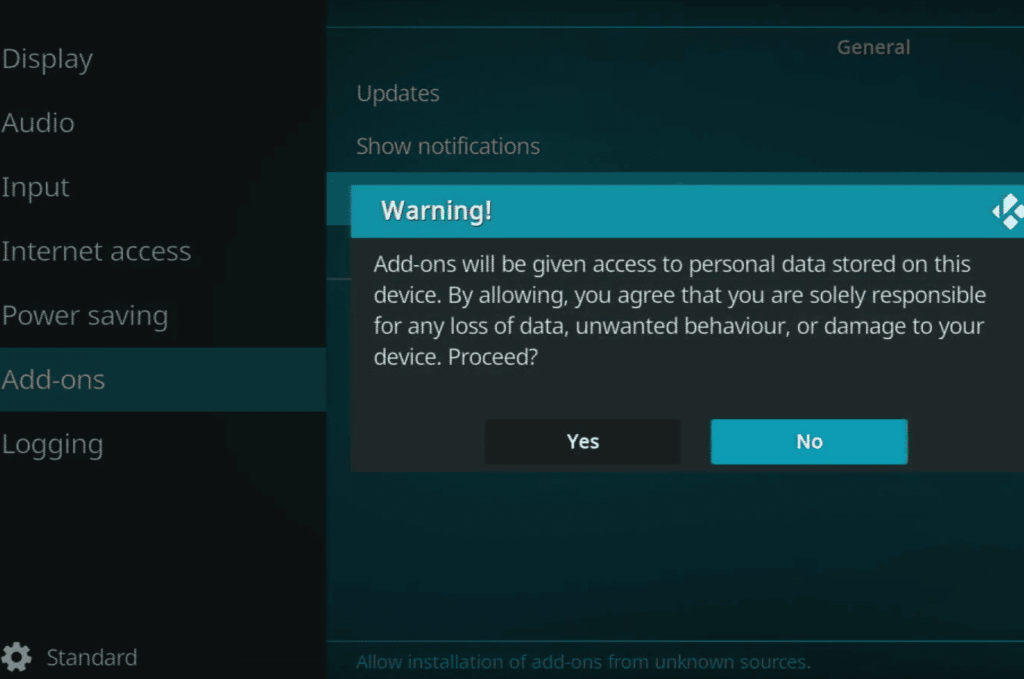
- Choose the Add-ons tab and ensure that “Unknown sources” is disabled to prevent the installation of unauthorized add-ons;
- Regularly Monitor Your Network Activity:
Why it’s important: Keep an eye on the devices connected to your network and the data they are transmitting. Unusual activity may indicate a security concern.
How to do it:
- Use network monitoring tools or apps to check the devices connected to your network;
- Review the logs and notifications provided by your router or security software;
How to Install Kodi on Nvidia Shield TV via Google Play Store:
- Go to the Google Play Store
The Google Play Store is the primary marketplace for Android TV applications, and installing Kodi on Nvidia Shield TV is a straightforward process through this platform:
- On your Nvidia Shield TV, navigate to the main screen;
- Using your remote control, scroll down to the “Apps” section;
- Open the Google Play Store by selecting it from the list of available apps.
- Look for Kodi:
- Once inside the Google Play Store, you can easily search for and locate the Kodi application;
- Use the on-screen keyboard to type “Kodi” into the search bar;
- As you type, the search results will start populating, and you’ll likely see “Kodi” in the suggestions;
- From the Search Results, Choose Kodi:
- Select the Kodi app from the search results. The official Kodi app should be the first result;
- Click on the Kodi app to access its details and download page;
- Install Kodi:
- On the Kodi app page, click the “Install” button to begin the installation process;
- Wait for the download and installation to complete. The progress will be displayed on the screen;
- Open Kodi:
- Once the installation is finished, you can either click “Open” directly from the installation screen or go back to the Nvidia Shield TV home screen;
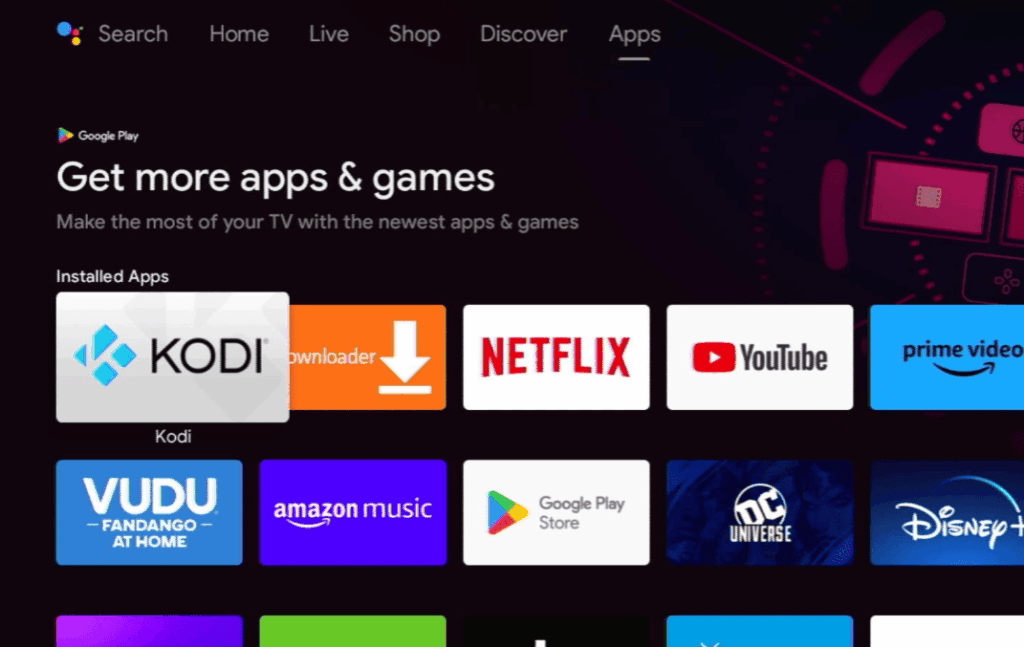
- Navigate to the “Apps” section, locate Kodi, and open it;
- Setup Kodi:
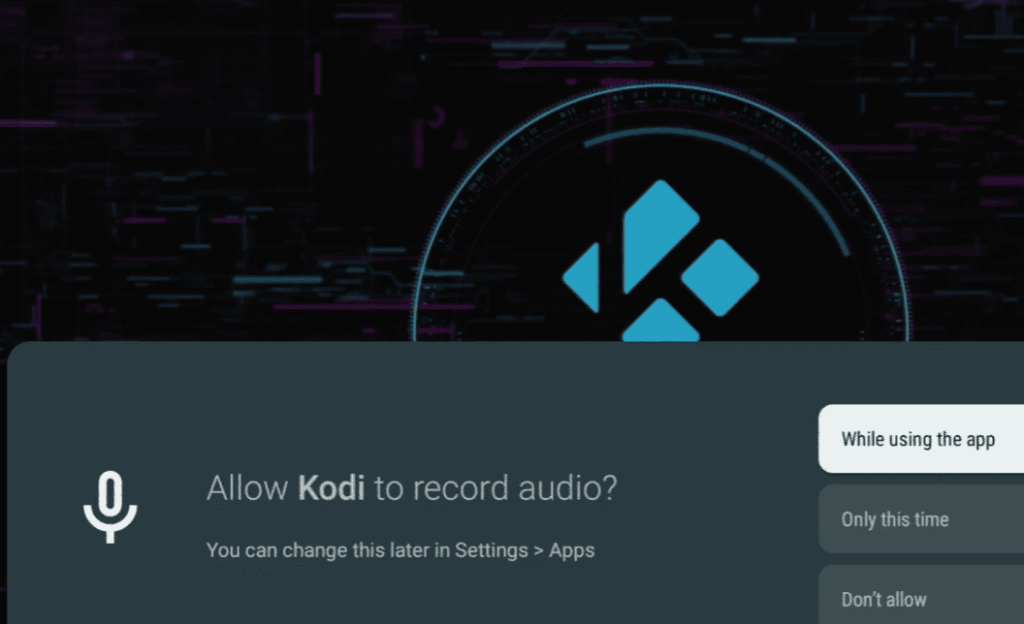
- The first time you open Kodi, it will take you through the initial setup process;
- You’ll be prompted to choose a language for the interface and set up a media source. You can skip setting up a media source for now and do it later if you prefer;
- After completing the initial setup, you’ll be greeted by Kodi’s home screen;
- Install Add-ons and Skins:
Kodi’s true power lies in its ability to extend functionality through add-ons and customize the appearance with skins. Here’s how you can get started:
- Navigate to the “Add-ons” section on the left sidebar;
- Choose “Download” to access the official Kodi Add-on Repository;
- Explore the various categories to find add-ons that suit your preferences. Click on an add-on to view details and install it;
Similarly, if you want to change the look of Kodi, go to the “Interface Settings” and then “Skin” to explore and install different skins.
Customize Kodi further by exploring other settings, including playback options, library integration, and more.
How to Install Kodi on Nvidia Shield TV via Sideloading:
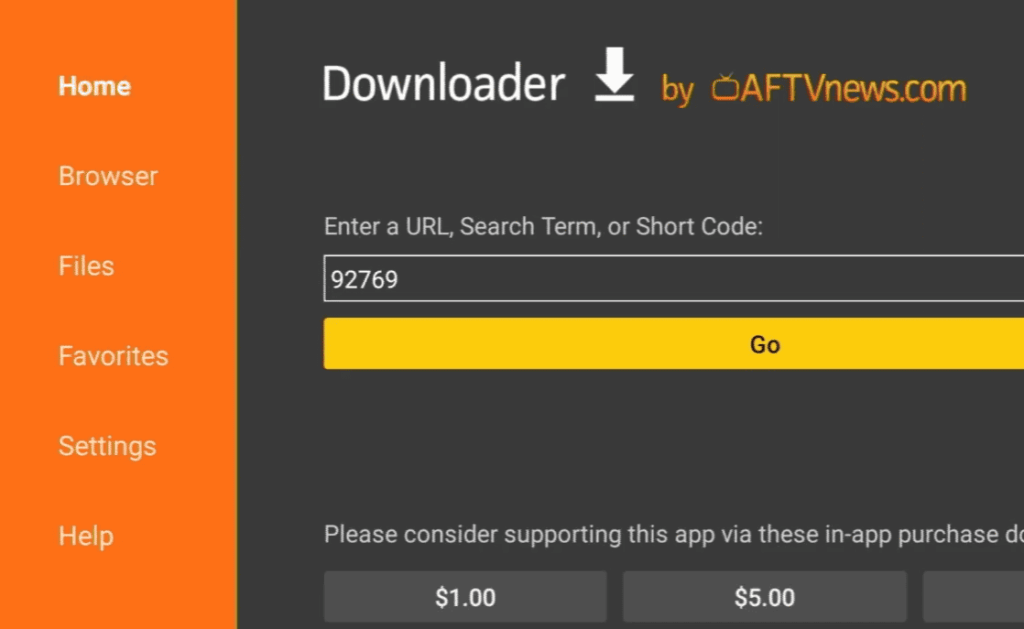
While installing Kodi on Nvidia Shield TV via the Google Play Store is the most straightforward method, some users prefer sideloading, which involves manually installing the app using an APK file. This method provides more flexibility and allows users to install specific versions of Kodi.
Here’s a step-by-step guide on how to install Kodi on Nvidia Shield TV via sideloading:
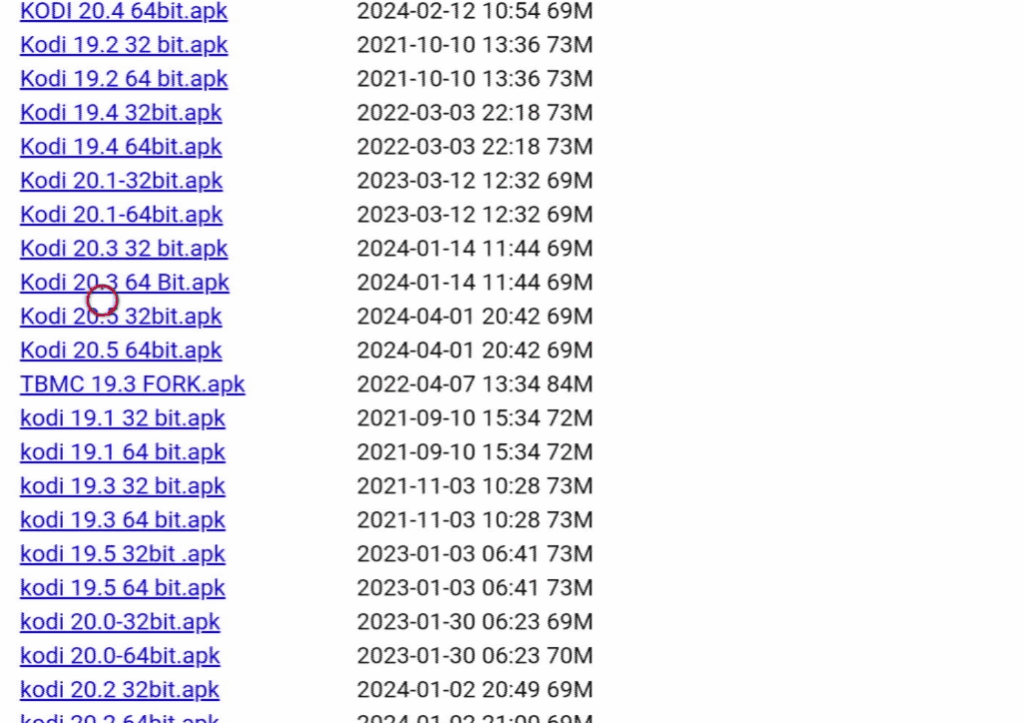
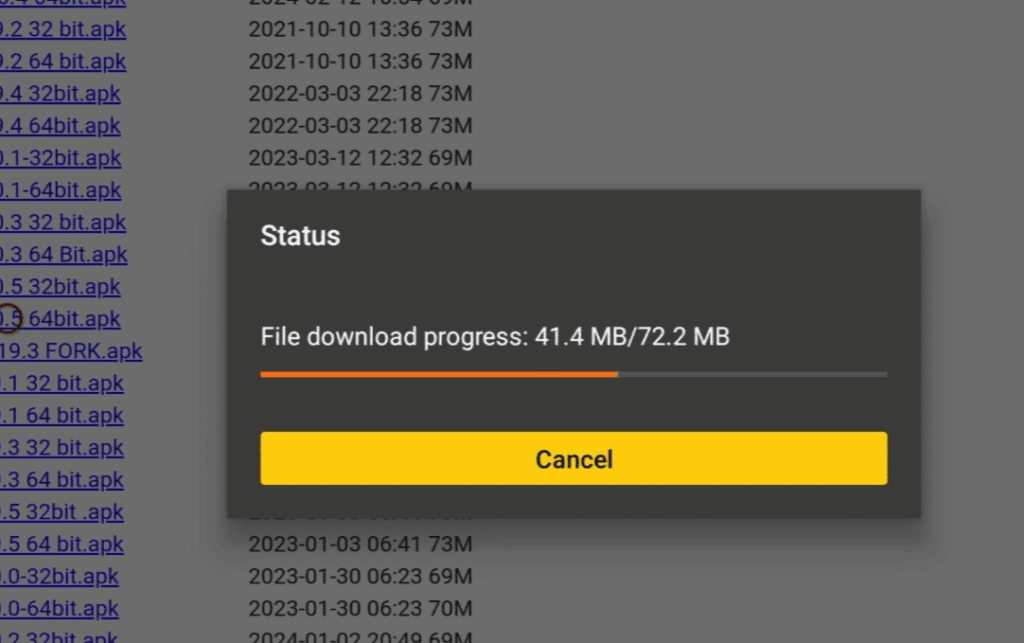
- Get the Kodi APK:
- Using a web browser on your computer, go to the official Kodi website (https://kodi.tv/download);
- Download the APK file for the Android version of Kodi. Make sure to choose the version suitable for your Nvidia Shield TV;
- Get the USB Storage Device Ready:
Prepare a USB storage device (USB flash drive or external hard drive) and ensure it’s formatted to a compatible file system (FAT32 or exFAT).
- Connect the USB Storage Device to the Nvidia Shield TV:
Use a USB OTG (On-The-Go) cable or an appropriate USB hub to connect the USB storage device to the Nvidia Shield TV.
- Allow Access to External Storage:
- On your Nvidia Shield TV, navigate to “Settings” and then “Device Preferences”;
- Select “Storage” and enable access to the connected USB storage device;
- Install a File Manager:
To manage files on your Nvidia Shield TV, you’ll need a file manager. Download and install a file manager app from the Google Play Store. “ES File Explorer” is a popular choice.
- Search For And Install The Kodi APK:
- Open the file manager app and navigate to the location where you downloaded the Kodi APK on your computer;
- Copy the Kodi APK file to the connected USB storage device;
- On the Nvidia Shield TV, use the file manager to locate the Kodi APK file on the USB storage device;
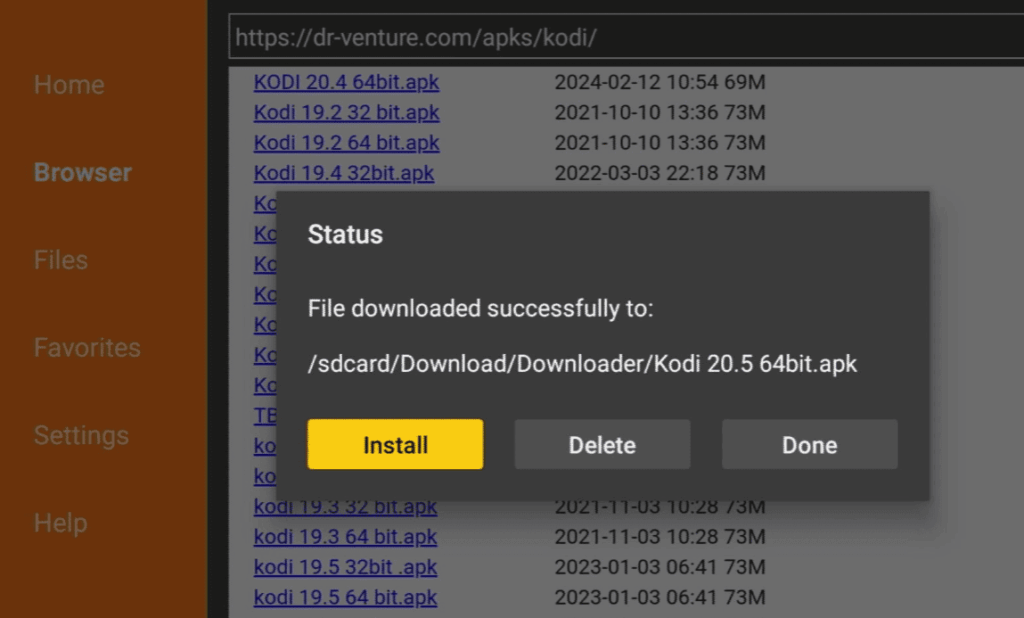
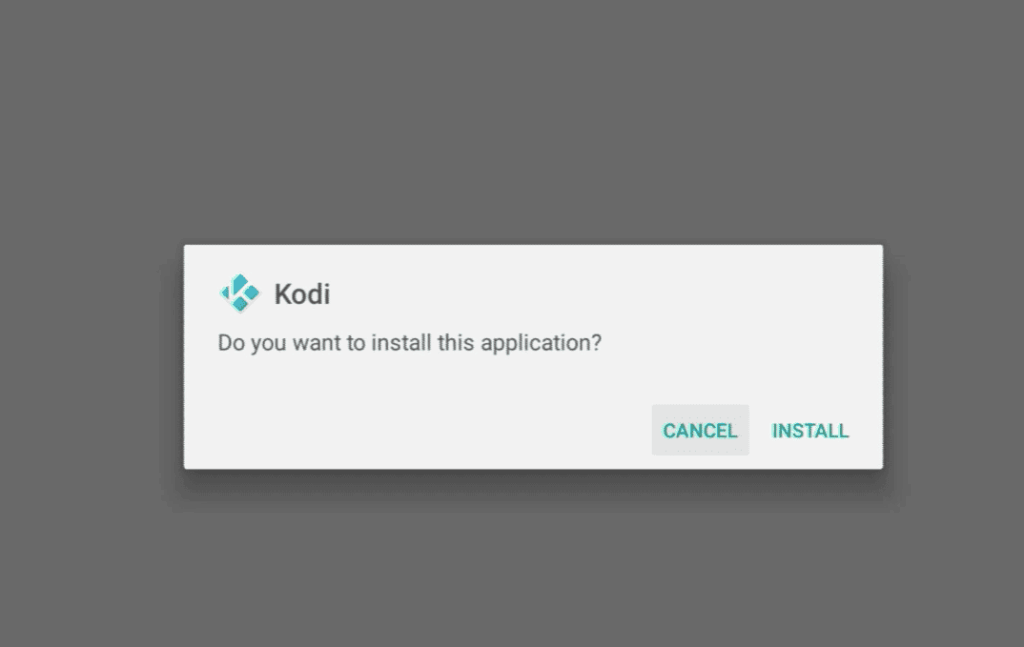
- Click on the APK file, and you should see an option to install Kodi;
- Open Kodi:
Once the installation is complete, you can open Kodi from the Nvidia Shield TV home screen or the app drawer.
- Set up Kodi:
The initial setup process for Kodi remains the same as when installed via the Google Play Store. Choose your language, configure the initial settings, and proceed to the main screen.
- Include Media Sources:
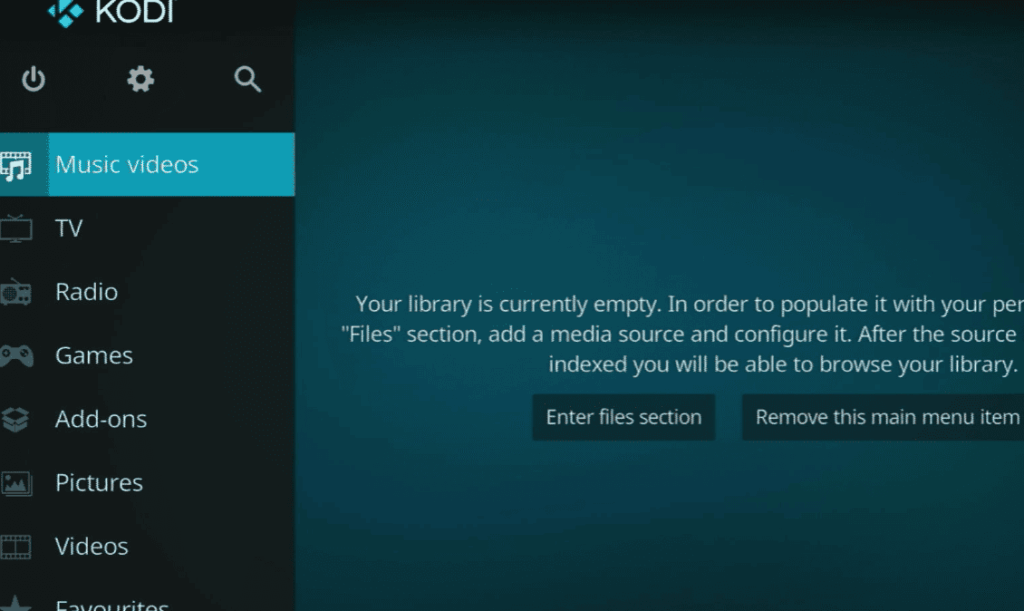
- To enjoy your multimedia content, you’ll need to include media sources in Kodi;
- Navigate to the “Settings” menu, then “Media Settings,” and select “Library”;
- Choose “Videos” and add the folders where your media is stored;
- Install Add-ons and Skins:
With Kodi installed, you can now explore and install add-ons and skins for a customized experience.
Go to the “Add-ons” section and follow the same steps outlined in the previous guide to install add-ons and skins.
Other Methods to Install Kodi On Nvidia Shield / Nvidia Shield Pro
While the previously mentioned methods cover installing Kodi on Nvidia Shield TV via the Google Play Store and sideloading, there are alternative approaches that cater to different preferences or situations.
Here, we explore two additional methods: loading Kodi on Shield via a USB device and using the Android Debug Bridge (ADB) to install Kodi on Shield.
Method 1: Load Kodi on Shield Via USB Device
This method involves loading the Kodi APK onto a USB device and installing it directly on the Nvidia Shield TV. It’s an efficient way to transfer the installation file if you don’t want to rely on an internet connection.
Steps:
Download Kodi APK:
- Visit the official Kodi website (https://kodi.tv/download) on your computer;
- Download the Kodi APK for Android and save it to your computer;
Prepare USB Device:
Connect a USB flash drive or external hard drive to your computer.
Transfer Kodi APK to USB:
Copy the downloaded Kodi APK file to the root directory of the USB device.
Connect USB to Nvidia Shield TV:
Use a USB OTG cable or an appropriate USB hub to connect the USB device to the Nvidia Shield TV.
Install Kodi:
- On the Nvidia Shield TV, navigate to the file manager or use a dedicated file explorer app;
- Locate the Kodi APK on the USB device and select it to initiate the installation;
Complete Installation:
Follow the on-screen prompts to complete the Kodi installation.
This method allows for a direct and offline installation of Kodi on Nvidia Shield TV, making it useful in scenarios where an internet connection is limited or unavailable.
Method 2: Use Android Debug Bridge to Install Kodi on Shield
Using Android Debug Bridge (ADB) provides a way to install Kodi on Nvidia Shield TV from a computer using a command-line interface. This method is suitable for users comfortable with command-line tools and is often employed by developers for app installations.
Steps:
Enable ADB Debugging on Nvidia Shield TV:
- On your Nvidia Shield TV, go to “Settings” > “Device Preferences” > “About”;
- Locate the “Build” entry and click on it multiple times until you see a message indicating that Developer Options are enabled;
- Go back to “Device Preferences” and open the new “Developer Options” menu;
- Enable “USB Debugging”;
Install ADB on Your Computer:
- Download and install the Android SDK Platform Tools on your computer. These tools include ADB;
- You can find the SDK Platform Tools at https://developer.android.com/studio#downloads;
Connect Nvidia Shield TV to Computer:
Connect your Nvidia Shield TV to your computer using a USB cable.
Open Command Prompt or Terminal:
Open the command prompt on Windows or the terminal on macOS or Linux.
Navigate to ADB Directory:
Use the “cd” command to navigate to the directory where ADB is installed.
Install Kodi Using ADB:
Run the following command to install Kodi on Nvidia Shield TV:
adb install path/to/kodi.apk
Replace “path/to/kodi.apk” with the actual path to the Kodi APK file on your computer.
Complete Installation:
Once the installation is complete, you can disconnect the USB cable from the Nvidia Shield TV.
This method offers a more technical approach, providing control over the installation process through ADB commands. It’s especially useful for users who are comfortable with command-line interfaces and want a more hands-on installation experience.
How to Transfer Media Files to NVIDIA Shield?
Transferring media files to NVIDIA Shield TV is a straightforward process, and there are several methods you can use.
Here, you may find out 3 common ways to transfer media files, including movies, TV shows, music, and photos, to your NVIDIA Shield TV:
1. Using a USB Drive:
Steps:
Prepare Your Media Files:
Organize your media files on your computer. Ensure they are in supported formats (e.g., MP4, MKV for videos, MP3 for audio).
Format USB Drive:
Format a USB flash drive or an external hard drive to a compatible file system (FAT32 or exFAT).
Transfer Files to USB Drive:
Copy the media files from your computer to the USB drive.
Connect USB Drive to NVIDIA Shield TV:
Use a USB OTG (On-The-Go) cable or an appropriate USB hub to connect the USB drive to one of the USB ports on your NVIDIA Shield TV.
Navigate to USB Storage:
- On your NVIDIA Shield TV, go to the “Settings” menu;
- Select “Device Preferences” and then “Storage”;
- Locate and select the connected USB storage device;
Access Media Files:
Your media files should be accessible through the file manager or your preferred media player on NVIDIA Shield TV.
2. Using Network File Sharing (SMB or NFS):
Steps:
Enable File Sharing on Your Computer:
Share the folders containing your media files on your computer. You can use SMB (Windows File Sharing) or NFS (Network File System) for this purpose.
Access NVIDIA Shield TV Settings:
On your NVIDIA Shield TV, go to “Settings” > “Device Preferences” > “Storage”.
Add Network Storage:
- Select “Network Storage” and choose between SMB or NFS, depending on your computer’s sharing method;
- Enter the required information, such as the IP address of your computer and the shared folder credentials;
Access Media Files:
Your shared folders should now appear in the file manager or media player on your NVIDIA Shield TV, providing access to your media files.
3. Using Plex Media Server:
Plex is a popular media server that allows you to organize and stream your media files to various devices, including NVIDIA Shield TV.
Steps:
Install Plex Media Server:
Install and set up Plex Media Server on your computer. You can download it from the official Plex website (https://www.plex.tv/).
Organize Your Media Library:
Add your media files to the Plex library and organize them by type (movies, TV shows, music, etc.):
- Install Plex App on NVIDIA Shield TV;
- Install the Plex app from the Google Play Store on your NVIDIA Shield TV;
Sign in to Plex:
Open the Plex app on your NVIDIA Shield TV and sign in with your Plex account.
Access Your Media Library:
Your organized media library will be available for streaming on your NVIDIA Shield TV through the Plex app.
Choose the method that best fits your preferences and needs for transferring media files to your NVIDIA Shield TV. Whether using a USB drive, network file sharing, or Plex Media Server, these options provide flexibility in managing and enjoying your media content on your TV.
How to Customize Kodi on NVIDIA Shield Android TV?
Customizing Kodi on NVIDIA Shield Android TV allows you to tailor the media center to your preferences, enhancing the overall user experience.
From changing the appearance with different skins to adding new features through add-ons, here’s a comprehensive guide on how to customize Kodi on your NVIDIA Shield Android TV:
- Install Kodi on NVIDIA Shield Android TV:
If you haven’t installed Kodi on your NVIDIA Shield Android TV, refer to the earlier guide for step-by-step instructions.
- Choose a Kodi Skin:
Kodi offers various skins that change the look and feel of the user interface. To change the skin:
- Navigate to “Settings” from the Kodi home screen;
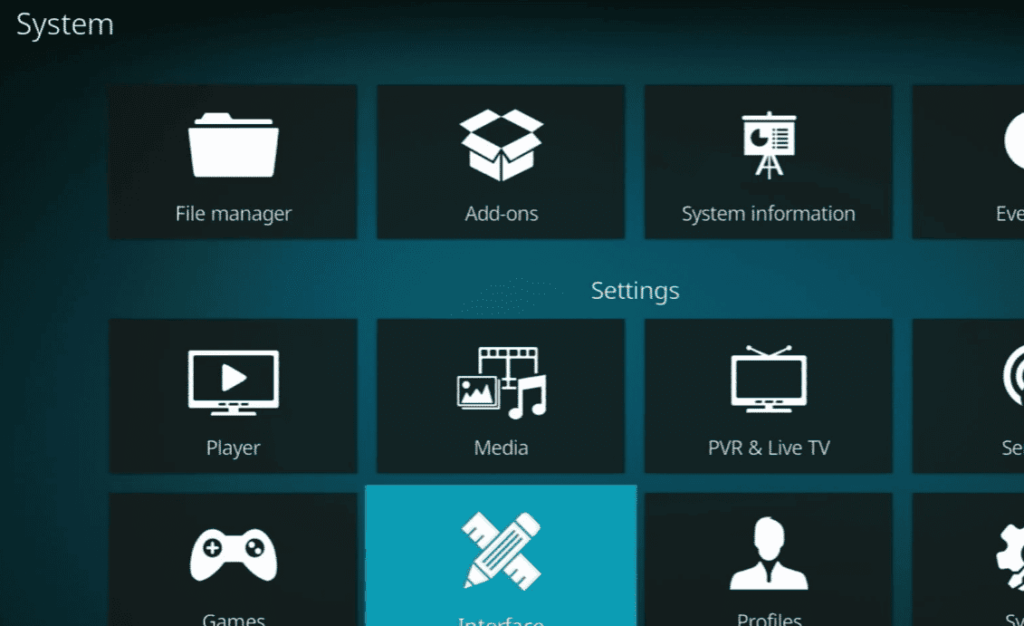
- Select “Interface” and then “Skin”;
- Choose “Skin” and explore the available options;
- Once you find a skin you like, select it to apply the changes;
- Customize Kodi Appearance:
After selecting a skin, you can further customize the appearance:
- In the skin settings, adjust color schemes, background images, and other visual elements to match your preferences;
- Explore additional customization options within the skin settings to personalize the interface;
- Install Kodi Add-ons:
Add-ons extend the functionality of Kodi, providing access to additional content and features. To install add-ons:
- Navigate to the “Add-ons” section from the Kodi home screen;
- Select “Download” to access the official Kodi Add-on Repository;
- Explore categories like Video Add-ons, Music Add-ons, and Program Add-ons;
- Click on an add-on to view details and install it;
- Explore Music and Video Add-ons:
Music and Video add-ons offer a wide range of content. Some popular ones include:
- Exodus Redux: A video add-on for movies and TV shows;
- Spotify: A music add-on for streaming music;
- YouTube: Access YouTube content directly within Kodi;
- Customize Home Screen Widgets:
Kodi allows you to add widgets to the home screen for quick access to your favorite content. To customize widgets:
- Navigate to “Settings” > “Interface” > “Skin” > “Configure Skin”;
- Look for options related to home screen customization and widgets;
- Add or rearrange widgets based on your preferences;
- Adjust Playback Settings:
Customize how media is played back in Kodi:
- In “Settings,” go to “Player” settings;
- Adjust settings related to subtitles, playback speed, and other playback preferences;
- Organize Media Sources:
Ensure your media sources are organized for easy access:
- In “Settings,” go to “Media” settings;
- Choose “Library” and configure options for adding and updating media sources;
- Create Playlists:
Kodi allows you to create playlists for your favorite songs, videos, or even a mix of both:
- Navigate to the “Playlists” section in the main menu;
- Create and customize playlists based on your preferences;
- Use Remote Control Apps:
To enhance the remote control experience, consider using dedicated apps:
Install a Kodi remote control app on your smartphone for convenient navigation.
- Explore Advanced Settings:
For users comfortable with advanced settings, Kodi provides options for further customization:
- In “Settings,” go to “System” settings;
- Select “Settings level” and switch to “Advanced” to access more configuration options;
FAQ:
Can you install Kodi on Android?
Yes, Kodi is compatible with the Android operating system, and it can be installed on Android devices, including smartphones, tablets, and Android TV boxes like Nvidia Shield.
Is Kodi on Android free?
Yes, Kodi is an open-source and free media player application available for various platforms, including Android.
Is Kodi in Google Play Store?
Yes, Kodi is available in the Google Play Store for easy installation on Android devices, including Nvidia Shield.
Is installing Kodi on Android legal?
Yes, installing Kodi on Android is legal. However, the legality of certain add-ons or content accessed through Kodi may vary depending on local laws.
Is installing this App safe?
Kodi itself is safe to install from reputable sources like the Google Play Store or the official Kodi website. Ensure that you download it from trusted locations to avoid potential security risks.
How do you set up Kodi on Nvidia Shield?
Refer to the earlier guide for detailed instructions on setting up Kodi on Nvidia Shield.
How do you download Kodi on Android Box?
You can download and install Kodi on an Android TV box, including Nvidia Shield, by accessing the Google Play Store and searching for Kodi.
How do you manually install Kodi?
Manually installing Kodi involves downloading the APK file from the official Kodi website and sideloading it onto your device. Refer to the earlier guide for step-by-step instructions.
What is the real Debrid used for?
Real Debrid is a premium service that enhances the streaming experience by providing high-quality links and faster streaming speeds, especially for Kodi users.
Is Kodi completely free?
Yes, Kodi itself is completely free to use. However, some third-party add-ons or services may have associated costs.
How to install Apk on Nvidia Shield?
You can install APK files on Nvidia Shield by enabling “Unknown Sources” in the settings and then manually sideloading the APK file. Refer to the earlier guide for detailed steps.
Does Nvidia Shield have VPN?
Yes, Nvidia Shield supports VPN (Virtual Private Network) services, allowing users to enhance privacy and security while accessing online content.
How to install APK manually?
Manually installing APK files involves enabling “Unknown Sources” in the device settings and then using a file manager to install the APK. Refer to the earlier guide for detailed steps.
How do I enable developer options on Nvidia Shield?
To enable developer options on Nvidia Shield, go to “Settings” > “Device Preferences” > “About” > “Build” and click on it multiple times until you see the message indicating developer options are enabled.
Does Nvidia Shield have apps?
Yes, Nvidia Shield has access to a wide range of apps available on the Google Play Store, including media players, games, streaming services, and more.
How do you sideload apps on Shield TV?
Sideloading apps on Shield TV involves manually installing APK files. Enable “Unknown Sources” in the settings, use a file manager, and install the APK. Refer to the earlier guide for detailed steps.
Is it safe to use Kodi without VPN?
While using Kodi without a VPN is generally safe, a VPN can enhance privacy and security, especially when accessing geo-restricted or potentially sensitive content.
How does a Kodi box work?
A Kodi box, often referred to as a Kodi media player or streaming box, is a device running the Kodi software. It allows users to stream and organize multimedia content from various sources.
Is it safe to use the Kodi app on Android TV?
Yes, it is safe to use the Kodi app on Android TV, including devices like Nvidia Shield. Ensure you download the app from official and trusted sources.
How much RAM does Kodi need?
Kodi is lightweight and can run smoothly on devices with as little as 1GB of RAM. However, having more RAM, such as 2GB or more, can contribute to a smoother overall experience, especially for larger media libraries.