
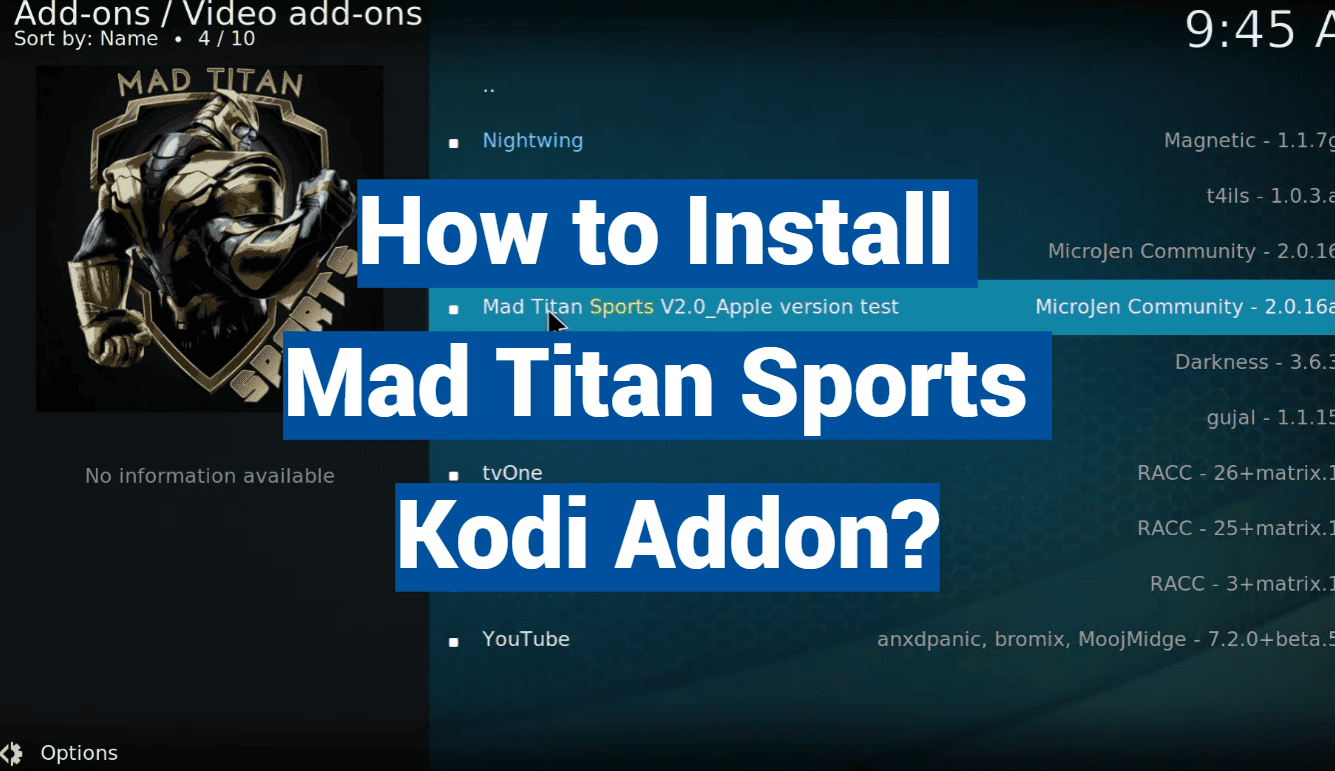
Embarking on a journey to amplify your sports streaming experience within Kodi? The Mad Titan Sports addon stands as a beacon for enthusiasts seeking a diverse array of live sports, highlights, and replays—all at their fingertips. In this guide, we’ll meticulously navigate the step-by-step process of installing Mad Titan Sports on Kodi.
From enabling Unknown Sources to seamlessly integrating the repository and addon, this comprehensive tutorial ensures you harness the full potential of this popular Kodi extension. Prepare to unlock a world of sports content effortlessly with our detailed instructions on installing Mad Titan Sports.
Overview of Mad Titan Sports Kodi Addon:
Mad Titan Sports is an addon for Kodi, a free and open-source media player software application. This addon is specifically designed to provide sports content to Kodi users. It offers a wide range of sports channels and live sports events from around the world. From football to basketball, cricket to tennis, Mad Titan Sports has got you covered.
Features
Wide Range of Sports Content
Mad Titan Sports stands out for its extensive collection of sports content. Whether you’re a fan of football, basketball, cricket, or niche sports, this addon aims to cater to a diverse audience. The addon aggregates live streams, highlights, and replays, ensuring that sports enthusiasts can find content that matches their interests.
User-Friendly Interface
Navigating through the addon is a breeze, thanks to its intuitive and user-friendly interface. The well-organized menus make it easy for users to locate their favorite sports and events quickly. The thoughtful design enhances the overall user experience, making Mad Titan Sports accessible to both beginners and experienced Kodi users.
Live Streaming Capabilities
One of the standout features of Mad Titan Sports is its ability to provide live streaming of various sporting events. Users can enjoy the thrill of watching their favorite teams and athletes in real time, creating an immersive experience that closely mimics traditional cable or satellite sports broadcasting.
Regular Updates
Mad Titan Sports stays current with the latest sports events and updates its content regularly. This commitment to staying up-to-date ensures that users have access to the most recent games, matches, and tournaments. The addon’s timely updates contribute to its reliability and user satisfaction.
Multi-Platform Compatibility
Mad Titan Sports is not limited to a single platform. Whether you’re using Kodi on a Windows PC, Mac, Linux, or an Android device, this addon is designed to work seamlessly across different operating systems. This flexibility adds to the convenience of users who may access Kodi on various devices.
Pros:
- Free Access to Premium Sports Content: Mad Titan Sports offers users the opportunity to access premium sports content without any subscription fees. This can be a significant advantage for cord-cutters looking to enjoy live sports without the financial burden associated with traditional cable or satellite subscriptions;
- High-Quality Streaming: The addon prioritizes high-quality streaming, providing users with crisp and clear video playback. This commitment to quality enhances the overall viewing experience, allowing users to enjoy sports events with minimal buffering and optimal visual fidelity;
- Community Support: Mad Titan Sports has fostered a vibrant community of users who actively contribute to discussions, share tips, and provide support. This sense of community can be invaluable for users seeking assistance or looking to discover additional features and content within the addon;
- Customizable Settings: The addon comes with customizable settings that allow users to tailor their streaming experience according to their preferences. Whether adjusting video quality, enabling subtitles, or configuring playback options, Mad Titan Sports provides users with the flexibility to personalize their Kodi experience;
- Reliable Performance: Users have reported a generally reliable performance from Mad Titan Sports. The addon is known for its stability, with minimal crashes or technical issues. This reliability contributes to a positive user experience and fosters trust among the Kodi community;
Cons:
- Dependency on Third-Party Sources: Like many Kodi addons, Mad Titan Sports relies on third-party sources for its content. While this allows for a diverse range of sports content, it also introduces a level of uncertainty regarding the longevity and reliability of these sources. Users may encounter occasional dead links or disruptions in service due to the dynamic nature of third-party streaming;
- Legal and Copyright Concerns: Using third-party addons for streaming raises legal and copyright concerns. While Mad Titan Sports itself may not host any copyrighted content, the sources it pulls from might. Users should be aware of the potential legal implications and risks associated with streaming copyrighted material without proper authorization;
- Occasional Buffering Issues: Despite its emphasis on high-quality streaming, Mad Titan Sports may experience occasional buffering issues, especially during peak usage times. This can be frustrating for users seeking a seamless and uninterrupted streaming experience. The extent of buffering may vary depending on factors such as internet speed and server load;
- Limited Customer Support: As a community-driven addon, Mad Titan Sports may lack official customer support channels. While the community forums can be valuable for seeking help from fellow users, those accustomed to dedicated customer support may find this aspect lacking. Users with technical issues may need to rely on online forums and communities for assistance;
- Compatibility Concerns with Older Kodi Versions: Users running older versions of Kodi may encounter compatibility issues with Mad Titan Sports. The addon is designed to work optimally with the latest Kodi releases, and users who neglect to update their Kodi installation may experience functionality issues or miss out on new features;
Is Mad Titan Sports Safe and Legal?
Mad Titan Sports is a popular Kodi addon for streaming live sports and replays. Users have praised it for its high-definition streams and reliability. However, as with any free streaming service, there are potential risks involved.
One of the concerns is regarding the legality and safety of the content provided by Mad Titan Sports. Some sources suggest that while the addon itself may be safe for your device, there’s no definitive proof that backs up this claim. It’s important to note that “free” and “safe” often don’t go hand in hand.
Furthermore, some of the streams provided by Mad Titan Sports may not be legal in every country, which could potentially put users at risk of violating copyright laws. Therefore, while Mad Titan Sports may offer a variety of sports content, users should exercise caution and be aware of their local laws regarding streaming content.
How to Install Mad Titan Sports Addon on Kodi:
Enable Unknown Sources
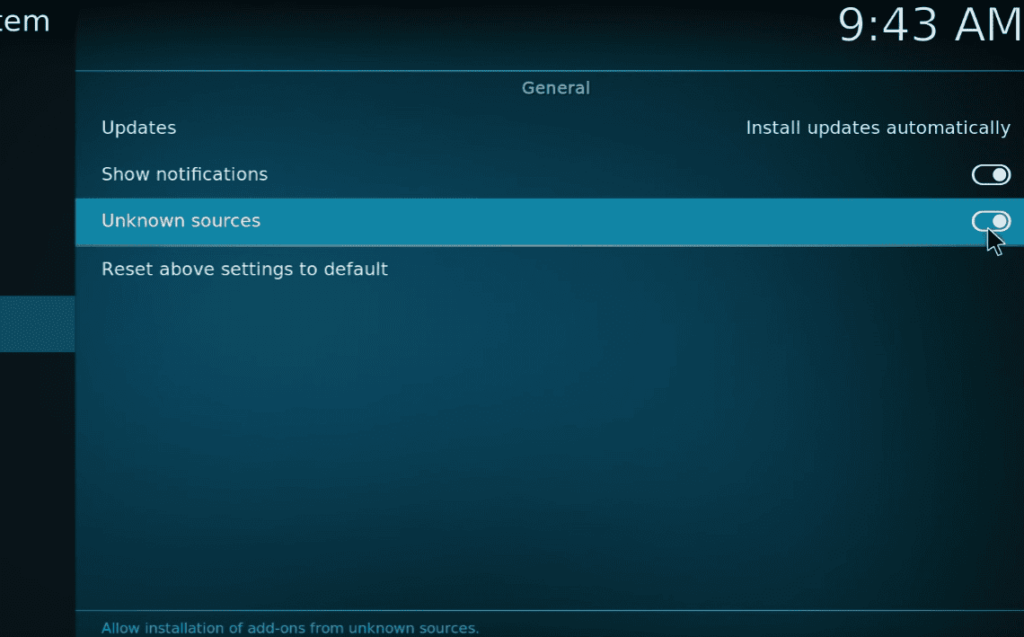
Before you can install third-party addons like Mad Titan Sports, you need to enable Unknown Sources within Kodi. This allows the installation of addons from external sources. Here’s how you can do it:
- Open Kodi on your device;
- Navigate to the home screen and click on the gear icon (Settings) at the top-left corner;
- Select “System” in the settings menu;
- Choose “Add-ons” on the left sidebar;
- Toggle the switch next to “Unknown sources” to enable it;
- A warning message will appear. Click “Yes” to confirm;
With Unknown Sources enabled, you can now proceed to add the media source and repository URL for Mad Titan Sports.
Add Media Source and Repository URL
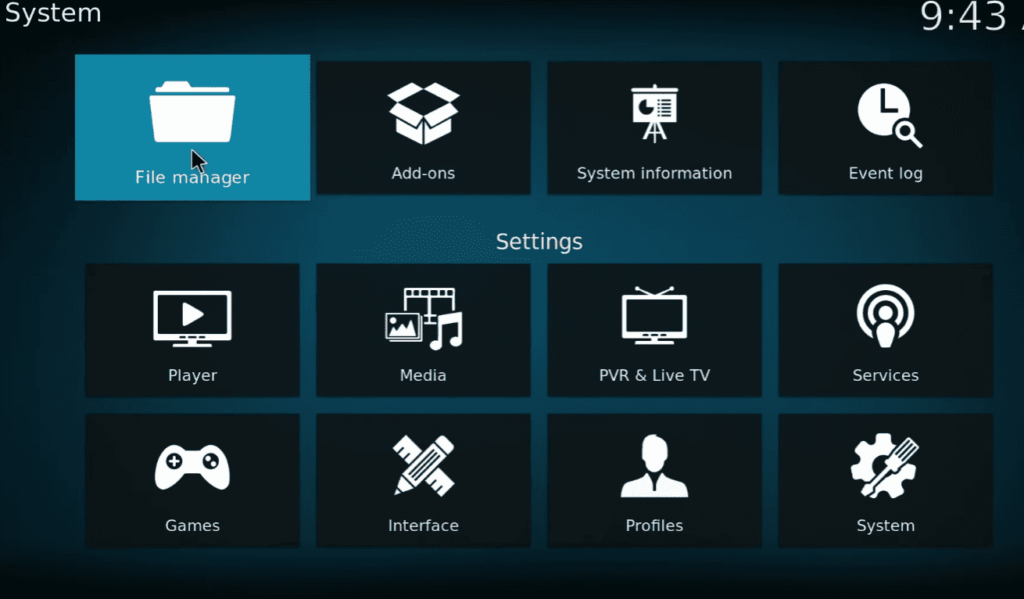
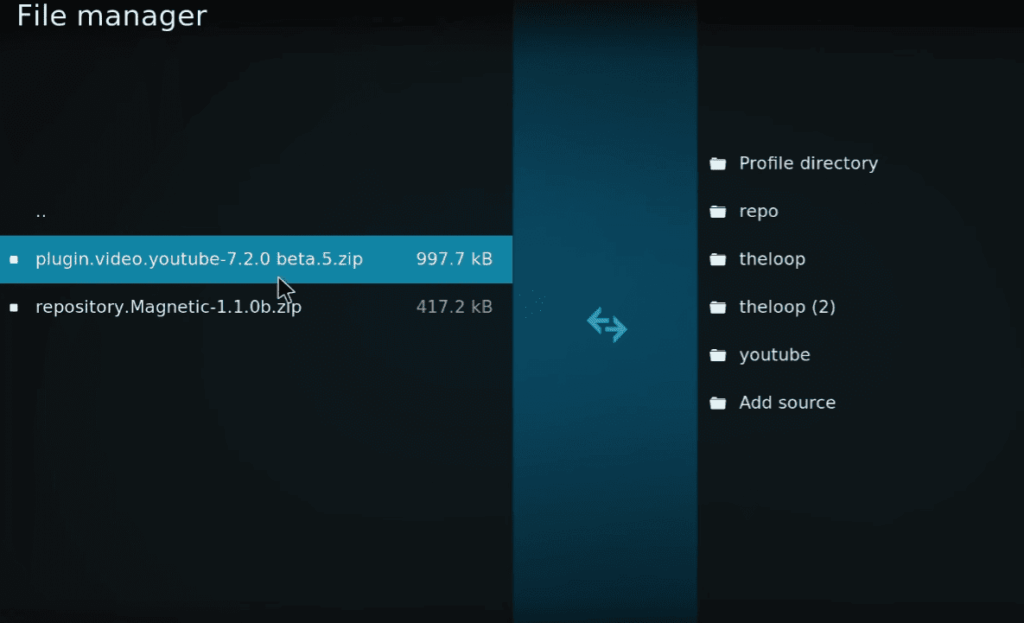
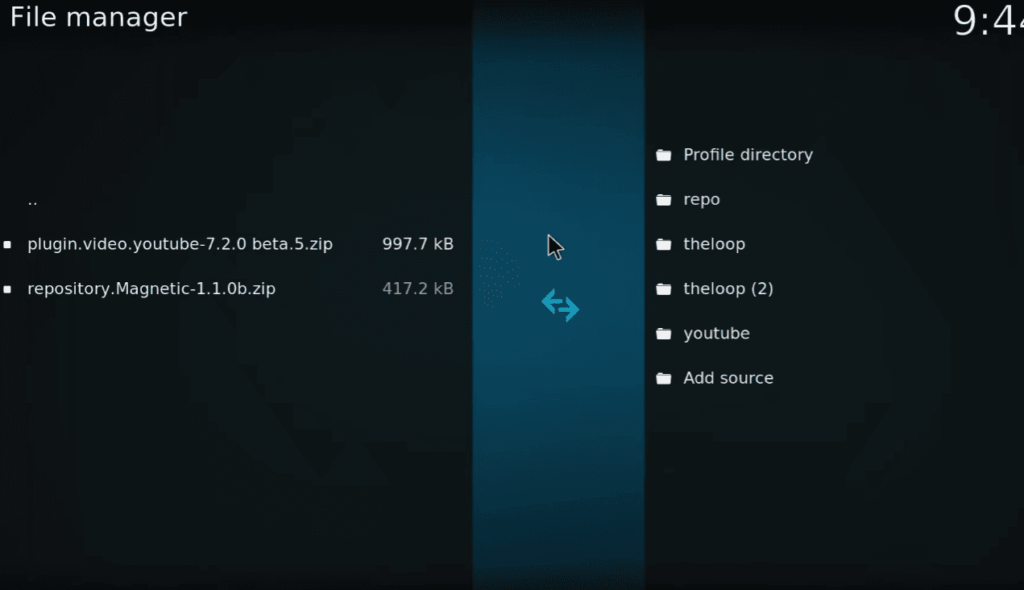
- Go back to the Kodi home screen and click on “File Manager”;
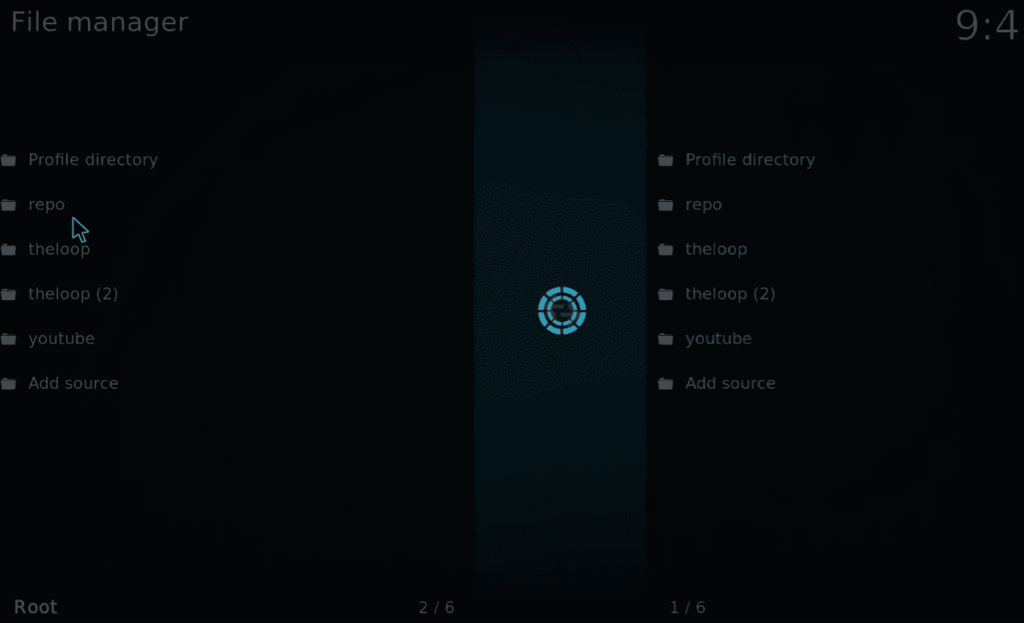
- Select “Add source”;
- Click on “None” to enter a custom media source;
- Enter the following repository URL: http://repository.madtitan-x.x.zip (Replace “x.x” with the current version number);
- Name the media source, such as “Mad Titan Repo”, and click “OK”;
Now that you’ve added the media source, you’re ready to install the Mad Titan Sports addon using the repository.
Install from Zip File
- Return to the Kodi home screen and select “Add-ons”;
- Click on the open box icon (Package Installer) at the top-left corner;
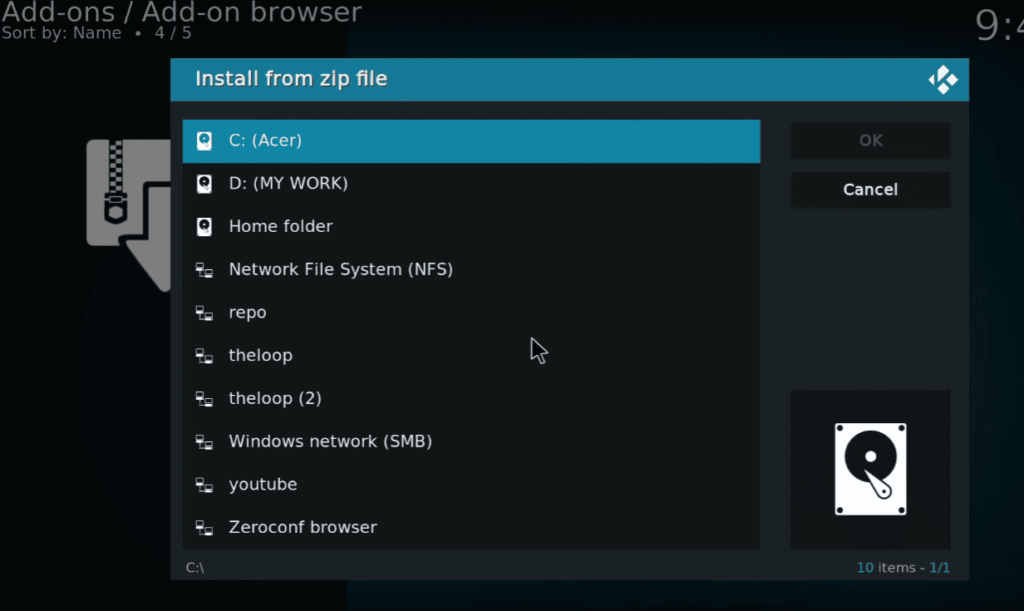
- Choose “Install from zip file”;
- Select the media source you added earlier, e.g., “Mad Titan Repo”;
- Click on the repository zip file (usually named something like repository.madtitan-x.x.zip);
- Wait for the “Mad Titan Repo Add-on installed” notification to appear;
With the repository installed, you can now proceed to install Mad Titan Sports addon from the repository.
Install from Repository
- Still in the Add-ons menu, select “Install from repository”;
- Choose “Mad Titan Repo”;
- Select “Video add-ons”;
- Find and click on “Mad Titan Sports”;
- Click the “Install” button to begin the installation process;
- Wait for the “Mad Titan Sports Add-on installed” notification to appear;
You have successfully installed Mad Titan Sports addon on Kodi. Now, let’s take a look at how to access and use the addon.
Using Mad Titan Sports Kodi Addon:
Real Debrid is a premium service that enhances streaming quality and provides access to high-quality links. Integrating Real Debrid with Mad Titan Sports can significantly improve the reliability and speed of your streams. Here’s how to set it up:
Sign Up for Real Debrid:
- Visit the Real Debrid website and create an account;
- Choose a subscription plan that suits your streaming needs;
Enable Real Debrid within Mad Titan Sports:
- Open Mad Titan Sports on Kodi;
- Navigate to the addon’s settings or tools section;
- Look for the Real Debrid or RD section within the settings;
- Enter your Real Debrid username and password;
Authorize Real Debrid:
Follow the on-screen prompts to authorize Real Debrid. This usually involves visiting a provided link and entering a code.
Verify Integration:
Once authorized, you should see a confirmation message within the Mad Titan Sports addon.
Now, you’ll benefit from enhanced streaming quality and a broader selection of high-quality links when using Mad Titan Sports with Real Debrid.
How to Set Up Trakt on Mad Titan Sports?
Trakt is a service that allows you to track your favorite shows and movies across various streaming platforms. Integrating Trakt with Mad Titan Sports ensures a personalized experience, as it syncs your watch history and preferences.
Follow these steps to set up Trakt with Mad Titan Sports:
Create a Trakt Account:
Go to the Trakt website and sign up for a free account.
Get Trakt Authorization Key:
- In Mad Titan Sports, navigate to the settings or tools section;
- Look for the Trakt or Authorize Trakt section;
- Follow the on-screen instructions to get the Trakt authorization key;
Authorize Trakt:
- Visit the provided Trakt authorization link;
- Enter the authorization key obtained in the previous step;
Complete Authorization:
After authorization, you should see a confirmation message within the Mad Titan Sports addon.
Now, Trakt is integrated with Mad Titan Sports, and your sports streaming activities will be synchronized, allowing you to keep track of your favorite sports events and discover new content easily.
Troubleshooting
Despite the seamless experience Mad Titan Sports offers, users may encounter occasional issues.
Here are some common troubleshooting tips to address potential problems:
- Buffering Issues:
- Ensure you have a stable internet connection;
- Lower the streaming quality within Mad Titan Sports settings;
- Consider using a Virtual Private Network (VPN) to bypass any potential throttling from your Internet Service Provider (ISP);
- No Streams Available:
- Check your internet connection;
- Update Mad Titan Sports to the latest version;
- Verify that your chosen sports event is currently live or available for playback;
- Authorization Errors (Real Debrid or Trakt):
- Double-check your Real Debrid or Trakt username and password;
- Reauthorize the service within the Mad Titan Sports addon settings;
- Addon Not Working After Kodi Update:
- Ensure that both Kodi and Mad Titan Sports are updated to the latest versions compatible with each other;
- If the addon is still incompatible, check community forums or repositories for updates;
- Failed to Install Dependency Errors:
- This error may occur due to missing or outdated dependencies;
- Update the Mad Titan Sports addon to the latest version, as newer versions often address dependency issues;
- Check for Server Issues:
Sometimes, issues may arise from the server side. Check online forums or the developer’s repository for announcements regarding server problems.
Alternatives to Mad Titan Sports Addon on Kodi
While Mad Titan Sports is a popular Kodi addon for sports content, users often seek alternatives to diversify their streaming options or address specific preferences.
Here are some notable alternatives to the Mad Titan Sports addon on Kodi:
SportsDevil:
- Features: SportsDevil is a well-established Kodi addon known for its extensive coverage of live sports events, highlights, and replays. It provides access to a wide range of sports, including football, basketball, hockey, and more. The addon is regularly updated to ensure the latest content;
- Pros: Comprehensive sports coverage, regularly updated, diverse sports content;
- Cons: Dependency on third-party sources, occasional streaming issues;
The Crew:
- Features: The Crew is a versatile Kodi addon that covers various categories, including sports. It offers live sports streaming, on-demand content, and sports-related documentaries. The addon provides a user-friendly interface and regularly updates its content;
- Pros: Multi-category content, live sports streaming, regular updates;
- Cons: Possible dependency on third-party sources, occasional buffering;
Loki:
- Features: Loki is a newer Kodi addon gaining popularity for its sports content. It provides access to live sports, on-demand highlights, and sports-related documentaries. Loki aims to offer a reliable streaming experience with high-quality video playback;
- Pros: Focus on sports content, user-friendly interface, reliable streaming;
- Cons: Limited community support, occasional content source issues;
Rising Tides:
- Features: Rising Tides is a sports-centric Kodi addon that offers a variety of live sports channels. It covers popular sports events, including football, basketball, baseball, and more. The addon provides both live streaming and on-demand sports content;
- Pros: Live sports channels, diverse sports coverage, regular updates;
- Cons: Dependency on external sources, occasional stream instability;
Sportowa TV:
- Features: Sportowa TV is a sports-focused addon that provides live sports streaming, including popular events and matches. It covers a range of sports, and its simple interface makes it easy to navigate;
- Pros: Live sports streaming, diverse sports coverage, straightforward interface;
- Cons: Potential reliance on third-party sources, occasional buffering;
cCloud TV:
- Features: cCloud TV is a general-purpose Kodi addon that includes a sports section. It offers live TV channels, including sports channels from around the world. The addon covers various sports events and is regularly updated;
- Pros: Live TV channels, diverse content, global sports coverage;
- Cons: May require additional setup, occasional link unavailability;
Before installing any Kodi addon, users should be aware of potential legal and copyright issues associated with streaming copyrighted content. Additionally, regularly updating Kodi and using a reliable VPN service can enhance security and privacy while streaming. As the Kodi addon landscape is dynamic, exploring different options allows users to find the best fit for their sports streaming preferences.
FAQ:
What channels does Mad Titan Sports Addon have?
Mad Titan Sports covers a wide range of sports channels, offering live streaming, highlights, and replays for various sports, including football, basketball, cricket, and more. The specific channels available may vary, and the addon is regularly updated to include new content.
Is this Kodi addon free?
Yes, Mad Titan Sports is a free Kodi addon. Users can access a diverse range of sports content without any subscription fees.
What devices can this Kodi Addon be installed on?
Mad Titan Sports is compatible with multiple devices, including Windows PC, Mac, Linux, and Android devices running Kodi. Ensure that your Kodi version is up-to-date for optimal performance.
How to fix Mad Titan Sports not working or buffering issues?
To address buffering issues, users can try lowering the streaming quality within Mad Titan Sports settings, ensuring a stable internet connection, and considering the use of a Virtual Private Network (VPN) to bypass potential throttling from their Internet Service Provider (ISP).
What are the best alternatives to Mad Titan Sports?
Some popular alternatives to Mad Titan Sports include SportsDevil, The Crew, Loki, Rising Tides, and cCloud TV. Each has its unique features and content offerings.
How to update Mad Titan Sports to the latest version?
To update Mad Titan Sports, go to the addon settings, select “Check for updates” or a similar option. Alternatively, visit the official repository or developer’s source to download and install the latest version.
Do you need a VPN when streaming with Mad Titan Sports?
While a VPN is not strictly required, using one can enhance security, privacy, and bypass potential geo-restrictions. It may also help mitigate buffering issues by avoiding ISP throttling.
How do you fix the Mad Titan Sports error?
Specific error solutions may vary, but common troubleshooting steps include checking your internet connection, ensuring your Kodi and Mad Titan Sports are up-to-date, and verifying Real Debrid or Trakt authorization if applicable.
What is the best Kodi build for sports this year?
The “best” Kodi build can be subjective, but popular sports-focused builds this year include Titanium Build, Slamious, and No Limits Magic. Users should explore different builds to find the one that suits their preferences.
What’s the best Kodi addon for Sky Sports?
While Mad Titan Sports may cover various sports, including football, specific addons like “Sportowa TV” or “cCloud TV” often provide reliable access to Sky Sports channels.
Why can’t you add addons to Kodi?
If you’re unable to add addons to Kodi, it could be due to incorrect repository URLs, network issues, or compatibility problems. Ensure that you have enabled Unknown Sources in Kodi settings and that your internet connection is stable.
What is the difference between Kodi build and addon?
A Kodi build is a pre-configured setup that includes various addons, themes, and settings. An addon is a specific piece of software that provides access to content. Builds are all-encompassing, while addons are individual components.
How do you add live TV addons to Kodi?
To add live TV addons to Kodi, go to the settings, then File Manager, and add the repository URL. Install the repository from the zip file, and finally, install the live TV addon from the repository.
Can you use Kodi without addons?
Yes, Kodi can be used without addons. However, addons enhance its functionality by providing access to various content, including movies, TV shows, sports, and more.
Which version of Kodi to use?
It is recommended to use the latest stable version of Kodi for optimal performance and security. Check the official Kodi website for the most recent release.
Why is Kodi so slow?
Kodi may slow down due to factors like outdated hardware, excessive addons or builds, network issues, or insufficient system resources. Closing unnecessary background apps, updating Kodi, and using lightweight builds can help alleviate slowness.