
Renowned for its extensive content library, including movies, TV shows, live TV, and more, The Crew addon transforms your Kodi media player into a versatile entertainment hub. However, unlocking its potential requires a comprehensive understanding of the installation process.
In this guide, we will delve into the step-by-step instructions on how to install The Crew Kodi addon, ensuring that you seamlessly navigate through each stage, from enabling downloads from unknown sources to exploring the addon’s diverse streaming categories.
Whether you’re a seasoned Kodi enthusiast or a newcomer eager to explore the world of customizable streaming, this guide will provide you with the essential knowledge to unleash the full capabilities of The Crew addon on your Kodi device. Follow along as we break down the installation process, empowering you to make the most of this feature-rich addon and elevate your streaming experience to new heights.
Crew Kodi Addon Overview:
The Crew addon is a comprehensive entertainment hub that brings together a vast array of content, including movies, TV shows, live TV, sports, and more. Developed by a team of dedicated enthusiasts, the addon has garnered a reputation for delivering high-quality streams and an extensive library of media.
Features:
- Media Library:
The Crew addon boasts an extensive and well-organized media library. Users can explore a wide range of content, from classic movies to the latest TV series, all neatly categorized for easy navigation.
- Multiple Streaming Categories:
One of the standout features of the Crew addon is its diverse streaming categories. Users can access movies, TV shows, documentaries, cartoons, and even live TV channels, providing a one-stop solution for all their entertainment needs.
- Real-Debrid Integration:
Real-Debrid is a premium service that enhances the streaming experience by providing high-quality links with minimal buffering. The Crew addon seamlessly integrates with Real-Debrid, ensuring users can enjoy a smoother and more reliable streaming experience.
- Trakt Integration:
Trakt is a popular service that allows users to track their watched content and receive personalized recommendations. The Crew addon supports Trakt integration, enabling users to sync their viewing history across multiple devices.
- Subtitle Support:
For international users or those who prefer subtitles, the Crew addon offers robust subtitle support. Users can easily enable subtitles in their preferred language, enhancing the accessibility of content.
- User-Friendly Interface:
Navigating through the Crew addon is a breeze, thanks to its user-friendly interface. The well-designed menus and intuitive layout make it easy for both beginners and experienced Kodi users to explore and enjoy the vast content library.
Pros:
- Diverse Content Library: The Crew addon stands out for its extensive and diverse content library. Whether you’re in the mood for a classic movie, binge-worthy TV series, or live sports event, the addon has you covered;
- High-Quality Streams: One of the key reasons for the Crew addon’s popularity is its commitment to delivering high-quality streams. With Real-Debrid integration, users can enjoy seamless playback with minimal buffering;
- Regular Updates: The development team behind the Crew addon is actively engaged in keeping the addon up-to-date. Regular updates ensure that users have access to the latest content and features, and any potential issues are addressed promptly;
- Trakt Integration for Personalization: Trakt integration adds a layer of personalization to the streaming experience. Users can keep track of their watched content, receive recommendations based on their preferences, and maintain a seamless viewing history across devices;
- Subtitle Support for Accessibility: The inclusion of robust subtitle support enhances the accessibility of content, making it more inclusive for a global audience. Users can enjoy movies and TV shows in their preferred language, opening up the addon to a broader user base;
Cons:
- Dependency on Third-Party Services: While Real-Debrid and Trakt integration enhance the streaming experience, they are third-party services that come with additional costs. Some users may find this dependency on premium services a drawback, especially if they are looking for a completely free streaming solution;
- Occasional Broken Links: Like many Kodi addons, the Crew addon may encounter occasional broken links. While the development team works diligently to address these issues, users may experience frustration when attempting to access certain content;
- Complex Installation for Beginners: For users new to Kodi and addon installations, setting up the Crew addon might be a bit challenging. The process involves multiple steps, including the installation of dependencies, which may be overwhelming for beginners;
- Not Available in Official Kodi Repository: The Crew addon is not hosted in the official Kodi repository. While this is common for many third-party addons, it means users need to rely on external sources for installation, potentially exposing them to security risks if they are not cautious;
Is The Crew Kodi Addon Safe?
The safety of Kodi addons, including The Crew addon, can vary, and users should exercise caution when installing and using third-party addons.
Here are some factors to consider regarding the safety of The Crew Kodi addon:
Source of Installation:
The Crew addon is not available in the official Kodi repository. Users need to install it from external sources, which may pose potential security risks. It’s crucial to download the addon from a reliable and trusted source to minimize the risk of malware or other security issues.
Developer Reputation:
The reputation of the addon’s developers can provide insight into its safety. The Crew addon has been developed by a team of enthusiasts known for their commitment to providing quality content. However, users should always stay informed about the latest updates and reviews to ensure the addon’s continued safety.
Dependencies and Third-Party Services:
The Crew addon relies on third-party services like Real-Debrid for enhanced streaming quality. While these services can improve the user experience, they often come with additional costs and may require users to share personal information. It’s essential to use such services cautiously and be aware of their terms and conditions.
Security Measures:
Kodi addons, including The Crew, do not go through the same rigorous security checks as official Kodi addons. Users should be aware that there is always some level of risk associated with third-party addons. Keeping your Kodi software updated and using reputable antivirus software can add an extra layer of security.
User Caution:
Users play a crucial role in ensuring the safety of Kodi addons. Exercise caution when installing addons, avoid downloading from untrustworthy sources, and be wary of addons that request excessive permissions or sensitive information.
Legal Implications:
It’s important to note that streaming copyrighted content without proper authorization may have legal implications in some regions. Users should be aware of and comply with the copyright laws applicable in their location.
How to Install the Crew Addon:
- Enabling Downloads from Unknown Sources:
Before installing any third-party addon on Kodi, it’s essential to enable downloads from unknown sources. This is a security measure implemented by Kodi to protect users from potential threats.
Here’s how to do it:
- Open Kodi on your device;
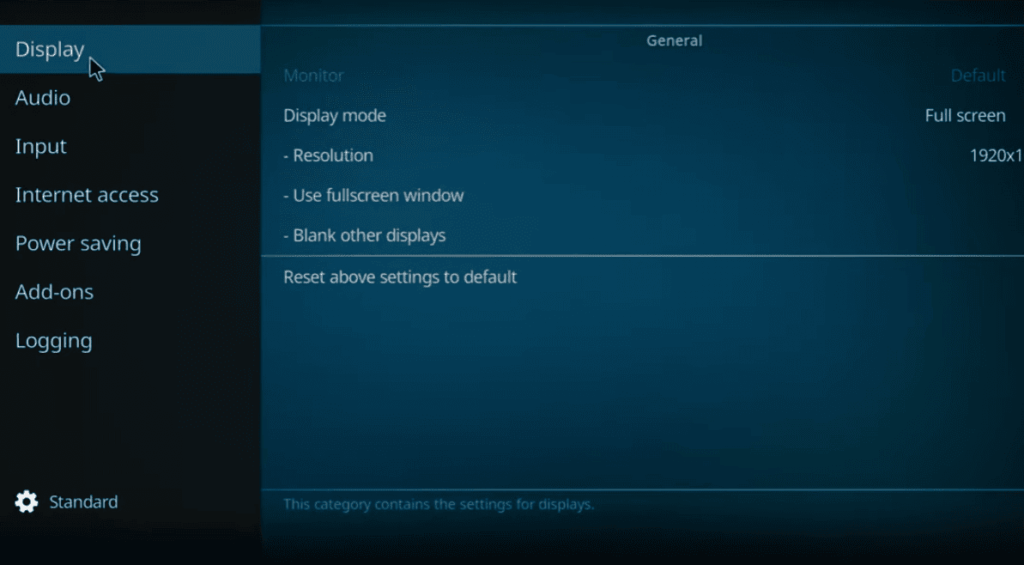
- Navigate to the “Settings” gear icon, usually located at the top left or bottom of the screen;
- Click on “System” (for Kodi 18 Leia) or “System Settings” (for Kodi 17 Krypton);
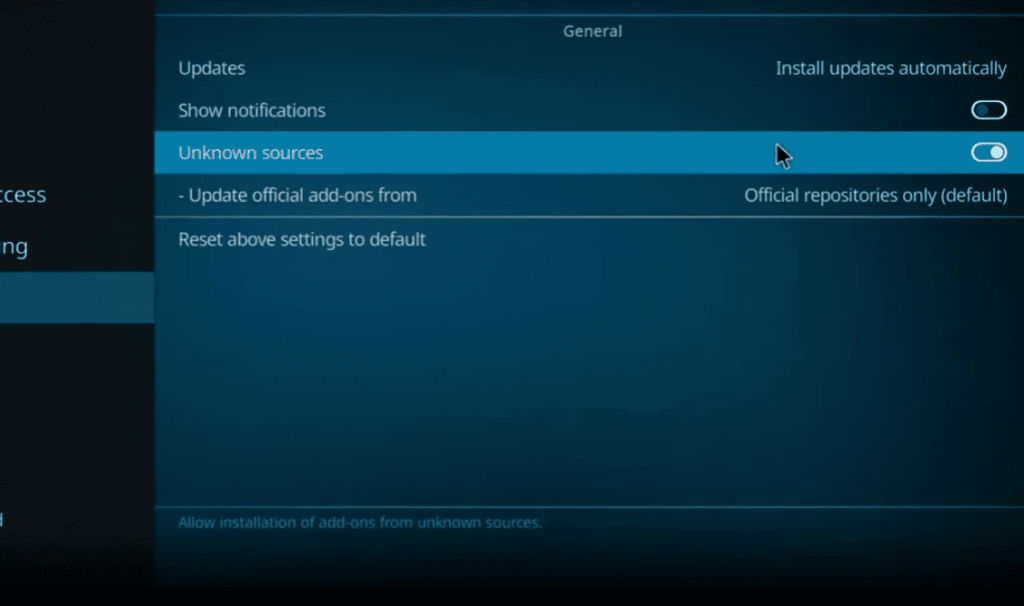
- Select “Add-ons” from the left sidebar;
- Toggle the “Unknown Sources” option to the right to enable it;
- A warning message will appear; click “Yes” to proceed;
- Enabling unknown sources allows you to install addons from external repositories, including The Crew;
- Downloading The Crew:
After enabling downloads from unknown sources, the next step is to download The Crew addon. Follow these steps:
- Open a web browser on your device and visit the official website for The Crew addon or a reliable source that hosts the addon;
- Look for the download link for The Crew addon. It’s often available in a zip file format;
- Click on the download link, and the zip file will be downloaded to your device;
- Make sure to download The Crew addon from a trusted source to avoid potential security risks;
- Installing The Crew’s Repository:
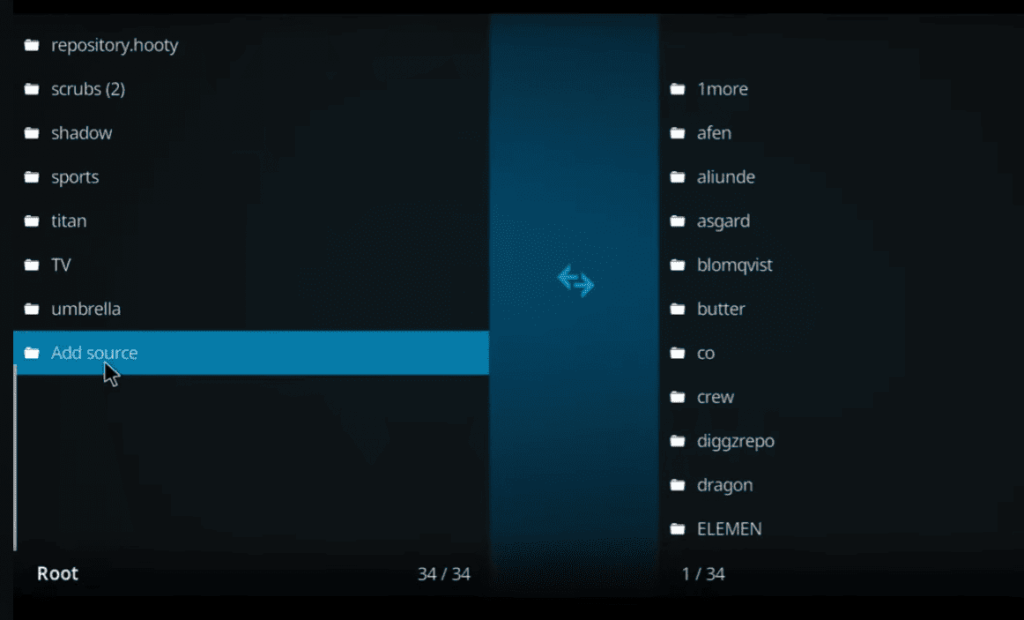
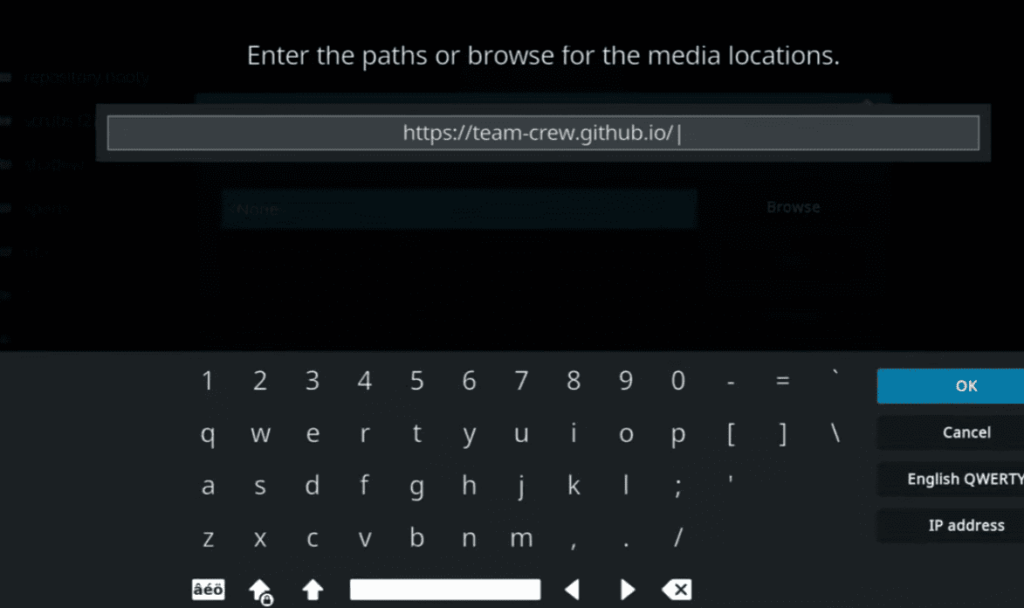
Once you have the zip file downloaded, you’ll need to install The Crew’s repository. The repository serves as a centralized hub from which the addon can be easily installed. Follow these steps:
- Return to the Kodi home screen;
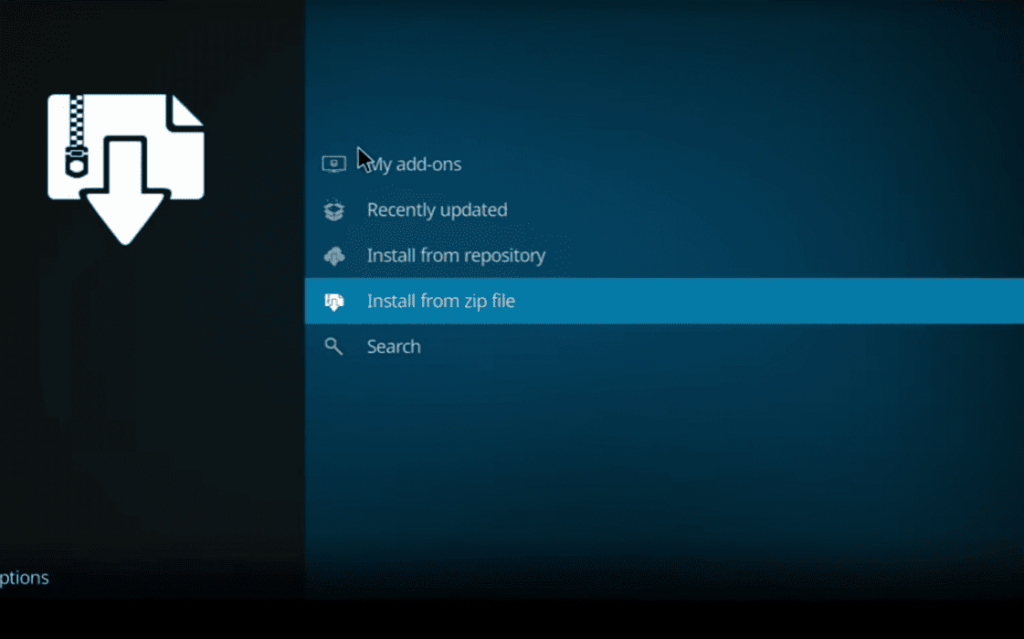
- Navigate to the “Add-ons” tab on the left sidebar;
- Click on the “Package” icon (usually located at the top left corner) to open the Add-on Browser;
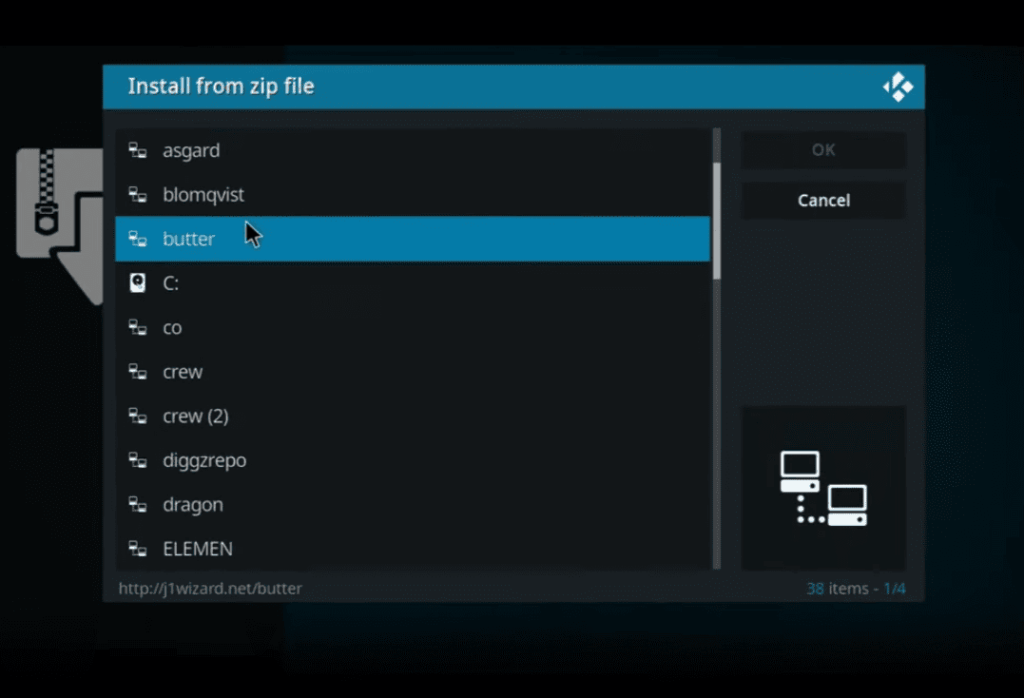
- Select “Install from zip file”;
- Browse to the location where you downloaded The Crew addon zip file;
- Click on the zip file to initiate the installation of The Crew repository;
- Wait for a notification indicating that the repository installation was successful;
Installing The Crew repository is a crucial step as it sets the stage for accessing and installing The Crew addon.
- Installing The Crew:
Now that you have The Crew repository installed, it’s time to install The Crew addon itself. Follow these steps:
- While still in the Add-on Browser, select “Install from repository”;
- Locate and click on “The Crew Repository”;
- Choose “Video add-ons” from the list of available options;
- You should now see “The Crew” addon listed. Click on it;
- On the next screen, click the “Install” button to start the installation process;
- Wait for the notification that The Crew addon has been successfully installed;
How to Use the Kodi Crew Add-On:
1) Using Real Debrid with The Crew:
Real Debrid is a premium service that enhances your streaming experience by providing high-quality links with faster buffering times. Integrating Real Debrid with The Crew addon is a straightforward process:
Sign Up for a Real Debrid Account:
Visit the official Real Debrid website and sign up for an account if you don’t already have one.
Choose a subscription plan that suits your preferences and budget.
Authorize Real Debrid in The Crew Addon:
- Open The Crew addon on Kodi;
- Navigate to the main menu and select “Tools”;
- Choose “ResolveURL Settings” or “URLResolver Settings,” depending on your Kodi version;
- Select “Universal Resolvers”;
- Scroll down to the Real Debrid section and click on “Re(Re)Authorize My Account”;
- Follow the on-screen prompts to input the Real Debrid authorization code;
Adjust Real Debrid Settings:
- Within The Crew addon, go to the main menu and select “Settings”;
- Choose “Accounts” and then select “Real Debrid”;
- Enable the “Enable Real Debrid” option;
By following these steps, you’ve successfully integrated Real Debrid with The Crew addon. Enjoy smoother streaming and high-quality content with reduced buffering times.
2) Using Trakt with The Crew:
Trakt is a service that allows you to track and synchronize your watched content across multiple devices. It also provides personalized recommendations based on your viewing history. Integrating Trakt with The Crew addon enhances the user experience:
Create a Trakt Account:
- Visit the Trakt website and sign up for a free account if you don’t have one;
- Follow the on-screen instructions to complete the registration process;
Authorize Trakt in The Crew Addon:
- Open The Crew addon on Kodi;
- Navigate to the main menu and select “Tools”;
- Choose “SETTINGS: Accounts”;
- Select “Trakt” and click on “Authorization”;
A unique code will be displayed on the screen. Visit trakt.tv/activate on a web browser and enter the code to authorize Trakt.
Adjust Trakt Settings:
- Within The Crew addon, go to the main menu and select “Settings”;
- Choose “Accounts” and then select “Trakt”;
- Enable the “Enable Trakt” option;
Sync Your Trakt Account:
Back in the Trakt website, you can customize your profile and sync your watched history.
By integrating Trakt with The Crew addon, you’ve personalized your streaming experience and gained the ability to track your viewing habits across different platforms.
Alternatives to The Crew Addon
While The Crew addon for Kodi offers a rich and diverse streaming experience, it’s always good to have alternatives at your disposal:
- Exodus Redux:
Exodus Redux is a popular Kodi addon known for its extensive collection of movies and TV shows. It features a user-friendly interface and offers high-quality streaming links. The addon supports Trakt integration, allowing users to synchronize their watched history across devices.
- Seren:
Seren is a feature-rich Kodi addon that focuses on providing high-quality streaming with Real Debrid integration. It offers a sleek interface and advanced features, making it an excellent choice for users who prioritize premium streaming services. Seren also supports Trakt integration for a personalized viewing experience.
- Venom:
Venom is another powerful Kodi addon that serves as an alternative to The Crew. It offers a vast library of movies and TV shows, with support for Real Debrid and Trakt integration. Venom is known for its reliable streaming links and user-friendly interface.
- Gaia:
Gaia is a Kodi addon designed for users who prefer a more customizable streaming experience. It supports both Real Debrid and Trakt integration and provides advanced settings for users who want to fine-tune their streaming preferences. Gaia excels in delivering high-quality streams and a diverse content library.
- Yoda:
Yoda is a lightweight yet effective Kodi addon that offers a wide range of movies and TV shows. It is known for its simplicity and ease of use. Yoda supports Real Debrid and Trakt integration, providing users with options for enhanced streaming and personalized recommendations.
- Magic Dragon:
Magic Dragon is a well-established Kodi addon that provides a variety of content, including movies, TV shows, documentaries, and more. With an easy-to-navigate interface, Magic Dragon offers a pleasant streaming experience. It supports Real Debrid for improved streaming quality.
- Covenant:
Covenant is a classic Kodi addon that has stood the test of time. It offers a vast collection of movies and TV shows with reliable streaming links. While Covenant may not receive regular updates, it remains a favorite among Kodi users who appreciate its simplicity and content variety.
- Tempest:
Tempest is a Kodi addon that inherits some features from the popular Exodus and Covenant addons. It provides a straightforward interface and a diverse content library. Tempest supports both Real Debrid and Trakt integration, ensuring users have options for personalized and high-quality streaming.
FAQ:
Should you use a VPN with this Kodi addon?
Yes, using a Virtual Private Network (VPN) is highly recommended when using Kodi addons, including The Crew. A VPN helps protect your online privacy, bypass geo-restrictions, and prevent potential ISP monitoring.
How do you download The Crew Addon on Kodi?
To download The Crew Addon on Kodi, you can follow a step-by-step guide provided by the developers. Typically, it involves enabling unknown sources, downloading the addon from a trusted source, and installing it through the Kodi interface.
What’s the difference between a Kodi addon and a Kodi build?
A Kodi addon is a single extension that adds specific content or functionality to Kodi. In contrast, a Kodi build is a complete package that includes a customized skin, multiple addons, and pre-configured settings, providing a comprehensive Kodi experience.
What are the dangers of The Crew addon?
While The Crew addon itself is generally safe, users should be cautious when installing addons from unofficial sources. Using a VPN, keeping Kodi and addons updated, and avoiding suspicious repositories can mitigate potential security risks.
How do you install The Crew addon on Firestick?
Installing The Crew addon on Firestick involves enabling unknown sources, downloading the addon zip file, and installing it through the Kodi interface. The process is similar to installing on other Kodi-supported devices.
What can you watch on the Crew Kodi addon?
The Crew addon offers a diverse range of content, including movies, TV shows, live TV, sports, and more. Its extensive library caters to a wide variety of preferences.
How do you fix buffering on The Crew addon?
To reduce buffering on The Crew addon, you can try adjusting the video quality settings, using Real Debrid for premium links, or ensuring a stable internet connection. Clearing cache within Kodi settings may also help.
How do you install Kodi on Windows 11?
Installing Kodi on Windows 11 is similar to other Windows versions. Download the Kodi installer from the official website, run the installer, and follow the on-screen instructions.
How do you add Real Debrid to Kodi?
To add Real Debrid to Kodi, go to the settings of your chosen addon (e.g., The Crew), find the Real Debrid section, and authorize your account by entering the provided code on the Real Debrid website.
How do you use the Real Debrid extension?
After integrating Real Debrid with Kodi, the premium links provided by Real Debrid will be automatically utilized when streaming content. No additional steps are required during regular usage.
Which version of Kodi is best for Windows 10?
The latest stable version of Kodi is recommended for Windows 10. Users should regularly check the official Kodi website for updates and download the most recent release.
Where are Kodi addons installed?
Kodi addons are typically installed in the “addons” folder within the Kodi application directory. The exact location may vary depending on the operating system.
Why can’t you add addons to Kodi?
Inability to add addons may result from incorrect settings, disabled unknown sources, or compatibility issues. Ensure that these settings are appropriately configured, and try installing addons from trusted sources.
How do you manually update Kodi addons?
To manually update Kodi addons, go to the settings, select “Add-ons,” then “My add-ons.” Find the addon you want to update, click on it, and choose the “Update” option if available.
Where is the Kodi folder located?
The location of the Kodi folder varies by operating system. Common locations include “Program Files” on Windows, “Applications” on macOS, and the home directory on Linux.
Is Kodi completely free?
Yes, Kodi is an open-source media player that is completely free to use. However, some addons may offer premium services or require subscriptions.
How do you delete an app?
The process of deleting an app depends on the device or operating system. On most devices, you can go to the app settings, find the app you want to delete, and select the uninstall option.