
This comprehensive guide will walk you through the intricacies of installing the WatchNixtoons2 Kodi addon, unlocking a treasure trove of classic cartoons, anime series, and animated movies.
As the demand for diverse and high-quality animated content continues to grow, WatchNixtoons2 emerges as a beacon, offering an extensive library, a user-friendly interface, and regular updates to keep pace with the dynamic world of animation.
Whether you’re a seasoned Kodi user or a newcomer exploring the vast possibilities within this open-source platform, this step-by-step guide will empower you to seamlessly integrate WatchNixtoons2, elevating your animated entertainment experience to new heights.
Join us as we delve into the installation process, exploring the addon’s features, and unlocking a gateway to a world filled with nostalgia, creativity, and the latest animated masterpieces.
Is WatchNixtoons2 Kodi Addon Safe and Legal?
The WatchNixtoons2 Kodi addon is neither entirely safe nor legal. Here’s a breakdown of the risks and concerns:
Safety:
- Unofficial Repository: WatchNixtoons2 is hosted in third-party repositories not affiliated with Kodi, which introduces potential security risks like malware or code injection;
- Unverified Sources: The addon streams content from various, often unverified sources, which may host malicious content or compromise your privacy;
- Limited Support: Unlike official Kodi addons, WatchNixtoons2 lacks official support, making troubleshooting and security updates less reliable;
Legality:
- Copyright Infringement: WatchNixtoons2 offers access to copyrighted content without authorization from the rights holders, potentially violating copyright laws;
- Geo-blocking Restrictions: Accessing geo-restricted content through the addon might bypass licensing agreements and be illegal in some regions;
- Streaming Quality: The addon relies on various sources, leading to inconsistent streaming quality and potential legal issues surrounding the distribution of unauthorized content;
Alternatives:
Instead of WatchNixtoons2, consider safer and legal options for watching anime and cartoons on Kodi:
- Official Kodi Addons: Explore licensed addons like Crunchyroll, Funimation, or HiDive that offer authorized content with guaranteed safety and legality;
- Streaming Services: Subscribe to legitimate streaming platforms like Netflix, Hulu, or Disney+ that offer extensive anime and cartoon libraries;
- Local Libraries: Many libraries provide DVDs and Blu-rays of popular anime and cartoons for borrowing;
Remember, using unauthorized streaming addons like WatchNixtoons2 exposes you to potential legal and security risks. Choosing safe and legal alternatives ensures a more enjoyable and secure viewing experience.
WatchNixtoons2 Kodi Addon Overview:
WatchNixtoons2 is a third-party Kodi addon that allows you to stream cartoons and anime. It offers a wide variety of content, including popular cartoons, classic anime, and even some newer releases. The addon scrapes content from various online sources, which can be both legal and illegal, depending on the specific content and your location.
Key Aspects:
- Large library of cartoons and anime;
- Search by title, genre, year, and other criteria;
- Filter by dub/sub versions, ongoing series, and popular shows;
- Watchlist and recently watched functionality;
- Basic playback controls like pause, rewind, and fast forward;
Features
- Extensive Content Library:
WatchNixtoons2 boasts an impressive collection of animated content. From timeless classics like Tom and Jerry to contemporary anime hits such as Attack on Titan, the addon caters to a broad audience with varied tastes. Users can easily navigate through the library to find their favorite shows and movies.
- User-Friendly Interface:
The addon’s interface is intuitive and user-friendly, making it easy for both beginners and experienced Kodi users to navigate. The well-organized menus and categories ensure a smooth browsing experience, allowing users to explore and discover new content effortlessly.
- Multiple Streaming Sources:
One of the standout features of WatchNixtoons2 is its reliance on multiple streaming sources. This ensures a more reliable streaming experience, reducing the likelihood of dead links or buffering issues. The addon’s ability to fetch content from various sources also contributes to faster load times.
- Search and Filter Options:
To enhance user convenience, WatchNixtoons2 offers robust search and filter options. Users can quickly search for specific titles or use filters to narrow down their choices based on genres, release years, or languages. This feature is especially beneficial for users with specific preferences or those looking for content from a particular era.
- Regularly Updated Content:
Staying true to its commitment to delivering fresh and relevant content, WatchNixtoons2 regularly updates its library. This ensures that users have access to the latest episodes of their favorite shows and the hottest releases in the animated world. The addon’s dedication to staying current sets it apart from many other Kodi addons.
Pros:
- Diverse Content Selection: WatchNixtoons2 caters to a broad audience by offering a diverse selection of animated content. Whether you’re a fan of classic cartoons, animated movies, or the latest anime series, the addon has something for everyone. This diversity is a major advantage, as it allows users to explore and enjoy content from various genres and eras;
- Reliable Streaming Sources: The reliance on multiple streaming sources ensures a more reliable streaming experience. Users can enjoy their favorite animated shows and movies without the frustration of encountering dead links or constant buffering. This reliability contributes significantly to the addon’s popularity among Kodi users;
- User-Friendly Interface: The intuitive and user-friendly interface of WatchNixtoons2 is a notable advantage. Whether you’re a Kodi novice or an experienced user, the addon’s well-organized menus and easy navigation make the entire streaming process seamless. Users can quickly find and access the content they desire without any hassle;
- Search and Filter Options: The addon’s robust search and filter options add a layer of convenience for users. Searching for specific titles or applying filters based on genres, release years, or languages makes it easy to discover new content or locate old favorites. This feature is especially beneficial for users with specific preferences or those looking for content with particular attributes;
- Regular Updates: The commitment to regularly updating the content library sets WatchNixtoons2 apart. Users can stay on top of the latest animated releases, ensuring that they don’t miss out on new episodes or trending shows. This dedication to keeping the content fresh reflects the addon’s responsiveness to the dynamic nature of the animated entertainment landscape;
Cons:
- Dependency on Internet Speed: While the reliance on multiple streaming sources contributes to a more reliable streaming experience, WatchNixtoons2 is still dependent on the user’s internet speed. Users with slower internet connections may encounter buffering issues, affecting the overall viewing experience. It’s important for users to have a stable and high-speed internet connection for optimal performance;
- Limited 4K Content: WatchNixtoons2 primarily focuses on delivering a vast library of animated content, but it may not be the ideal choice for users seeking a substantial collection of 4K content. The addon’s emphasis on variety and quantity may come at the expense of a more extensive selection of ultra-high-definition content;
- Occasional Broken Links: Despite the effort to provide reliable streaming sources, users may still encounter occasional broken links. This issue is not unique to WatchNixtoons2, as it is a common challenge for Kodi addons that rely on external sources. However, it’s worth noting that some users may find this occasional inconvenience frustrating;
- Lack of Official Support: WatchNixtoons2 operates as a third-party Kodi addon, which means it lacks official support from Kodi developers. While the addon has a community following and users often share tips and troubleshooting advice online, those seeking official assistance may find limited options. This lack of official support can be a drawback for users who prefer a more structured and official help channel;
- Interface Aesthetics: While the interface is user-friendly, some users may find the aesthetics lacking compared to other Kodi addons. The design is functional but may not have the polished look that users accustomed to more visually appealing interfaces might desire. This is a subjective aspect, and opinions on the interface may vary from user to user;
How to Install WatchNixtoons2 Kodi Addon:
Enable Unknown Sources on Kodi
Before you can install third-party addons like WatchNixtoons2, it’s essential to enable unknown sources within the Kodi settings. This allows the installation of addons from external repositories.
Follow these steps to enable unknown sources:
- Open Kodi: Launch the Kodi application on your device;
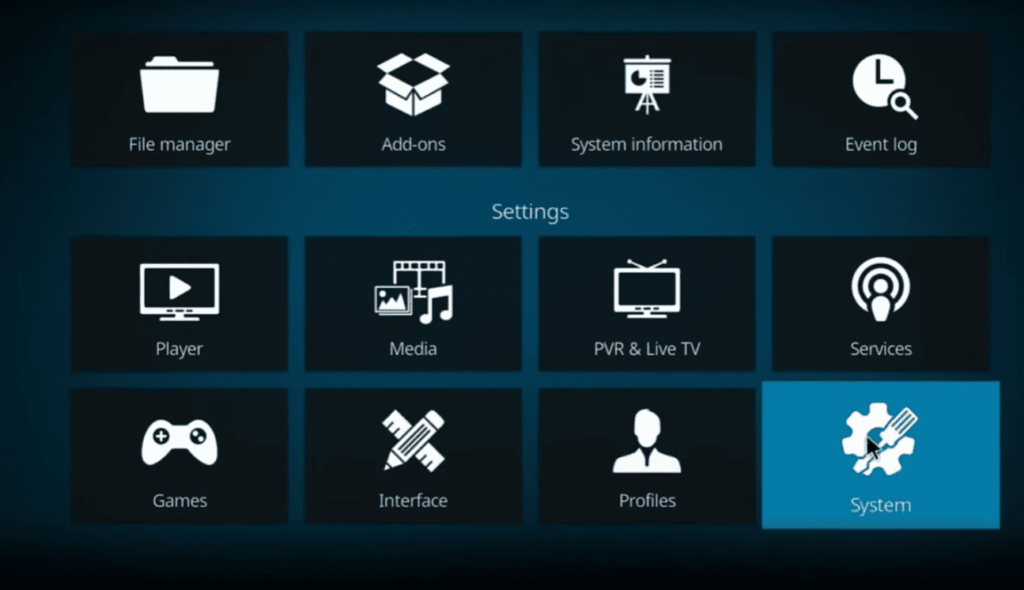
- Navigate to Settings: Click on the gear icon located at the top left corner of the Kodi home screen to access the settings menu;
- Go to System: In the settings menu, select “System” (for Kodi 18 Leia users, it may be labeled as “System Settings”);
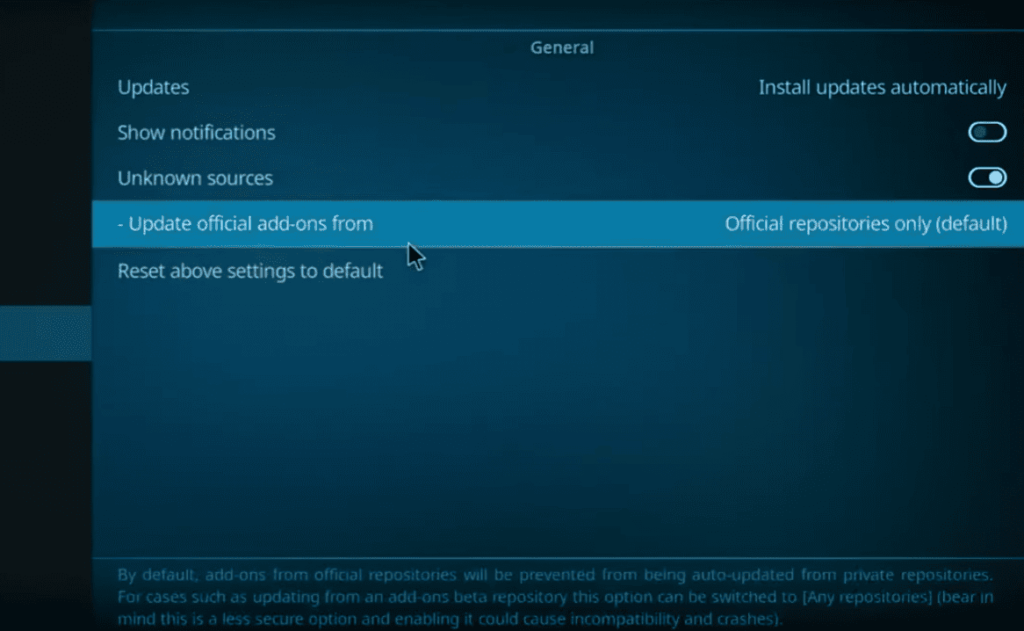
- Choose Add-ons: Within the System menu, click on “Add-ons” on the left sidebar;
- Enable Unknown Sources: You will see an option labeled “Unknown sources.” Toggle the switch next to it to enable unknown sources. A warning message will appear; confirm your choice by clicking “Yes”;
With unknown sources enabled, you’re now ready to proceed with the installation of the WatchNixtoons2 addon.
Install The Repository With WatchNixtoons2
To access WatchNixtoons2, you need to install the repository that hosts the addon. Follow these steps to add the repository to Kodi:
- Go back to the Settings menu: Use the back arrow on the top left to return to the main settings menu;
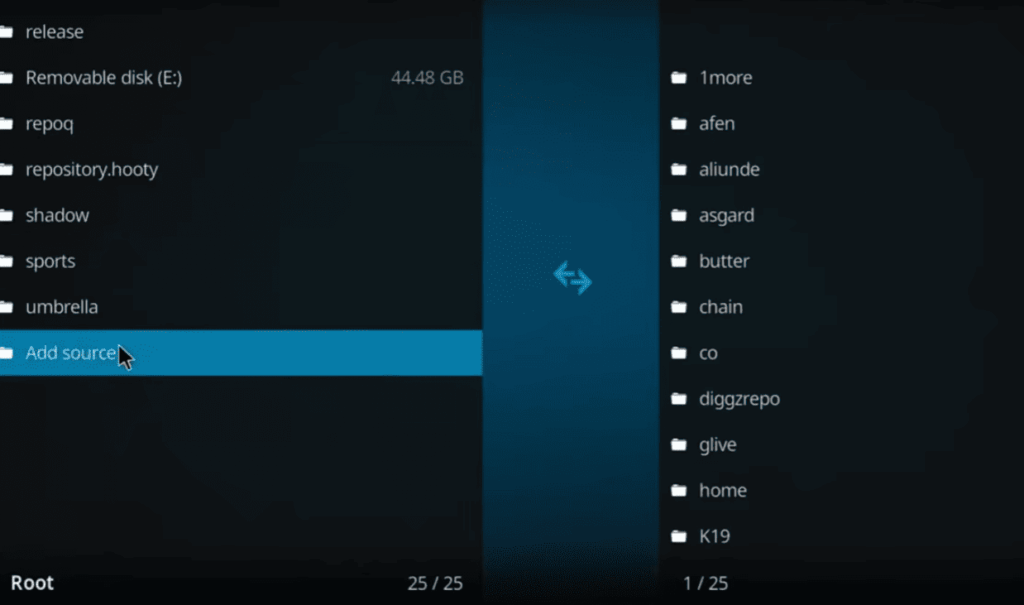
- Access File Manager: In the settings menu, select “File Manager”;
- Add Source: Click on “Add Source” to add the repository URL;
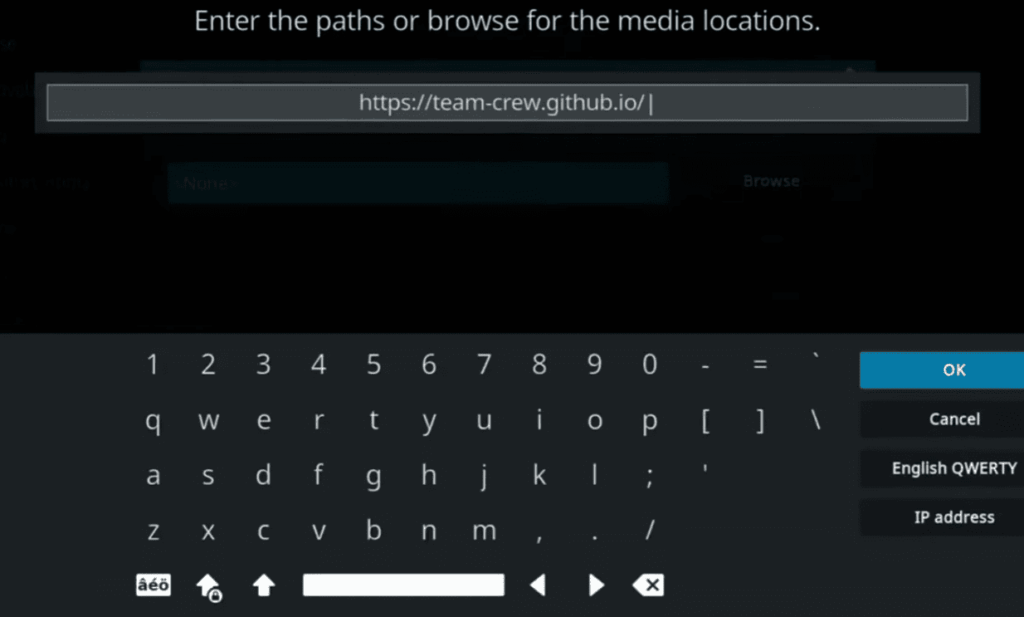
- Enter Repository URL: A window will pop up. Click on the box labeled “None” and enter the following URL: http://nixgates.github.io/packages. Confirm by clicking “OK”;
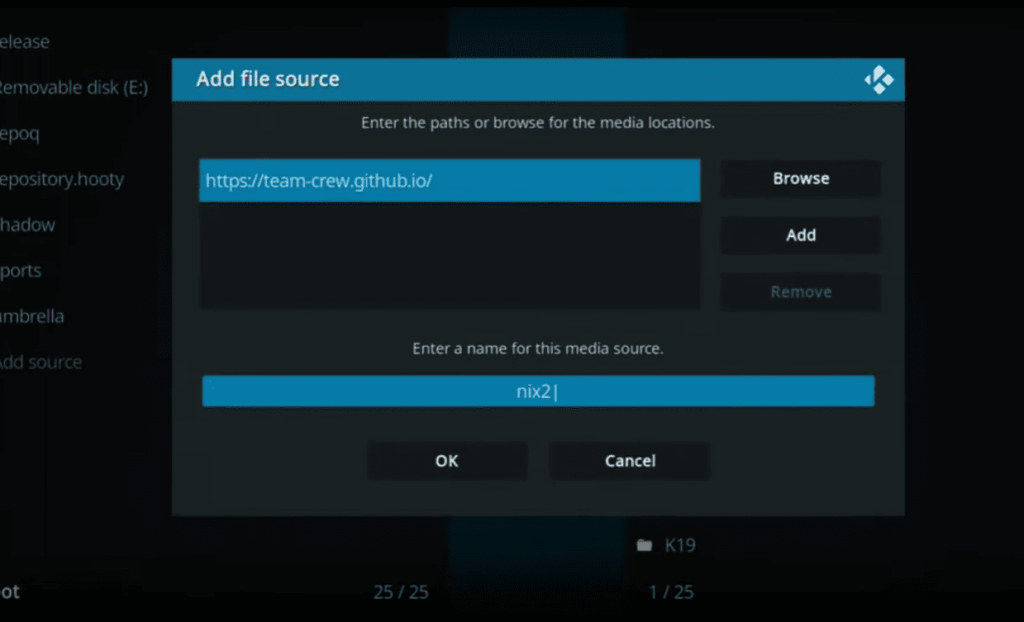
- Name the Source: Below the URL box, you’ll see a space to name the source. Enter a name for identification, such as “NixGates.” Click “OK” to save;
- Return to Kodi Home Screen: Navigate back to the Kodi home screen;
- Access Add-ons Section: Click on “Add-ons” in the left sidebar;
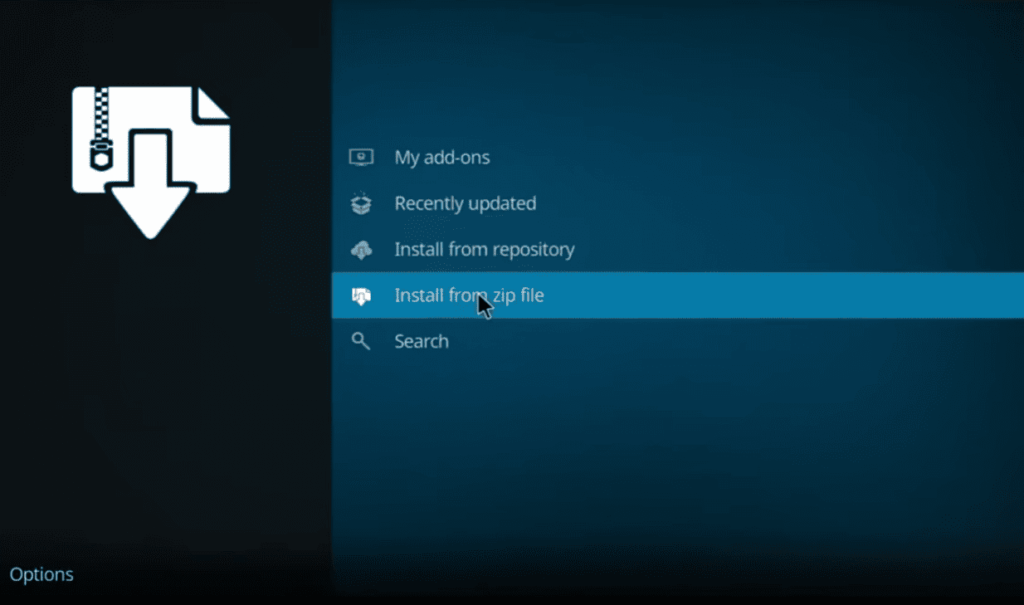
- Install from Zip File: Select “Install from zip file”;
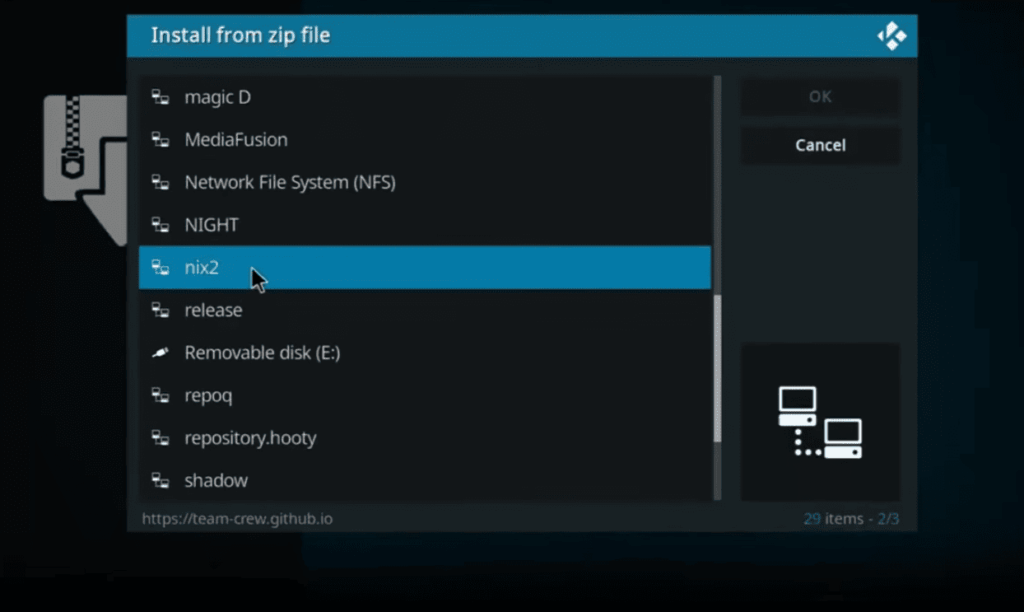
- Choose the Repository: Find and click on the source you added earlier (in our case, “NixGates”);
- Install Repository Zip File: Click on the zip file inside the repository folder (usually named repository.nixgates-x.x.zip). Wait for the “Add-on installed” notification;
Now that you have successfully added the repository, it’s time to install WatchNixtoons2.
Install WatchNixtoons2
Follow these steps to install WatchNixtoons2 from the repository:
- Access Add-ons Section Again: Navigate back to the Kodi home screen and click on “Add-ons”;
- Install from Repository: Choose “Install from repository”;
- Select NixGates Repository: Find and click on the repository you added (in our case, “NixGates Repository”);
- Go to Video Add-ons: Inside the repository, select “Video add-ons”;
- Find WatchNixtoons2: Scroll down to locate WatchNixtoons2 and click on it;
- Install WatchNixtoons2: Click the “Install” button to initiate the installation process;
- Wait for Confirmation: Once installed, you will see a notification confirming the successful installation of WatchNixtoons2;
- Access WatchNixtoons2: Return to the Kodi home screen, navigate to “Add-ons,” and select “WatchNixtoons2” to launch the addon;
You have now successfully installed WatchNixtoons2 on your Kodi device. Explore the extensive library, enjoy your favorite animated shows, and stay up-to-date with the latest releases in the animated world.
How to Use WatchNixtoons2 Kodi Addon:
Playing Titles
Once you’ve successfully installed WatchNixtoons2 on your Kodi device, launching your favorite animated titles is a breeze.
Follow these steps to start enjoying the animated content:
- Access WatchNixtoons2: Navigate to the Kodi home screen, select “Add-ons,” and click on “WatchNixtoons2”;
- Browse Content: Use the intuitive interface to explore the extensive library. You can navigate through categories, genres, and other filters to find the animated titles you’re interested in;
- Select Title: Click on the title you want to watch. This will open a menu with additional information about the selected title;
- Play Content: Choose the “Play” option to start streaming the selected title. Depending on your internet speed, the playback should begin promptly;
Video Player Options
WatchNixtoons2 provides users with a range of video player options to enhance their viewing experience. While playing a title, you can access these options by:
- Right-click (Context Menu): During playback, right-click to access the context menu;
- Video Player Settings: Navigate to the video player settings, where you can adjust playback settings, subtitles, and video quality;
- Toggle Full Screen: Maximize your viewing experience by toggling between full-screen and windowed mode;
- Playback Controls: Utilize the standard playback controls, such as play, pause, stop, fast forward, and rewind, to customize your viewing experience;
Latest Movies
Stay updated with the latest animated movie releases using WatchNixtoons2’s “Latest Movies” section. Here’s how you can access and explore this feature:
- Navigate to Latest Movies: From the WatchNixtoons2 home screen, locate and click on the “Latest Movies” section;
- Browse Titles: Explore the recently added animated movies. The list is regularly updated to keep you informed about the newest releases;
- Select and Play: Click on a movie title to access additional details and start streaming. Enjoy the latest animated movies from the comfort of your Kodi setup;
Popular & Ongoing Series
Discover what’s trending and catch up on your favorite ongoing animated series through WatchNixtoons2’s “Popular & Ongoing Series” section:
- Access Popular & Ongoing Series: Find this section on the WatchNixtoons2 home screen;
- Explore Titles: Browse through the popular and ongoing animated series. This section is perfect for staying in the loop with the latest episodes;
- Start Streaming: Click on a series title to view additional details and start streaming. WatchNixtoons2 ensures you’re always up-to-date with the hottest animated series;
Dubbed Anime
For those who prefer dubbed anime for a more accessible viewing experience, WatchNixtoons2 has a dedicated “Dubbed Anime” section:
- Locate Dubbed Anime Section: From the home screen, find and click on the “Dubbed Anime” category;
- Explore Titles: Browse through a curated collection of dubbed anime titles. This section is ideal for users who enjoy watching anime in languages other than the original Japanese;
- Select and Play: Click on a dubbed anime title to access additional information and initiate playback. Enjoy a diverse range of dubbed anime content at your convenience;
Cartoons Section
WatchNixtoons2 caters to fans of classic and contemporary cartoons with its dedicated “Cartoons” section:
- Navigate to Cartoons: On the WatchNixtoons2 home screen, locate and click on the “Cartoons” category;
- Explore Cartoon Titles: Dive into a treasure trove of classic and modern cartoons. The section is curated to appeal to a wide audience;
- Start Watching: Click on a cartoon title to view details and start streaming. Whether you’re a fan of timeless classics or newer animated series, the Cartoons section has something for everyone;
Subbed Anime
For anime purists who prefer watching in the original Japanese language with subtitles, WatchNixtoons2 offers a dedicated “Subbed Anime” section:
- Find Subbed Anime: From the home screen, locate and click on the “Subbed Anime” category;
- Explore Subtitled Titles: Delve into a diverse collection of subbed anime titles. This section ensures you have access to the authentic Japanese voice acting with subtitles for an immersive experience;
- Select and Play: Click on a subbed anime title to access additional information and initiate playback. Immerse yourself in the world of Japanese anime with subtitles that capture the nuances of the original dialogue;
Movies
In addition to the latest movies, WatchNixtoons2 has a broader “Movies” section encompassing animated films across various genres and eras:
- Access Movies Section: Find the “Movies” category on the WatchNixtoons2 home screen;
- Explore Animated Films: Browse through a diverse collection of animated movies. This section caters to a wide range of tastes, from family-friendly animations to more mature and experimental films;
- Start Streaming: Click on a movie title to view details and begin streaming. Whether you’re in the mood for a classic animated film or something more contemporary, the Movies section has you covered;
OVA Series
OVA (Original Video Animation) series often offer unique and standalone stories. WatchNixtoons2 has a dedicated section for these special releases:
- Locate OVA Series: Find and click on the “OVA Series” category from the WatchNixtoons2 home screen;
- Explore OVA Titles: Discover a curated collection of OVA series. These releases often provide additional depth to popular anime series or present entirely independent narratives;
- Select and Play: Click on an OVA series title to access additional information and initiate playback. Explore the world of anime OVAs and enjoy standalone stories that offer a different viewing experience;
Search
WatchNixtoons2 simplifies the process of finding specific titles or genres with its powerful search feature:
- Access Search Function: From the WatchNixtoons2 home screen, locate and click on the “Search” option;
- Enter Keywords: Use the on-screen keyboard to enter keywords, titles, or genres you’re looking for;
- Browse Results: Review the search results to find the content you’re interested in. Click on a title to access additional details and start streaming;
Settings
Customize your WatchNixtoons2 experience and ensure optimal performance by exploring the settings options:
- Access Settings: From the WatchNixtoons2 home screen, find and click on the “Settings” option;
- Adjust Preferences: Explore the various settings options, including playback settings, language preferences, and update preferences. Customize the addon to suit your preferences and requirements;
- Save Changes: After making adjustments, ensure to save your changes to apply the selected preferences;
How to Integrate Trakt on WatchNixtoons2 Kodi Addon?
Integrating Trakt with WatchNixtoons2 on Kodi allows you to sync your watched history, favorites, and lists across devices. Trakt integration enhances your animated entertainment experience, making it easier to manage your watchlist and stay updated on your favorite shows.
Follow these step-by-step instructions to seamlessly integrate Trakt with WatchNixtoons2:
Step 1: Create a Trakt Account
If you don’t already have a Trakt account, you need to create one. Visit the Trakt website and sign up for a free account.
Step 2: Generate Trakt API Key
To integrate Trakt with WatchNixtoons2, you’ll need to generate a Trakt API key. Here’s how:
- Log in to your Trakt account on the Trakt website;
- Go to your Trakt settings page;
- Scroll down to the “Your API Apps” section;
- Click on the “Create a new app” button;
- Fill out the required fields (App Name, App Description, App Website) with any information you prefer;
- Click on the “Save App” button;
- After saving, you’ll see your new app listed. Copy the displayed Client ID;
Step 3: Install WatchNixtoons2 on Kodi
If you haven’t installed WatchNixtoons2 on Kodi, follow the installation steps mentioned earlier in this guide.
Step 4: Open WatchNixtoons2 Settings:
- Launch Kodi and go to the home screen;
- Navigate to the “Add-ons” section;
- Find and click on “WatchNixtoons2” to open the addon;
- Inside WatchNixtoons2, select the “Settings” option. This is usually represented by a gear or cog icon;
Step 5: Access the Trakt Authorization Page
In the WatchNixtoons2 settings, find and click on the “Trakt” option. This might be under a section like “Accounts” or “Integration”. You’ll be prompted to visit a Trakt authorization page.
Step 6: Enter Trakt Authorization Code
- On your computer or mobile device, open a web browser and go to the provided Trakt authorization URL;
- Enter your Trakt credentials if prompted;
- You’ll receive an authorization code. Copy this code;
- Return to Kodi and paste the authorization code into the corresponding field;
- Click on the “OK” or “Authorize” button to complete the integration;
Step 7: Enter Trakt API Key
In the WatchNixtoons2 settings on Kodi, enter the Trakt API key (Client ID) that you obtained earlier in the “API Key” or similar field. Save your changes.
Step 8: Sync Watched History and Lists
Once Trakt is integrated with WatchNixtoons2, you can sync your watched history, favorites, and lists. Follow these steps:
- Open WatchNixtoons2 on Kodi;
- Navigate to the section where your watchlist or favorites are located;
- Right-click on a title or use the context menu to access Trakt options;
- Choose the appropriate Trakt action, such as “Mark as Watched” or “Add to Watchlist”;
- Repeat the process for other titles;
FAQ:
How do you install addons on Kodi?
To install addons on Kodi, navigate to the “Add-ons” section, click on “Install from repository,” select your desired repository, find the addon, and click on “Install.”
How do you install an official Kodi repository?
Access the Kodi settings, go to “Add-ons,” choose “Install from repository,” and select “Kodi Add-on repository.” Click on “Install” to add the official repository.
How do you add an APK to Kodi?
To add an APK to Kodi, use the “Install from ZIP file” option in the “Add-ons” section. Select the source containing the APK and follow the installation prompts.
How to install the Kodi plugin from GitHub?
Download the ZIP file of the GitHub repository, go to “Install from ZIP file” in Kodi’s “Add-ons” section, select the downloaded ZIP, and install the plugin.
Where are Kodi plugins installed?
Kodi plugins are typically installed in the “addons” folder within the Kodi application data directory on your device.
How to install APK manually?
Manually install an APK by enabling “Unknown sources” in your device settings, downloading the APK, and opening the file to initiate the installation process.
How do you install Kodi from Google Play?
Install Kodi from Google Play by searching for “Kodi” in the Google Play Store, selecting the official Kodi app, and clicking on “Install.”
How do you install fully loaded Kodi on Android?
Installing a fully loaded Kodi on Android involves downloading a Kodi build or setup that includes pre-installed addons. Be cautious and ensure the source is reputable to avoid potential issues.
What is the default database for Kodi?
The default database for Kodi is SQLite. It is used to store various metadata, including library information and addon settings.
How do you install plugins and add-ons?
Install plugins and addons in Kodi by going to the “Add-ons” section, selecting “Install from repository” or “Install from ZIP file,” and choosing the desired plugin or addon.
How do you unlock Kodi’s advanced settings?
Unlock advanced settings in Kodi by accessing the settings menu, clicking on “System,” choosing “Settings level” and setting it to “Advanced” or “Expert.”
Are Kodi repositories safe?
Reputable and official Kodi repositories are generally safe. However, caution is advised when using third-party repositories, as they may host unofficial and potentially unsafe add-ons.
Which Kodi repository is best?
The best Kodi repository depends on your preferences and the add-ons you are looking for. Official Kodi repositories are recommended for safety and reliability.
What is the real Debrid used for?
Real Debrid is a premium service that enhances streaming by providing high-speed and high-quality links for Kodi addons, improving the overall streaming experience.
Is Kodi free on Android?
Yes, Kodi is free to download and use on Android devices. It is an open-source media player that offers a wide range of customization options.
How do you allow APK to be installed?
Allow APK installation by enabling “Unknown sources” in your device settings. This allows the installation of apps from sources other than the official app stores.