
In the bustling landscape of home entertainment, two open-source titans rise tall: Kodi and Jellyfin. Both liberate you from subscription fees and empower you to curate your own personal media haven. But when the curtain rises on the battleground of features, ease of use, and community vibrancy, who emerges victorious?
This isn’t a gladiator match, but an intricate dance of strengths and weaknesses. Kodi, the veteran performer, dazzles with its playback prowess and customization magic, while Jellyfin, the new challenger, ascends with its server-centric elegance and streamlined approach. Choosing between them isn’t about crowning a champion, but finding the perfect fit for your unique entertainment symphony.
So, buckle up, media enthusiasts, as we unveil the intricacies of Kodi and Jellyfin, helping you discern the one that harmonizes perfectly with your home entertainment desires. Dive into the depths of features, explore the interface labyrinths, and unravel the mysteries of add-ons and plugins. Get ready to discover the magic that awaits, for in this epic battle, the true victor is you, the empowered architect of your own media universe.
What Is Kodi:
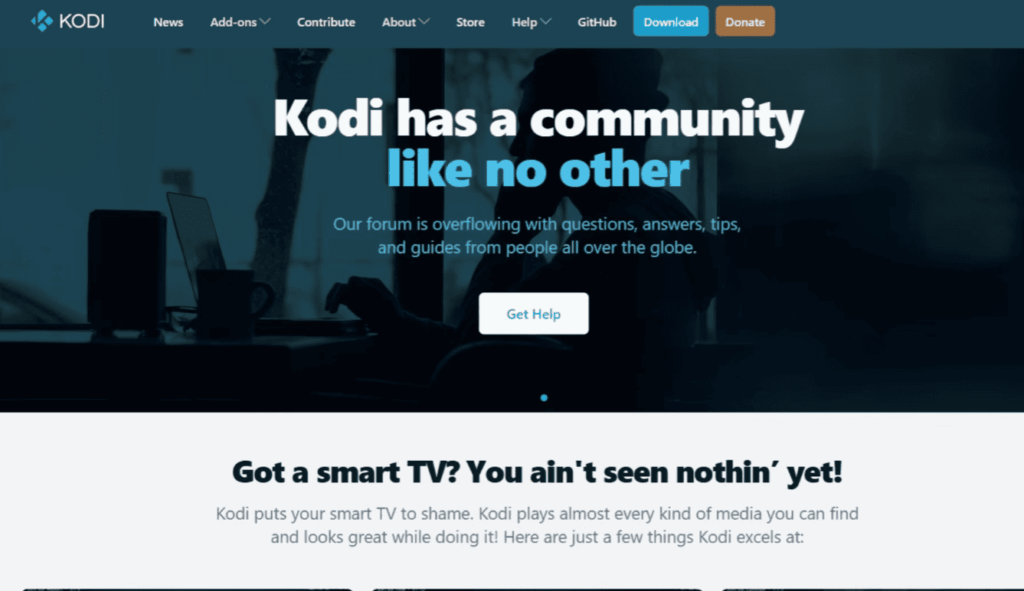
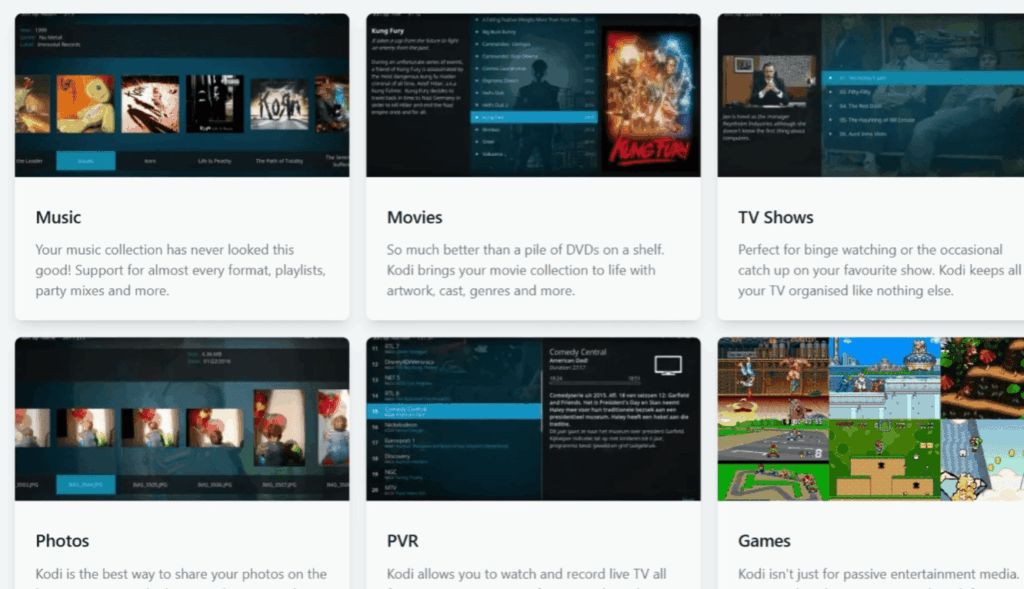
Kodi, formerly known as XBMC, is a free and open-source media player application that has become a go-to solution for building a personalized home entertainment center. It provides a powerful and customizable platform for playing an array of digital media, including movies, TV shows, music, podcasts, and even live TV.
Overview of Features
Kodi shines with its versatility and rich feature set. Here are some key highlights:
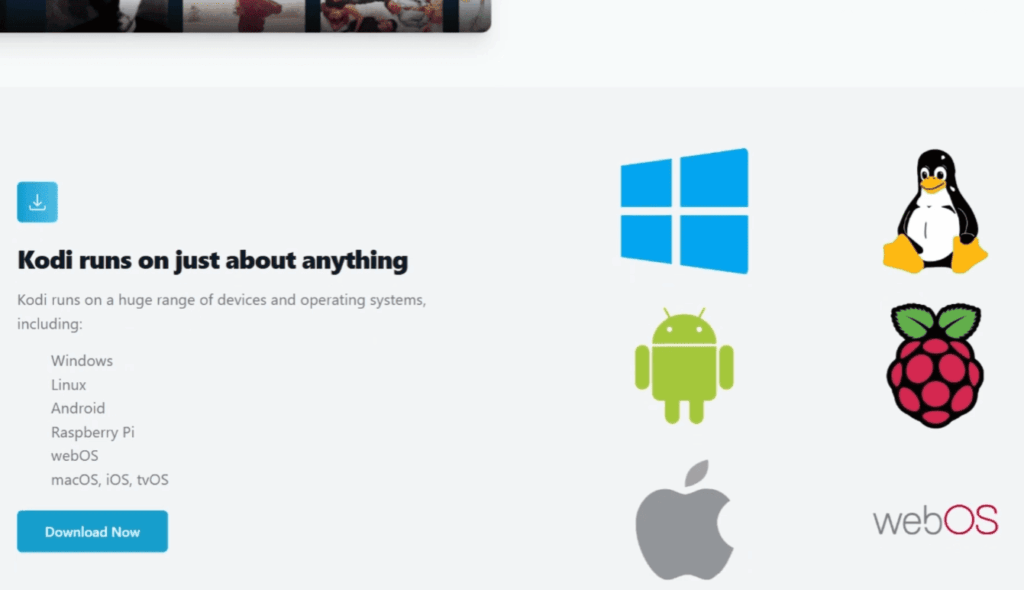
- Wide Platform Support: Kodi runs on a diverse range of devices, from personal computers and laptops to smartphones, tablets, streaming sticks, and dedicated media players. This cross-platform compatibility extends your media enjoyment beyond the living room;
- Media Playback Powerhouse: Kodi handles virtually any audio and video format you throw at it, including popular codecs like HEVC and VP9. It also integrates seamlessly with external hardware like NAS drives and TV tuners, bringing all your media under one roof;
- User-Friendly Interface: Kodi boasts a sleek and intuitive interface designed for easy navigation on TV screens. The familiar layout and customizable skins allow you to personalize your viewing experience;
- Library Organization: Organize your vast media collection into easy-to-browse libraries for movies, TV shows, music, and more. Kodi automatically scrapes metadata and artwork, presenting your content in a visually appealing way;
- Live TV and Recording: Turn your Kodi setup into a full-fledged TV hub with live TV support. Watch broadcast channels through a tuner and even record them for later viewing;
- Add-Ons Galore: One of Kodi’s defining features is its robust add-on ecosystem. These community-developed add-ons extend Kodi’s functionalities in countless ways, offering streaming services, news channels, games, and much more. However, it’s crucial to note that some add-ons may access content illegally, and using them violates copyright laws;
- Remote Control and Mobile App: Control Kodi from the comfort of your couch with a physical remote or your smartphone/tablet. Dedicated Kodi apps offer convenient playback control and library browsing on the go;
Pros:
- Free and Open-Source: Kodi is entirely free to use and modify, thanks to its open-source nature. This fosters a vibrant community of developers and enthusiasts who contribute to its constant improvement;
- Highly Customizable: From changing skins and layouts to configuring advanced settings, Kodi gives you complete control over your media experience. You can tailor it to your specific needs and preferences;
- Versatility and Platform Agnostic: Enjoy your media on virtually any device you own, making Kodi a truly flexible solution for centralized media entertainment;
- No Vendor Lock-in: Unlike proprietary media players tied to specific devices or ecosystems, Kodi liberates you from vendor restrictions, allowing you to choose your hardware and software freely;
- Active Community and Support: Kodi boasts a large and active community that provides extensive support and resources. Whether you need troubleshooting help or want to discover new features, the community is there to guide you;
Cons:
- Learning Curve: While Kodi’s interface is user-friendly, its advanced features and vast customization options can have a steeper learning curve for first-time users;
- Potential for Copyright Infringement: Remember, not all add-ons are legal. Using certain add-ons to access pirated content can have legal consequences and compromise your device’s security;
- Hardware Requirements: Depending on the features you use and the device you choose, Kodi might require a more powerful processor and graphics card for smooth playback;
- No Official Content Source: Kodi itself doesn’t provide any content. You’ll need to gather your own media or use legal add-ons for streaming services;
- Security Concerns: Kodi itself is secure, but some third-party add-ons can pose security risks, exposing your device to malware or unauthorized access. It’s crucial to research add-ons thoroughly before installing them;
What Is Jellyfin:
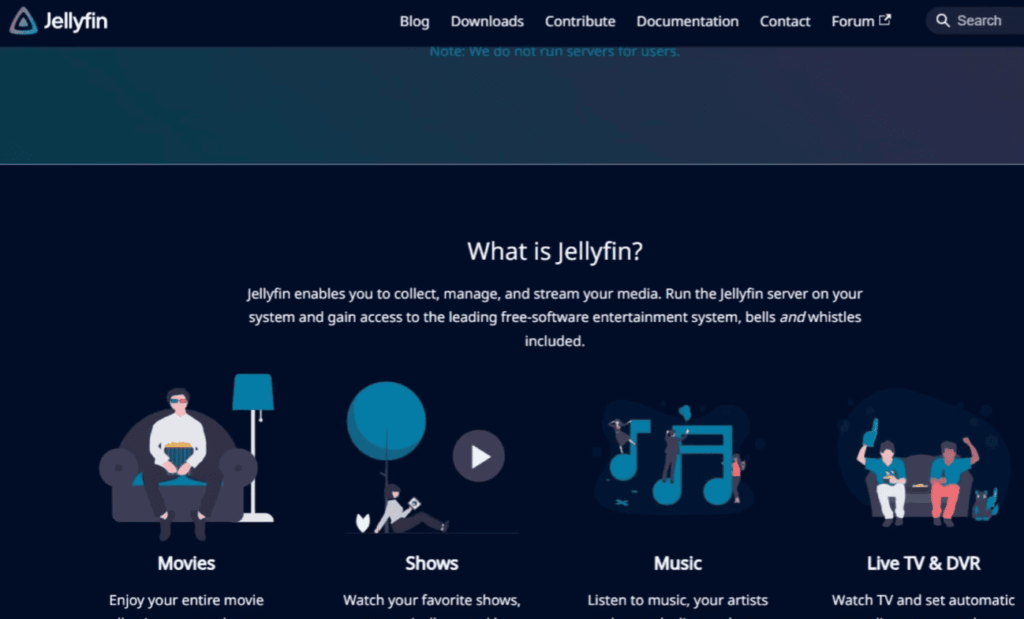
Jellyfin is a free and open-source media server software that empowers you to take complete control of your home entertainment experience. Unlike streaming services with limited libraries and subscriptions, Jellyfin lets you host your own vast media collection and stream it to any device.

Overview of Features:
- Server-Client Architecture: Jellyfin runs as a server application on your computer, phone, or dedicated NAS device. This server houses your media library and streams it to client devices like smart TVs, tablets, smartphones, and gaming consoles;
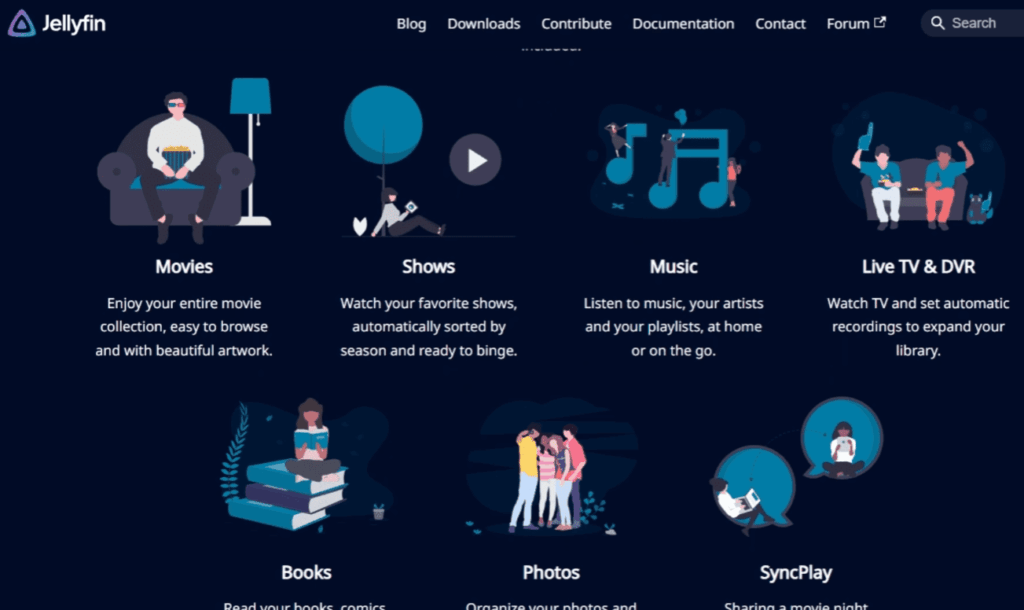
- Media Management Powerhouse: Jellyfin meticulously organizes your movies, TV shows, music, and books with automatic metadata scraping and artwork fetching. It seamlessly handles various video and audio formats, ensuring smooth playback;
- Live TV and DVR: Turn your server into a live TV hub. Watch broadcast channels through a tuner and even record them for later viewing – no cable subscription needed;
- Cross-Platform Access: Enjoy your media anywhere with apps available for virtually every device imaginable. Stream on your big screen TV, mobile phone, or even game console, all from your personal server;
- Parental Controls: Secure your family’s viewing experience with granular parental controls. Restrict access to specific content, age-gate mature libraries, and create profiles tailored to individual users;
- Customization Galore: From changing themes and layouts to fine-tuning advanced settings, Jellyfin caters to your preferences. Make the interface and functionality yours;
- Community-Driven Growth: Jellyfin is an open-source project with a passionate community constantly developing new features and plugins. This collaboration fuels continuous improvement and ensures relevance in the ever-evolving media landscape;
Pros:
- Free and Open-Source: Just like Kodi, Jellyfin is completely free to use and modify. This fosters a vibrant community that contributes to its ongoing development and keeps it readily available to everyone;
- Complete Control: Unlike streaming services with curated libraries and restricted features, Jellyfin puts you in the driver’s seat. You control your media library, choose the features you want, and customize your experience to perfection;
- Privacy Focused: No data is collected or shared with any third-party entities. Your media library and viewing habits remain on your personal server, ensuring complete privacy and security;
- No Vendor Lock-in: Jellyfin is truly platform-agnostic. You choose the hardware and operating system that suits your needs, without limitations or subscriptions;
- Scalability and Future-Proofing: Jellyfin can handle massive media libraries and adapt to ever-evolving media formats and technologies. As your needs grow, Jellyfin grows with you;
Cons:
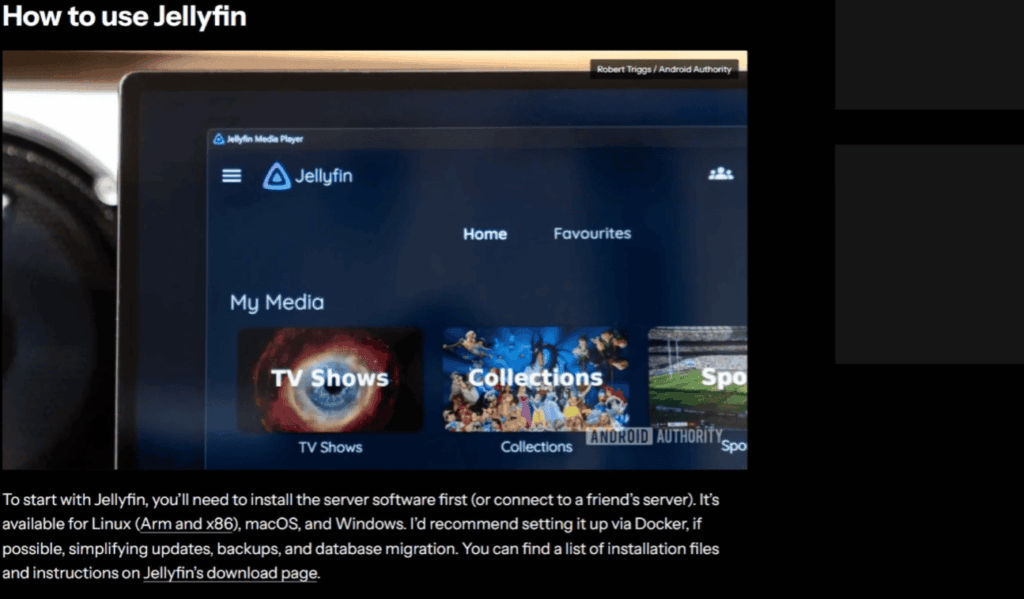
- Initial Setup: Compared to plug-and-play streaming services, setting up Jellyfin initially requires some technical knowledge. However, the community offers extensive resources and tutorials to guide you through the process;
- Hardware Requirements: Running a server requires more robust hardware than streaming devices. Depending on your media library size and desired features, you might need to invest in a dedicated NAS device or a computer with good processing power;
- Content Acquisition: Jellyfin itself doesn’t provide any content. You’ll need to gather your own media collection from legal sources like DVDs, Blu-rays, or digital purchases;
- Limited Live TV Support: While Jellyfin offers live TV capabilities, its compatibility with streaming services and channels varies. Research thoroughly before relying on it as your primary TV solution.
- Security Responsibility: Maintaining a server comes with the responsibility of securing it;
Kodi vs. Jellyfin – Side-by-Side Comparison:
Device Compatibility:
Kodi reigns supreme in this aspect, running smoothly on almost any device imaginable. From dedicated media players like Raspberry Pi to smartphones, smart TVs, laptops, and gaming consoles, its cross-platform support is unmatched. While Jellyfin also boasts impressive compatibility, certain platforms like game consoles require more workarounds.
Features:
Both Kodi and Jellyfin offer a robust feature set, but their focus differs slightly. Kodi shines in media playback and customization, boasting extensive audio and video format support, live TV capabilities with DVR functionality, and an extensive add-on ecosystem (discussed later). Jellyfin leans towards server-centric features, excelling in library organization, parental controls, user management, and seamless integration with various server platforms.
User Interface:
Kodi’s interface is intuitive and visually appealing, featuring a home screen that organizes your media library and add-ons. However, its depth of customization can be overwhelming for some users. Jellyfin adopts a simpler, web-based interface that prioritizes organization and ease of use. While less flashy, it’s accessible for users of all technical levels.
Media Streaming:
Both platforms excel at streaming local media across devices. Kodi’s strengths lie in its playback prowess, handling even high-bitrate content effortlessly. Jellyfin shines in transcoding, automatically adjusting video formats for smooth playback on different devices.
Supported Server Platforms:
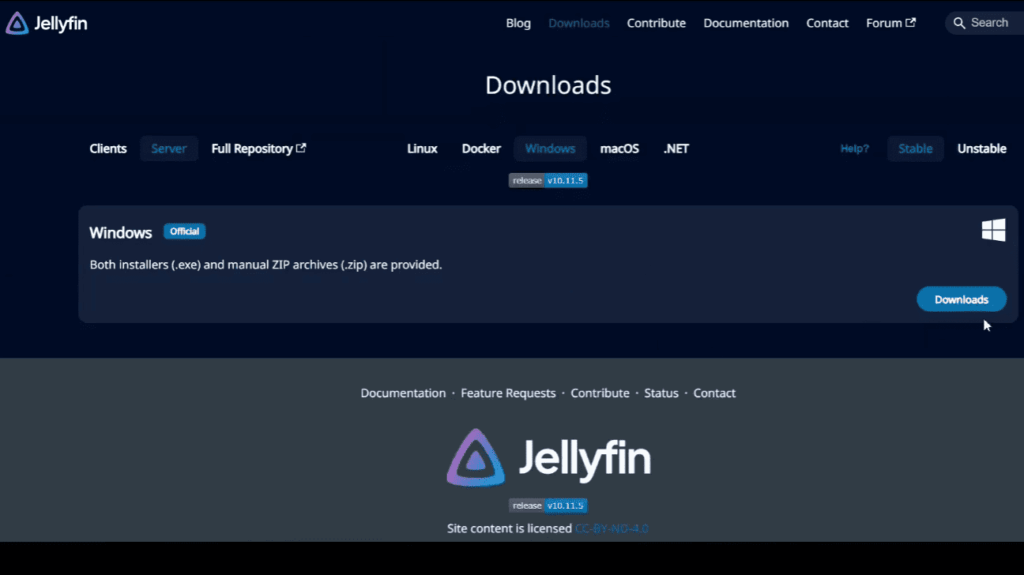
Kodi runs natively on most devices as a standalone application. Jellyfin requires a dedicated server setup, running smoothly on Windows, Linux, macOS, and NAS devices. This gives Jellyfin more flexibility for media library management and access from anywhere.
Supported Client Platforms:
Kodi once again triumphs in client platform support, with dedicated apps for virtually every device imaginable. Jellyfin offers slightly fewer native apps, relying on web browsers for streaming on some platforms.
Ease of Installation and Use:
Kodi is incredibly easy to install and use on most devices. However, its advanced features can have a steeper learning curve. Jellyfin requires additional setup as a server application, but its web-based interface is straightforward and user-friendly.
Customization:
Kodi is hands-down the customization king. From changing skins and layouts to configuring granular settings, it lets you personalize your experience to the nines. Jellyfin offers decent customization options for themes and user profiles, but it prioritizes a consistent and streamlined interface.
Local and Remote Streaming:
Both platforms excel in local and remote streaming. Kodi shines in local network playback, seamlessly streaming your media over Wi-Fi. Jellyfin focuses on remote access, offering secure and reliable streaming even over the internet.
Live TV and DVR Support:
Both platforms offer live TV capabilities with DVR functionality. Kodi boasts more extensive tuner compatibility, while Jellyfin focuses on integration with streaming services and channels.
Free Content:
Neither platform provides content directly. You’ll need to gather your own media collection from legal sources like DVDs, Blu-rays, or digital purchases.
Plugin Support (aka Channels):
Kodi’s add-on ecosystem is legendary, offering everything from streaming services to games and educational channels. However, some add-ons access content illegally, raising copyright concerns. Jellyfin has a growing plugin library for legal services and utilities, with a strong focus on community-developed plugins.
Offline Viewing (Synching):
Both platforms support offline viewing by syncing content to mobile devices. Kodi offers more granular control over syncing options, while Jellyfin integrates seamlessly with cloud storage services for remote access to synced content.
User Management:
Jellyfin takes the lead in user management, offering granular control over permissions, profiles, and parental controls. Kodi’s user management is more basic, primarily focused on profile creation.
Kodi Skin Availability and Integration:
Kodi’s vast skin library lets you completely transform its look and feel. Integration with third-party skin designers ensures endless customization possibilities. Jellyfin offers fewer themes, but its focus on a consistent and unified experience might be preferred by some users.
Virtual Reality:
Kodi boasts dedicated VR add-ons, offering immersive media experiences in virtual environments. Jellyfin currently lacks native VR support, but community-developed projects are making strides in this area.
Listening to Users/Community:
Both platforms have active communities, but their approaches differ. Kodi has a more open-ended approach, embracing a wider range of user contributions and add-ons. While this fosters innovation, it can also lead to issues with compatibility and legality. Jellyfin takes a more controlled approach, focusing on community-vetted plugins and features aligned with its core values. This ensures stability and security, but can sometimes feel less open to experimentation.
Cost:
Both platforms are entirely free and open-source software. However, running Jellyfin as a server might require additional investment in hardware like NAS devices, depending on your media library size and desired features.
Content Sources:
Neither platform provides content directly. You’ll need to rely on legal sources like DVDs, Blu-rays, digital purchases, or subscription services like Plex Pass for some streaming features.
Add-ons (Kodi) vs. Plugins (Jellyfin):
While both offer extensions to their core functionality, their approaches differ significantly.
Kodi’s add-ons offer unparalleled variety, ranging from legal streaming services to niche utilities and even gray-area content access. However, this variety comes with security risks and potential copyright infringement concerns.
Jellyfin’s plugins prioritize legality and community vetting, focusing on legal streaming services, server management tools, and media organization enhancements. This ensures a safer and more controlled experience.
Kodi vs. Jellyfin – What Is The Best Media Server to Use?
Feature Spotlight: Unveiling the Core Strengths
Kodi shines as a playback powerhouse, its robust engine flawlessly devouring movies, TV shows, music, and even live TV with dedicated tuner support. Its customization prowess reigns supreme, with a dizzying array of skins, add-ons, and settings to tailor your experience to the tiniest detail. Want a virtual cinema in your living room? Kodi’s VR add-ons light the way.
Jellyfin, on the other hand, champions server-centric excellence. Its sleek, web-based interface simplifies media organization, user management, and parental controls, making it ideal for families and security-conscious users. Jellyfin boasts seamless transcoding abilities, ensuring smooth playback on any device, even those with limited processing power. Live TV with DVR functionality? Jellyfin ticks that box too.
Ease of Use: Navigating the Interface Labyrinth
Kodi’s vast customization options can appear overwhelming for newcomers. While its initial setup is straightforward, its learning curve rises for advanced features. Jellyfin, with its web-based interface and focus on simplicity, shines for tech novices. Its streamlined approach prioritizes ease of use, making it a breeze to navigate even for the technically challenged.
Content Acquisition: Where Does the Magic Come From?
Neither Kodi nor Jellyfin provide their own content. You’ll need to gather yours from legal sources like DVDs, Blu-rays, digital purchases, or subscription services. Both platforms integrate with legal streaming services like Plex Pass, expanding your viewing options.
Add-ons vs. Plugins: A Tale of Two Ecosystems
Kodi’s add-on ecosystem is a double-edged sword. Its sheer variety offers everything from legal streaming services to niche utilities and even access to gray-area content. But this breadth comes with potential copyright infringement risks and security concerns. Jellyfin’s plugin library focuses on legal offerings, community-vetted tools, and media organization enhancements, prioritizing stability and security over niche exploration.
Server Setup: Demystifying the Tech Wizardry
Kodi runs standalone on most devices, making it perfect for plug-and-play enthusiasts. Jellyfin requires a dedicated server setup, be it on a PC, NAS device, or even your phone. While this offers more flexibility and remote access, it might involve additional hardware investment and technical know-how.
Community: The Chorus of Support
Both platforms boast vibrant communities, but their support structures differ. Kodi fosters a more open-ended approach, embracing contributions from a wider range of developers and add-on creators. This can lead to innovation, but also compatibility issues and legal gray areas. Jellyfin takes a more controlled approach, focusing on community-vetted plugins and features aligned with its core values, ensuring stability and security, but potentially limiting feature diversity.
Cost: Freeing Your Entertainment Dollar
Both Kodi and Jellyfin are entirely free and open-source, freeing you from subscription fees. However, running Jellyfin as a server might require additional hardware investment depending on your media library size and desired features.
So, Who Wins the Crown?
The truth is, there’s no single victor in this epic battle. Choosing between Kodi and Jellyfin depends on your unique needs and preferences. Here’s a quick breakdown:
- Kodi: For the tech-savvy enthusiast who values customization, extensive playback capabilities, and access to even niche content (with due diligence regarding legality);
- Jellyfin: For families and users seeking ease of use, server-centric features, a focus on legal content, and a streamlined and secure experience;
Ultimately, the best way to choose is to experiment and see which platform resonates with you. Try both, engage with their communities, and consider your technical skills, desired content sources, and the magic you envision for your home entertainment haven. Remember, with Kodi and Jellyfin, the power to liberate your media universe lies in your hands.
FAQ
Why use Kodi with Jellyfin?
Kodi excels as a media player, while Jellyfin shines as a media server. Combining them lets you access your Jellyfin library through Kodi’s powerful playback engine and vast customization options. You can enjoy a unified interface, skin changes, and even access niche Kodi add-ons for legal content sources.
Is Jellyfin better than Plex?
Both offer excellent features, but their focus differs. Jellyfin is entirely open-source and free, while Plex has a premium tier with additional features. Jellyfin prioritizes privacy and local control, while Plex offers cloud options and more streaming service integrations. Ultimately, the “better” choice depends on your individual needs and priorities.
Is Kodi better than Emby?
Again, it depends on your needs. Kodi boasts unmatched playback and customization capabilities, while Emby focuses on server features and family-friendly functionalities like parental controls. Kodi has a steeper learning curve, while Emby offers a more streamlined experience. Consider your desired features and technical comfort level when deciding.
Is Jellyfin private?
Yes, Jellyfin itself is very private. Your media and viewing habits stay on your server, unlike some streaming services that collect data. However, privacy depends on your server setup and add-ons you use. Always practice proper security measures and stick to legal content sources.
How does Jellyfin make money?
Jellyfin is entirely donation-driven. It has no paid versions or built-in advertisements. Developers rely on the community’s generosity to fund development and ensure its sustainability.
Is Jellyfin safe to expose to the internet?
Exposing Jellyfin to the internet carries some security risks. Ensure you follow best practices like strong passwords, firewall configuration, and only using trusted plugins. Consider remote access alternatives like VPNs or reverse proxies for added security.
Why use Jellyfin over Plex?
For users who value complete control, privacy, and open-source development, Jellyfin offers a compelling alternative to Plex. It lacks some of Plex’s cloud features and streaming service integrations, but its local focus and freedom from proprietary software might be advantageous for some.
Does Jellyfin use GPU?
Jellyfin can leverage your GPU for hardware transcoding, boosting performance for smooth playback on diverse devices. However, GPU transcoding depends on your specific hardware and configuration.
What is the best platform for Jellyfin?
Jellyfin runs on various platforms, including Windows, Linux, macOS, NAS devices, and even some single-board computers like Raspberry Pi. The “best” platform depends on your technical skills, hardware preferences, and desired server functionality. Choose one that suits your needs and budget.
What is Jellyfin good for?
Jellyfin is a powerful media server solution for organizing, managing, and streaming your personal media library. It shines with features like live TV recording, parental controls, user management, and seamless playback across devices.
Can you use Kodi with Jellyfin?
Yes, you can use Kodi as a client for your Jellyfin server. The official Kodi add-on for Jellyfin provides easy access to your media library and leverages Kodi’s playback engine and customization options.
Can you use Kodi as a media server?
Kodi can act as a standalone media player for local files, but it’s not a full-fledged media server like Jellyfin. It lacks core server features like transcoding, user management, and live TV recording.
Can you use Jellyfin without the internet?
Yes, Jellyfin functions perfectly without internet access. You can stream your local media library from your server to devices within your network, even without an internet connection.
Does anyone still use Kodi?
Absolutely! Kodi remains a popular choice for its unmatched playback capabilities, vast customization options, and vibrant community. Its add-on ecosystem, while requiring caution regarding legality, offers unique features that appeal to tech-savvy users.
What player does Jellyfin use?
Jellyfin itself is not a media player. It acts as a media server that houses your library and transcodes files if necessary. You can use various devices and apps as clients to access your library, including dedicated media players, smart TVs, mobile apps, and even web browsers.
Can you watch movies on Jellyfin?
Yes, Jellyfin excels at playing movies. It supports a wide range of video formats and offers smooth playback, even for high-bitrate content. You can organize your movie library into categories, create playlists, and even access subtitles, making it a great platform for cinephiles.
Does Jellyfin always transcode?
No, Jellyfin transcodes only when necessary. If the device playing your media can handle the original file format directly, Jellyfin will stream it without transcoding, saving processing power and bandwidth.
Does Jellyfin have TV apps?
Yes, Jellyfin offers native apps for various smart TVs and TV players, including Android TV, Roku, Samsung Smart TVs, and LG WebOS. These apps let you enjoy your media library directly on your big screen without needing a separate device like Kodi.
What hardware is needed for Jellyfin?
The hardware requirements for Jellyfin depend on your library size, desired features, and number of concurrent users. For basic use with a small library, a modest PC or NAS device will suffice. However, for larger libraries, high-bitrate content, or multiple users, you might need a more powerful server with a strong CPU and sufficient RAM. Additionally, consider storage options like hard drives or SSDs to house your media library.
Is Jellyfin difficult to set up?
Jellyfin itself has a user-friendly web interface for initial setup and server management. However, setting up a dedicated server might require some technical knowledge, especially for NAS devices or specific operating systems. The Jellyfin community offers extensive documentation, tutorials, and forum support to guide you through the process.
Can I play music with Jellyfin?
Absolutely! Jellyfin excels at music playback and organization. You can categorize your music collection by artist, album, genre, and even create playlists. Jellyfin also integrates with music streaming services like Spotify and Tidal, adding another layer to your listening experience.
Can Jellyfin be used for educational purposes?
Yes, Jellyfin can be a valuable tool for educators. You can host your own educational videos, documentaries, and audio lectures on your server and share them with students or colleagues securely. This eliminates reliance on internet-based resources and provides greater control over content access.
Is Jellyfin legal?
Jellyfin itself is entirely legal and open-source software. However, the legality of your media library and add-ons you use is your responsibility. Always obtain content from legal sources like DVDs, Blu-rays, or digital purchases. Avoid accessing pirated content, as it is illegal and can carry penalties.