
In the world of digital media, Kodi and YouTube are two prominent platforms that offer extensive entertainment options. However, sometimes users encounter issues when trying to use YouTube on Kodi, leading to interruptions in their viewing experience. This article aims to provide comprehensive solutions for these technical glitches.
We will explore the potential reasons for these problems and guide you through detailed, step-by-step processes to rectify them. Whether you’re a seasoned Kodi user or a beginner, this guide will help you seamlessly integrate YouTube into your Kodi experience.
What Is Kodi and Why Is It Popular?
The Genesis of Kodi
Kodi, originally known as XBMC (Xbox Media Center), emerged as an open-source media player developed by a group of like-minded programmers and enthusiasts. The project’s roots can be traced back to the first-generation Xbox, where it was intended to function as a media player for the console. As the project gained traction, it outgrew its Xbox-centric origins and transformed into a cross-platform media center capable of running on various operating systems, including Windows, macOS, Linux, Android, and more.
In 2014, the XBMC Foundation officially rebranded the software as Kodi, distancing itself from any lingering association with the Xbox. This change also reflected the software’s broader scope, indicating its compatibility with a multitude of devices beyond gaming consoles.
Kodi’s Architecture and Core Features
At its core, Kodi is designed to provide a centralized platform for organizing and streaming media content. The software’s architecture revolves around an intuitive user interface, customizable skins, and support for a wide array of multimedia file formats. Kodi doesn’t discriminate between types of media; it can handle movies, TV shows, music, photos, and more.
One of Kodi’s standout features is its support for third-party add-ons. These add-ons extend the software’s capabilities, enabling users to access an extensive range of content. From streaming services and live TV to weather updates and gaming, the add-on ecosystem is a major factor contributing to Kodi’s popularity.
Moreover, Kodi supports a variety of remote control options, making it an ideal choice for users who want a seamless and flexible media center experience. Whether using a dedicated remote, a smartphone app, or even voice control, Kodi adapts to the user’s preferred method of interaction.
Kodi and Streaming: A Controversial Connection
Kodi’s popularity has soared, in part, due to its ability to serve as a hub for streaming content. While the software itself is entirely legal and adheres to open-source principles, some third-party add-ons have been developed to provide access to copyrighted material without proper authorization. This has sparked controversy and legal scrutiny, with authorities cracking down on the illicit use of Kodi for piracy.
It’s crucial to distinguish between the software’s legitimate use as a media player and the misuse of certain add-ons. The XBMC Foundation actively discourages and disassociates itself from any involvement in promoting or supporting piracy. Kodi itself does not host or provide access to illegal content; rather, it is a tool that can be used for both legal and illegal purposes, depending on the user’s choices and actions.
Kodi’s Appeal: Customization and Flexibility
The allure of Kodi lies in its unparalleled customization options. Users can choose from a plethora of skins and themes to tailor the interface to their preferences. This flexibility extends to the software’s functionality, allowing users to personalize their media center experience.
Beyond aesthetics, Kodi’s advanced settings and options make it a favorite among tech-savvy users. From tweaking audio and video settings to configuring network streaming, Kodi offers a level of control that surpasses many mainstream media players. This customization aspect attracts users who appreciate the ability to fine-tune their media center according to their specific requirements.
The Kodi Community: A Driving Force
Kodi’s thriving community plays a pivotal role in its ongoing success. Comprising developers, enthusiasts, and users, the community actively contributes to the software’s development, improvement, and troubleshooting. The open-source nature of Kodi fosters collaboration, ensuring that the software remains relevant and adaptable to emerging technologies.
Community-developed add-ons are a testament to this collaborative spirit. Users can access a vast repository of add-ons, ranging from official channels to third-party creations. This ecosystem empowers users to enhance their Kodi experience with specialized content and features, further solidifying the software’s popularity.
The Future of Kodi
As technology continues to evolve, Kodi remains at the forefront of media center solutions. The software’s adaptability to new platforms and emerging trends positions it as a versatile player in the ever-expanding digital entertainment landscape.
Looking ahead, Kodi’s developers are likely to continue refining and expanding the software’s capabilities. Enhanced support for emerging technologies, improved integration with popular streaming services, and a commitment to maintaining a balance between customization and user-friendliness will likely be key focus areas.
Can You Install YouTube on Kodi?
Kodi, the ultimate home theater software, and YouTube, the king of online video, seem like a match made in entertainment heaven. But can you actually marry these two powerhouses and access YouTube’s vast library directly from your Kodi interface? The answer is a tantalizing yes, but with a few caveats and workarounds to navigate.
The Official YouTube Kodi Add-on:
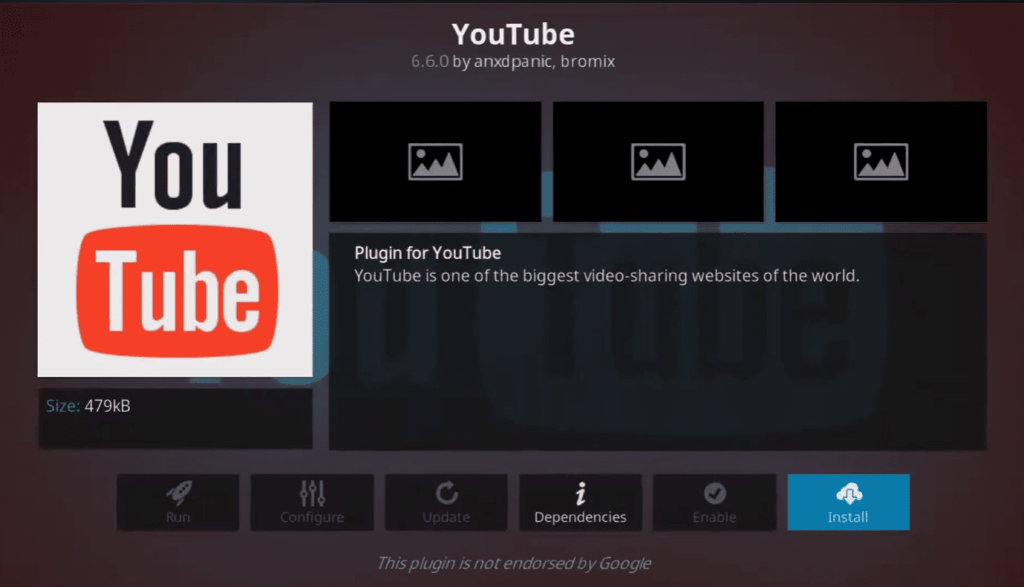
Yes, there is an official YouTube add-on available for Kodi, readily accessible through the Kodi Add-on repository. Installing it is a straightforward process:
- Open Kodi and navigate to the “Add-ons” menu;
- Click “Get More Add-ons”;
- Select “Kodi Add-on repository”;
- Go to “Video add-ons”;
- Scroll down and find “YouTube”;
- Click “Install” and wait for the download to complete;
Once installed, the YouTube add-on lets you browse channels, search for videos, create playlists, and enjoy all your favorite content within the familiar Kodi interface. Sounds perfect, right?
The Hiccups You Might Encounter:
Unfortunately, the road to YouTube bliss through Kodi isn’t entirely smooth.
Here are some potential bumps you might encounter:
- Geo-restrictions: YouTube content varies depending on your location. Certain videos or channels might be unavailable through the official add-on due to licensing restrictions. VPNs can offer workarounds, but be cautious about their legality and security;
- Limited functionality: Compared to the standalone YouTube app, the Kodi add-on lacks some features like casting, live streaming, and personalized recommendations;
- Compatibility issues: The official add-on might not work seamlessly on all devices and Kodi versions. Updates or compatibility patches might be required;
- Third-party alternatives: While tempting, unofficial third-party YouTube add-ons for Kodi come with potential risks like malware, instability, and legal gray areas. Proceed with caution if you choose this route;
Beyond the Official Add-on:
Don’t despair if the official YouTube add-on doesn’t quite hit the mark. Here are some alternative solutions to consider:
- Web integration: Kodi allows importing bookmarks from various web browsers. You can set up YouTube playlists or channels as bookmarks and access them directly within Kodi;
- Screencasting: Cast YouTube content from your phone or computer to your Kodi-equipped device for a seamless viewing experience;
- Dedicated YouTube apps: Explore dedicated YouTube apps available on your smart TV or streaming device. They might offer superior features and compatibility compared to the Kodi add-on;
The Kodi-YouTube Marriage: Worth the Effort?
Ultimately, whether installing YouTube on Kodi is worth the effort depends on your priorities and viewing habits. If you crave ultimate convenience and access to everything YouTube offers, the official add-on might not be enough. However, for casual YouTube enjoyment within the familiar Kodi interface, it’s a viable option, especially if you combine it with other content sources and screencasting capabilities.
Remember, Kodi itself is a powerful media center, capable of playing local files and accessing countless other add-ons for movies, TV shows, music, and more. Don’t let YouTube overshadow the vast universe of entertainment accessible through Kodi.
Popular YouTube Add-ons
Here are some popular third-party YouTube add-ons, along with their potential benefits and risks:
- Venom:
- Benefits: Extensive content library, including movies, TV shows, and documentaries alongside YouTube videos. Multiple sources and resolutions available;
- Risks: Legal questions arise due to the inclusion of non-YouTube content. Potential for malware and broken links;
- The Crew:
- Benefits: Large selection of YouTube channels and playlists, categorized by genre and popularity. Easy navigation and search functions;
- Risks: Similar to Venom, concerns about copyrighted content and malware exist. Updates might be inconsistent;
- Fen:
- Benefits: Streamlined interface focused solely on YouTube content. Offers advanced search filters and playback options;
- Risks: Similar legal and malware concerns as other third-party addons. Relies on external sources, leading to potential instability;
- Kodi Leia Repository:
- Benefits: Curated selection of YouTube add-ons, potentially offering better stability and quality control compared to individual repositories;
- Risks: Still involves third-party add-ons, so legal and malware concerns remain. Limited selection compared to some other repositories;
- OpenWizard Repository:
- Benefits: Similar to Kodi Leia, provides a curated selection of YouTube add-ons with a focus on reliability and functionality;
- Risks: Same legal and malware considerations as other repositories. May not offer the latest or most diverse selection;
Remember:
- These are just examples, and numerous other third-party YouTube add-ons exist. Research each one thoroughly before installation, considering user reviews and potential risks;
- Always use a reliable VPN when accessing third-party add-ons to improve security and privacy.
- Be aware of copyright laws and avoid accessing content illegally;
Kodi and YouTube Compatibility
The good news is, that you can indeed install YouTube on Kodi. There’s an official YouTube add-on readily available through the Kodi Add-on repository.
However, while the prospect of Kodi-integrated YouTube might seem like a dream come true, there are a few things to consider before you dive in:
- Geo-restrictions: YouTube content varies depending on your location. Certain videos or channels might be unavailable through the official add-on due to licensing restrictions. VPNs can offer workarounds, but be cautious about their legality and security;
- Limited functionality: Compared to the standalone YouTube app, the Kodi add-on lacks some features like casting, live streaming, and personalized recommendations. It also might not play well with certain video formats or resolutions;
- Compatibility issues: The official add-on might not work seamlessly on all devices and Kodi versions. Updates or compatibility patches might be required, and some older devices might not be supported at all;
- Third-party alternatives: While tempting, unofficial third-party YouTube add-ons for Kodi come with potential risks like malware, instability, and legal gray areas. Proceed with extreme caution if you choose this route;
Beyond the Official Add-on: Exploring Alternative Solutions
Don’t despair if the official YouTube add-on doesn’t quite hit the mark. Here are some alternative solutions to consider:
- Web integration: Kodi allows importing bookmarks from various web browsers. You can set up YouTube playlists or channels as bookmarks and access them directly within Kodi. This offers a clean and reliable way to enjoy specific YouTube content without the full add-on;
- Screencasting: Cast YouTube content from your phone or computer to your Kodi-equipped device for a seamless viewing experience. This allows you to enjoy all the features of the YouTube app on your preferred device while utilizing Kodi’s interface for playback;
- Dedicated YouTube apps: Explore dedicated YouTube apps available on your smart TV or streaming device. They might offer superior features and compatibility compared to the Kodi add-on;
How To Install YouTube On Kodi?
Installing it is a simple process:
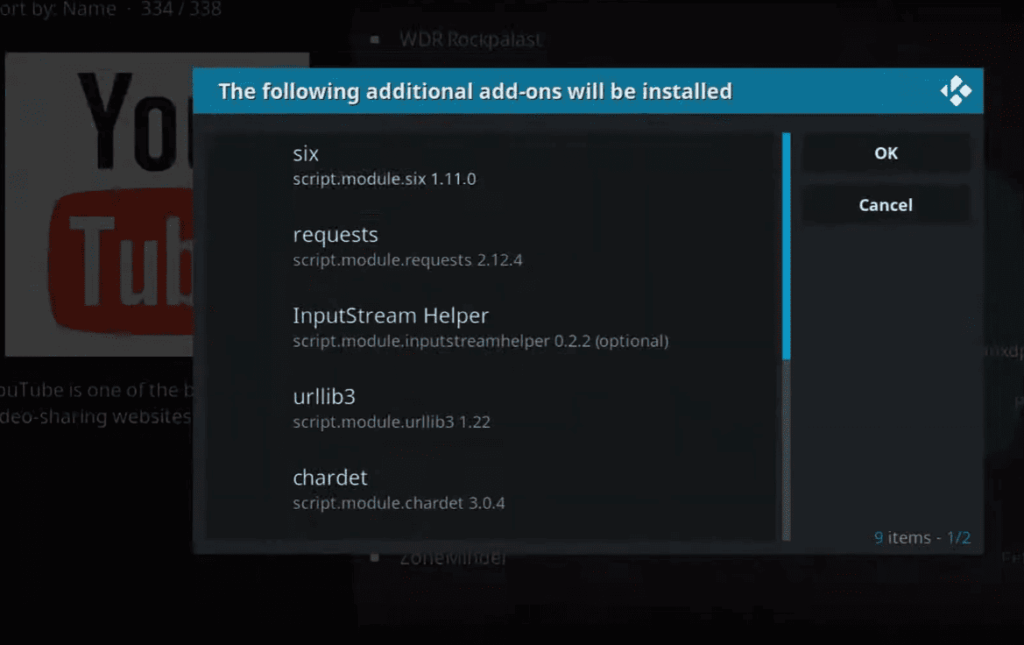
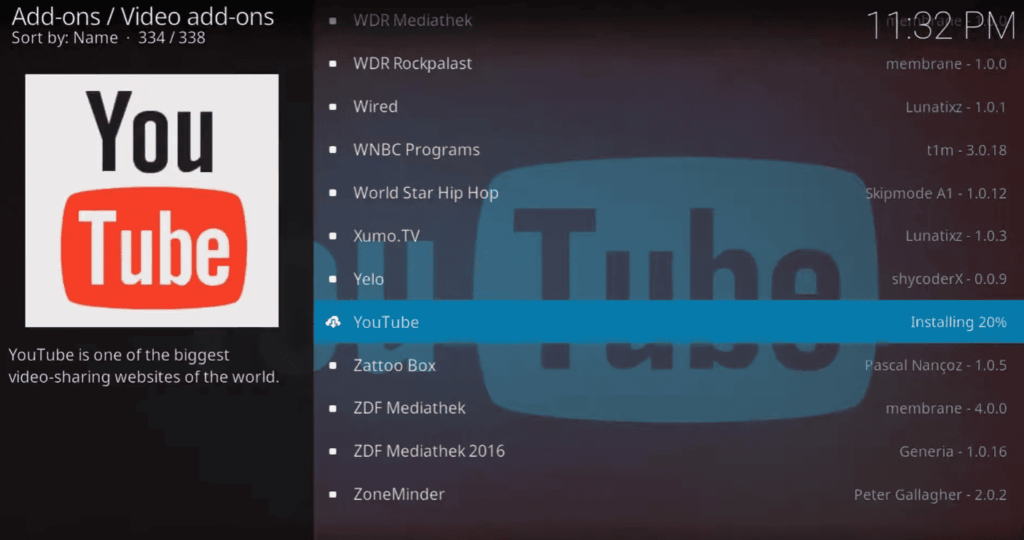
- Open Kodi and navigate to the “Add-ons” menu;
- Click “Get More Add-ons”;
- Select “Kodi Add-on repository”;
- Go to “Video add-ons”;
- Scroll down and find “YouTube”;
- Click “Install” and wait for the download to complete;
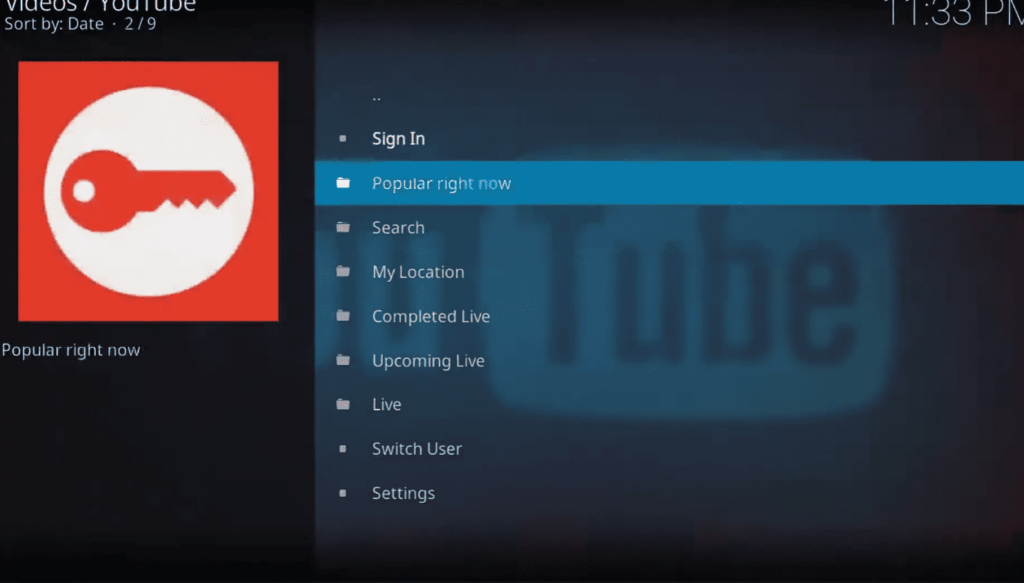
Once installed, the YouTube add-on lets you browse channels, search for videos, create playlists, and enjoy all your favorite content within the familiar Kodi interface. You can even log in to your YouTube account for personalized recommendations and access to your subscriptions.
How To Setup YouTube Kodi API?
1. Obtain a YouTube API Key:
- Visit the Google Cloud Console: https://console.cloud.google.com;
- Create a new project or select an existing one;
- Navigate to “APIs & Services” and then “Library”;
- Search for “YouTube Data API v3” and enable it;
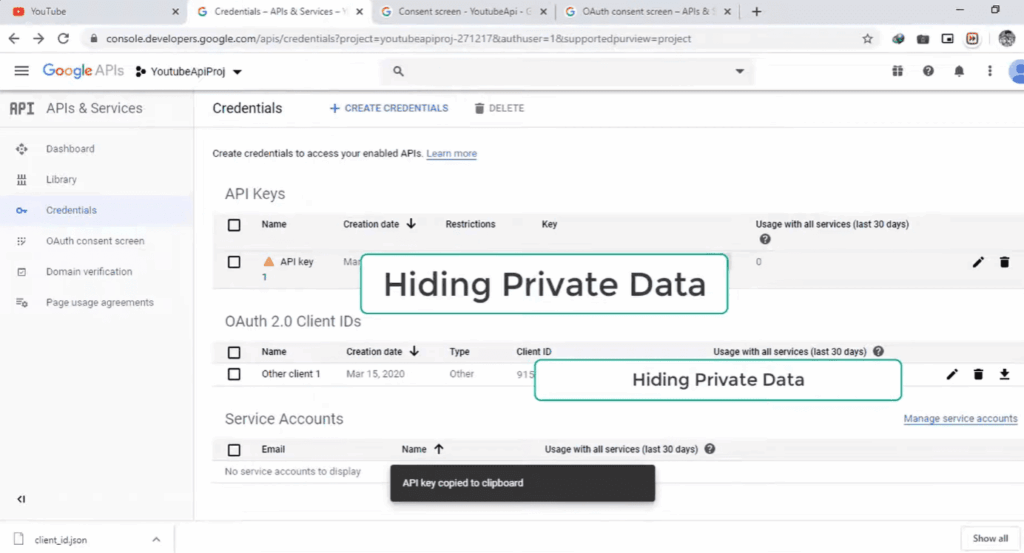
- Go to “Credentials” and create an API key;
- Copy the API key for later use;
- Install the YouTube Kodi Add-on:
- Open Kodi and go to “Add-ons”;
- Select “Install from repository”
- Choose “Kodi Add-on repository”;
- Navigate to “Video add-ons” and find “YouTube”;
- Click “Install”;
- Configure the Add-on:
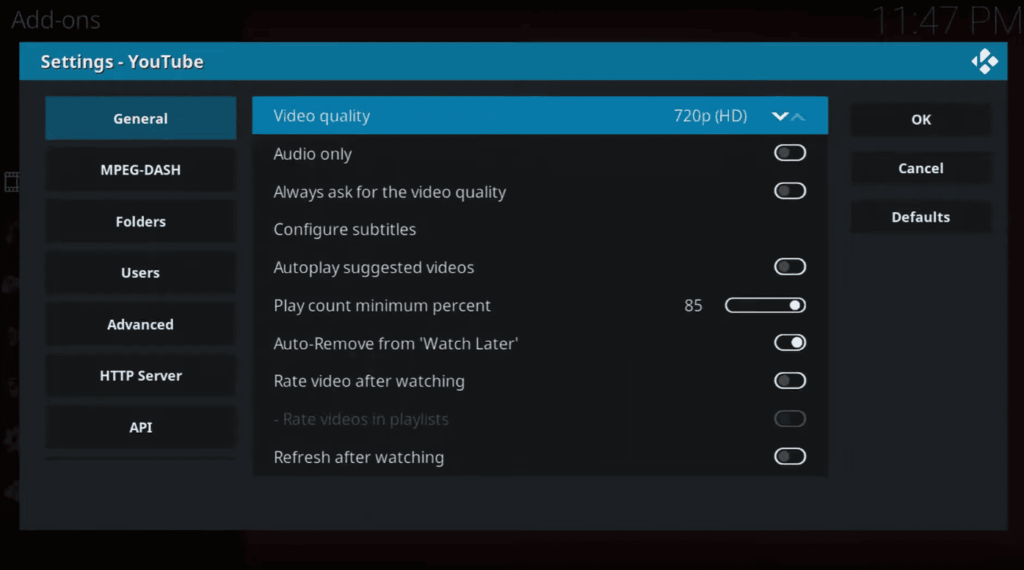
- Open the YouTube add-on settings;
- Paste your API key into the designated field;
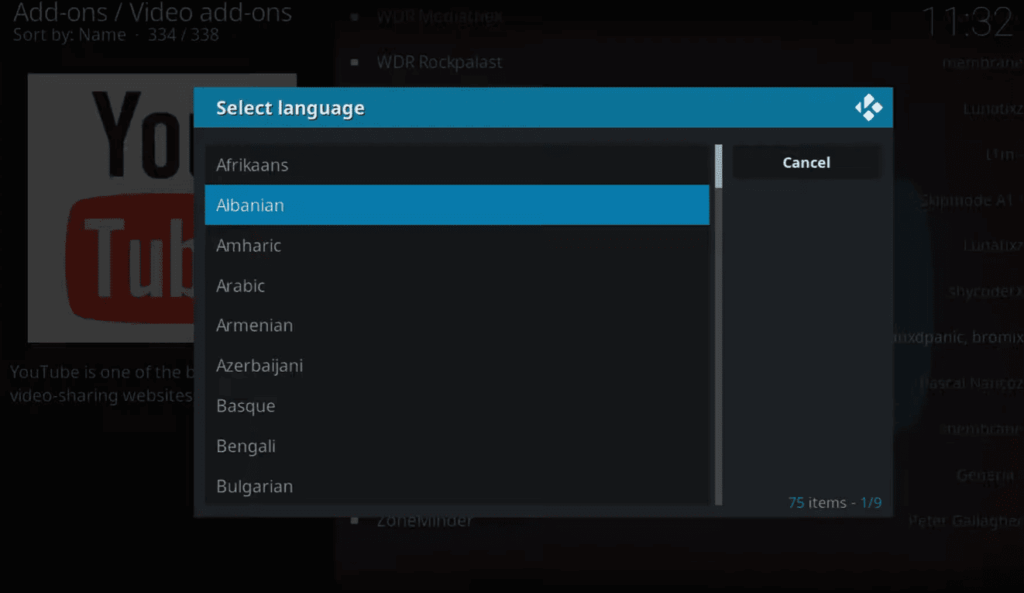
- Set your preferred language and region;
- Optionally, create a developer app for interactive features (involves additional setup steps);
- Authorize the Add-on (if using interactive features):
- Upon first use, you might be prompted to authorize the add-on with your Google account;
- Follow the on-screen instructions to complete the authorization process;
- Enjoy YouTube on Kodi!
Once setup is complete, you should be able to browse and watch YouTube videos within Kodi.
Additional Notes:
- Compatibility: The YouTube Kodi add-on might not support the full range of YouTube features, such as live streaming or casting;
- Geo-restrictions: Some content might be unavailable due to regional restrictions;
- Third-party add-ons: Unofficial YouTube add-ons exist, but use them with caution due to potential risks.
- Troubleshooting: If you encounter issues, refer to the Kodi forum or the YouTube add-on’s documentation for troubleshooting guidance;
Common Issues with YouTube on Kodi:
Part 1: Playback Issues – When the Show Stops
- Stuttering and Buffering: This can be caused by several factors, including internet bandwidth limitations, overloaded servers, or incompatible video formats. Try switching resolutions, using a wired connection, or checking YouTube’s server status for potential hiccups;
- Video Drops and Freezes: Sudden interruptions can be attributed to add-on conflicts, outdated versions, or insufficient system resources. Update your add-ons, ensure Kodi is on the latest version, and try closing other resource-intensive applications;
- Audio/Video Sync Issues: Disjointed audio and video can be caused by incompatible codecs, Kodi settings, or even the video itself. Experiment with different audio channels, adjust audio delay in Kodi settings, and consider alternative sources if the issue persists;
Part 2: Authorization Problems – Access Denied
- “Invalid Client Type” Error: This often occurs when using outdated API keys or exceeding daily API quotas. Generate a new API key from Google Cloud Console and monitor your usage to avoid exceeding limits;
- Sign-In Failure: Check for typos in your login credentials, ensure you’re using the correct account for your region, and verify that two-factor authentication isn’t causing complications;
- Captcha Challenges: If presented with Captcha verification, complete it accurately and promptly. Consider using a VPN with a static IP address to avoid triggering repeated Captchas;
Part 3: Add-On Errors and Conflicts – The Culprits Within
- “Could Not Connect to YouTube” Error: This can be caused by outdated or incompatible add-on versions. Update your add-ons, disable unused ones, and consider switching to a different, well-maintained YouTube add-on;
- Add-on Crashes and Freezes: Unstable add-ons, resource limitations, or Kodi conflicts can lead to crashes. Update Kodi, disable suspicious add-ons, and ensure your device has sufficient RAM and processing power;
- Missing Features and Functionality: Certain features like casting or live streaming might not be available due to add-on limitations or API restrictions. Explore alternative solutions like screencasting from your phone or using dedicated YouTube apps on supported devices;
Part 4: Operational Errors – When Kodi Takes a Break
- Kodi Won’t Launch: Corrupted add-ons, insufficient device storage, or compatibility issues can prevent Kodi from starting. Try disabling suspicious add-ons, freeing up storage space, and updating Kodi or your device’s firmware;
- Slow Kodi Performance: Resource-intensive add-ons, outdated software, or hardware limitations can lead to sluggishness. Update Kodi and add-ons, disable unnecessary add-ons, and consider hardware upgrades if needed;
- Kodi Crashes Randomly: Unstable add-ons, resource overload, or software conflicts can cause crashes. Update Kodi and add-ons, disable suspicious ones, and ensure your device meets the minimum system requirements;
Part 5: Corrupted Videos – When the Content Crumbles
- Pixelated Videos and Artifacts: Low bandwidth, incompatible codecs, or corrupted video sources can lead to poor visual quality. Adjust video resolution, try alternative sources, or download the video for offline playback;
- Missing Audio/Video Tracks: Incomplete downloads, incompatible devices, or add-on issues can cause missing audio or video. Try different sources, ensure your device supports the video format, and update or switch add-ons if necessary;
Part 6: General Kodi Malfunctions – Keeping the Engine Running
- Incorrect Date and Time: Improper date and time settings can cause issues with API keys and online content access. Verify your device’s time and date are accurate and consider synchronizing with a reliable source;
- Network Connectivity Problems: Unstable internet connection, firewall restrictions, or DNS issues can hinder playback. Check your internet connectivity, adjust firewall settings if necessary, and consider changing DNS servers for improved resolution;
- Security Concerns: Using unofficial or outdated add-ons can expose you to malware, viruses, and privacy threats. Stick to reliable, well-maintained add-ons, update regularly, and consider using a VPN for an extra layer of protection;
- Limited Device Compatibility: Not all devices and operating systems are fully compatible with Kodi. Ensure your device meets the minimum requirements and consider using alternative add-ons or solutions if compatibility issues persist;
Remember: Troubleshooting can be a process of elimination. Start with the most likely culprits, work your way through the options in each section, and consult online resources or forums for specific issues you encounter.
Bonus Tips:
- Clear Kodi’s cache and temp data: This can free up resources and resolve minor playback issues.
- Use a dedicated Kodi device: Streaming devices like the NVIDIA Shield are optimized for Kodi and provide a smoother experience;
- Stay updated: Regularly update Kodi, add-ons, and your device’s firmware to maintain stability and compatibility;
- Join the community: Forums like Kodi.tv offer troubleshooting assistance and helpful advice from experienced users;
Technical Requirements of YouTube Add-ons for Kodi
Core Requirements:
- Operating System: Most YouTube add-ons work across multiple operating systems, including Windows, Linux, macOS, Android, and iOS. However, specific versions and dependencies might exist;
- Kodi Version: Compatibility is key. Ensure your Kodi version is compatible with the desired YouTube add-on. Older Kodi versions might not support newer add-ons, while vice versa might limit functionality;
- Hardware: Smooth playback depends on your device’s processing power and RAM. Low-end devices might struggle with high-resolution videos or resource-intensive add-ons. Aim for at least 1GB of RAM and a decent processor for a consistent experience;
- Internet Connection: A stable and reliable internet connection is vital for uninterrupted streaming. Bandwidth requirements vary depending on video quality and resolution, but generally, aim for at least 5 Mbps for standard definition and 15 Mbps for high definition;
Additional Considerations:
- Codecs: Some add-ons rely on specific video and audio codecs to play YouTube content. Ensure your device supports the necessary codecs or consider an add-on with built-in codec support;
- Dependencies: Certain add-ons might require additional software or libraries to function properly. Carefully review the add-on’s documentation for any dependencies and ensure they are installed on your system;
- API Keys: Many add-ons utilize YouTube’s API for authentication and access. You might need to generate and integrate an API key from Google Cloud Console to use those features;
- Security: While the official YouTube add-on is safe, unofficial add-ons may pose security risks. Use caution when installing them, stick to reputable sources, and consider a VPN for added protection;
Popular YouTube Add-on Requirements:
Here’s a glimpse into the technical specifications of some popular YouTube Kodi add-ons:
- Official YouTube Add-on: Compatible with Kodi 19 and above, requires minimal hardware resources, and relies on Kodi’s built-in codecs;
- Venom: Works with Kodi 18.9 and above, recommends at least 2GB RAM and a good processor, might require additional codecs for specific video formats;
- The Crew: Compatible with Kodi 19 and above, suggests at least 1GB RAM and a decent processor, uses internal libraries for some codecs;
- Fen: Runs on Kodi 19 and above, recommends at least 2GB RAM and a good processor, relies on external libraries for codec support;
Pro Tip: Before choosing an add-on, check its documentation or online forums for detailed technical requirements and compatibility information.
Potential Conflicts Between Kodi Versions and YouTube Add-ons
Why Do Conflicts Arise?
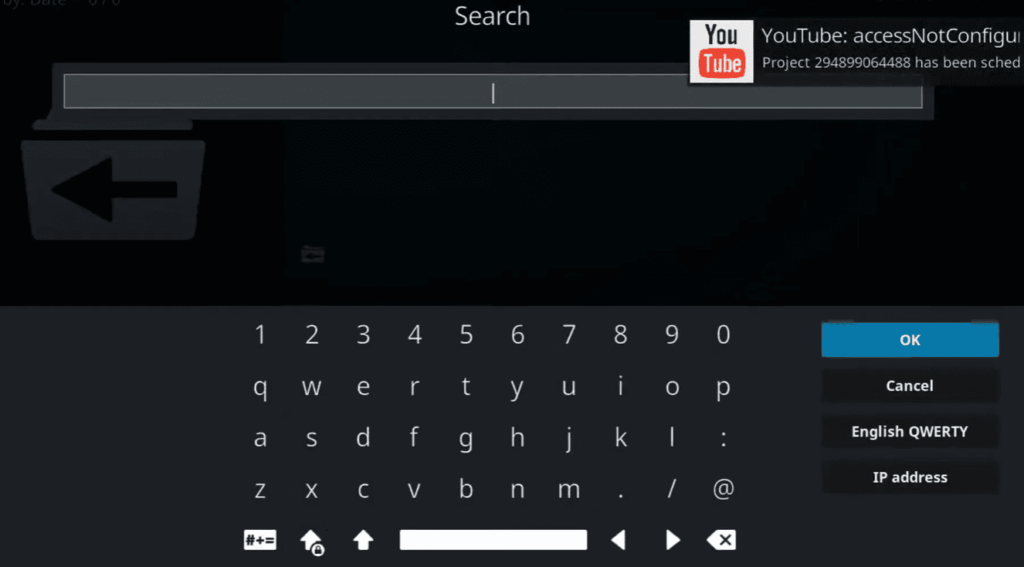
- Code Changes: Updates to Kodi introduce changes to its underlying codebase. These changes might not be compatible with older YouTube add-ons, leading to crashes, limited functionality, or even complete failure;
- API Updates: YouTube’s API undergoes occasional updates, requiring corresponding adjustments in add-ons to maintain access and functionality. Incompatible versions can create roadblocks for seamless streaming;
- Deprecation: As Kodi evolves, certain features or libraries might become deprecated. Add-ons relying on these elements will become incompatible with newer versions, causing issues;
Types of Conflicts You Might Encounter:
- Complete Failure: In the worst-case scenario, the add-on simply refuses to launch or function at all within the incompatible Kodi version;
- Partial Functionality: Certain features of the add-on might become unavailable, such as login, search, or specific video formats;
- Instability and Crashes: Frequent crashes, unexpected shutdowns, and erratic behavior can plague incompatible add-on and Kodi version combinations;
- Security Concerns: Outdated add-ons running on newer Kodi versions might pose security risks due to vulnerabilities unaddressed in their code;
Avoiding the Conflict Zone:
To navigate this minefield successfully, here are some strategies:
- Check Add-on Compatibility: Before installing any YouTube add-on, be sure to check its documentation or online forums for information on compatible Kodi versions;
- Keep Kodi Updated: Regularly updating Kodi to the latest stable version helps ensure compatibility with most actively maintained add-ons;
- Use Reliable Add-ons: Stick to add-ons from reputable sources and developer communities known for maintaining compatibility with newer Kodi versions;
- Monitor Add-on Updates: Actively check for updates for your chosen YouTube add-on and apply them promptly to benefit from bug fixes and compatibility improvements;
- Consider Alternatives: If your desired add-on isn’t compatible with your Kodi version, explore alternative solutions like official YouTube apps on smart devices or screencasting from your phone;
Remember, conflicts between Kodi versions and YouTube add-ons are a dynamic landscape. Keeping informed, adapting your choices, and seeking community support empower you to navigate this potential quagmire and unlock the full potential of your Kodi and YouTube experience.
Step-by-Step Troubleshooting Guide:
Initial Checks and Diagnostics:
- Verify Internet Connectivity: Ensure your internet connection is stable and fast enough for streaming. Test your speed using an online tool or check for any network-related errors;
- Check YouTube Server Status: Visit downdetector.com or Twitter to see if YouTube itself is experiencing any outages;
- Review Kodi Logs: Access Kodi’s log files to identify specific errors or warnings related to the YouTube add-on. This information can provide valuable clues for troubleshooting;
Clearing Cache and Data:
- Clear Kodi Cache: Go to Settings > System > Cache and select “Clear Cache.” This removes temporary files that might be causing issues;
- Clear YouTube Add-on Data: Navigate to Add-ons > My Add-ons > Video Add-ons > YouTube, select “Clear Data,” and confirm. This resets add-on settings and preferences;
Checking for Updates and Compatibility:
- Update Kodi: Check for updates by going to Settings > System > Updates and applying any available updates;
- Update YouTube Add-on: Ensure you’re using the latest version of the YouTube add-on. Check for updates within the add-on’s settings or the Kodi repository;
- Verify Compatibility: Consult add-on documentation or online forums to confirm compatibility between your Kodi version and the YouTube add-on;
Reauthorizing YouTube Access:
- Check API Key: If using an API key, ensure it’s valid and hasn’t expired. Generate a new one if necessary;
- Re-login to Add-on: Go to Add-ons > My Add-ons > Video Add-ons > YouTube and select “Sign In.” Re-enter your YouTube credentials to re-establish authorization;
Disabling Hardware Acceleration:
- Go to Settings: Navigate to Settings > Player settings;
- Disable Hardware Acceleration: Under “Video,” toggle “Allow hardware acceleration” off. This can sometimes resolve playback issues on certain devices;
Resolving Add-on Conflicts:
- Disable Other Add-ons: Temporarily disable other add-ons to isolate whether they’re conflicting with the YouTube add-on;
- Identify Conflicting Add-ons: If disabling other add-ons resolves the issue, systematically re-enable them to pinpoint the problematic one. Consider removing or replacing it;
Editing Advanced Settings in Kodi:
- Access Advanced Settings: Go to Settings > System > Expert and enable “Show advanced settings”;
- Adjust Settings Cautiously: Modify settings related to video playback, buffering, or add-on behavior only if you’re confident in your understanding;
Manually Updating YouTube Add-ons:
- Download Update: Obtain the latest update from the add-on’s official source or a reliable repository;
- Install Update: Follow the specific instructions for installing the update, which might involve using a ZIP file or repository link;
Utilizing External Tools for Diagnostics:
- Kodi Log Viewer: Use a dedicated Kodi log viewer tool to analyze log files in more detail and identify specific error codes or messages;
- Network Traffic Monitoring Tools: Monitor network traffic using tools like Wireshark to assess data transfer and identify potential bottlenecks or connection issues;
Preventive Measures and Tips:
- Use Reliable Add-ons: Stick to well-maintained add-ons from reputable sources to minimize compatibility issues and security risks;
- Regular Maintenance and Updates: Regularly update Kodi, add-ons, and your device’s software to ensure compatibility and address potential vulnerabilities;
- Backup Kodi Configuration: Before making major changes or troubleshooting, consider backing up your Kodi configuration to restore it easily if needed;
- Seek Community Support: Don’t hesitate to seek help from online forums or communities dedicated to Kodi and YouTube add-ons. Many experienced users can offer valuable assistance and solutions;
Remember:
- Troubleshooting is often a process of elimination. Start with the most likely culprits and work your way through the steps progressively;
- Document your troubleshooting efforts and note any changes you make. This helps track progress and revert if necessary;
- If the issue persists despite trying these steps, consider seeking further assistance from experienced users or developers of the specific add-on you’re using;
Regular Maintenance And Updates
Just like any well-oiled machine, your Kodi and YouTube experience needs regular maintenance and updates to keep things running smoothly.
Here’s how you can ensure a harmonious union:
Kodi Updates:
- Automatic Updates: Enable automatic updates in Kodi settings for a hands-off approach. You can choose daily, weekly, or monthly schedules;
- Manual Updates: Check for updates periodically (Settings > System > Updates) and apply them promptly. This ensures you have the latest bug fixes and security patches;
Add-on Updates:
- Automatic Updates: Enable automatic updates within each add-on’s settings to avoid outdated versions causing issues;
- Manual Updates: Regularly check for updates within add-on settings or the repository they came from. Prioritize updates for the YouTube add-on and any other frequently used ones;
Device Updates:
- Operating System Updates: Keep your device’s operating system updated for optimal performance and compatibility with Kodi and add-ons;
- Firmware Updates: Check for and apply firmware updates for your streaming device or computer if applicable. Updated firmware can enhance stability and address hardware-related issues;
Preventative Measures:
- Clear Cache and Data: Periodically clear Kodi’s cache and the YouTube add-on’s data (Settings > System > Cache and Add-ons > YouTube > Clear Data). This can resolve minor glitches and free up resources;
- Monitor Log Files: Occasionally scan Kodi logs for warning messages or errors related to YouTube (Settings > System > Logging). Early detection can help troubleshoot potential issues;
- Backup: Before making major changes or trying new add-ons, consider backing up your Kodi configuration. This allows you to revert if something goes wrong;
Community Resources:
- Kodi Forum: The official Kodi forum is a valuable resource for troubleshooting and finding solutions. Search for similar issues experienced by others or post your specific problem for community support;
- YouTube Add-on Wiki Pages: Many YouTube add-ons have dedicated wiki pages with documentation, troubleshooting tips, and compatibility information. Consult these pages before installing or updating the add-on;
- Social Media Groups: Join Kodi and YouTube add-on related groups on social media platforms like Facebook or Reddit. These communities offer real-time advice and updates from experienced users;
Remember, regular maintenance and updates are not just about fixing problems, but also about preventing them. By taking proactive steps, you can enjoy a consistently smooth and enjoyable YouTube experience within your Kodi ecosystem.
FAQ
How do you get YouTube to work on Kodi?
To get YouTube working on Kodi, you need to install the YouTube add-on. This can be done through the official Kodi repository.
Why are your Kodi addons not working?
Kodi addons may not work for a variety of reasons – the addon may be outdated, the repository may be down, or there may be compatibility issues with your version of Kodi.
Why is Kodi so slow?
Kodi can be slow due to a lack of system resources, a slow internet connection, or too many add-ons installed.
How do you fix Kodi on Firestick?
Fixing Kodi on Firestick usually involves reinstalling the app or clearing its cache.
How to clear the Kodi cache?
You can clear Kodi’s cache by using a maintenance tool like Indigo.
How much RAM does Kodi need?
While Kodi can run on as little as 1GB of RAM, it’s recommended to have at least 2GB for optimal performance.
What is the minimum RAM for Kodi?
The minimum RAM required to run Kodi is 1GB.
How do you speed up Kodi?
Speeding up Kodi can be achieved by clearing the cache, disabling unnecessary add-ons, and ensuring your internet connection is stable.
Why can’t you get YouTube to work?
There could be several reasons why YouTube isn’t working – it could be due to a poor internet connection, an outdated app, or server-side issues from YouTube.
How do you reboot YouTube?
Rebooting YouTube typically means restarting the app or refreshing the page if you use it in a browser.
How do you reinstall YouTube?
Reinstalling YouTube can be done by uninstalling the app from your device, and then downloading and installing it again from the app store.
Is it safe to use Kodi without VPN?
While it’s possible to use Kodi without a VPN, using one provides an extra layer of security and can help bypass geo-restrictions.
How do you play videos on Kodi?
Playing videos on Kodi involves navigating to the video section, selecting the source (local or add-on), and choosing the video you want to play.
How do you stop Kodi from buffering?
Buffering issues on Kodi can be resolved by ensuring a stable internet connection, clearing the cache, and reducing the video playback quality if necessary.
Is Kodi still a thing in 2023?
As of 2023, Kodi is still widely used as a media center application.
Why do people like Kodi?
People like Kodi due to its flexibility, customization options, and the ability to install a wide range of add-ons for different types of media content.